

Available for Pearl Voice only.

What it does
Starts recording at the exact point where Pearl reaches this node in a Pearl Voice flow. Recording is usually managed at campaign level. In most cases, calls are recorded automatically according to the Recording settings in your Inbound Campaign or Outbound Campaign settings. To add it to your flow, ask PearlVibe in natural language, in Build mode:Example prompt for PearlVibe
If Start Recording does not appear in the toolbar or add-node panel after asking PearlVibe, it is not enabled for your account.
When to use it
Use Start Recording when recording should begin only after a specific moment in the call:How it works
Automatic recording is configured in your Inbound Campaign or Outbound Campaign settings. When it is enabled, recording begins at the start of the call and you do not need this node. To trigger recording from the flow instead, set it up as a conditional action:1
Disable automatic recording
Turn off automatic recording in the relevant Inbound or Outbound Campaign settings, so recording starts only from the flow.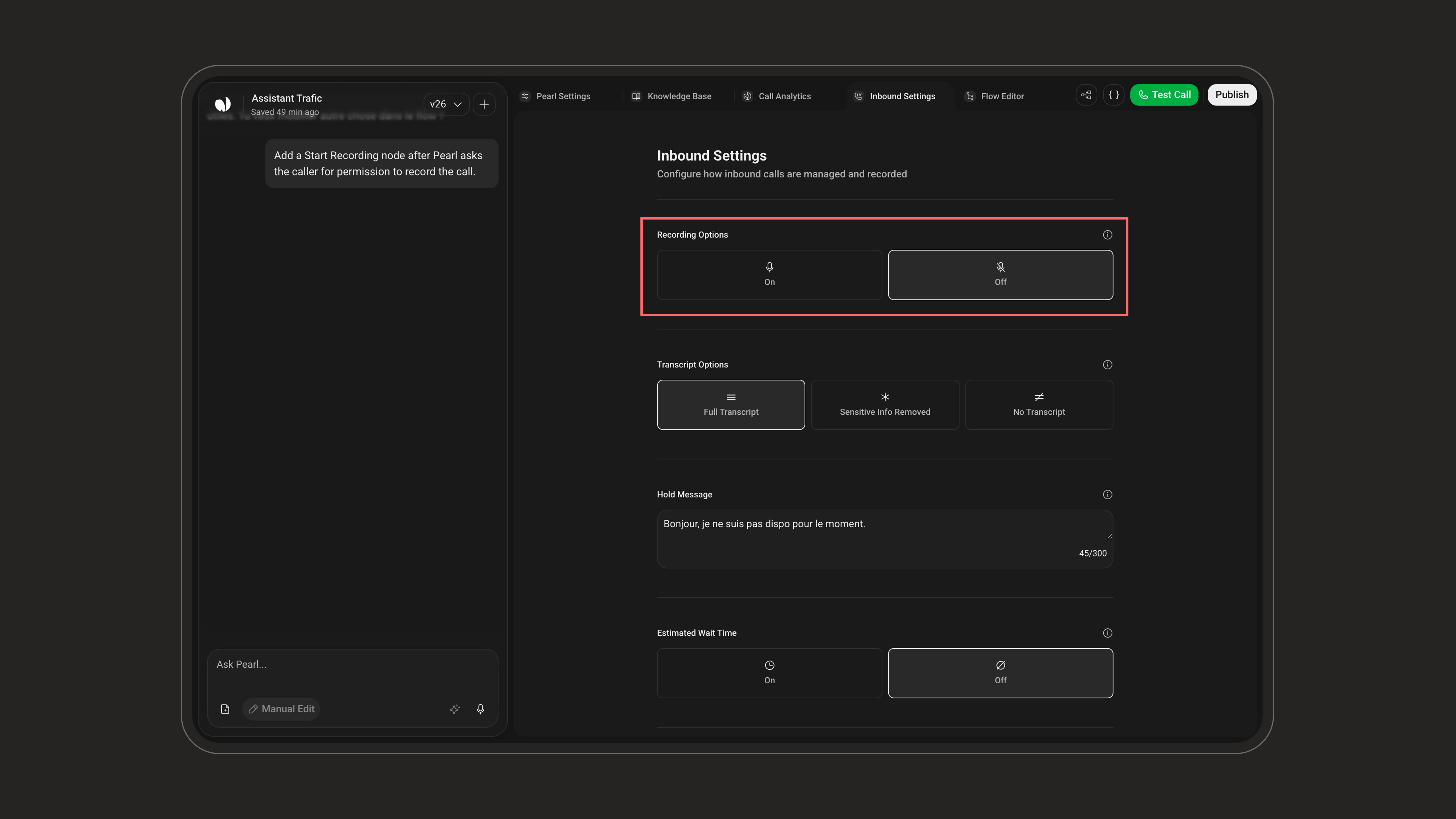
2
Ask for consent (optional)
Add a Dialogue node before Start Recording to explain the recording policy and collect the caller’s answer. Start Recording does not ask for permission by itself.
3
Route the consent path
Use a conditional transition to send callers who agree to the Start Recording node.
4
Place the node
Put Start Recording exactly where recording should begin. It has no configuration fields, it is an action marker inside the flow.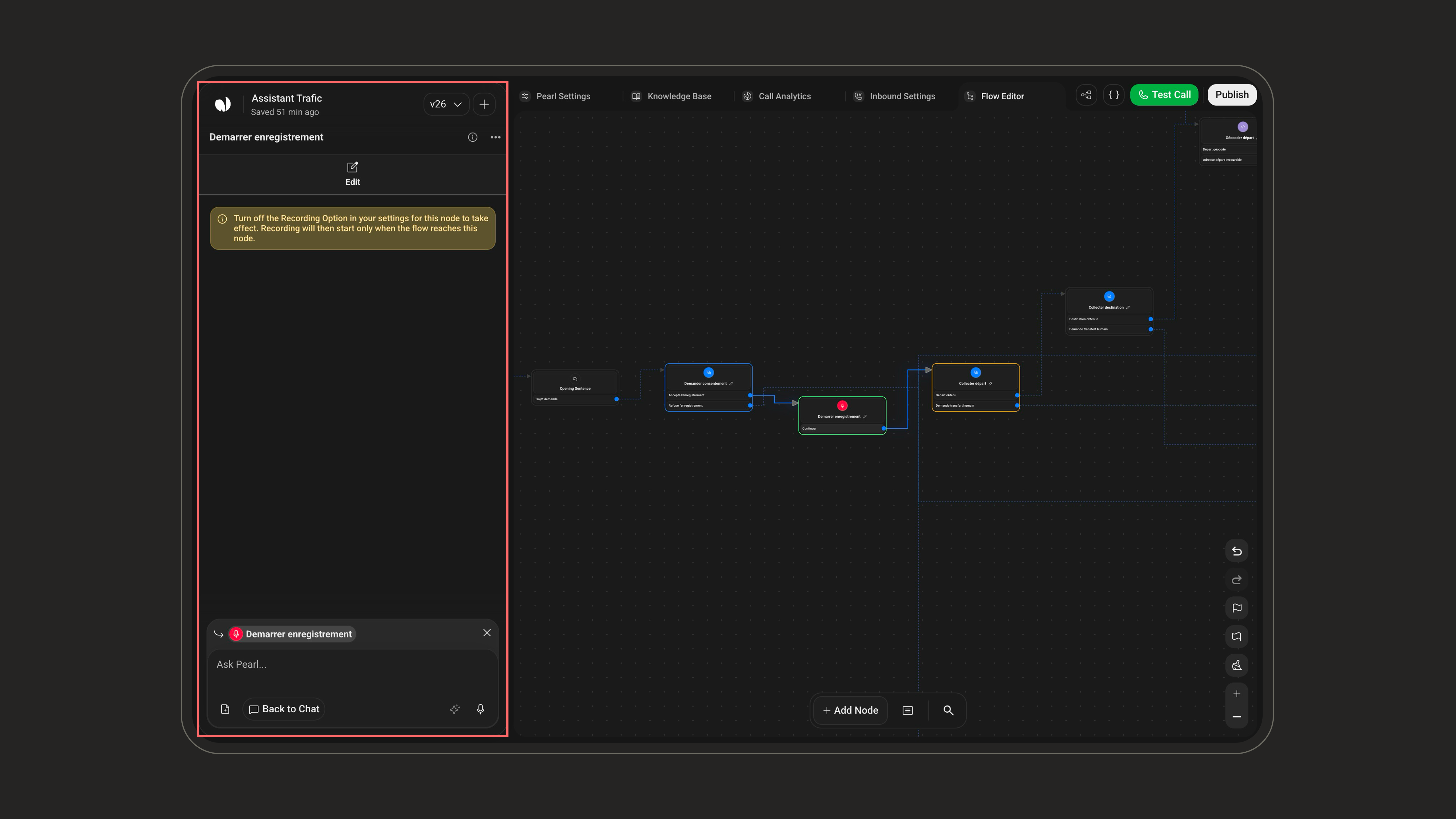
Recordings are always active during test calls, regardless of this node or your campaign recording settings.