


Overview
What is PearlVibe?
PearlVibe is an AI‑assisted flow editor for building your agents - both voice (phone) and text agents. You build your Pearl as a decision tree made of nodes (dialogue, actions, integrations…) and transitions (what happens next depending on user intent, answers, or conversation outcome).You can work in two complementary ways:
What can you build with PearlVibe?
With PearlVibe, you can design both voice (phone) and text (chat) flows:Each of these works the same way whether your Pearl is voice or text — you build the flow once, and the editor adapts labels and available nodes to your Pearl’s channel.
Key benefits
- Build in minutes instead of days – Describe what you want in the chat, let Pearl build it for you in Build mode, then refine visually.
- Safe versioning – Work in a separate version with autosave while your Published version keeps running in production.
- Visual understanding of calls – Use test calls and live node highlighting to see exactly how calls traverse your flow.
- Structured but flexible – Combine high‑level “vibes” (global instructions, personality) with precise node and transition logic.
Header
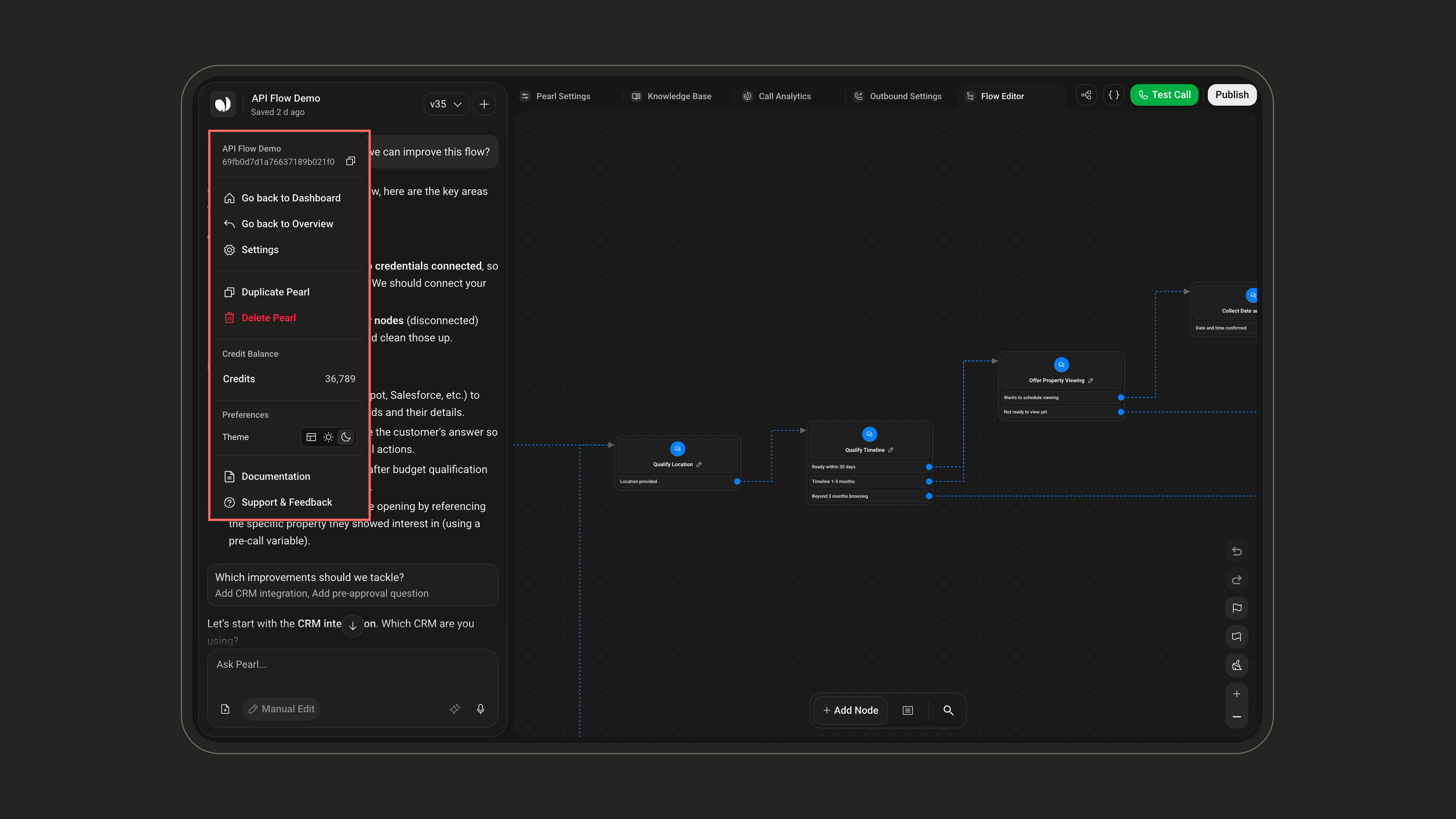
The header is always visible at the top of the editor. From left to right, it holds the Pearl icon (menu) and the editable Pearl title with its autosave indicator, the version selector, the top navigation tabs, and — on the right — the credentials & variables ({ }) button, Test Call, and Publish. Each of these is detailed below.
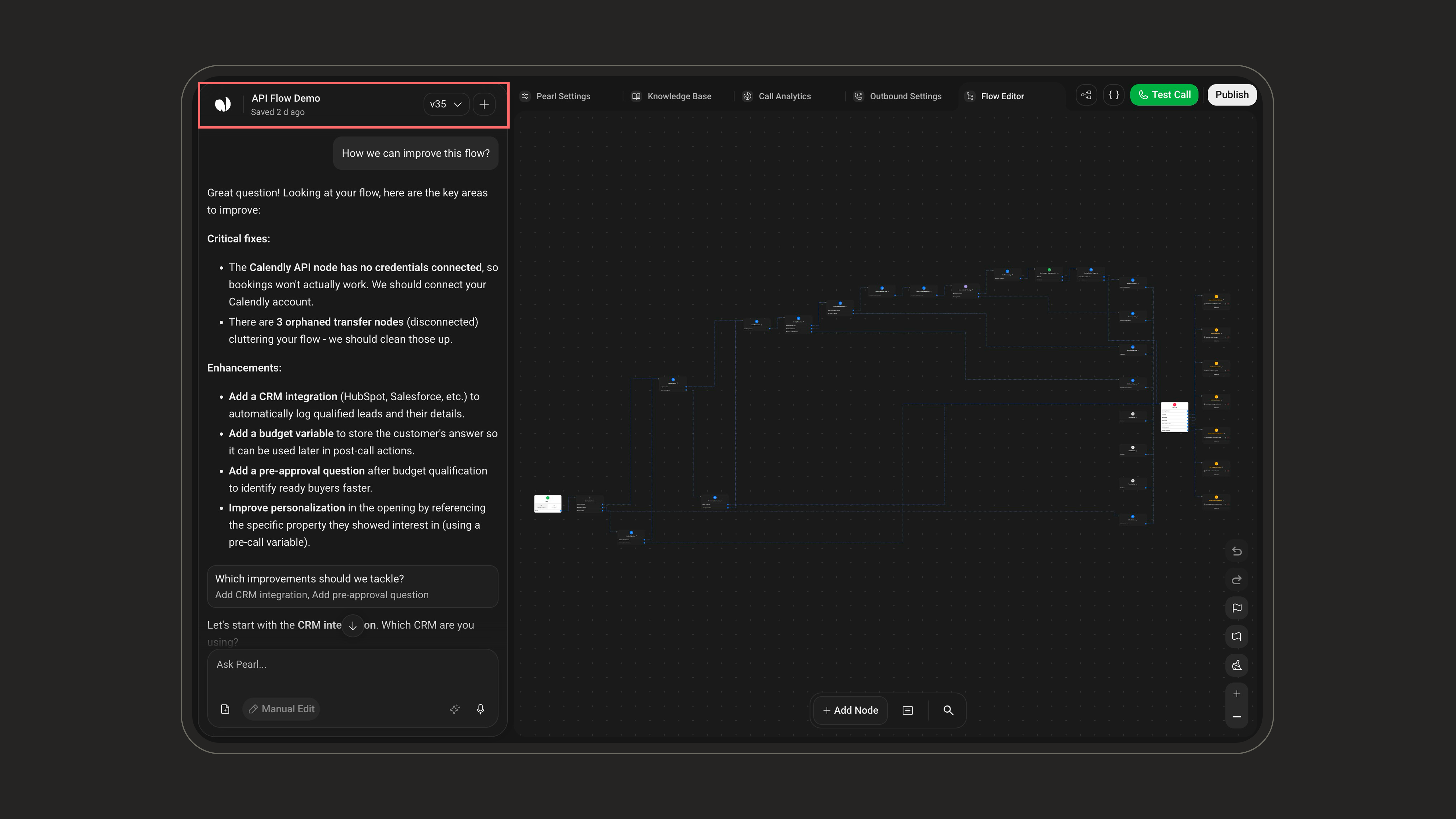
The top-left corner shows the Pearl’s title as an inline, editable field (it reads Untitled Pearl by default). Click it to rename your Pearl — this is the label you’ll reuse across the platform and in your workspace. Just below, an autosave indicator shows the save status (for example Saved 2 min ago).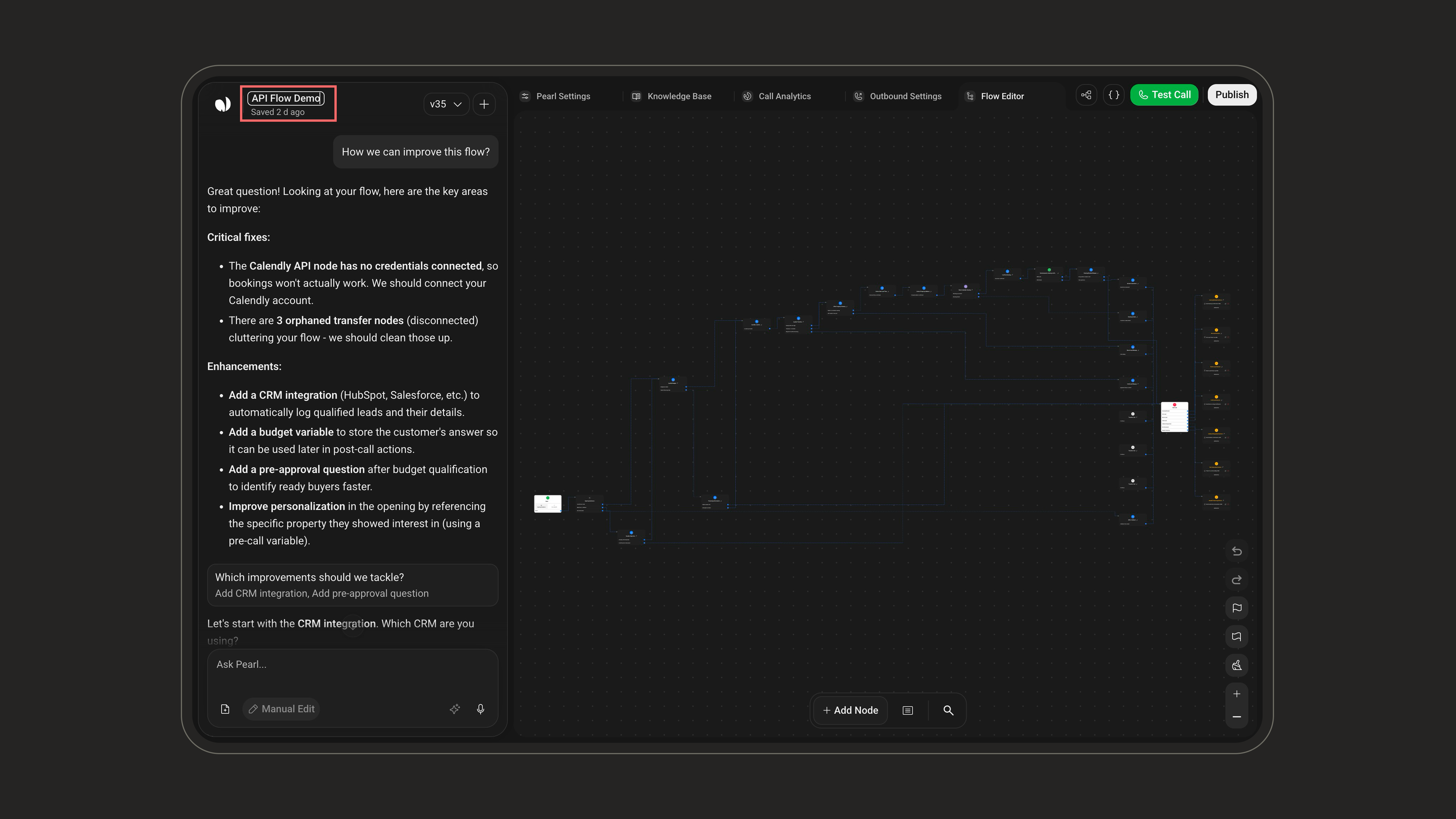
Versioning & Publishing
Versioning & Publishing
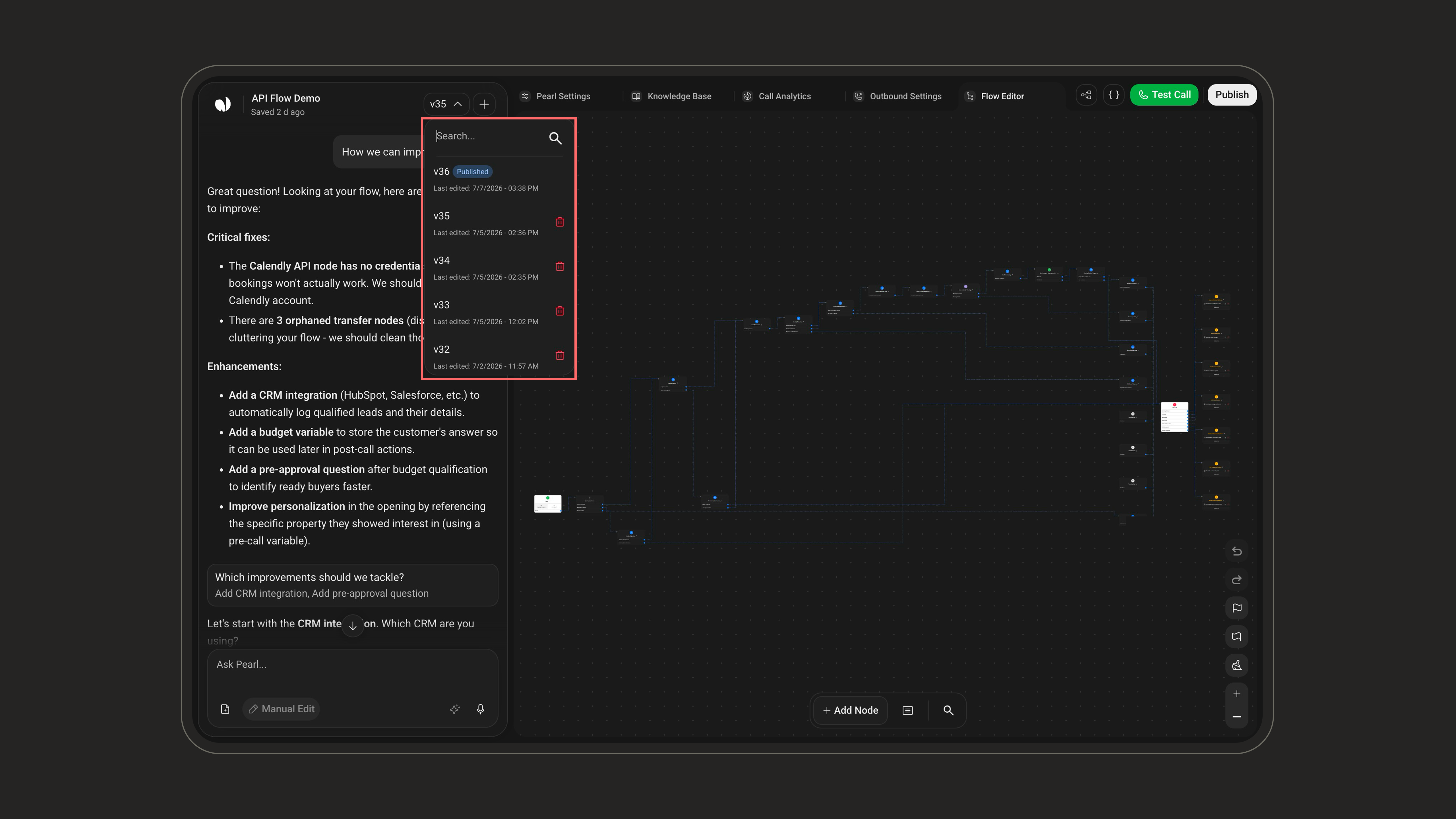
Pearl Vibe is built for safe iteration: you can experiment freely without breaking your live calls. Your work is organized into versions (v1, v2, v3…), and the one currently handling calls carries a Published badge.AutosaveEvery change you make is saved automatically. The header shows an Auto Save indicator that turns into Saved N min ago once your edits are stored, so you never lose work and can come back later.
Versions & historyThe version selector next to the title shows the version you’re editing (for example v35).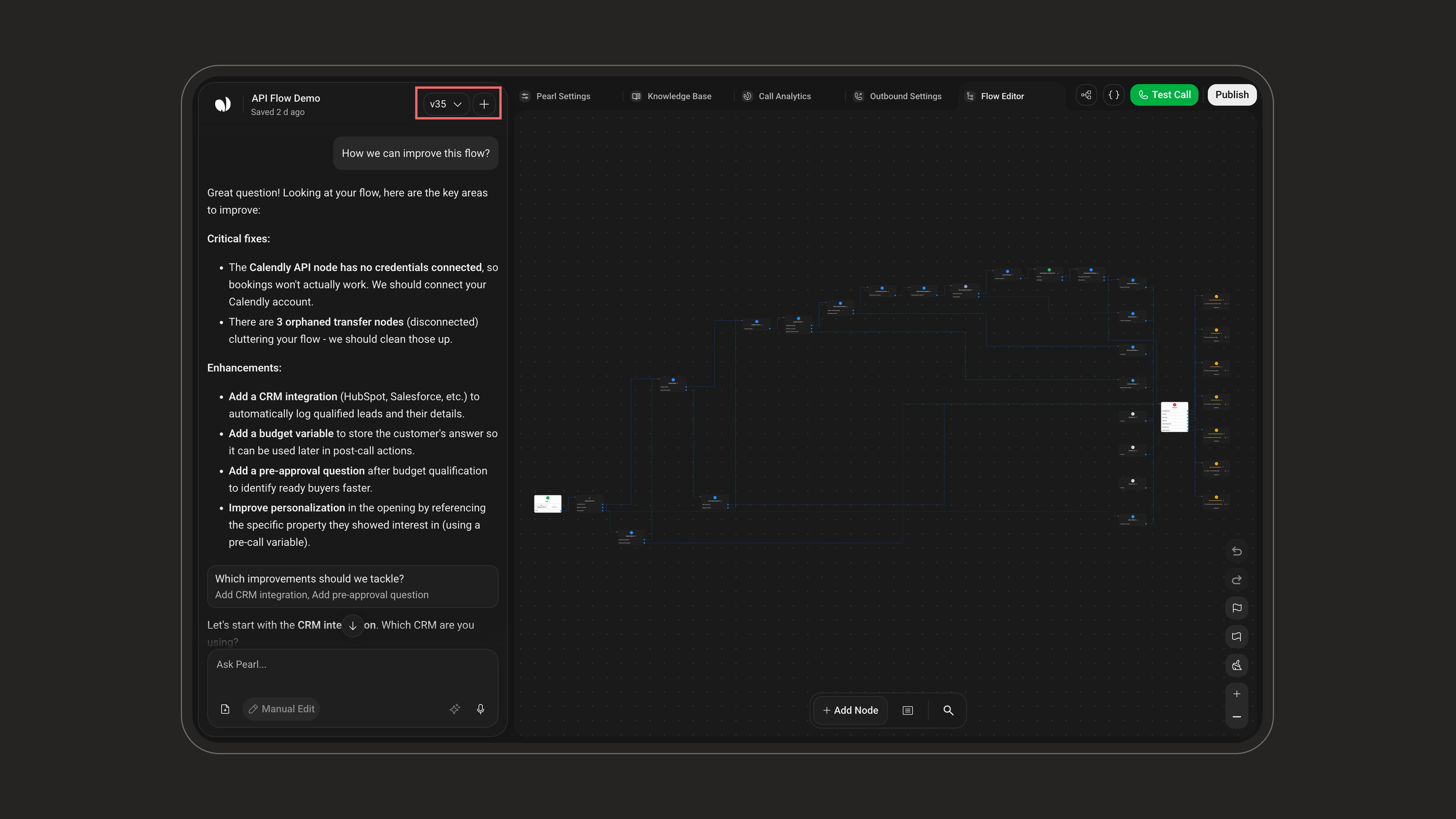
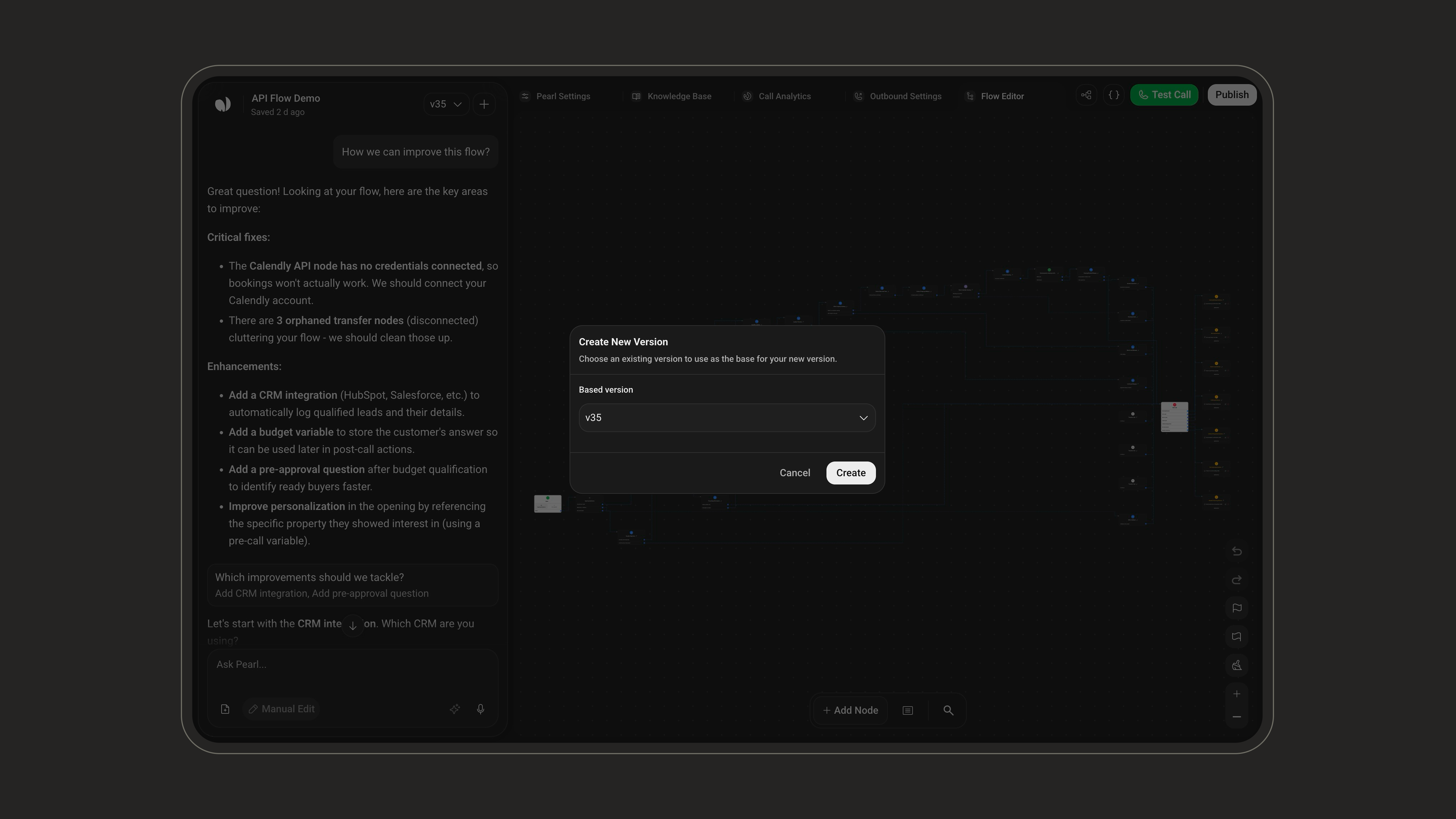
Creating a new versionUse the + button next to the version selector to create a new version.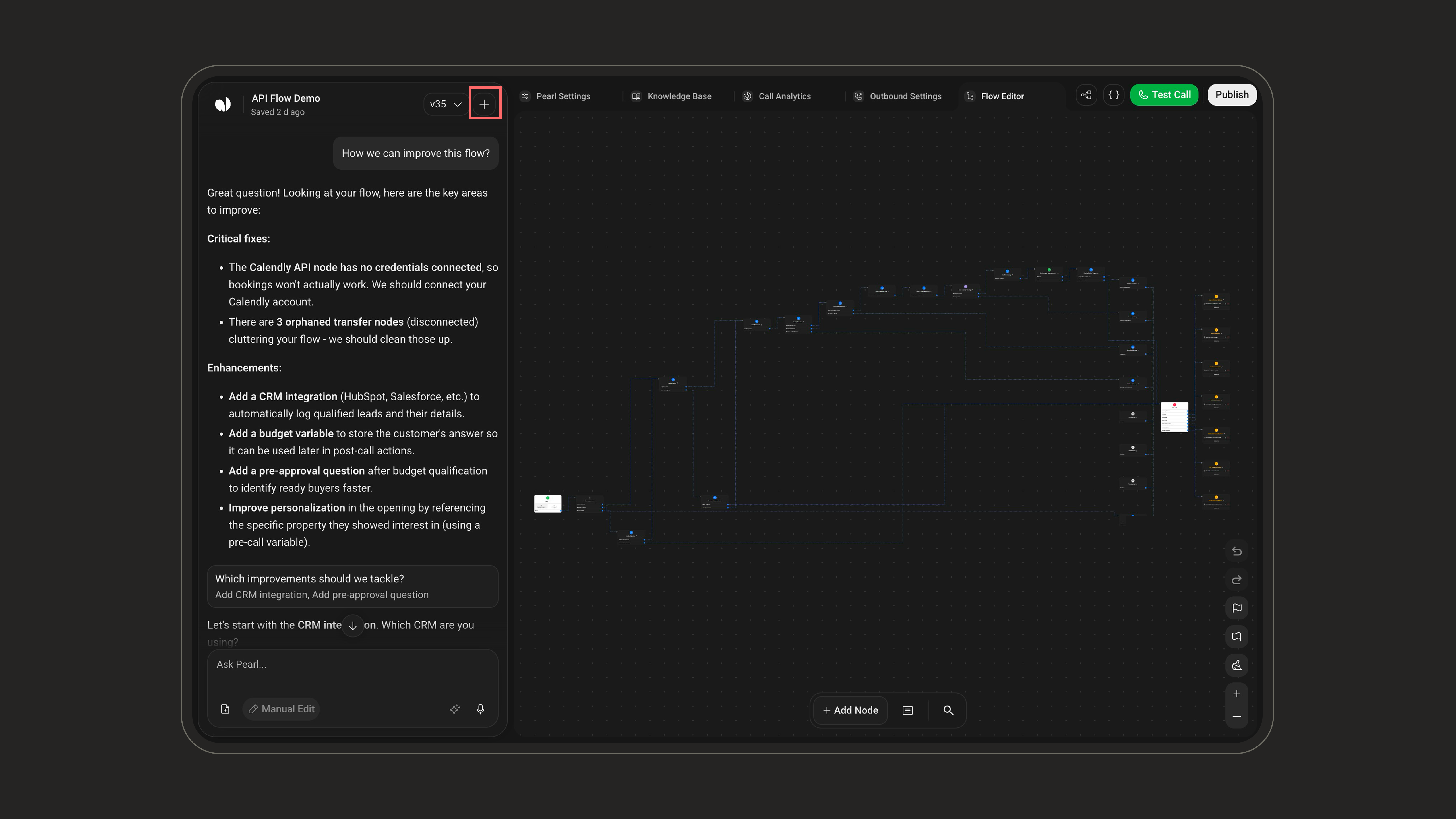
PublishingWhen you’re satisfied with your changes and tests, click Publish (top-right of the header). The current version becomes the new Published version and starts handling calls.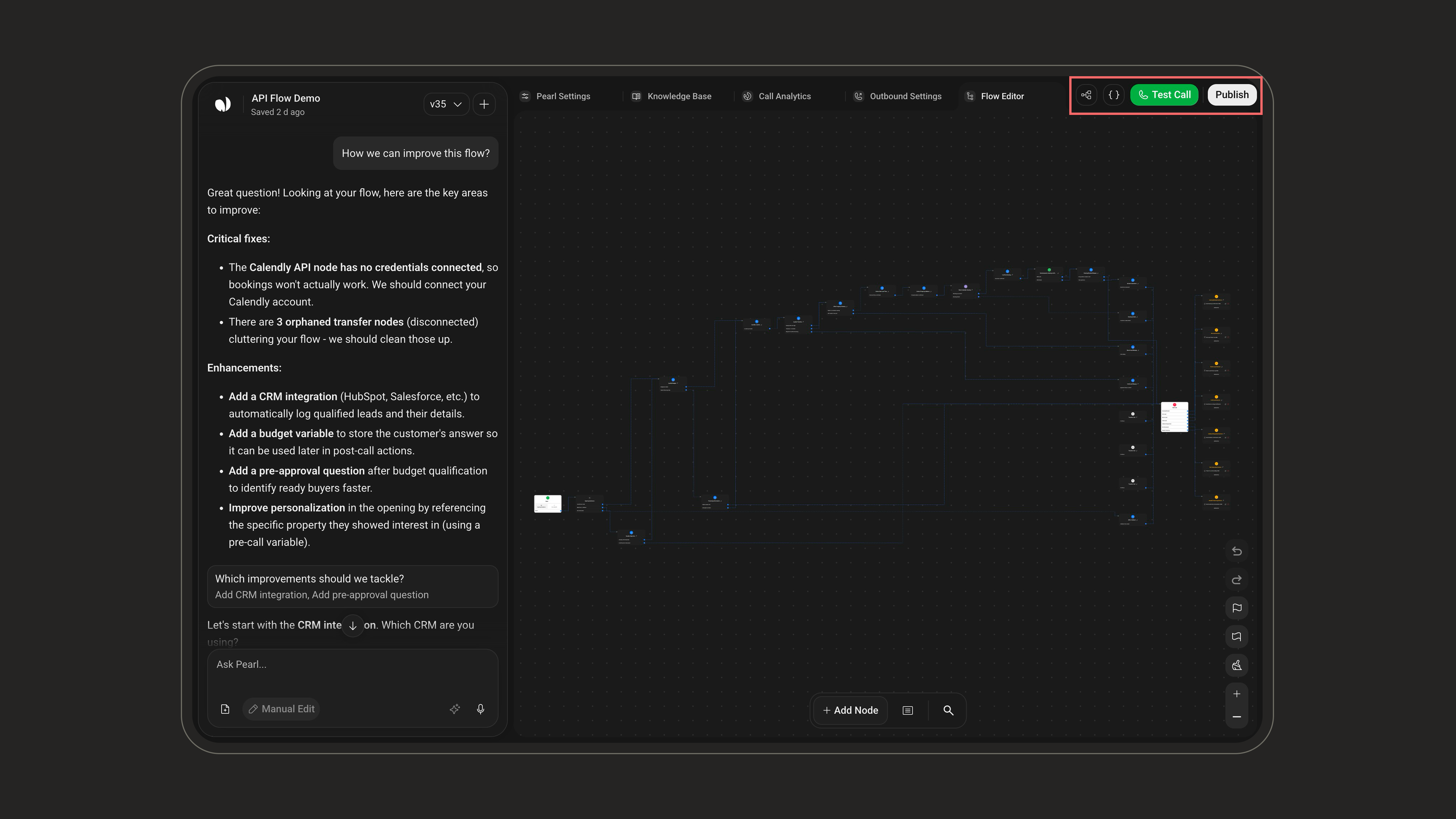
Versions & historyThe version selector next to the title shows the version you’re editing (for example v35).
Creating a new versionUse the + button next to the version selector to create a new version.
PublishingWhen you’re satisfied with your changes and tests, click Publish (top-right of the header). The current version becomes the new Published version and starts handling calls.
If your flow still has unresolved issues, the Publish button is replaced by an Errors & Tasks (N) button until you fix or dismiss them (see the Tasks & Errors section below).
Credentials & Variables Managers
Credentials & Variables Managers
Credentials and variables are what connect your Pearl to the rest of your stack. Both are opened from the 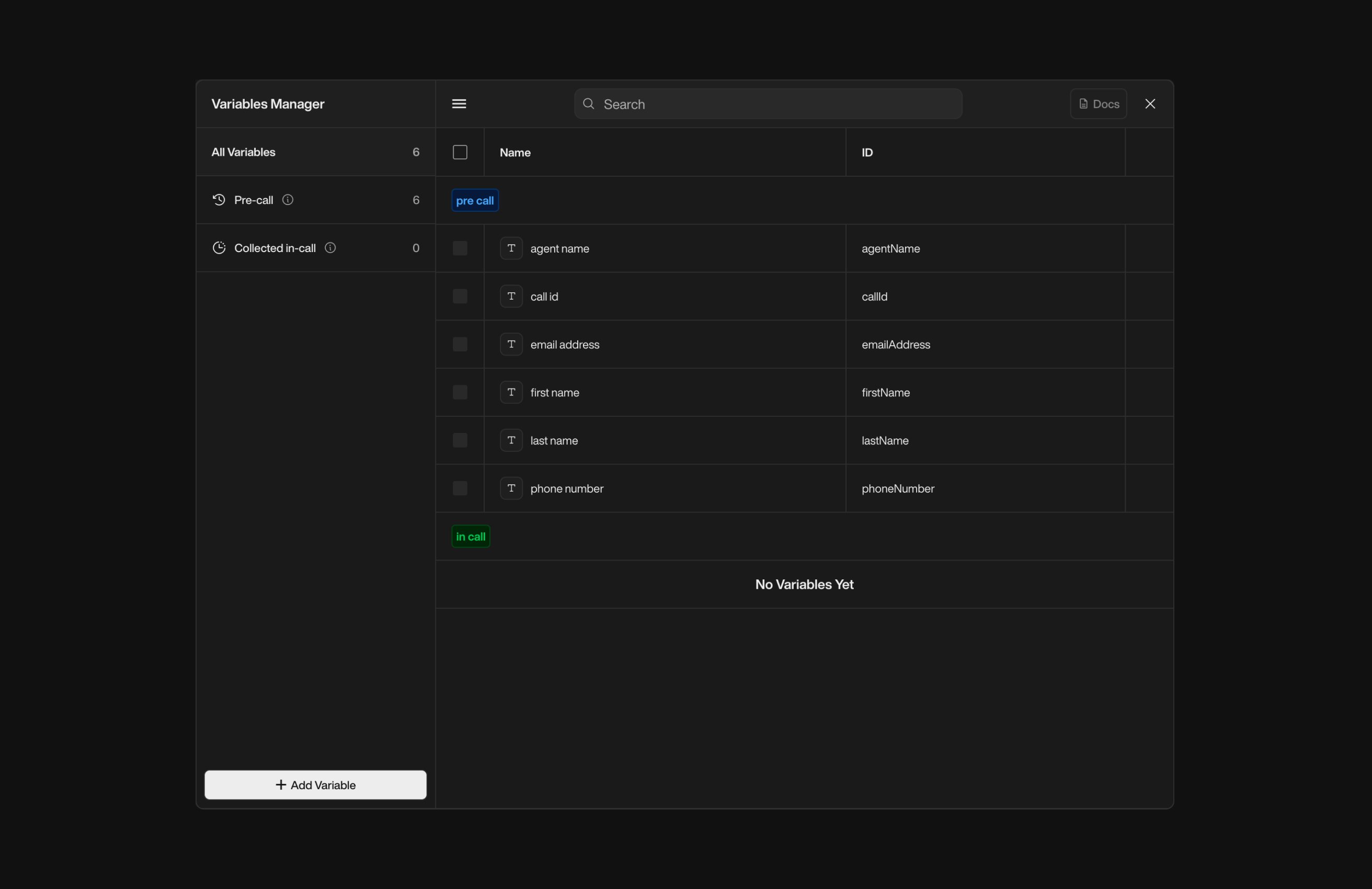
Credentials ManagerThe Credentials Manager is where your integrations live: you connect external systems by adding credentials and configuration for each one. Once a credential is added, the matching integration becomes available as a node in your flow.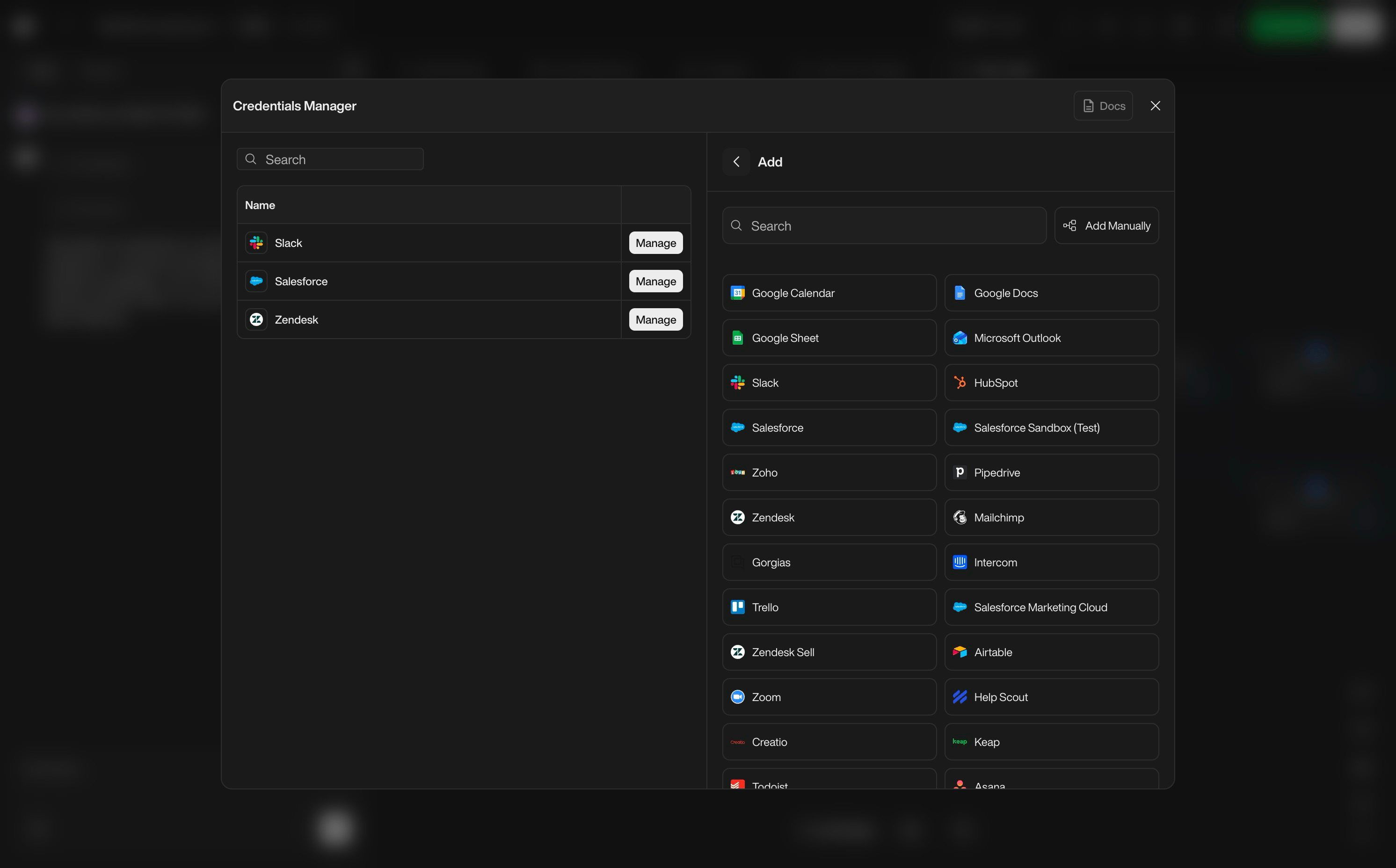
{ } button in the top-right of the header.Variables ManagerThe Variables Manager lets you create, edit, and organize the variables used in your conversation flows.See the Variables documentation for more details.
Credentials ManagerThe Credentials Manager is where your integrations live: you connect external systems by adding credentials and configuration for each one. Once a credential is added, the matching integration becomes available as a node in your flow.
- Add new integrations (e.g. Salesforce, HubSpot, ticketing tools, booking engines).
- Configure authentication.
Tasks & Errors
Tasks & Errors
As your flows grow, PearlVibe helps you keep them valid, connected, and fully configured.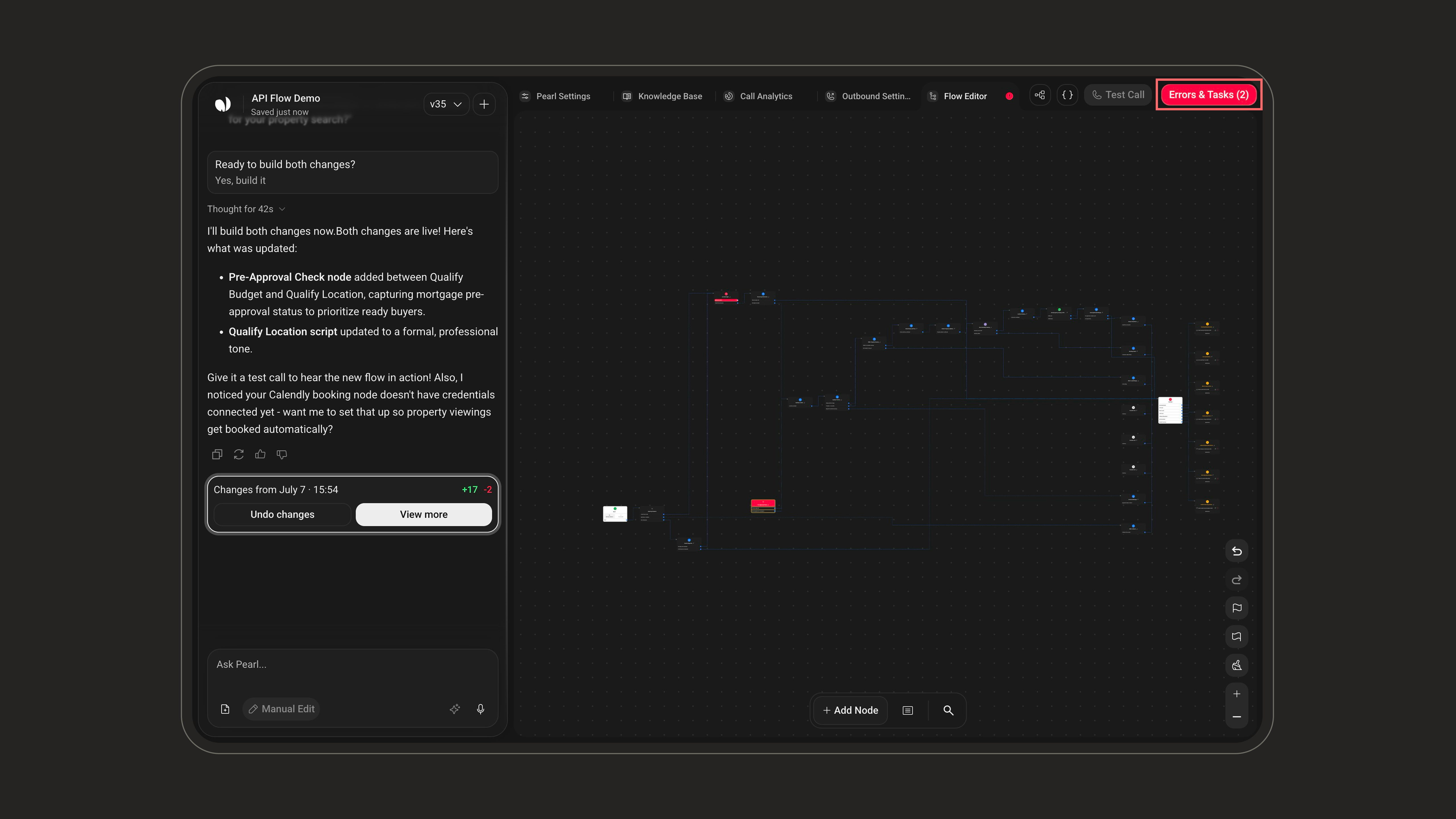
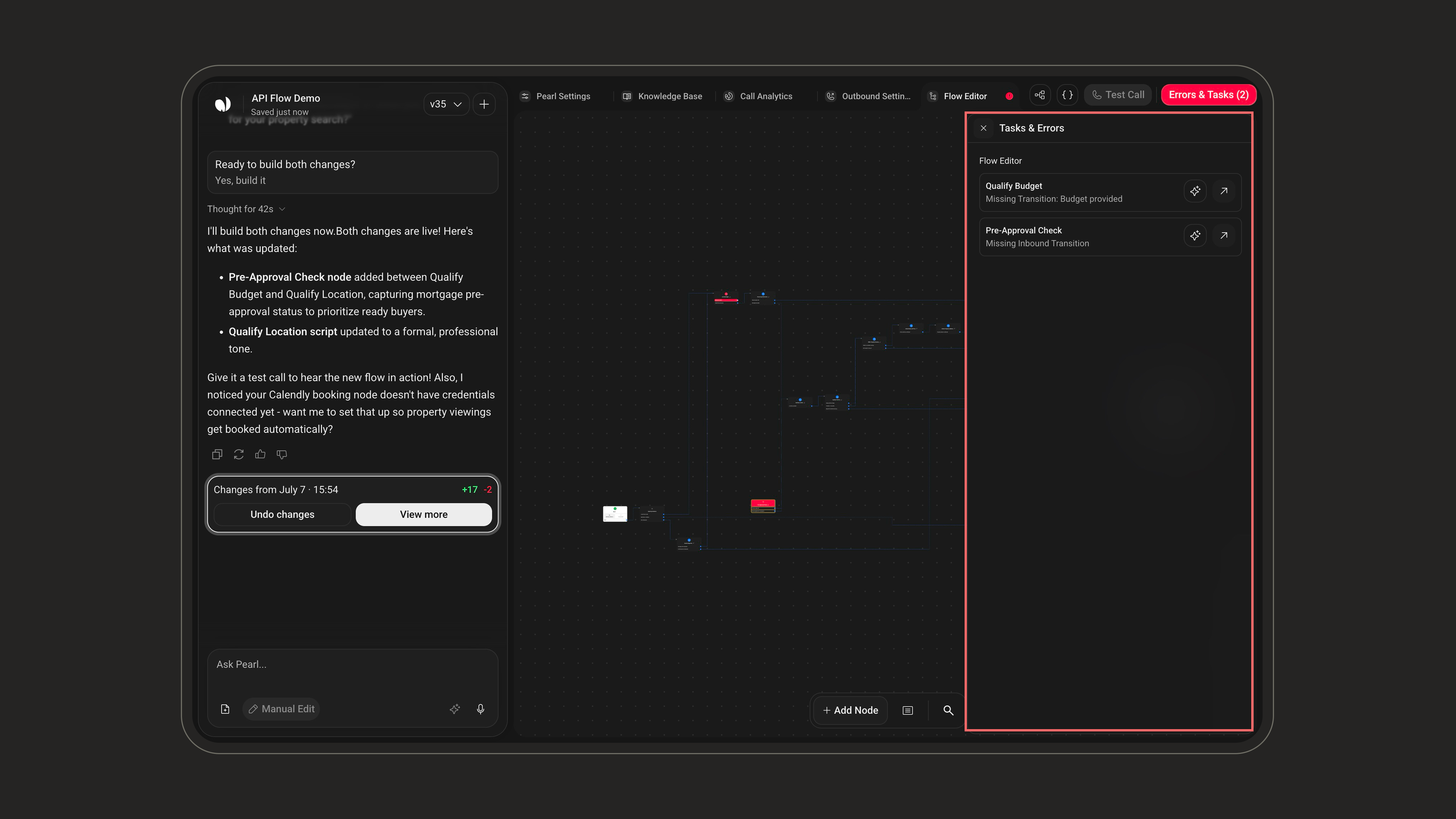
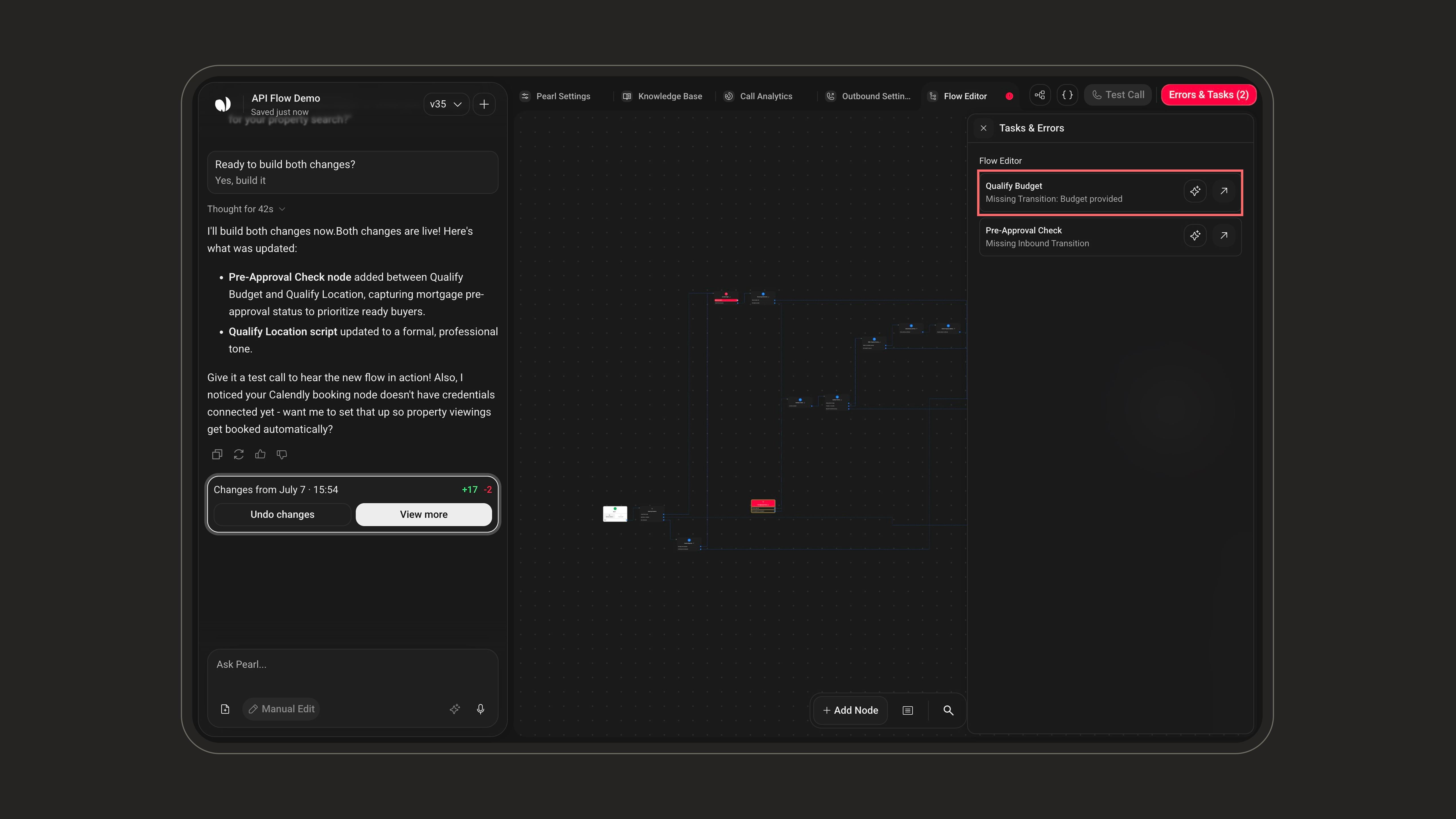
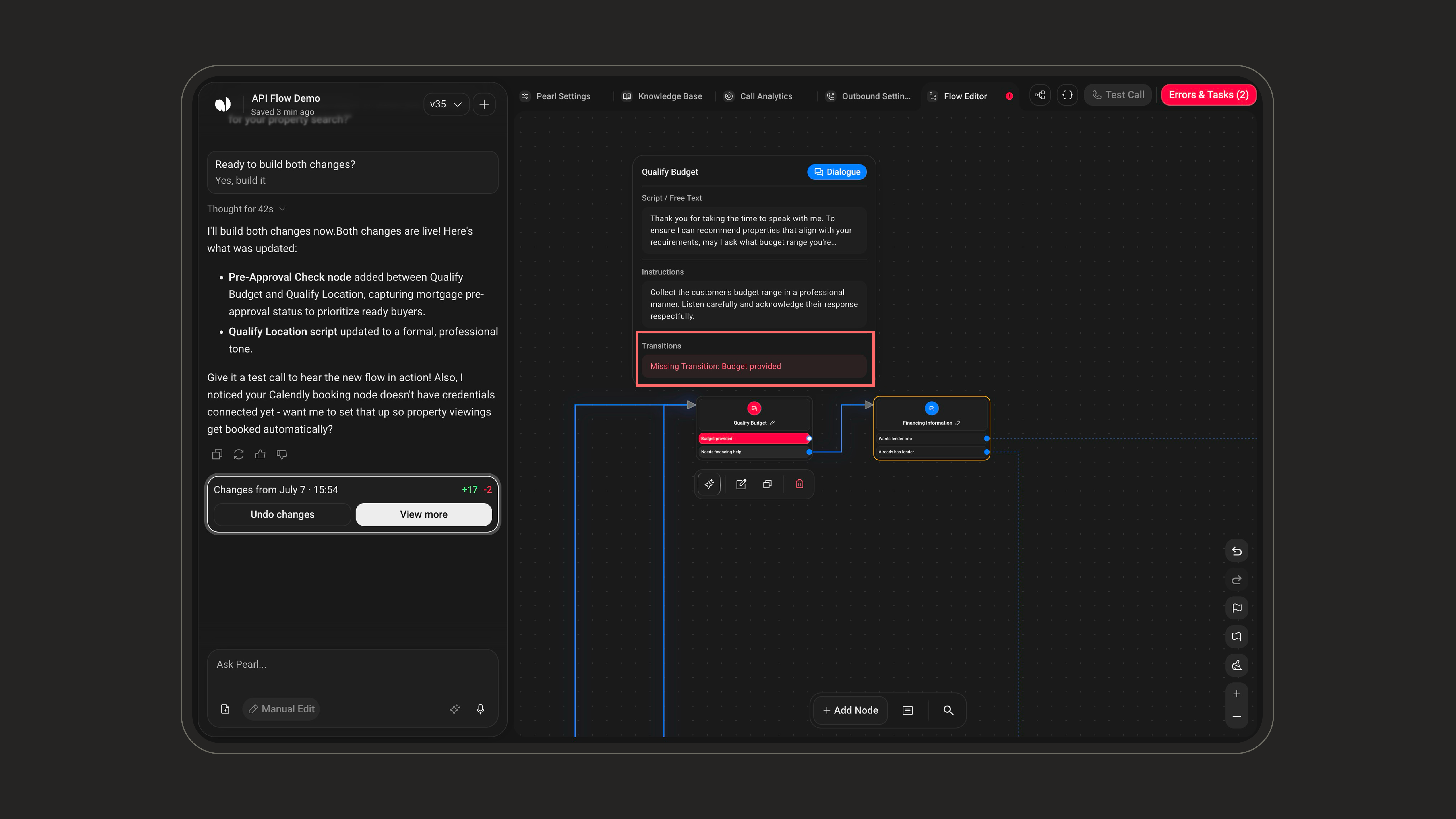
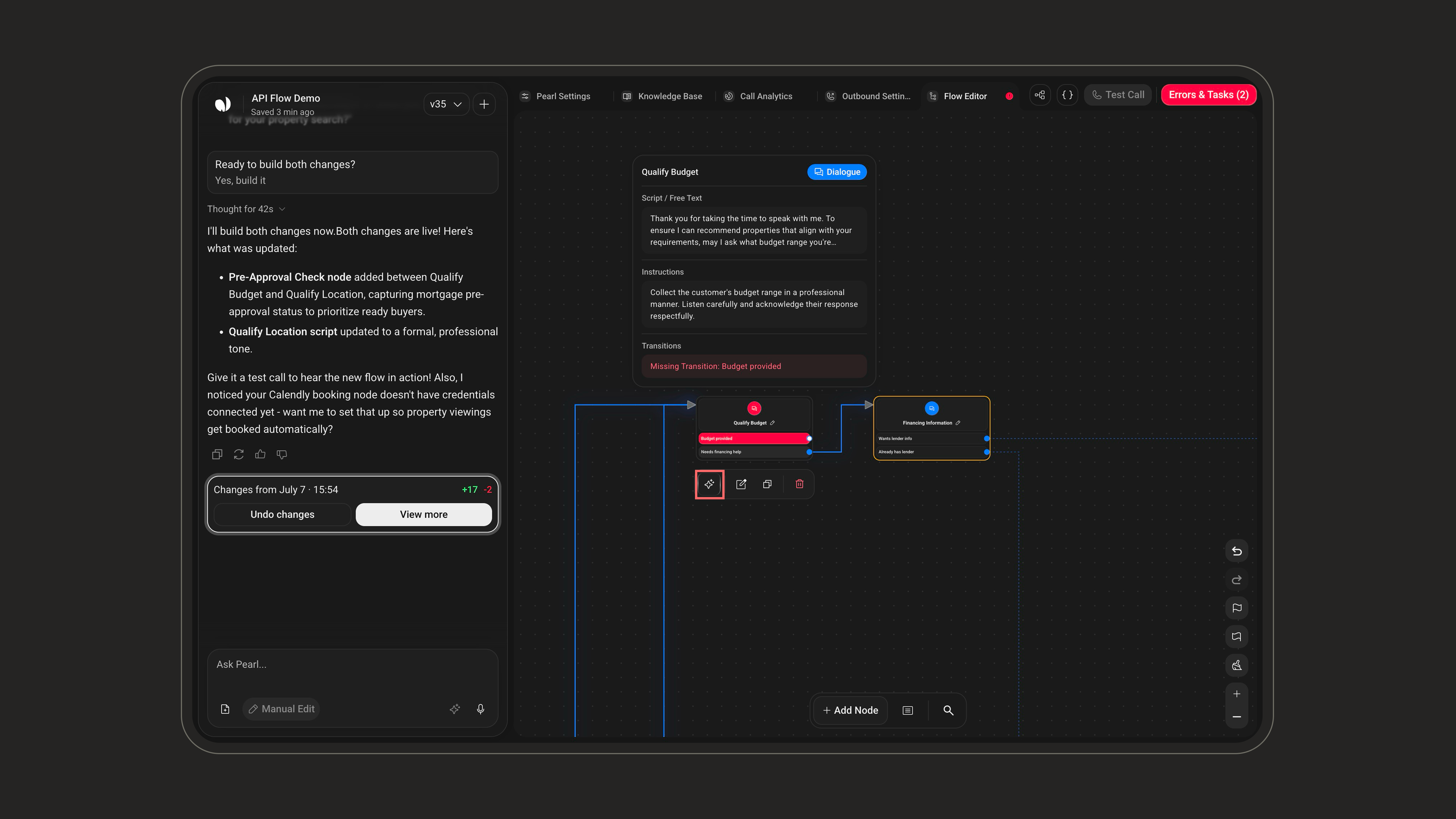
- Fix With Pearl — sends the fix to the chat. In Build, the agent proposes the corrected configuration and applies it once you confirm; in Ask, it describes the fix instead.
- Open in editor — jump directly to the affected node in the Flow Editor.
Test Calls & Debugging
Test Calls & Debugging
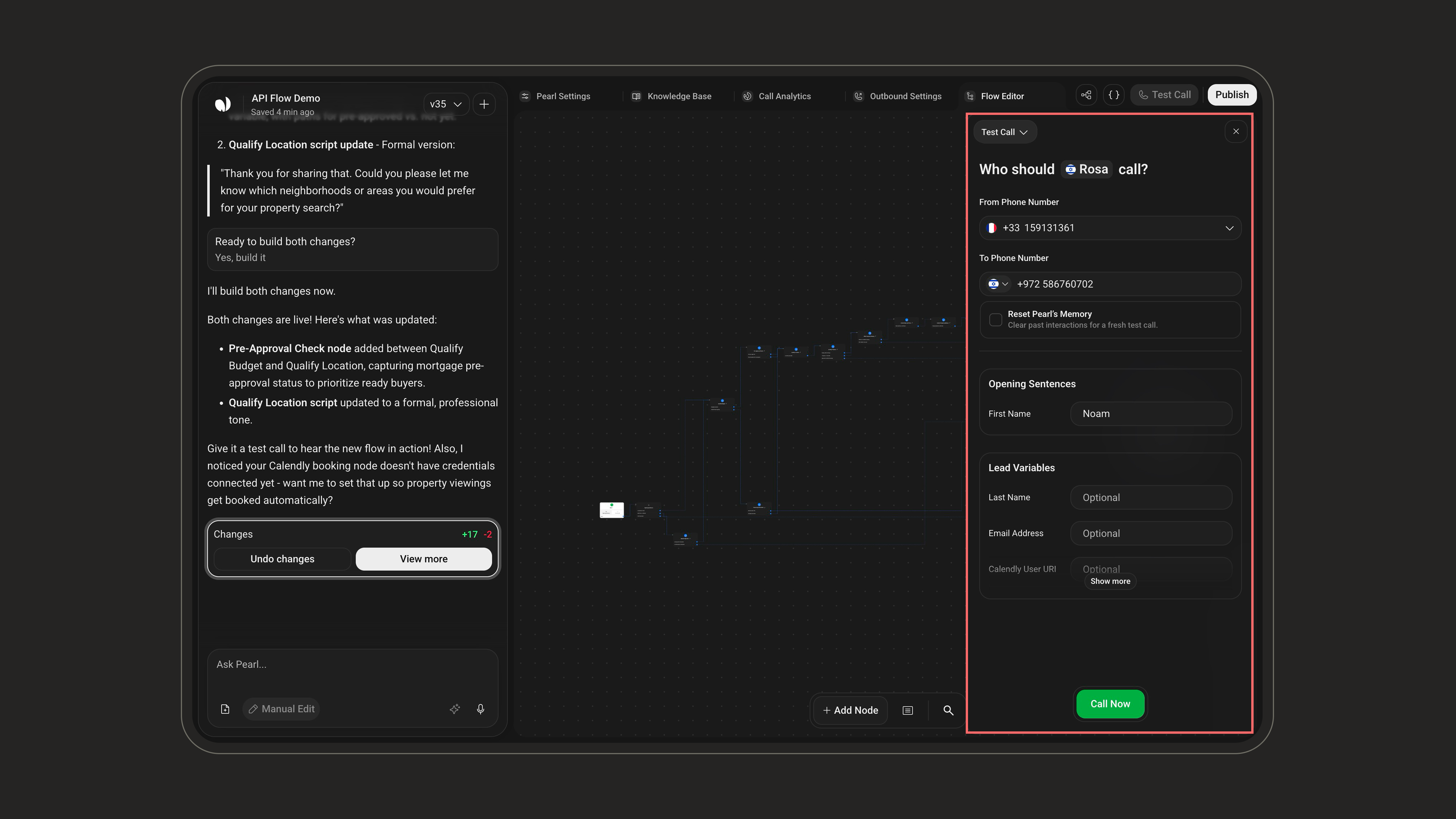
Test calls are the safest way to validate your Pearl before and after publishing.Launching a Test CallOpen the Test Call menu in the header. From here you switch between the two views: Test Call (test your agent by phone) and Past Calls (view your call history and details).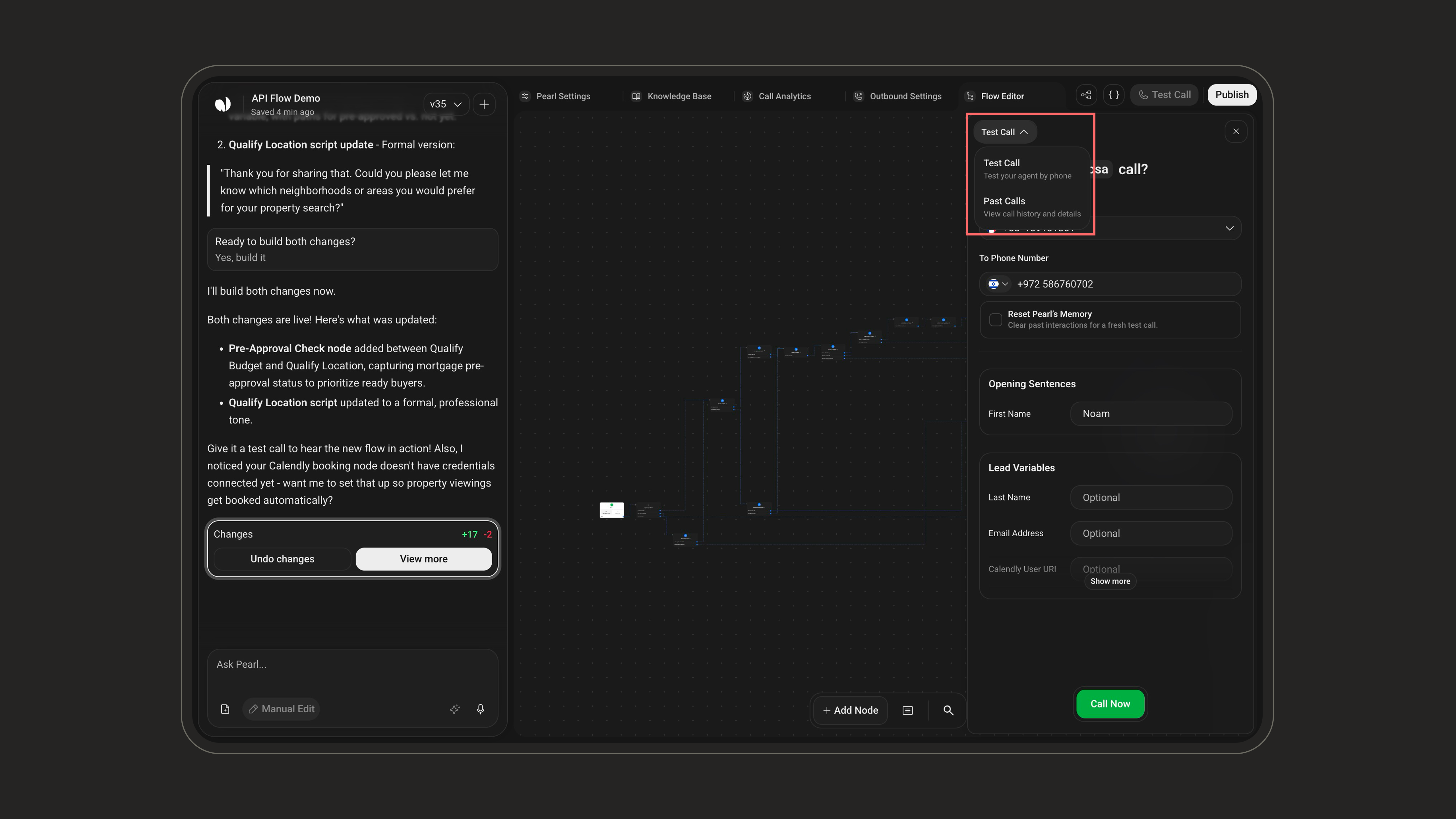
Live Node TracingDuring the test call, a Ringing… / Stop Following pill appears and the nodes in the canvas light up one after another as the conversation progresses, so you can visually follow the path the call is taking through your flow.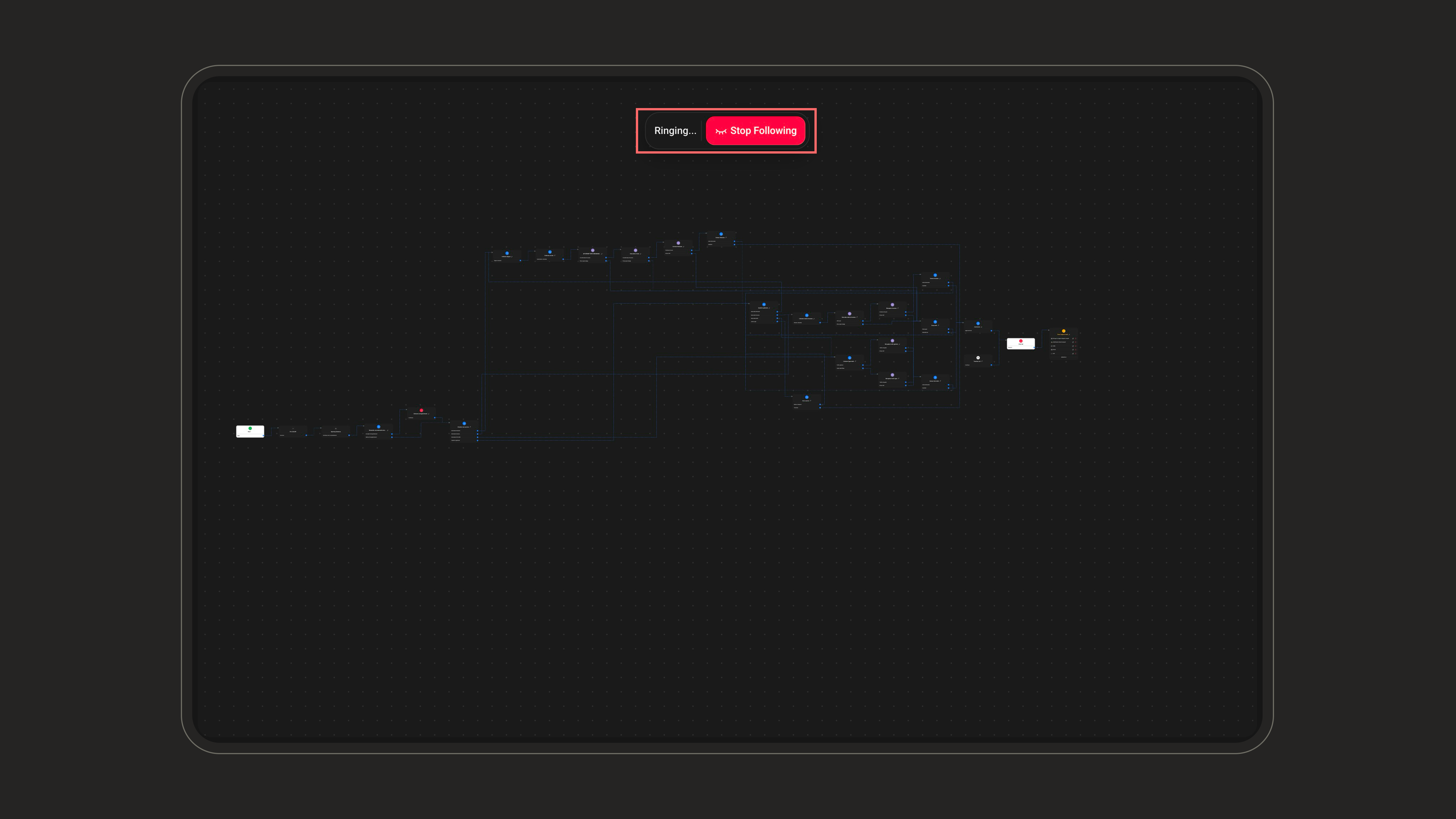
Past CallsThe Past Calls view lists your previous test calls grouped by date. Open any entry to inspect its details and verify that your flow — including post-call automation — behaved as expected.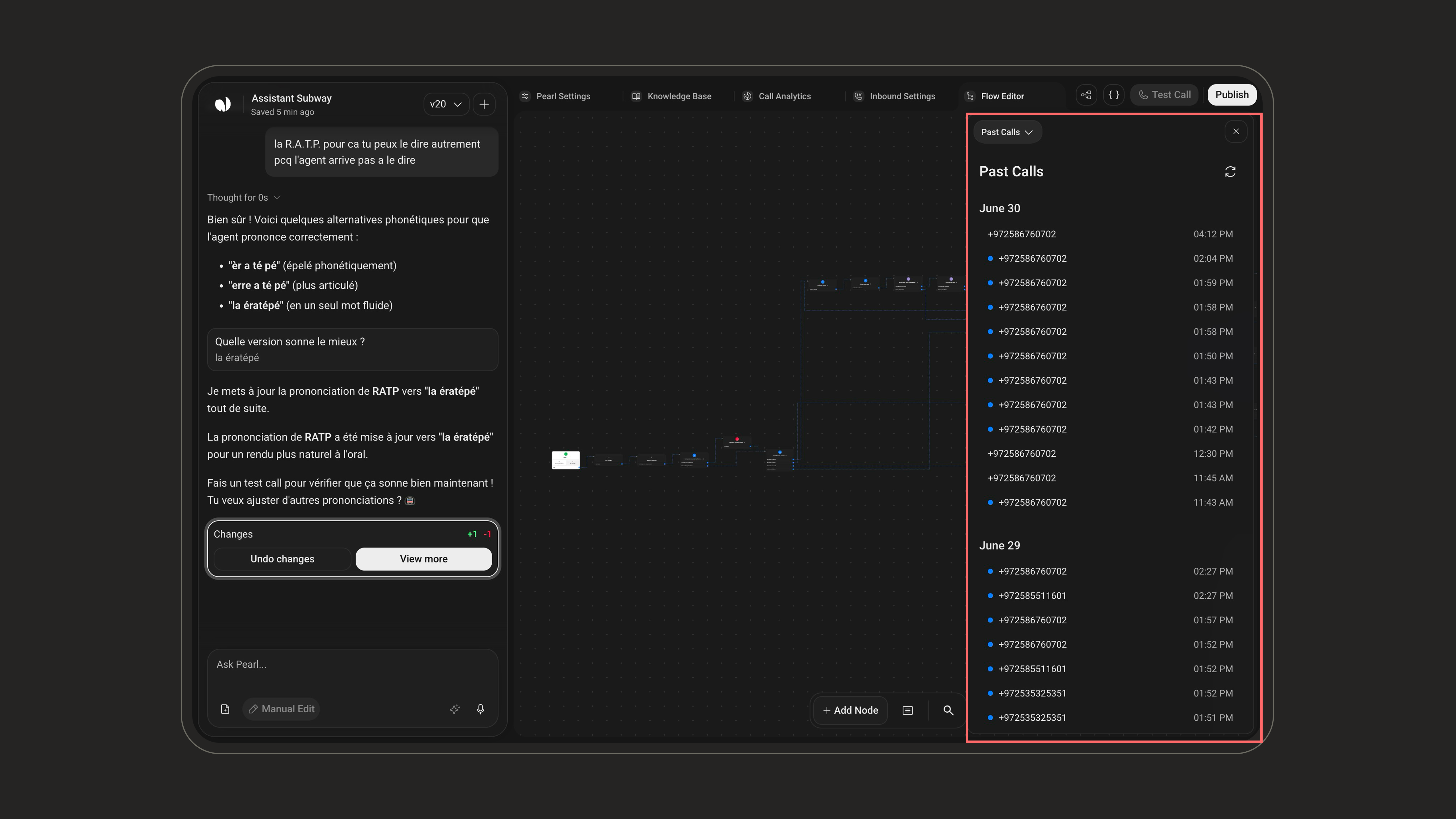
On text Pearls, these controls read Test Chat and Past Chats instead of Test Call and Past Calls.
Live Node TracingDuring the test call, a Ringing… / Stop Following pill appears and the nodes in the canvas light up one after another as the conversation progresses, so you can visually follow the path the call is taking through your flow.
Past CallsThe Past Calls view lists your previous test calls grouped by date. Open any entry to inspect its details and verify that your flow — including post-call automation — behaved as expected.
To learn more about post-call actions, see the Post-Call documentation — or, for text Pearls, the Post-Chat documentation.
Chat Sidebar
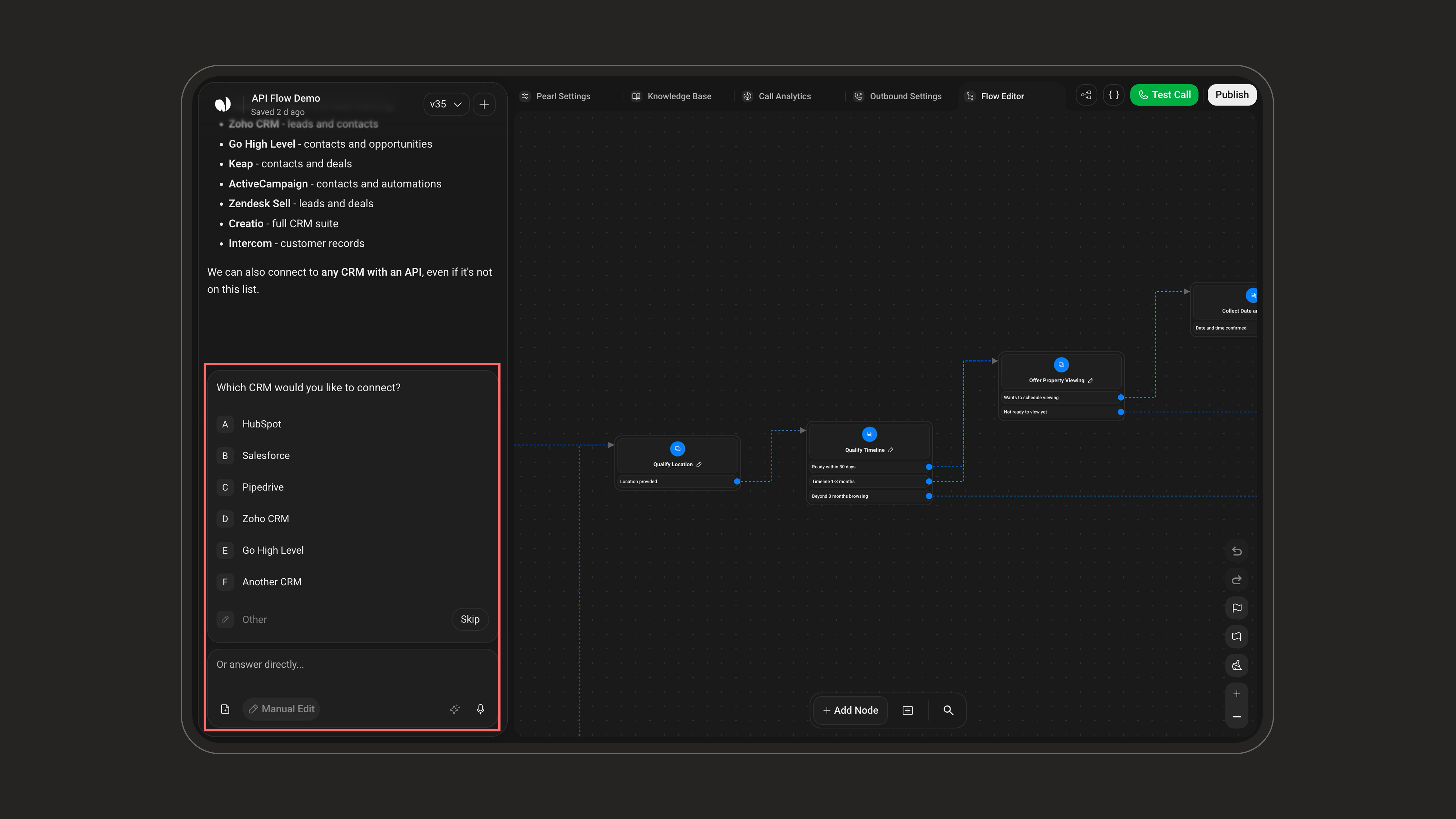
The chat sidebar is where you work on your Pearl — by talking to PearlVibe in natural language, either to ask it about your flow and your calls or to have it create and edit the flow for you, or by switching to Manual Edit to configure things by hand.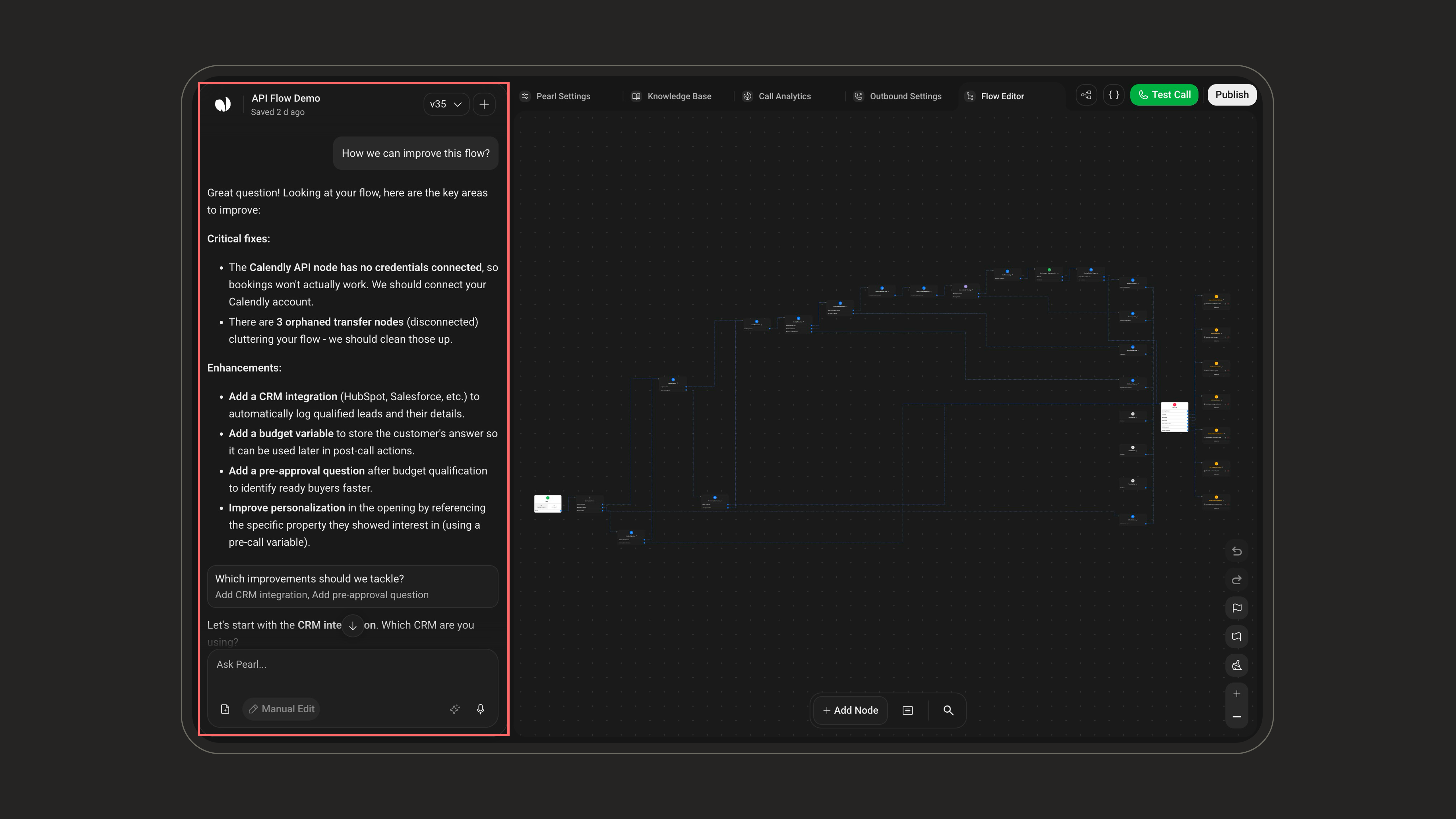
The Chat view is covered in two parts below: building your flow, and using the chat to investigate it.
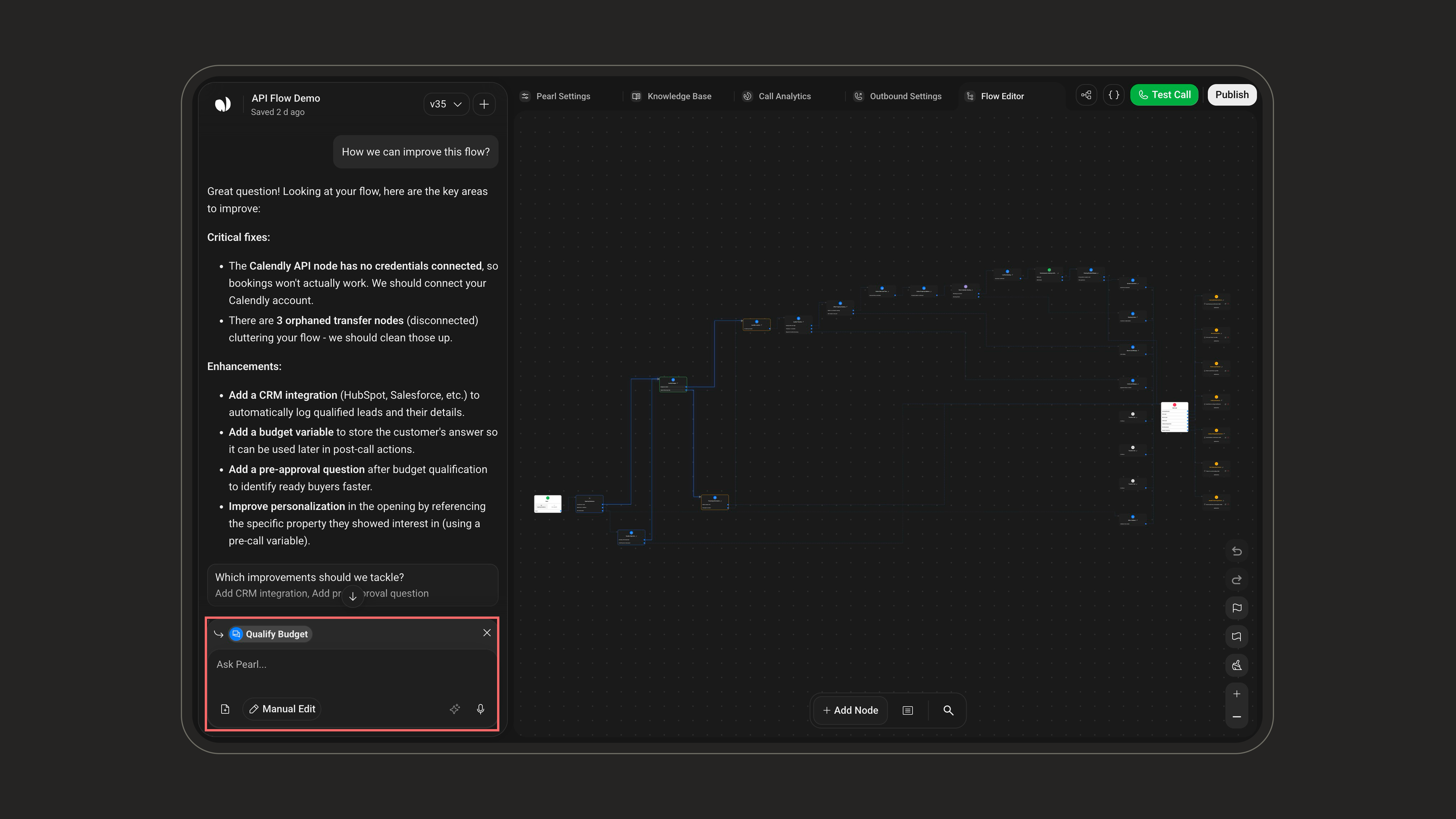
When a node is selected, everything you ask for in this sidebar is interpreted in the context of that node — unless it is explicitly global (like General Instructions), or you are asking about the flow as a whole, a past call, or the Published version (see Investigating your flow and your calls below).
Chat
Chat
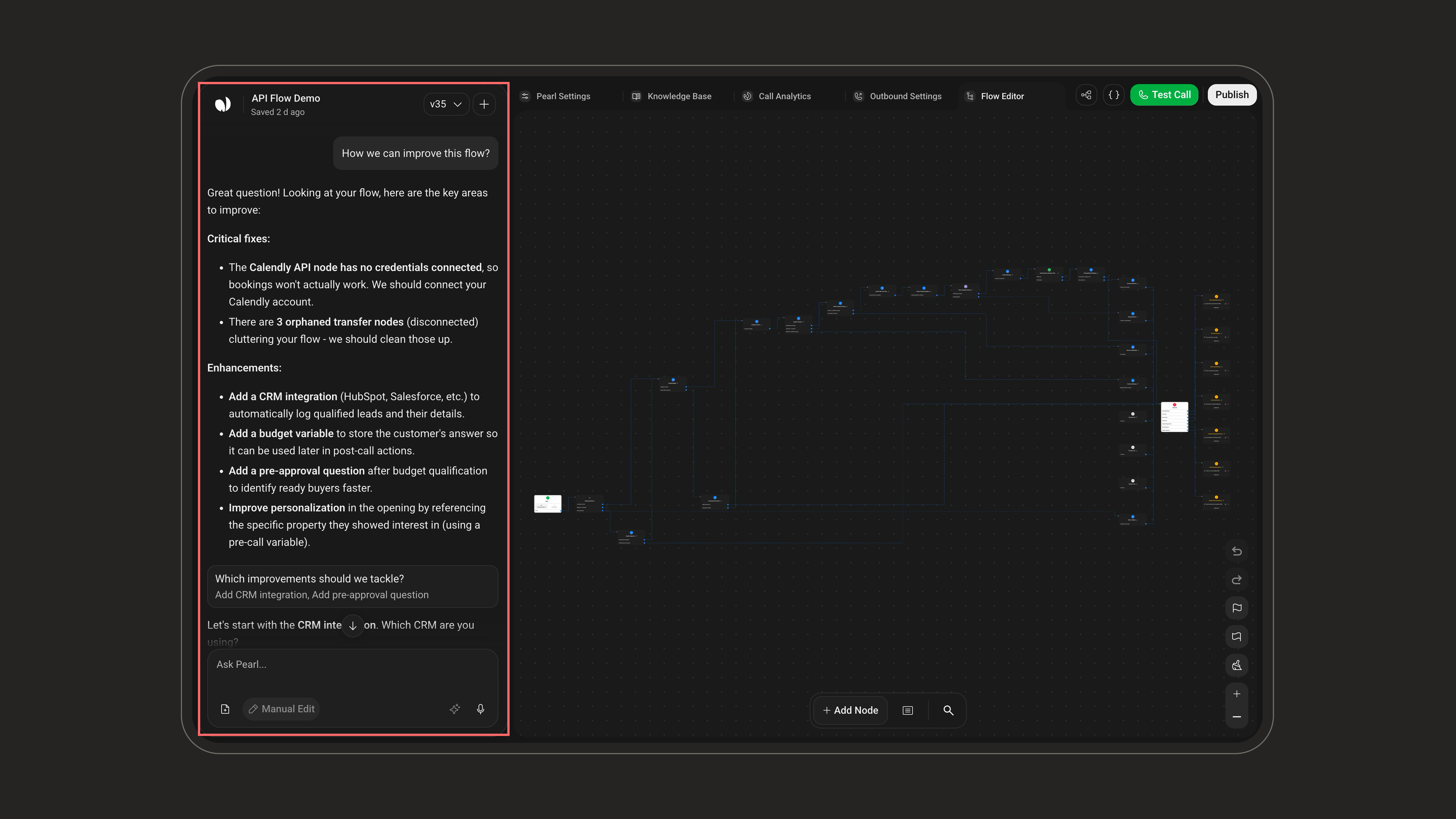
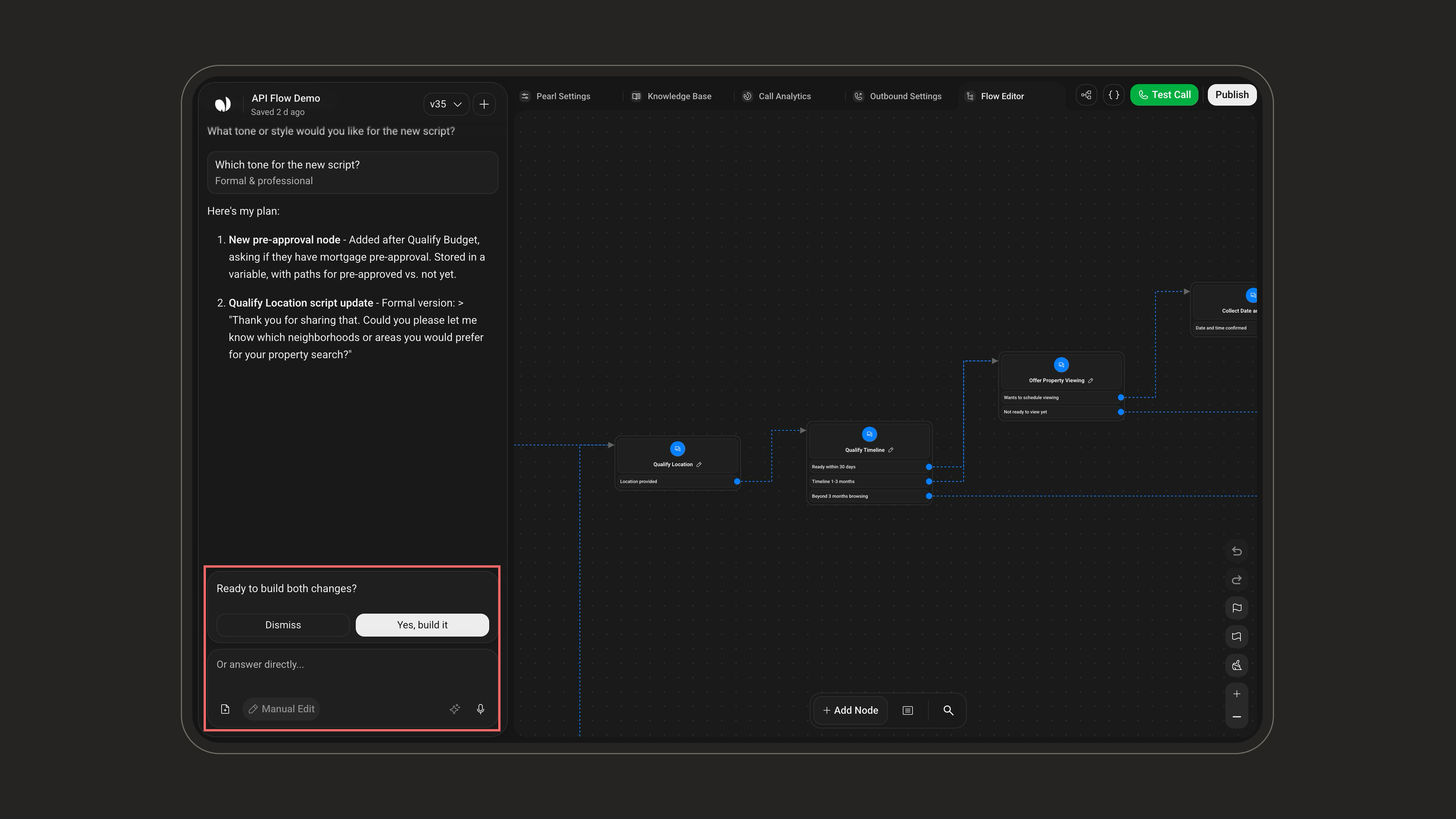
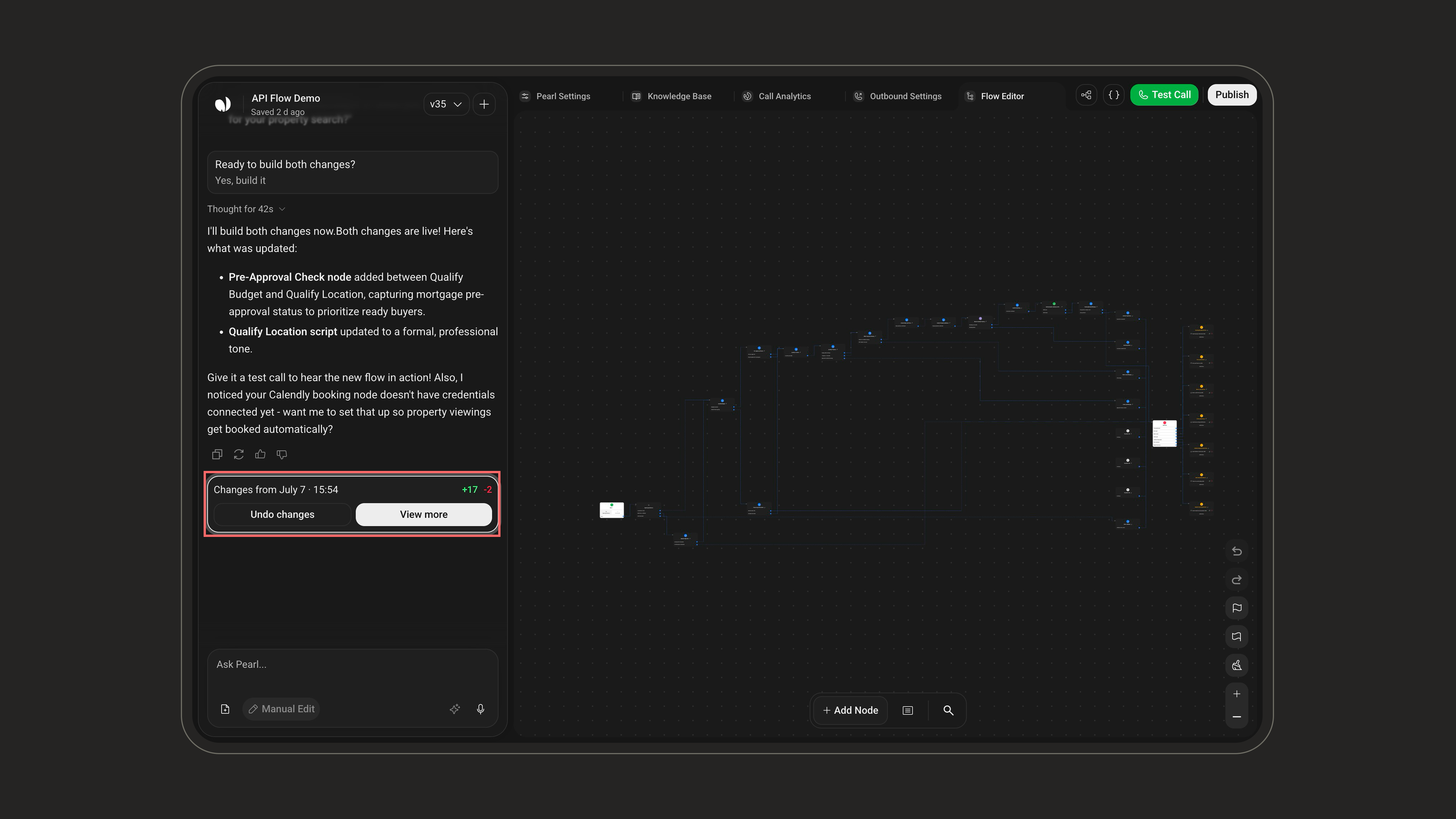
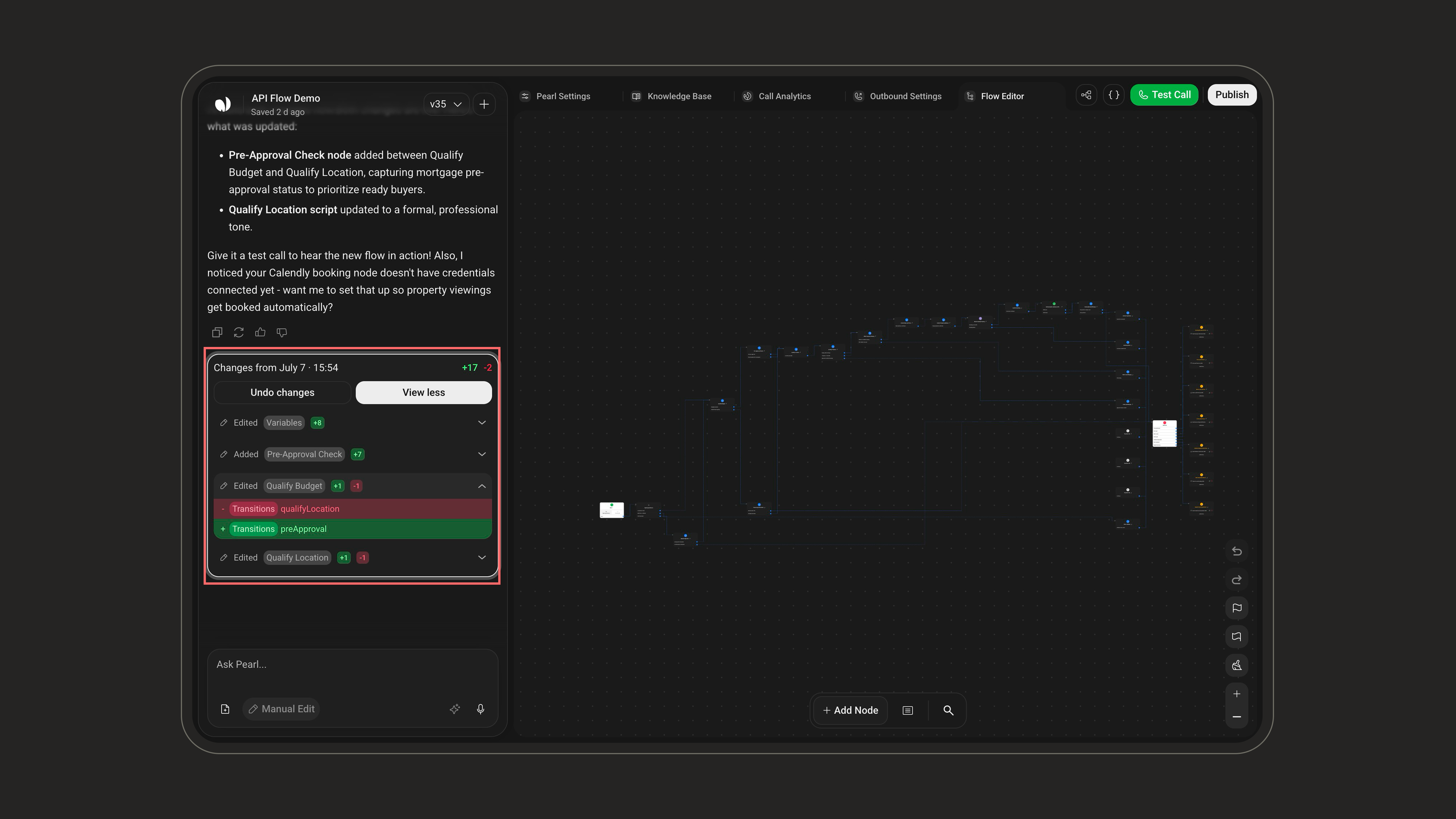
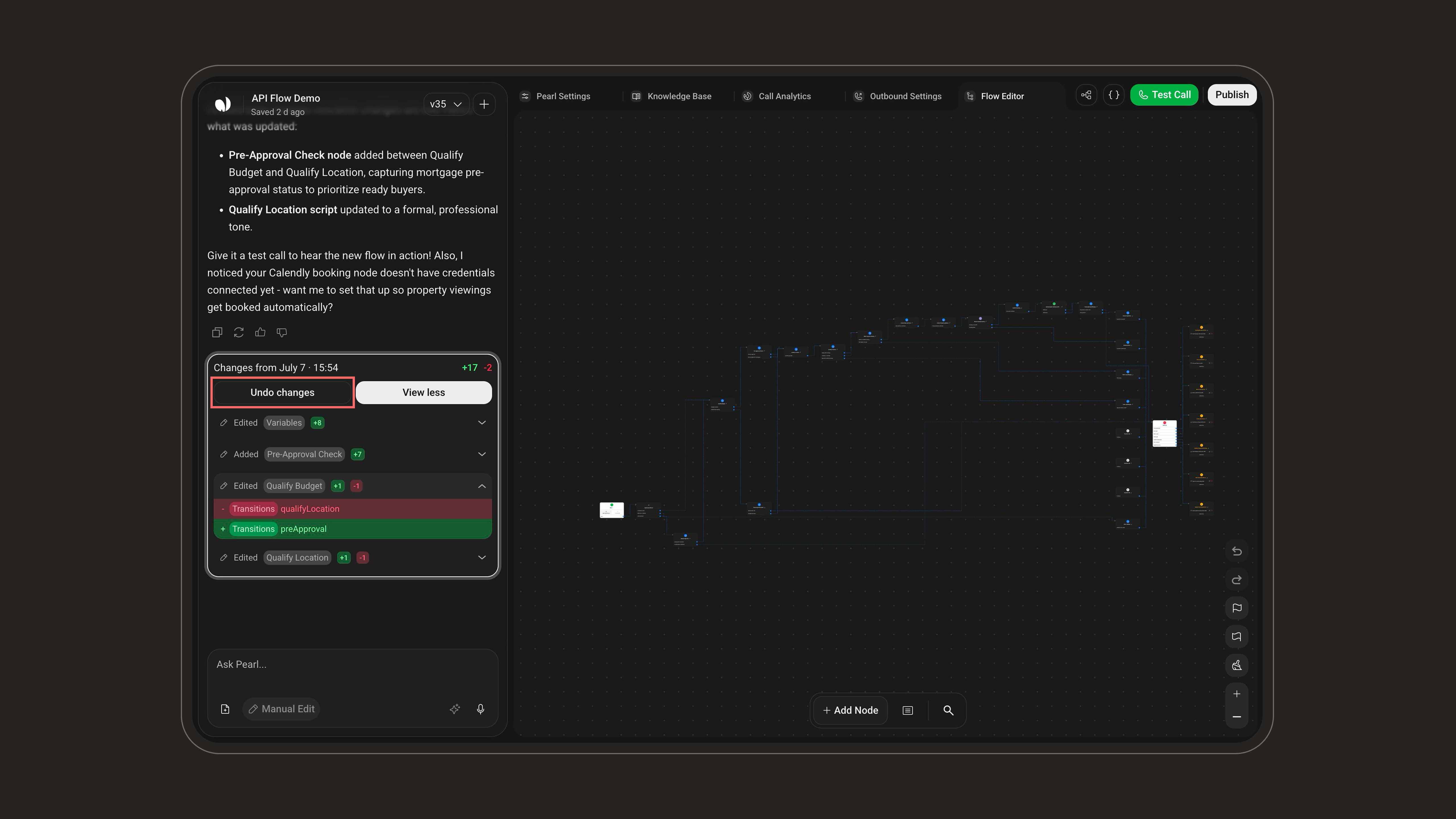
The same sentence gives you two different outcomes. “Add an SMS step after the booking step” in Ask gets you a description of the change and an invitation to switch to Build, and your flow is left untouched. The same sentence in Build gets you a short plan, a confirmation, and then the step itself in the editor.
Deletions are always confirmed by name. “Delete the booking step” is answered with a confirmation naming the node, and it is only removed once you say yes.
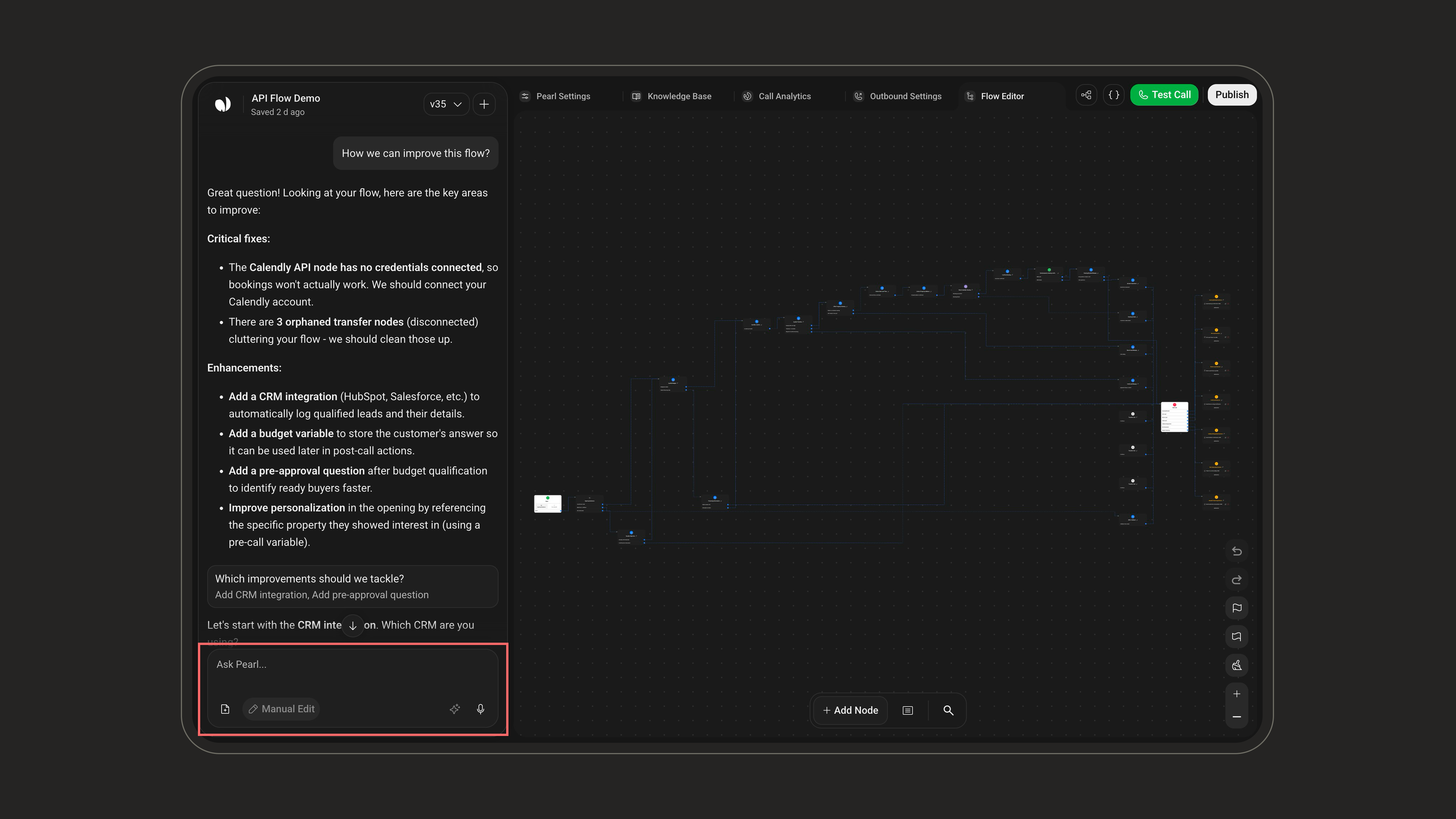
The composerType your instruction in the composer — its placeholder reads Ask Pearl… whichever mode you are in. For example: “Split this node into three outcomes based on payment status.”, “After a successful payment, send a confirmation SMS and end the call.”, “Create a post-call node that logs the outcome to the CRM.” Press Send: in Build, Pearl answers with its plan and updates the editor once you confirm; in Ask, it answers without touching your flow.
- Attach files — add supporting material (FAQs, pricing sheets, policy docs, playbooks…) to enrich the Pearl’s knowledge and reference it in node prompts.
.pdf, .docx, .txt, .jpg, .jpeg, .png, .webp, .gif, .mp3, .m4a, .wav, .webm — up to 10 files per message.- Enhance prompt — rewrite a rough or short instruction into a clearer, more structured request before it runs.
- Voice input — dictate your instruction instead of typing it.
Investigating your flow and your calls
Investigating your flow and your calls
Pearl can read your flow and your calls, not only change them. Ask it a question about either and it goes and reads the material itself. All of this works in Ask mode as well as in Build, since none of it changes your flow.Reading a past callAsk “Look at my last test call and tell me what happened” and Pearl reads the call itself — the lines that were exchanged, the nodes the call went through, and what your API steps returned. You don’t have to open the call and go through the transcript yourself.It works the same way on a text Pearl — ask about your last test chat instead.Asking why something went wrongYou can go straight to the question instead of to the evidence: “Investigate why my agent skipped the booking.” Pearl pulls up the relevant calls on its own and answers from what it finds in them.What changed since the published versionPearl knows both the version you are editing and the Published one that is handling your calls, and it can compare them. Ask “What changed since the published version?” after editing a node, or “Is what I’m editing still the same as what is live?”, and it tells you exactly what you have changed since.Checking the flow for problems“Check my flow for problems” gets you a structural review: nodes that lead nowhere, transitions that connect to nothing, configuration left unfinished. If your Pearl has already taken calls, it also reports which API steps behaved inconsistently across them.
Manual Edit
Manual Edit
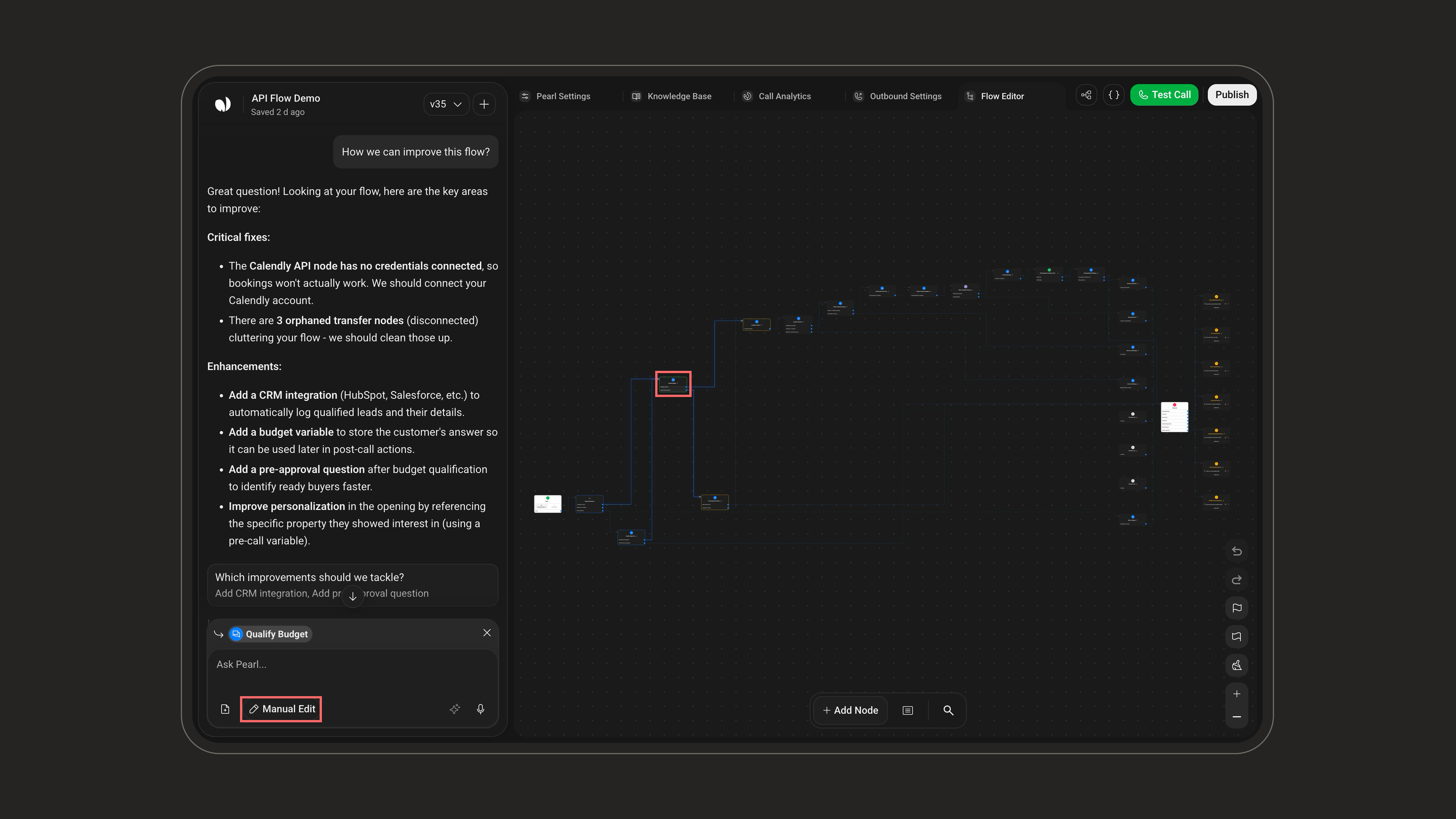
Select a node in the canvas, then click the Manual Edit button at the bottom of the sidebar to configure it by hand.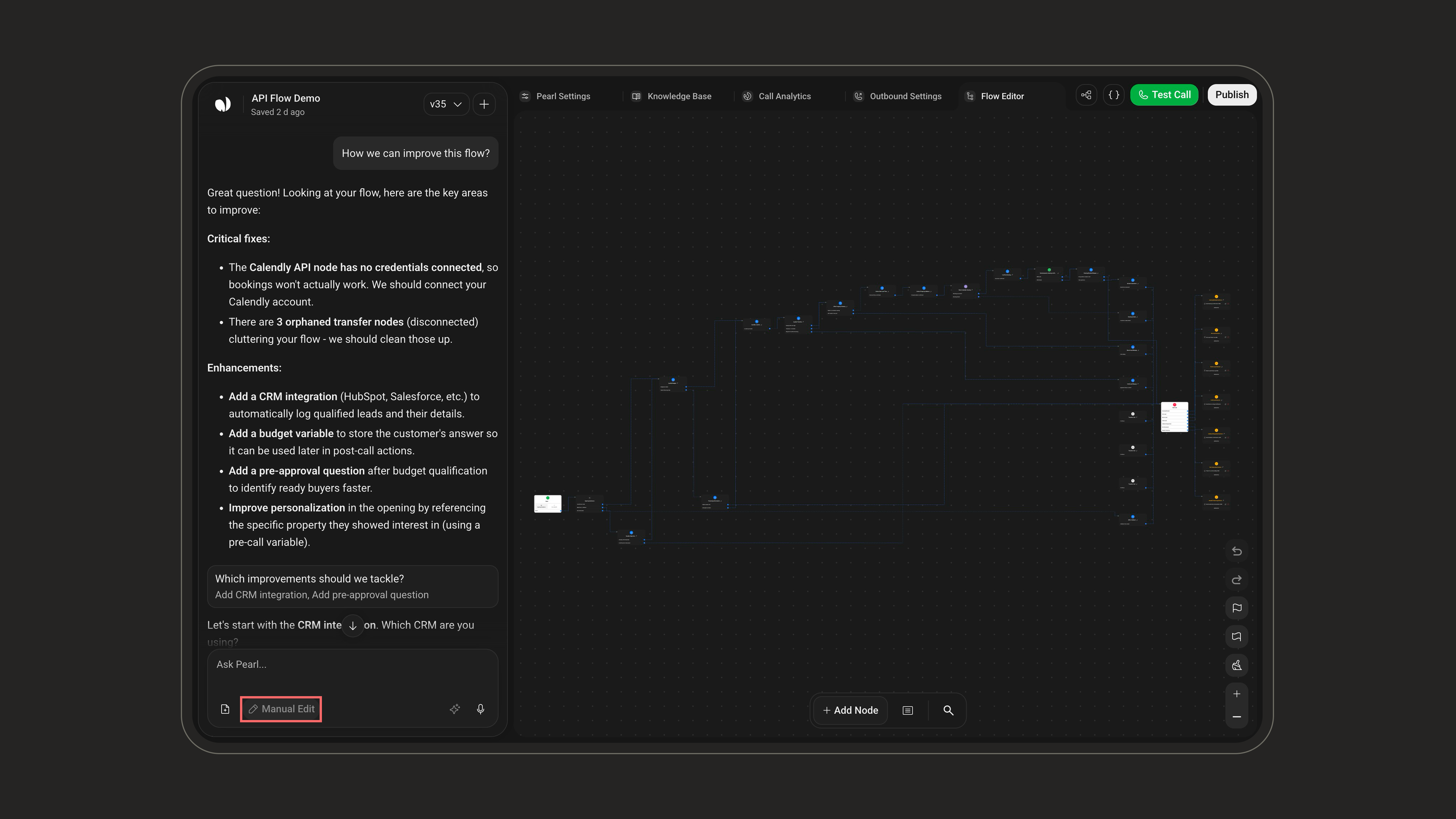
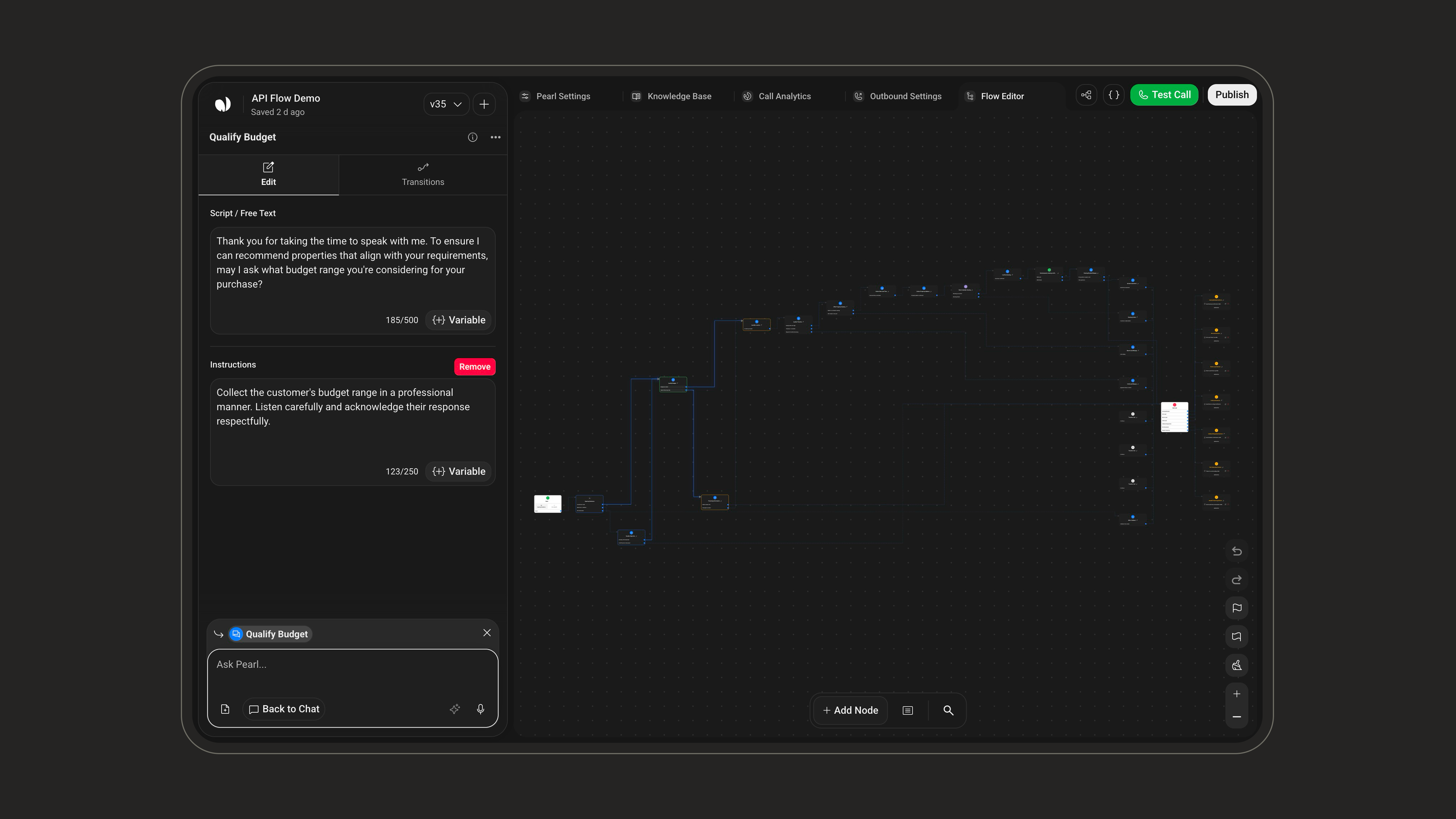
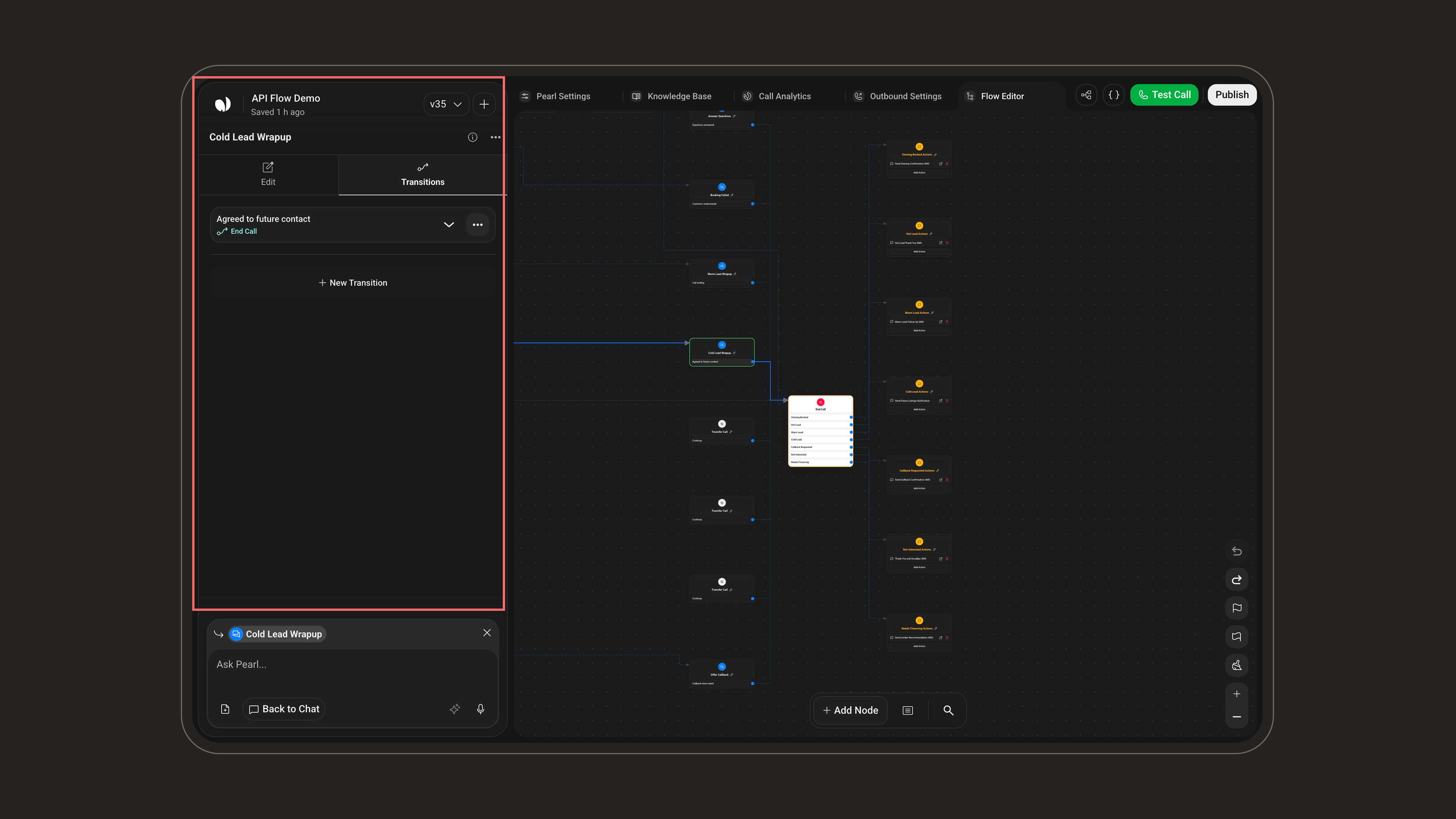
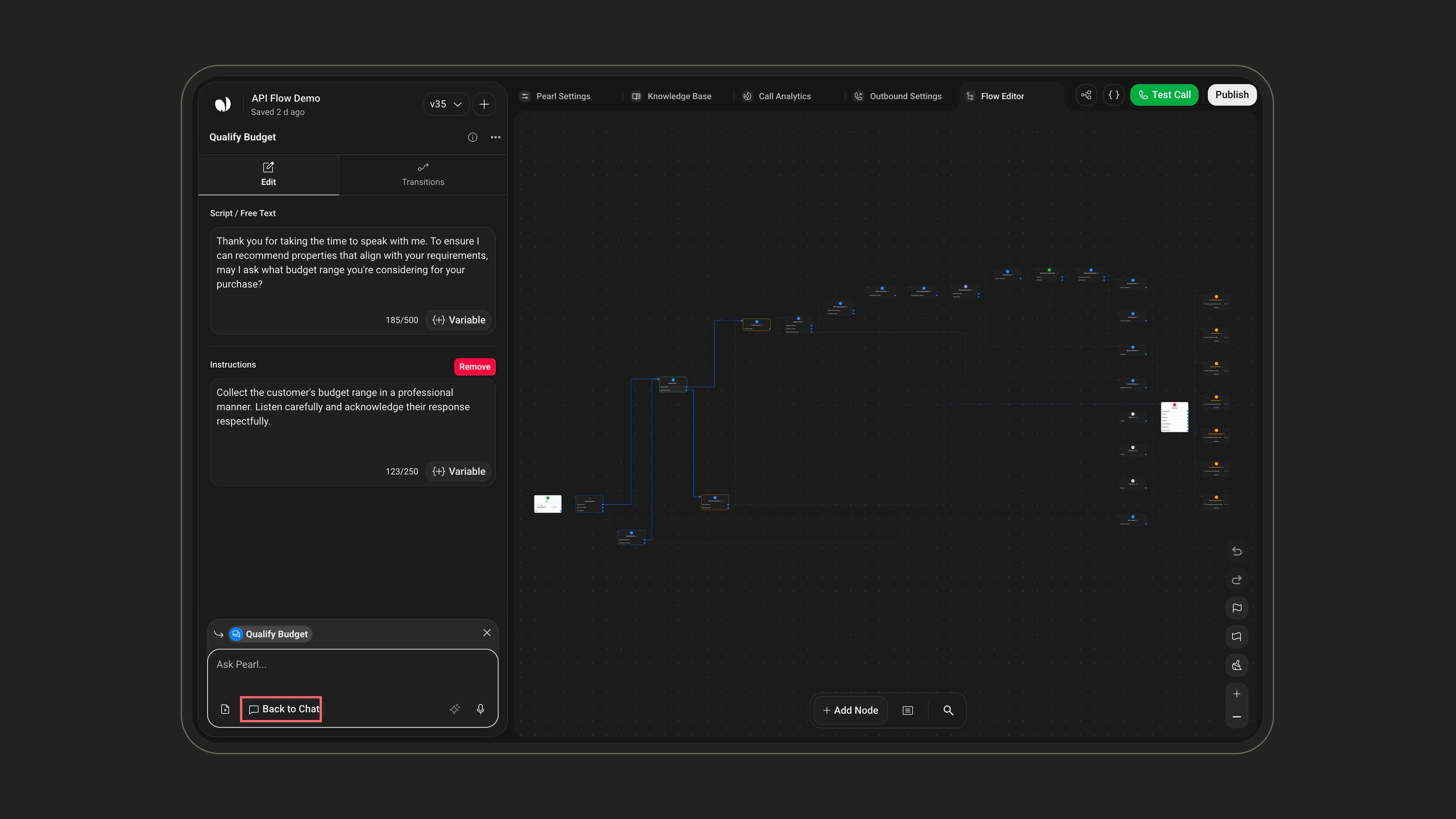
Routing to other nodes is not handled here, but in the Transitions tab.
- Create transitions – Add exits such as “Success”, “Failure”, “No answer”, “Customer asks for human”, etc.
- Connect transitions – Choose the target node for each transition to shape the path of the conversation.
- Edit or delete transitions – Rename transitions, change their destination, or remove them when they are no longer needed.
Any modification done in Manual Edit is immediately reflected in the visual flow and remains fully understood by Pearl.You can freely switch between Chat and Manual Edit as you work on the same node.
Central Canvas
The central canvas displays your flow as a graph of nodes and transitions.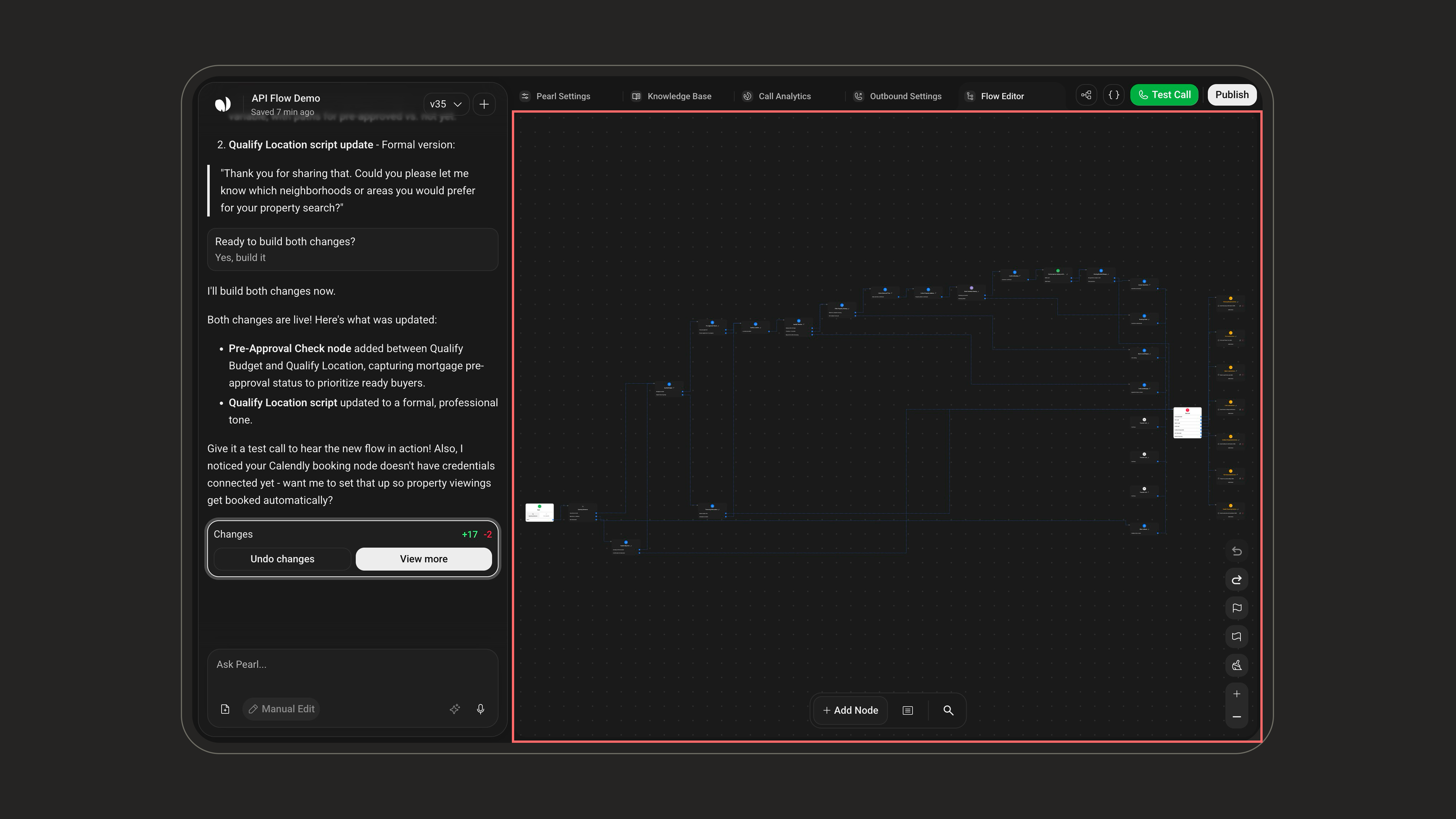
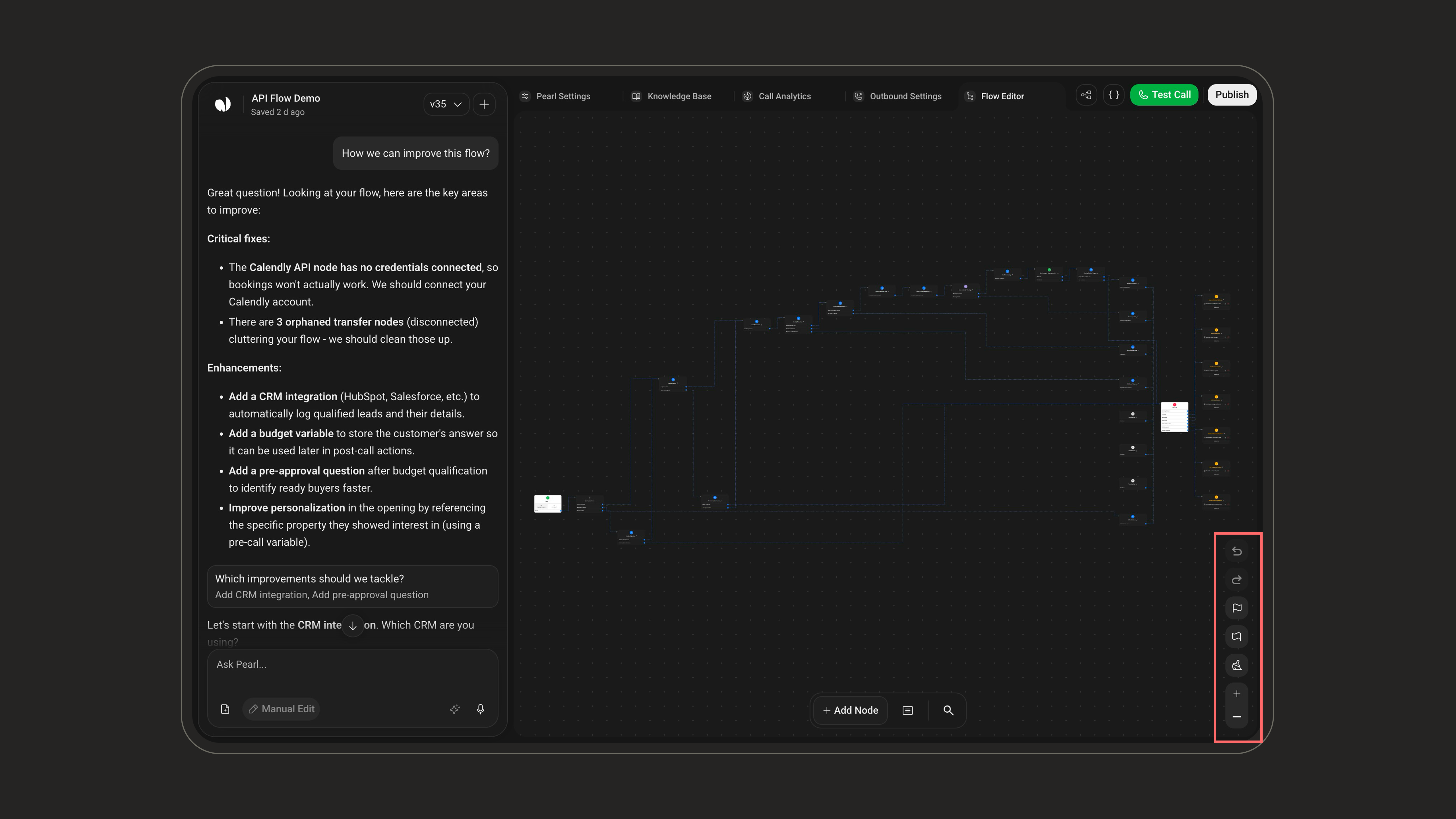
From the canvas you can:
The canvas has no minimap — use zoom, pan, Reorganize, and Search to move around instead.
Node Types Overview
Node Types Overview
Pearl Vibe supports several node types:
Understanding Node Types: Pre-Call, In-Call & Post-CallYour Pearl flow is built around three categories of nodes, each designed for a specific moment in the call lifecycle. Knowing the difference is essential to avoid misusing an action or expecting behavior that can’t happen at that stage.1. Pre-Call Nodes: Before the call startsThese nodes run prior to dialing or answering. They’re ideal for preparing context: fetching customer data, checking availability, validating an ID, loading account information. They cannot interact with the caller and cannot create or import leads.2. In-Call Nodes: During the conversationThese nodes control everything that happens while the caller and the agent are connected. Dialogue, decision logic, sending SMS/emails, API calls, and CRM updates all happen here in real time. This is the core of your conversational flow.3. Post-Call Nodes: After the call endsOnce the call is finished, these nodes handle asynchronous tasks: writing CRM logs, creating leads, triggering webhooks, updating databases, or launching follow-up workflows. They cannot affect what happened during the call, only what happens after.
Start Node
Start Node
Every flow begins with a Start node. It controls how the conversation is initiated.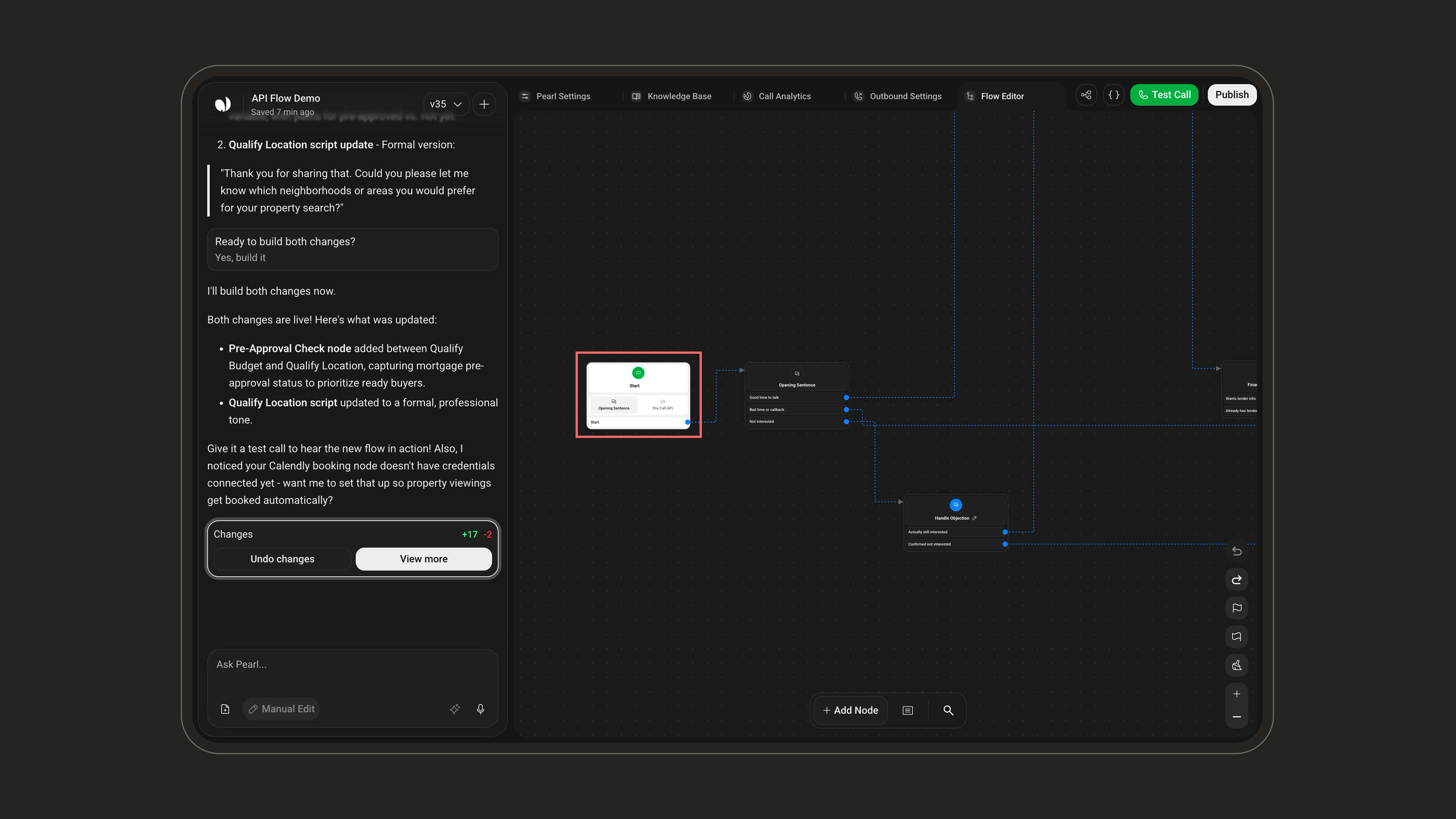
The Pearl says the opening sentence almost word for word. In a Dialogue node, your text is only a guide: the Pearl adapts it to what the customer says.
The Pre-Call API cannot be used to import leads into your Pearl. Its purpose is strictly to enrich or prepare contextual data before the call starts
In‑Call Nodes
In‑Call Nodes
In‑Call nodes represent the actions and dialogues that happen during the conversation. In the Add Node picker they’re split into Live Global Nodes (Dialogue, Knowledge Base) and Live Action Nodes (SMS, Email, API, Transfer Call).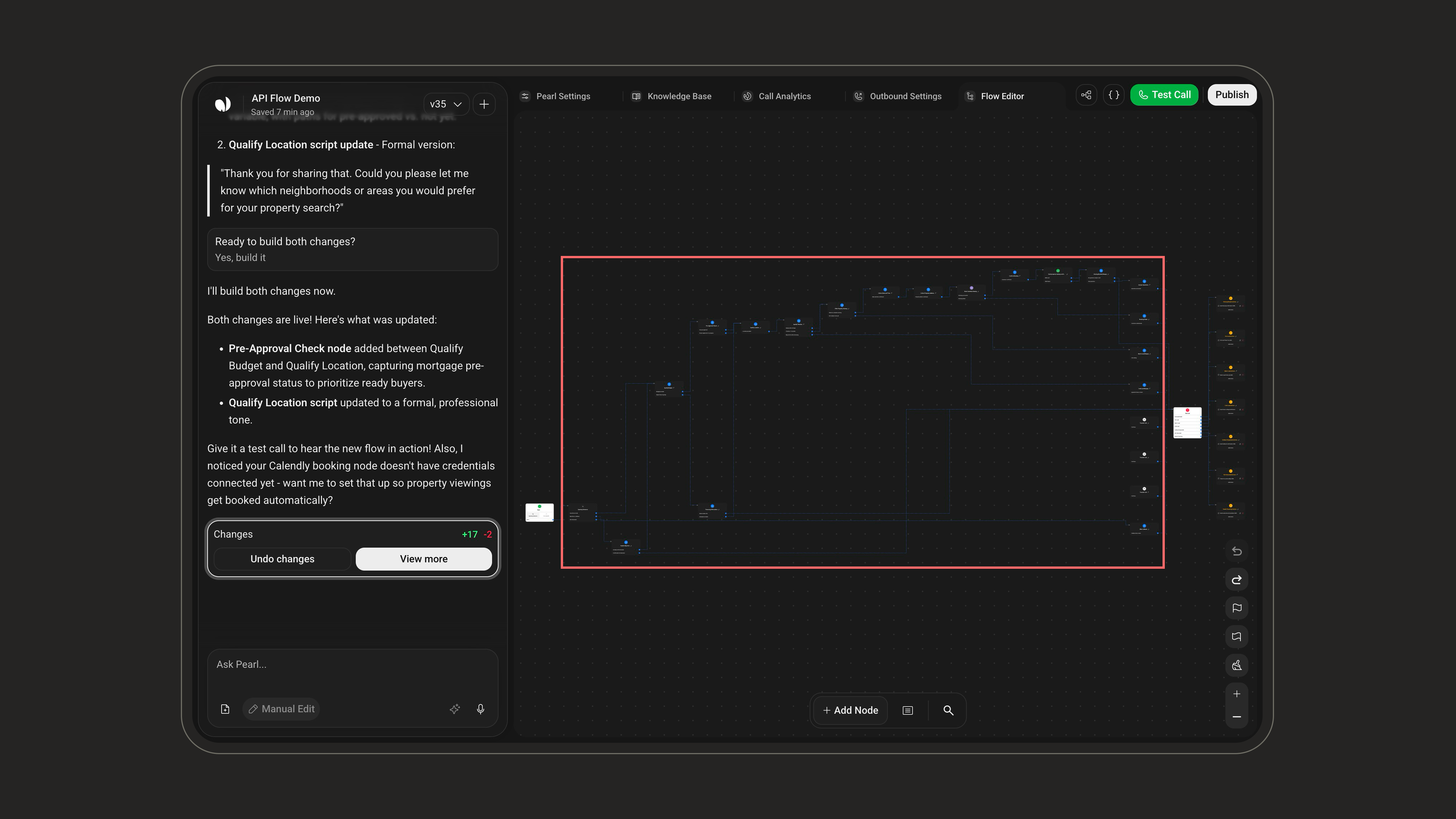
Integration-specific actions (e.g. Google Calendar, Salesforce) appear in a separate Integration Nodes group of the picker — see below.
Integration Nodes
Integration Nodes
Integration nodes let your Pearl interact directly with external tools and services without writing any API code yourself. Technically, each one is an API node pre-configured with an integration credential from the Credentials Manager — it handles authentication, request formatting, and data mapping for you. They appear in a dedicated Integration Nodes group of the Add Node picker.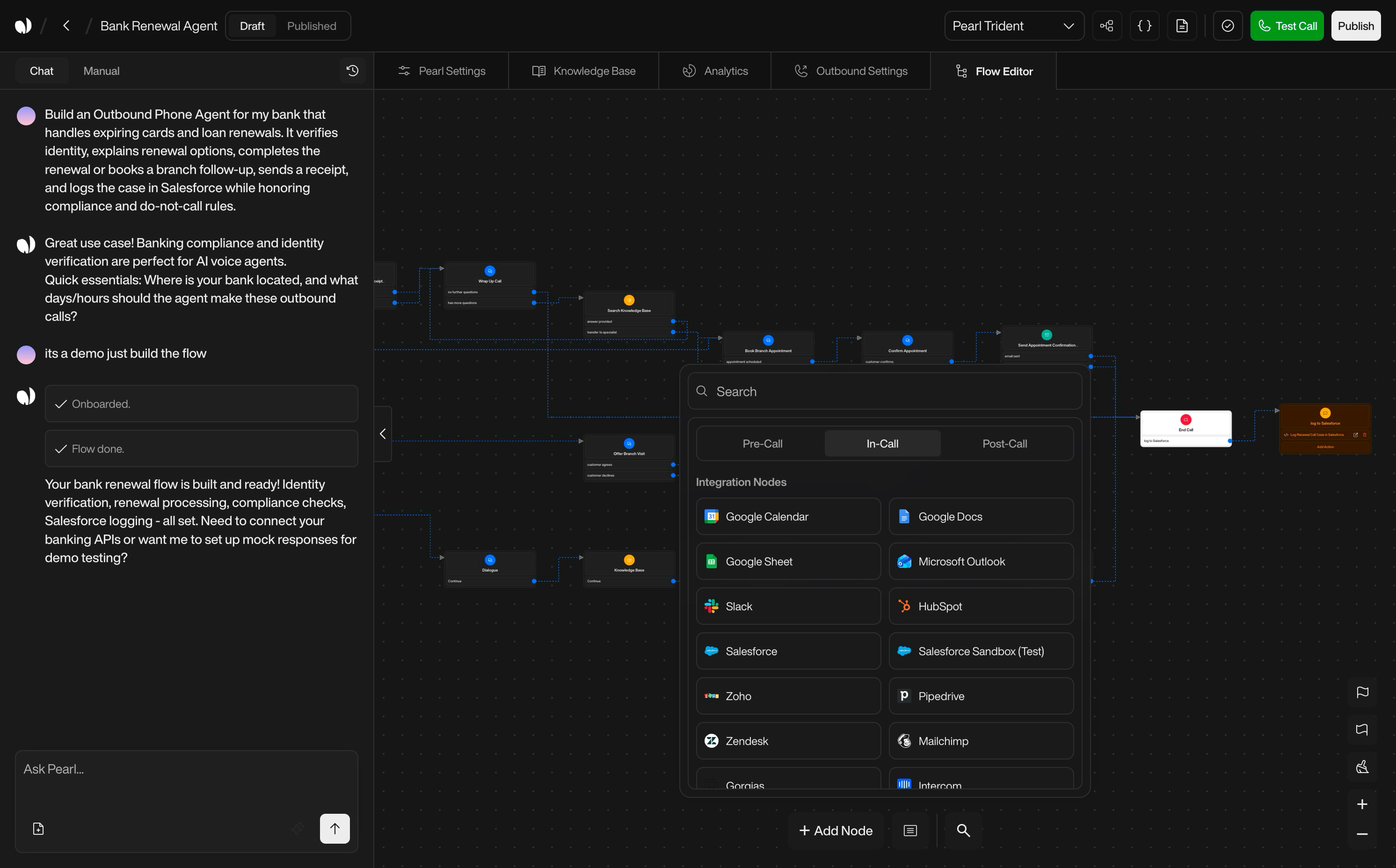
 ActiveCampaign
 Airtable
 Algolia
 Anthropic
 AssemblyAI
 Backblaze
 Baserow
 Bitly
Bitly Brevo
Brevo Cal.com
 Calendly
 Clearbit
 ClickUp
 Cloudflare
 Cohere
 Contentful
 Convertkit
 Customer.io
 Datadog
 DeepL
DeepL DigitalOcean
 Discord
 Elasticsearch
 Freshdesk
 Ghost
Ghost Google Calendar
 Google Docs
 Google Sheets
 Grafana
 Groq
Groq Hetzner
 HubSpot
 HuggingFace
 Hunter
 InfluxDB
 JotForm
 Lemlist
 Magento
 MailerLite
 Mailgun
 Mailjet
 Mandrill
 Matrix
 Mattermost
 MessageBird
 Metabase
 Microsoft Outlook
 MinIO
MinIO Mistral AI
 Mocean
 MongoDB
 MQTT
MQTT MSG91
MSG91 MySQL
MySQL Netlify
 New Relic
 NocoDB
 OpenAI
 OpenRouter
 OpenWeatherMap
 Pabbly
 Paddle
 PagerDuty
 Perplexity
 Pinecone
 Plivo
Plivo PostHog
 PostgreSQL
 Postmark
 Pushover
 Qdrant
 RabbitMQ
 Redis
Redis Replicate
 Rocketchat
 Salesforce
 SendGrid
 Sendy
Sendy Sentry
 Serp
Serp SIGNL4
 SparkPost
 Square
 Stability AI
 Strapi
 Supabase
 Telegram
 Together AI
 Twilio
 Typeform
 Vercel
 Vonage
 Wasabi
 Weaviate
 WooCommerce
 WordPress
 Wufoo
Wufoo Yourls
 Zulip
Zulip
What Integration Nodes DoIntegration nodes encapsulate tasks such as:
How They Work
Available Integrations
ActiveCampaign Airtable Algolia Anthropic AssemblyAI Backblaze Baserow Bitly Brevo Cal.com Calendly Clearbit ClickUp Cloudflare Cohere Contentful Convertkit Customer.io Datadog DeepL DigitalOcean Discord Elasticsearch Freshdesk Ghost Google Calendar Google Docs Google Sheets Grafana Groq Hetzner HubSpot HuggingFace Hunter InfluxDB JotForm Lemlist Magento MailerLite Mailgun Mailjet Mandrill Matrix Mattermost MessageBird Metabase Microsoft Outlook MinIO Mistral AI Mocean MongoDB MQTT MSG91 MySQL Netlify New Relic NocoDB OpenAI OpenRouter OpenWeatherMap Pabbly Paddle PagerDuty Perplexity Pinecone Plivo PostHog PostgreSQL Postmark Pushover Qdrant RabbitMQ Redis Replicate Rocketchat Salesforce SendGrid Sendy Sentry Serp SIGNL4 SparkPost Square Stability AI Strapi Supabase Telegram Together AI Twilio Typeform Vercel Vonage Wasabi Weaviate WooCommerce WordPress Wufoo Yourls ZulipEnd Call & Post‑Call Nodes
End Call & Post‑Call Nodes
End Call nodeThis node closes the conversation gracefully (e.g. “Thanks for your time, goodbye.”). It is typically the last in‑call node. On text Pearls it’s labeled End Chat.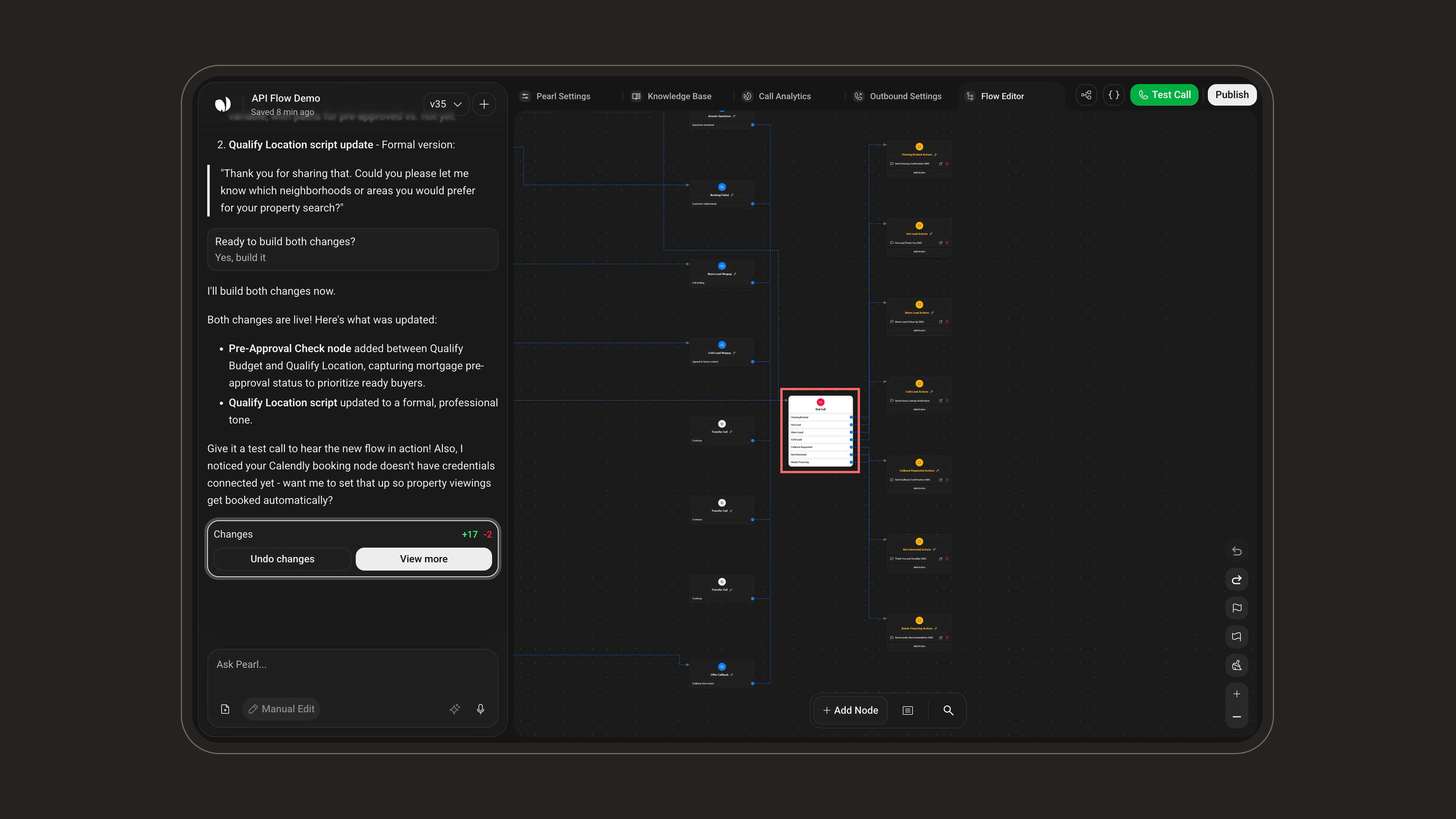
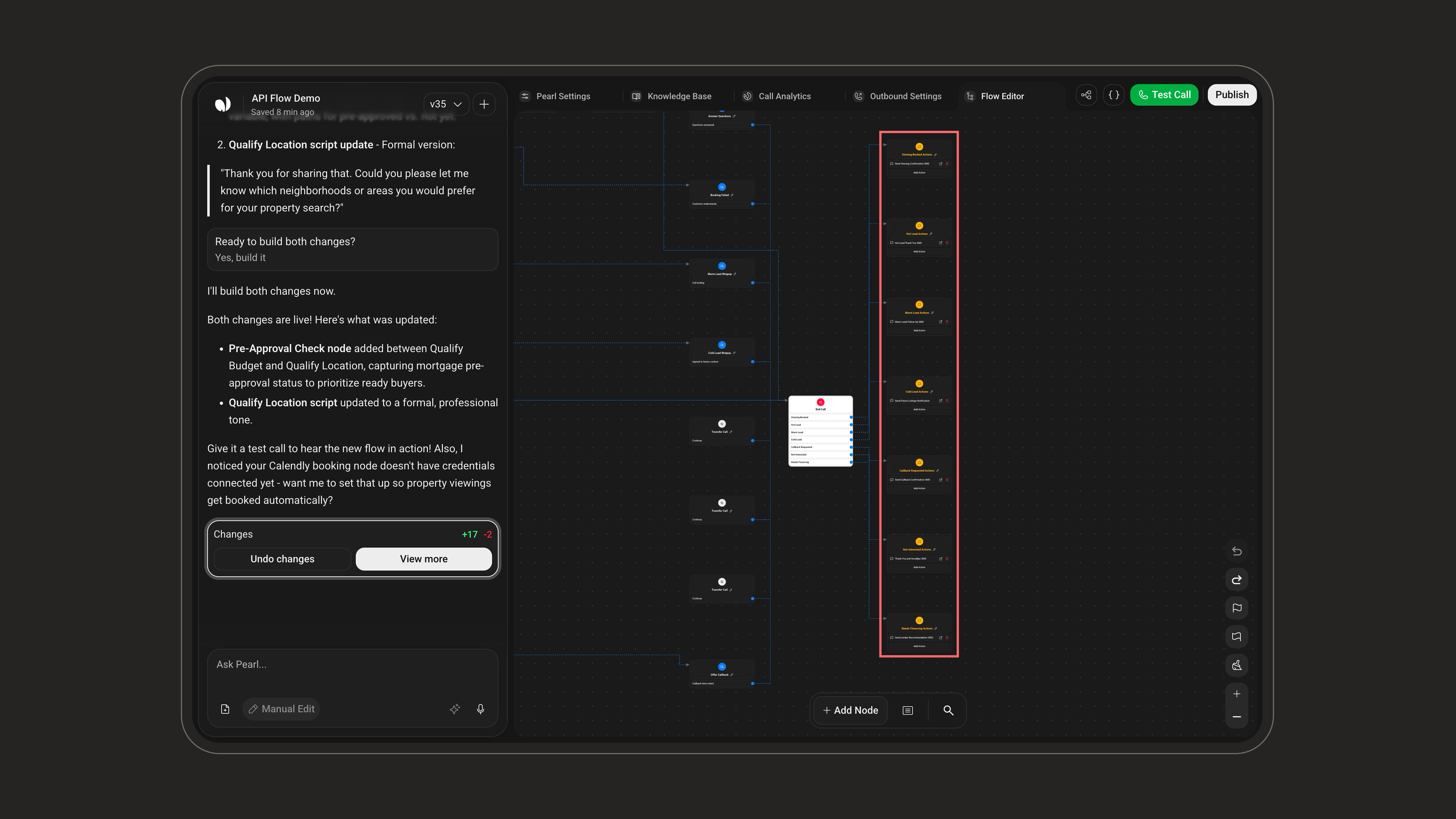
- Sending a summary SMS.
- Writing a detailed log into your CRM.
- Triggering a webhook.
- Sending internal notifications to your team.
Post‑Call nodes support many of the same actions as In‑Call nodes but are not constrained by real‑time conversation. In the Add Node picker, the Post-Call tab offers SMS, Email, and API nodes.
Node Structure
Node Structure
Each node shares a common structure.Header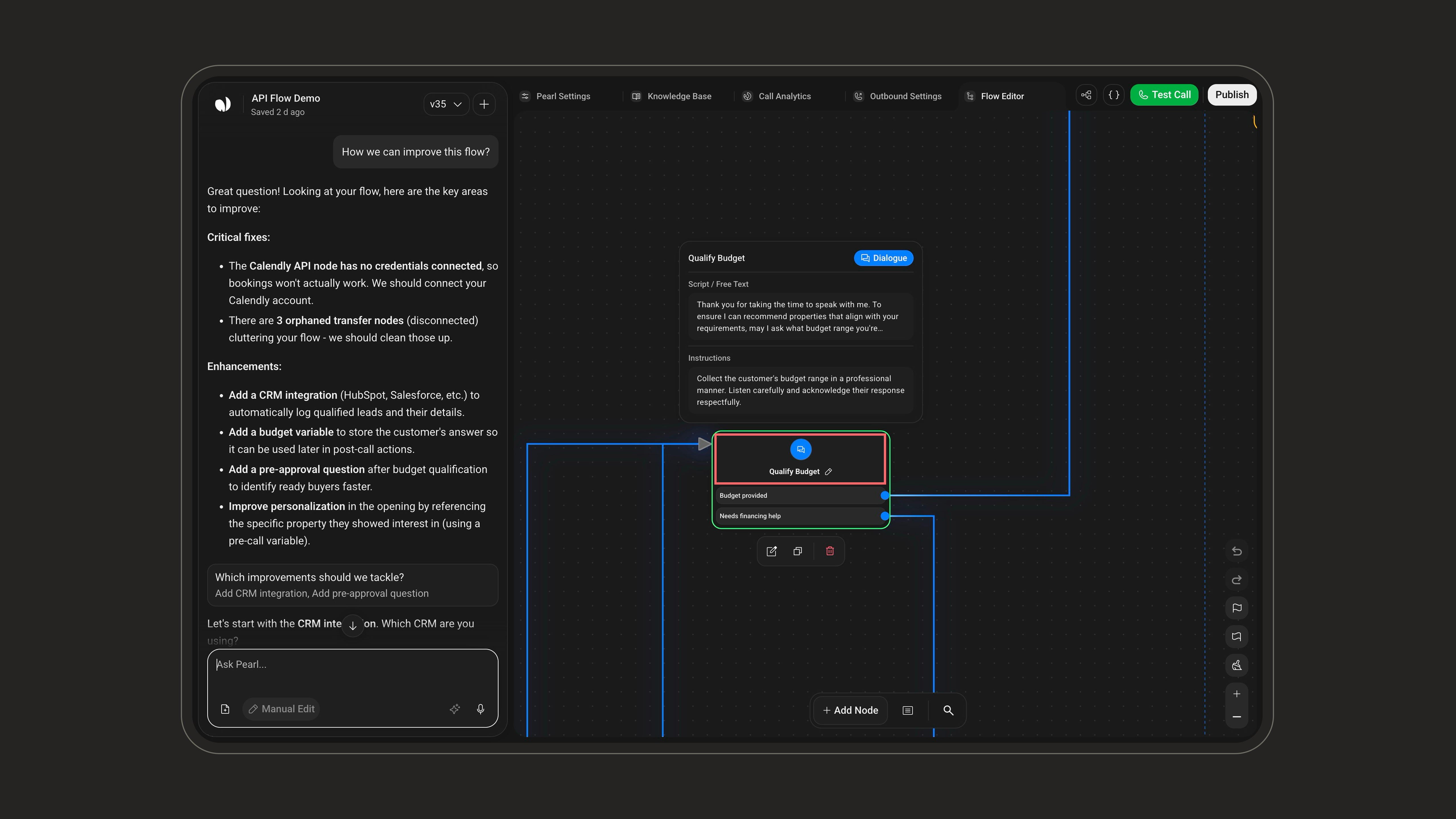
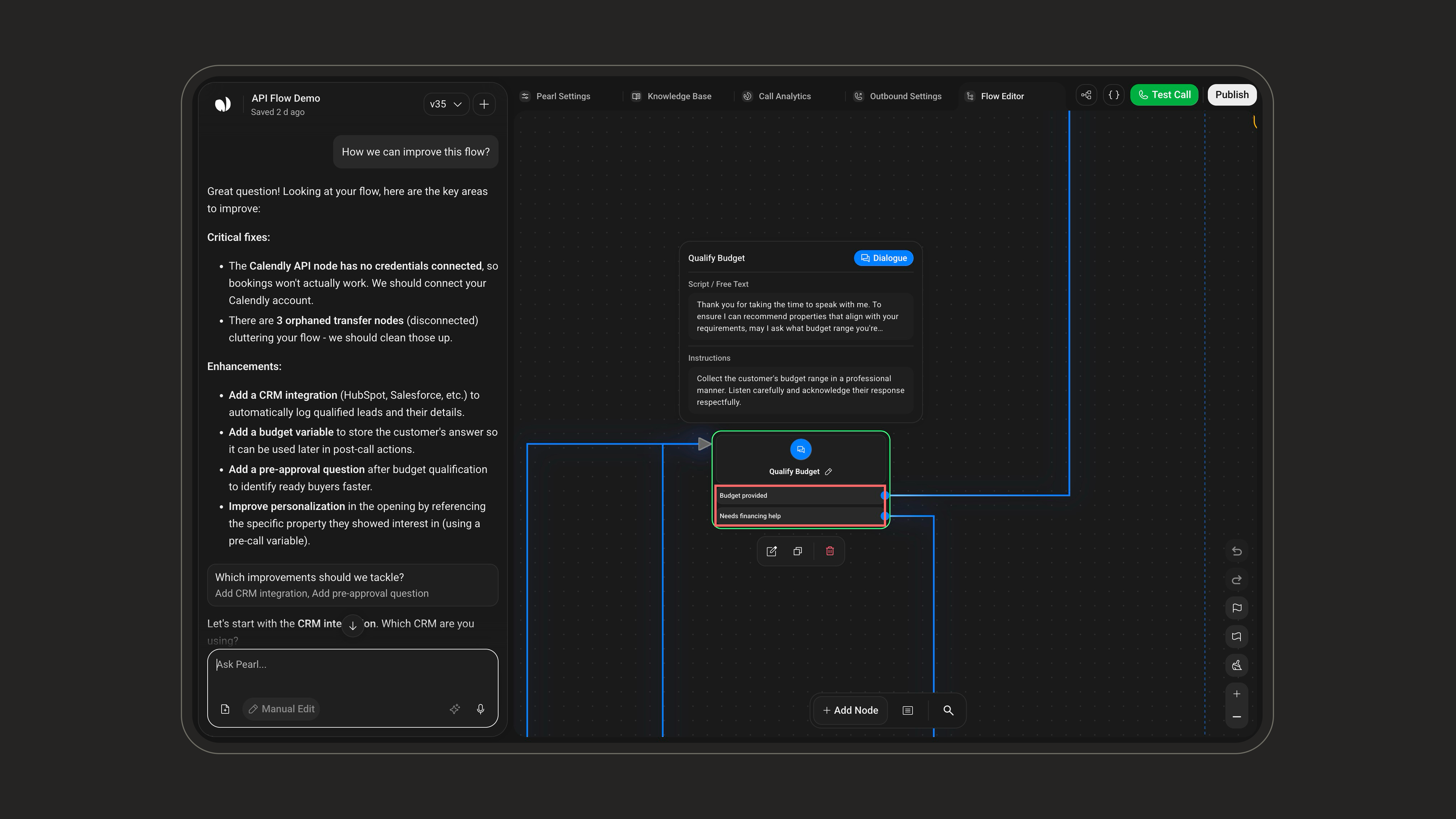
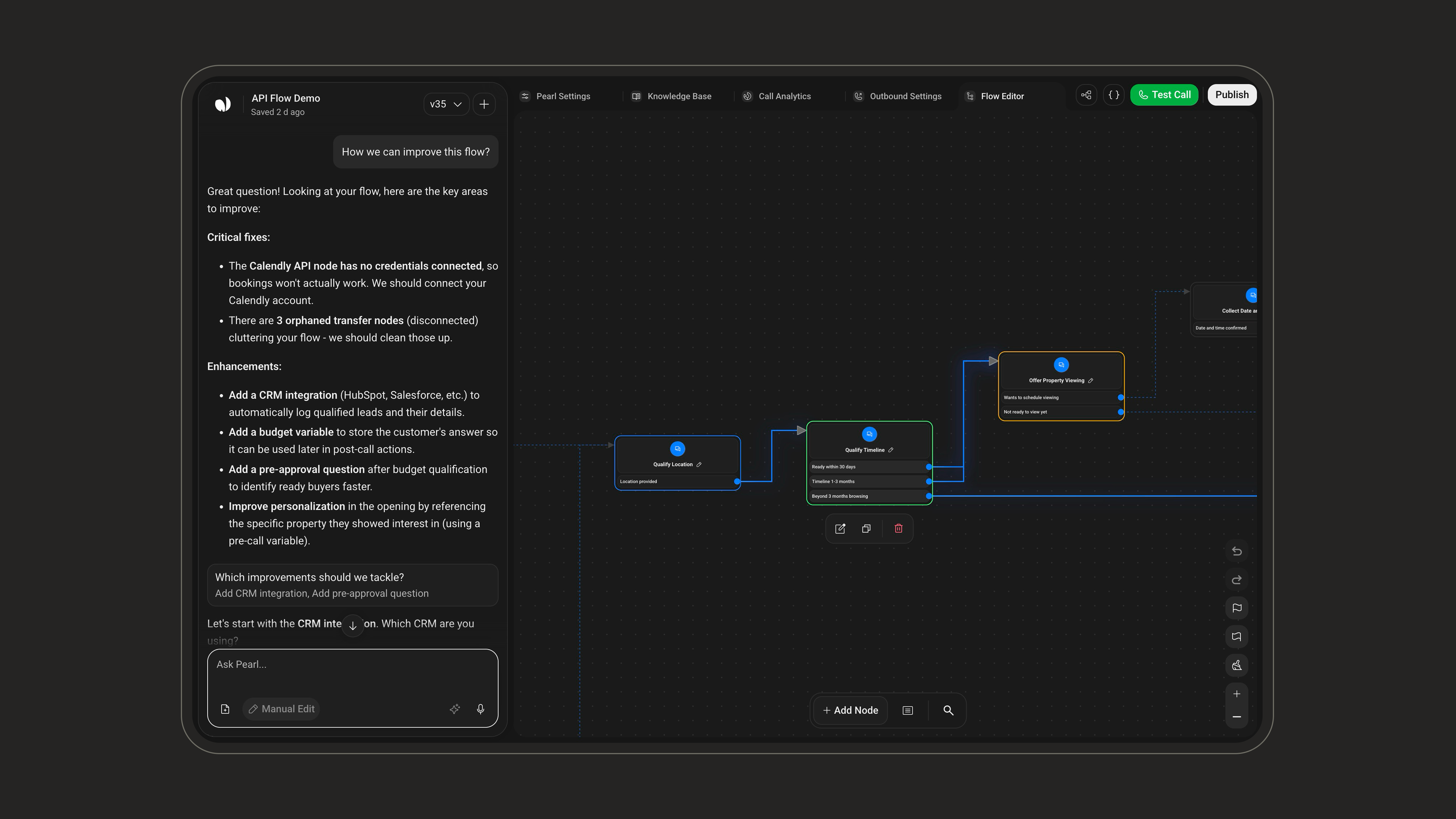
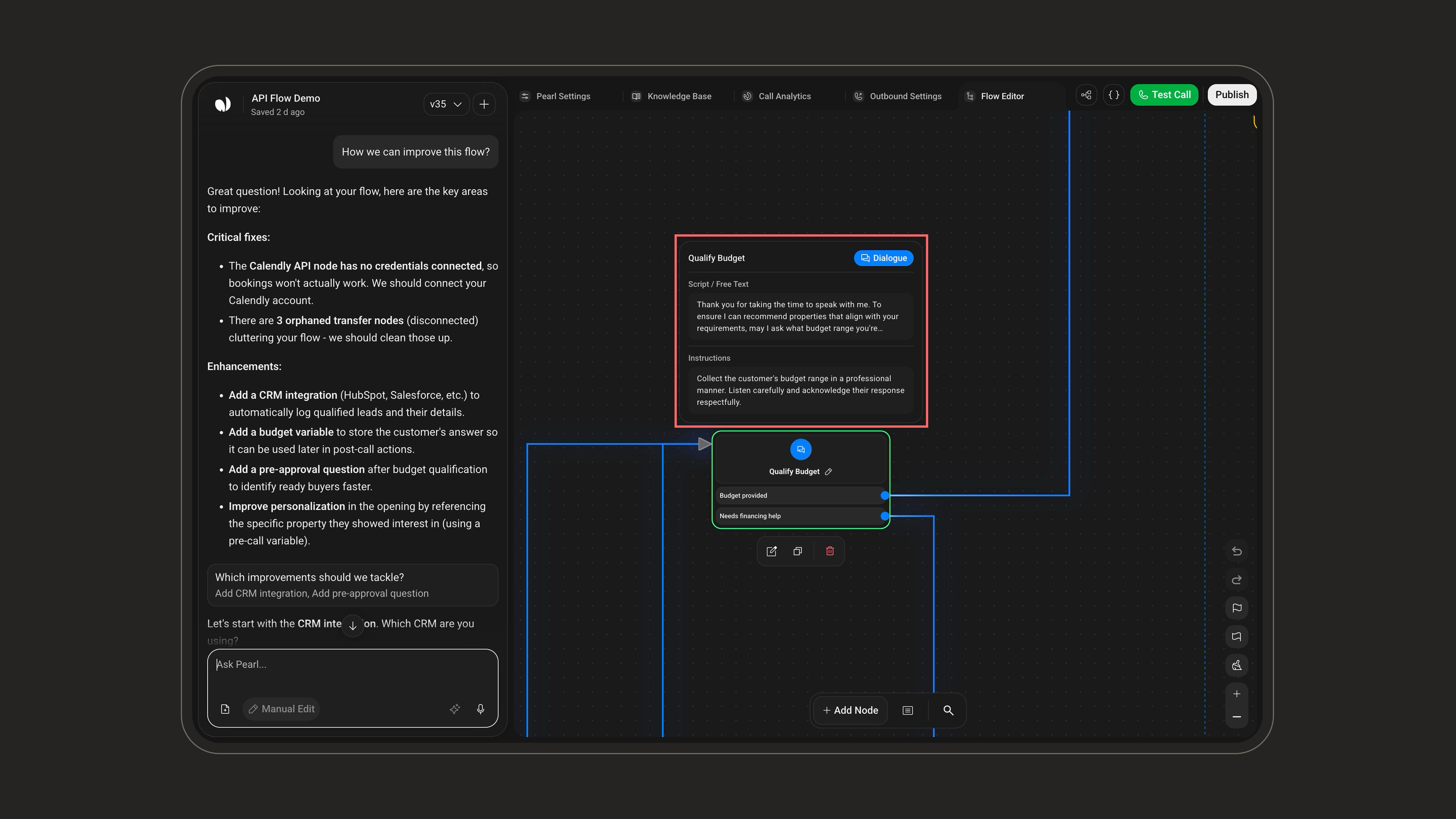
- Icon representing the type of node.
- Node name, editable to reflect its role (“Payment check”, “Qualification”, “Post‑call CRM update”…).
- See which node each transition points to.
- Click to navigate along the transition.
- Disconnect or reconnect transitions to reshape the flow.
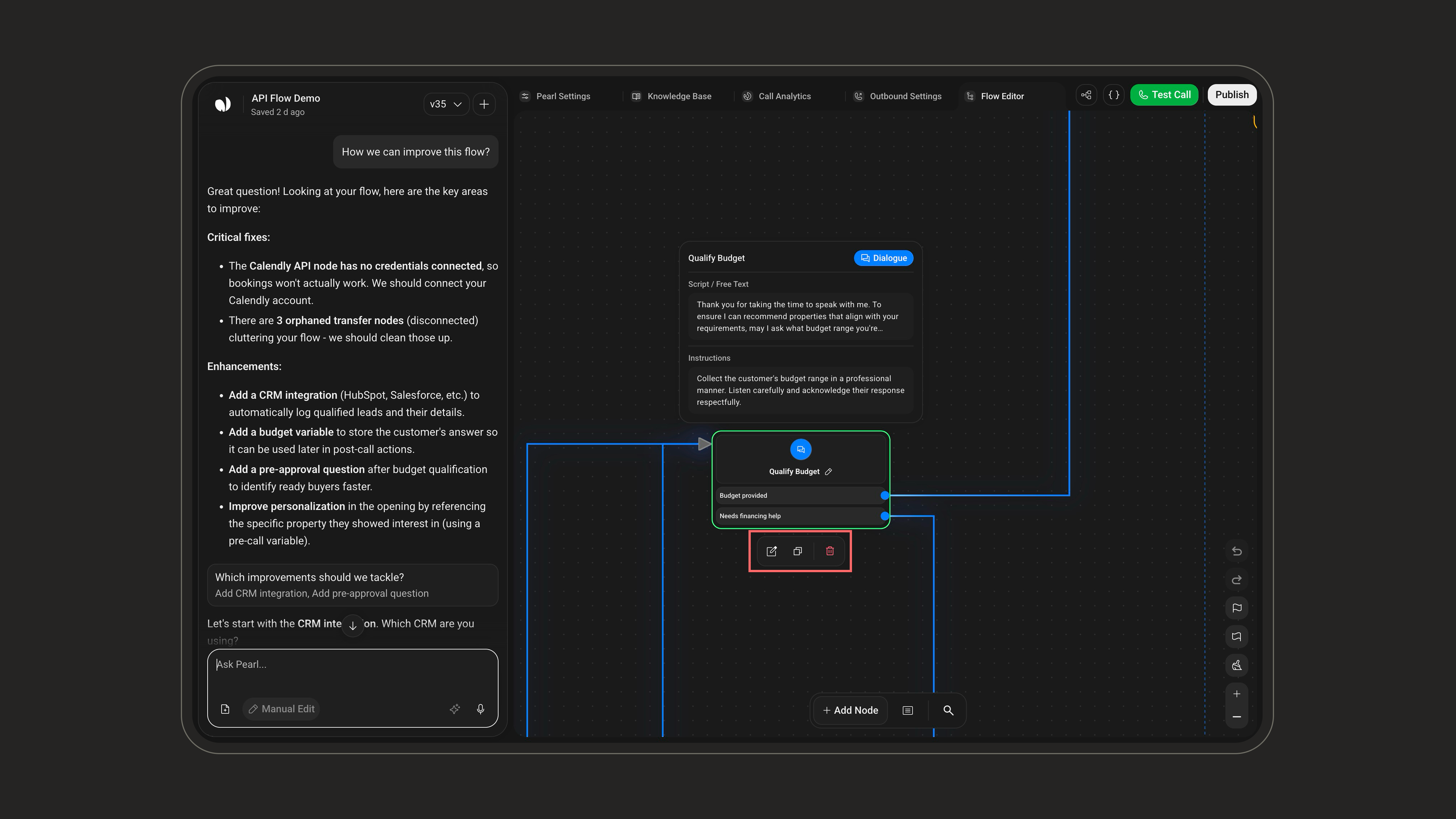
Bottom tools
Bottom tools
The toolbar at the bottom of the canvas groups three controls.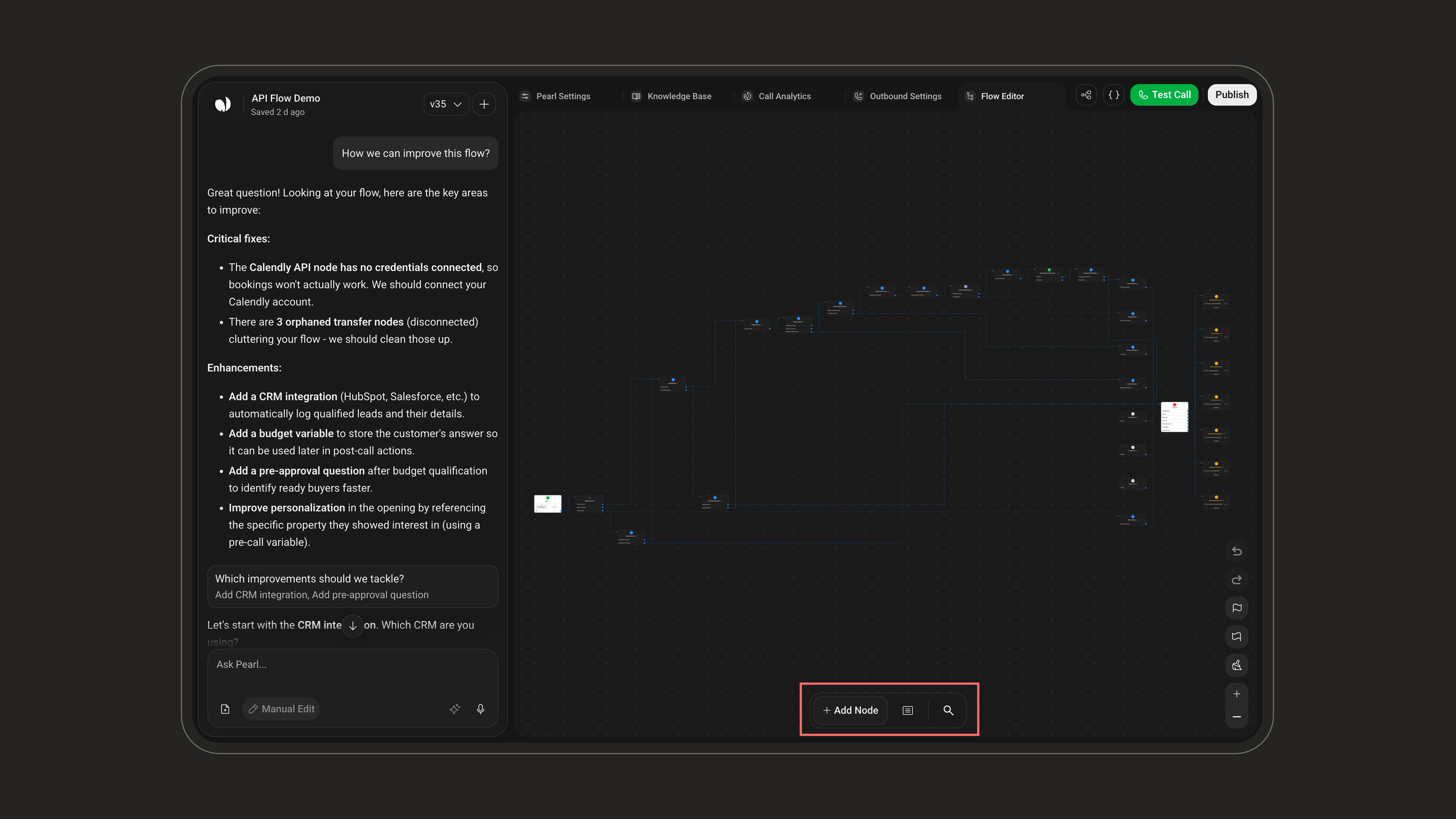
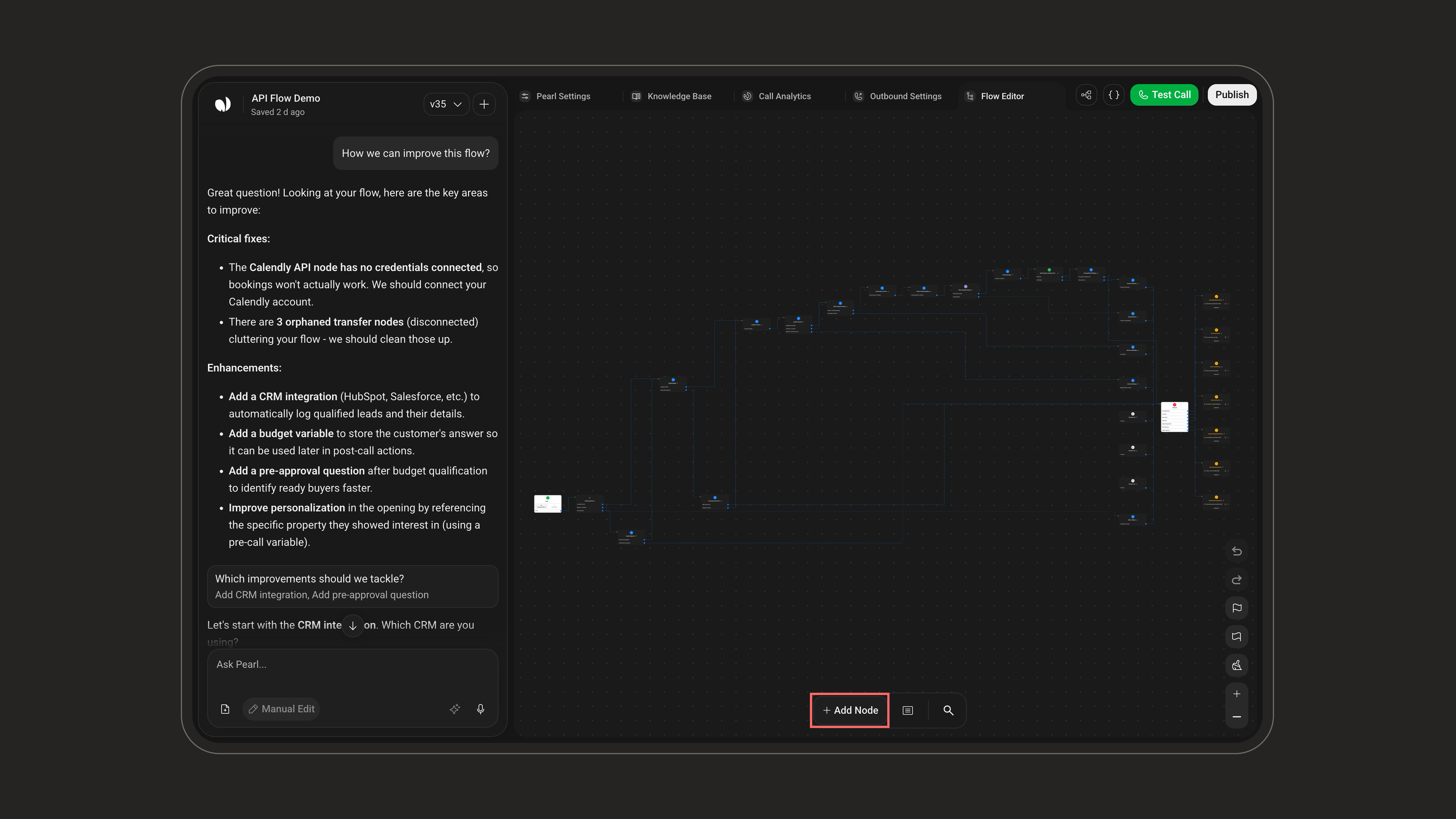
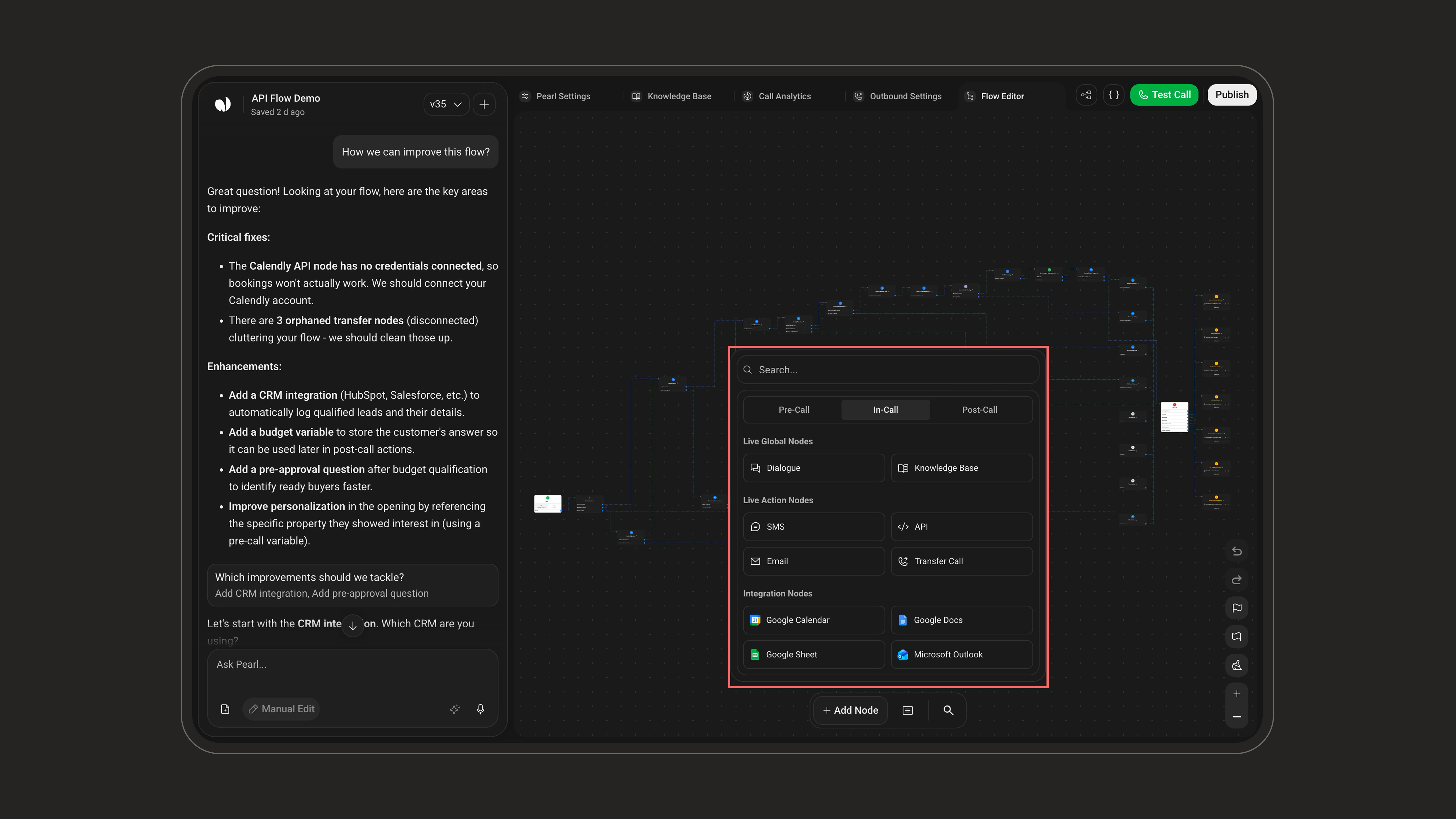
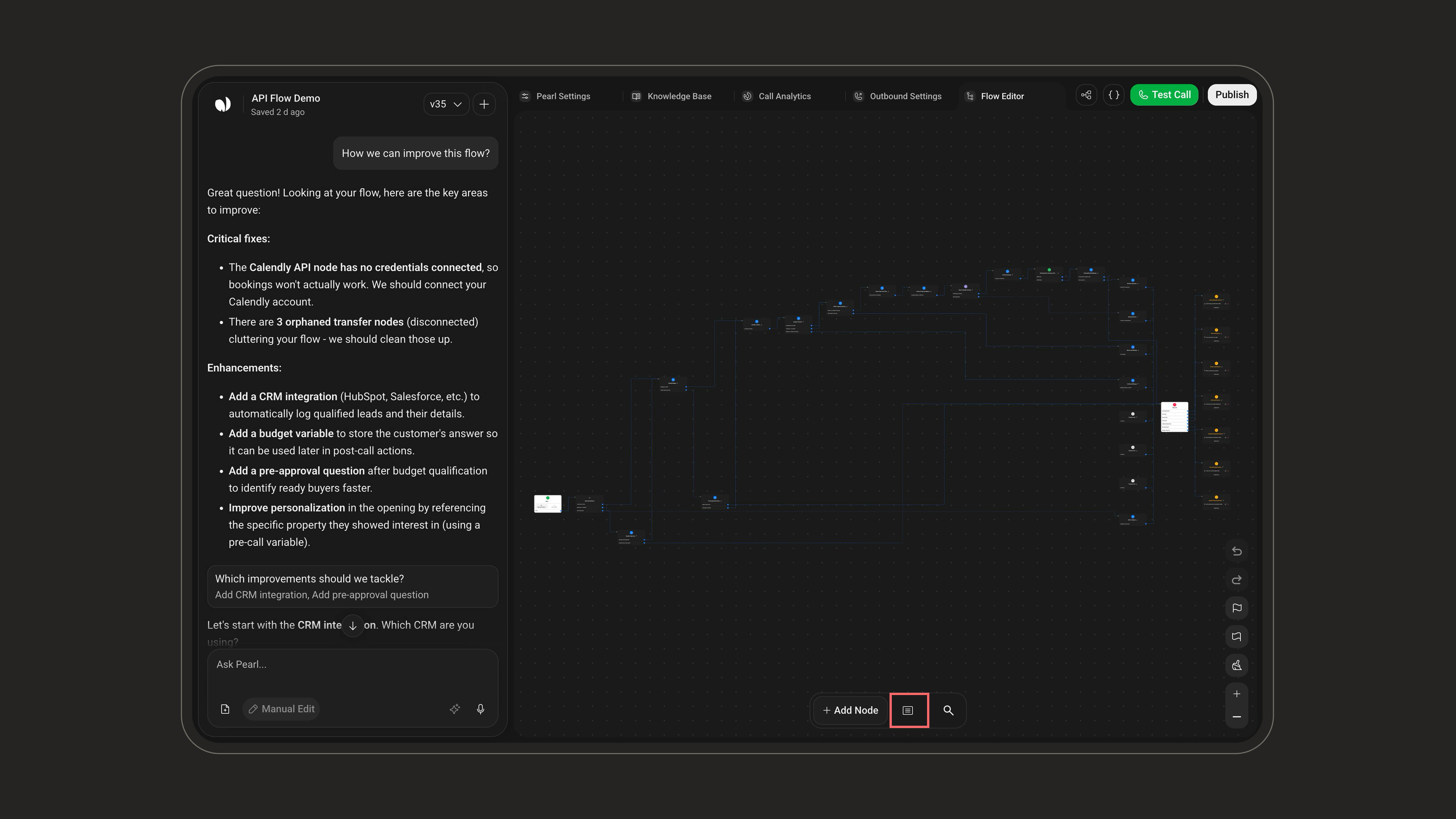
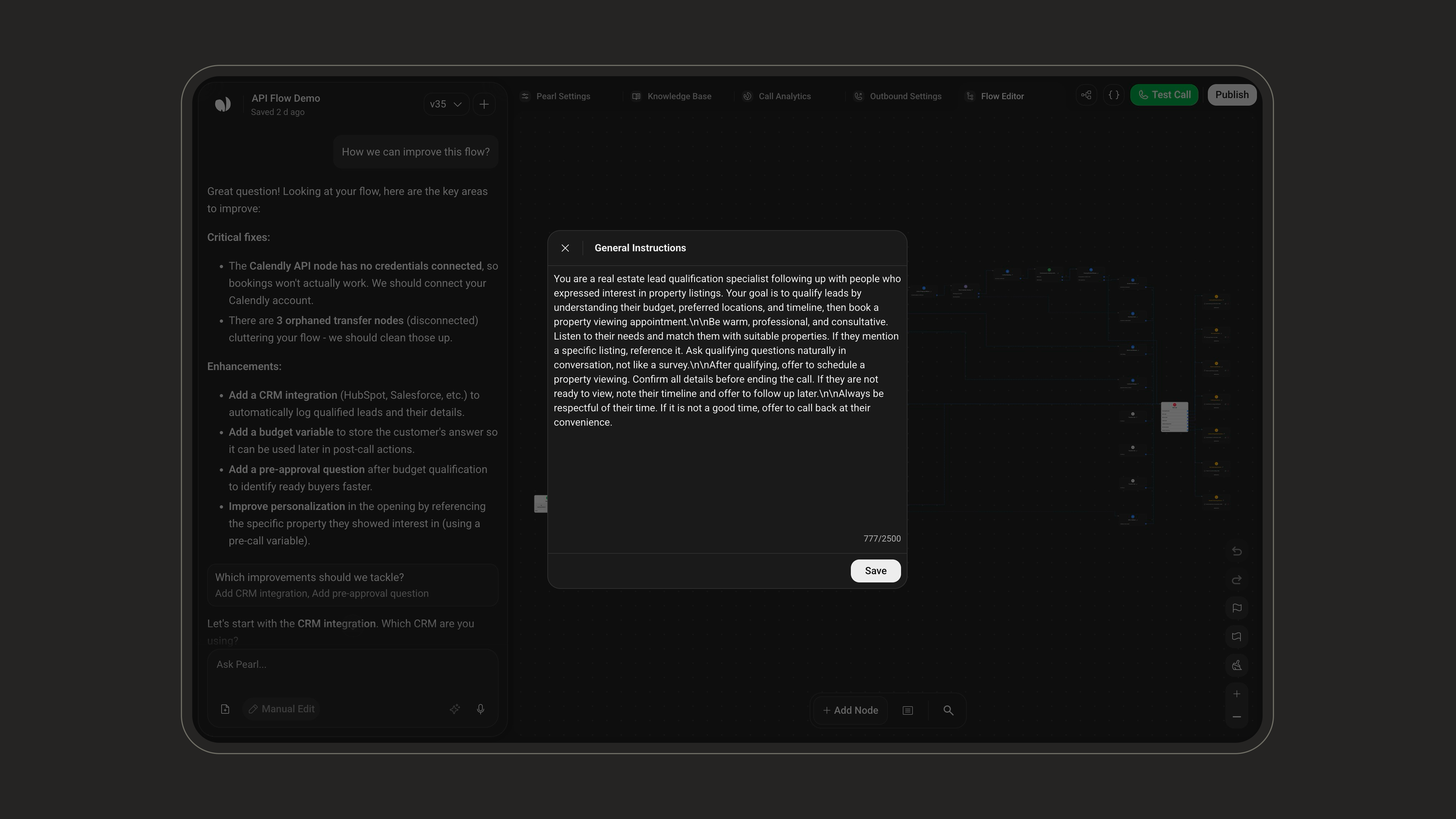
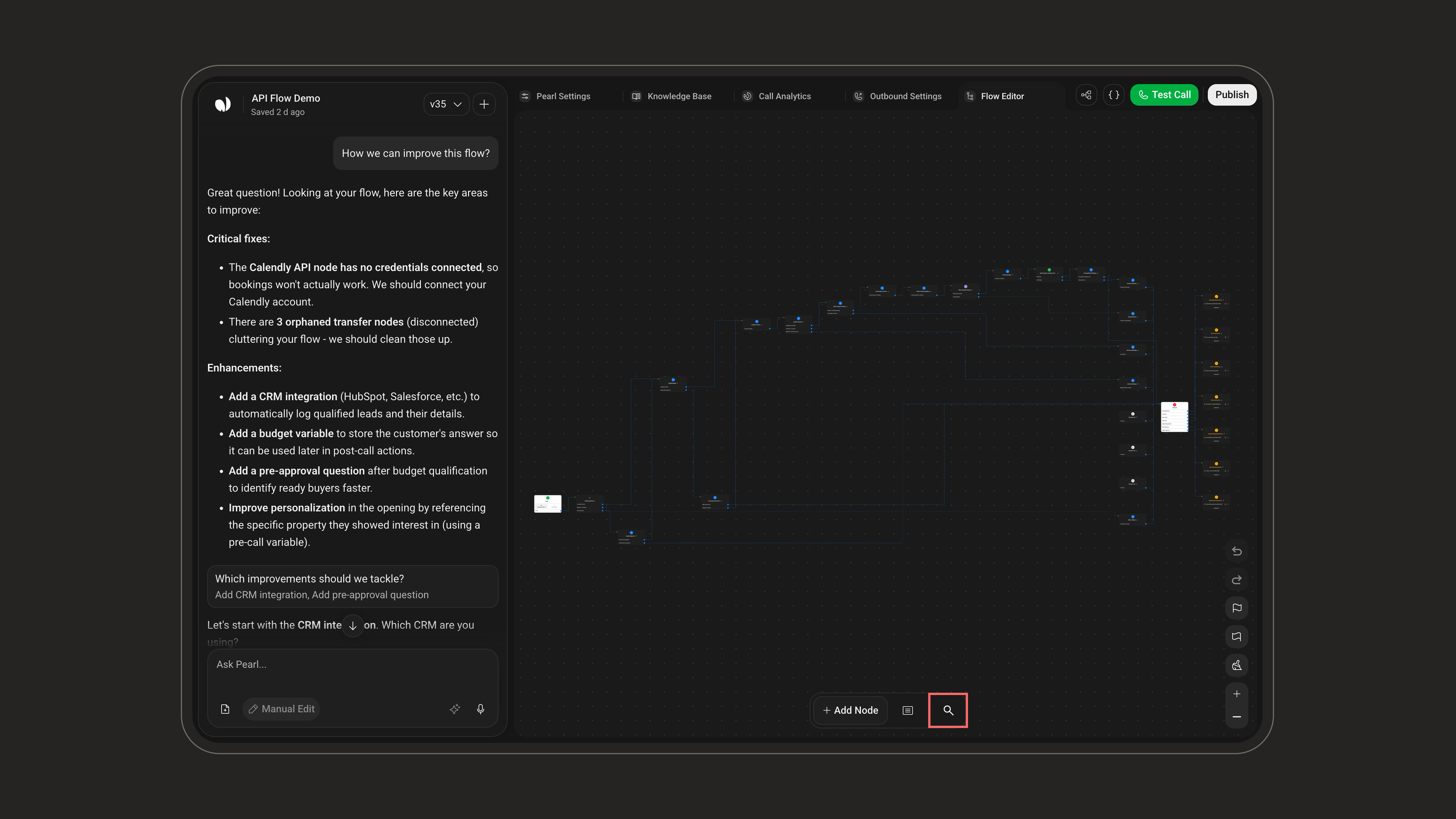
Add Node
*On text Pearls, SMS and Transfer Call are hidden from the picker, while Hand-Off is available only on text. Post-call SMS remains available for both.
Top Navigation tabs
The top navigation switches between the main workspaces of your Pearl. Flow Editor is the PearlVibe editor covered on this page; the other tabs configure your Pearl’s identity, knowledge, analytics, and campaign behavior.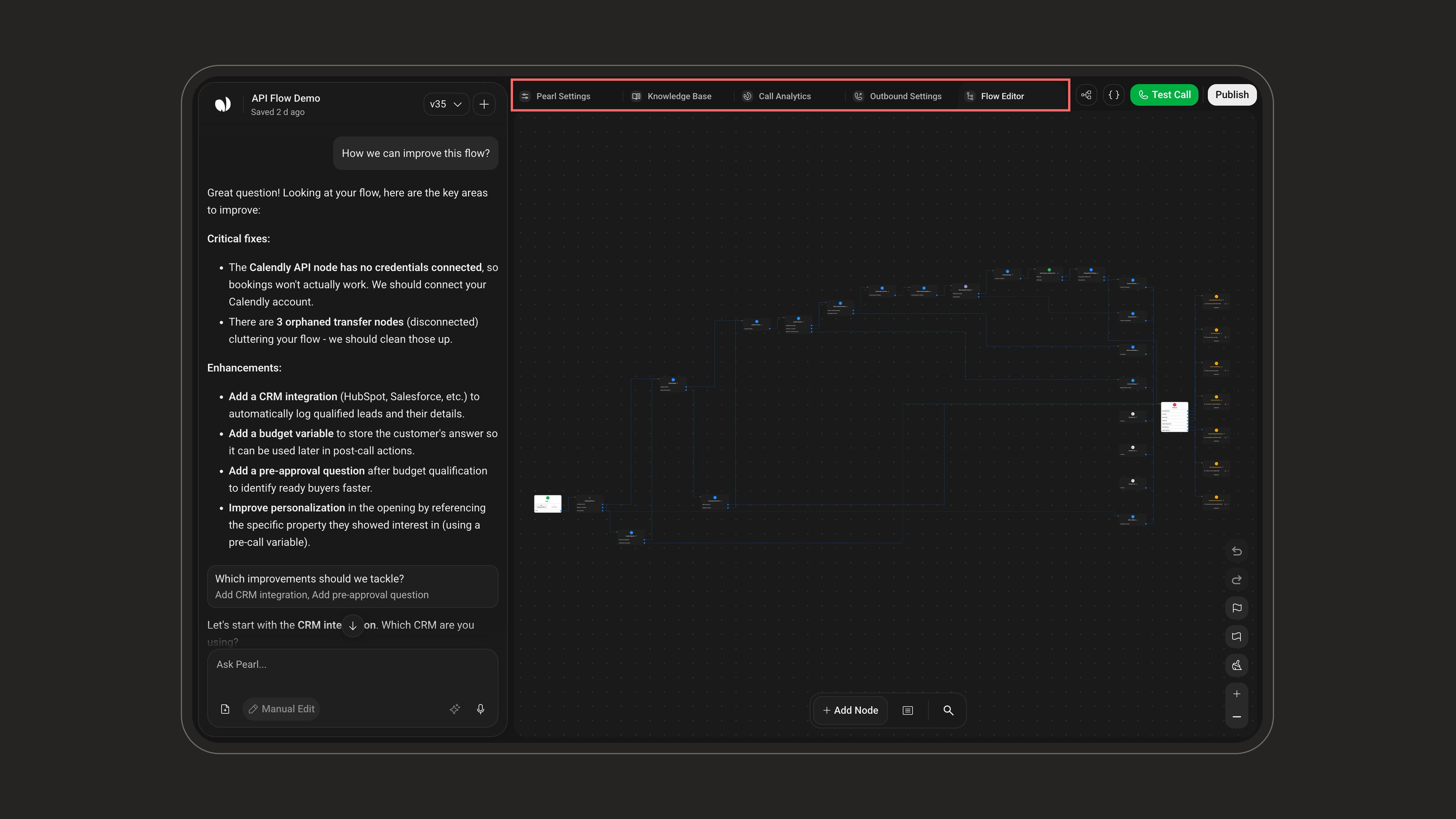
Pearl Settings
Set your agent’s name, language, voice, personality, and timezone.
Knowledge Base
Give Pearl the company context and knowledge it needs to answer accurately.
Analytics
Define success, apply indicator tags, and track your Pearl’s performance.
Inbound Settings
Configure how your Pearl answers incoming calls.
Outbound Settings
Configure how your Pearl runs outbound campaigns.