

Overview
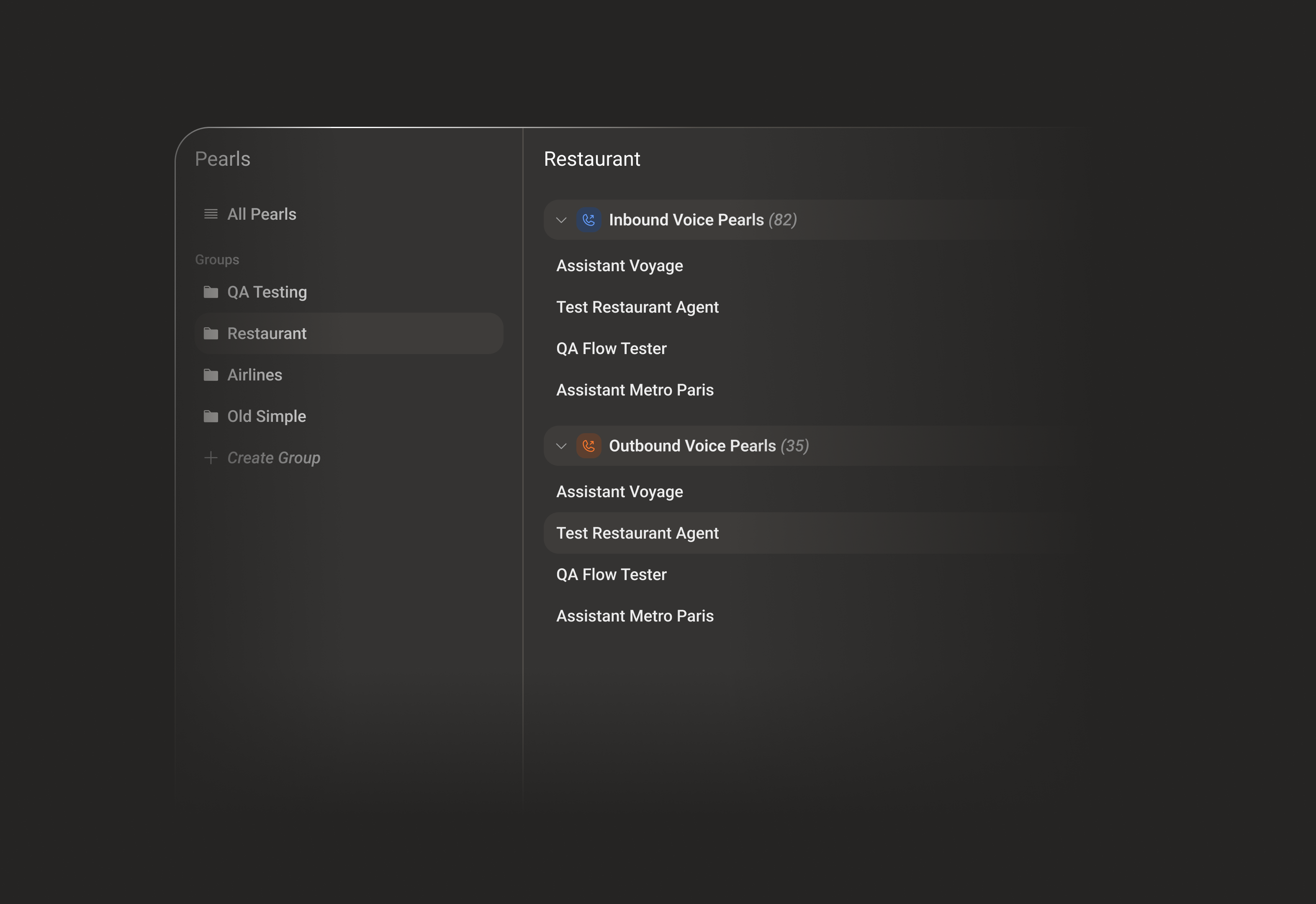
A Group brings together several Pearls - voice, text, or a mix of both - that serve the same customers or the same part of your business. When Pearls belong to the same Group, they can share:- Contacts - the same contact records across every Pearl in the Group.
- Interaction history - a combined view of the calls and chats a contact had with any Pearl in the Group.
- Collected information - the structured data gathered by any Pearl in the Group.
- Memory (optional) - a single, shared memory for each contact.
A Pearl can belong to one Group at a time. Moving it into another Group removes it from the previous one.
Individual vs Shared Memory
Two related concepts control how a contact is remembered.Individual Memory
A per-Pearl setting (in a Pearl’s Knowledge Base). When enabled, that specific Pearl remembers a contact and continues from where it left off - within that single Pearl only.
Shared Memory
A Group-level setting. When enabled, every Pearl in the Group accesses and updates the same memory for a contact, so context carries over between Pearls.
Open the Pearls area
Groups live inside Pearls. Open Pearls from the left navigation.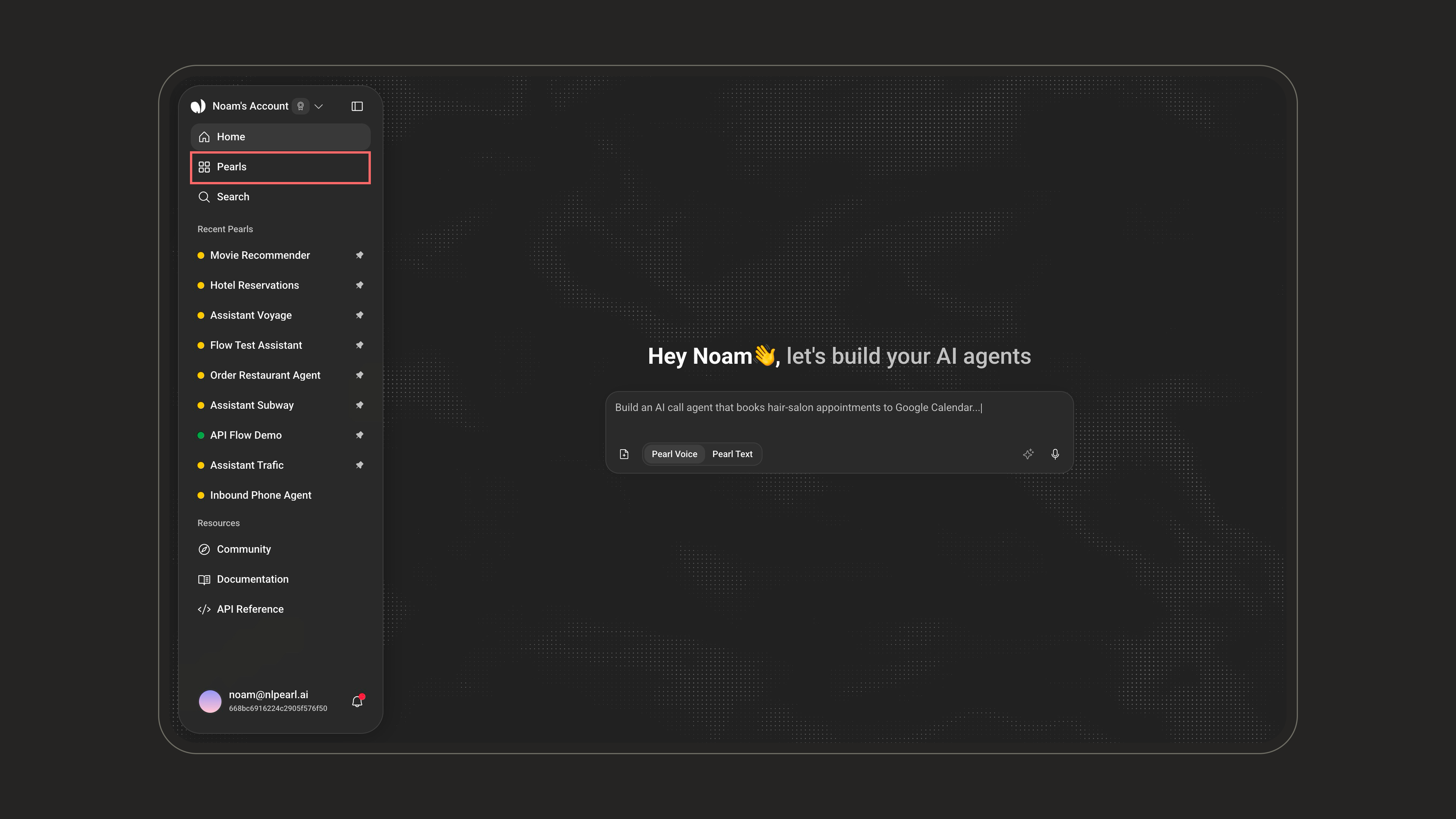
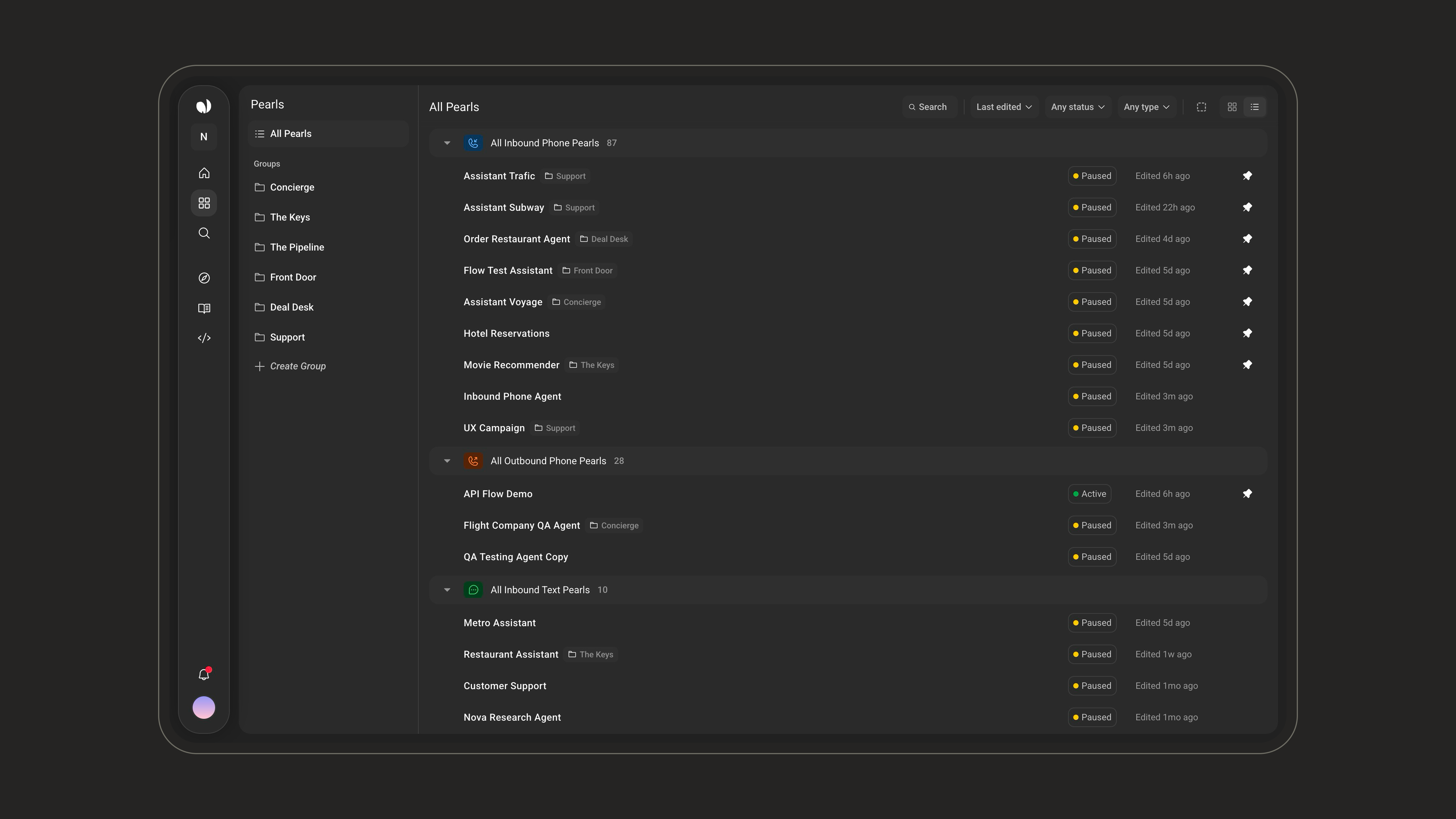
Create a Group
1
Click Create Group
In the Groups section of the sidebar, click Create Group.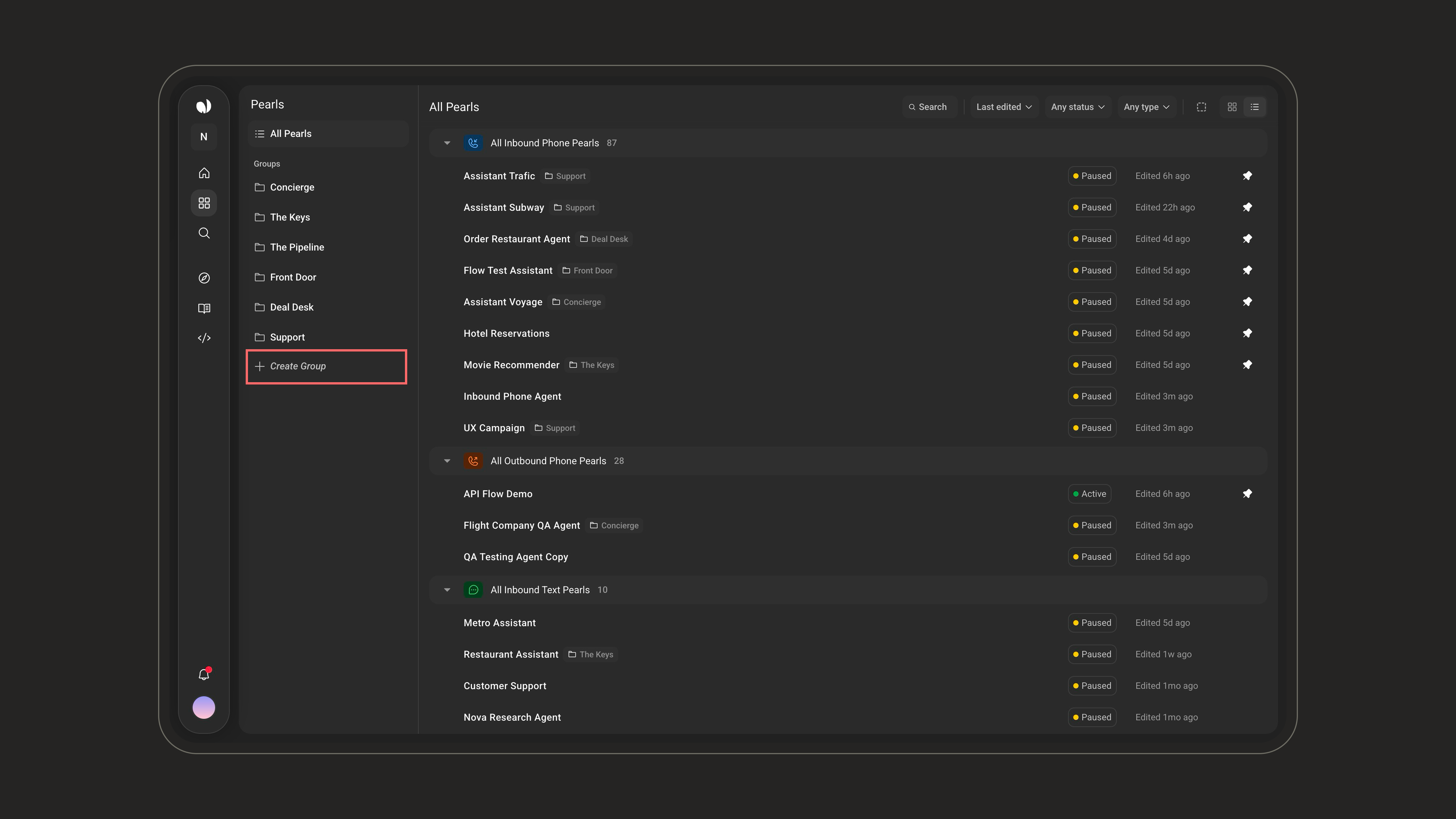
2
Name the Group
Enter a Group name (required, up to 50 characters), then click Create.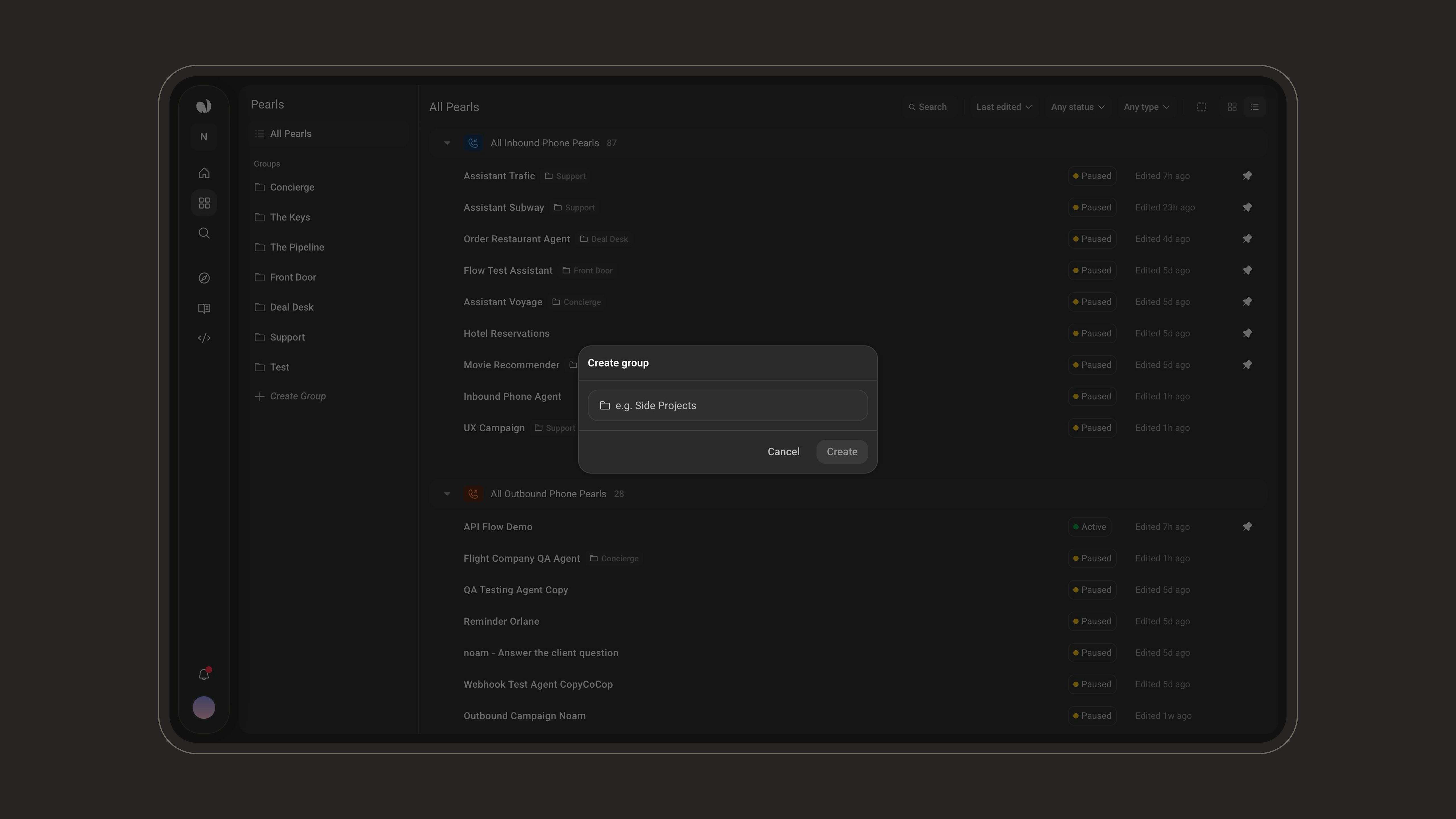
Assign Pearls to a Group
From All Pearls, select one or more Pearls. An action bar appears at the bottom showing the number selected, along with Move to group, Delete, and Cancel.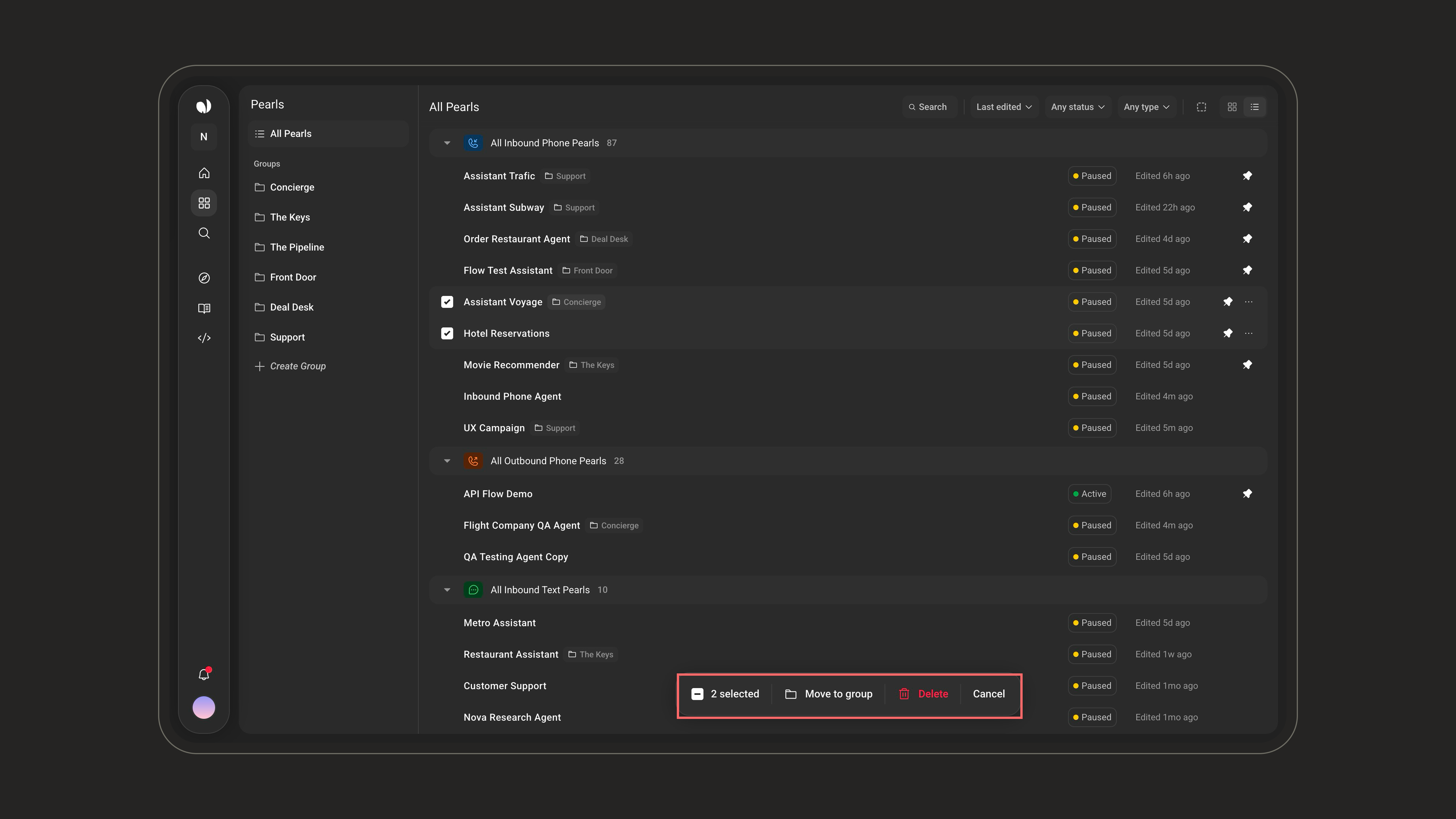
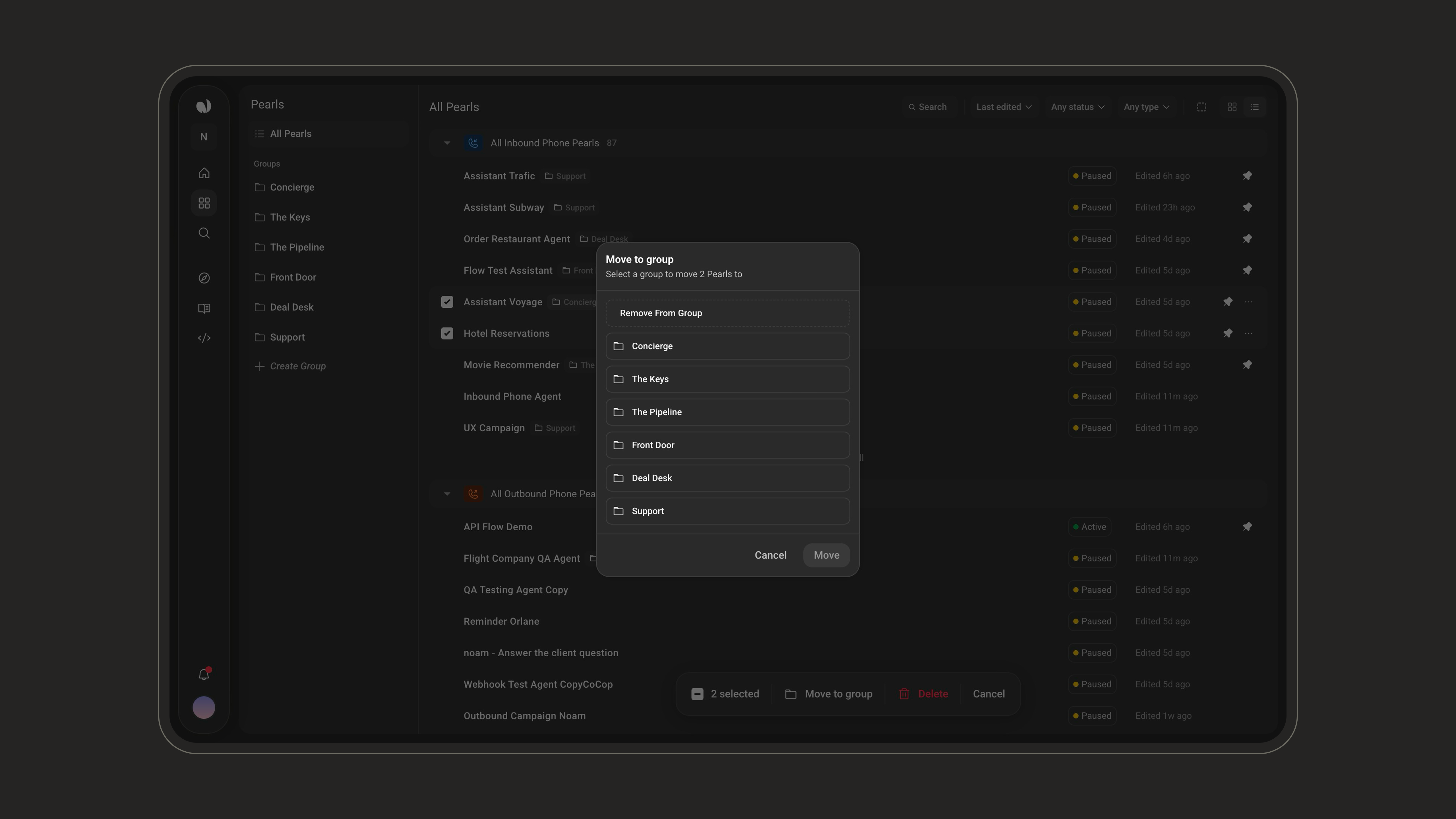
You can also add Pearls from inside a Group, using the + action in the Assigned Pearls toolbar.
Inside a Group
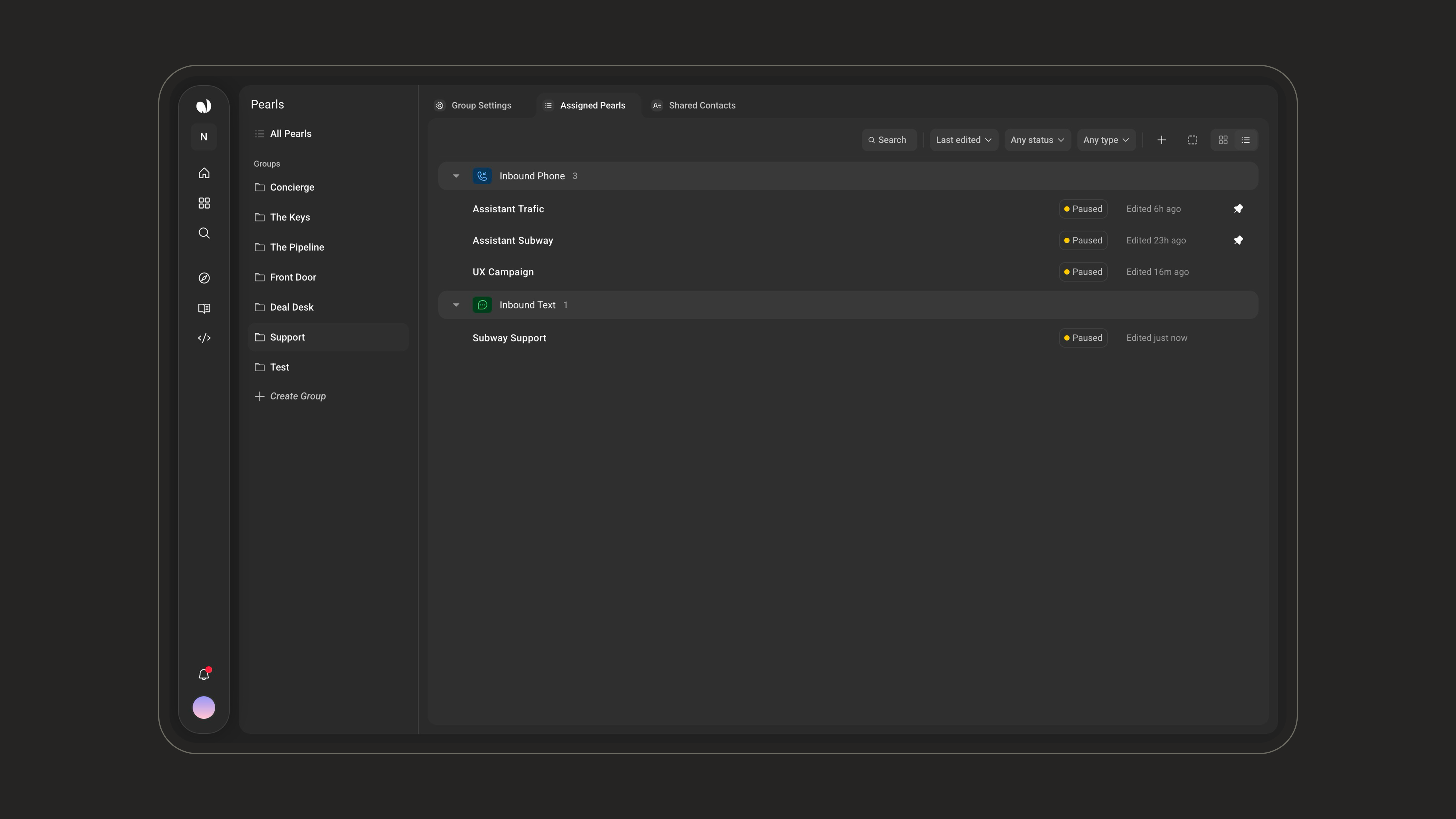
Opening a Group shows three tabs, starting on Assigned Pearls.
In Assigned Pearls, Pearls are grouped by type with a count per section. A toolbar lets you search, sort (Last edited, Date created, Alphabetical), filter by status and type, and switch between grid and list views.
Group Settings
The Group Settings tab is where the Group’s behavior is defined. Changes are saved immediately.1
Group Name
Change the name of this Group. Use the pencil next to the field to rename it.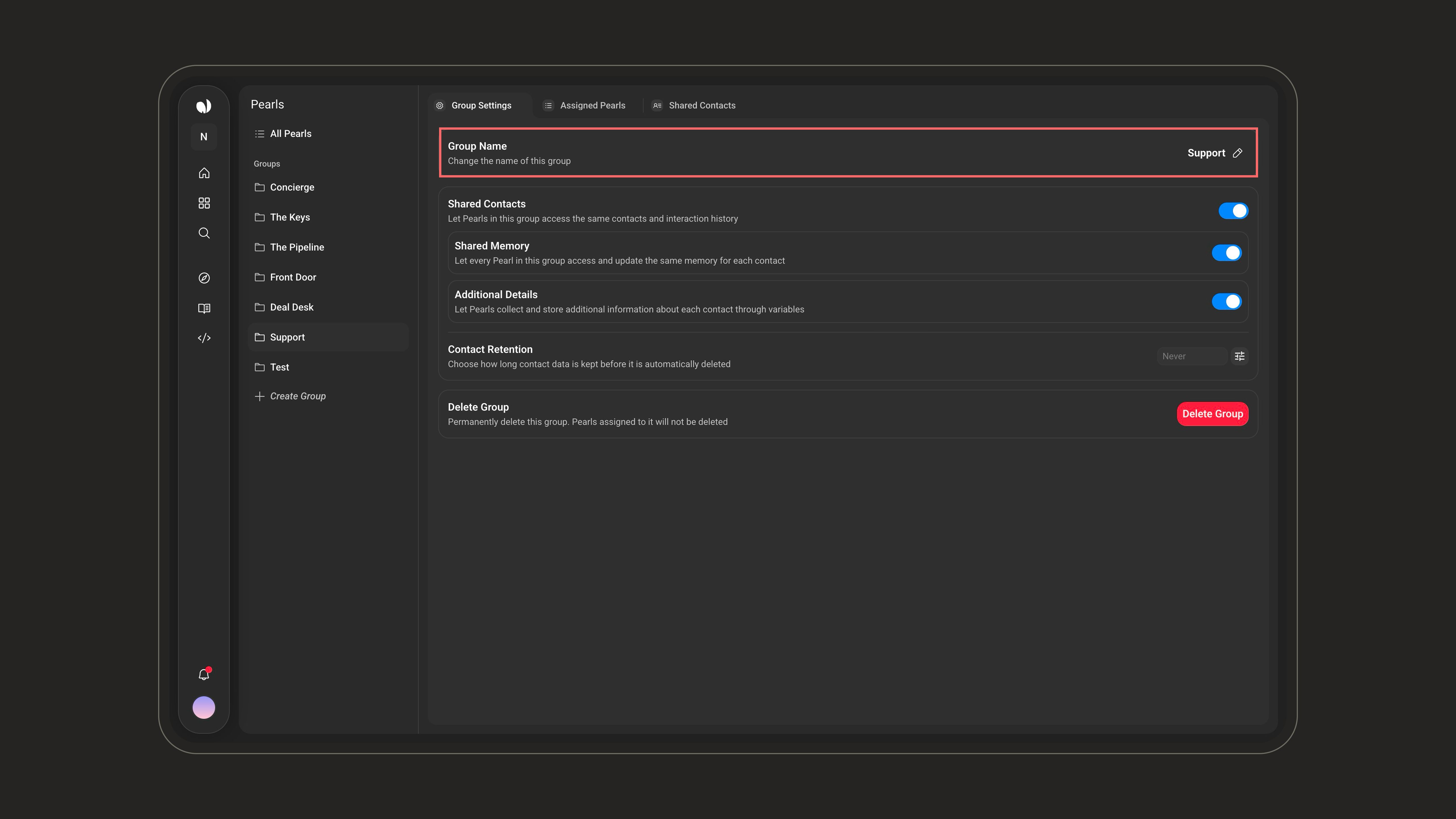
2
Shared Contacts, Shared Memory & Additional Details
These three toggles work together and control what Pearls in the Group share about each contact: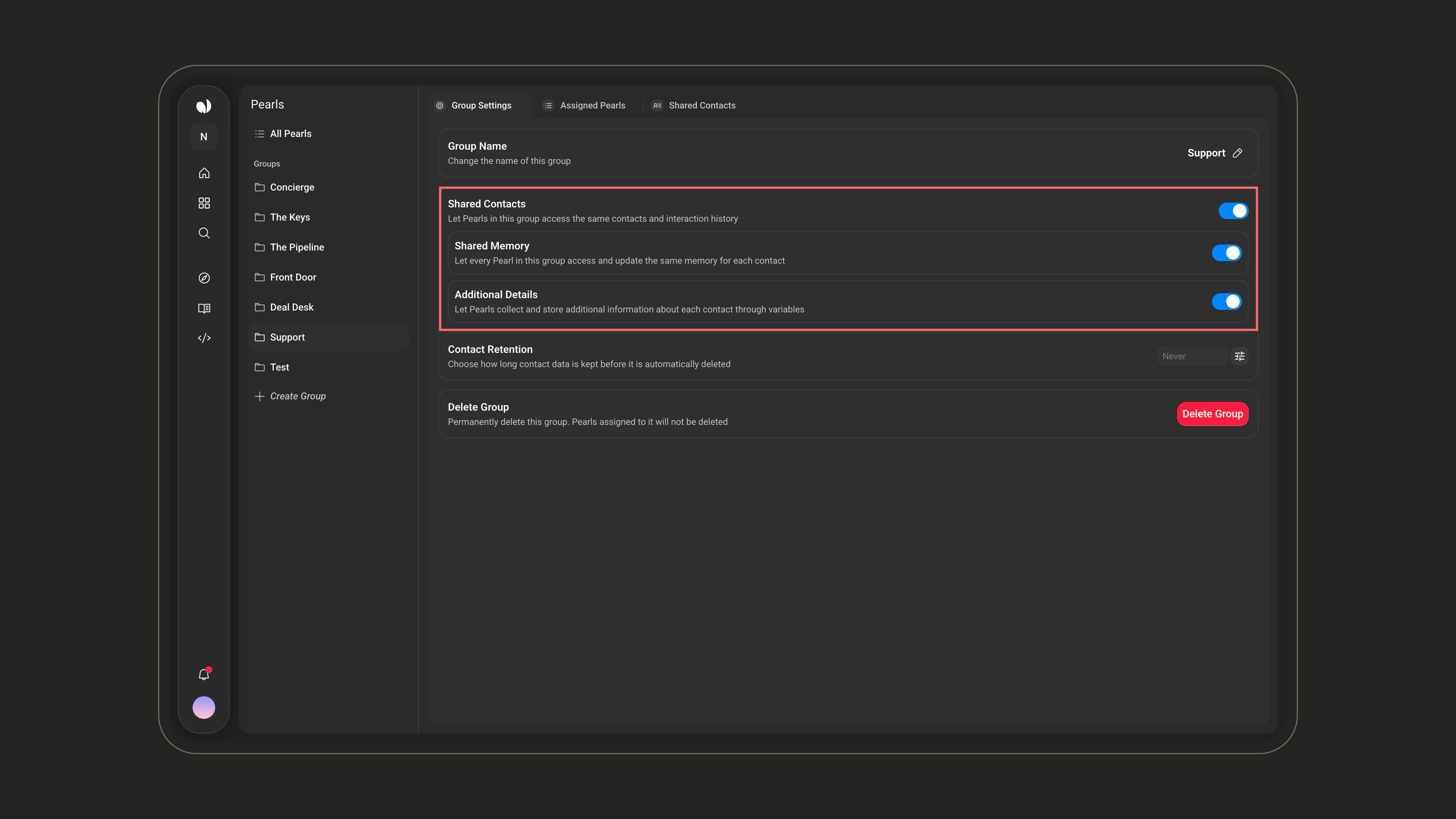
- Shared Contacts - Pearls in the Group use the same contact records and interaction history.
- Shared Memory - every Pearl accesses and updates the same per-contact memory (see the memory warning above).
- Additional Details - additional information collected through variables is stored on the contact and shown under Collected Info.
3
Contact Retention
Choose how long contact data is kept before it is automatically deleted. Leave it on Forever to keep contacts indefinitely, or set a number of days after which older contacts are removed.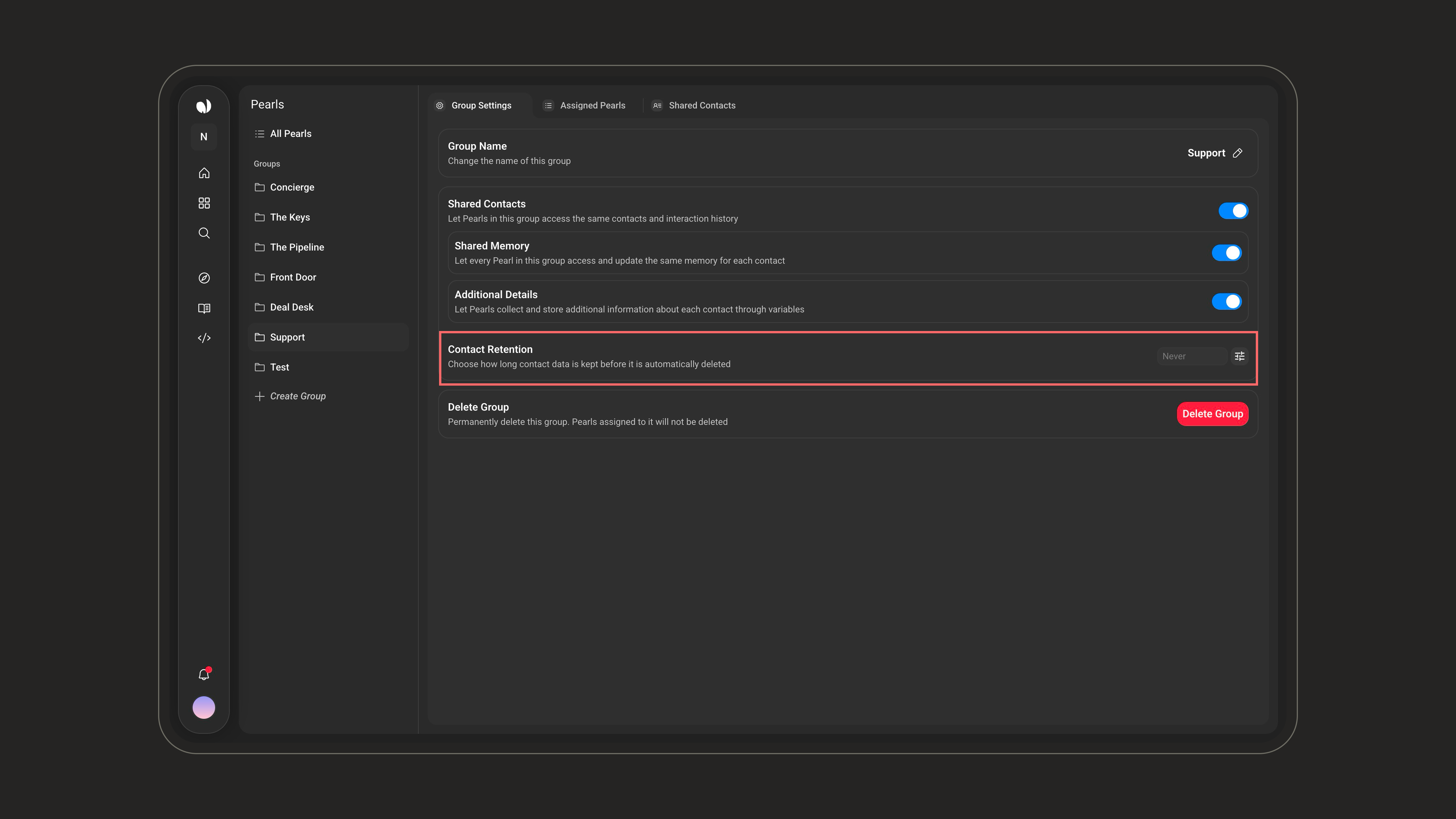
4
Delete Group
Permanently delete the Group. The Pearls assigned to it are not deleted - only the Group and its shared-contact configuration are removed.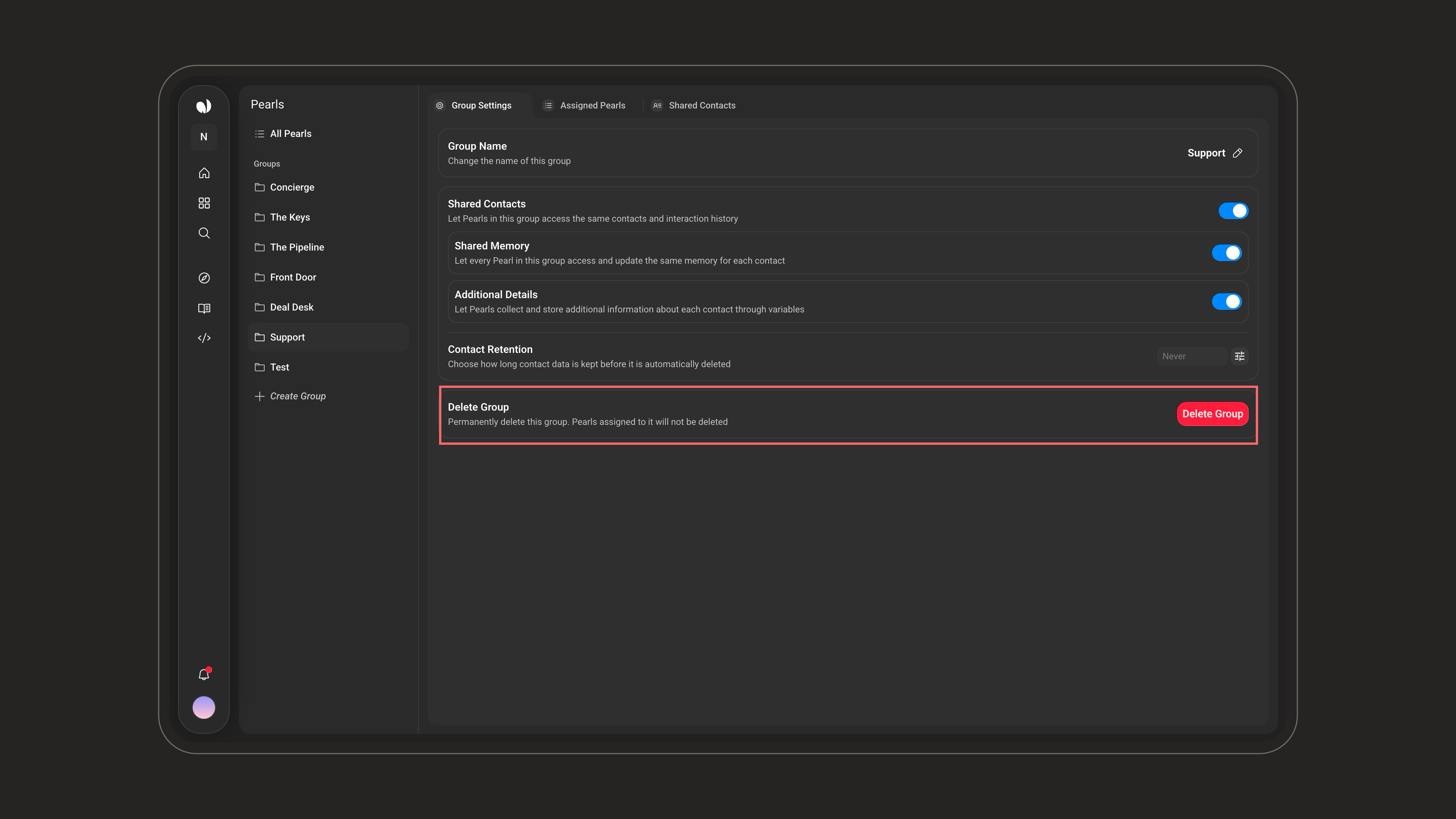
Shared Contacts
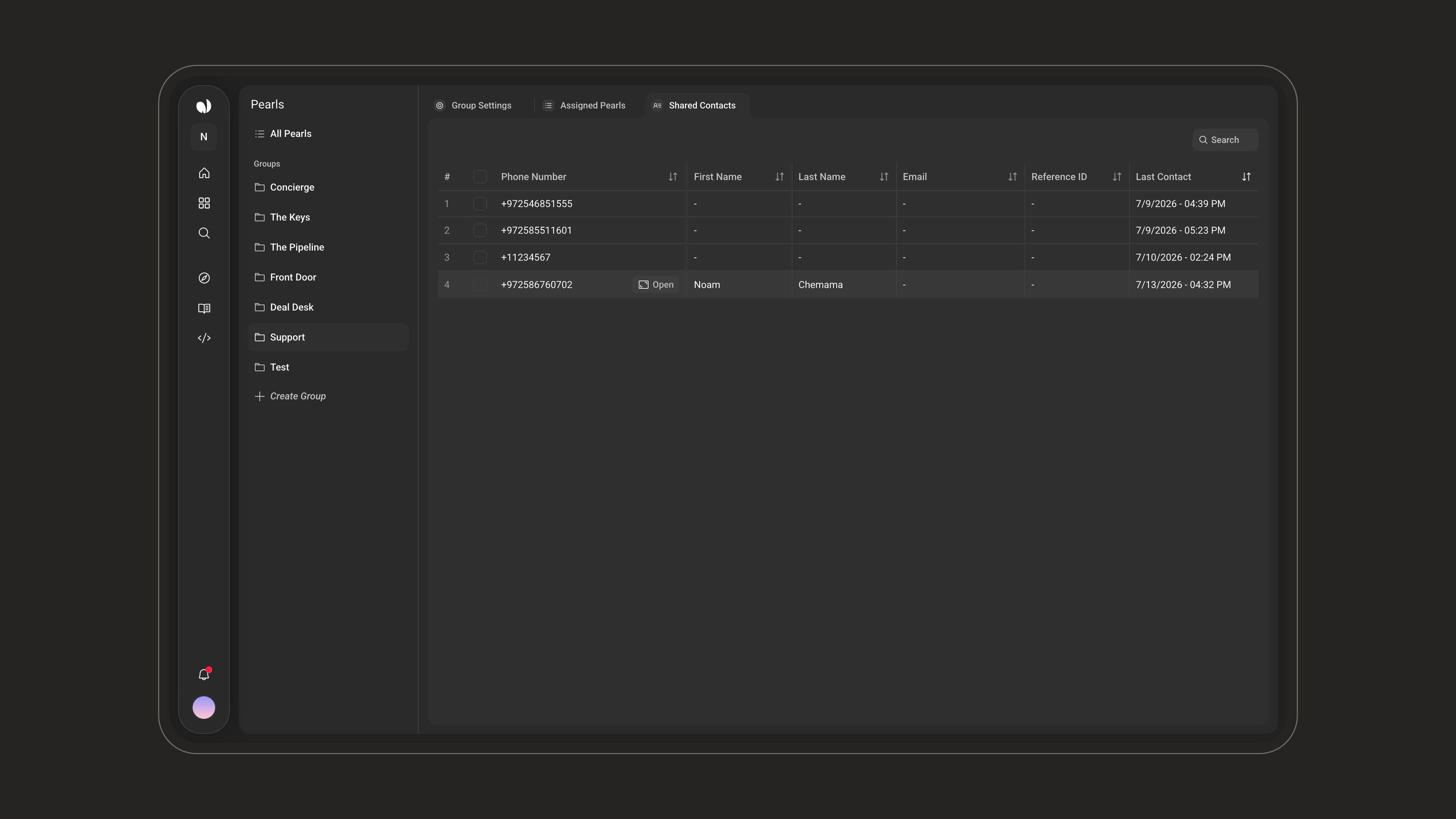
The Shared Contacts tab lists every contact shared across the Group’s Pearls, with a search bar and a sortable table:
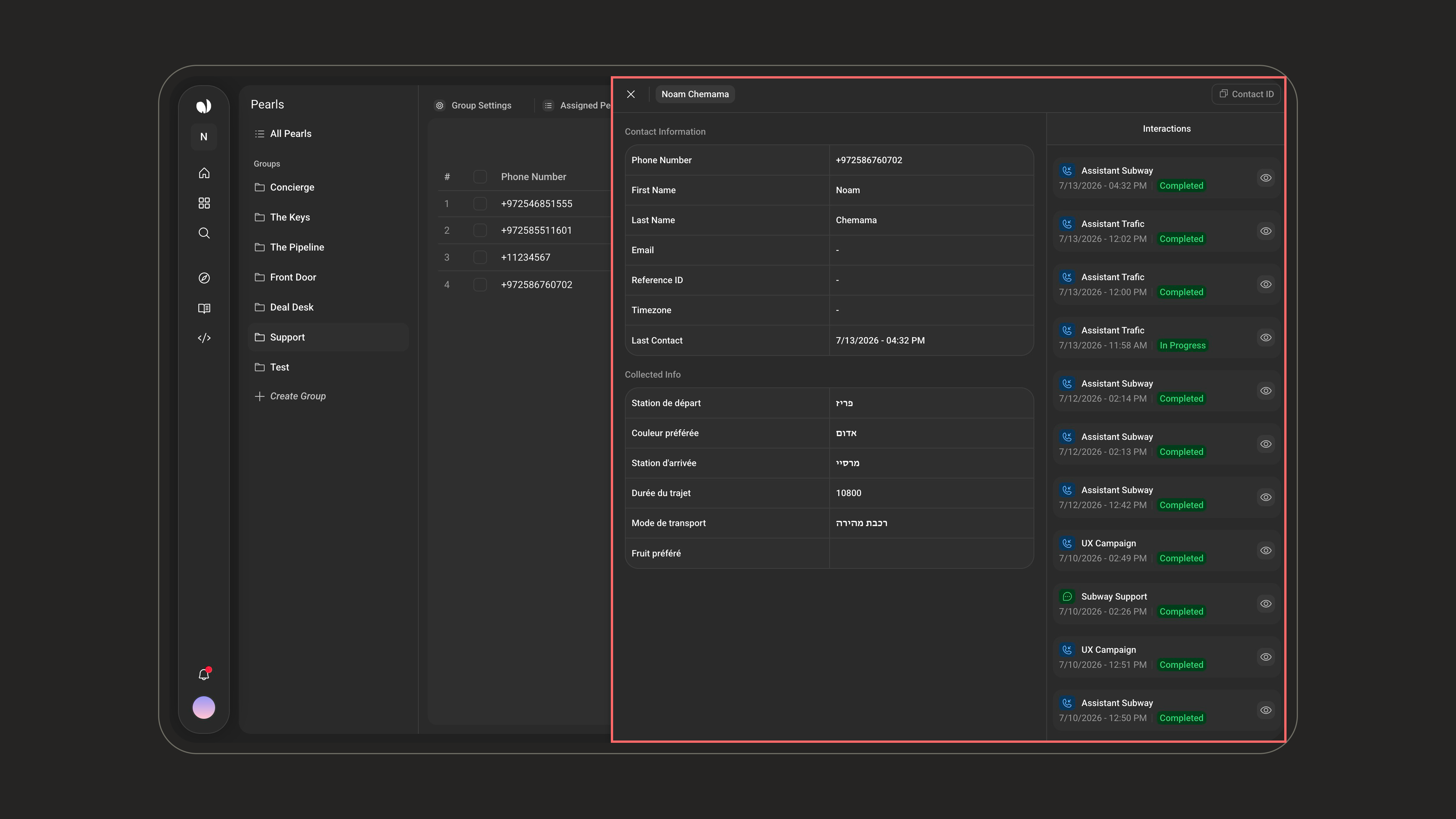
Hover a row and click Open to view the full contact.
Contact Information
Contact Information
The contact’s core details: phone number, first and last name, email, reference ID, time zone, and last contact date.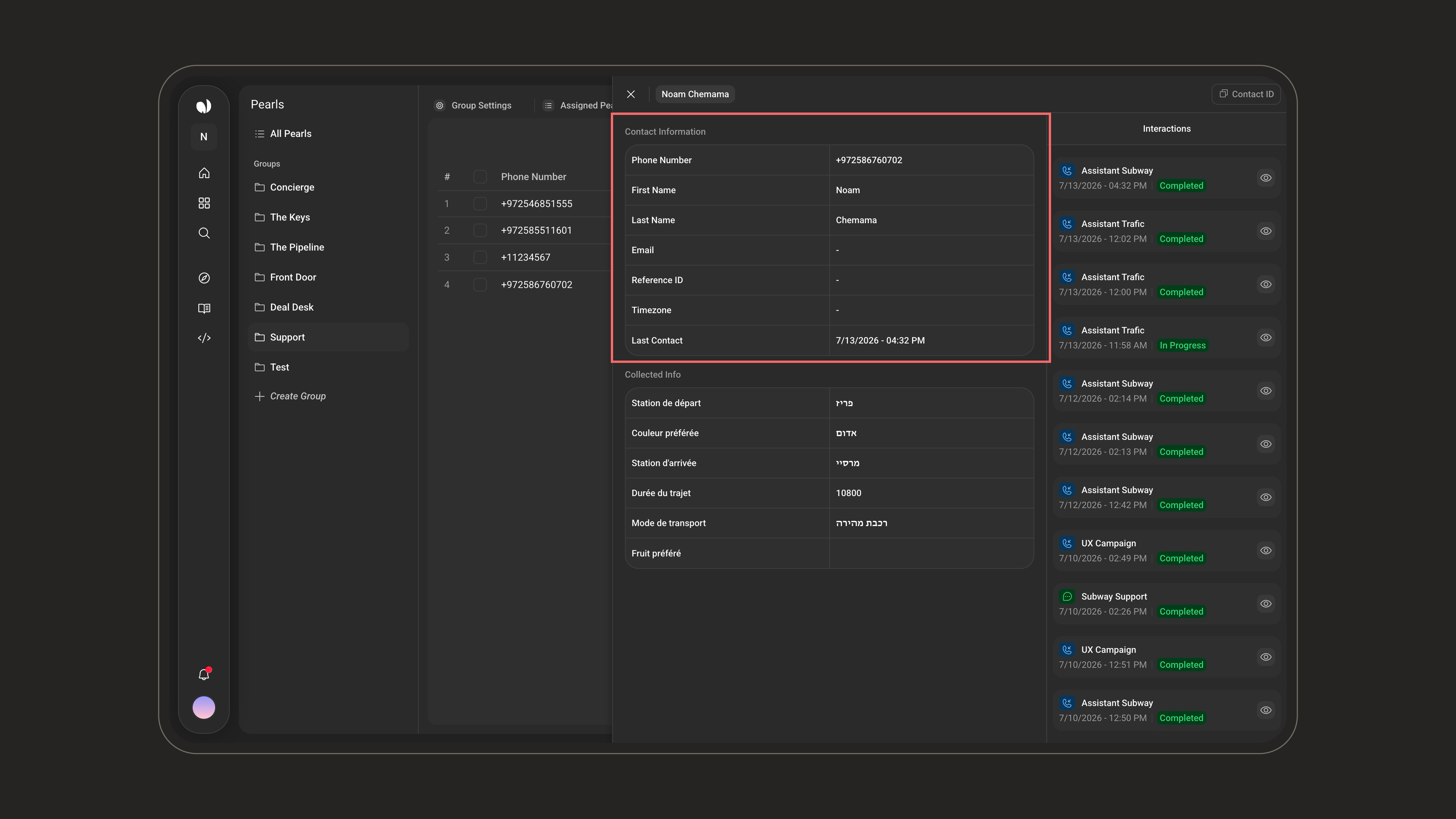
Collected Info
Collected Info
The values gathered by the Group’s Pearls through variables (populated when Additional Details is enabled).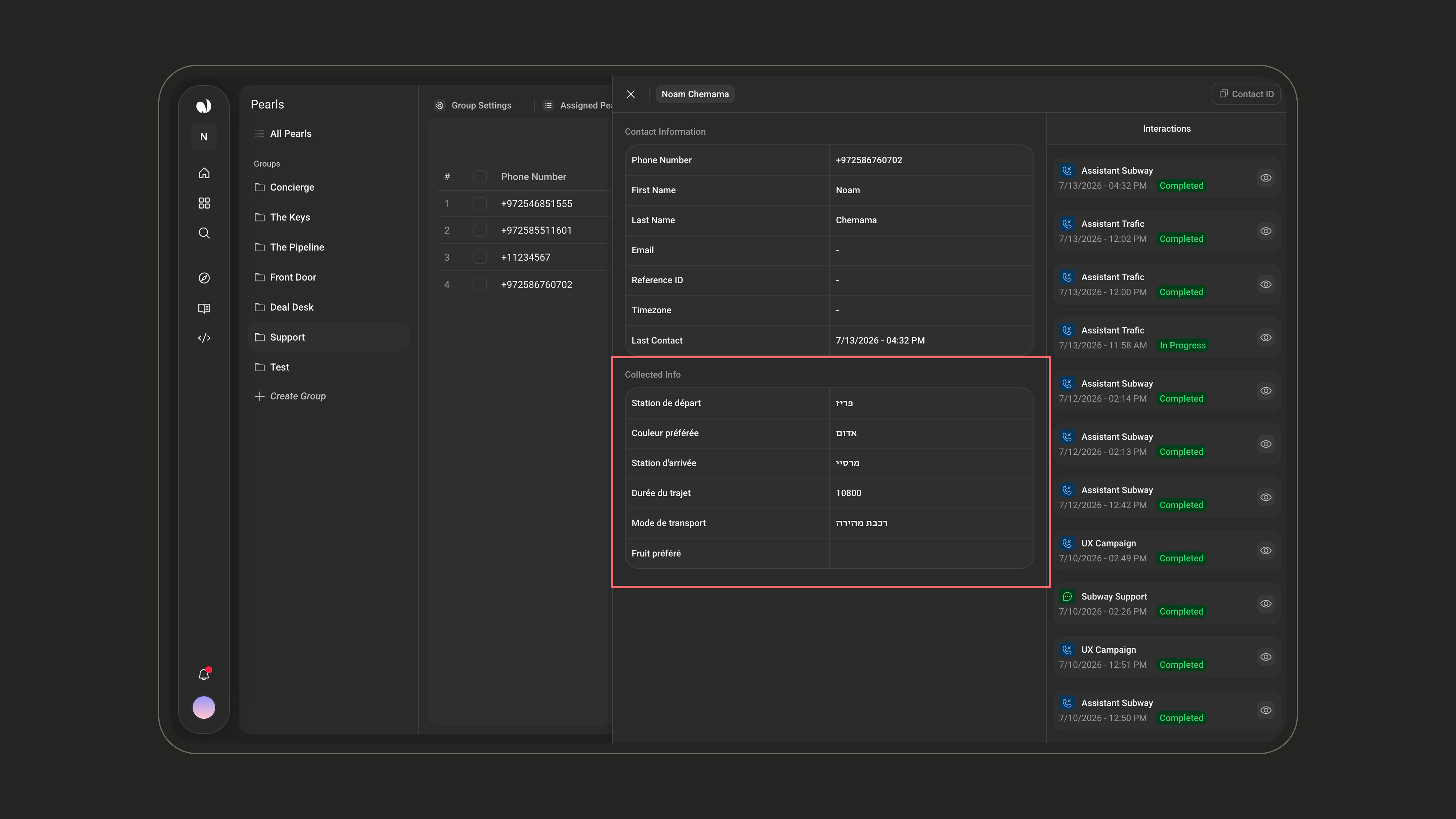
Interactions
Interactions
Every call and chat the contact had with Pearls in the Group - each entry shows the Pearl name and type, the date, and a status such as Completed or In Progress, with access to the related call or chat.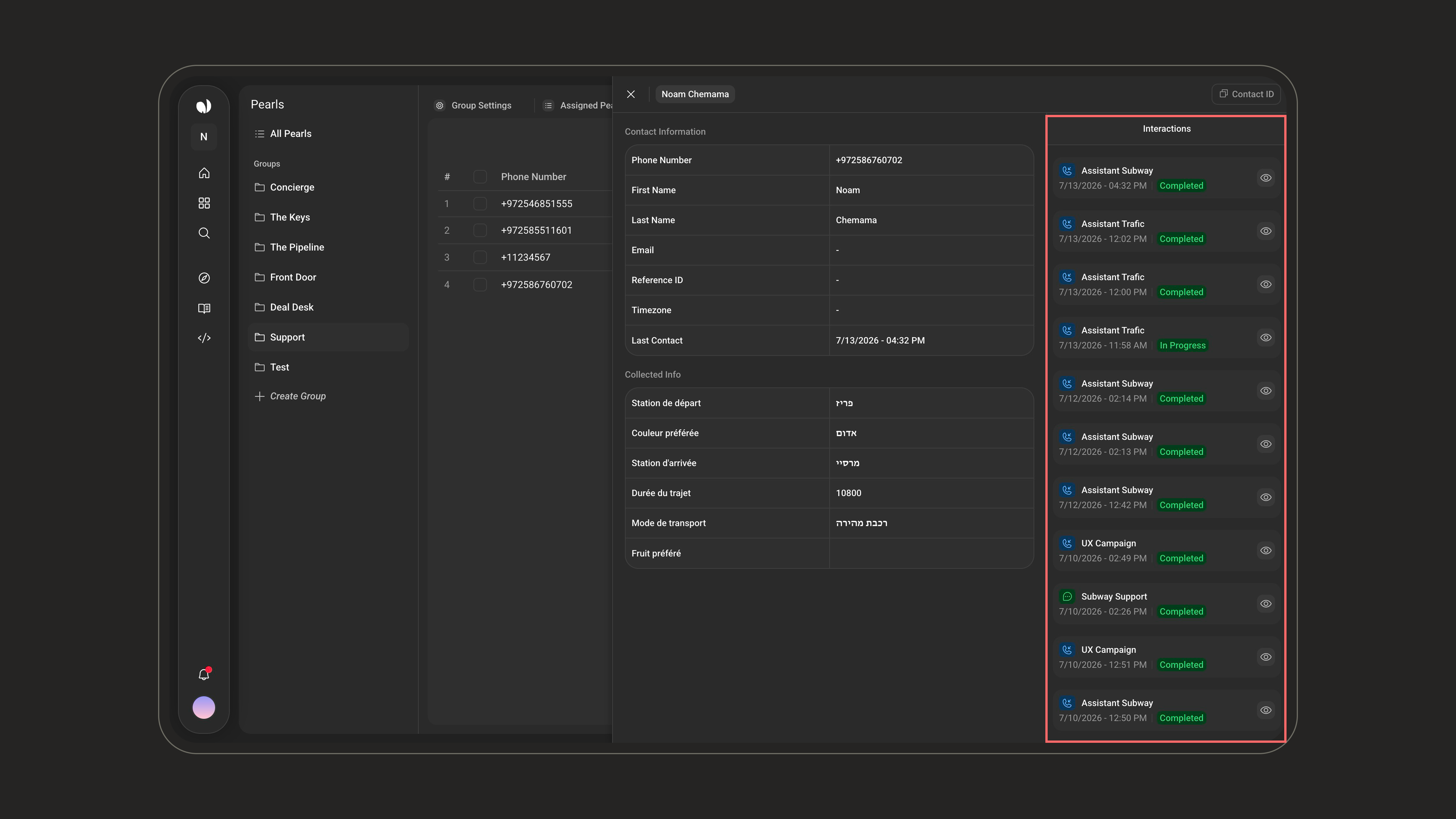
A Group Contacts tab also appears on an individual Pearl’s page when that Pearl belongs to a Group with Shared Contacts enabled.
Best Practices
Related Documentation
Pearl Voice
AI voice agents that handle real phone conversations - inbound and outbound.
Pearl Text
AI text agents that message your customers across SMS, WhatsApp, email, and chat.
Variables
Collect, store, and reuse data during conversations.
Pearl Settings
Configure a Pearl’s name, language, voice, personality, and time zone.