
WhatsApp Channel
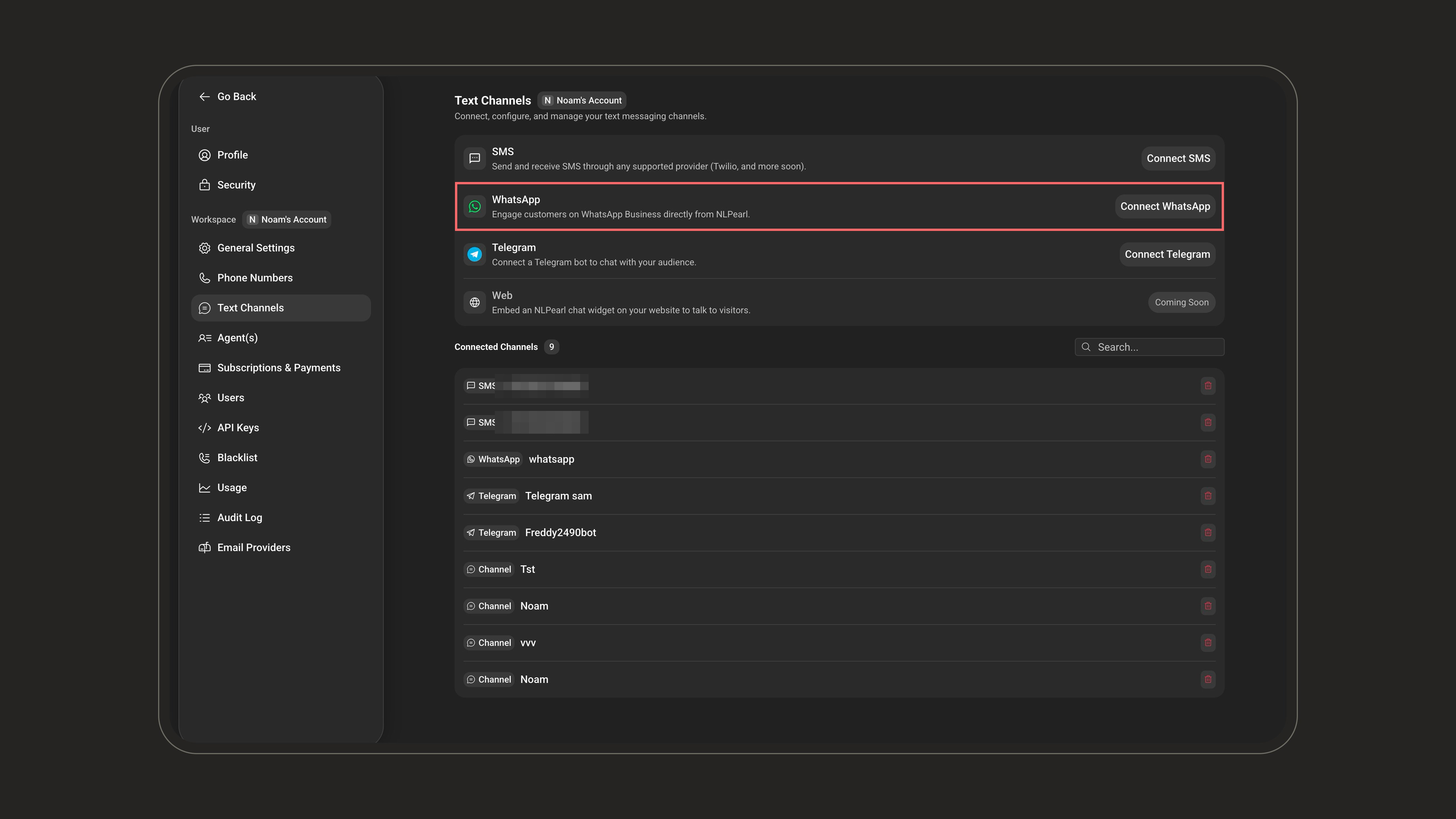
Connect your Pearl Text agent to WhatsApp through your WhatsApp Business account. Pearl replies using the flow, knowledge, and actions defined in your Pearl, across both inbound conversations and outbound campaigns. Outbound campaigns open each conversation with a WhatsApp template approved by Meta (see Outbound campaigns and templates). The connection runs through Meta Embedded Signup: a Meta window opens on the platform, you log in with the Facebook account that manages your business, and Meta links your WhatsApp Business account to NLPearl. You can start it from two places:- Settings → Text Channels, then click Connect Channel and choose WhatsApp.
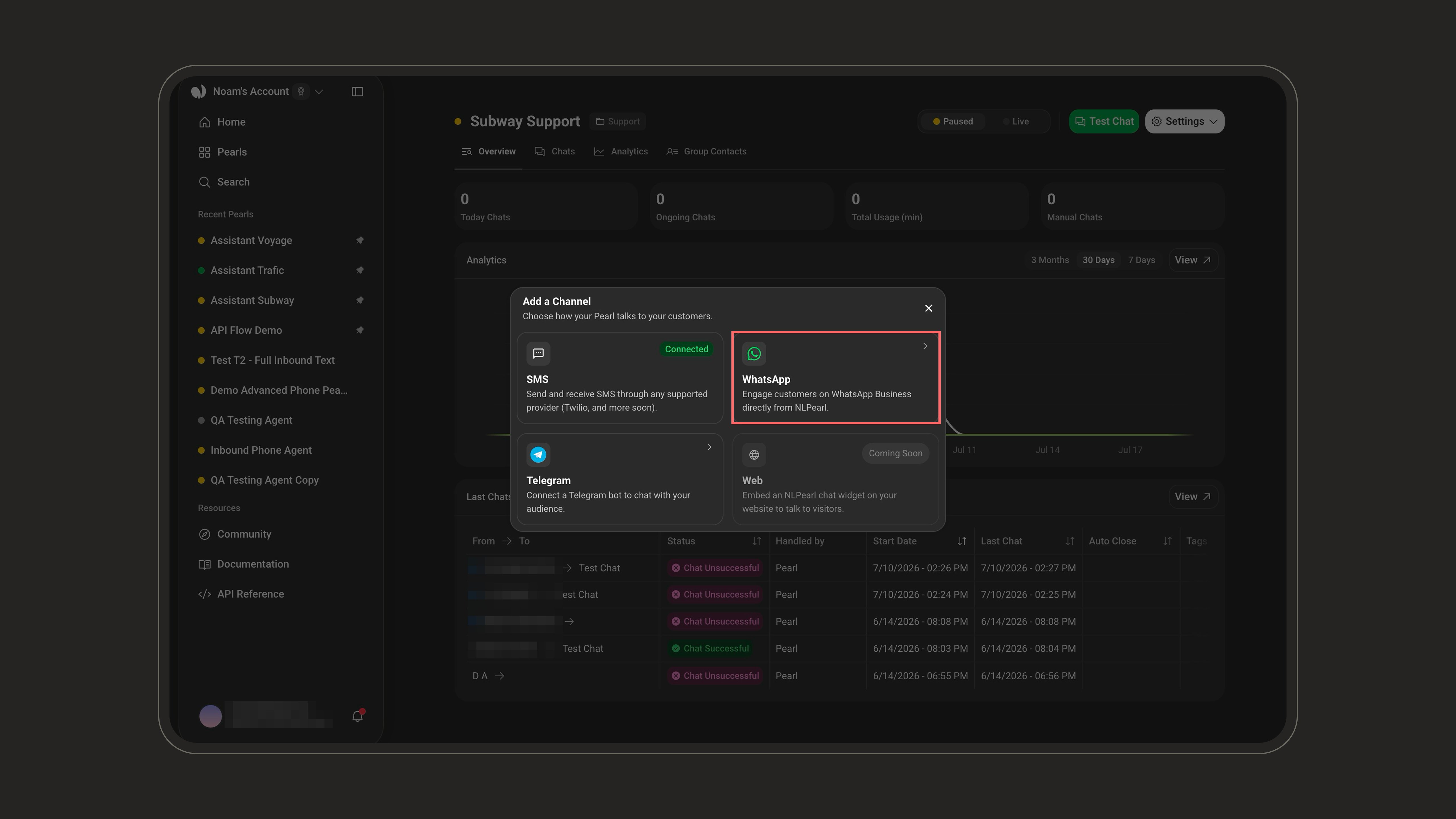
- From a Pearl’s Overview page, through the Add a Channel chooser.
Choose a connection mode
Before connecting, pick how NLPearl should use your number:
Both modes share WhatsApp’s messaging limits: business-initiated conversations start at 250 per 24 hours and scale automatically to 2,000, 10,000, 100,000, then unlimited - once you verify your business with Meta or sustain enough high-quality template volume.
If you already use the number in the WhatsApp Business app, choose Coexistence - you keep your app and chat history while Pearl handles conversations on the same number. Choose Dedicated for high-volume campaigns or when the channel must not depend on a phone.
Connect in Coexistence mode
Before you start, keep your number active in the WhatsApp Business app on your phone - Meta requires app version 2.24.17 or later, and the regular WhatsApp app is not supported.1
Start the connection
Select Keep using WhatsApp on my phone, then click Connect WhatsApp.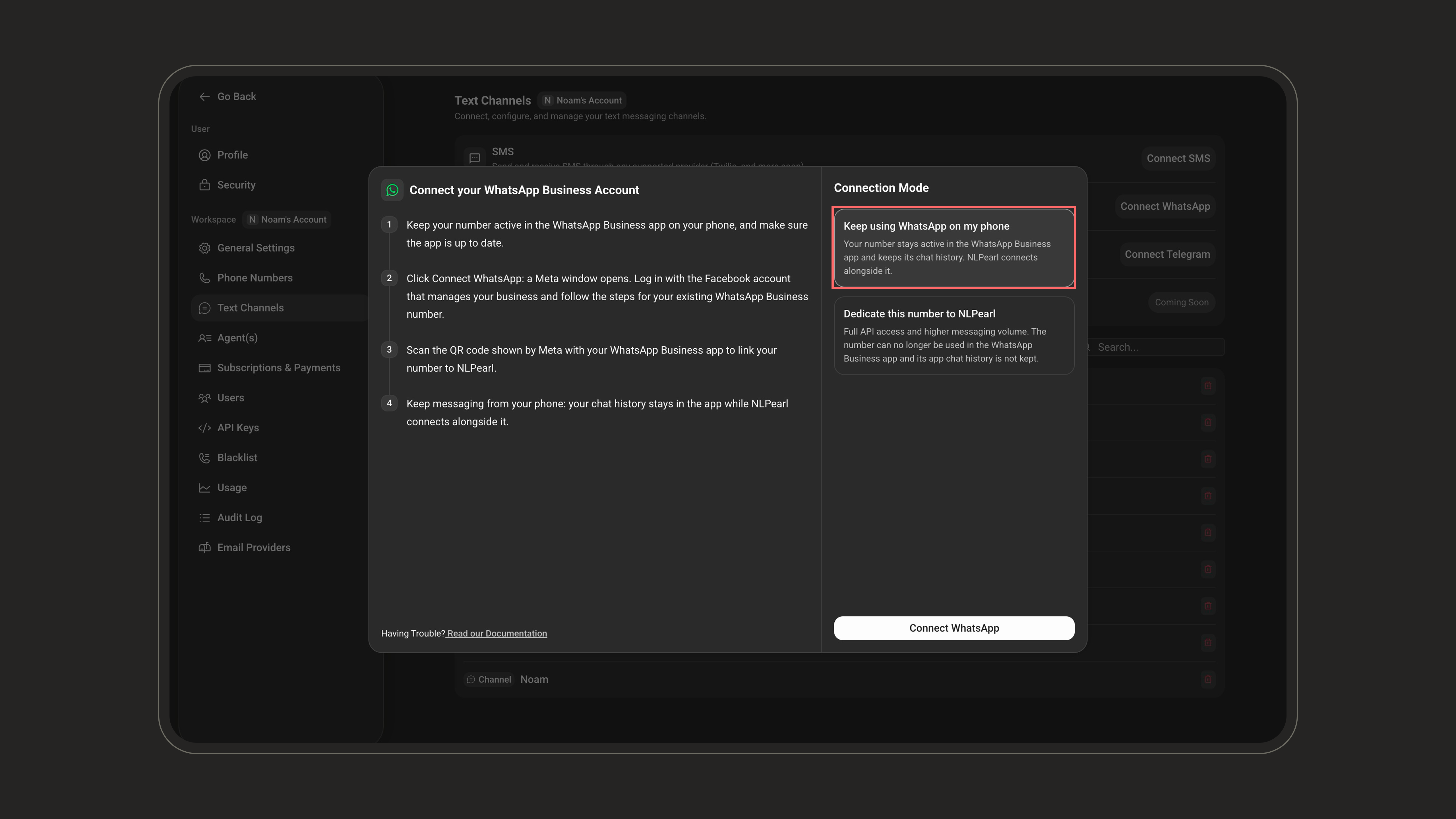
2
Log in and continue
A Meta window opens. Log in with the Facebook account that manages your business and click Continue.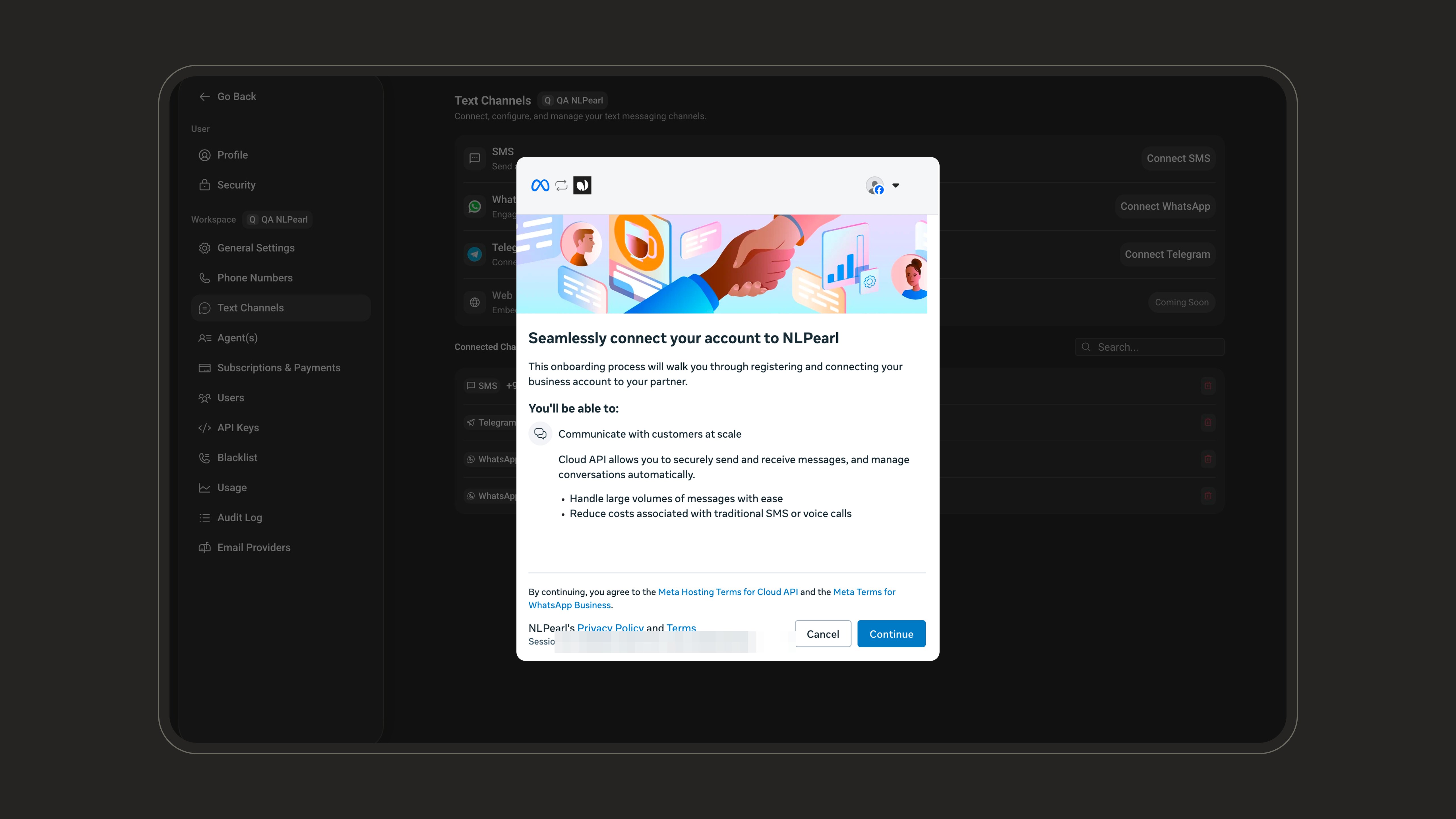
3
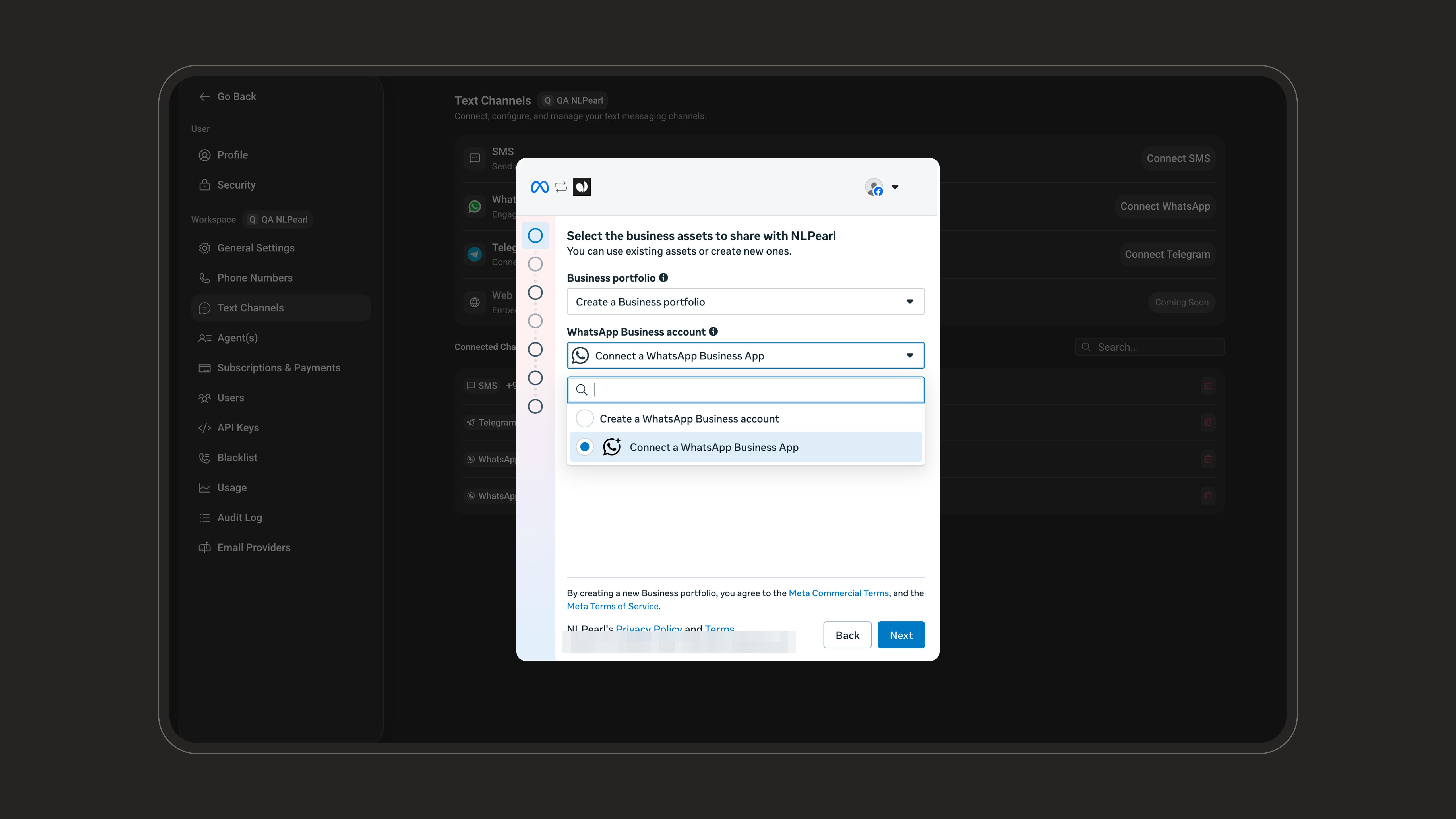
Select your business assets
Pick or create your Business portfolio.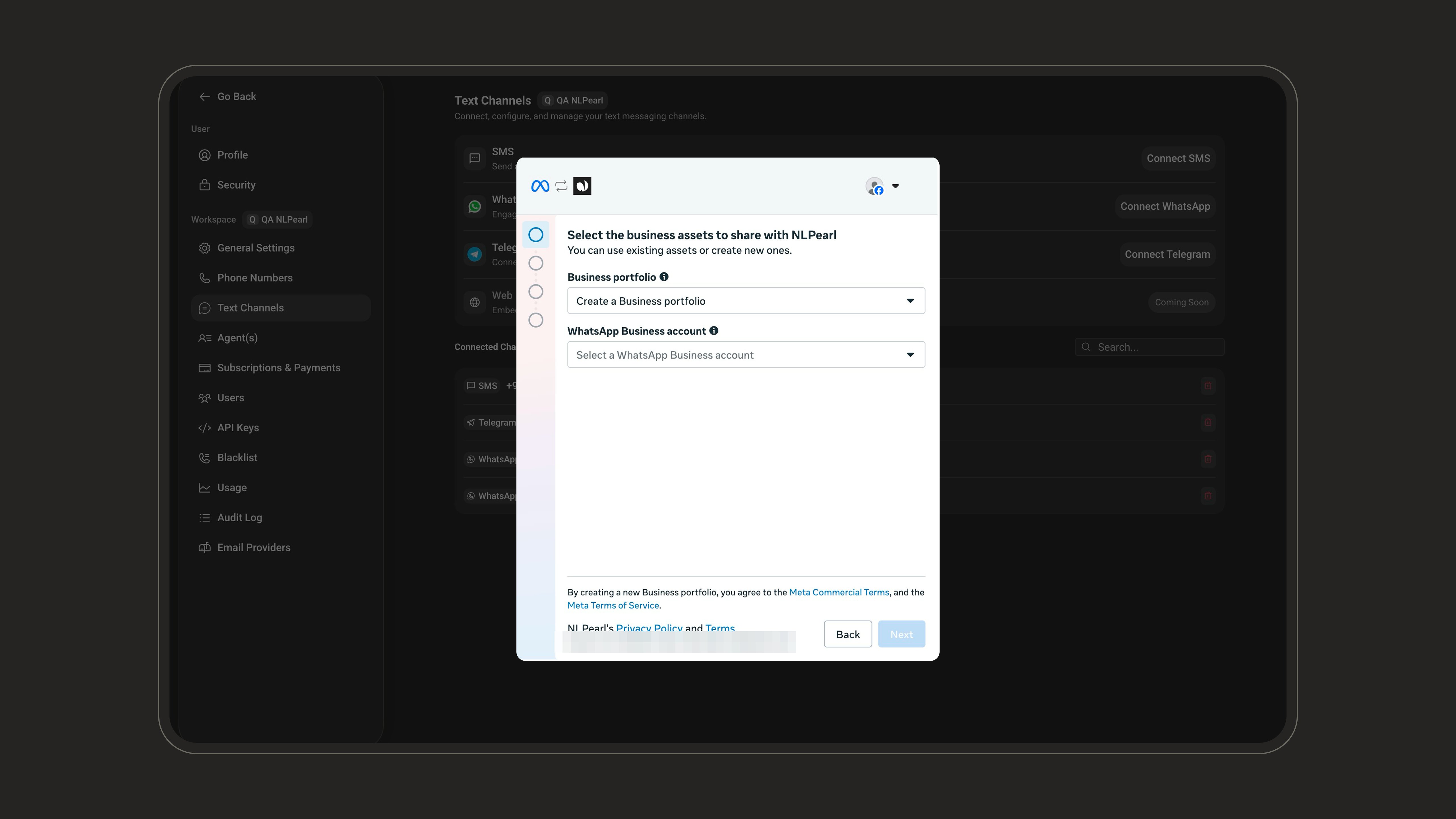
4
Enter your business information
Fill in your business details - they only affect newly created assets.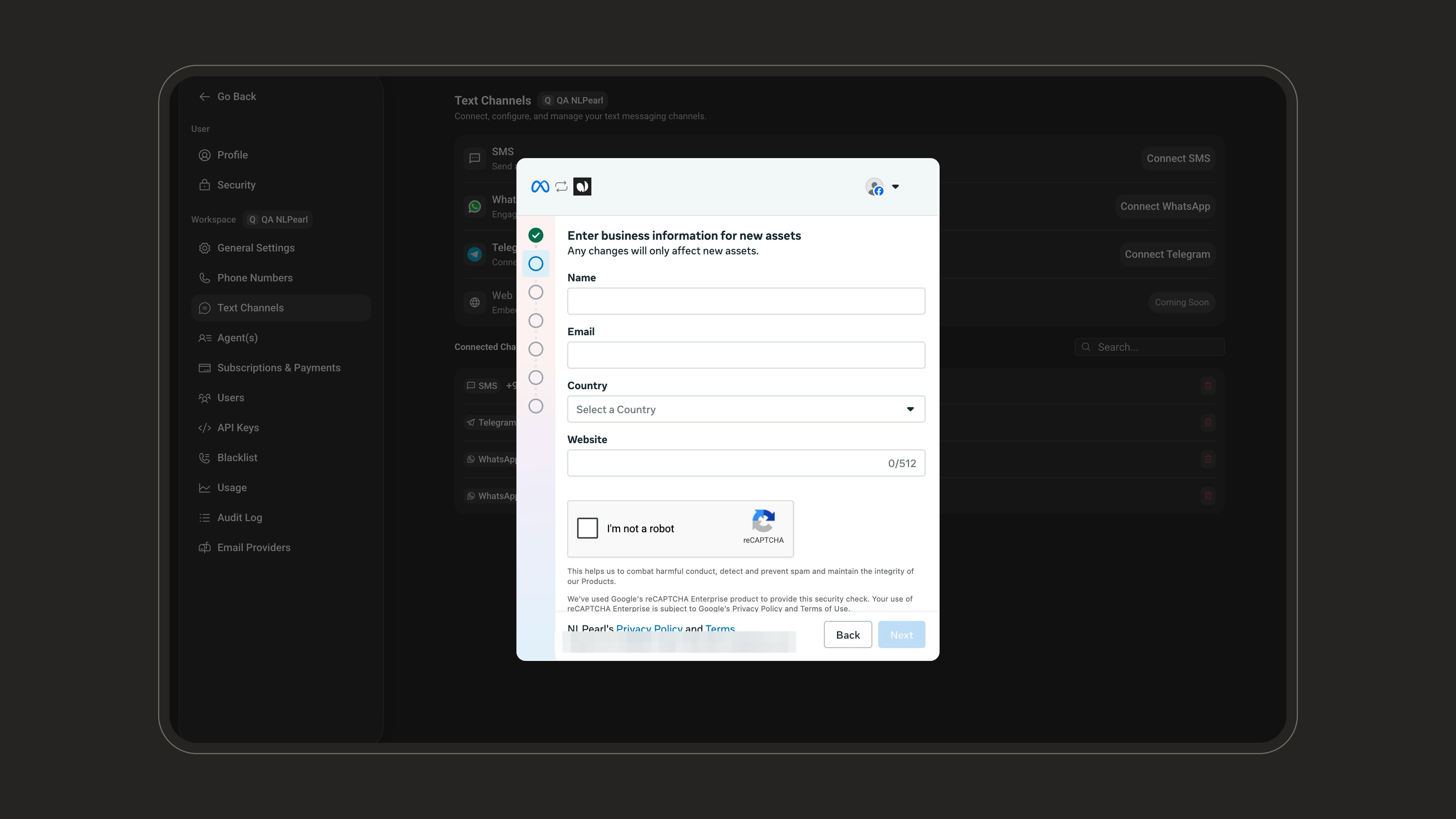
5
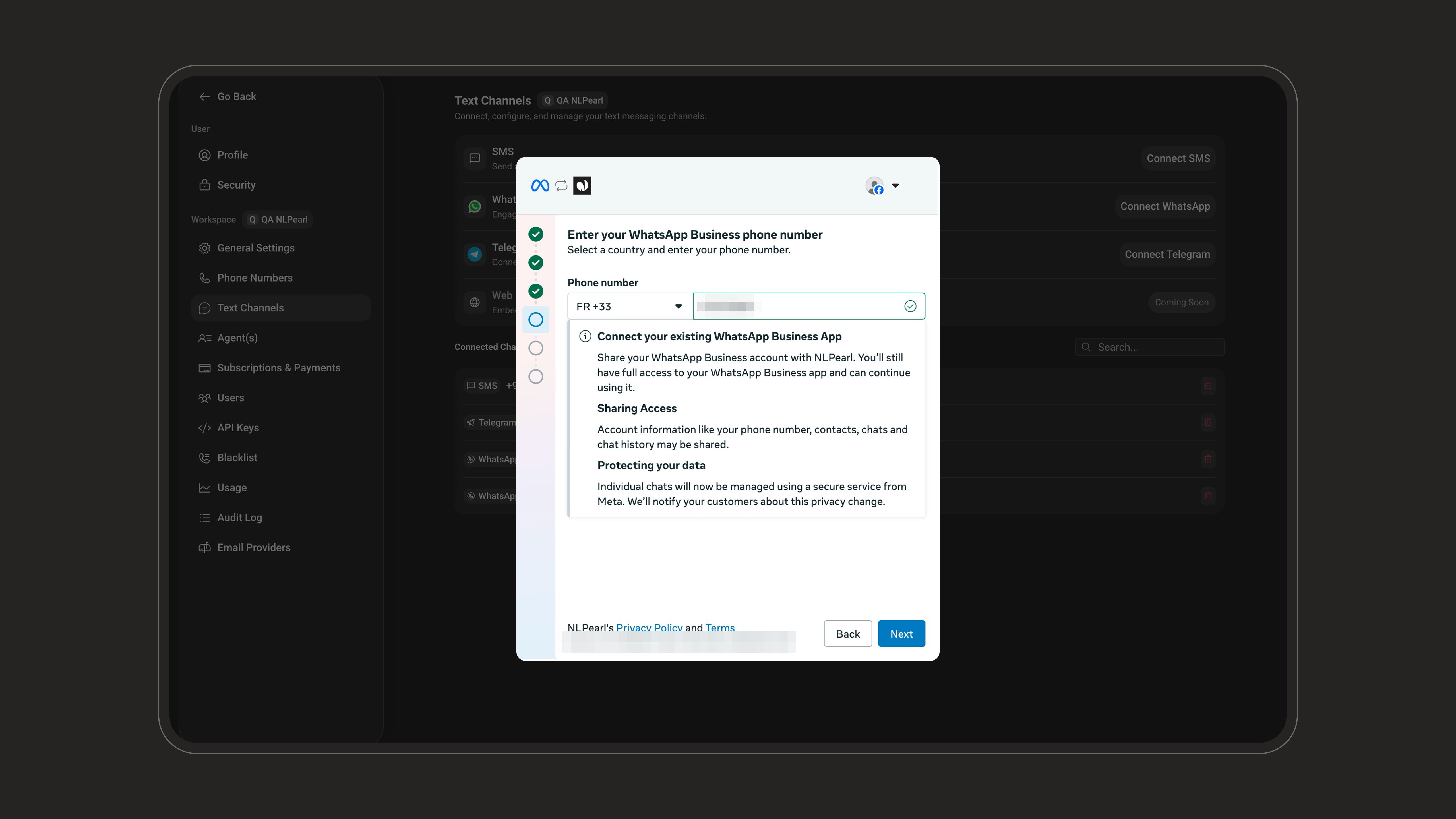
Enter your WhatsApp Business phone number
Enter the number that is active in your WhatsApp Business app.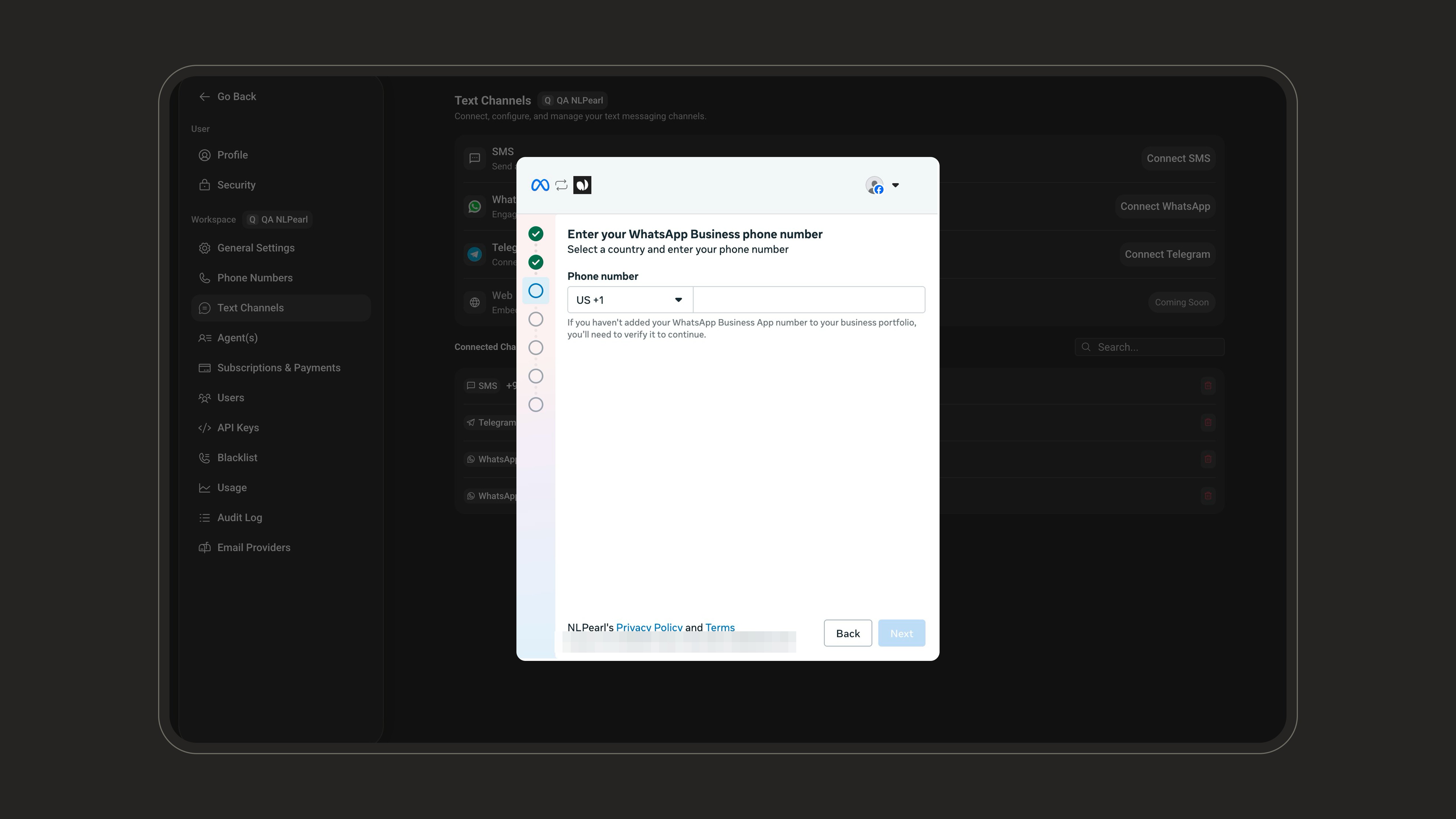
6
Get the QR code
Meta shows a QR code and offers to import your business profile, contacts, and the last 6 months of chat history. Keep this window open - you’ll scan the code with your phone.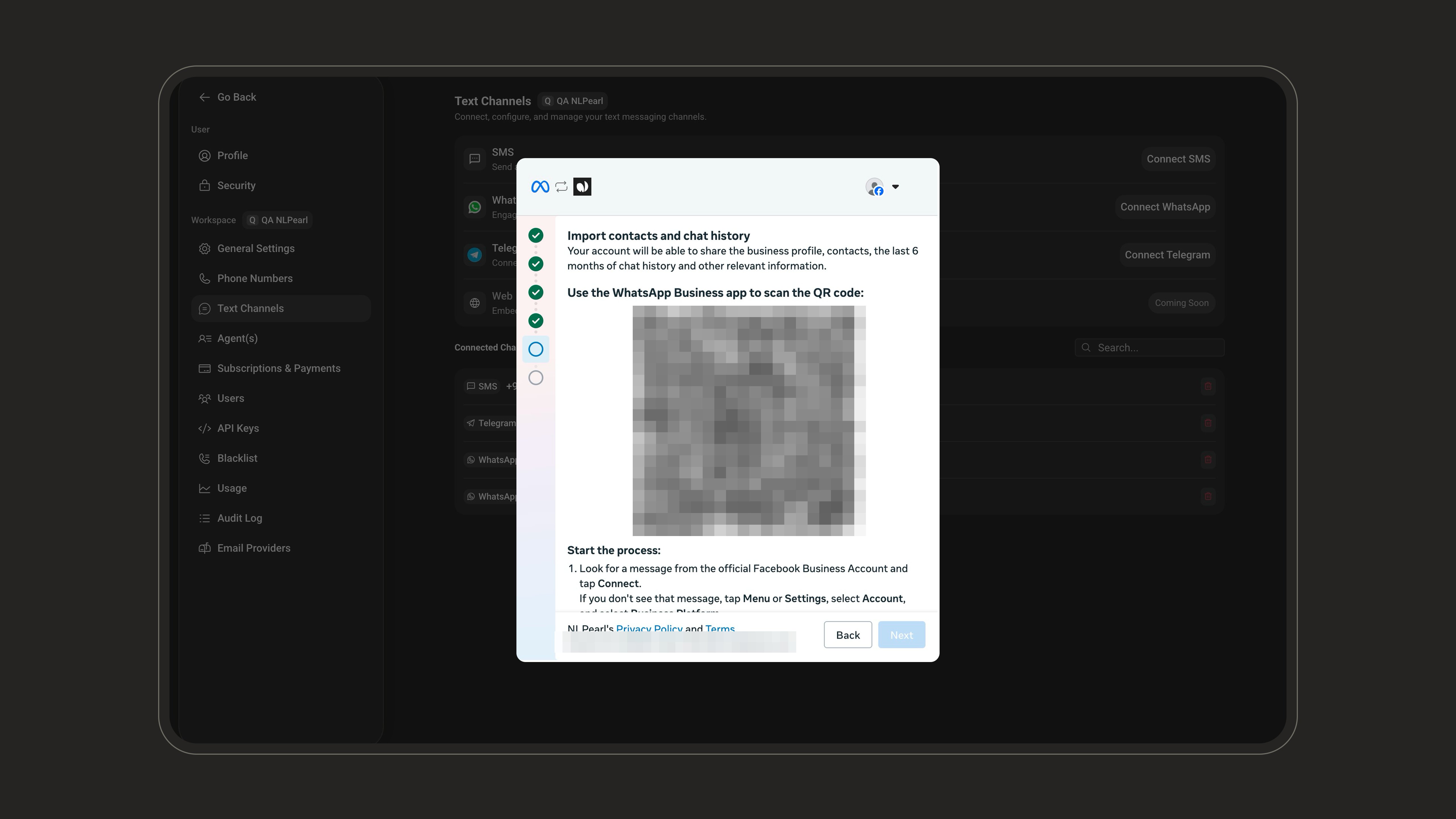
Group chat history is not shared - only individual conversations are imported.
7
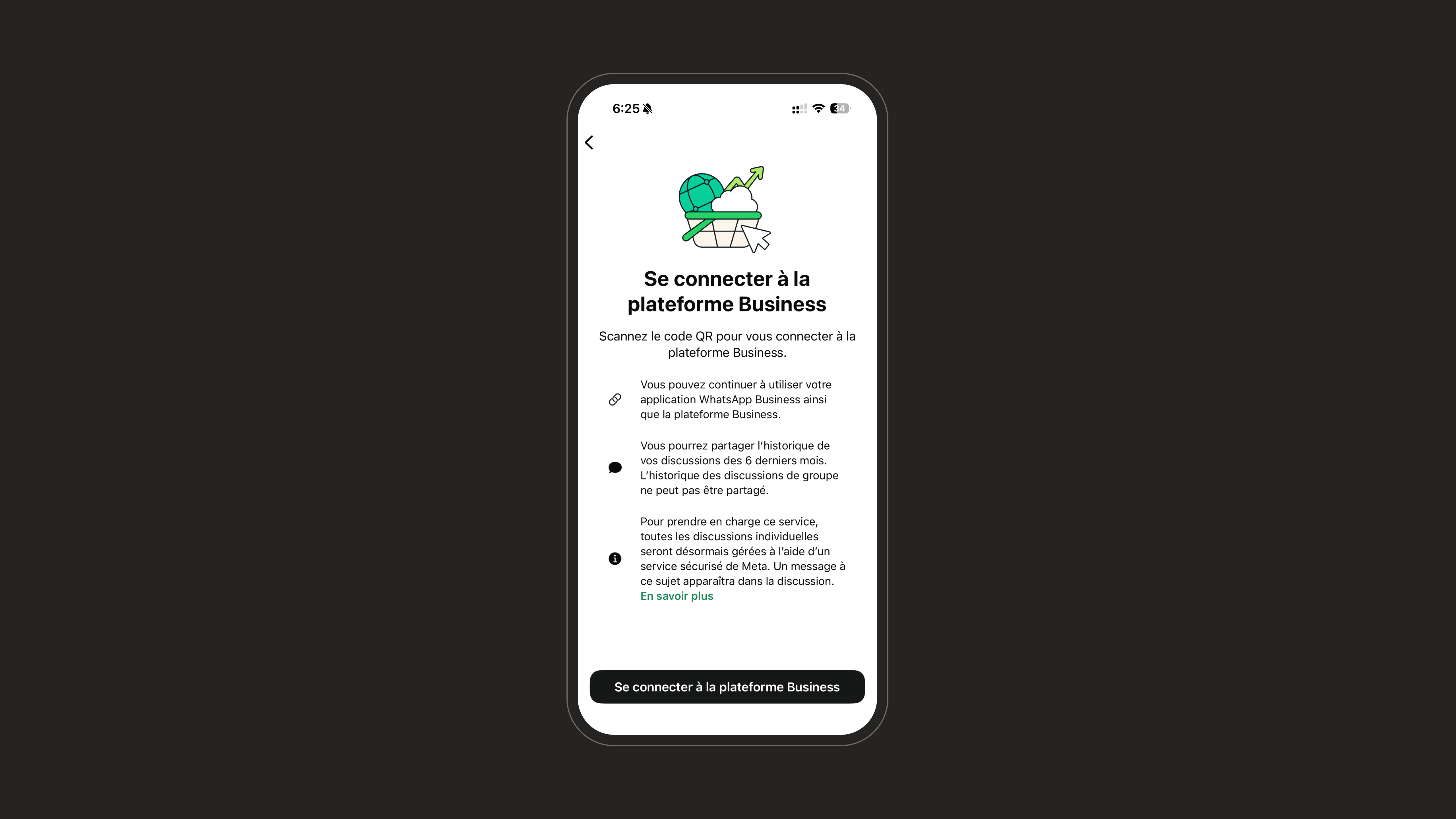
On your phone, start the link
In the WhatsApp Business app, open the message from the official Facebook Business account and tap Connect.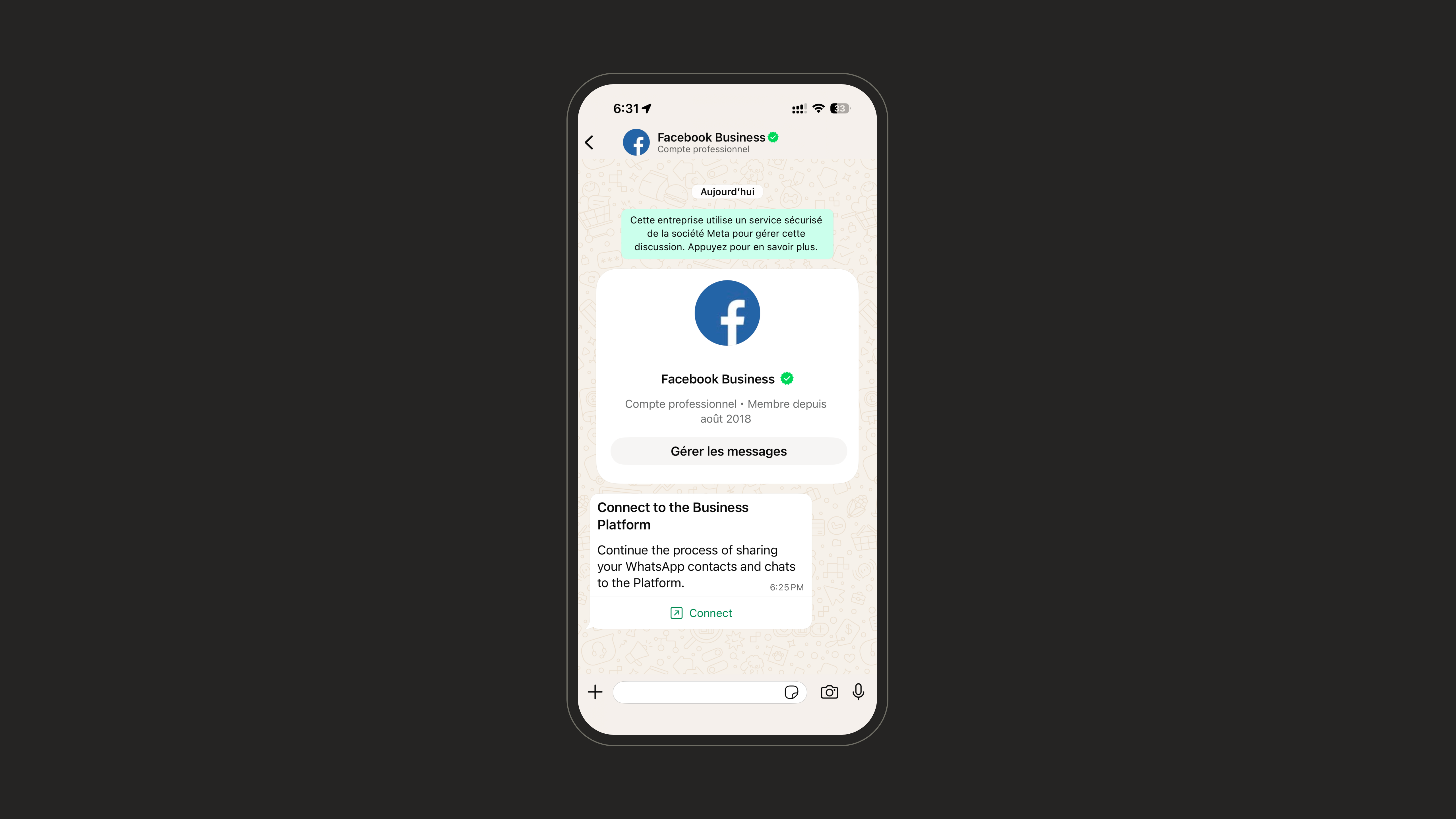
8
Scan the QR code
Point your phone at the QR code displayed in the Meta window.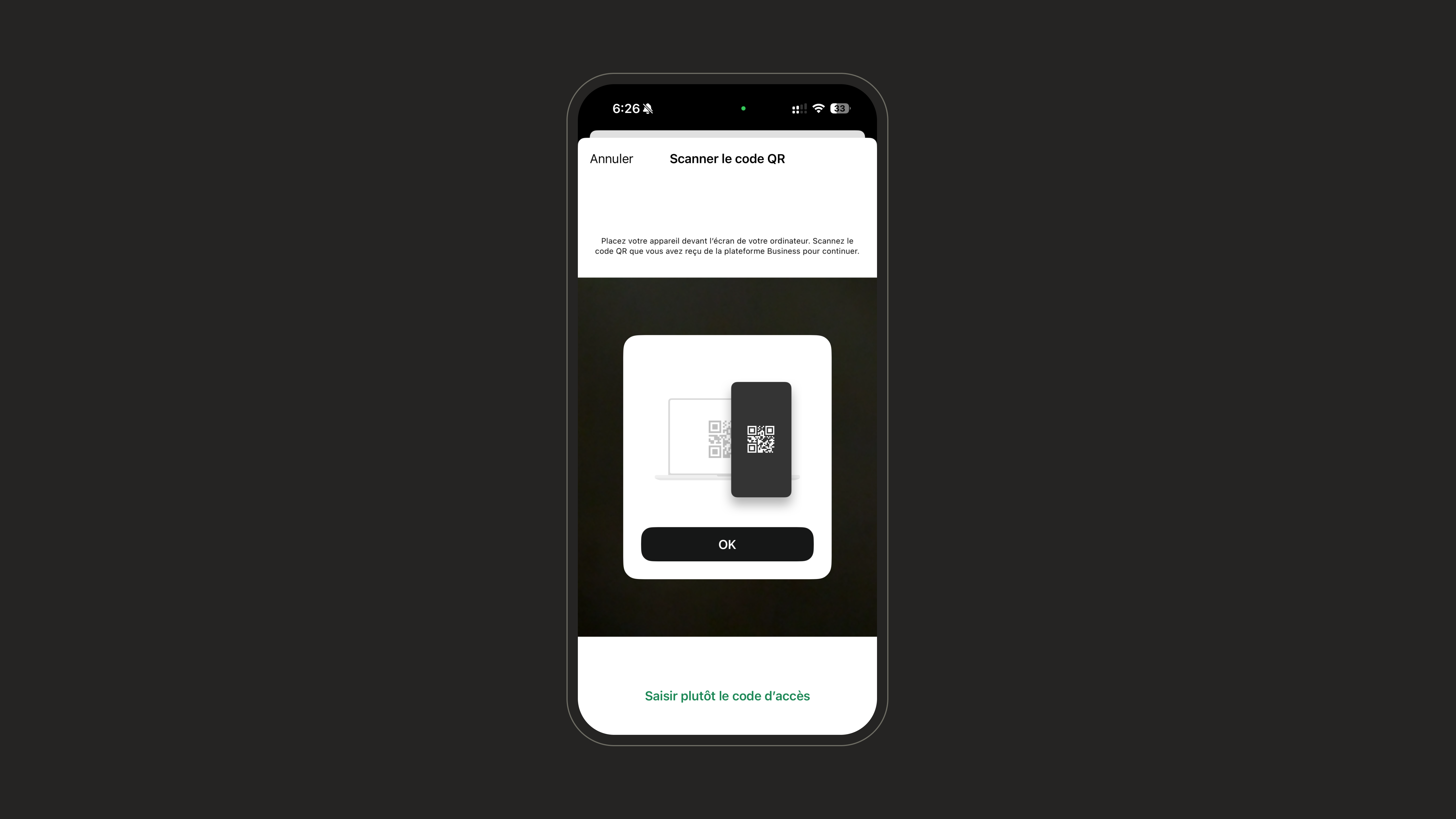
9
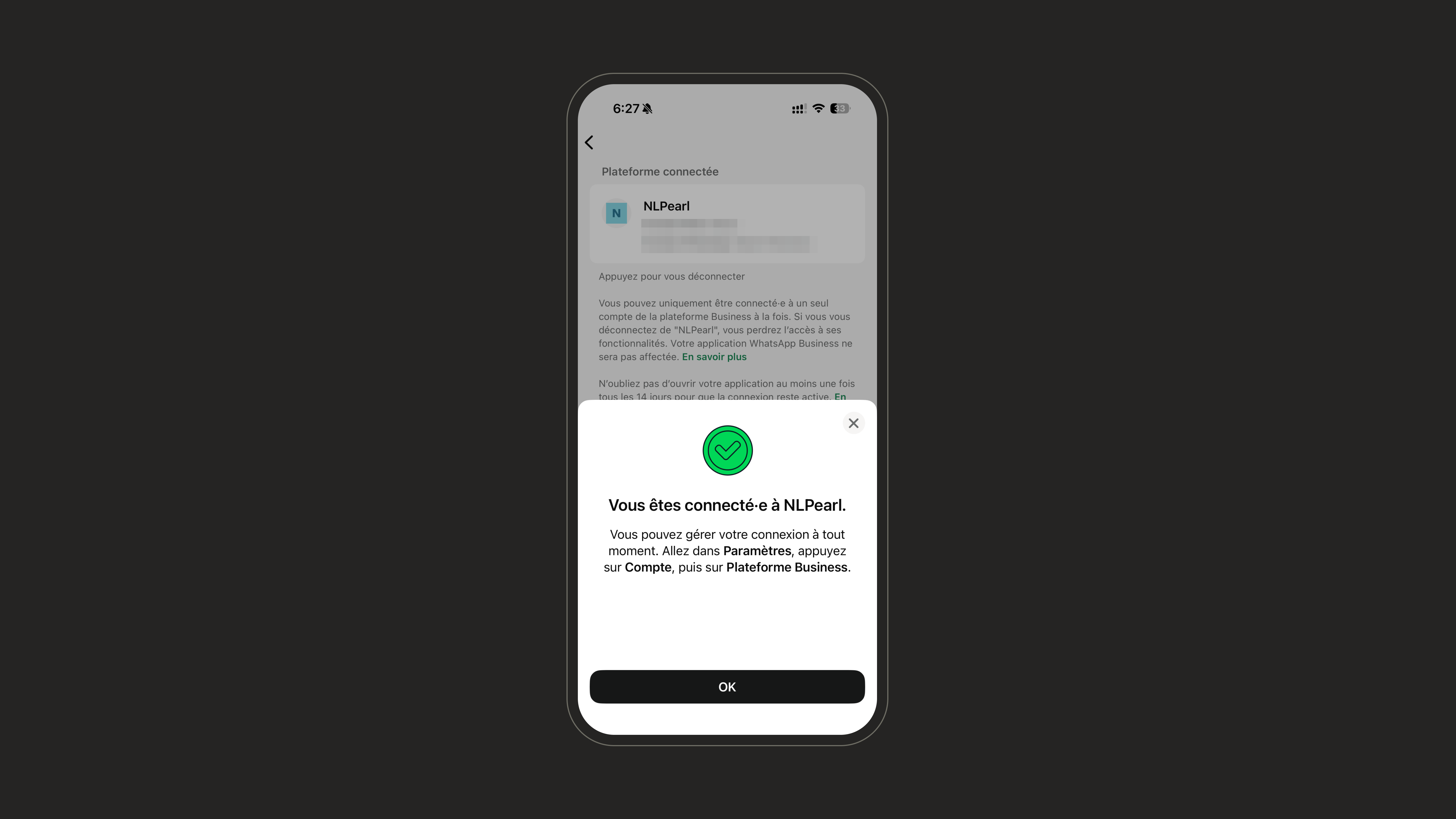
Confirm your WhatsApp Business account
Back in the Meta window, confirm or edit your WhatsApp Business account name and timezone, then finish the signup.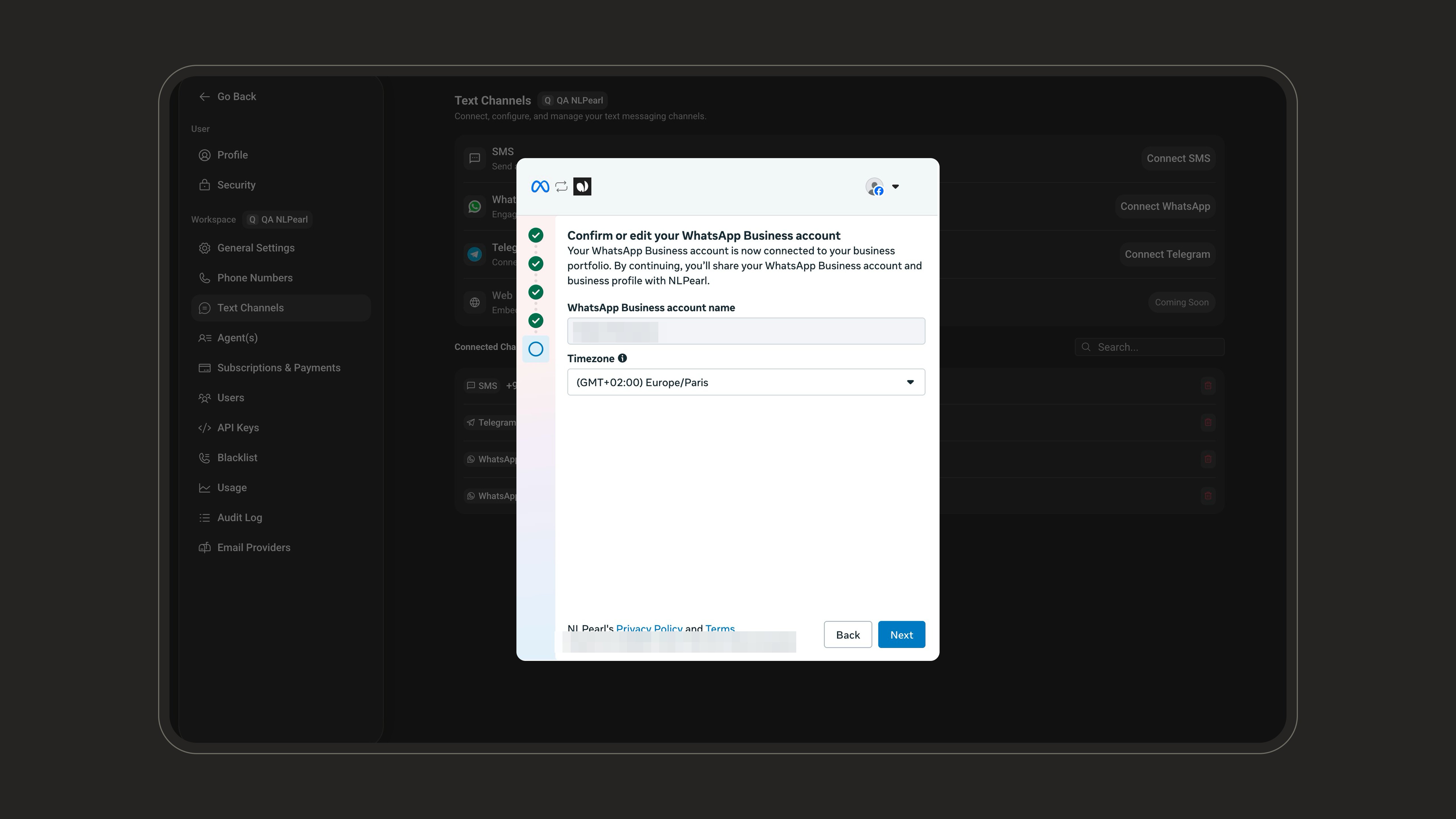
10
Your number is connected
The number is imported automatically and appears with the App + API tag: it keeps working in your WhatsApp Business app while Pearl uses it through the API.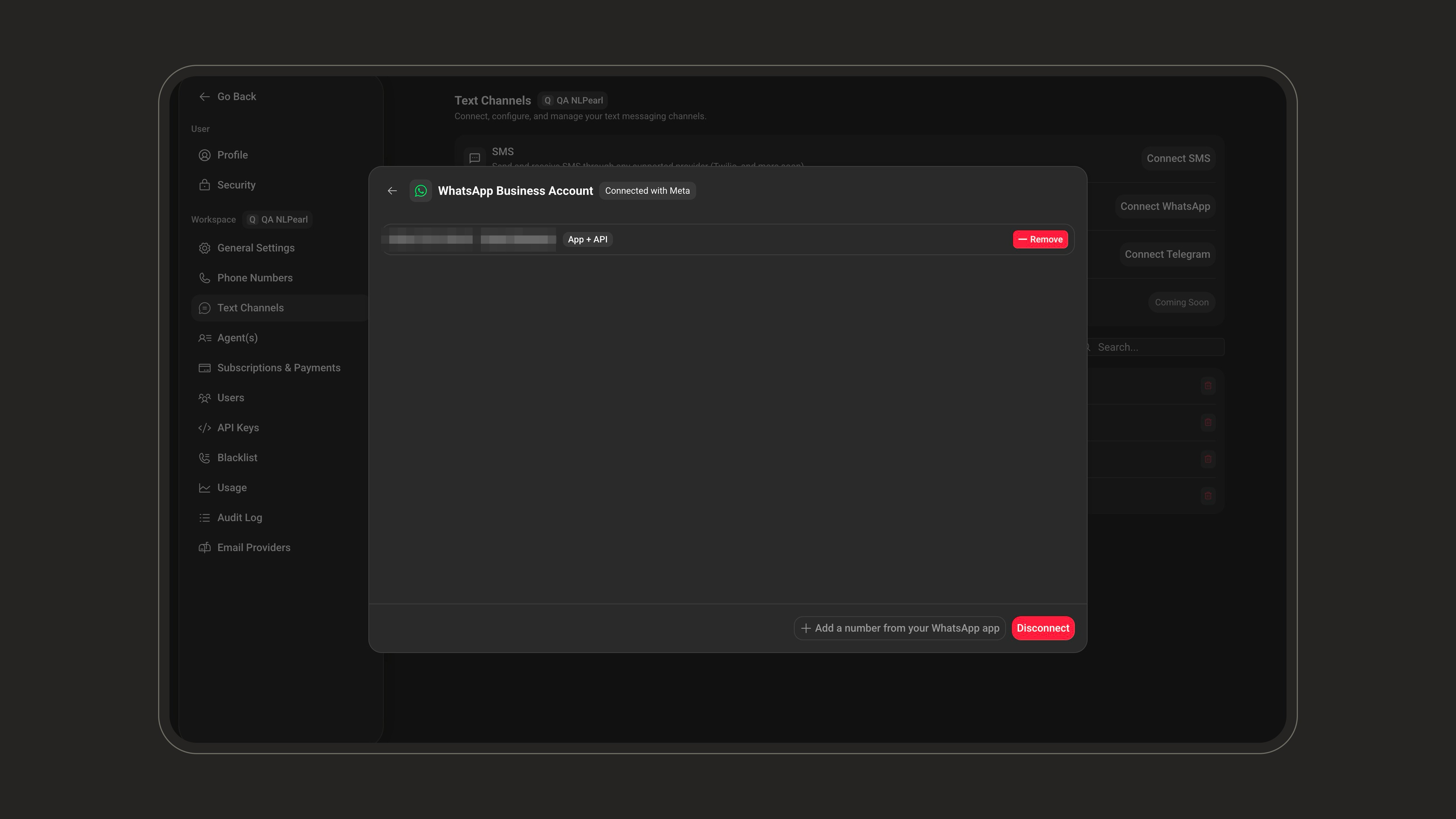
- Messages you send from the WhatsApp Business app stay free and don’t affect the API conversation windows Pearl uses.
- Onboarding unlinks the app’s companion devices (WhatsApp Web, desktop apps); you can re-link supported devices afterwards.
- For the full technical details, see Meta’s coexistence documentation.
Connect in Dedicated mode
1
Start the connection
Select Dedicate this number to NLPearl, then click Connect WhatsApp. A Meta window opens - log in with the Facebook account that manages your business and continue through the intro.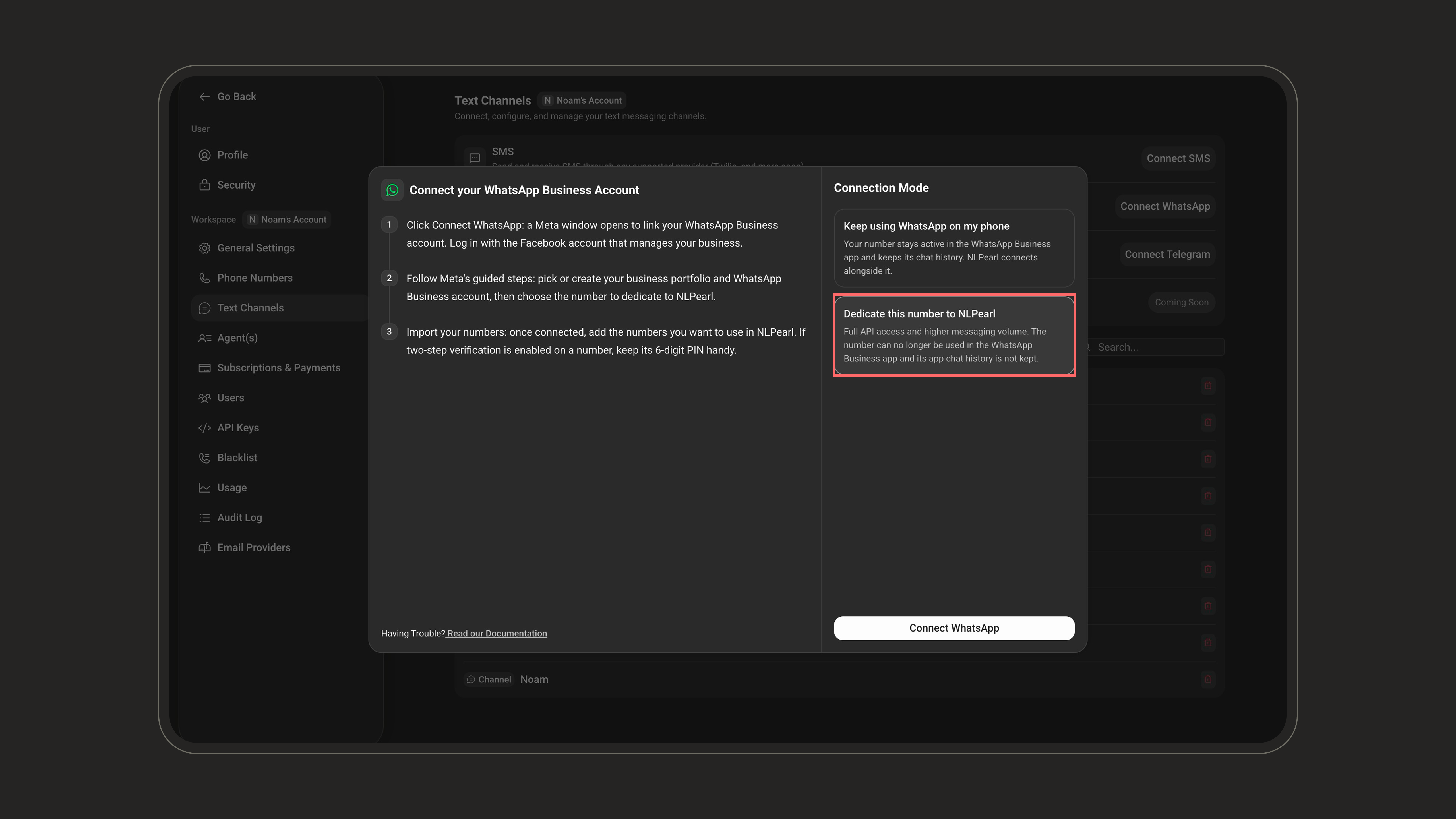
2
Select your business assets
Pick or create your Business portfolio, and under WhatsApp Business account select Create a WhatsApp Business account (or pick an existing one).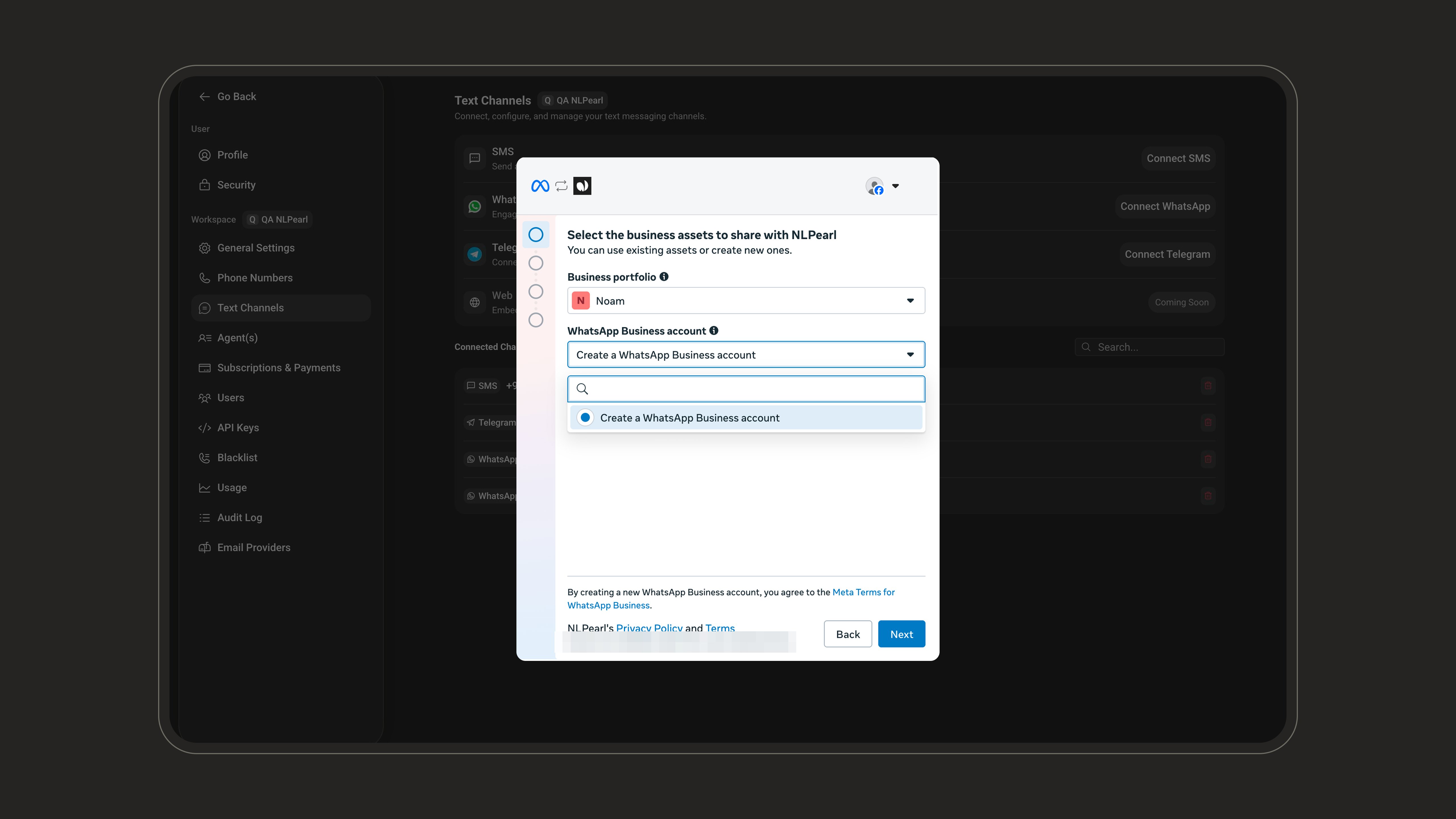
3
Enter your business information
Fill in your business name, category, country, and website.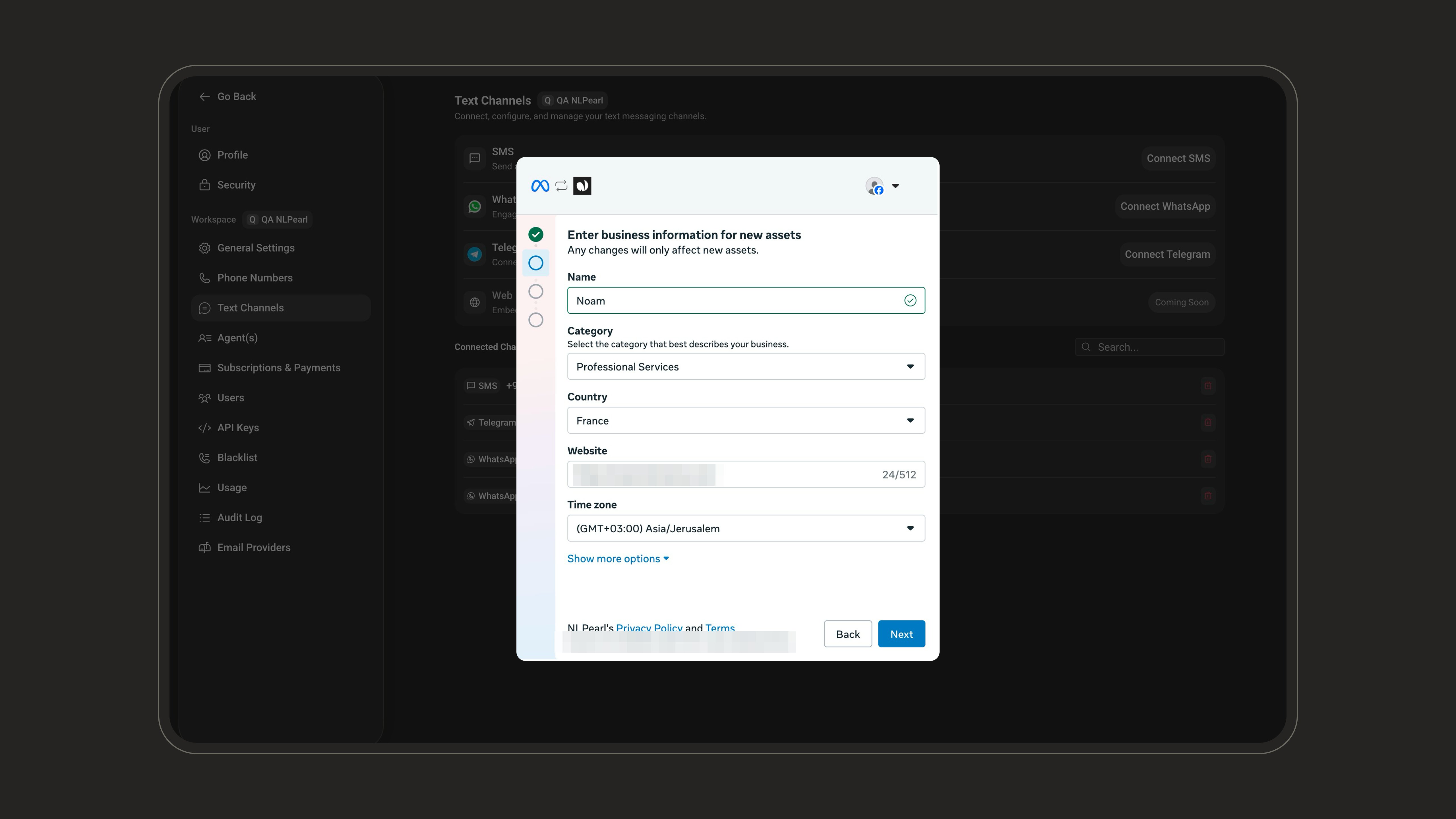
4
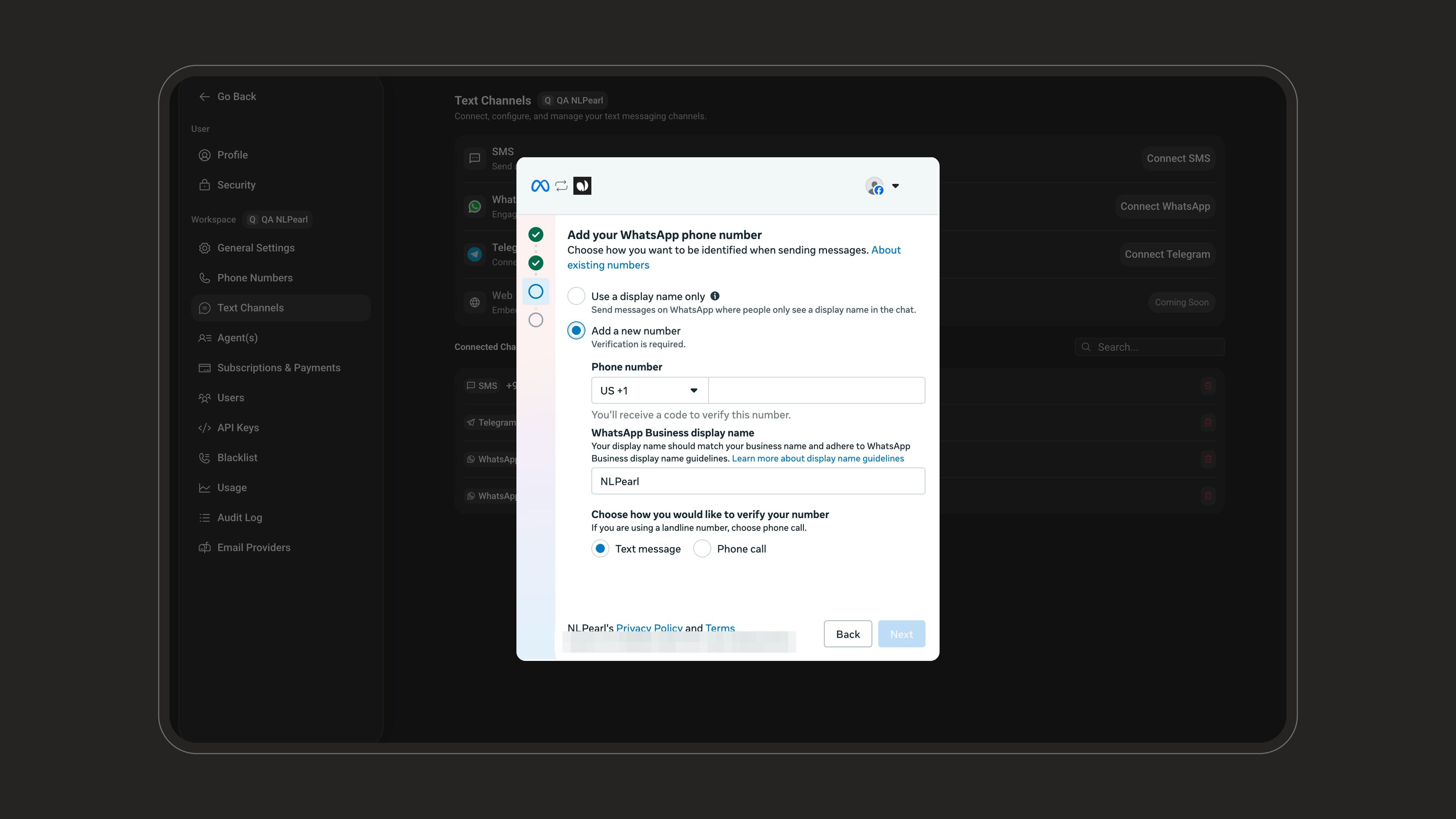
Add your WhatsApp phone number
Choose how you want to be identified when sending messages.Use a display name only - people only see a display name in the chat, without a phone number.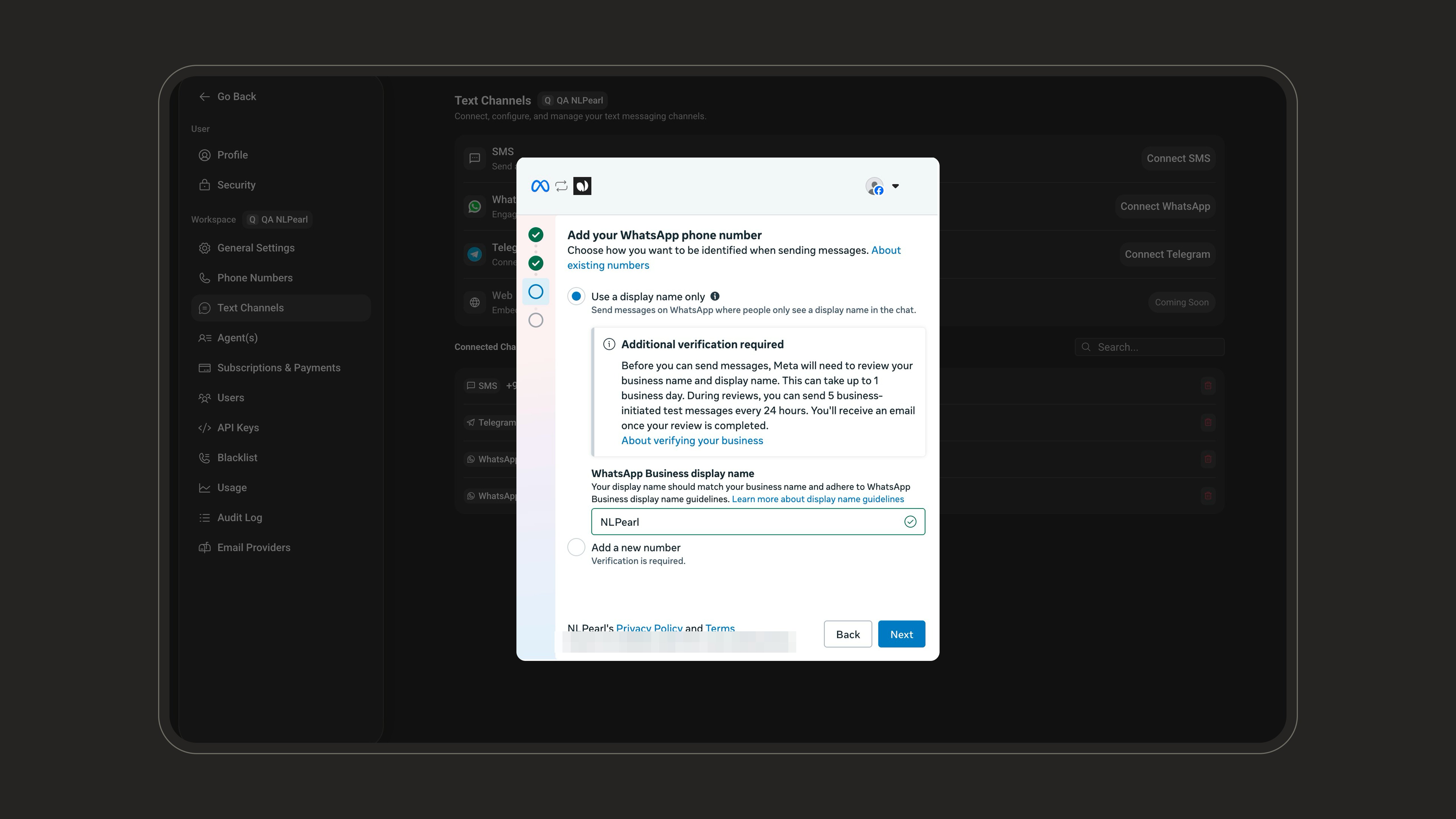
With a display name only, Meta reviews your business name and display name before you can send freely. This can take up to 1 business day; during the review you can send 5 business-initiated test messages every 24 hours.
5
Review permissions and confirm
Review what NLPearl will be able to access and do, then click Confirm.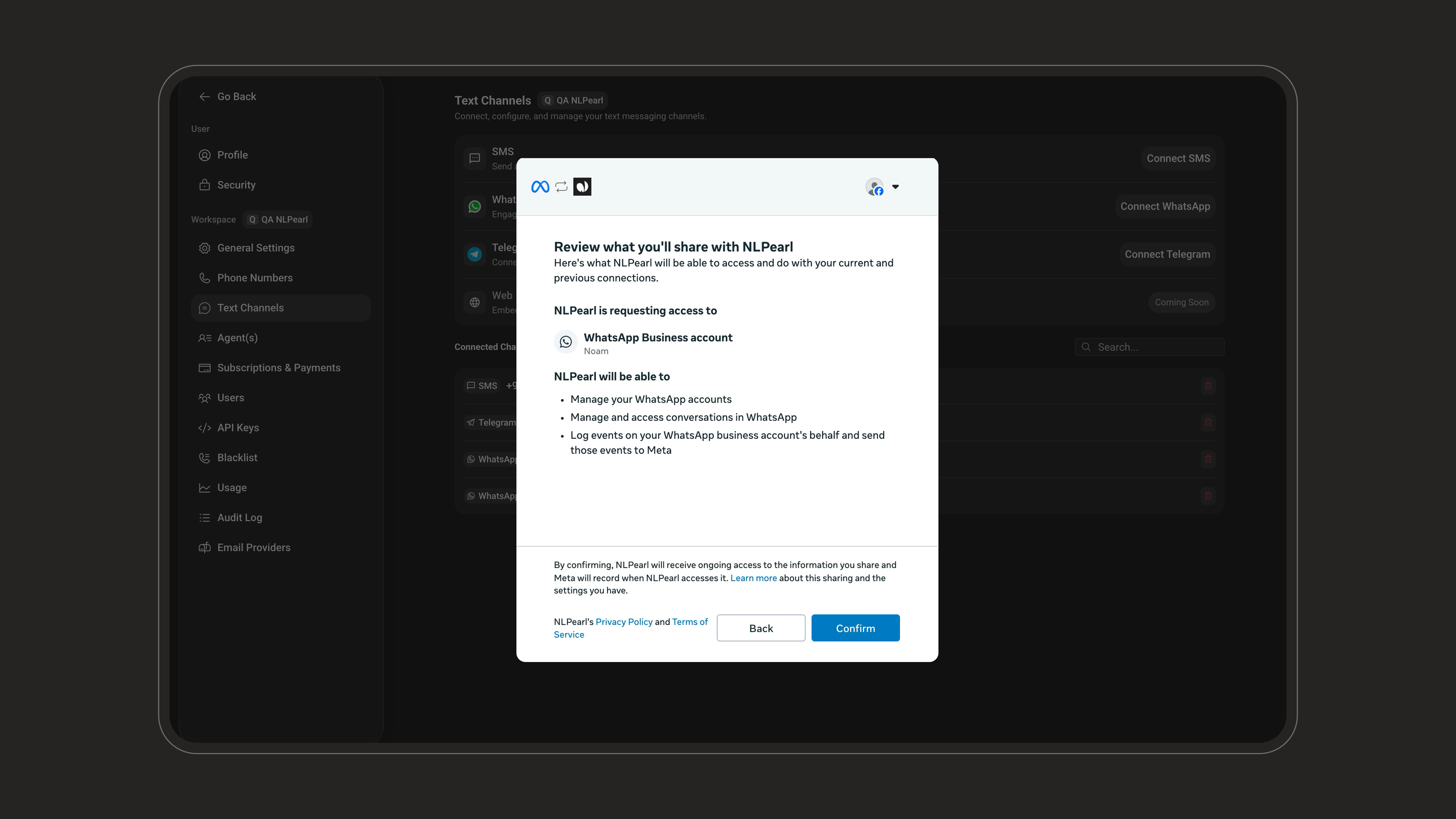
6
Finish the signup
Your account is connected. Meta reviews your business against WhatsApp’s Commerce Policy and reaches out within 24 hours if there’s an issue. You can also add a payment method now or later - Meta bills the template messages your business sends to the payment method on your WhatsApp Business account. Outbound campaigns need a valid payment method there.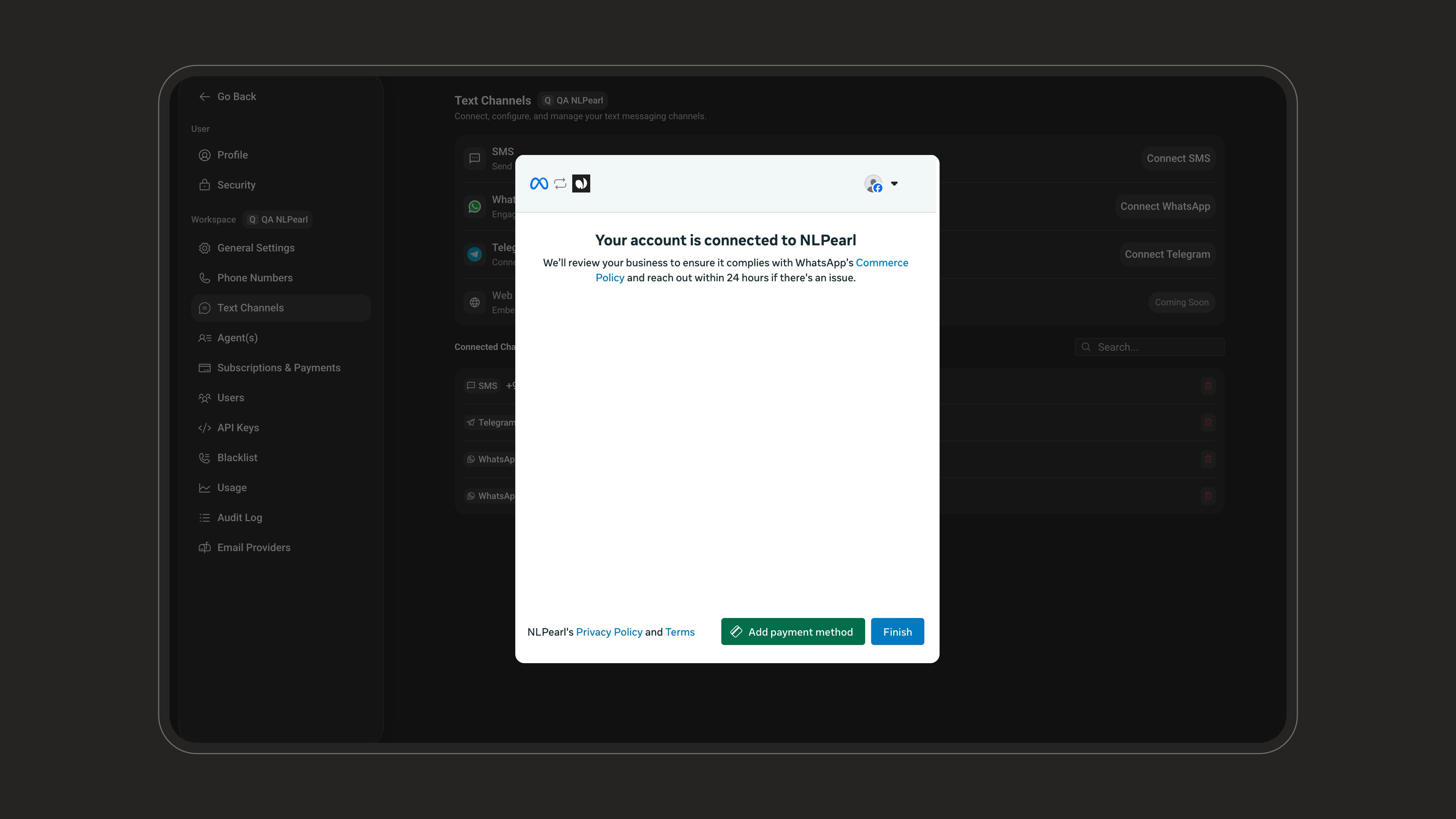
Import your numbers
Once connected, the platform lists the phone numbers of your WhatsApp Business account. Click Add to account next to each number you want to use - each one becomes a text channel on the platform.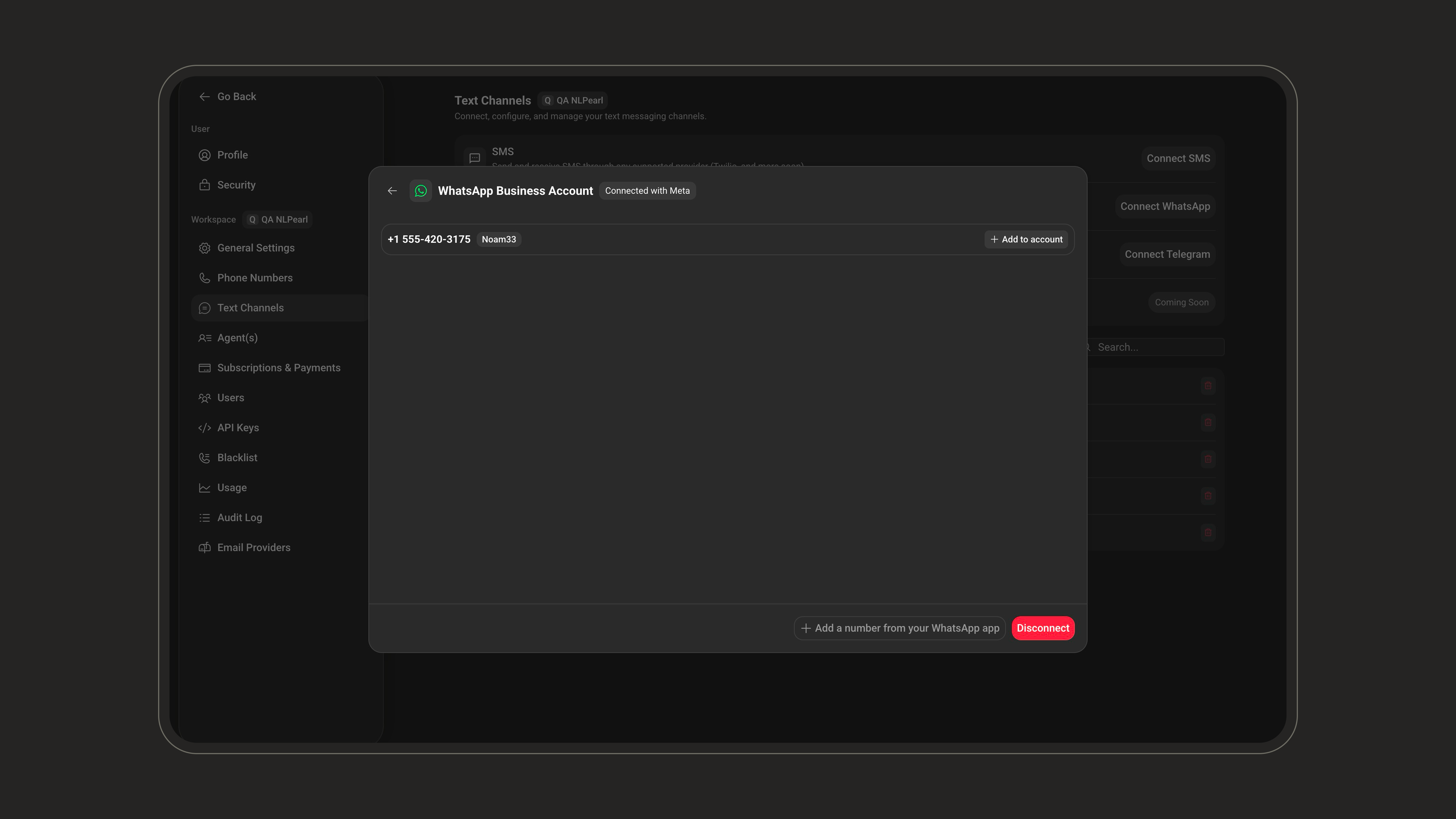
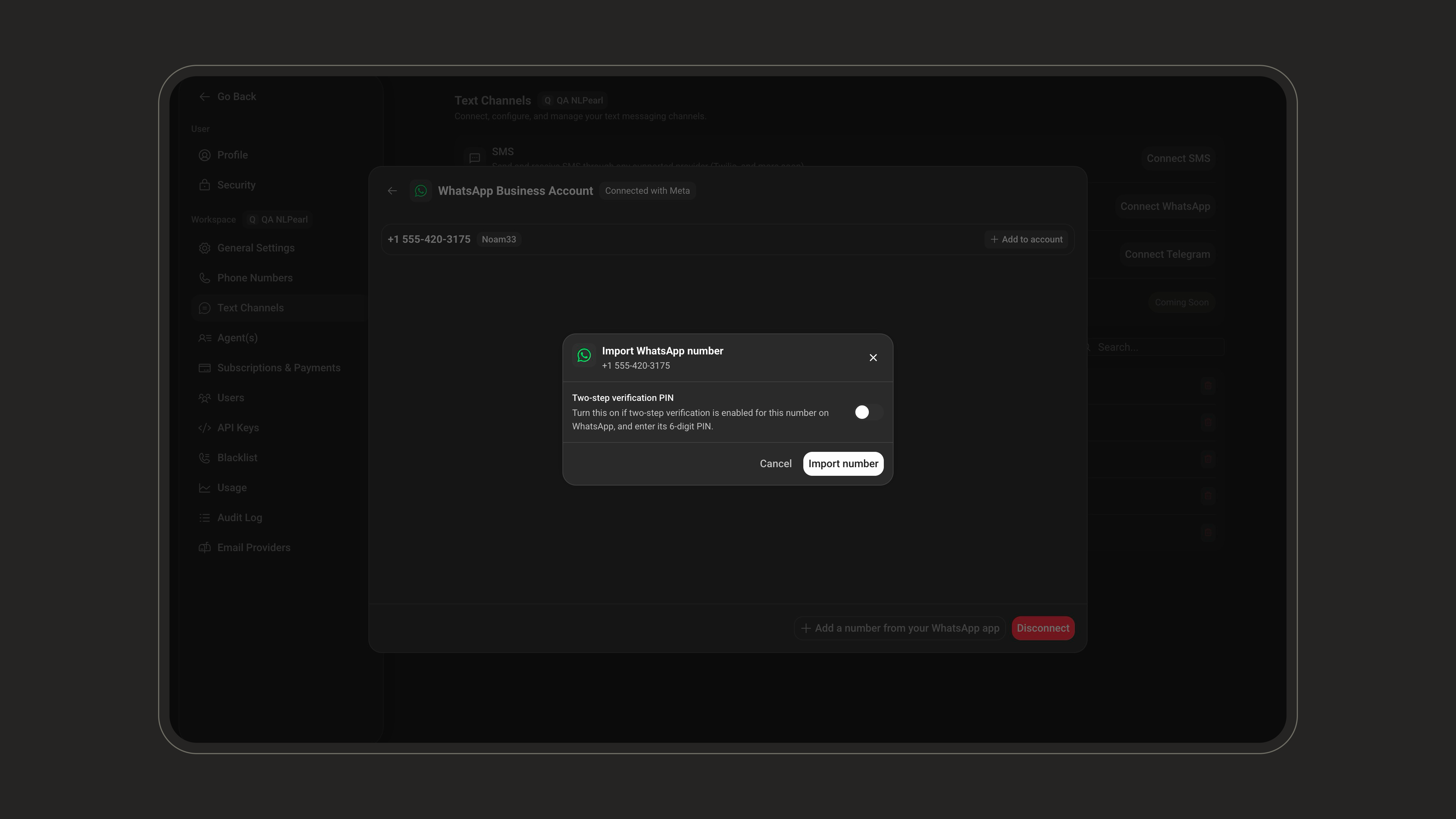
Coexistence numbers are imported automatically after the QR code scan and never ask for a PIN.
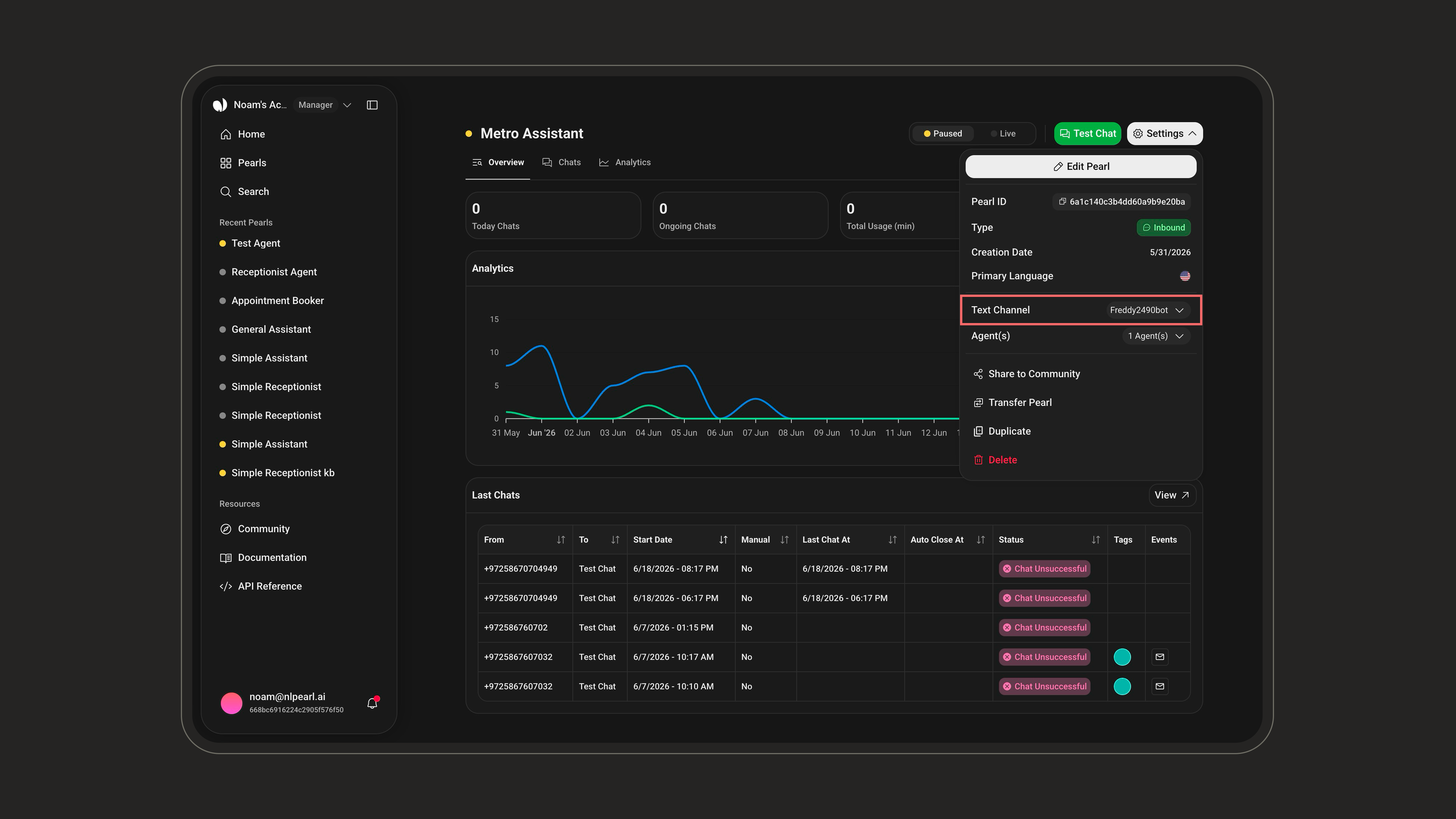
A WhatsApp number can be used by only one live Pearl at a time.
Outbound campaigns and templates
WhatsApp only lets a business start a conversation with a message template approved by Meta. To run an outbound campaign on WhatsApp, the opening sentence of your Pearl must match an approved template, word for word. When a lead is contacted, NLPearl sends the matching template with its variables filled in. Once the lead replies, Pearl continues the conversation as usual. Inbound conversations don’t need a template: the customer writes first.How the opening sentence matches a template
- Letter case, spaces, punctuation, and emojis are ignored.
- The words must be identical, accents included, and the template must use the same variables, in the same order.
- The lead receives the text of the approved template, not the opening sentence of your Pearl.
- If your Pearl calls a Pre-Call API, it has two opening sentences (one when the request succeeds, one when it fails). Each one needs its own approved template.
Manage your templates
Templates live in Settings → Text Channels, under the WhatsApp tab. They are grouped by WhatsApp Business account: a template belongs to the account, so every number connected through that account can send it. Expand a template to read its message.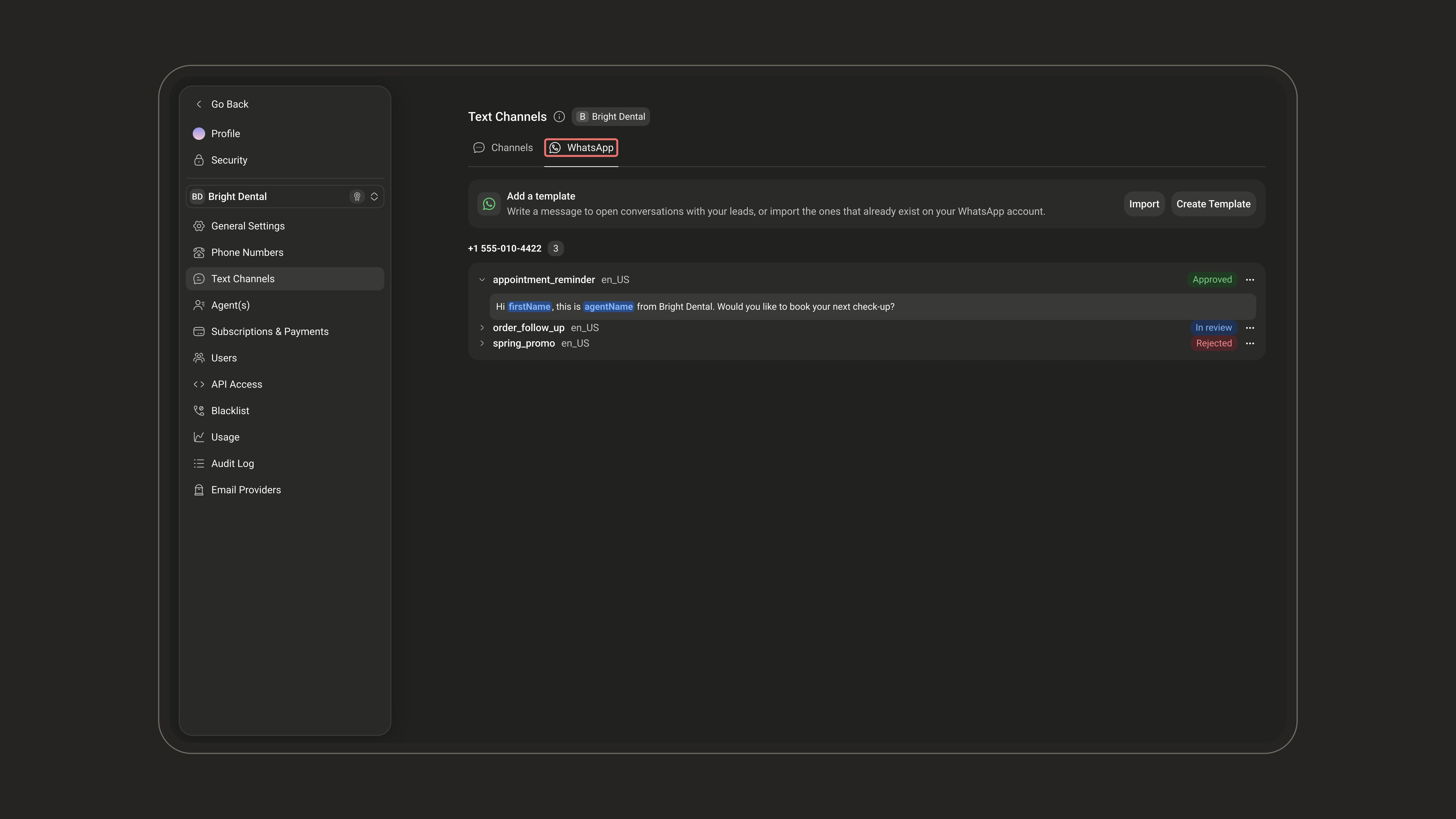
NLPearl reads the latest statuses from Meta each time you open the tab.
Create a template
1
Open the template form
Go to Settings → Text Channels → WhatsApp, then click Create Template.
2
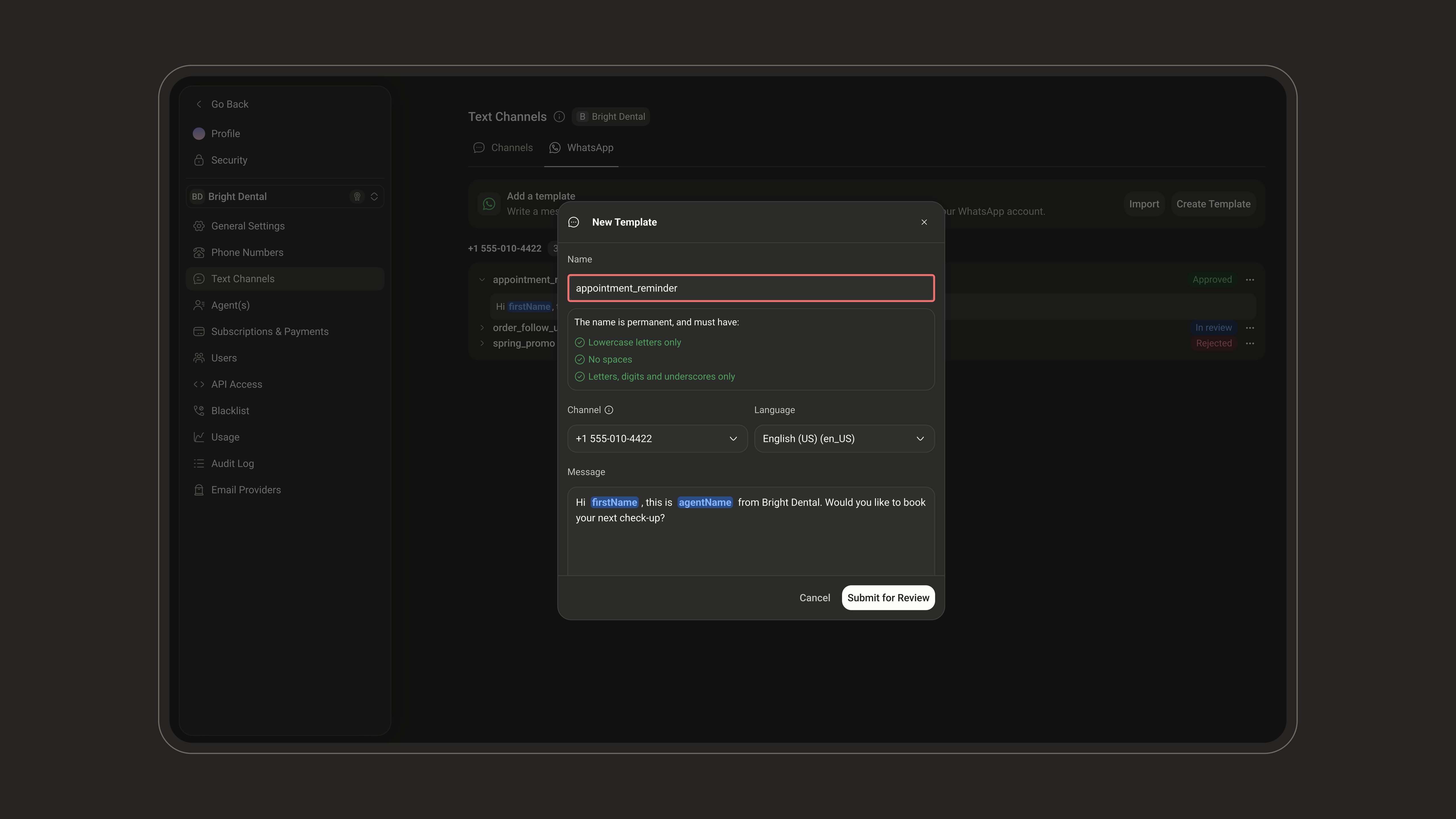
Name and language
- Name: lowercase letters, digits, and underscores only, with no spaces (for example
appointment_reminder). The name can’t be changed later. - Channel: shown only when you have several WhatsApp numbers. The template is created on that number’s WhatsApp Business account.
- Language: the language of the message. It can’t be changed later.
3
Message
Write the message, up to 1,024 characters. Click Variable to insert a variable such as
{firstName}.- The message must start and end with words, never with a variable. Punctuation alone doesn’t count.
- Templates are text only: headers, footers, buttons, and media aren’t supported.
4
Sample values
Enter one example value per variable (for example 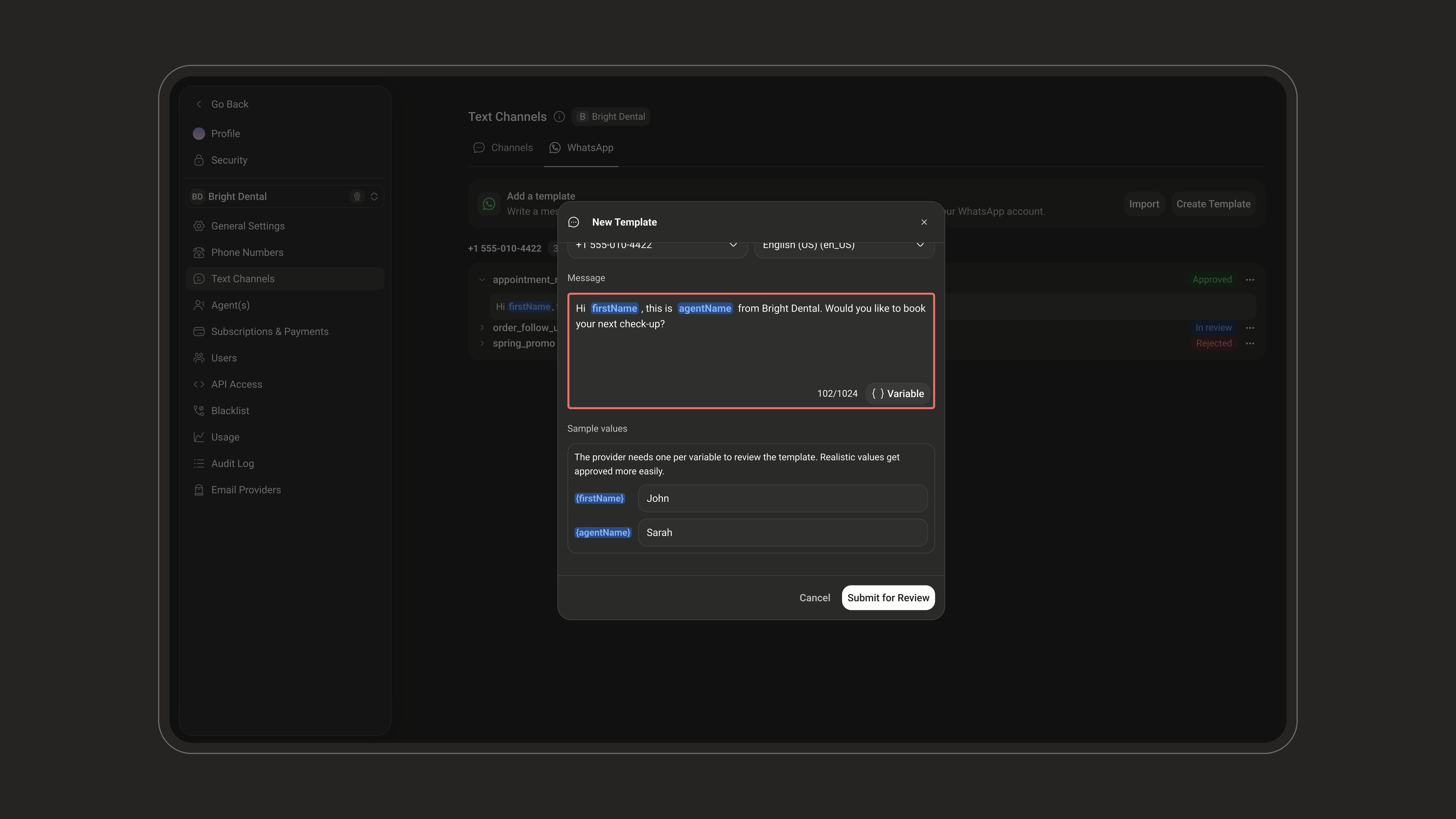
John for {firstName}). Meta uses them to review the template, and realistic values get approved more easily.5
Submit for review
Click Submit for Review. The template shows as In review until Meta approves or rejects it. Review usually takes a few minutes, and can take up to 24 hours.
NLPearl submits templates in Meta’s Marketing category. Meta may move a template to another category, such as Utility, during review. Meta bills template messages to the payment method of your WhatsApp Business account, at its own rates.
Import existing templates
If your WhatsApp Business account already has templates, click Import in the WhatsApp tab. Choose the channel when you have several numbers, select the templates you want, then click Import. The list shows every template of the account that isn’t in NLPearl yet, whatever its status.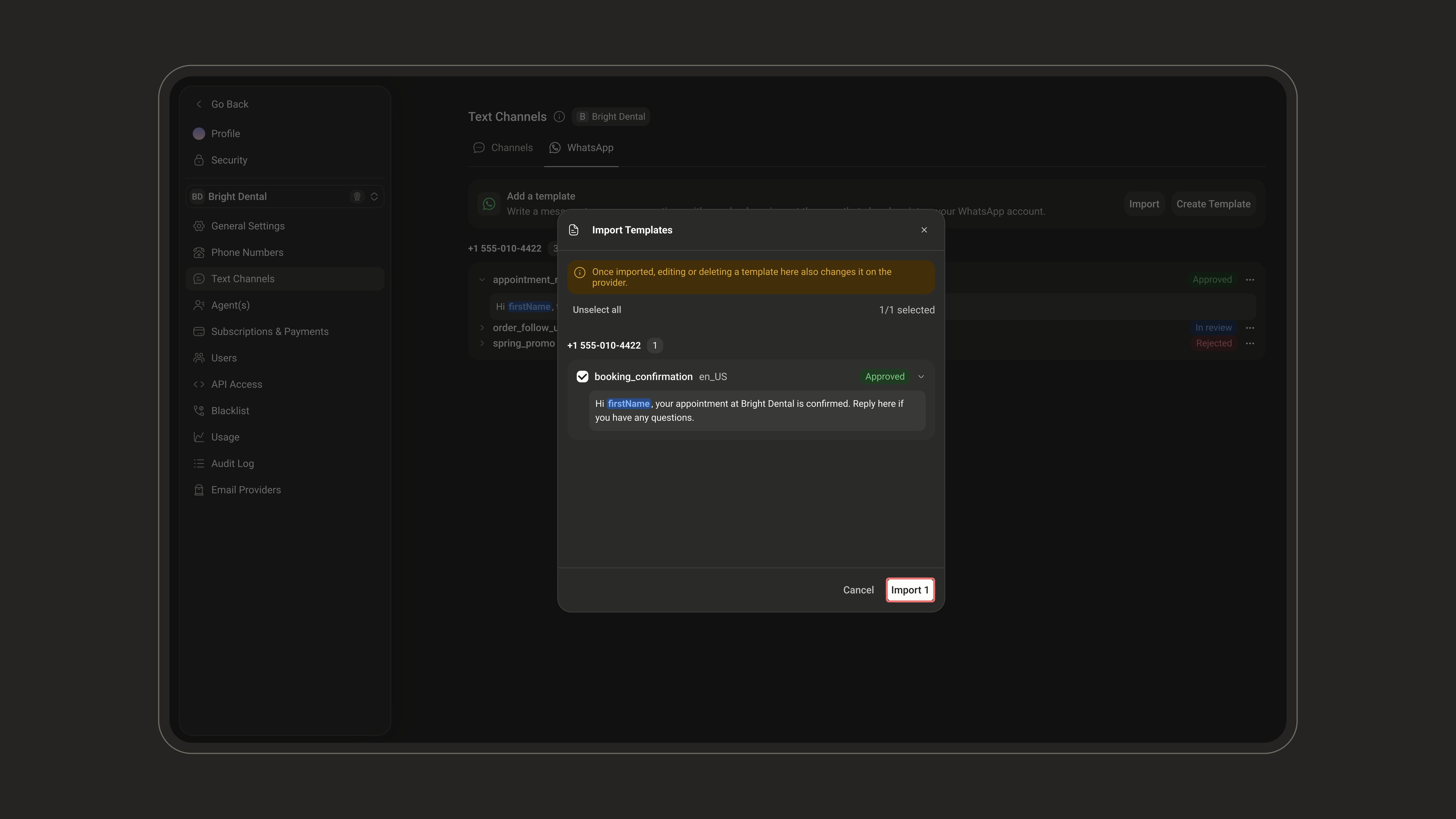
Edit or delete a template
- Edit is available for Approved, Rejected, and Paused templates. You can change the message and its sample values, not the name or language. The template goes back to In review. Meta allows editing an approved template once every 24 hours and up to 10 times per 30 days.
- Delete removes the template from NLPearl and from Meta.
Go live
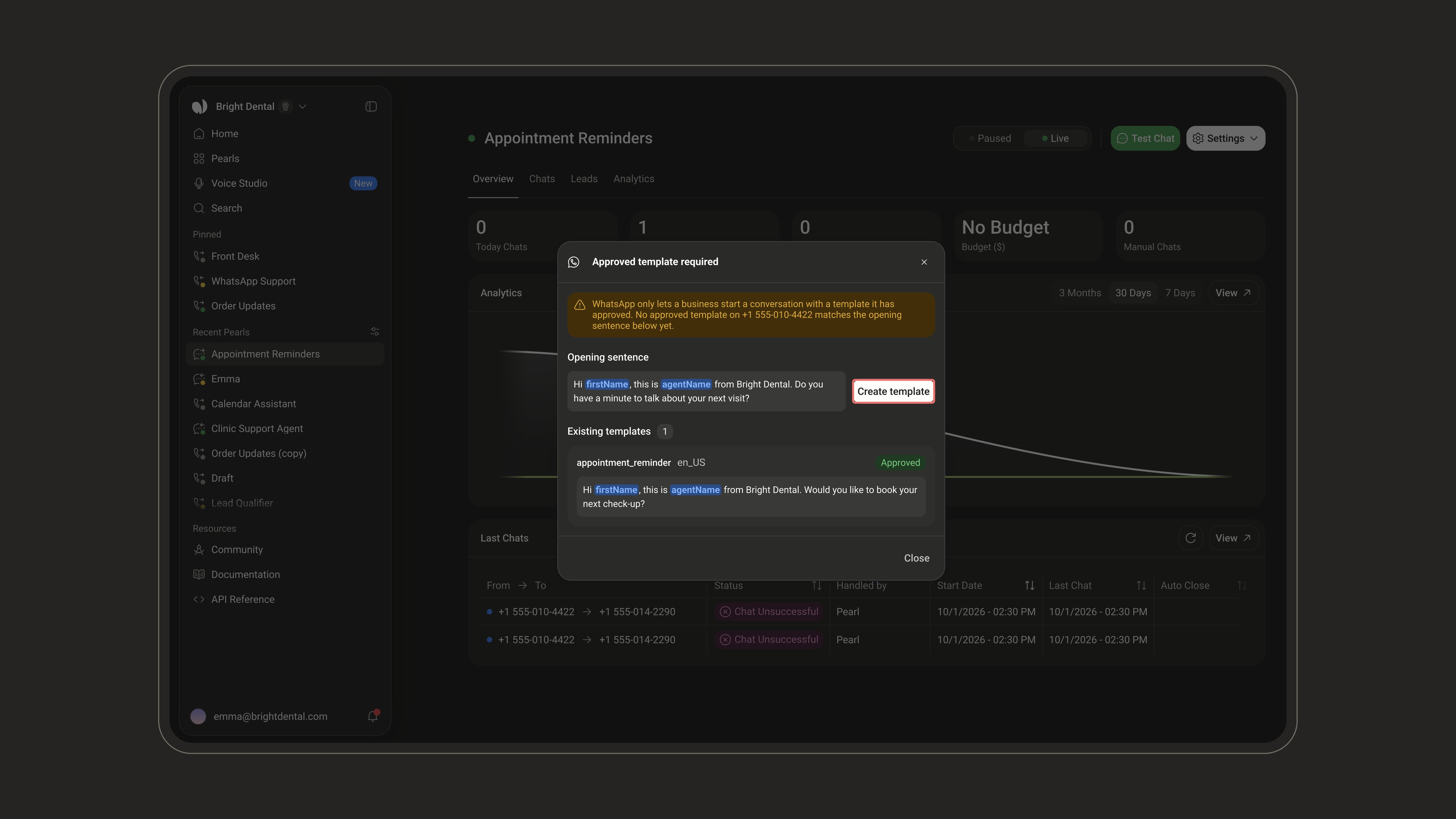
When you set a WhatsApp outbound Pearl Live, publish a new version of a live Pearl, or switch a live Pearl to a WhatsApp channel, NLPearl checks that every opening sentence matches an approved template on the number’s WhatsApp Business account. If one doesn’t, the Approved template required window opens:- Each opening sentence without a template has a Create template button. The message is pre-filled with the exact opening sentence and can’t be edited there: to reword it, change the opening sentence first.
- The templates already on the account are listed below with their status.
Template variables
Variables are filled by name, ignoring case. A template variable takes its value from:- the lead’s data, such as the columns of your lead file or the
callDataof the Add Lead API; - the outputs of the Pre-Call API;
- built-in variables such as
{phoneNumber}; {agentName}, which takes the Agent Name of your Pearl.
After the first message
- When the lead replies, the conversation continues in the same thread and Pearl answers in free text.
- WhatsApp only accepts free-text messages within 24 hours of the lead’s last message. Inactivity follow-ups are sent as free text, so they can’t reach a lead who hasn’t replied yet, or whose last reply is more than 24 hours old.
When a message can’t be sent
The reason appears in a red banner on the conversation.Manage the connection
Everything is managed from the WhatsApp Business account screen in Settings → Text Channels:- Add a number from your WhatsApp app - connect an additional number in coexistence mode at any time.
- Remove a number - disconnects the number from NLPearl and deletes its text channel. Any Pearl using it is paused, and you can import the number again later. Its templates stay in NLPearl while another number of the same WhatsApp Business account is connected; removing the last one removes them from NLPearl, but not from Meta.
- Disconnect - disconnects your WhatsApp Business account from NLPearl. You can reconnect it at any time.
Troubleshooting
My coexistence number disconnected after two weeks
My coexistence number disconnected after two weeks
Meta drops the coexistence connection when the WhatsApp Business app stays inactive for about 14 days, and your campaigns stop with it. To reconnect the number, open the WhatsApp Business app on your phone, then go to Settings → Text Channels, open your WhatsApp Business Account, and click Add a number from your WhatsApp app - the Meta window opens and you scan the QR code again, exactly like the first connection. To prevent it, open the app at least once every 14 days.
I forgot the two-step verification PIN
I forgot the two-step verification PIN
The 6-digit PIN requested when importing a dedicated number is WhatsApp’s two-step verification PIN.
- If the number is still registered in the WhatsApp Business app, reset it from the app under Settings → Account → Two-step verification.
- If the number is already registered on the Cloud API, manage its PIN from Meta’s WhatsApp Manager, in the phone number’s settings.
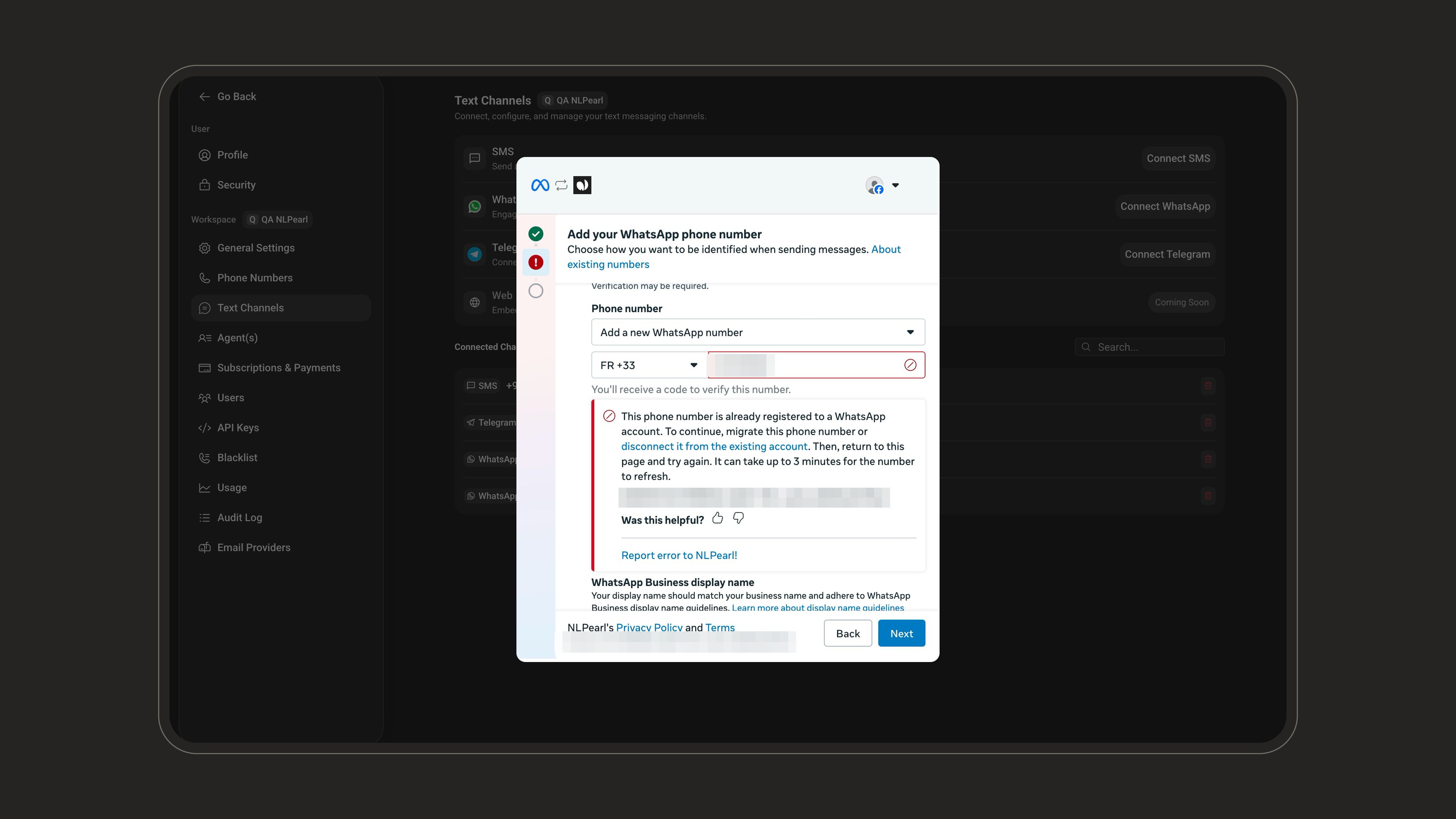
Meta says my number is already registered to a WhatsApp account
Meta says my number is already registered to a WhatsApp account
In dedicated mode, the number can’t be attached to any WhatsApp or WhatsApp Business app account.
- If you want to keep using the app with this number, connect it in Coexistence mode instead.
- Otherwise, release the number by deleting its account in the app (Settings → Account → Delete account), then try again. It can take up to 3 minutes for Meta to refresh the number’s status.
Inbound
Deploy your agent on inbound channels to answer incoming WhatsApp messages instantly.
Outbound
Launch outbound WhatsApp campaigns to reach customers proactively.