

Setting Up Outbound Campaigns
Once you have created a Pearl, you can use it to run outbound text campaigns. Outbound settings are configured inside your Pearl, under Outbound Settings, so your Pearl starts conversations with your leads following the conversational flow you defined.What are outbound campaigns?Outbound campaigns let your Pearl start conversations with a list of leads through your connected messaging channels, following the conversational logic you defined for consistent and effective outreach.
Connect a Channel
Unlike a voice campaign, an outbound text campaign isn’t tied to a phone number, it’s connected to a messaging channel. Once your Pearl is published, open its overview page and connect the channel your campaign will use. Outbound campaigns can run on WhatsApp, SMS, and your own system through a Generic channel. Follow the dedicated guides to set one up:Connect your WhatsApp Business account through Meta - keep your number in the app or dedicate it to Pearl.
SMS
Connect your Pearl to SMS through Twilio to text with your customers.
Telegram can’t start conversations: a Telegram bot can only answer users who message it first, so Telegram is available for inbound only.
Outbound Settings
Configure your campaign from the Outbound Settings tab of your Pearl, in the PearlVibe flow editor.Budget
Set an optional spending cap for the campaign, in dollars. Once the budget is reached, Pearl stops starting new conversations for that campaign. You can increase it at any time as long as you have enough credit on your account.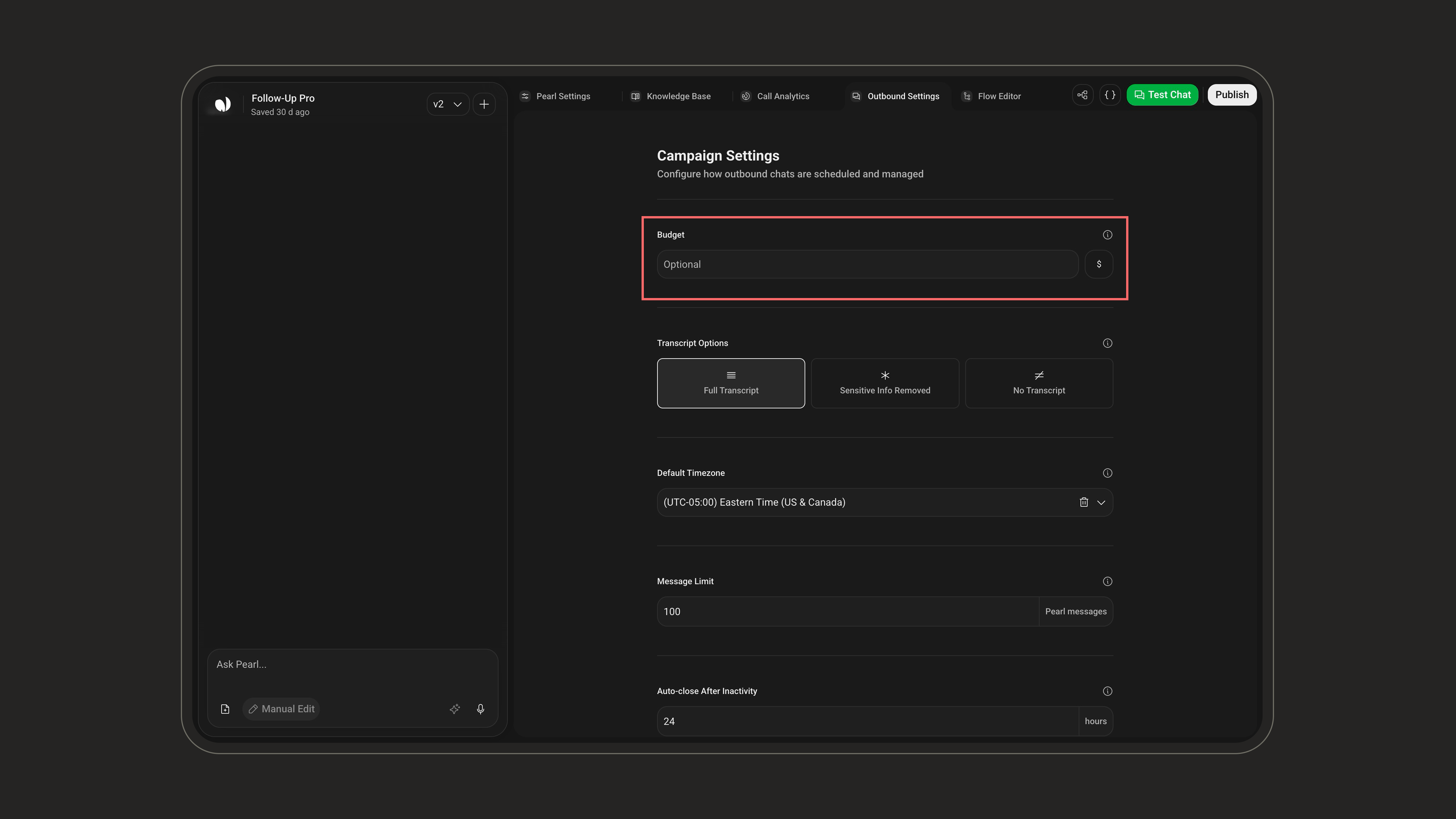
Transcript Options
Choose what is kept from the conversation transcript. Transcripts appear in your conversation logs.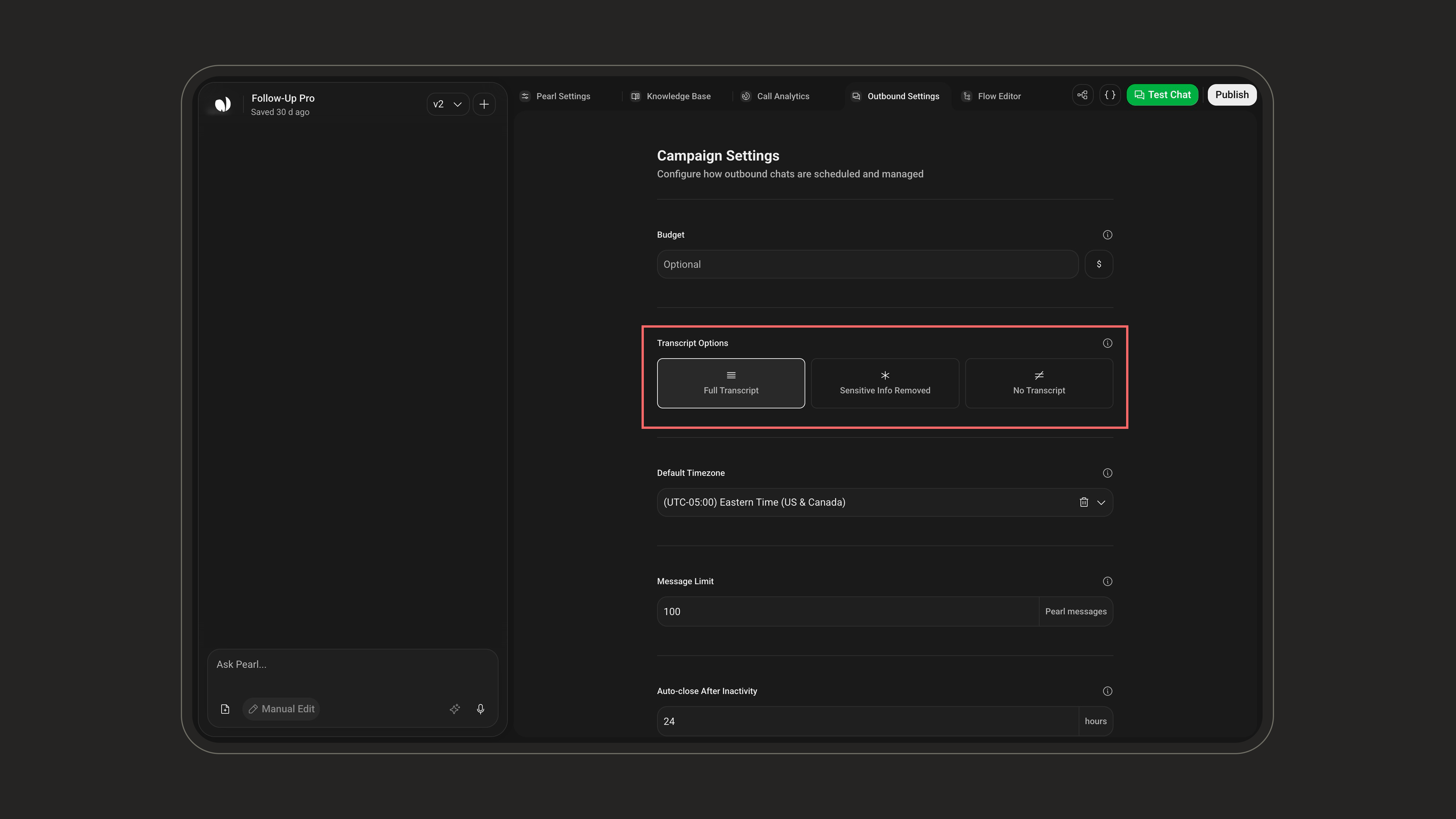
With Sensitive Info Removed, if a customer writes “My credit card number is 1234-5678-9012-3456”, the transcript stores it as “My credit card number is ****-3456”, so you can review interactions safely without exposing sensitive data.
Default Timezone
Set the timezone for the campaign so that calling hours and scheduling are applied at the right local time.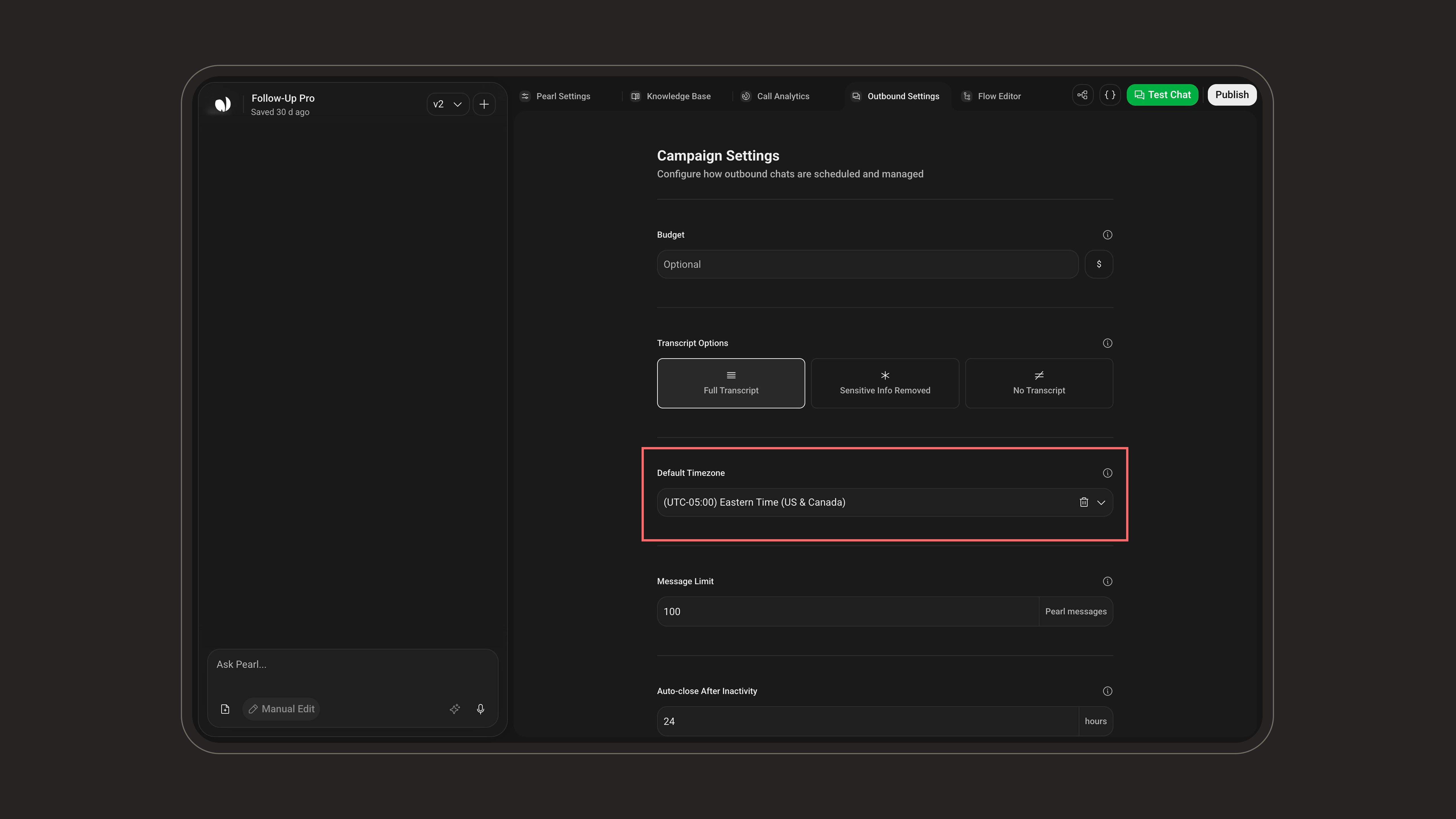
Message Limit
The maximum number of messages Pearl sends before automatically handing the conversation off to a human. You can set between 5 and 1000 messages (default 100).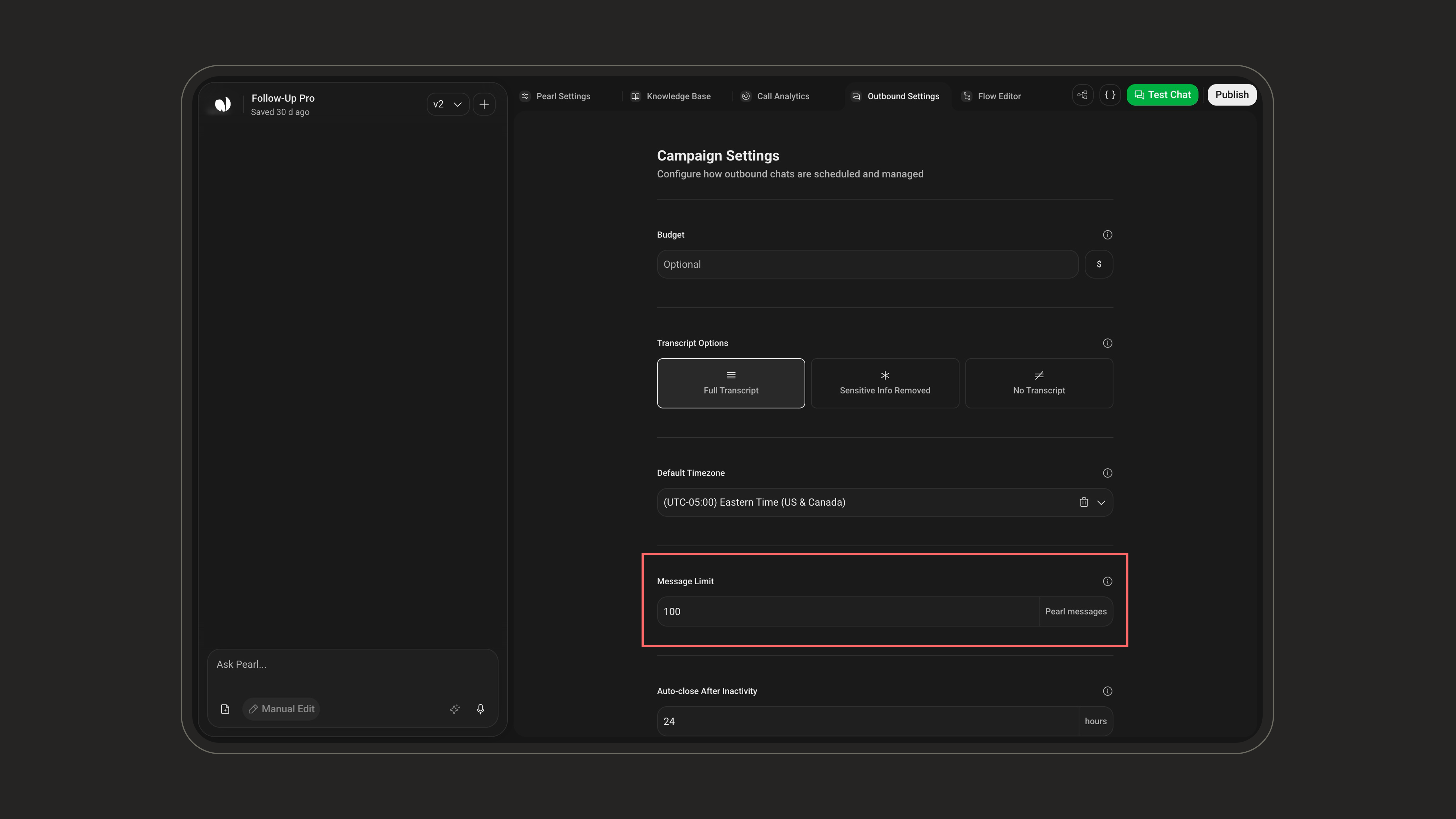
Auto-close After Inactivity
How long a conversation can stay inactive before Pearl closes the chat and triggers the post-chat summary. You can set between 1 and 72 hours (default 24 hours).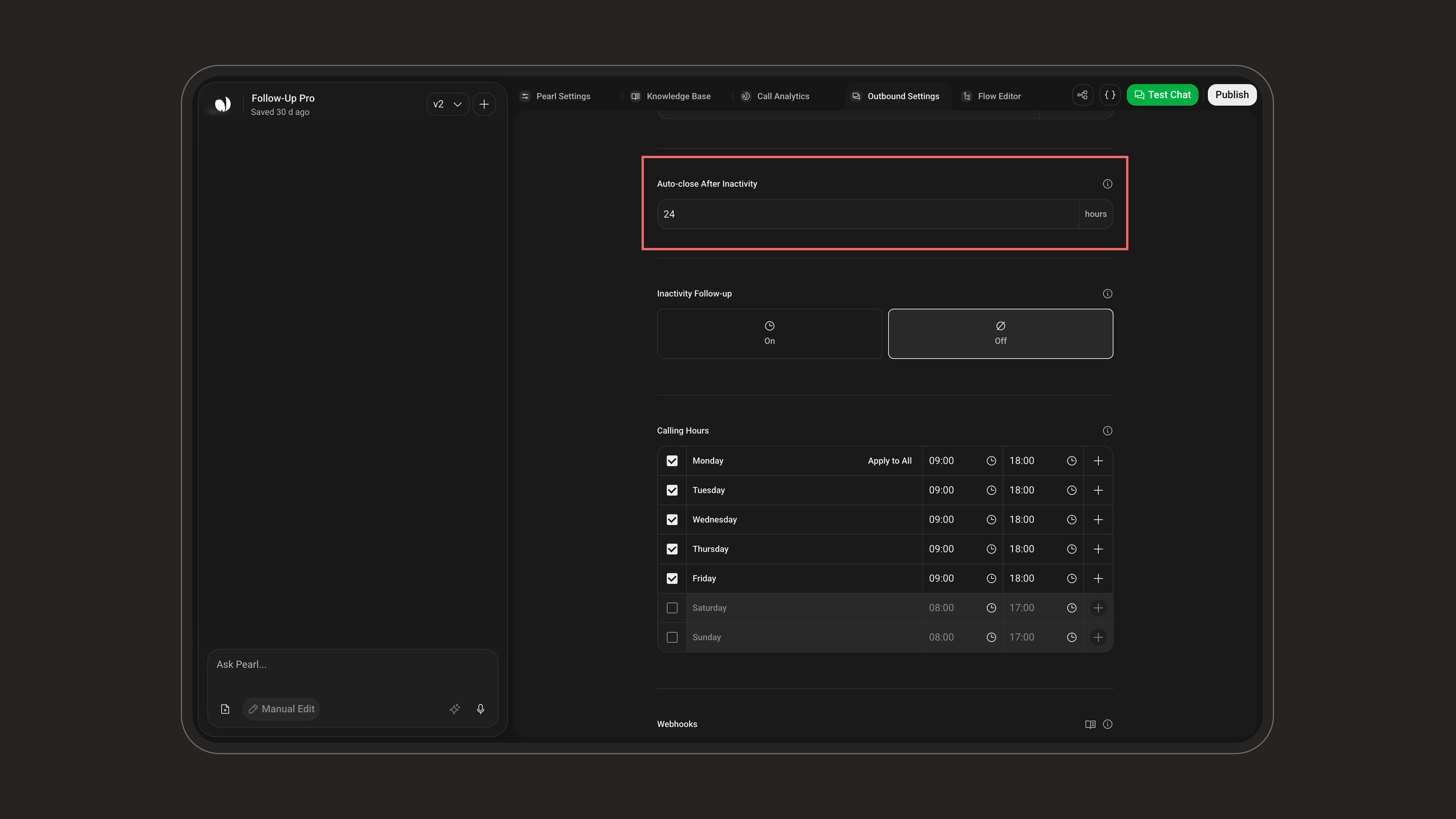
Response Delay
How long Pearl waits before replying. When a lead sends several messages in a row, Pearl answers them together instead of replying to each one. Choose from ASAP up to 5 minutes, in 30-second steps (default ASAP, which means Pearl replies as soon as it is ready).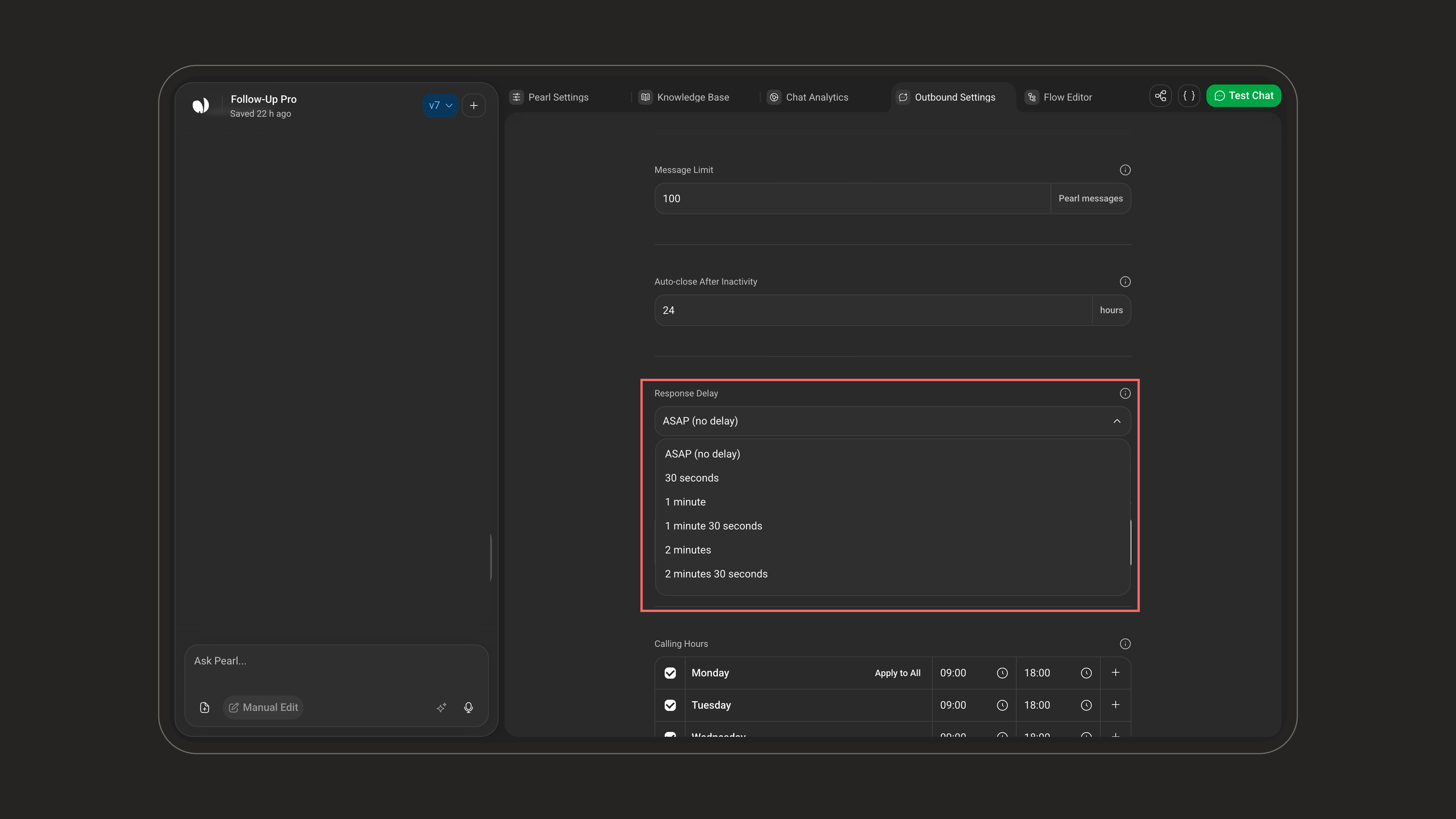
Each campaign has its own response delay, separate from your inbound activity.
Inactivity Follow-up
When enabled (on/off), Pearl sends follow-up messages when the lead stops replying after Pearl’s last message, to re-engage the conversation.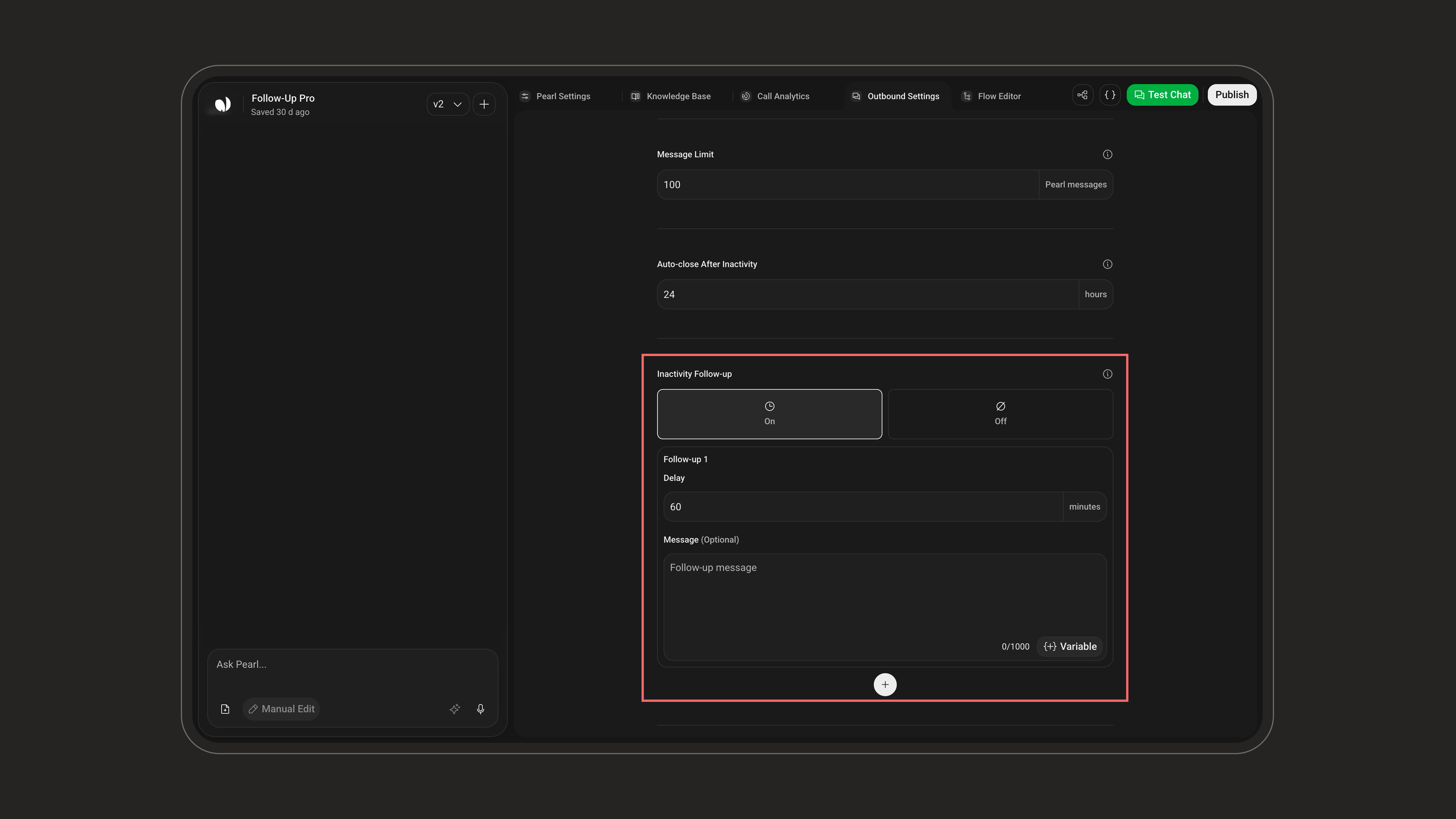
- Up to 3 follow-ups: each one is a delay plus an optional message.
- Minimum delay: at least 30 minutes between follow-ups for outbound.
- Default: a single follow-up sent after 60 minutes.
Follow-up messages can use Pre-Call variables (e.g. the lead’s first name) to keep the re-engagement personal.
Calling Hours
Define the hours during which Pearl is allowed to send outbound messages. By default, messages go out Monday to Friday, 08:00–18:00. Calling hours respect each lead’s timezone, so everyone is contacted at an appropriate local time.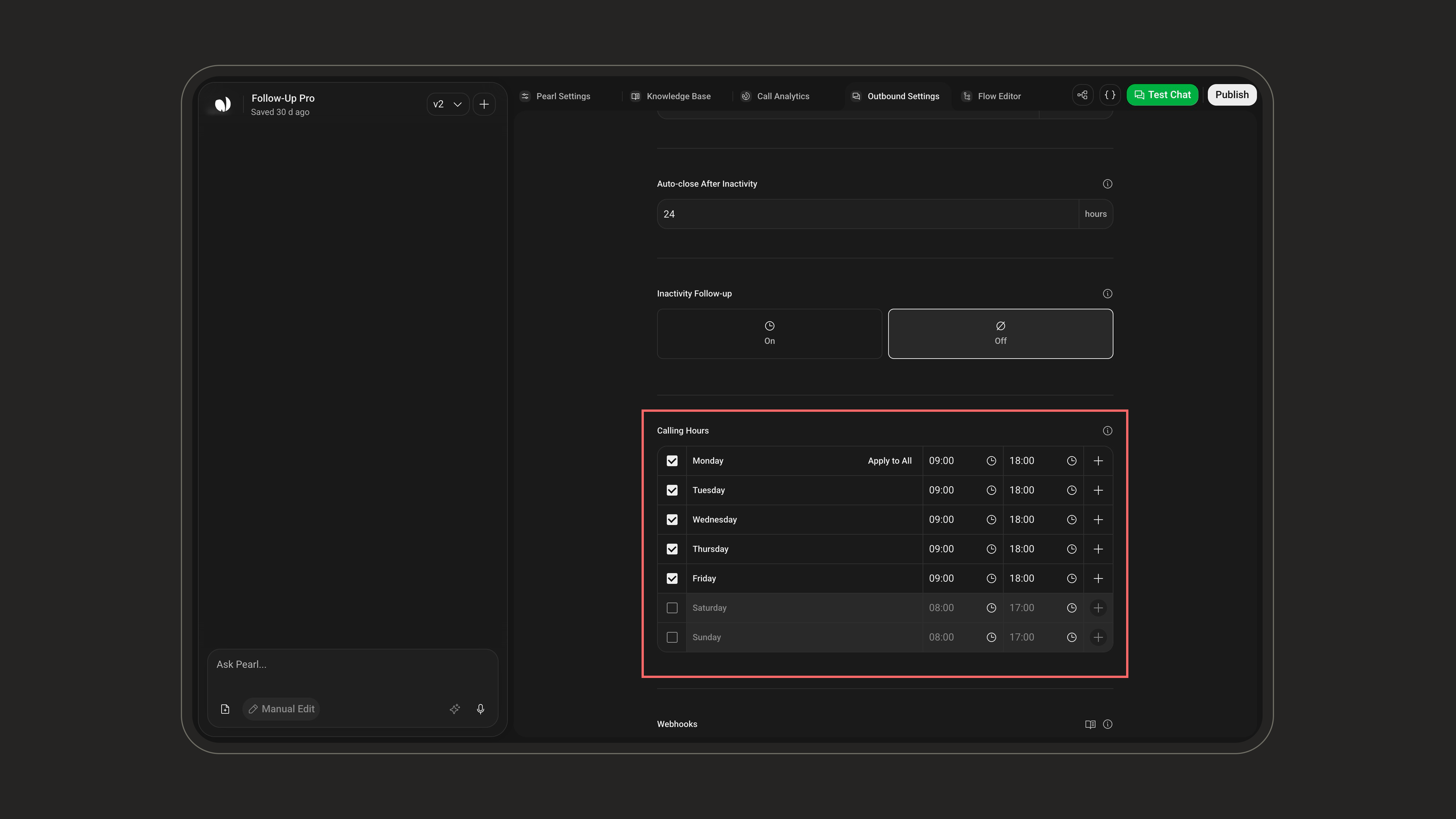
Webhooks
Send conversation and lead events to an external endpoint, useful for tracking performance and keeping your CRM in sync.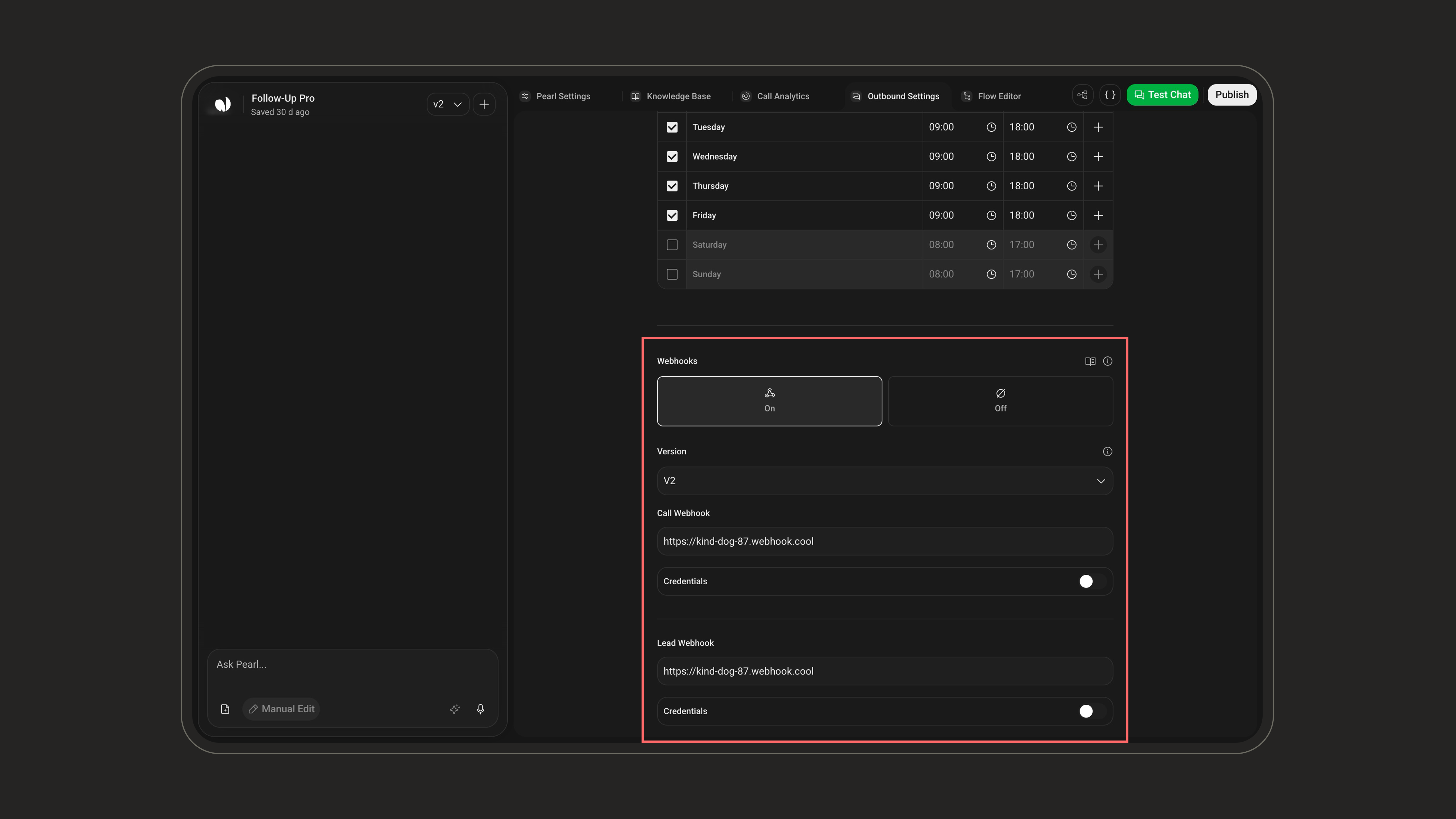
- Chat Webhook: fires at key points in the conversation lifecycle (when the chat starts and ends), sending details like the outcome and any data collected during the conversation.
- Lead Webhook: fires whenever a lead changes status (at the start and end of the conversation), sending the lead’s full information and current status. Use it to update your CRM in real time.
- Version:
V1orV2(default V2). - Credentials: optional authentication token attached to the requests so your endpoint can verify they come from NLPearl.
If your endpoint is behind a firewall, allow the NLPearl IP addresses listed in IP Whitelisting.
Webhooks
Learn how to configure webhooks, authenticate requests, and handle the events NLPearl sends.
Project-Level Settings
A few settings live at the Project level rather than in the campaign settings screen. Open them from the settings popover on your Pearl.Agents
Sets how many simultaneous agents run this campaign, i.e. how many conversations can be handled at the same time, capped by your account’s agent quota. A higher number allows faster outreach.Agents
Learn how to manage the agents assigned to your inbound and outbound activities.
Retention
Applies to all conversations. Set how long conversations are kept (a number of days, or leave empty to keep them indefinitely), then choose what is removed when they expire: delete all conversation data, or granularly the Transcript, Summary, or collected Variables.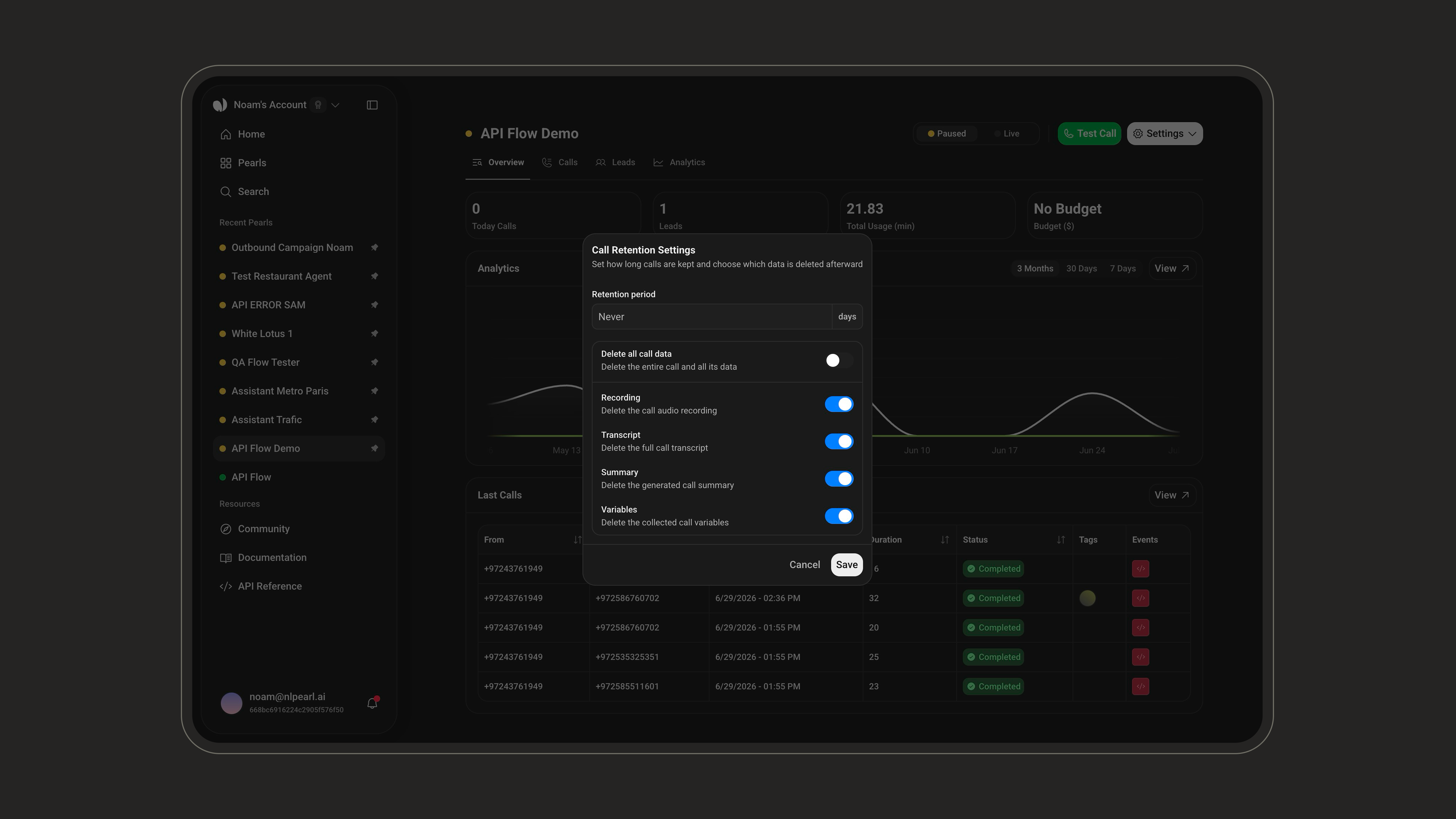
Lead Retention
Outbound only. Set how long leads are kept before they are automatically deleted (a number of days, or leave empty to keep them indefinitely). This removes the entire lead.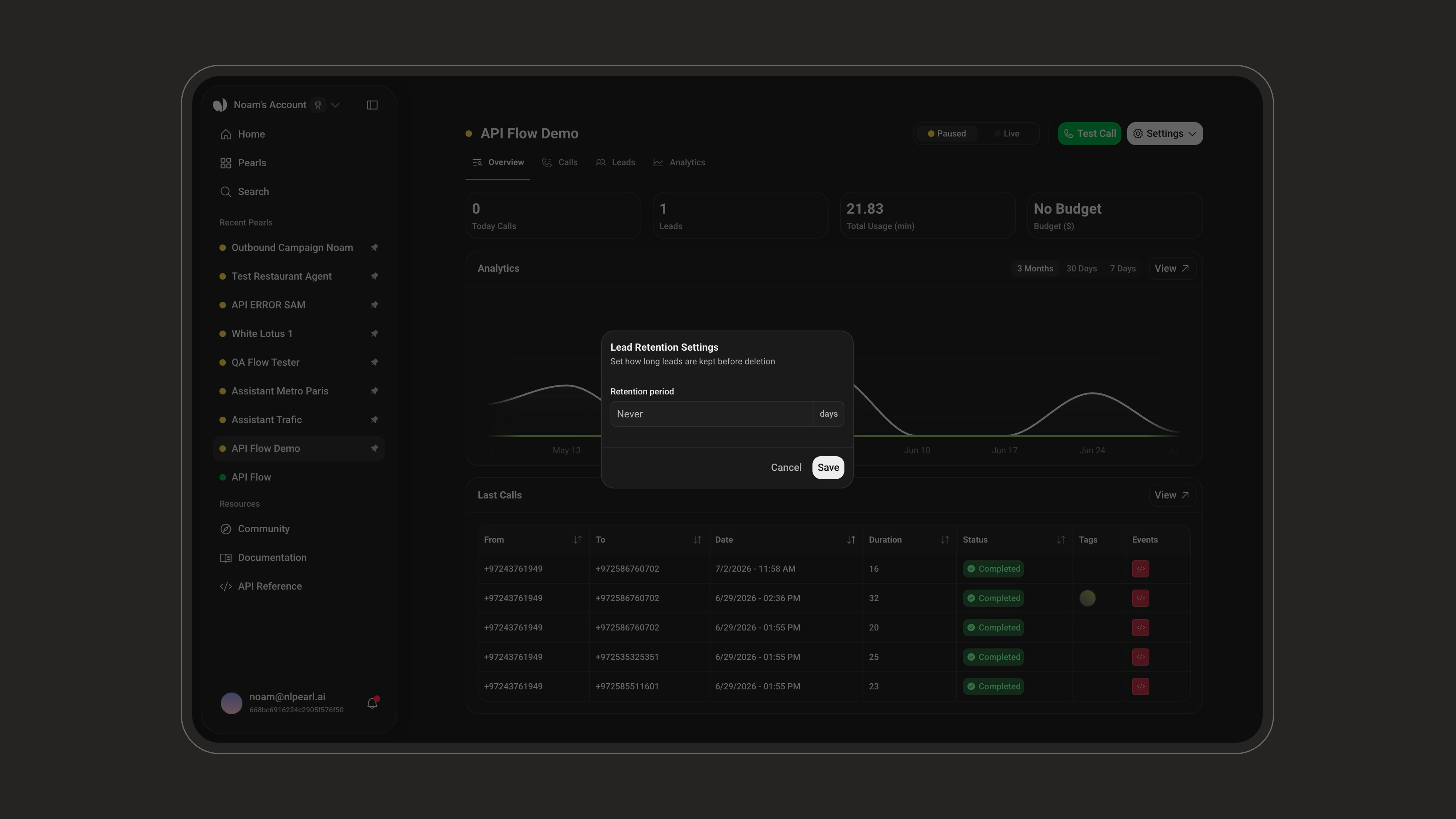
Managing Leads
Open the Leads tab in your campaign to add, view, and manage the people Pearl will contact. Leads are shown in a searchable, paginated table with default columns Created, Phone Number, Time Zone, Reference ID, and Status, plus one column per variable used in your Pearl.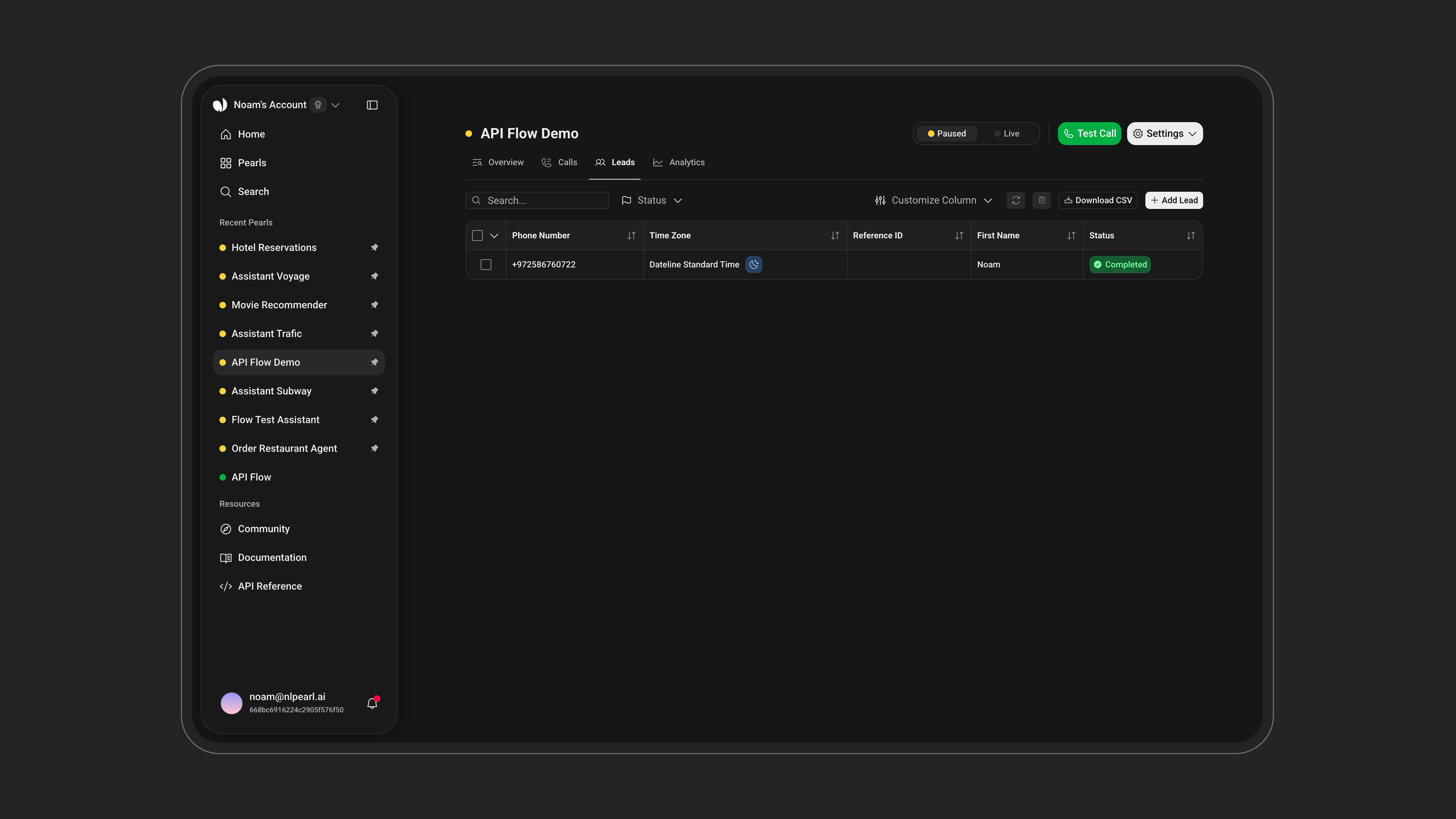
Adding Leads
Click Add Lead, then choose how you want to add them.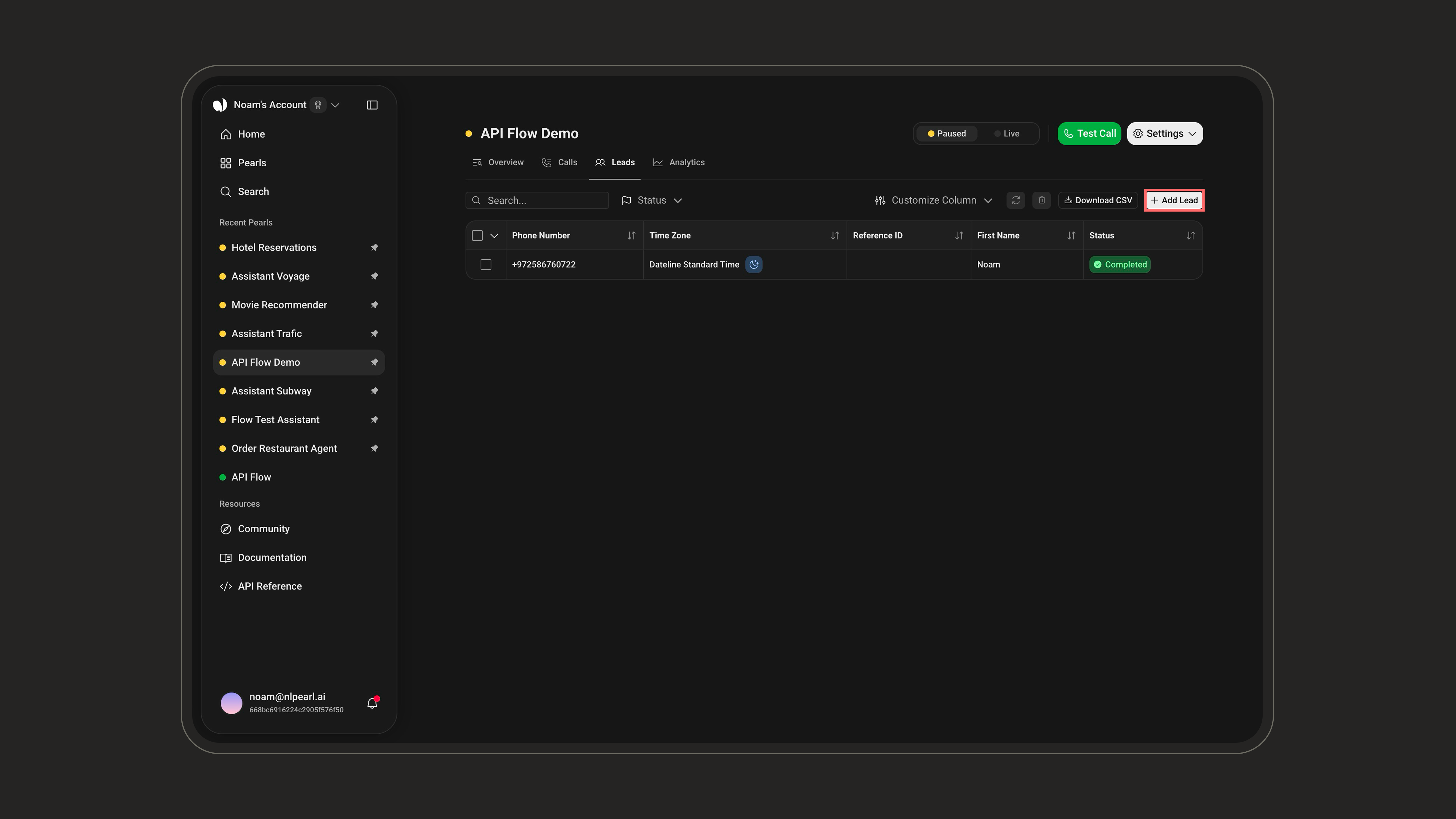
- Upload a File
- Add Manually
Download the CSV or XLSX template, fill it with your lead data, and upload it back. The template only includes the variables actually used in your Pearl (unused ones won’t appear, and extra columns you add won’t be recognized). You can also set a timezone for the file — if left empty, the campaign timezone is used. After the upload, a report shows how many leads were added and lets you download the list of any failed rows.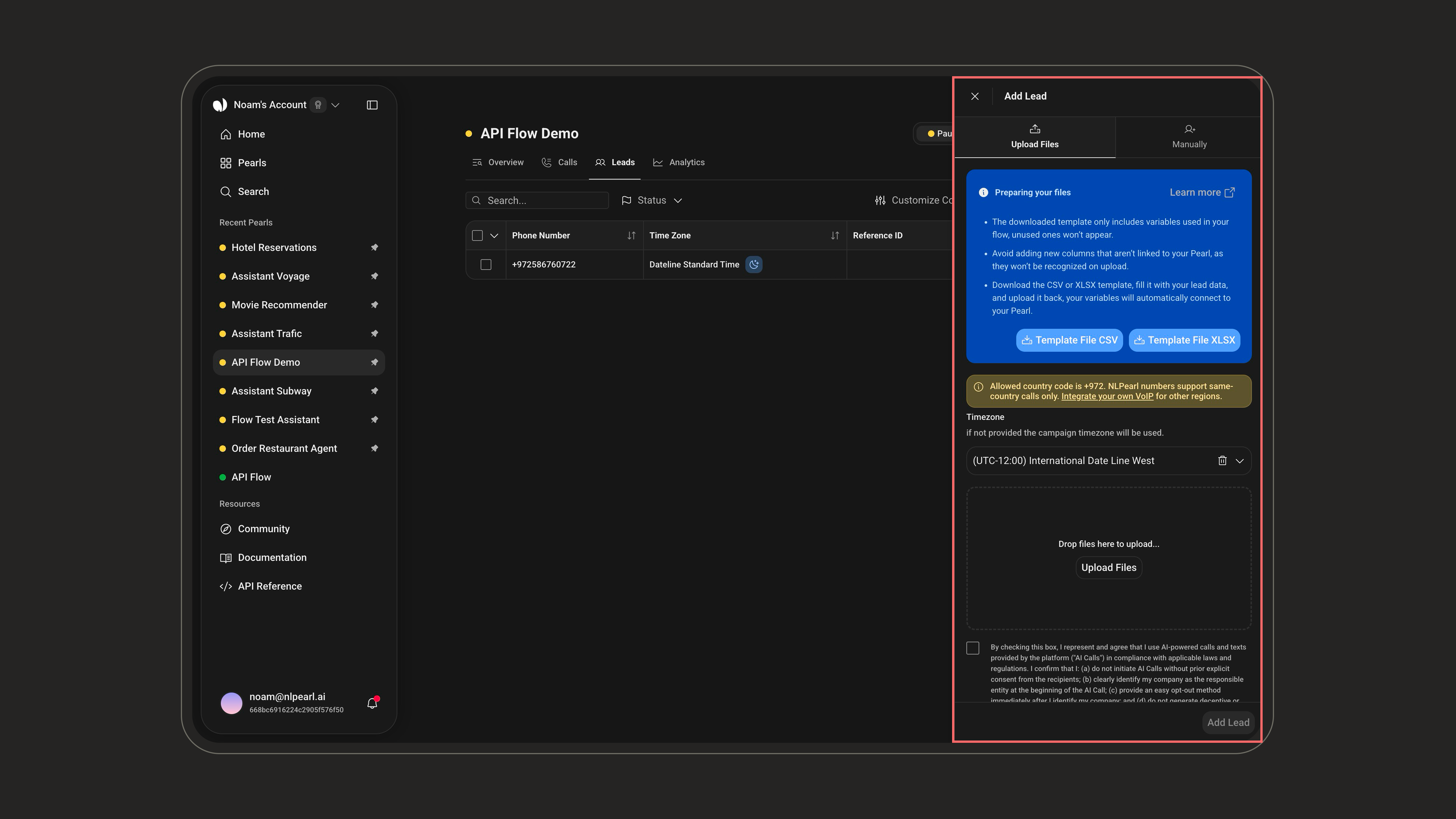
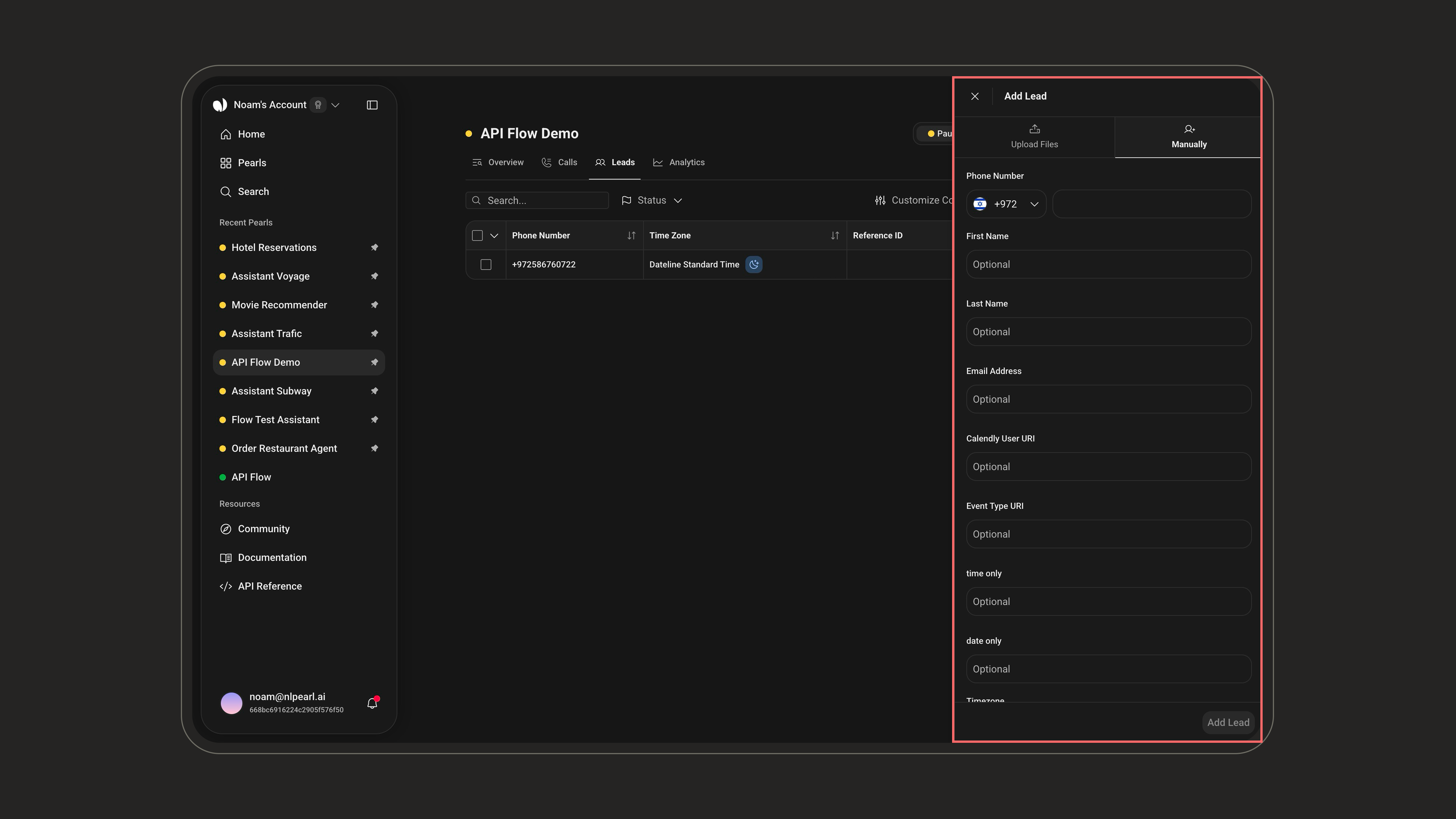
Both methods require accepting the AI-messaging compliance checkbox.
Customizing the View
Use Customize Column to show or hide any column, including the per-variable columns (by default, only the last 3 variables are shown). Up to 50 columns can be visible at once, and your selection is saved locally in your browser.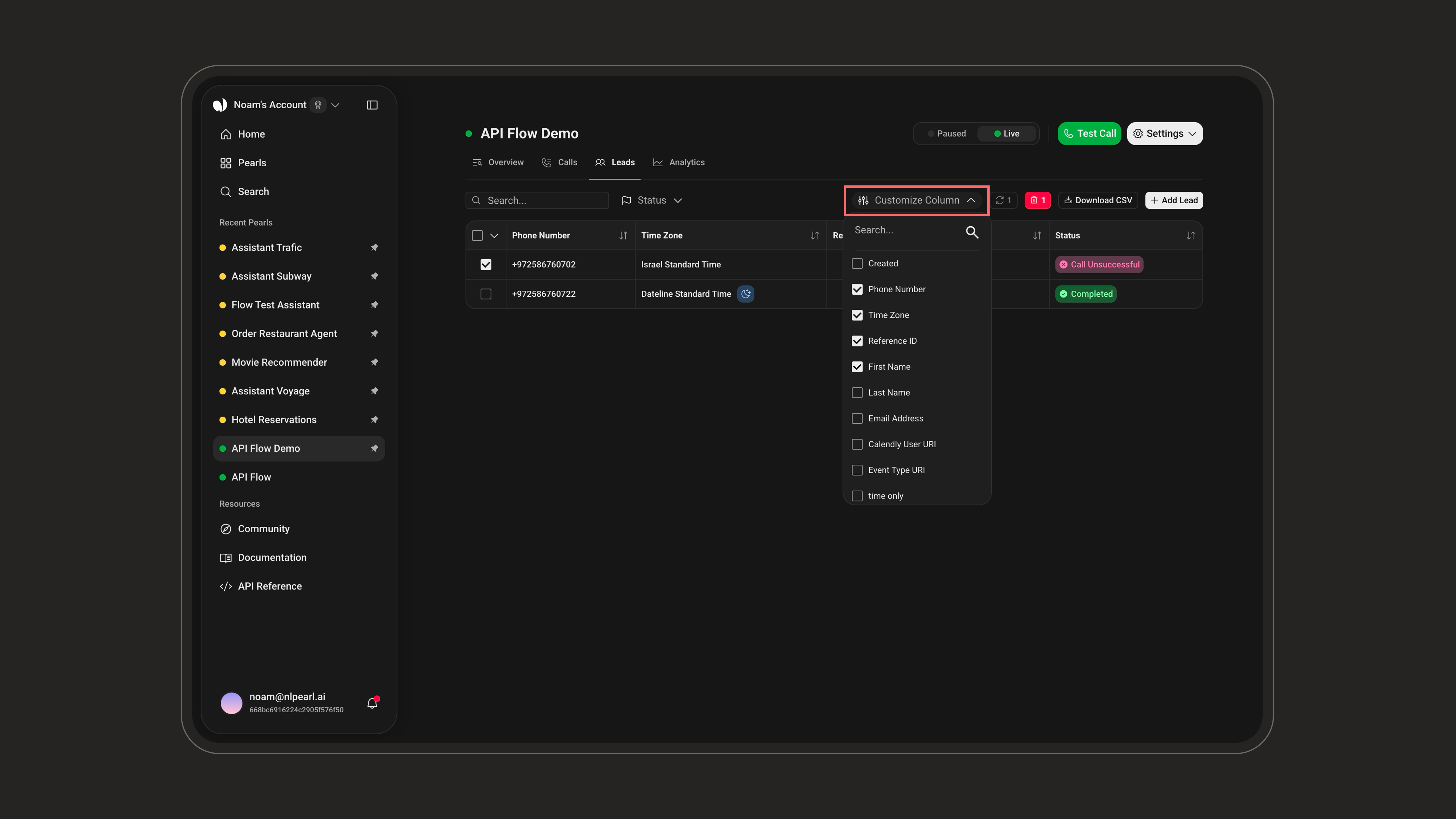
Exporting Leads
Click Download CSV to export your leads together with their current statuses. The export respects the filters currently applied to the table.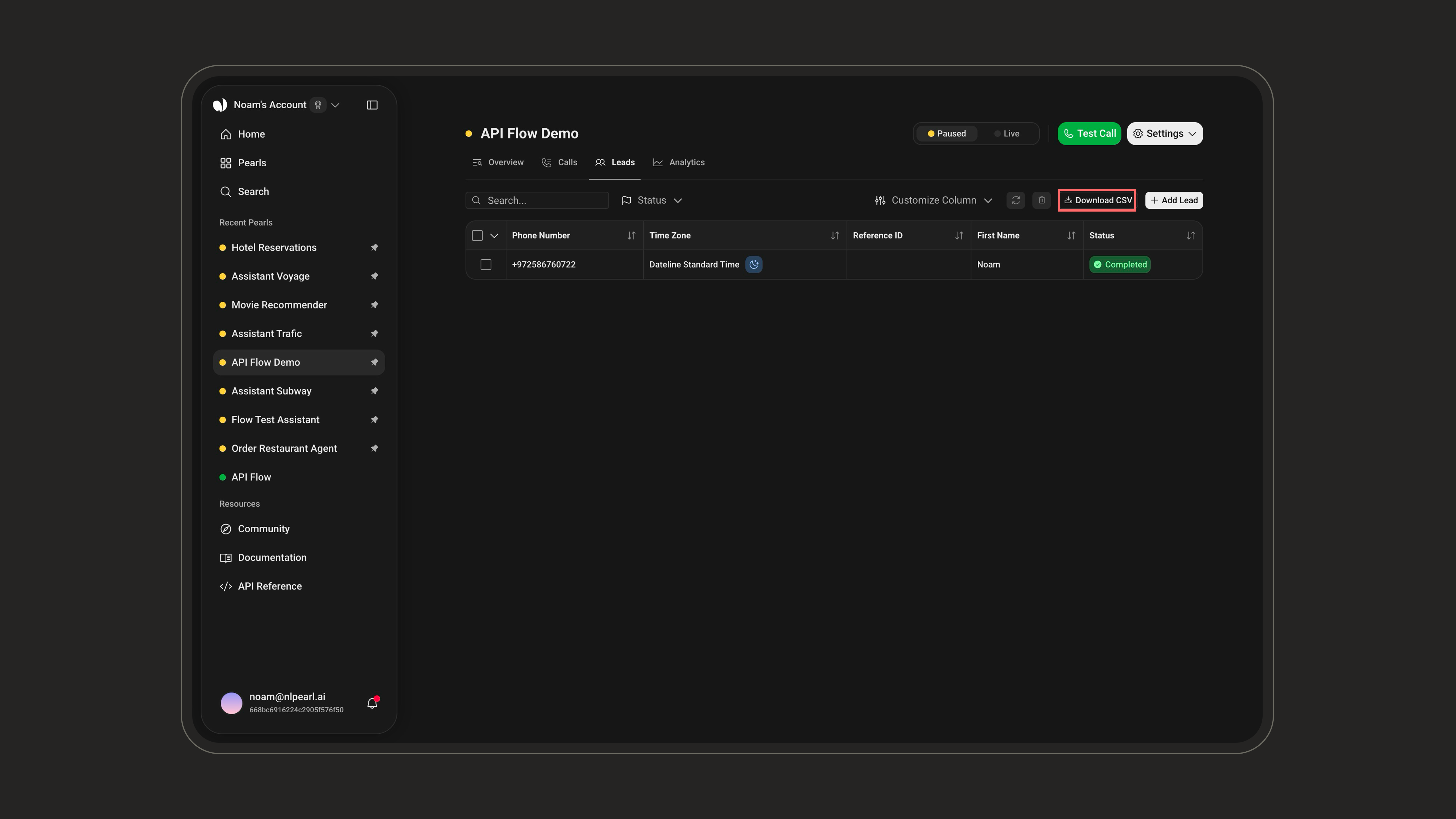
Refreshing and Deleting
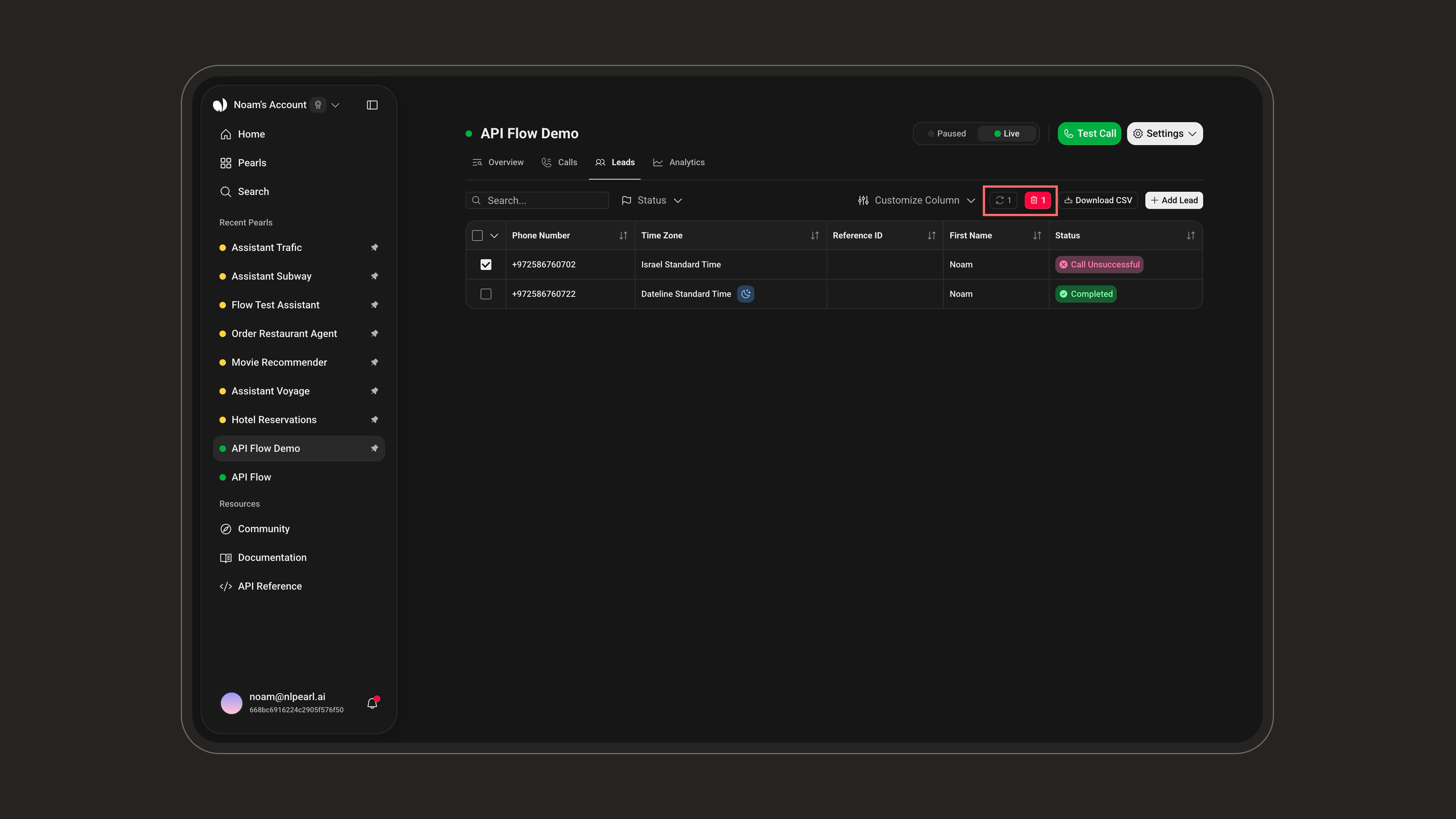
Select one or more leads (or select all across the current filter), then:- Refresh: resets the leads to New so they re-enter the queue — handy to re-contact already-processed leads (Completed, Unsuccessful, etc.).
- Delete: permanently removes the selected leads, after a confirmation.
Outside Calling Hours
When a lead’s local time falls outside your campaign’s calling hours, a moon icon appears on its Time Zone column — the lead is “sleeping” and won’t be contacted until its window opens. Hover the icon to see the lead’s local time and UTC offset.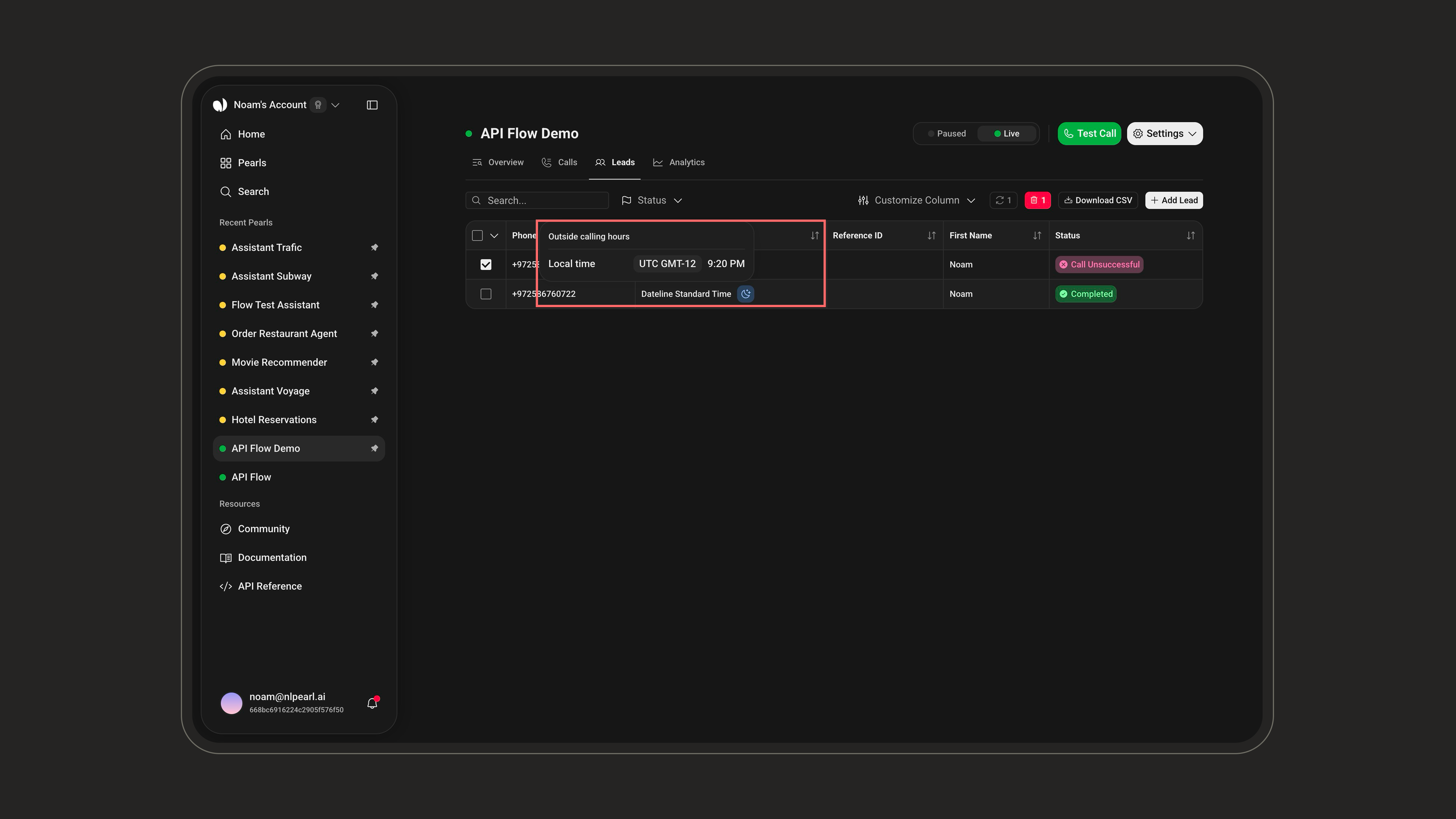
Lead Details
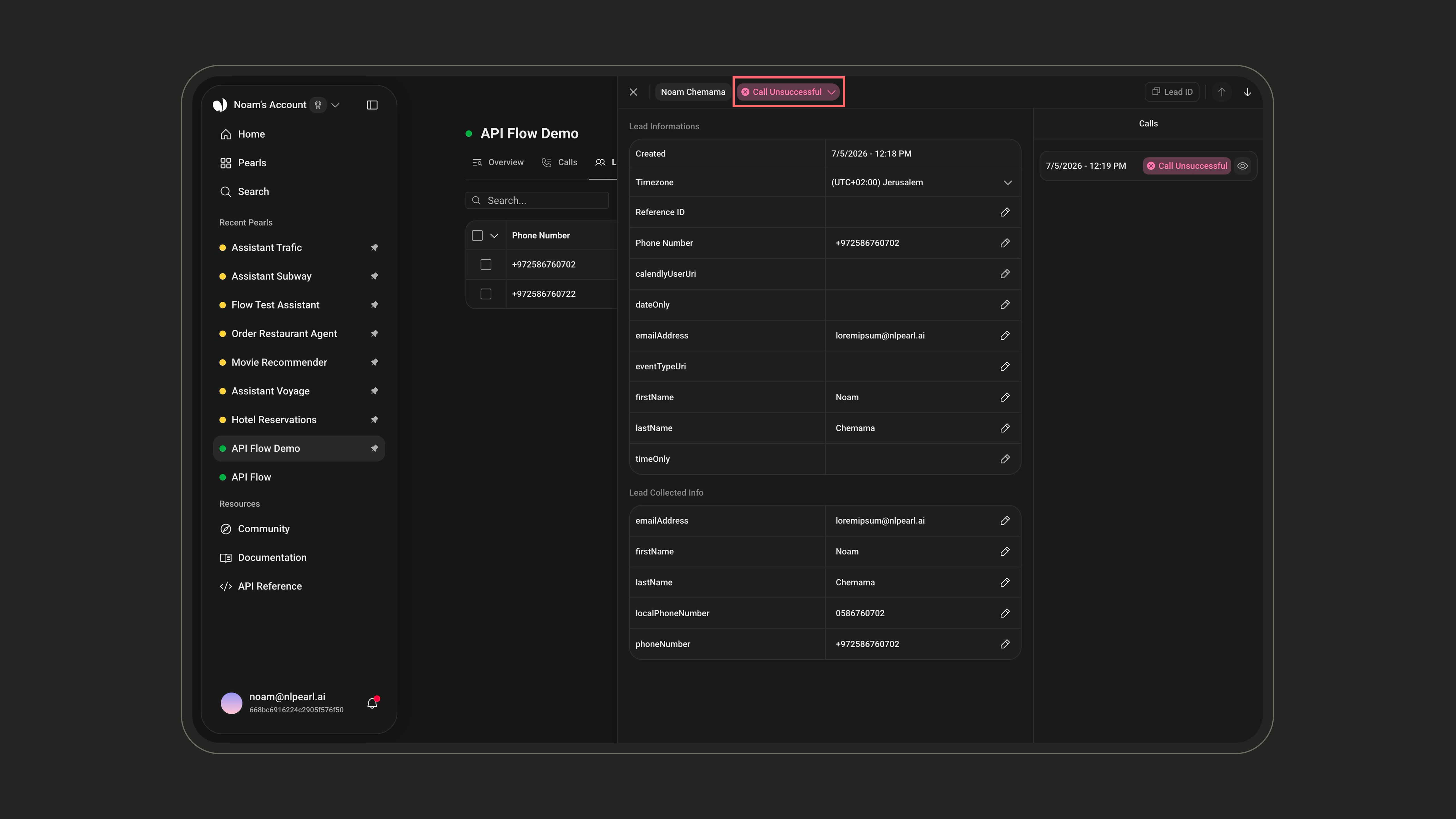
Click a lead to open its details panel. Use the arrows or ↑/↓ keys to move between leads. The header shows the lead’s name (or contact identifier), its Lead ID (copyable), and its status.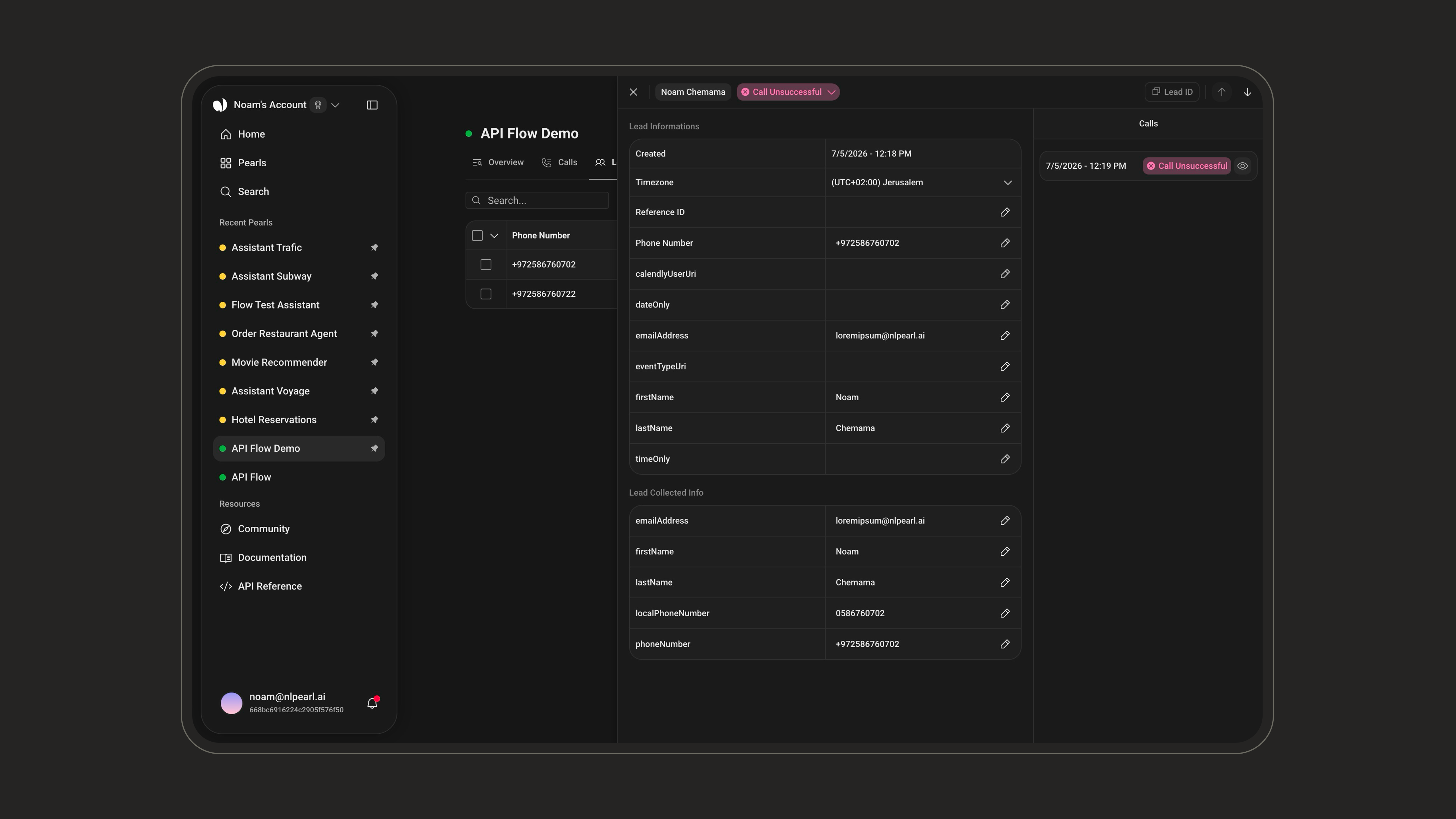
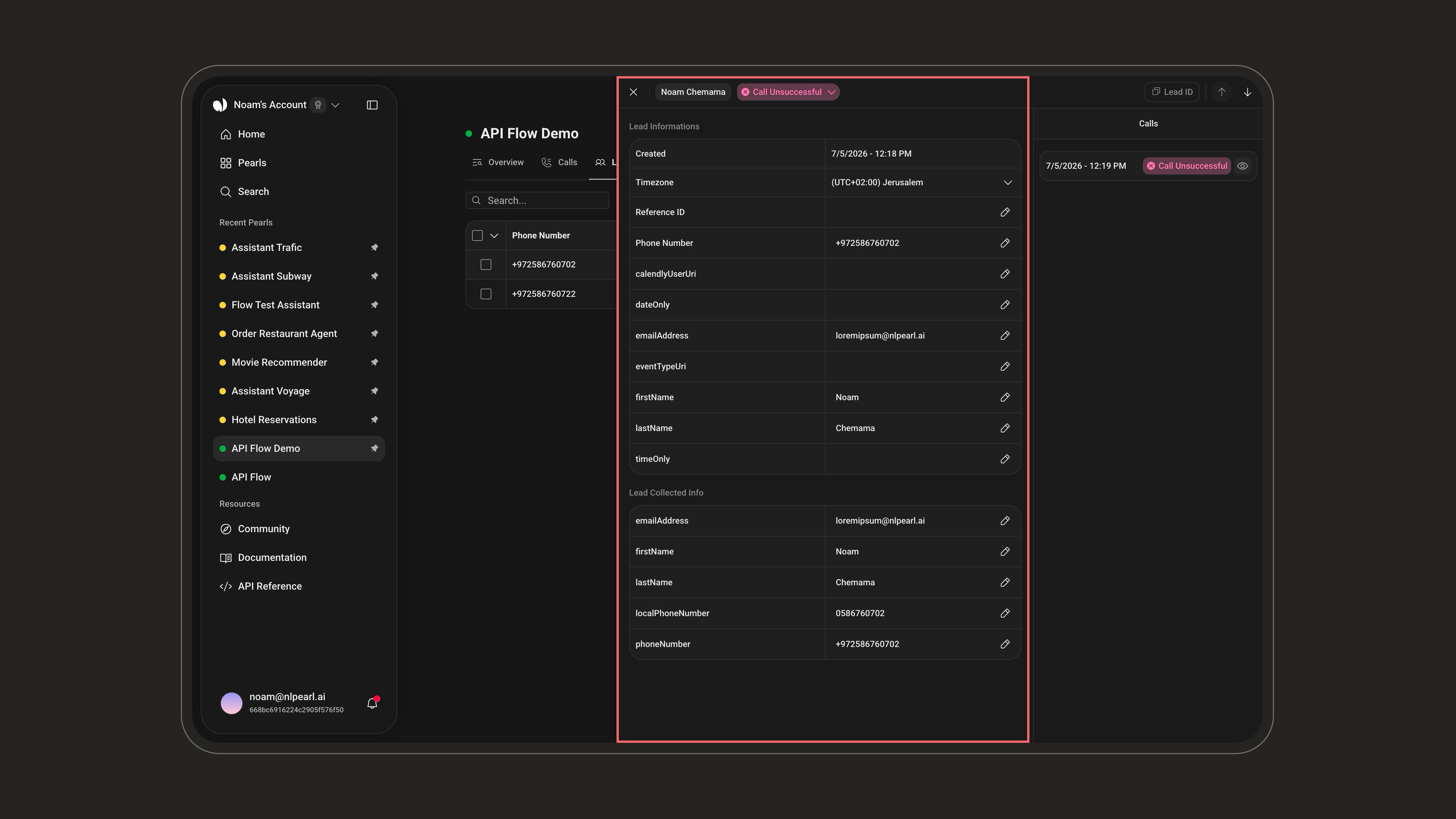
- Lead data: values you provided up front (imported or entered variables).
- Lead Collected Info: values Pearl gathered during the conversation.
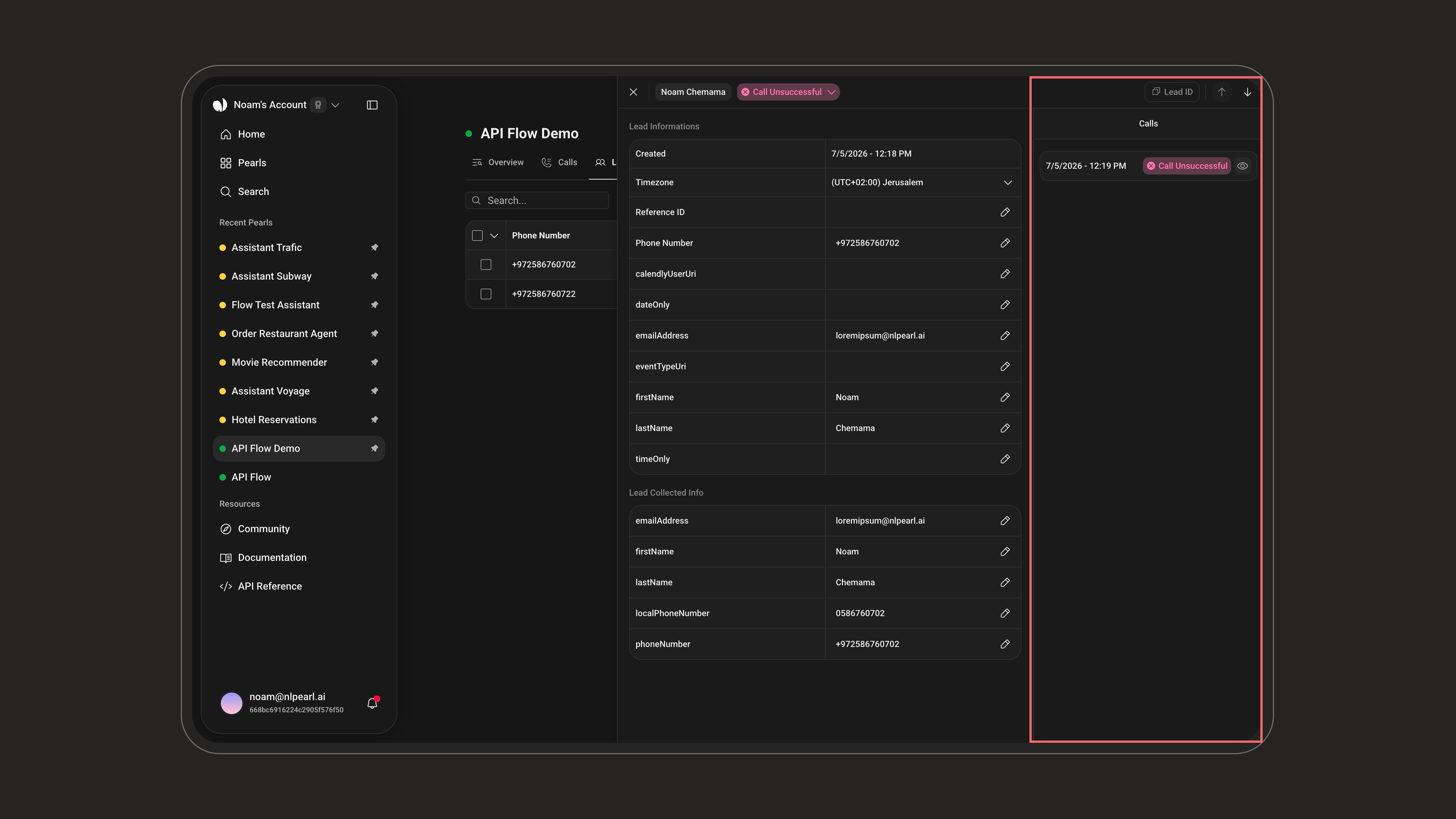
Post-Chat
See everything captured after a conversation: outcome, transcript, summary, and collected data.