


Other charts in your Call Analytics dashboard (duration, sentiment, costs, pickup rate, events, heatmap) are tracked automatically and don’t depend on this setup step.
Define the Success of Your Pearl
Specify what constitutes a successful call for your Pearl, such as booking a meeting, confirming interest, or qualifying a lead. This success definition will be reflected in your campaign analytics and lead statuses, helping you sort and follow up efficiently. The success criteria is free text, up to 250 characters.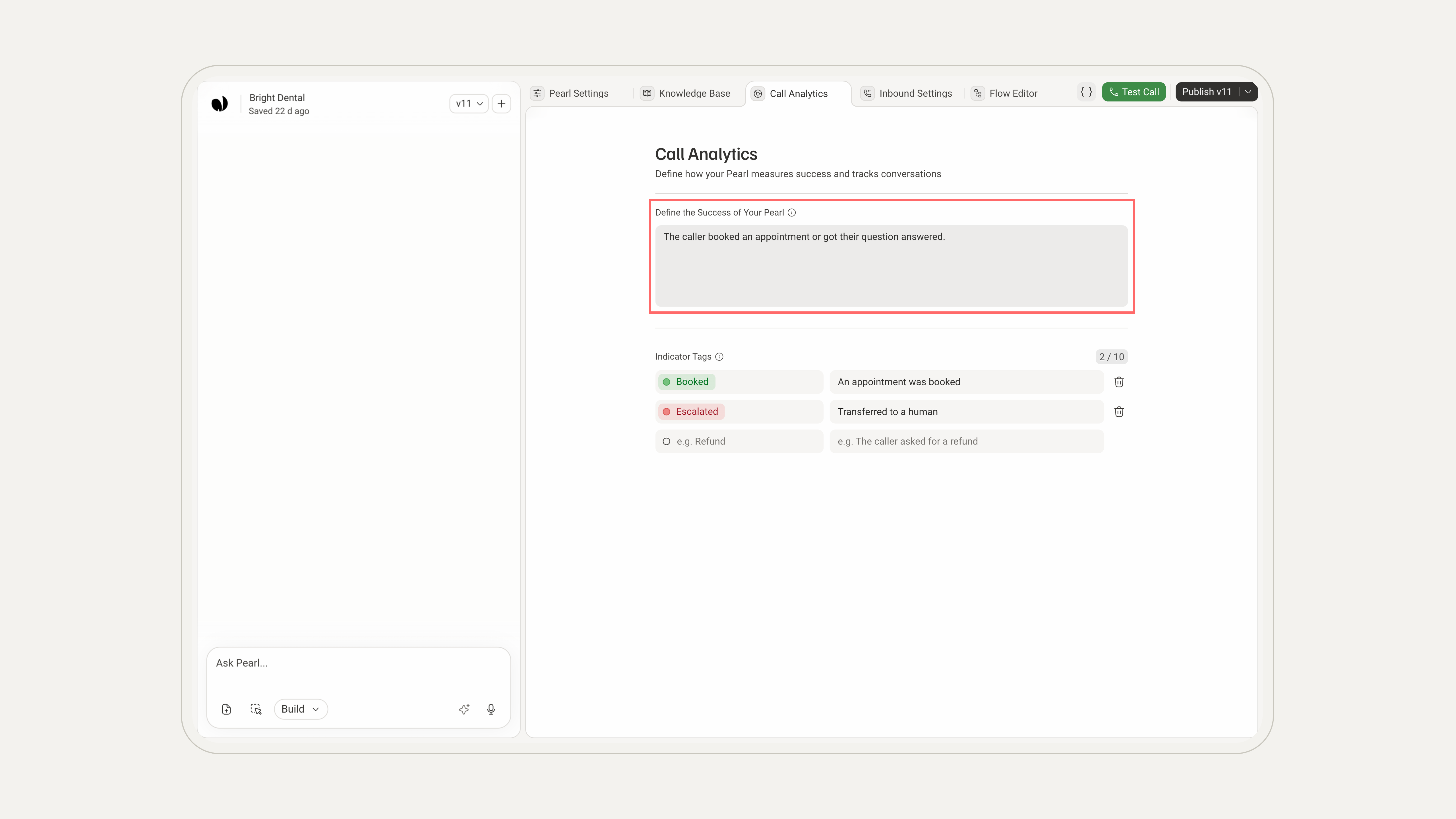
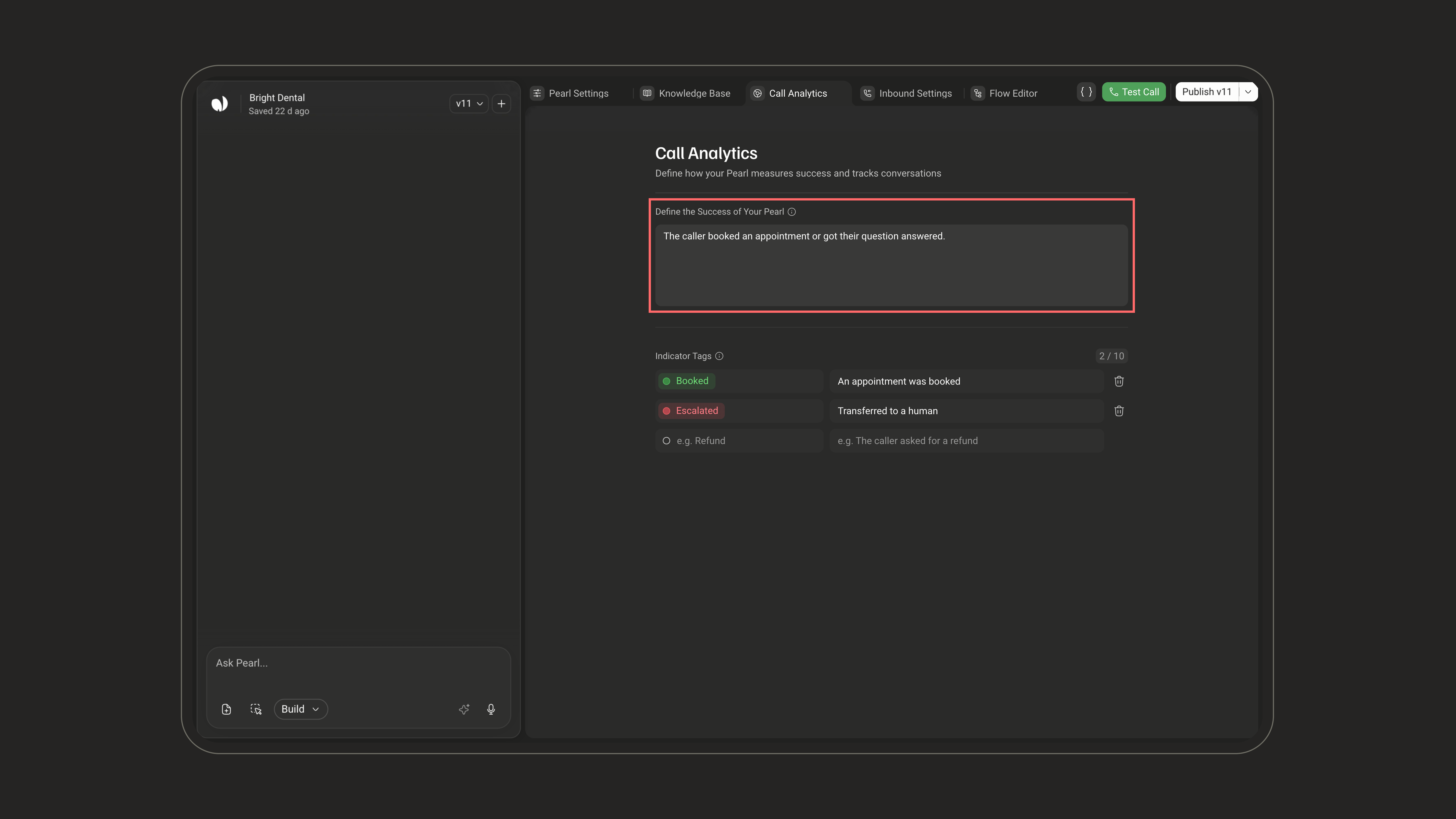
In your Call Analytics dashboard, without a success definition, answered calls are counted as Completed. Once defined, they split into Call Successful (green) and Call Unsuccessful (pink), and the Success Rate chart tracks the percentage of calls that met your criteria over time. Until then, Completed calls count toward the success rate, so it doesn’t measure your goal yet.
Indicator Tags
Use Indicator Tags to label and categorize key moments in a conversation. They help you structure your data, identify important insights, and filter your leads with precision.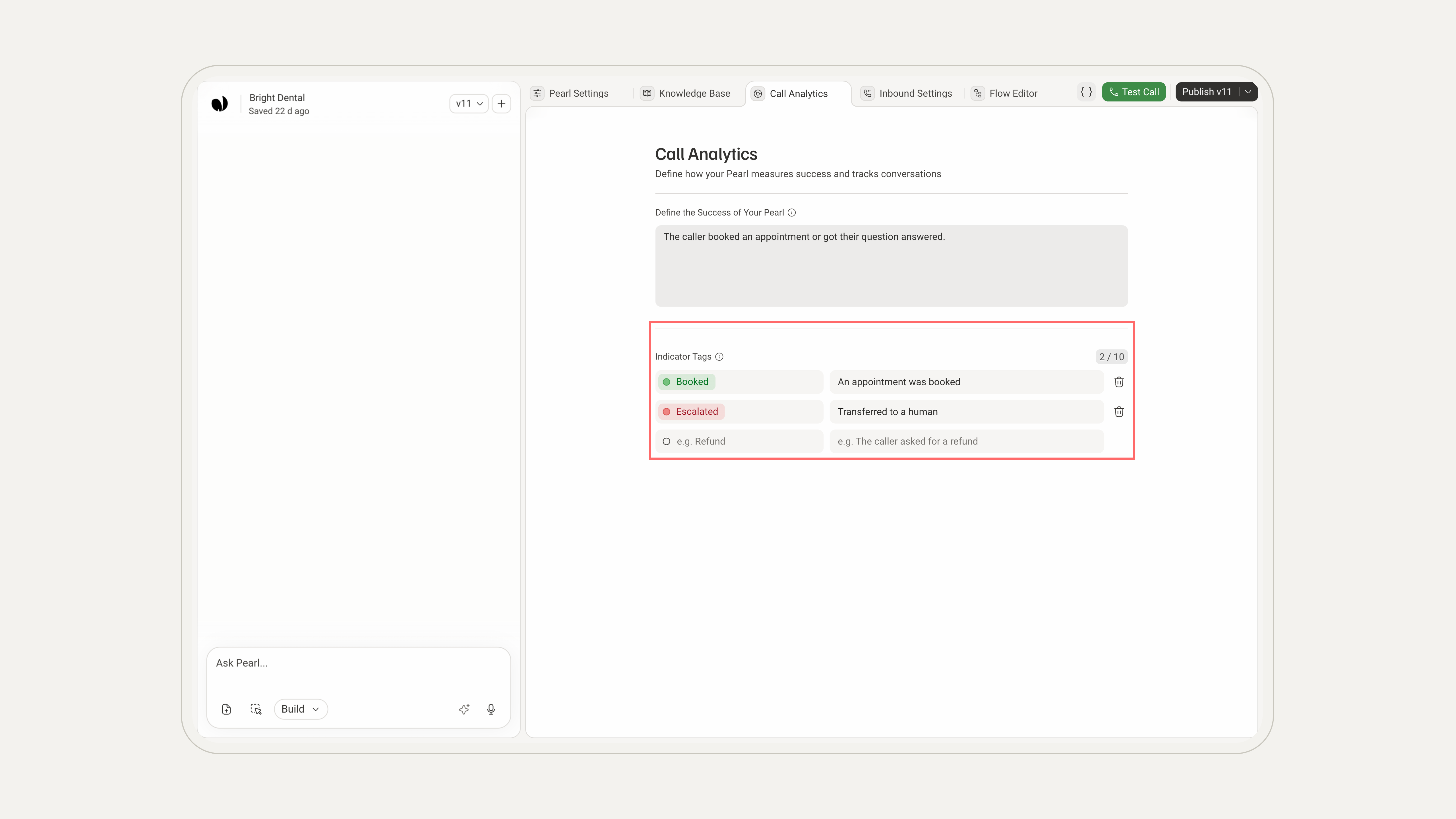
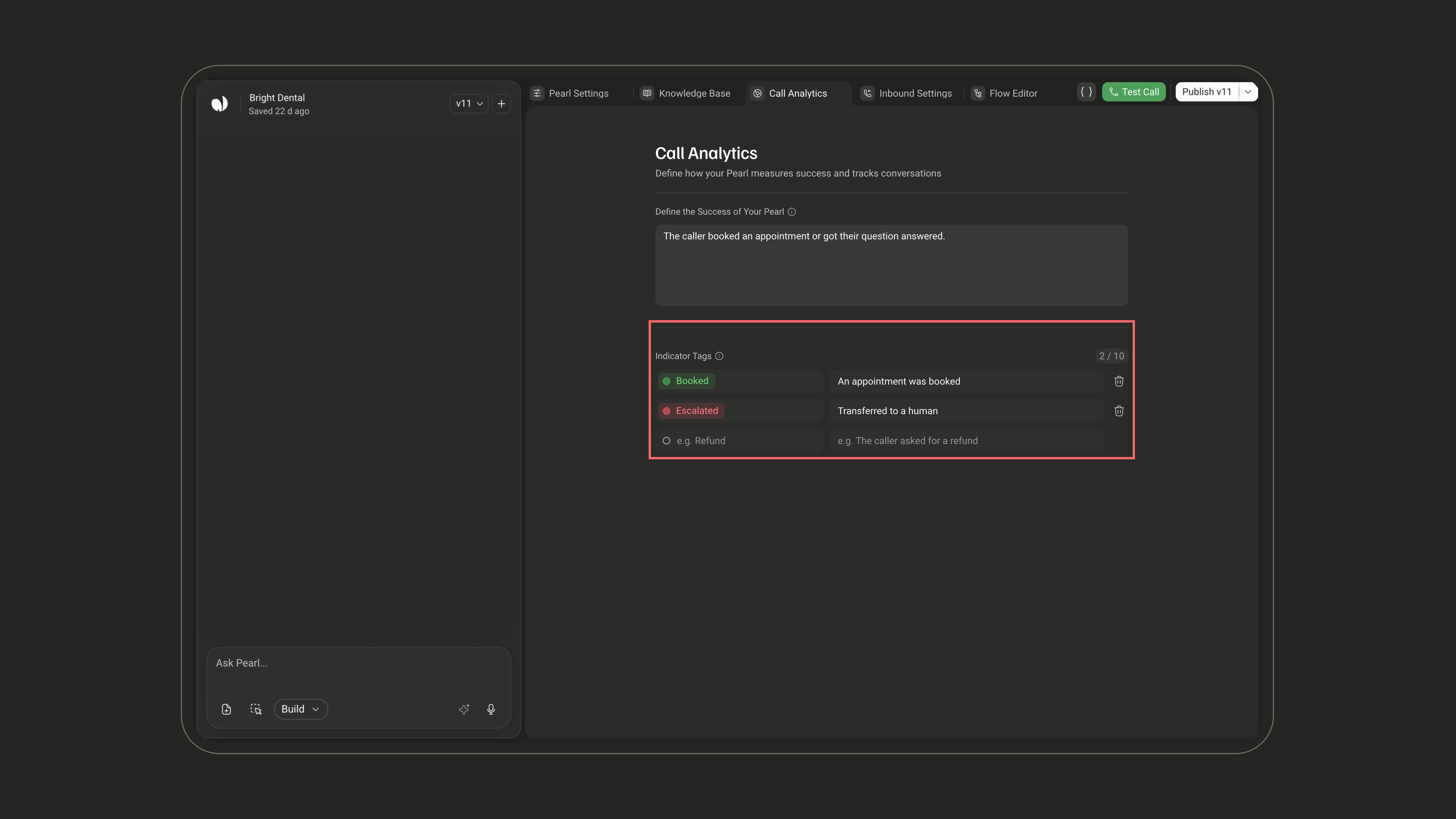
- Name: A clear label, required (max 25 characters), e.g.
"Interested","Mentioned Competitor". - Color: Used for visual sorting. Each tag must use a unique color, a color already assigned to another tag can’t be reused.
- Assignment rule (When to assign): A short description of when the tag should be applied, required (max 300 characters).
Example
You’re asking leads what they usually drink in the morning. You might define:-
Tag:
Coffee- Color: Brown
- When to assign: If the lead mentions drinking coffee
-
Tag:
Tea- Color: Green
- When to assign: If the lead mentions drinking tea
Indicator Tags are not just for display. They’re functional: you can filter your calls by tag and segment your leads with them.
In your Call Analytics dashboard, they feed the Tags chart, showing each tag’s name, its chosen color, and how many calls it was applied to.
In your Call Analytics dashboard, they feed the Tags chart, showing each tag’s name, its chosen color, and how many calls it was applied to.