> ## Documentation Index
> Fetch the complete documentation index at: https://developers.nlpearl.ai/llms.txt
> Use this file to discover all available pages before exploring further.
# Post-Chat
> All you need to know about Post-Chat in NLPearl
***
## What is a Post-Chat?
In NLPearl, a **post-chat** is a structured summary generated after each conversation handled by Pearl. It centralizes all key information captured before, during, and after the conversation to ensure full traceability, improve quality, and support human follow‑up when needed.
***
## What Does the Post-Chat Include?
A post-chat provides multiple key sections to review and analyze the outcome of a conversation:
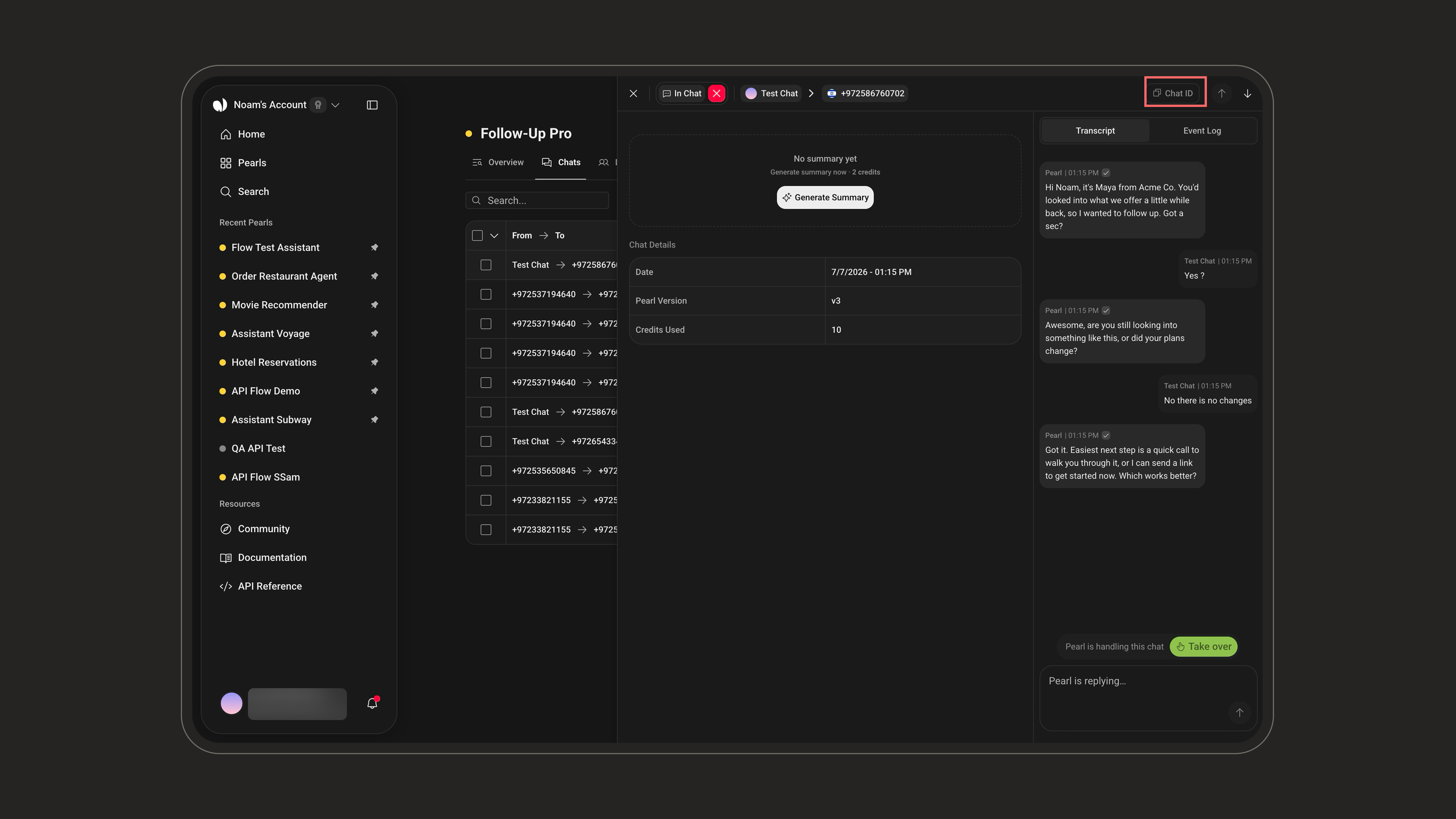
### Chat ID
A unique identifier for each conversation, displayed at the top right of the page. It allows you to quickly reference or search for a specific conversation across the system.
 ***
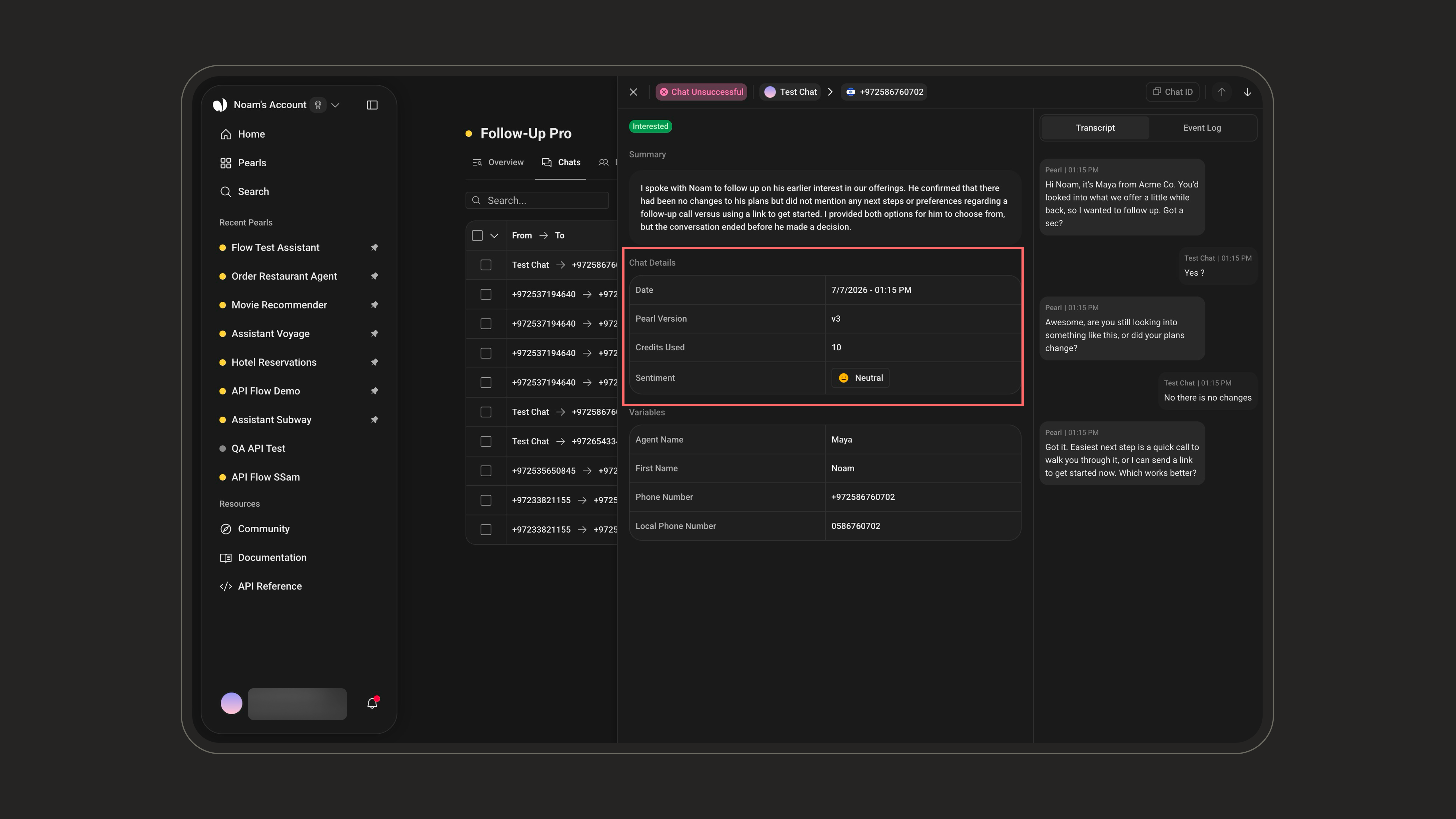
### Conversation Details
This section summarizes the essential metadata captured during the conversation, such as timing, the Pearl version used, credits consumed, and the overall outcome.
| Field | Description |
| --------------------- | ------------------------------------------------------------------------------------------------------------- |
| **Date** | The exact date and time the conversation took place. |
| **Pearl Version** | The version of the Pearl that handled the conversation. |
| **Lead Name** | The name of the lead (outbound conversations). |
| **Duration** | The length of the conversation. |
| **Queue Duration** | Time the conversation spent waiting in the chat queue before being picked up (shown only when queued). |
| **Transfer Duration** | Time spent with a human agent after a hand-off (shown only when handed off). |
| **Credits Used** | The number of credits consumed by the conversation. |
| **SMS Credits Used** | The number of credits consumed by SMS messages sent during the conversation (shown only when greater than 0). |
| **Sentiment** | The detected sentiment of the customer during the conversation. |
| **Events** | A shortcut to the actions triggered during the conversation — click **View** to jump to the **Event Log**. |
Some fields are conditional: **Lead Name** appears for outbound conversations, **Queue Duration** only when the conversation was queued, **Transfer Duration** only when it was handed off, and **SMS Credits Used** only when at least one SMS was sent.
The header shows the **participants** (the user and the channel used) and the **Conversation Status** badge — it does not show the name of the Pearl.
***
### Conversation Details
This section summarizes the essential metadata captured during the conversation, such as timing, the Pearl version used, credits consumed, and the overall outcome.
| Field | Description |
| --------------------- | ------------------------------------------------------------------------------------------------------------- |
| **Date** | The exact date and time the conversation took place. |
| **Pearl Version** | The version of the Pearl that handled the conversation. |
| **Lead Name** | The name of the lead (outbound conversations). |
| **Duration** | The length of the conversation. |
| **Queue Duration** | Time the conversation spent waiting in the chat queue before being picked up (shown only when queued). |
| **Transfer Duration** | Time spent with a human agent after a hand-off (shown only when handed off). |
| **Credits Used** | The number of credits consumed by the conversation. |
| **SMS Credits Used** | The number of credits consumed by SMS messages sent during the conversation (shown only when greater than 0). |
| **Sentiment** | The detected sentiment of the customer during the conversation. |
| **Events** | A shortcut to the actions triggered during the conversation — click **View** to jump to the **Event Log**. |
Some fields are conditional: **Lead Name** appears for outbound conversations, **Queue Duration** only when the conversation was queued, **Transfer Duration** only when it was handed off, and **SMS Credits Used** only when at least one SMS was sent.
The header shows the **participants** (the user and the channel used) and the **Conversation Status** badge — it does not show the name of the Pearl.
 ***
### Conversation Status
Indicates the outcome of the conversation from a business or process perspective. It is shown as a colored badge in the header, next to the participants. For chats, this is the **only** status displayed.
***
### Conversation Status
Indicates the outcome of the conversation from a business or process perspective. It is shown as a colored badge in the header, next to the participants. For chats, this is the **only** status displayed.
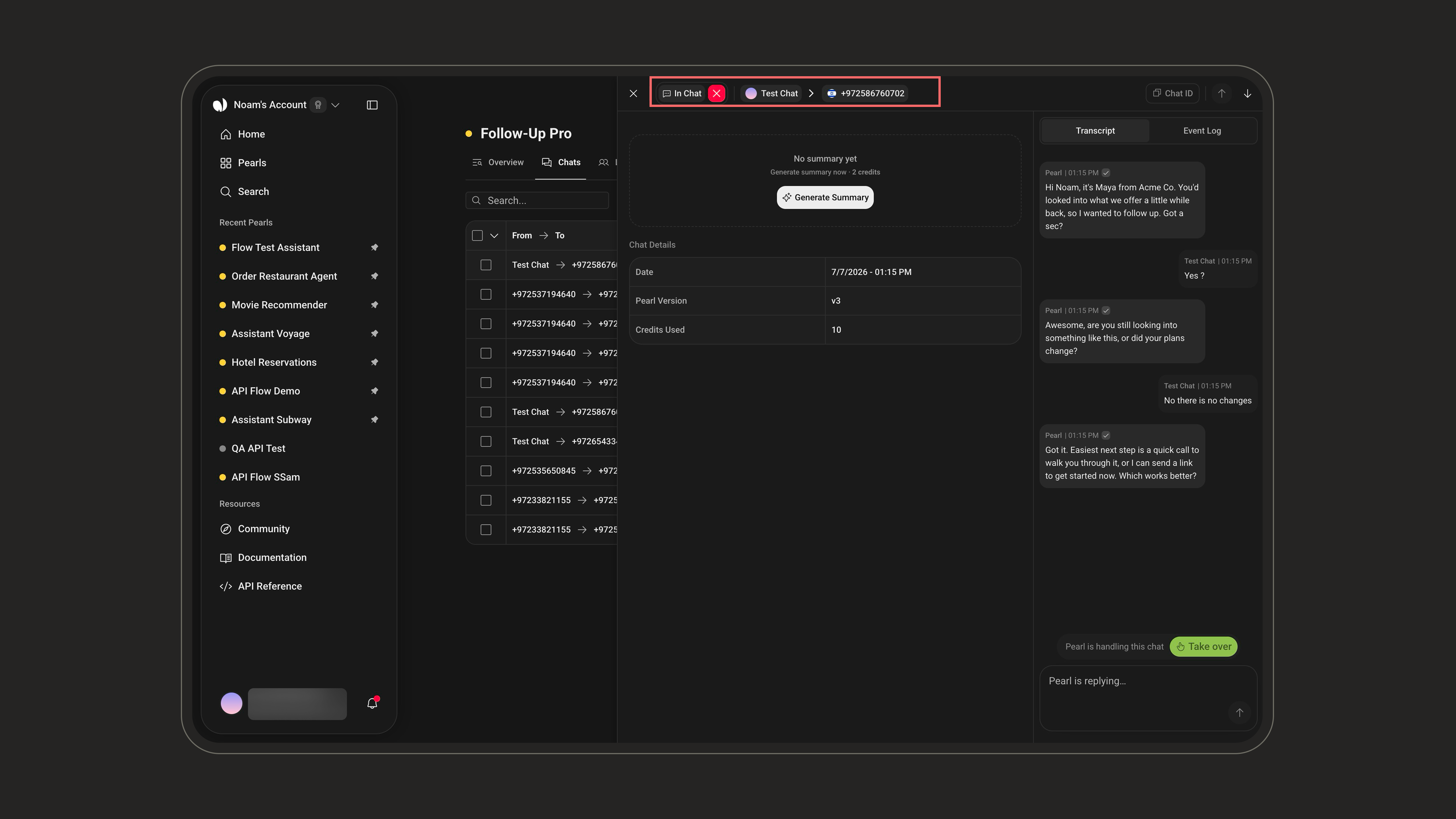 The **✕** next to the status badge lets you **close the conversation manually** at any time. See [Human Takeover](#human-takeover) for how closing differs from a takeover.
| Status | Description |
| ------------------- | -------------------------------------------------------------------- |
| `In Chat Queue` | The conversation is waiting to be picked up. |
| `In Chat` | The conversation is currently ongoing. |
| `Chat Successful` | The conversation achieved its expected outcome. |
| `Chat Unsuccessful` | The conversation failed to meet its objective. |
| `Completed` | The conversation was conducted and finalized, regardless of outcome. |
Important distinctions about Conversation Status:
The difference between `Chat Successful`, `Chat Unsuccessful`, and `Completed` depends on whether a **Success Definition** was configured when creating the Pearl:
* If a **Success Definition** was configured:
* `Chat Successful` → the Success Definition criteria were met during the conversation.
* `Chat Unsuccessful` → the conversation did not meet the Success Definition criteria.
* If **no Success Definition** was configured:
* `Completed` → the conversation was completed without any Success Definition evaluation.
Unlike voice calls, a chat has no separate technical status: the telephony-level **Call Status** is a back-end/API notion only and isn't shown in the post-chat UI.
For more information on Success Definitions, see [PearlVibe](/pages/pearl_vibe#pearl-success).
***
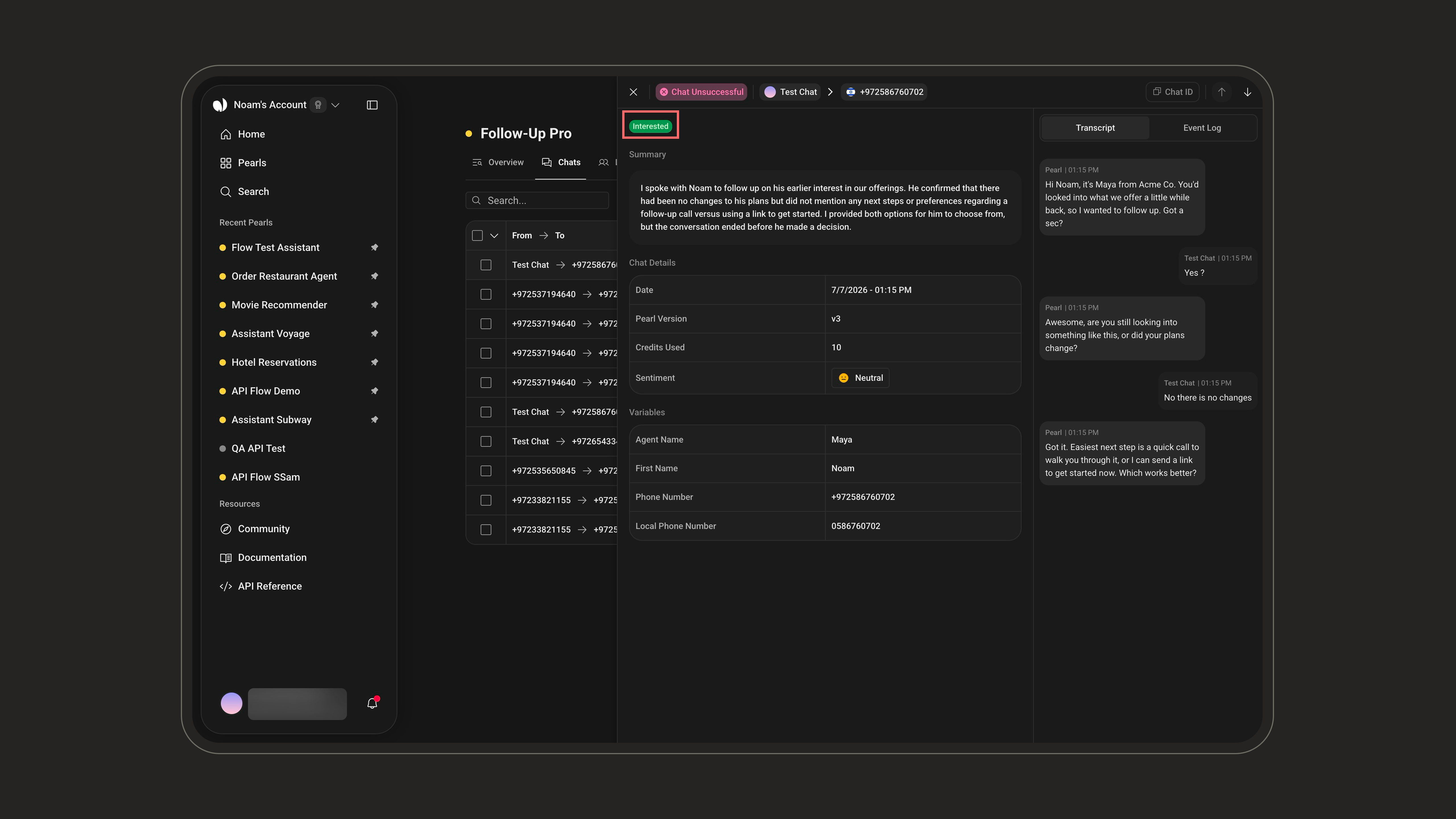
### Tags
The list of **tags defined during the last step of the Pearl creation process**. These tags represent key topics or categories you chose when setting up the Pearl configuration.
The **✕** next to the status badge lets you **close the conversation manually** at any time. See [Human Takeover](#human-takeover) for how closing differs from a takeover.
| Status | Description |
| ------------------- | -------------------------------------------------------------------- |
| `In Chat Queue` | The conversation is waiting to be picked up. |
| `In Chat` | The conversation is currently ongoing. |
| `Chat Successful` | The conversation achieved its expected outcome. |
| `Chat Unsuccessful` | The conversation failed to meet its objective. |
| `Completed` | The conversation was conducted and finalized, regardless of outcome. |
Important distinctions about Conversation Status:
The difference between `Chat Successful`, `Chat Unsuccessful`, and `Completed` depends on whether a **Success Definition** was configured when creating the Pearl:
* If a **Success Definition** was configured:
* `Chat Successful` → the Success Definition criteria were met during the conversation.
* `Chat Unsuccessful` → the conversation did not meet the Success Definition criteria.
* If **no Success Definition** was configured:
* `Completed` → the conversation was completed without any Success Definition evaluation.
Unlike voice calls, a chat has no separate technical status: the telephony-level **Call Status** is a back-end/API notion only and isn't shown in the post-chat UI.
For more information on Success Definitions, see [PearlVibe](/pages/pearl_vibe#pearl-success).
***
### Tags
The list of **tags defined during the last step of the Pearl creation process**. These tags represent key topics or categories you chose when setting up the Pearl configuration.
 For more information on setting up tags, see [PearlVibe](/pages/pearl_vibe).
***
### Events
A log of the actions triggered by Pearl during the conversation. Each event includes a timestamp, the action details, and an execution status.
Possible event types include:
| Event Type | Description |
| ------------------------- | ---------------------------------------------------------------------------------------------------- |
| `Transfer Chat` | The conversation was transferred to another destination. |
| `Conversation Handed Off` | The conversation was handed off to a human agent. |
| `SMS Sent` | A text message was sent to the customer. |
| `Email Sent` | An email was sent during the conversation. |
| `API` | An API was triggered — before the chat (Pre-Chat), during it (API Request), or after it (Post-Chat). |
| `Appointment` | An appointment was booked in the calendar. |
| `Slack` | A Slack notification was sent. |
Each event carries an execution status: the **HTTP status code** for API calls, otherwise **sent** / **failed**, with a possible error state.
***
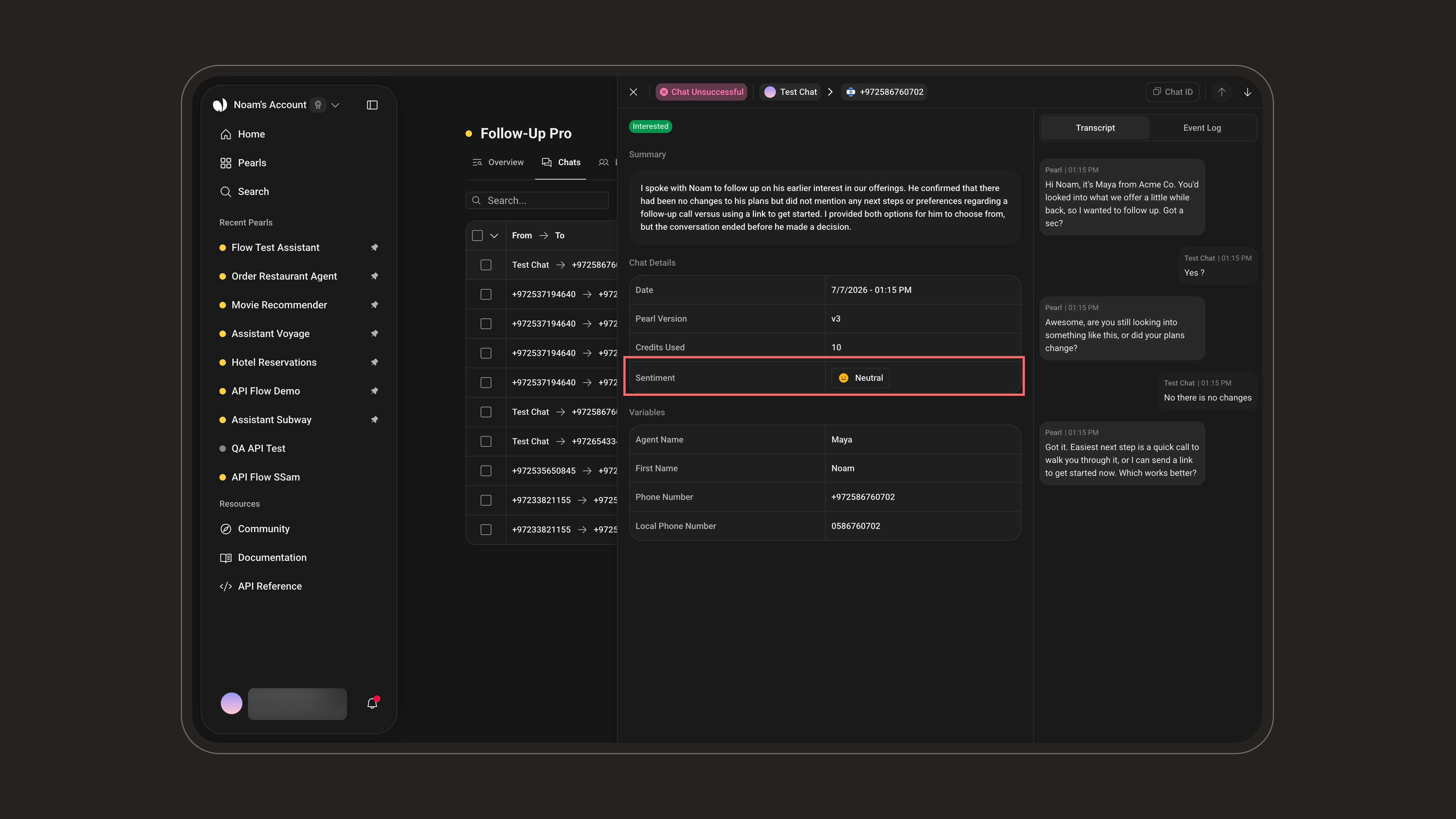
### Sentiment Analysis
An automatic classification of the customer's tone and emotional state throughout the conversation. Possible sentiment values include:
| Sentiment Value | Description |
| ------------------- | ----------------------------------------------------------------- |
| `Positive` | The conversation was clearly positive in tone and emotion. |
| `Slightly Positive` | The overall tone was mostly positive, with minor neutral moments. |
| `Neutral` | The sentiment was balanced or emotionless. |
| `Slightly Negative` | The tone leaned slightly negative, but not strongly so. |
| `Negative` | The conversation had a clearly negative emotional tone. |
For more information on setting up tags, see [PearlVibe](/pages/pearl_vibe).
***
### Events
A log of the actions triggered by Pearl during the conversation. Each event includes a timestamp, the action details, and an execution status.
Possible event types include:
| Event Type | Description |
| ------------------------- | ---------------------------------------------------------------------------------------------------- |
| `Transfer Chat` | The conversation was transferred to another destination. |
| `Conversation Handed Off` | The conversation was handed off to a human agent. |
| `SMS Sent` | A text message was sent to the customer. |
| `Email Sent` | An email was sent during the conversation. |
| `API` | An API was triggered — before the chat (Pre-Chat), during it (API Request), or after it (Post-Chat). |
| `Appointment` | An appointment was booked in the calendar. |
| `Slack` | A Slack notification was sent. |
Each event carries an execution status: the **HTTP status code** for API calls, otherwise **sent** / **failed**, with a possible error state.
***
### Sentiment Analysis
An automatic classification of the customer's tone and emotional state throughout the conversation. Possible sentiment values include:
| Sentiment Value | Description |
| ------------------- | ----------------------------------------------------------------- |
| `Positive` | The conversation was clearly positive in tone and emotion. |
| `Slightly Positive` | The overall tone was mostly positive, with minor neutral moments. |
| `Neutral` | The sentiment was balanced or emotionless. |
| `Slightly Negative` | The tone leaned slightly negative, but not strongly so. |
| `Negative` | The conversation had a clearly negative emotional tone. |
 ***
### Summary
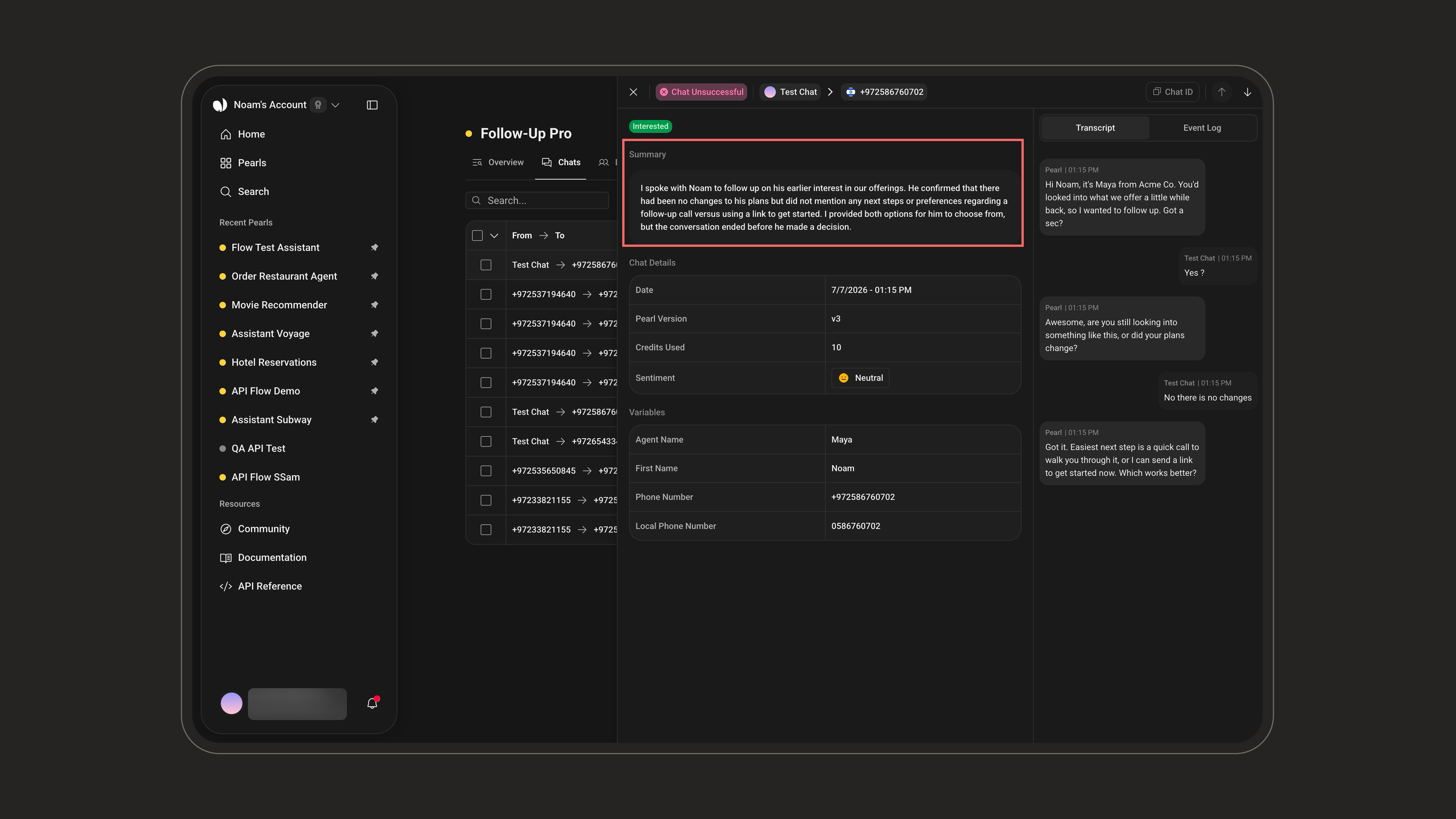
A summary is a concise, human‑readable recap of the conversation, generated by Pearl. It includes:
* What the customer requested
* What was confirmed or declined
* The overall outcome of the interaction
Once a conversation is **closed or completed**, a summary is generated **automatically** at the end. While a chat is still **ongoing** (`In Chat`), no summary exists yet — you can generate one **on demand** with the **Generate Summary** button without waiting for the conversation to end.
***
### Summary
A summary is a concise, human‑readable recap of the conversation, generated by Pearl. It includes:
* What the customer requested
* What was confirmed or declined
* The overall outcome of the interaction
Once a conversation is **closed or completed**, a summary is generated **automatically** at the end. While a chat is still **ongoing** (`In Chat`), no summary exists yet — you can generate one **on demand** with the **Generate Summary** button without waiting for the conversation to end.
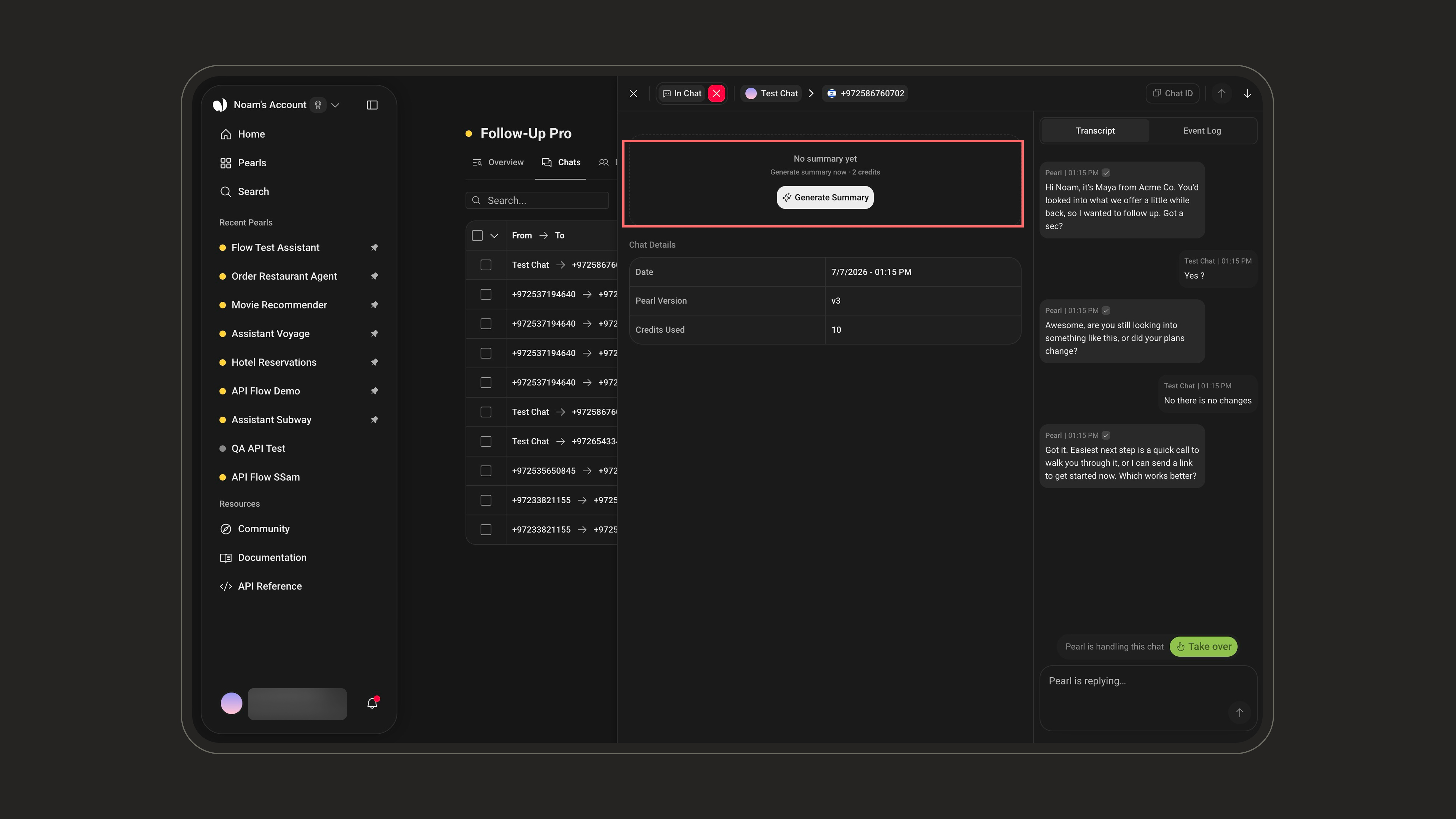
 Generating a summary **on demand** (while the chat is ongoing) costs **2 credits**. The automatic summary produced when the conversation ends is included.
***
### Transcript & Event Log
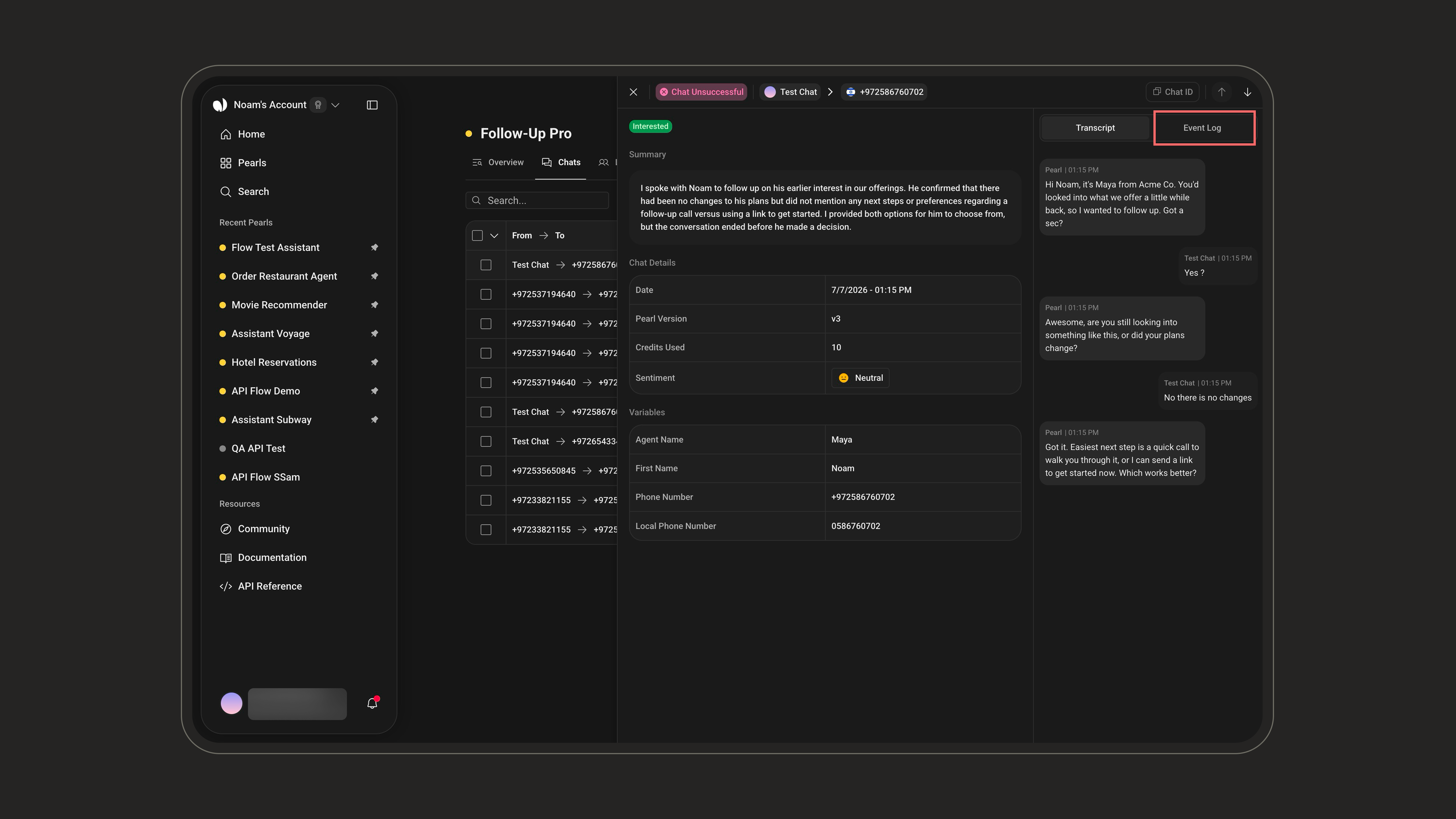
A toggle at the top of the right-hand panel switches between the **Transcript** and the **Event Log**.
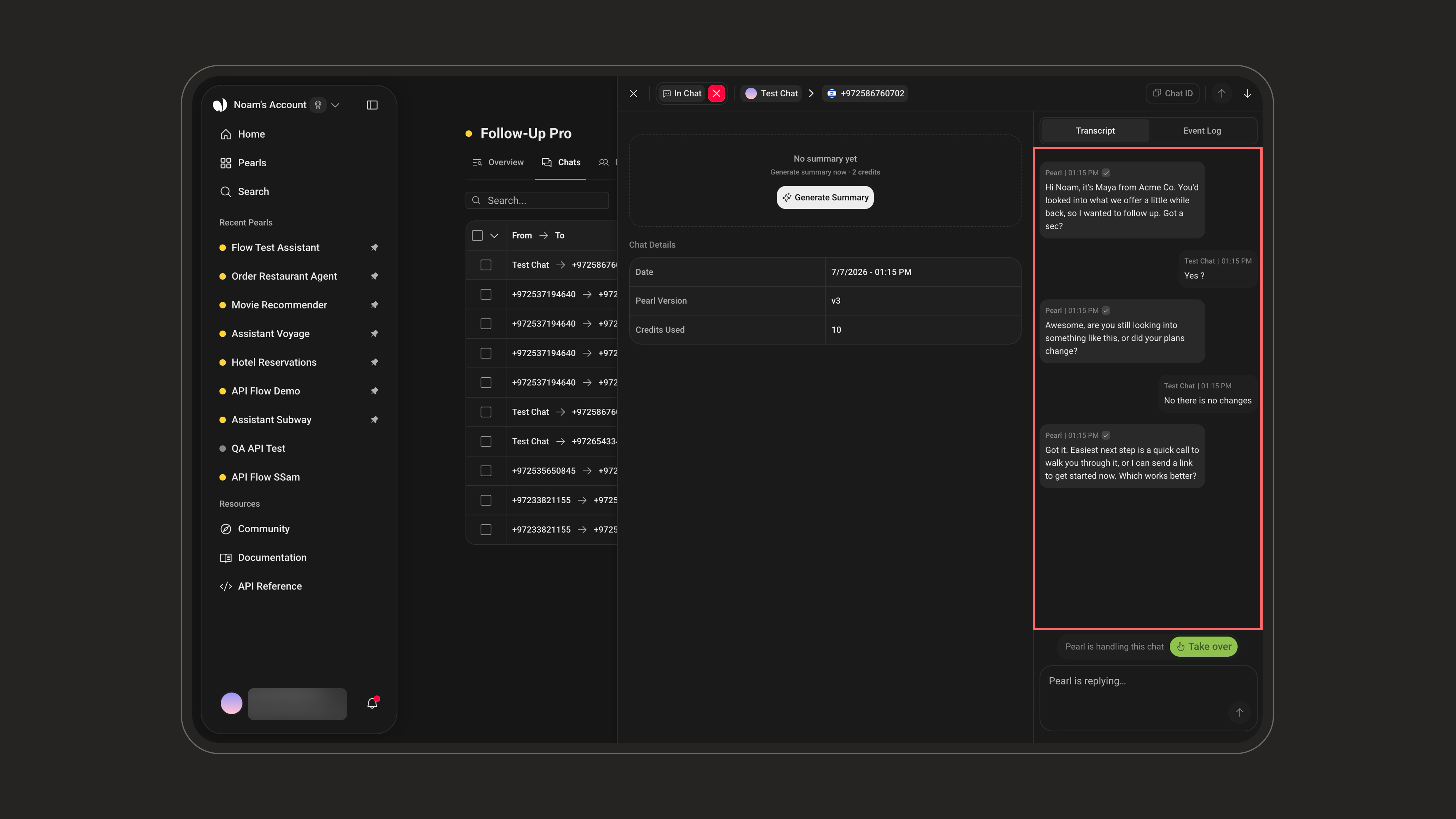
**Transcript** — a full text version of the conversation between the customer and Pearl. It is structured into three blocks separated by dividers: **Pre-chat events → In-chat messages → Post-chat events**. Always available, and useful for reviewing the interaction, auditing, and training.
* **Delivery status**: each message shows its delivery state — **Pending**, **Sent**, or **Failed** — with a matching icon.
* **Attachments**: messages can include attachments (images, files) shared during the conversation.
Generating a summary **on demand** (while the chat is ongoing) costs **2 credits**. The automatic summary produced when the conversation ends is included.
***
### Transcript & Event Log
A toggle at the top of the right-hand panel switches between the **Transcript** and the **Event Log**.
**Transcript** — a full text version of the conversation between the customer and Pearl. It is structured into three blocks separated by dividers: **Pre-chat events → In-chat messages → Post-chat events**. Always available, and useful for reviewing the interaction, auditing, and training.
* **Delivery status**: each message shows its delivery state — **Pending**, **Sent**, or **Failed** — with a matching icon.
* **Attachments**: messages can include attachments (images, files) shared during the conversation.
 **Event Log** — a chronological view of all actions triggered by Pearl during the conversation. Each entry shows the action type (API call, SMS, email, transfer…), its execution status, and contextual data, so you can verify that every automated operation ran and inspect its output.
 ***
### Variables
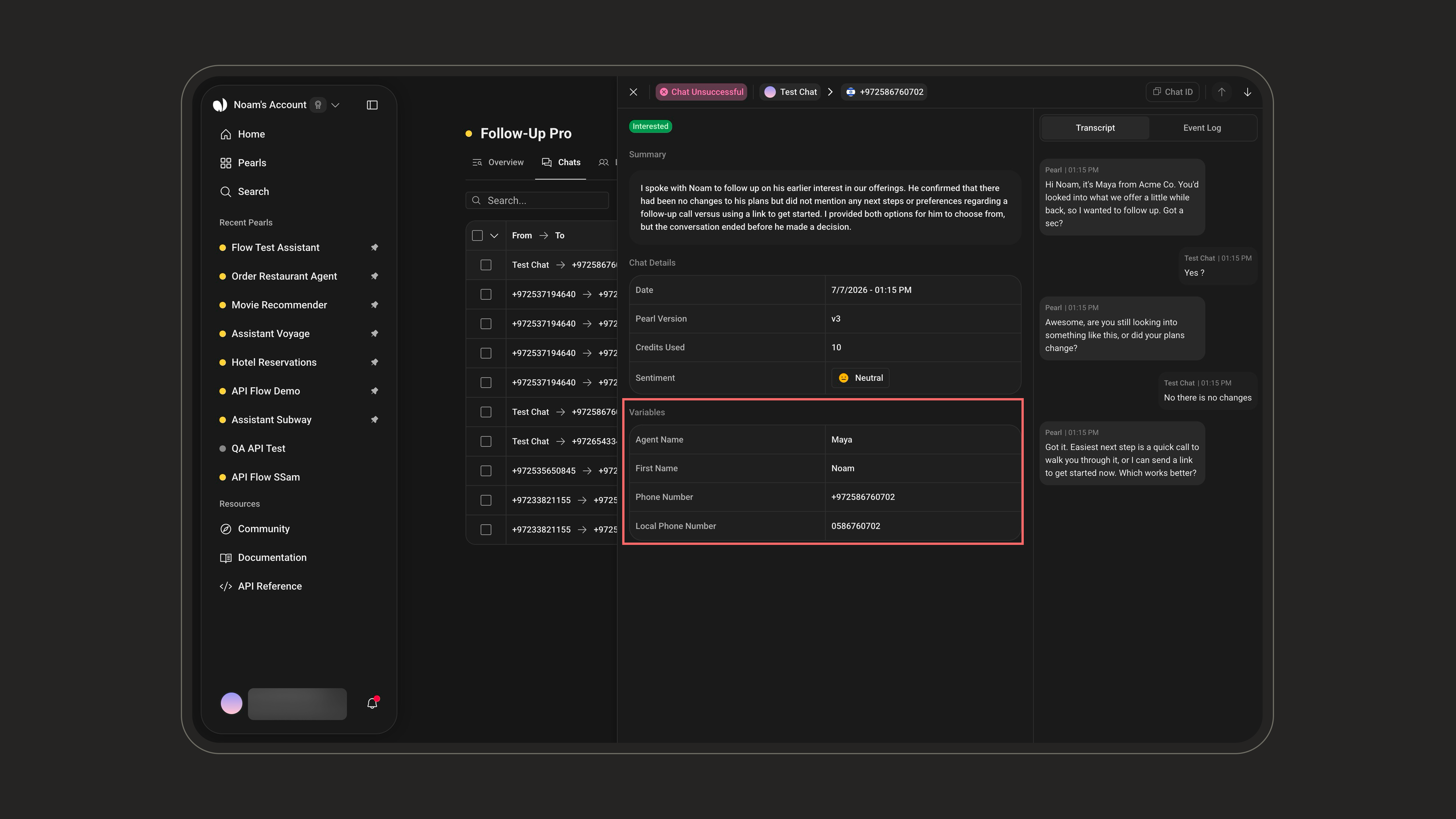
This section, labeled **Variables** in the UI, displays the **structured data captured before or during the conversation**, corresponding to the dynamic values collected through the Pearl configuration.
Examples:
* Delivery type
* Selected options (e.g. “Dessert: Cheesecake”)
* Customer preferences
***
### Variables
This section, labeled **Variables** in the UI, displays the **structured data captured before or during the conversation**, corresponding to the dynamic values collected through the Pearl configuration.
Examples:
* Delivery type
* Selected options (e.g. “Dessert: Cheesecake”)
* Customer preferences
 You can learn more about creating variables in the Pearl [here](/pages/variables).
***
### Human Takeover
At any point, a human agent can step in and **take over the conversation** directly from the post-chat page, then hand it back to Pearl once done. The full context (transcript, variables, and events) stays available throughout.
This is useful when:
* The customer explicitly asks to speak with a human
* The request falls outside what Pearl is configured to handle
* A sensitive or high-value conversation needs a personal touch
A takeover is a **manual** action you trigger from this page. It's different from a **human hand-off**, which Pearl performs **automatically** based on a node configured in your flow — logged as a *Conversation Handed Off* event.
Learn how to configure automatic hand-off to a human agent from your Pearl flow.
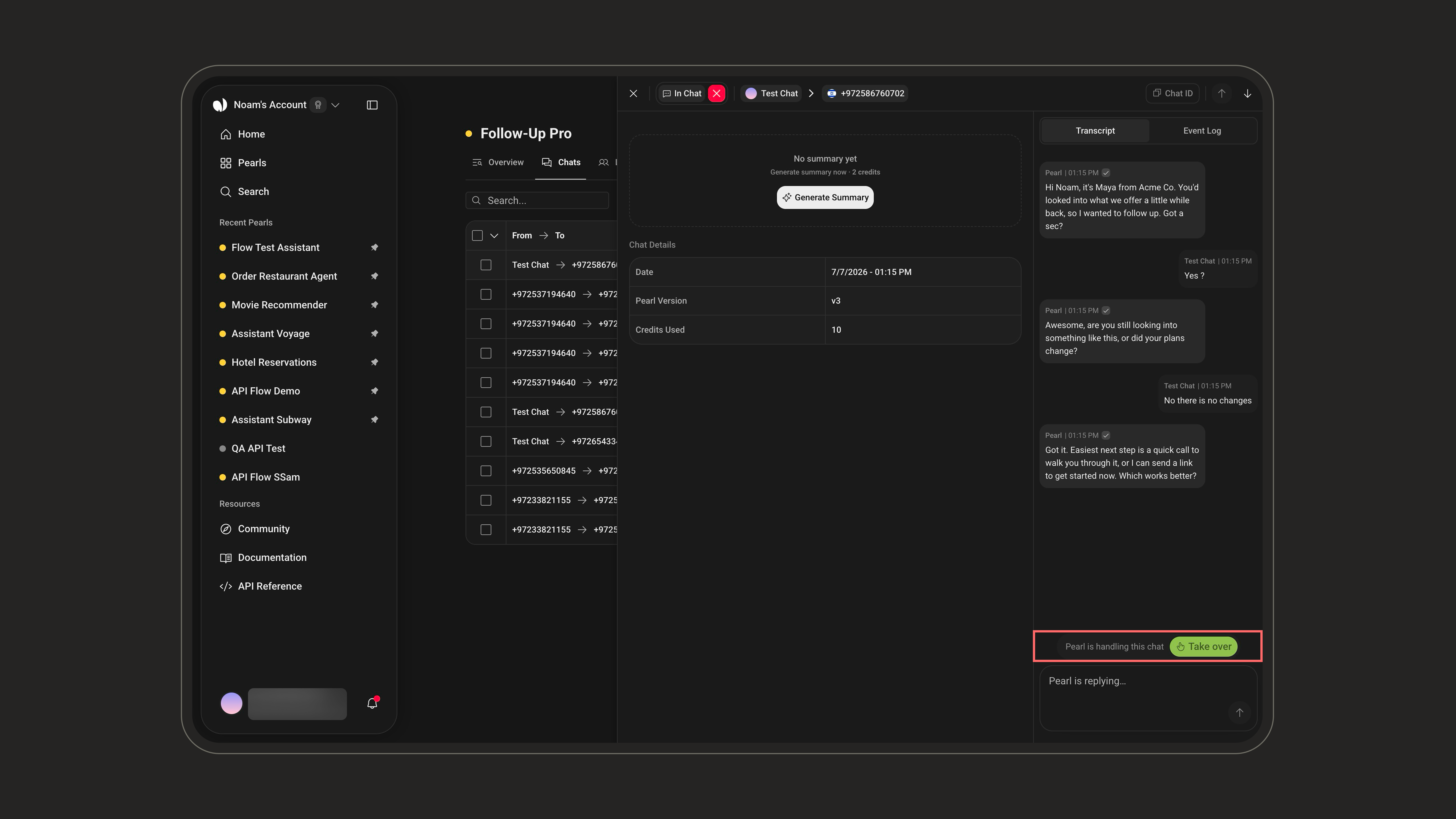
While Pearl is in control, the footer shows *“Pearl is handling this chat”* and the composer is locked (*“Pearl is replying…”*). Click **Take over** to step in.
You can learn more about creating variables in the Pearl [here](/pages/variables).
***
### Human Takeover
At any point, a human agent can step in and **take over the conversation** directly from the post-chat page, then hand it back to Pearl once done. The full context (transcript, variables, and events) stays available throughout.
This is useful when:
* The customer explicitly asks to speak with a human
* The request falls outside what Pearl is configured to handle
* A sensitive or high-value conversation needs a personal touch
A takeover is a **manual** action you trigger from this page. It's different from a **human hand-off**, which Pearl performs **automatically** based on a node configured in your flow — logged as a *Conversation Handed Off* event.
Learn how to configure automatic hand-off to a human agent from your Pearl flow.
While Pearl is in control, the footer shows *“Pearl is handling this chat”* and the composer is locked (*“Pearl is replying…”*). Click **Take over** to step in.
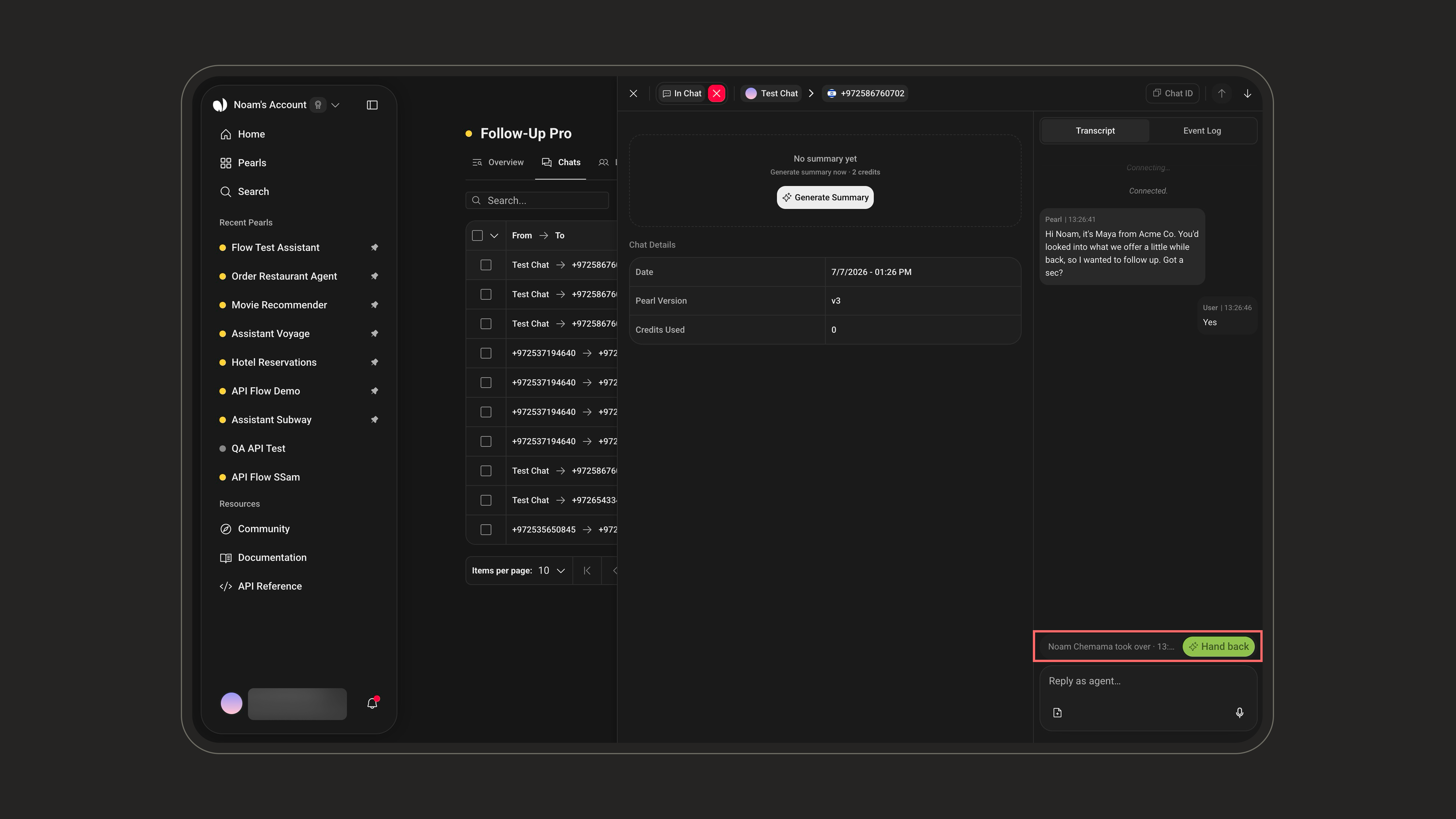
 Once you take over, Pearl stops replying and the footer shows that you (the agent) took over. The composer unlocks to **Reply as agent…**, so you can type messages and send attachments to the customer in real time. When you're finished, click **Hand back** to return control to Pearl.
 A takeover does **not** close the conversation. Pearl simply stops responding so the human agent can reply, and everything stays logged in the post-chat for full traceability. When done, the agent can **hand the conversation back** to Pearl.
**Closing a conversation** is a separate action from takeover. Using the **✕** next to the status badge in the header explicitly closes the conversation in the system, whereas a takeover only pauses Pearl's replies. Use it when the exchange is finished.
***
**Navigation & shortcuts** — move between conversations with the on-screen arrows or the **↑ / ↓** keyboard keys, and click **View** on the Events row in Conversation Details to jump straight to the Event Log.
***
## Why the Post-Chat Matters
Every conversation leaves a documented trace for accountability.
Helps support and operations teams follow up efficiently with customers.
Enables continuous improvement through quality review, sentiment tracking, and conversation analysis.
Provides an auditable record of AI-driven conversations to meet regulatory or internal policy needs.
***
By consolidating all these elements, the **Post-Chat** page provides a complete overview of each AI-handled conversation, ensuring transparency, traceability, and actionable insights for your team.
A takeover does **not** close the conversation. Pearl simply stops responding so the human agent can reply, and everything stays logged in the post-chat for full traceability. When done, the agent can **hand the conversation back** to Pearl.
**Closing a conversation** is a separate action from takeover. Using the **✕** next to the status badge in the header explicitly closes the conversation in the system, whereas a takeover only pauses Pearl's replies. Use it when the exchange is finished.
***
**Navigation & shortcuts** — move between conversations with the on-screen arrows or the **↑ / ↓** keyboard keys, and click **View** on the Events row in Conversation Details to jump straight to the Event Log.
***
## Why the Post-Chat Matters
Every conversation leaves a documented trace for accountability.
Helps support and operations teams follow up efficiently with customers.
Enables continuous improvement through quality review, sentiment tracking, and conversation analysis.
Provides an auditable record of AI-driven conversations to meet regulatory or internal policy needs.
***
By consolidating all these elements, the **Post-Chat** page provides a complete overview of each AI-handled conversation, ensuring transparency, traceability, and actionable insights for your team.
