> ## Documentation Index
> Fetch the complete documentation index at: https://developers.nlpearl.ai/llms.txt
> Use this file to discover all available pages before exploring further.
# Inbound
> Configure your text Pearl to handle incoming conversations, from message limits and inactivity handling to transcripts and webhooks.
***
## Setting Up Inbound Activities
Once you have created a Pearl, you can enable it to handle inbound conversations. Inbound settings are configured inside your Pearl, under **Inbound Settings**, so your Pearl replies to incoming messages following the conversational flow you defined.
**What are inbound activities?**
Inbound activities are used when the end user starts the conversation. Pearl replies using the flow, knowledge, and actions defined in your Pearl.
***
## Connect a Channel
Unlike a voice activity, an inbound text activity isn't tied to a phone number, it's connected to a **messaging channel**. Once your Pearl is published, open its **overview** page and connect the channel your customers will use. Each channel is dedicated to your activity and can receive conversations from anywhere, at any time.
NLPearl supports channels such as **WhatsApp**, **Telegram**, **SMS**, and **Glassix**. Follow the dedicated guides to set one up:
Connect your Pearl to SMS through Twilio to text with your customers.
Connect your Pearl to Telegram by linking a bot created with BotFather.
***
## Inbound Settings
Configure how your Pearl handles incoming conversations from the **Inbound Settings** tab of your Pearl, in the [PearlVibe](/pages/pearl_vibe) flow editor.
These settings apply to **text** Pearls only. A voice Pearl has a different set of inbound options.
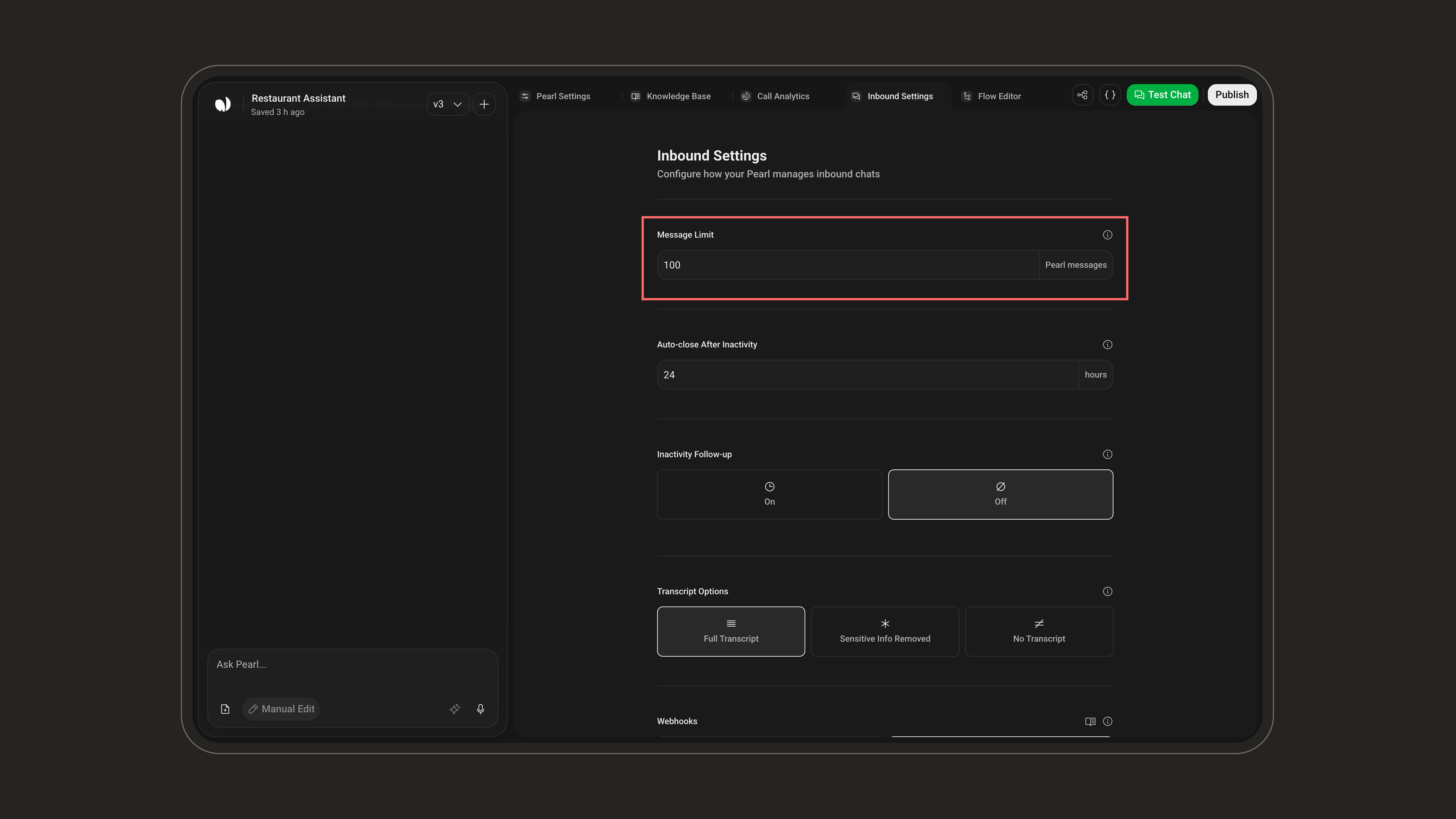
### Message Limit
The maximum number of messages Pearl sends before automatically handing the conversation off to a human. You can set between **5 and 1000** messages (default **100**).
 ***
### Auto-close After Inactivity
How long a conversation can stay inactive before Pearl closes the chat and triggers the post-chat summary. You can set between **1 and 72 hours** (default **24 hours**).
***
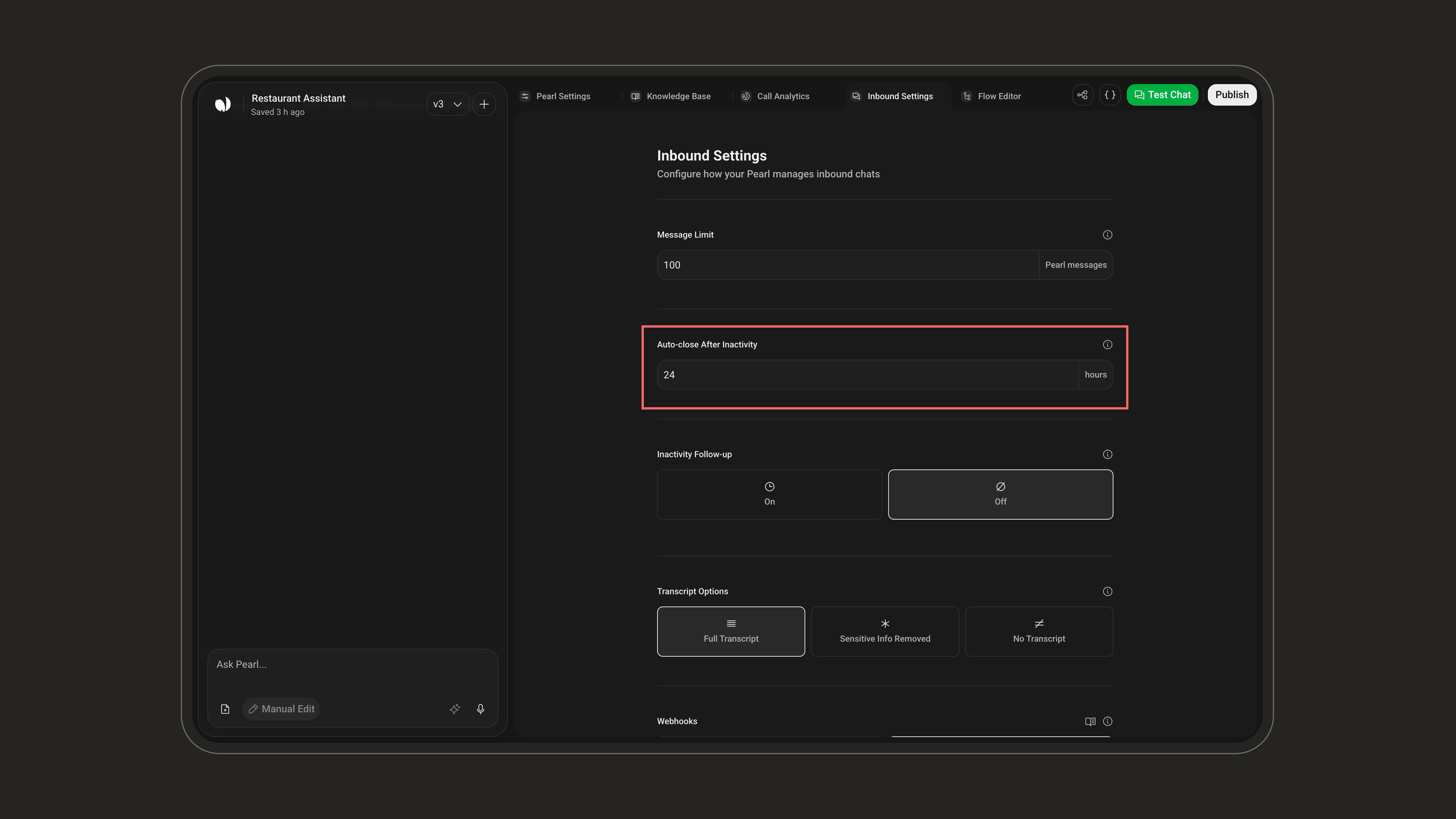
### Auto-close After Inactivity
How long a conversation can stay inactive before Pearl closes the chat and triggers the post-chat summary. You can set between **1 and 72 hours** (default **24 hours**).
 ***
### Inactivity Follow-up
When enabled (on/off), Pearl sends follow-up messages when the end user stops replying after Pearl's last message, to re-engage the conversation.
***
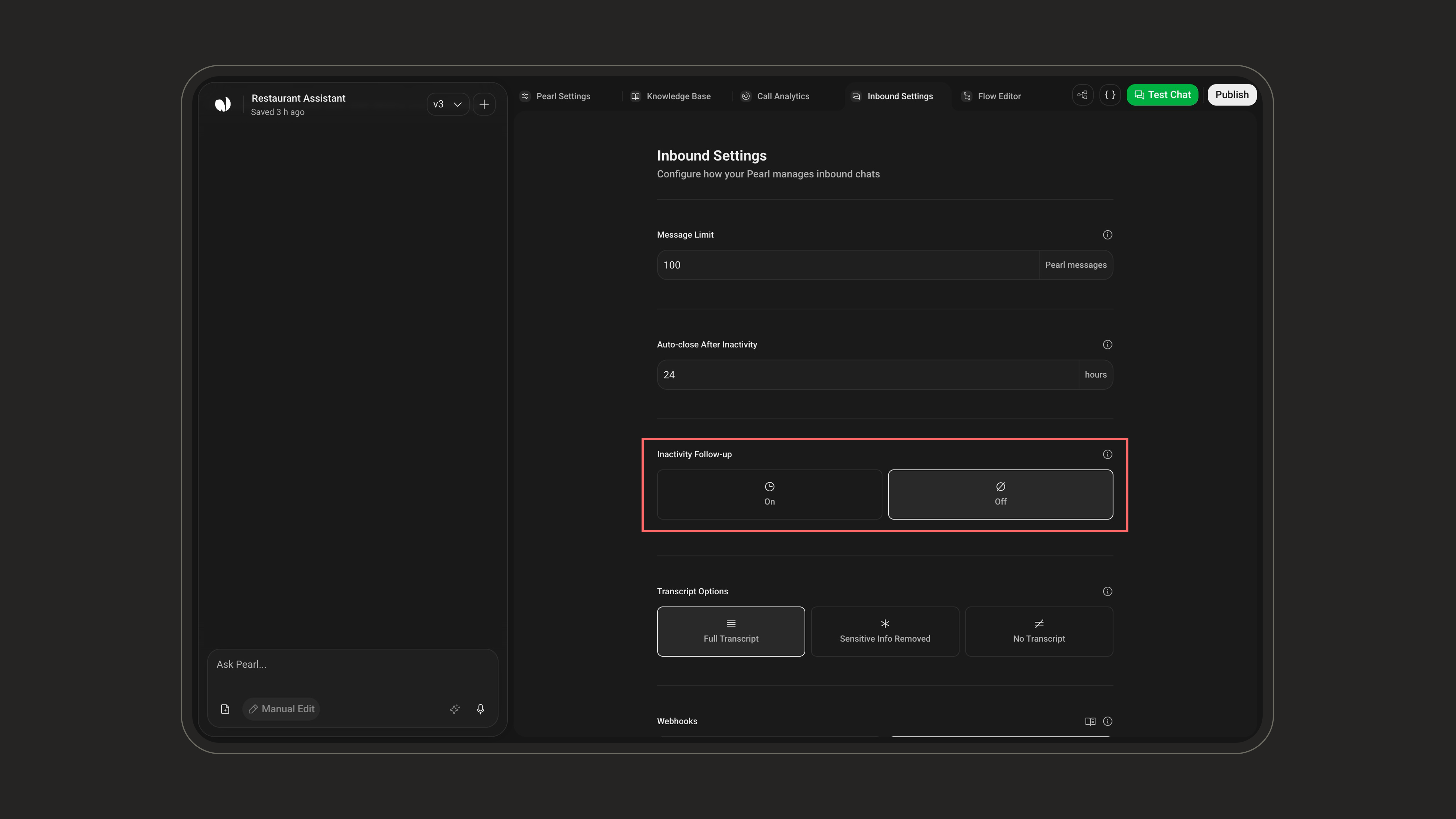
### Inactivity Follow-up
When enabled (on/off), Pearl sends follow-up messages when the end user stops replying after Pearl's last message, to re-engage the conversation.
 * **Up to 3 follow-ups**: each one is a **delay** plus an optional **message**.
* **Minimum delay**: at least **5 minutes** between follow-ups for inbound.
* **Default**: a single follow-up sent after **10 minutes**.
Follow-up messages can use **Pre-Call** variables (e.g. the customer's first name) to keep the re-engagement personal.
***
### Transcript Options
Choose what is kept from the conversation transcript. Transcripts appear in your conversation logs.
* **Up to 3 follow-ups**: each one is a **delay** plus an optional **message**.
* **Minimum delay**: at least **5 minutes** between follow-ups for inbound.
* **Default**: a single follow-up sent after **10 minutes**.
Follow-up messages can use **Pre-Call** variables (e.g. the customer's first name) to keep the re-engagement personal.
***
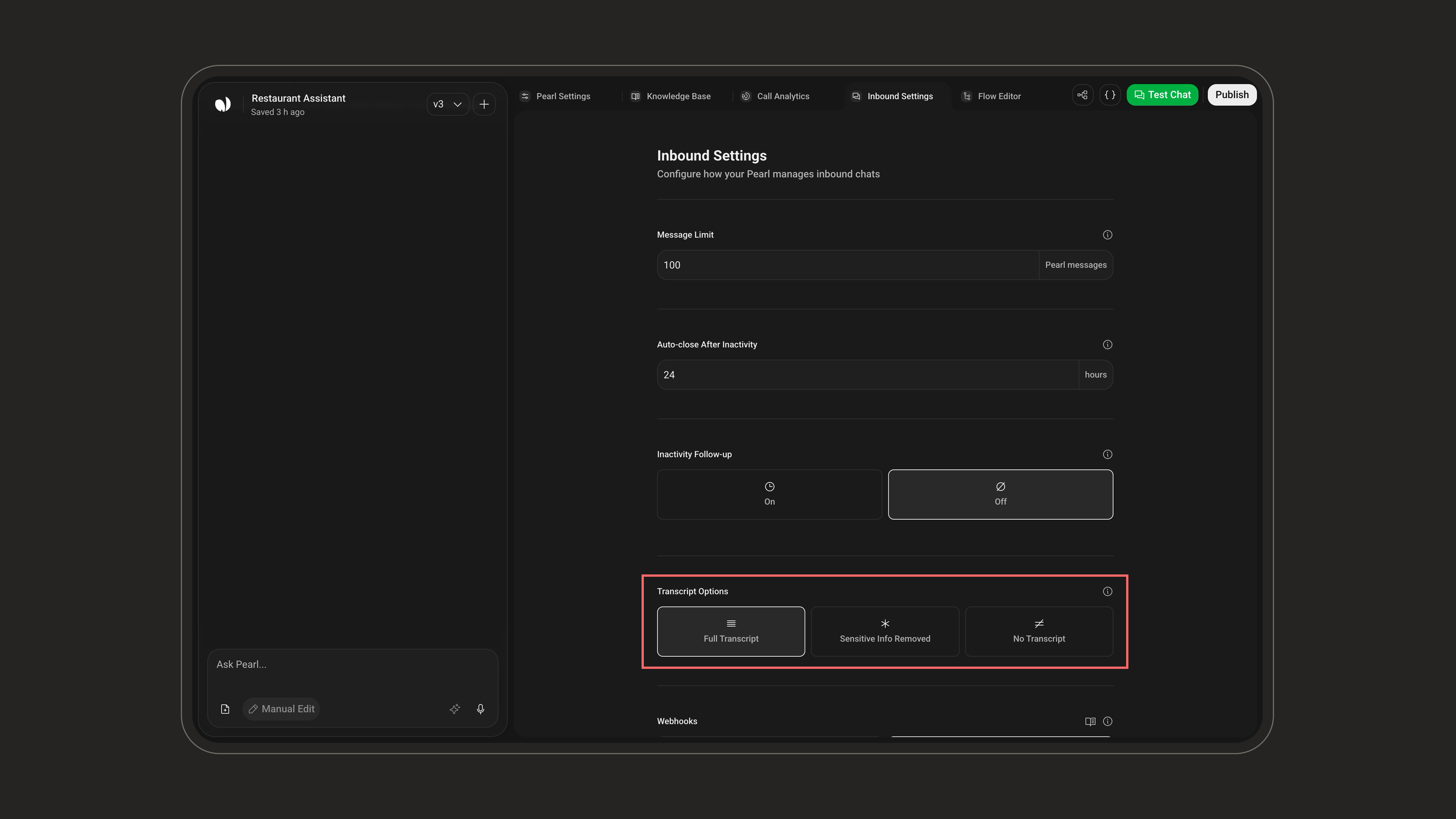
### Transcript Options
Choose what is kept from the conversation transcript. Transcripts appear in your conversation logs.
 | Option | Description | When to use |
| -------------------------- | ------------------------------------------------------------------------------------------------------------------------------------------------ | ------------------------------------ |
| **Full Transcript** | Keeps the entire conversation as-is. | Complete analysis, QA, and training. |
| **Sensitive Info Removed** | Automatically masks sensitive data (credit card numbers, Social Security numbers, personal identifiers) while keeping the conversation readable. | Compliance and PII protection. |
| **No Transcript** | No transcript is stored for the conversation. | Maximum privacy. |
With **Sensitive Info Removed**, if a customer writes *"My credit card number is 1234-5678-9012-3456"*, the transcript stores it as *"My credit card number is \*\*\*\*-3456"*, so you can review interactions safely without exposing sensitive data.
***
### Webhooks
Send conversation lifecycle events to an external endpoint.
| Option | Description | When to use |
| -------------------------- | ------------------------------------------------------------------------------------------------------------------------------------------------ | ------------------------------------ |
| **Full Transcript** | Keeps the entire conversation as-is. | Complete analysis, QA, and training. |
| **Sensitive Info Removed** | Automatically masks sensitive data (credit card numbers, Social Security numbers, personal identifiers) while keeping the conversation readable. | Compliance and PII protection. |
| **No Transcript** | No transcript is stored for the conversation. | Maximum privacy. |
With **Sensitive Info Removed**, if a customer writes *"My credit card number is 1234-5678-9012-3456"*, the transcript stores it as *"My credit card number is \*\*\*\*-3456"*, so you can review interactions safely without exposing sensitive data.
***
### Webhooks
Send conversation lifecycle events to an external endpoint.
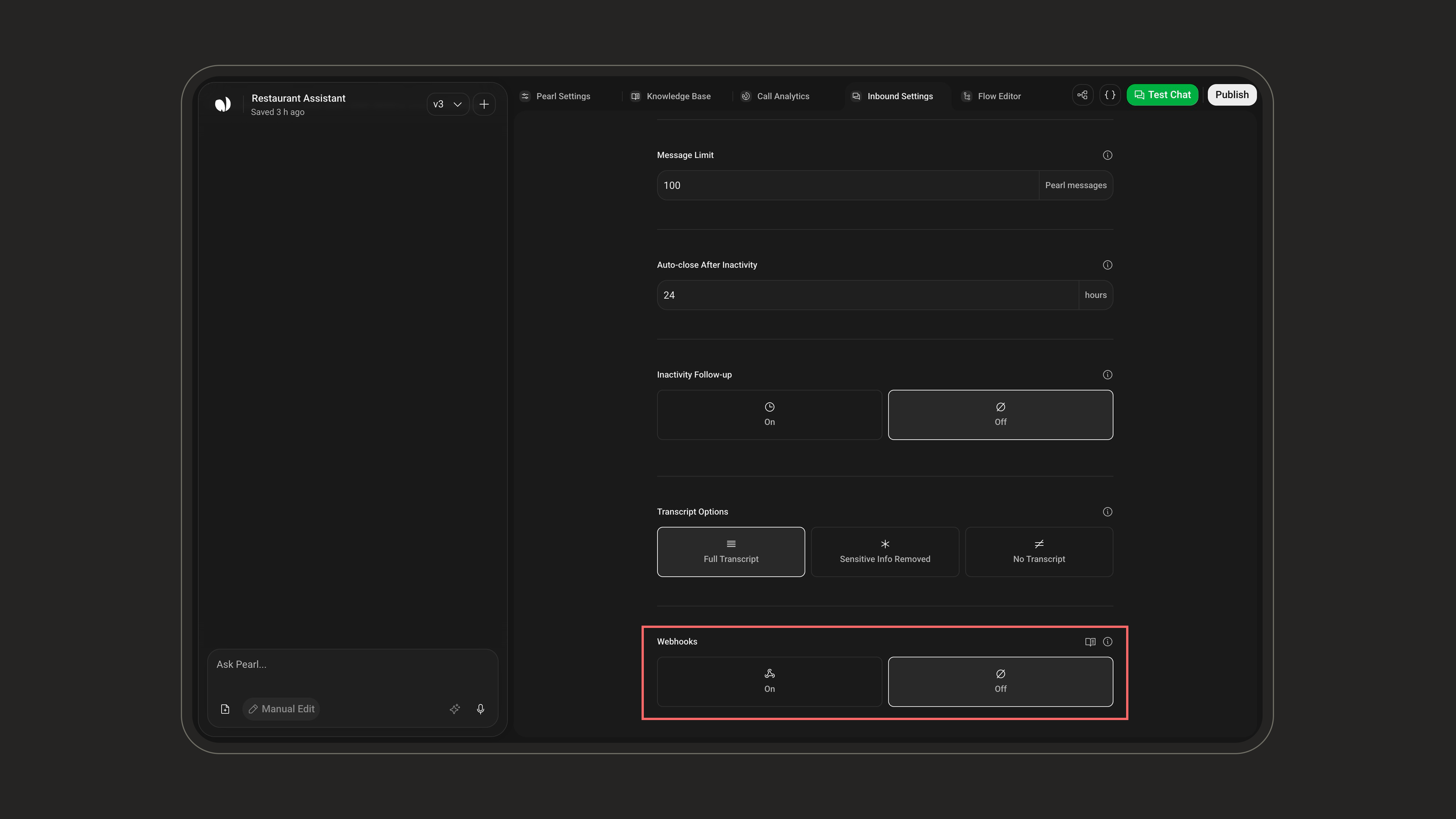 * **Version**: `V1` or `V2` (default **V2**). V2 is the current payload format; keep V1 only if you have an older integration built against it.
* **Chat Webhook URL**: fires at key points in the conversation lifecycle (when the chat starts and when it ends), sending details like the outcome and any data collected during the conversation.
* **Credentials**: optional authentication token attached to the requests so your endpoint can verify they come from NLPearl.
Use Webhooks only if external tools need event notifications. For actual automations, rely on **Post-Chat Actions** tied to how the conversation ended.
Learn how to configure webhooks, authenticate requests, and handle the events NLPearl sends.
***
## Project-Level Settings
A few settings live at the **Project** level rather than in the Inbound Settings screen. Open them from the settings popover on your Pearl.
### Agents
Sets how many **simultaneous agents** handle this Pearl's incoming conversations, i.e. how many chats can be handled at the same time, capped by your account's agent quota. A higher number lets your Pearl take more concurrent conversations.
Learn how to manage the agents assigned to your inbound and outbound activities.
***
### Retention
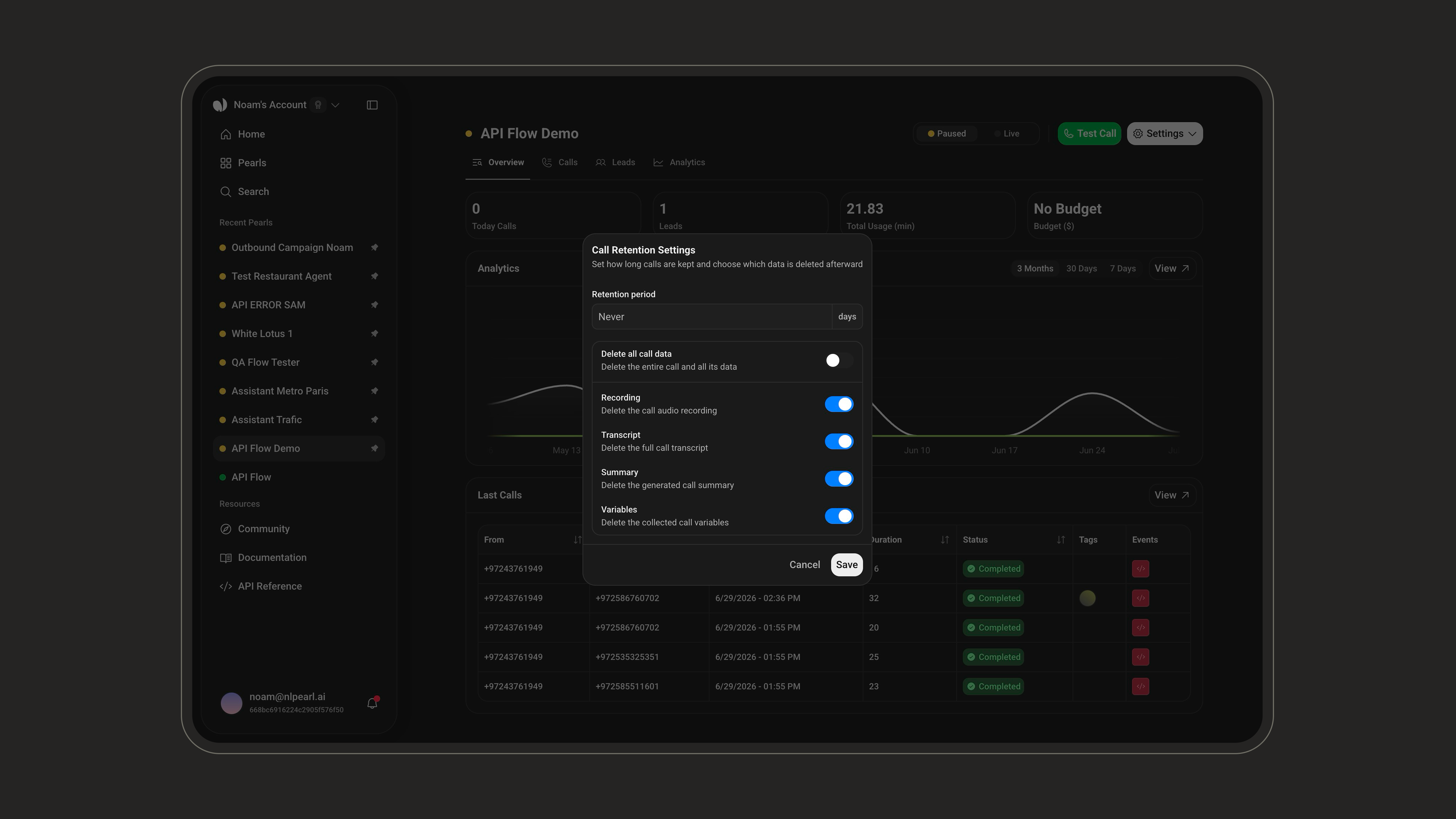
Applies to **all conversations**. Set how long conversations are kept (a number of days, or leave empty to keep them indefinitely), then choose what is removed when they expire: delete all conversation data, or granularly the **Transcript**, **Summary**, or collected **Variables**.
* **Version**: `V1` or `V2` (default **V2**). V2 is the current payload format; keep V1 only if you have an older integration built against it.
* **Chat Webhook URL**: fires at key points in the conversation lifecycle (when the chat starts and when it ends), sending details like the outcome and any data collected during the conversation.
* **Credentials**: optional authentication token attached to the requests so your endpoint can verify they come from NLPearl.
Use Webhooks only if external tools need event notifications. For actual automations, rely on **Post-Chat Actions** tied to how the conversation ended.
Learn how to configure webhooks, authenticate requests, and handle the events NLPearl sends.
***
## Project-Level Settings
A few settings live at the **Project** level rather than in the Inbound Settings screen. Open them from the settings popover on your Pearl.
### Agents
Sets how many **simultaneous agents** handle this Pearl's incoming conversations, i.e. how many chats can be handled at the same time, capped by your account's agent quota. A higher number lets your Pearl take more concurrent conversations.
Learn how to manage the agents assigned to your inbound and outbound activities.
***
### Retention
Applies to **all conversations**. Set how long conversations are kept (a number of days, or leave empty to keep them indefinitely), then choose what is removed when they expire: delete all conversation data, or granularly the **Transcript**, **Summary**, or collected **Variables**.
 ***
### Monitoring and Adjusting Your Inbound Activities
While basic monitoring of conversation logs and reports can be done via our API, any changes to the setup or its settings must be handled directly on the platform.
***
### Monitoring and Adjusting Your Inbound Activities
While basic monitoring of conversation logs and reports can be done via our API, any changes to the setup or its settings must be handled directly on the platform.
