> ## Documentation Index
> Fetch the complete documentation index at: https://developers.nlpearl.ai/llms.txt
> Use this file to discover all available pages before exploring further.
# WhatsApp
> Connect your Pearl Text agent to WhatsApp Business through Meta Embedded Signup, keeping your number active in the WhatsApp Business app or dedicating it to NLPearl.
***
## WhatsApp Channel
Connect your Pearl Text agent to **WhatsApp** through your WhatsApp Business account. Pearl replies using the flow, knowledge, and actions defined in your Pearl, across both [inbound](/pages/text/inbound) conversations and [outbound](/pages/text/outbound) campaigns.
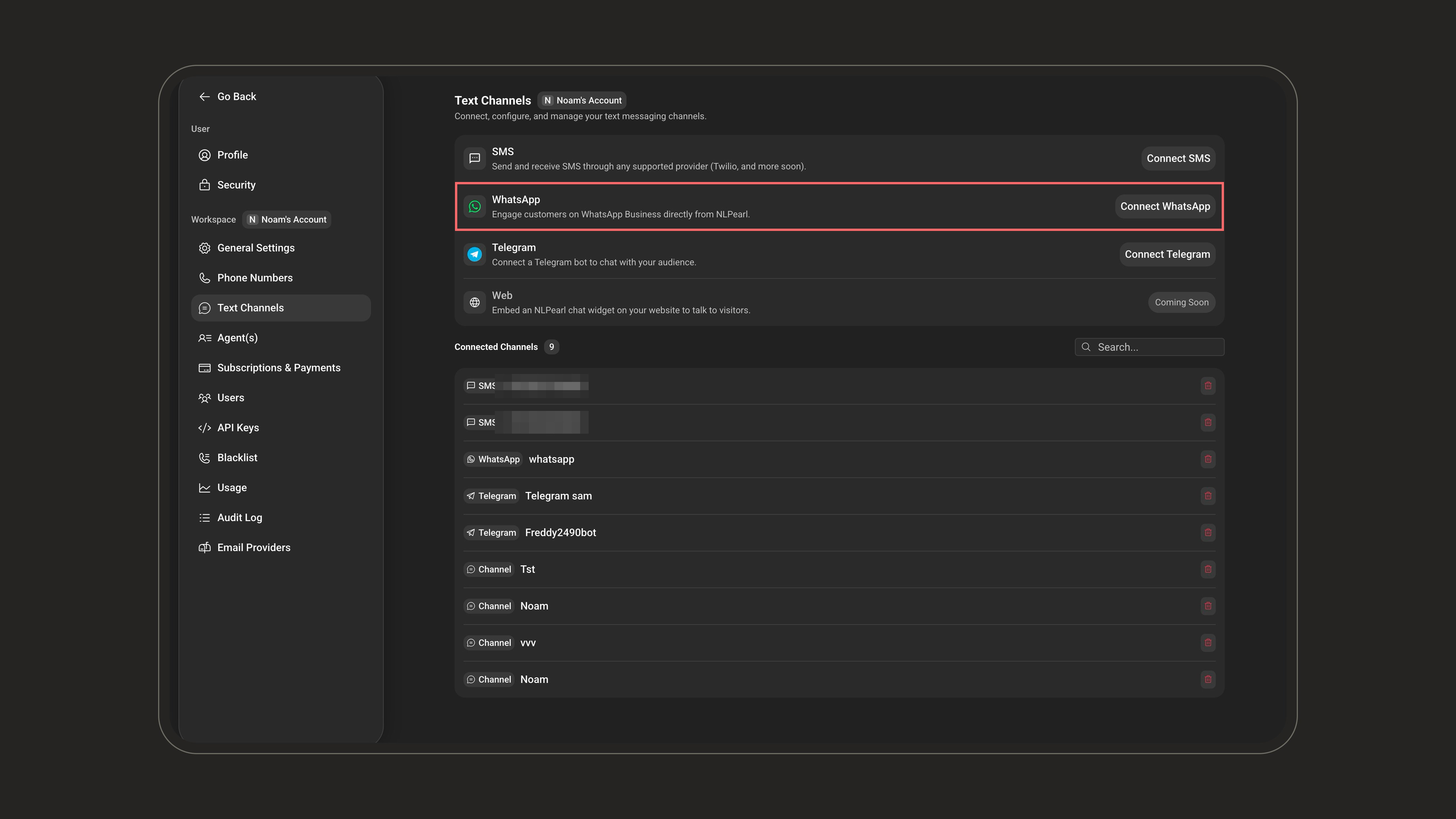
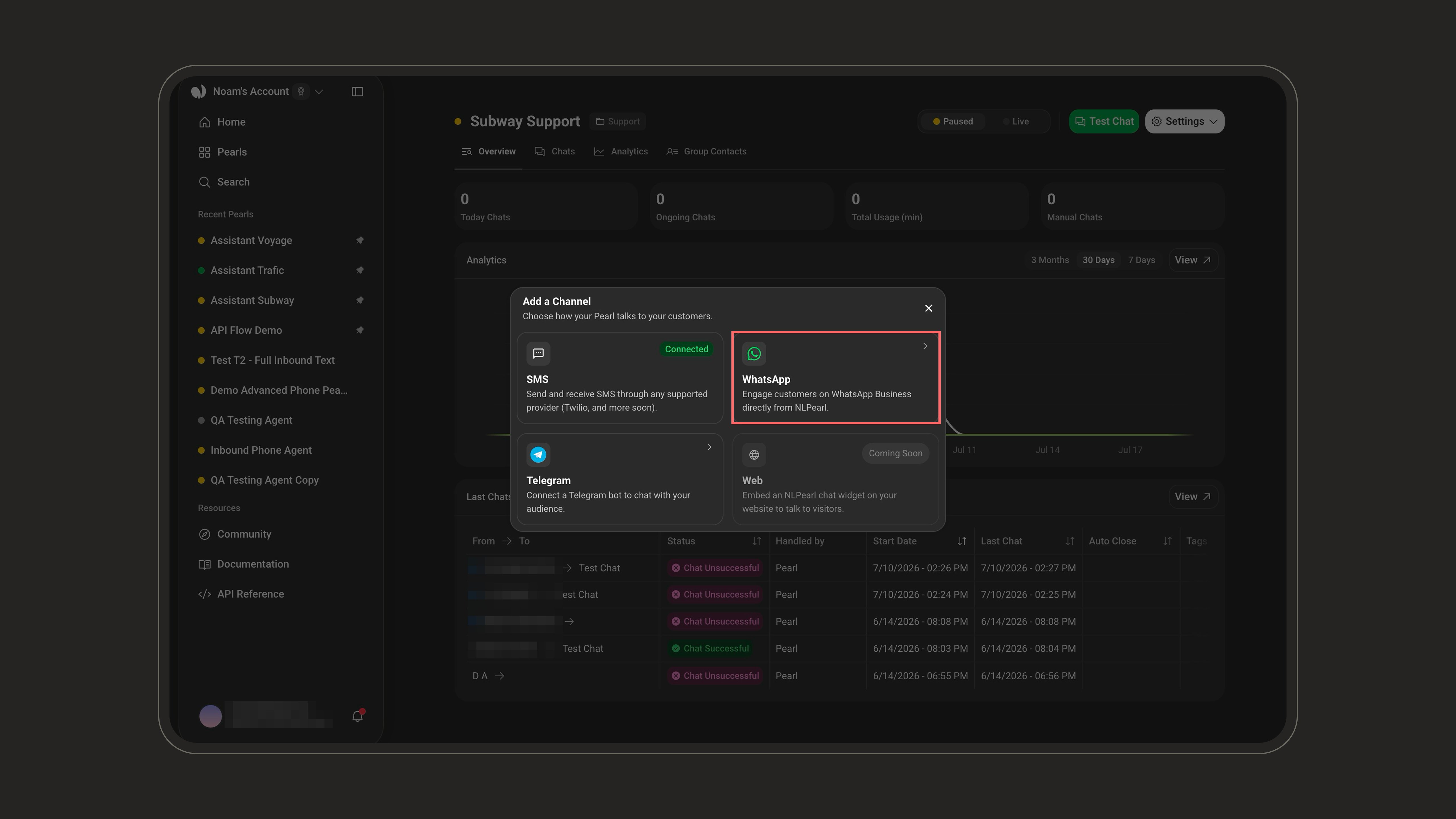
The connection runs through **Meta Embedded Signup**: a Meta window opens on the platform, you log in with the Facebook account that manages your business, and Meta links your WhatsApp Business account to NLPearl. You can start it from two places:
* **Settings** → **Text Channels**, then click **Connect WhatsApp**.
 * From a Pearl's **Overview** page, through the **Add a Channel** chooser.
 ***
### Choose a connection mode
Before connecting, pick how NLPearl should use your number:
| | **Coexistence** - *Keep using WhatsApp on my phone* | **Dedicated** - *Dedicate this number to NLPearl* |
| ---------------------------- | ----------------------------------------------------------------------------------------------- | ----------------------------------------------------------------------- |
| **WhatsApp Business app** | Keeps working - the number stays active in the app with its chat history. | No longer usable for this number, and its app chat history is not kept. |
| **Who replies to customers** | Pearl and you - replies you send from your phone show up in the NLPearl conversation. | Pearl only, through NLPearl. |
| **Phone dependency** | Open the app at least once every 14 days, or Meta drops the connection and your campaigns stop. | None - the number runs entirely on the Cloud API. |
| **Sending throughput** | Fixed at 20 messages per second. | 80 messages per second, up to 1,000 for eligible numbers. |
| **Phone numbers** | One per connection - the number active in your app. | Several numbers can be imported on the same account. |
| **Group chats** | Stay in the app - Pearl only handles individual conversations. | Not supported - the API only handles individual conversations. |
Both modes share WhatsApp's [messaging limits](https://developers.facebook.com/docs/whatsapp/messaging-limits): business-initiated conversations start at 250 per 24 hours and scale automatically to 2,000, 10,000, 100,000, then unlimited - once you [verify your business](https://www.facebook.com/business/help/2058515294227817) with Meta or sustain enough high-quality template volume.
If you already use the number in the WhatsApp Business app, choose **Coexistence** - you keep your app and chat history while Pearl handles conversations on the same number. Choose **Dedicated** for high-volume campaigns or when the channel must not depend on a phone.
***
### Connect in Coexistence mode
Before you start, keep your number active in the **WhatsApp Business app** on your phone - Meta requires app version 2.24.17 or later, and the regular WhatsApp app is not supported.
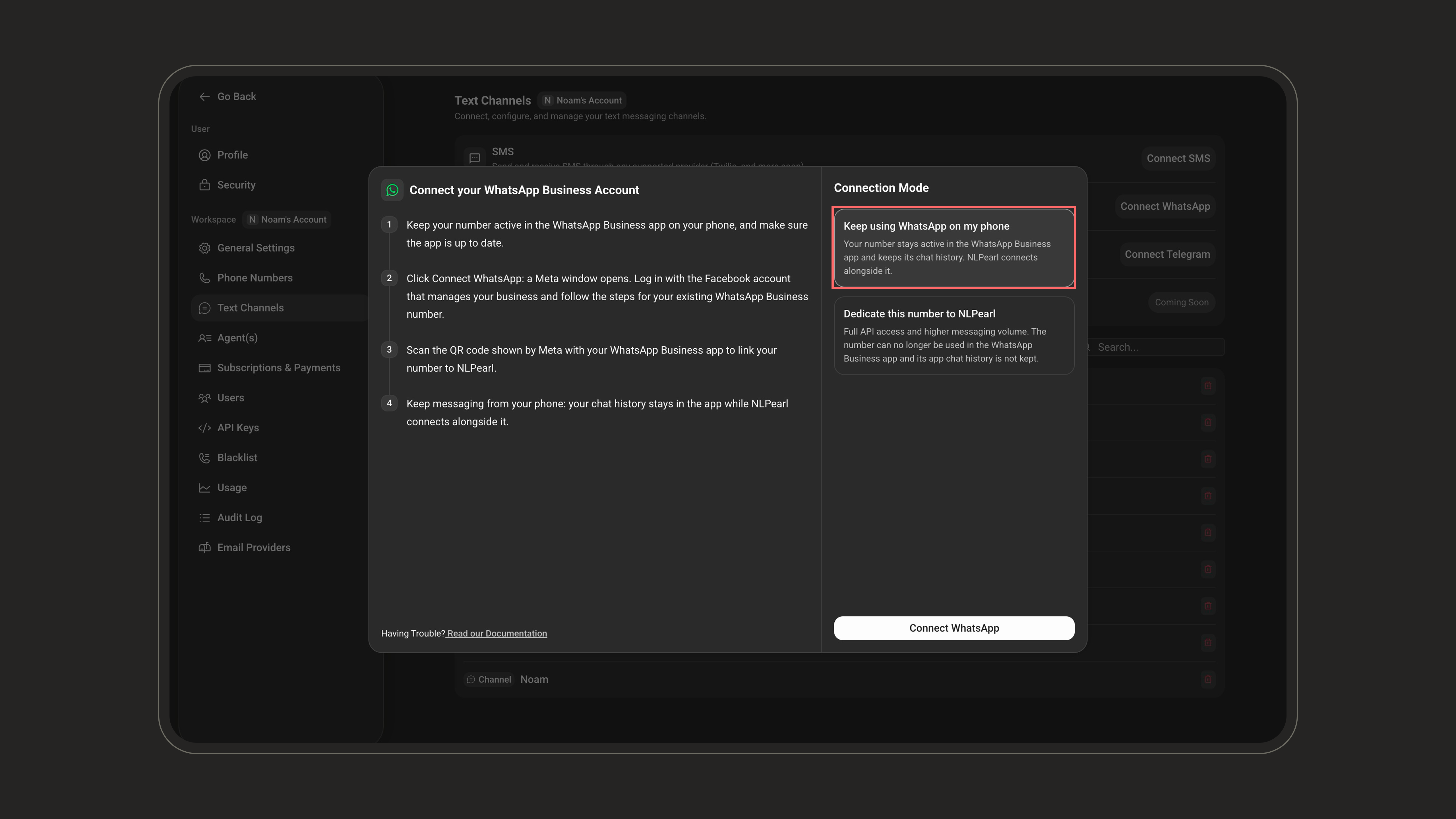
Select **Keep using WhatsApp on my phone**, then click **Connect WhatsApp**.
***
### Choose a connection mode
Before connecting, pick how NLPearl should use your number:
| | **Coexistence** - *Keep using WhatsApp on my phone* | **Dedicated** - *Dedicate this number to NLPearl* |
| ---------------------------- | ----------------------------------------------------------------------------------------------- | ----------------------------------------------------------------------- |
| **WhatsApp Business app** | Keeps working - the number stays active in the app with its chat history. | No longer usable for this number, and its app chat history is not kept. |
| **Who replies to customers** | Pearl and you - replies you send from your phone show up in the NLPearl conversation. | Pearl only, through NLPearl. |
| **Phone dependency** | Open the app at least once every 14 days, or Meta drops the connection and your campaigns stop. | None - the number runs entirely on the Cloud API. |
| **Sending throughput** | Fixed at 20 messages per second. | 80 messages per second, up to 1,000 for eligible numbers. |
| **Phone numbers** | One per connection - the number active in your app. | Several numbers can be imported on the same account. |
| **Group chats** | Stay in the app - Pearl only handles individual conversations. | Not supported - the API only handles individual conversations. |
Both modes share WhatsApp's [messaging limits](https://developers.facebook.com/docs/whatsapp/messaging-limits): business-initiated conversations start at 250 per 24 hours and scale automatically to 2,000, 10,000, 100,000, then unlimited - once you [verify your business](https://www.facebook.com/business/help/2058515294227817) with Meta or sustain enough high-quality template volume.
If you already use the number in the WhatsApp Business app, choose **Coexistence** - you keep your app and chat history while Pearl handles conversations on the same number. Choose **Dedicated** for high-volume campaigns or when the channel must not depend on a phone.
***
### Connect in Coexistence mode
Before you start, keep your number active in the **WhatsApp Business app** on your phone - Meta requires app version 2.24.17 or later, and the regular WhatsApp app is not supported.
Select **Keep using WhatsApp on my phone**, then click **Connect WhatsApp**.
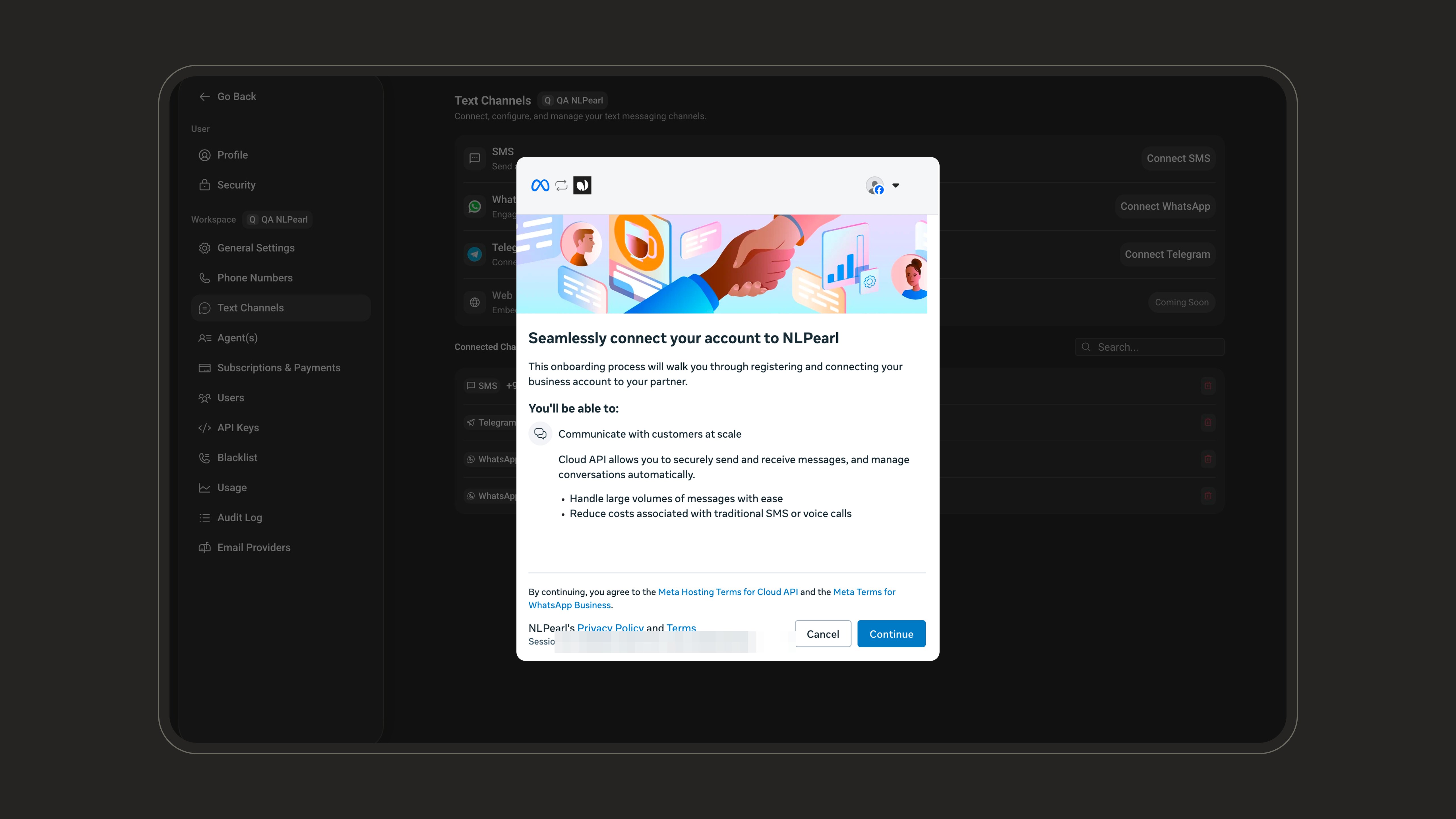
 A Meta window opens. Log in with the Facebook account that manages your business and click **Continue**.
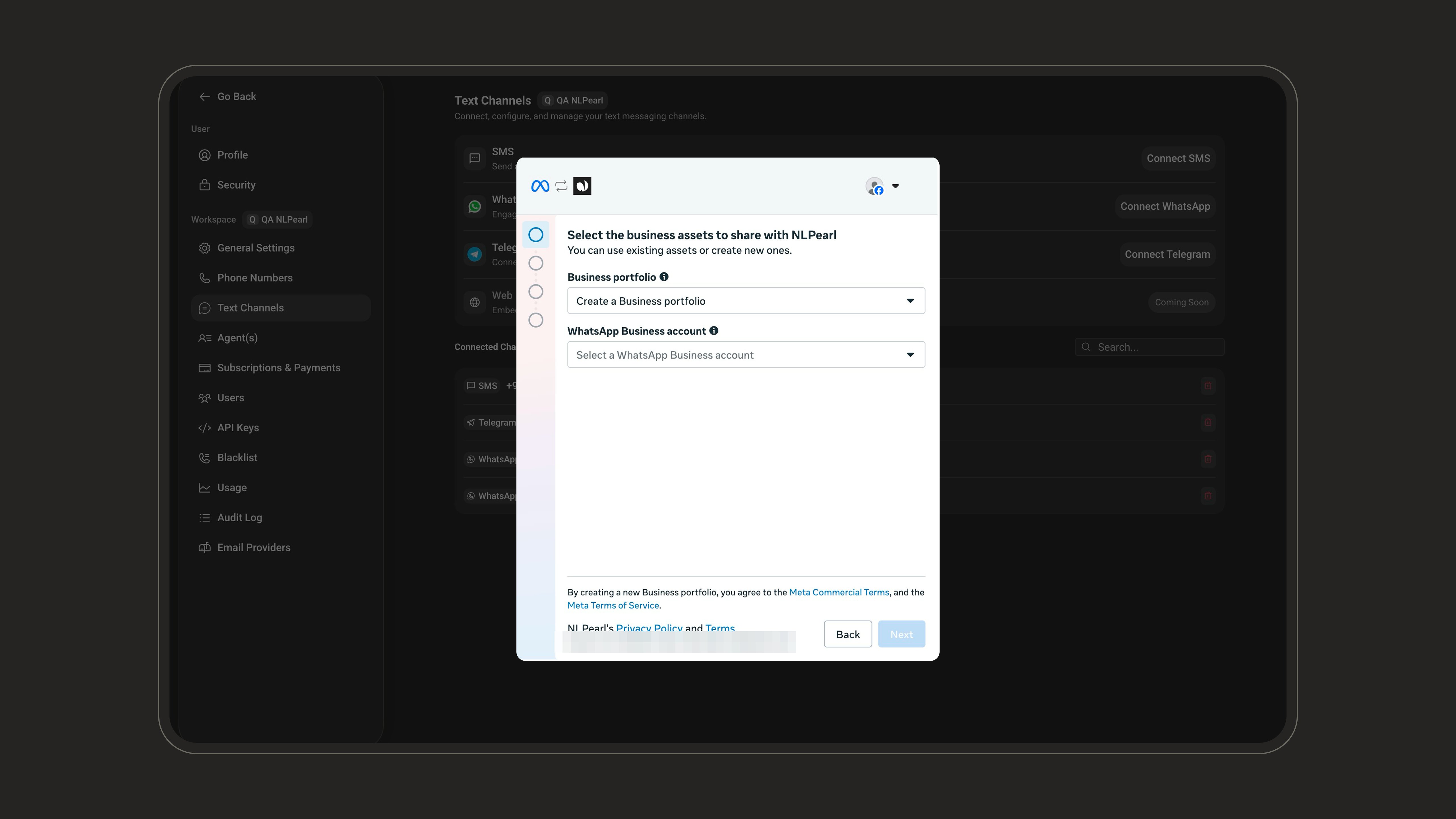
 Pick or create your **Business portfolio**.
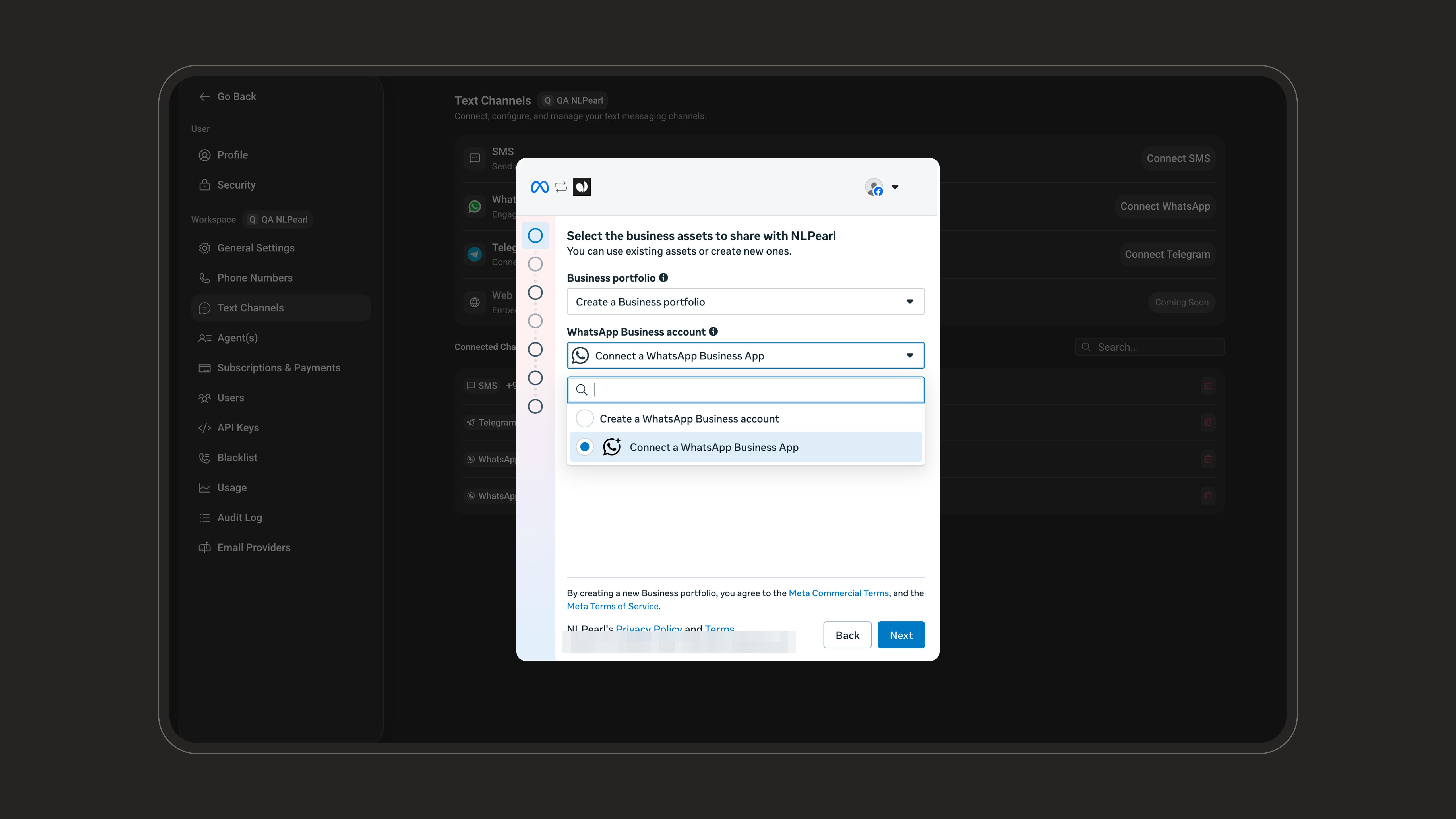
 Under **WhatsApp Business account**, select **Connect a WhatsApp Business App** - this is what links the number already used in your app.
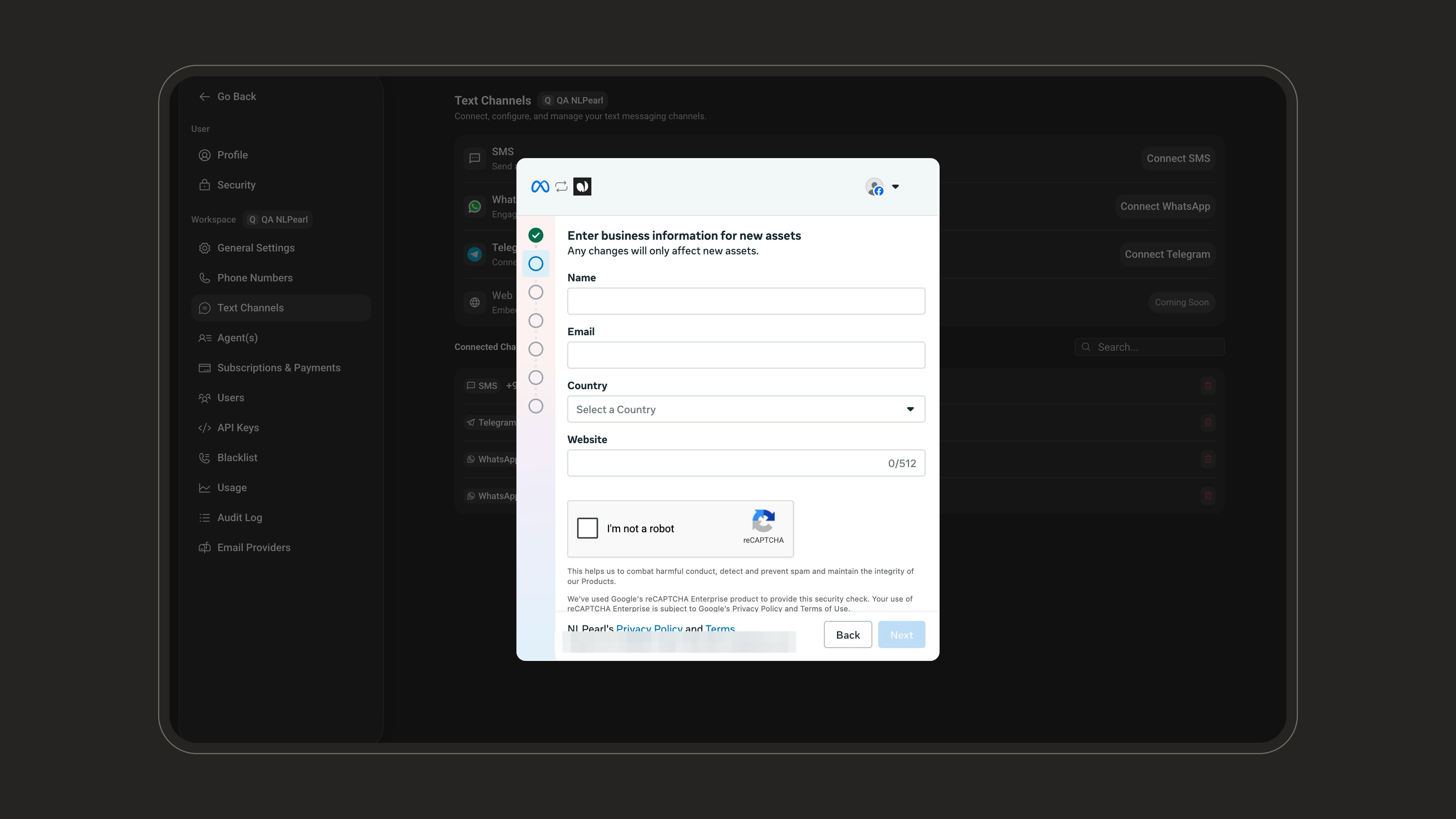
 Fill in your business details - they only affect newly created assets.
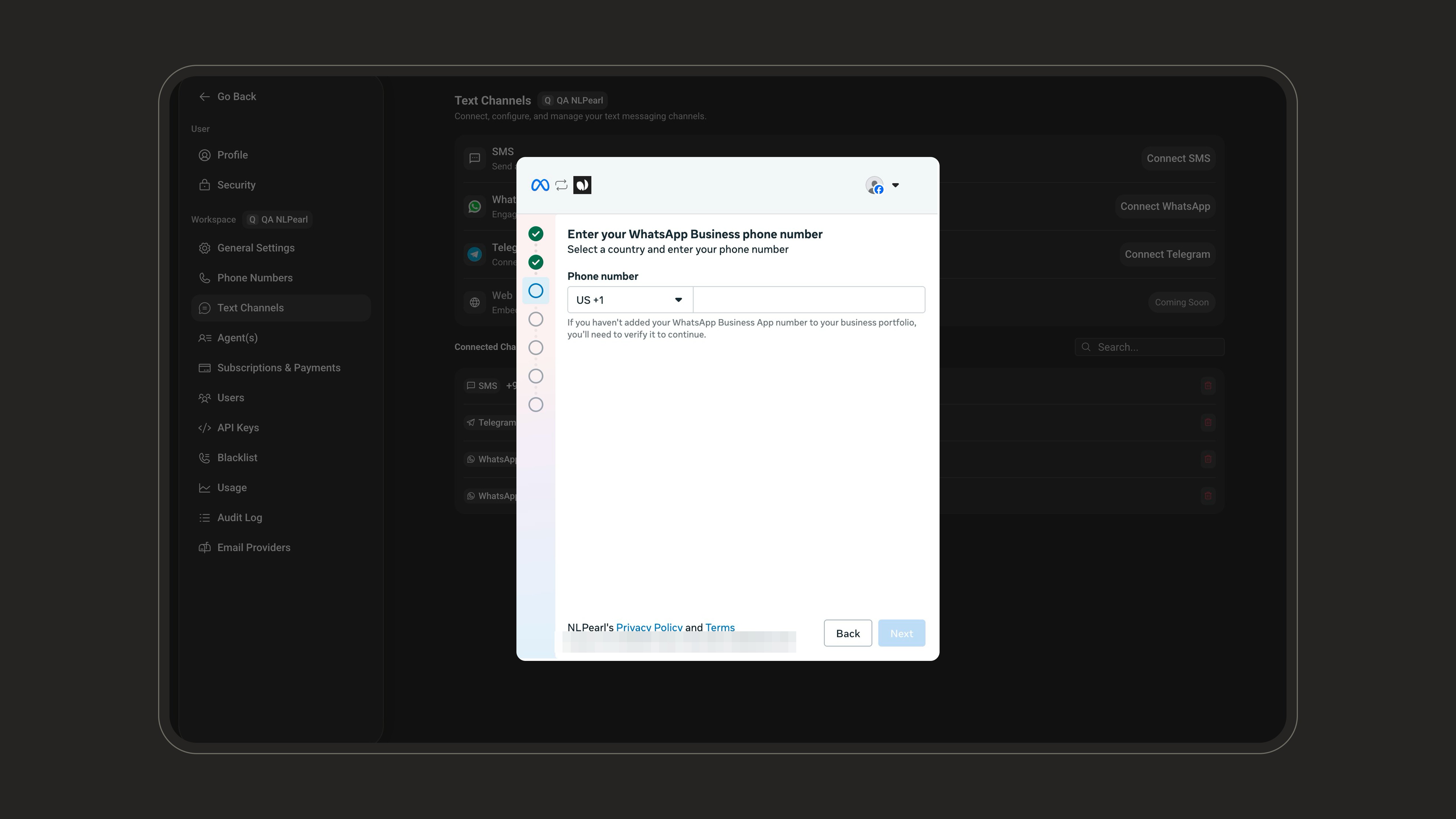
 Enter the number that is active in your WhatsApp Business app.
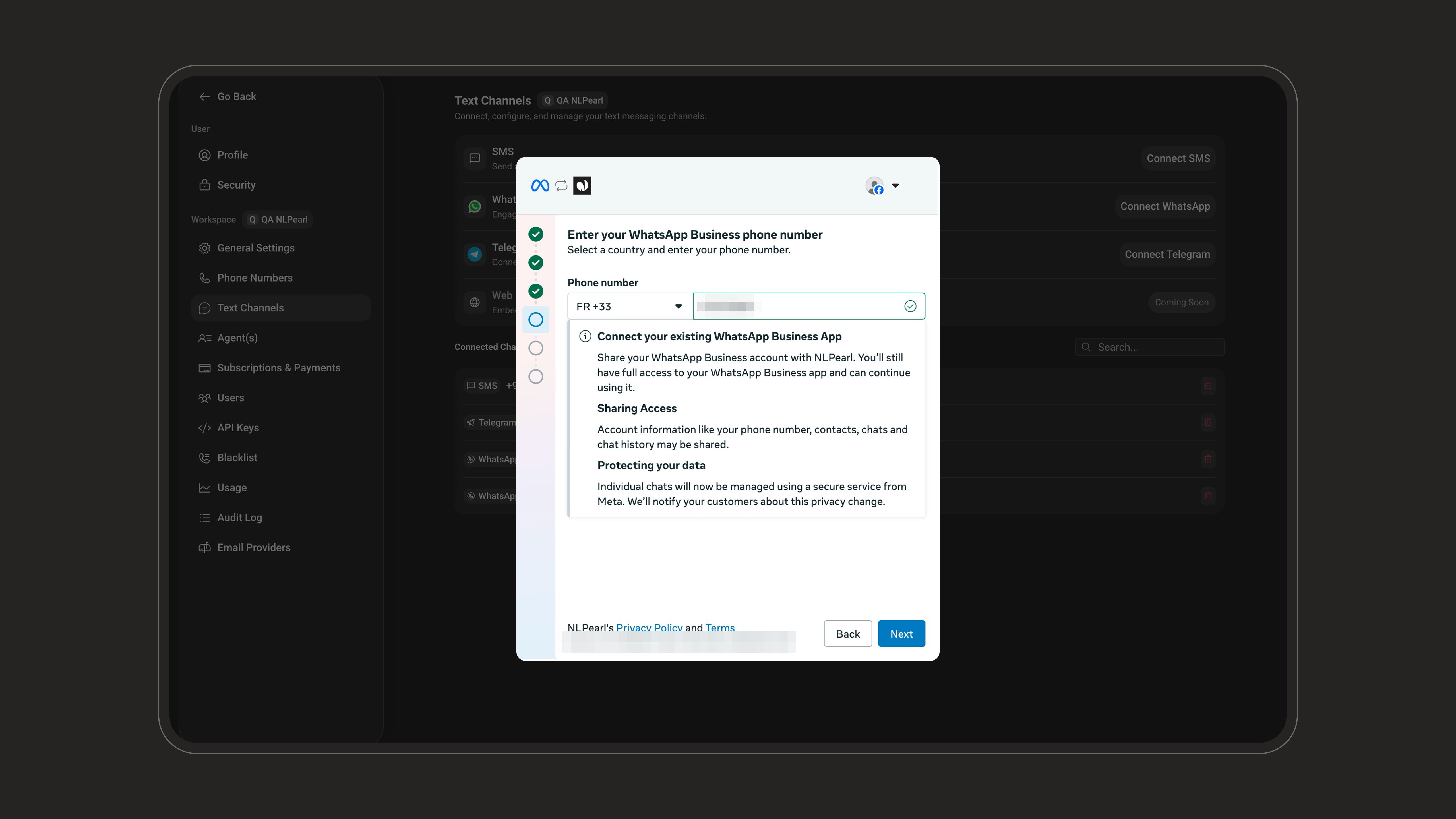
 Meta then explains what connecting your existing app means: you keep full access to the app, and account information like your phone number, contacts, and chat history may be shared.
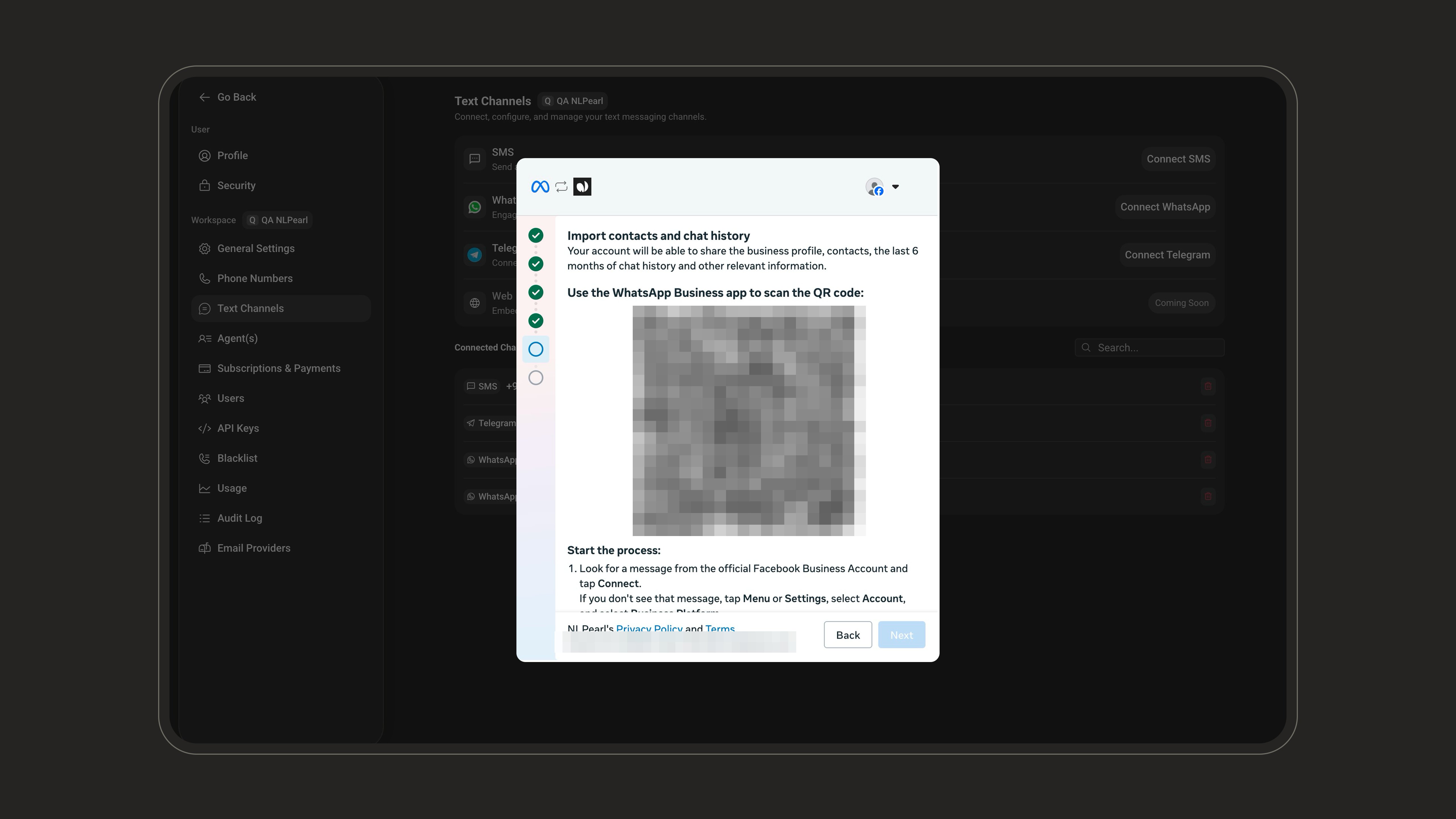
 Meta shows a QR code and offers to import your business profile, contacts, and the last 6 months of chat history. Keep this window open - you'll scan the code with your phone.
Group chat history is not shared - only individual conversations are imported.
Meta shows a QR code and offers to import your business profile, contacts, and the last 6 months of chat history. Keep this window open - you'll scan the code with your phone.
Group chat history is not shared - only individual conversations are imported.
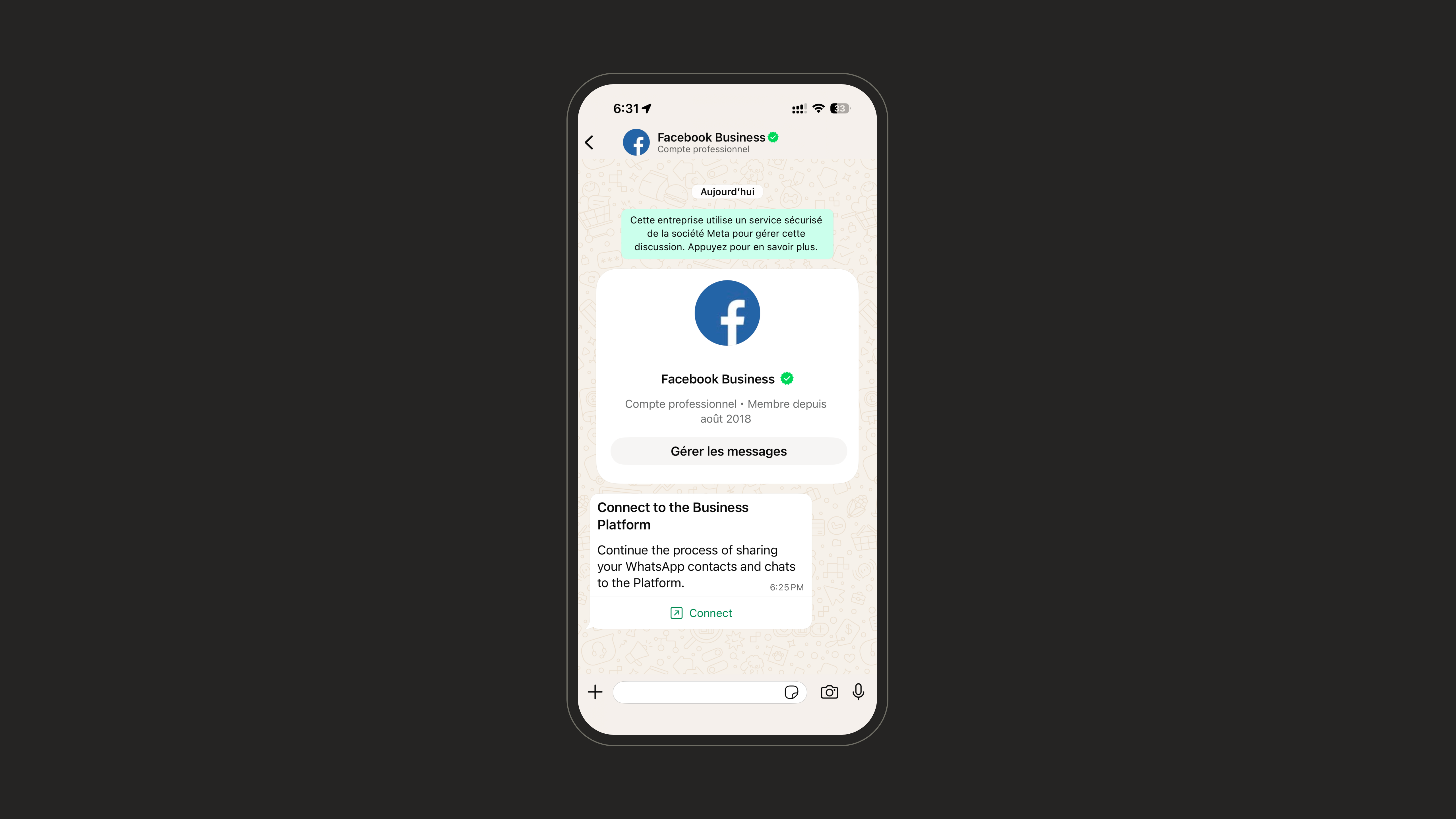
 In the WhatsApp Business app, open the message from the official **Facebook Business** account and tap **Connect**.
 Review what connecting to the Business Platform means, then continue.
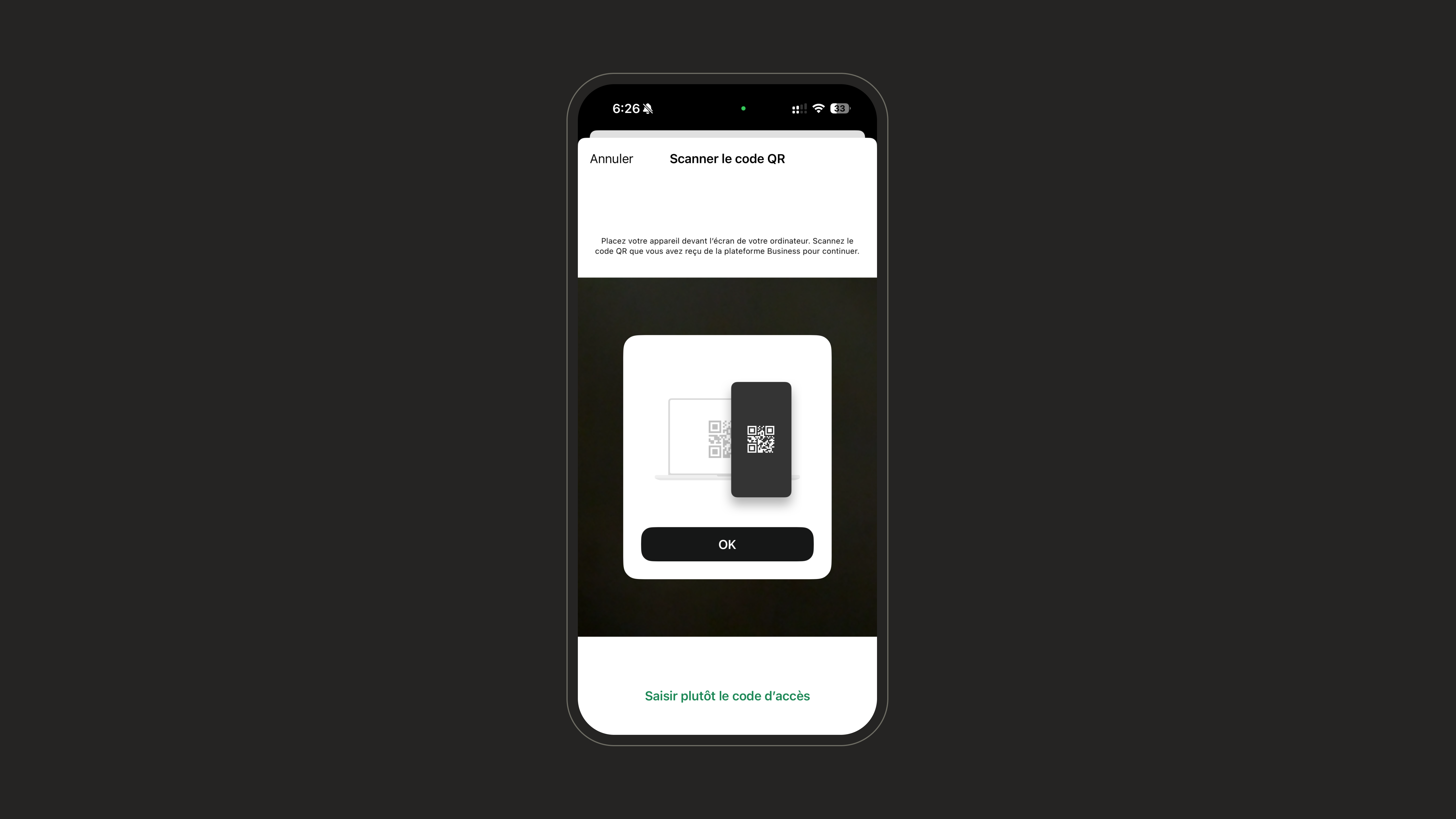
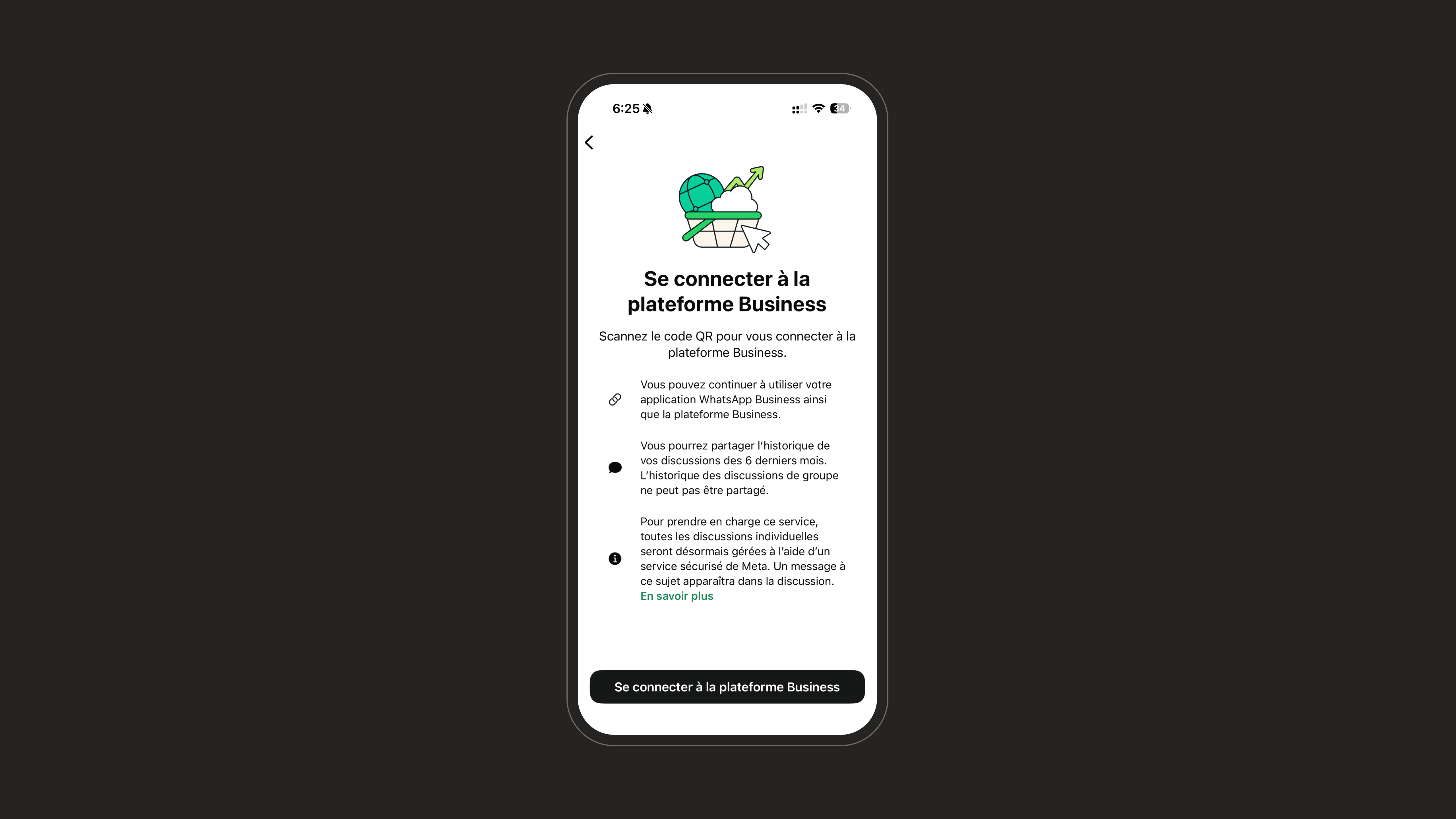 Point your phone at the QR code displayed in the Meta window.
 Once scanned, the app confirms your number is connected to NLPearl.
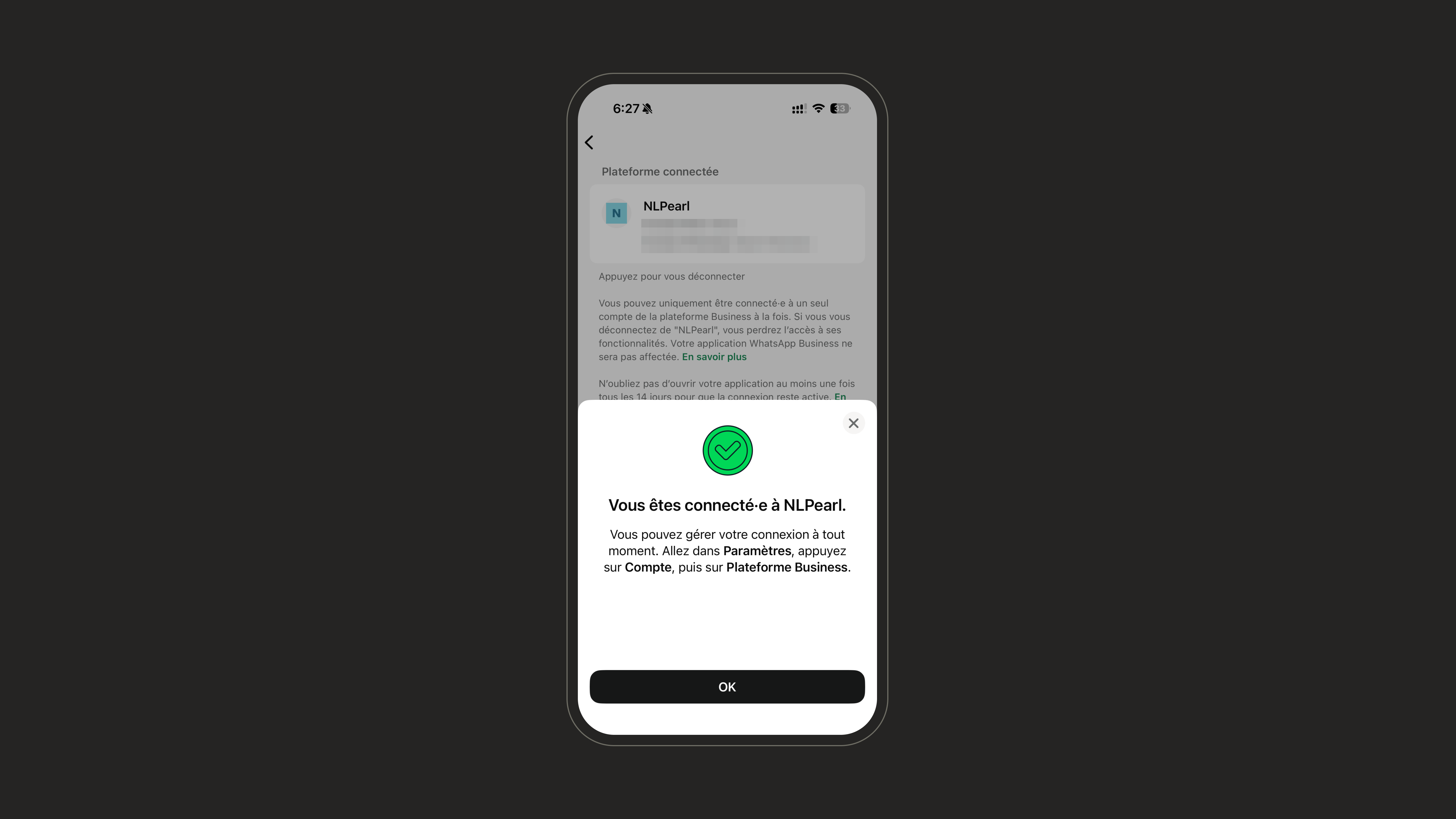 Open the WhatsApp Business app at least once every **14 days** to keep the coexistence connection active.
Back in the Meta window, confirm or edit your WhatsApp Business account name and timezone, then finish the signup.
Open the WhatsApp Business app at least once every **14 days** to keep the coexistence connection active.
Back in the Meta window, confirm or edit your WhatsApp Business account name and timezone, then finish the signup.
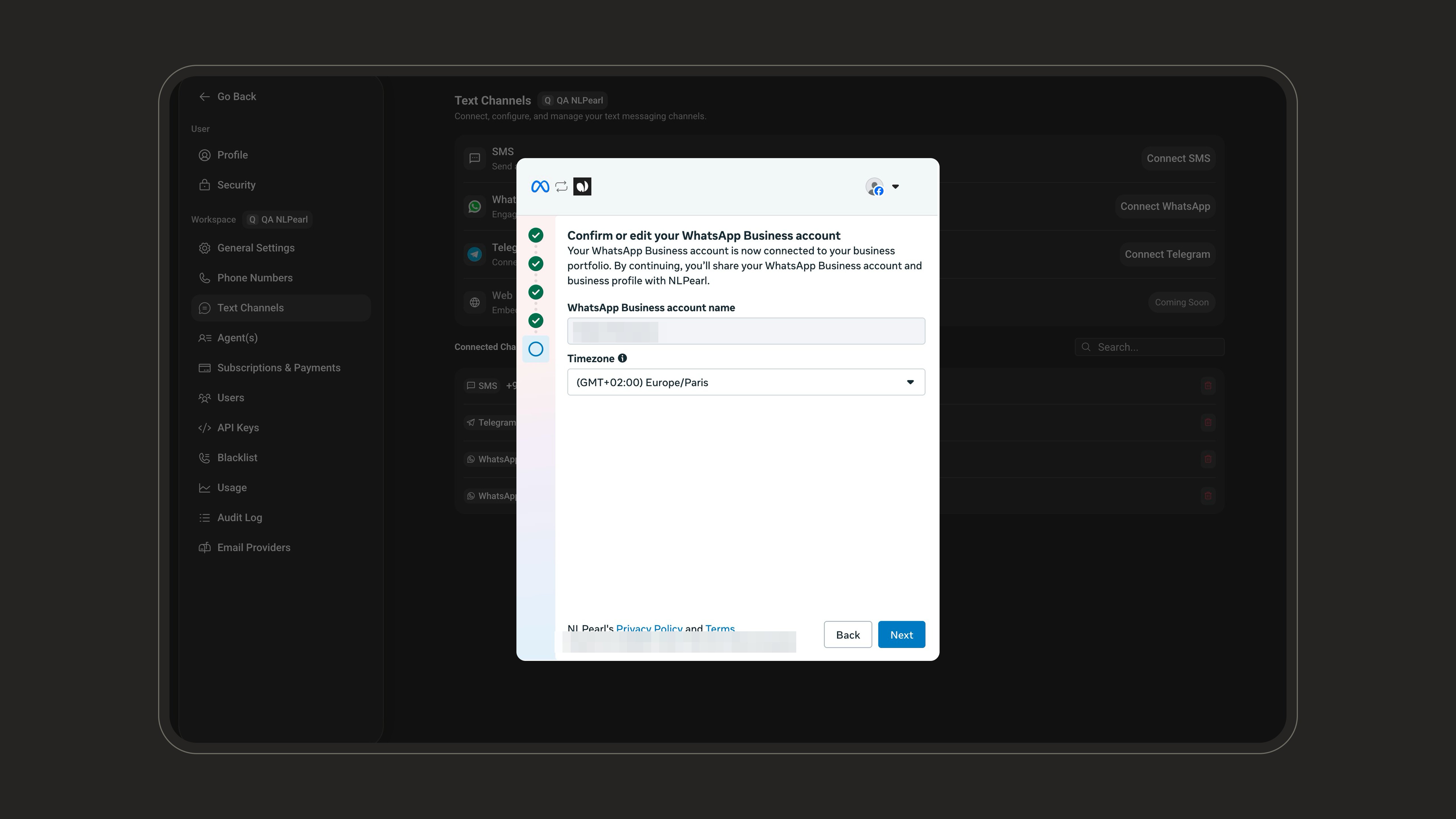 The number is imported automatically and appears with the **App + API** tag: it keeps working in your WhatsApp Business app while Pearl uses it through the API.
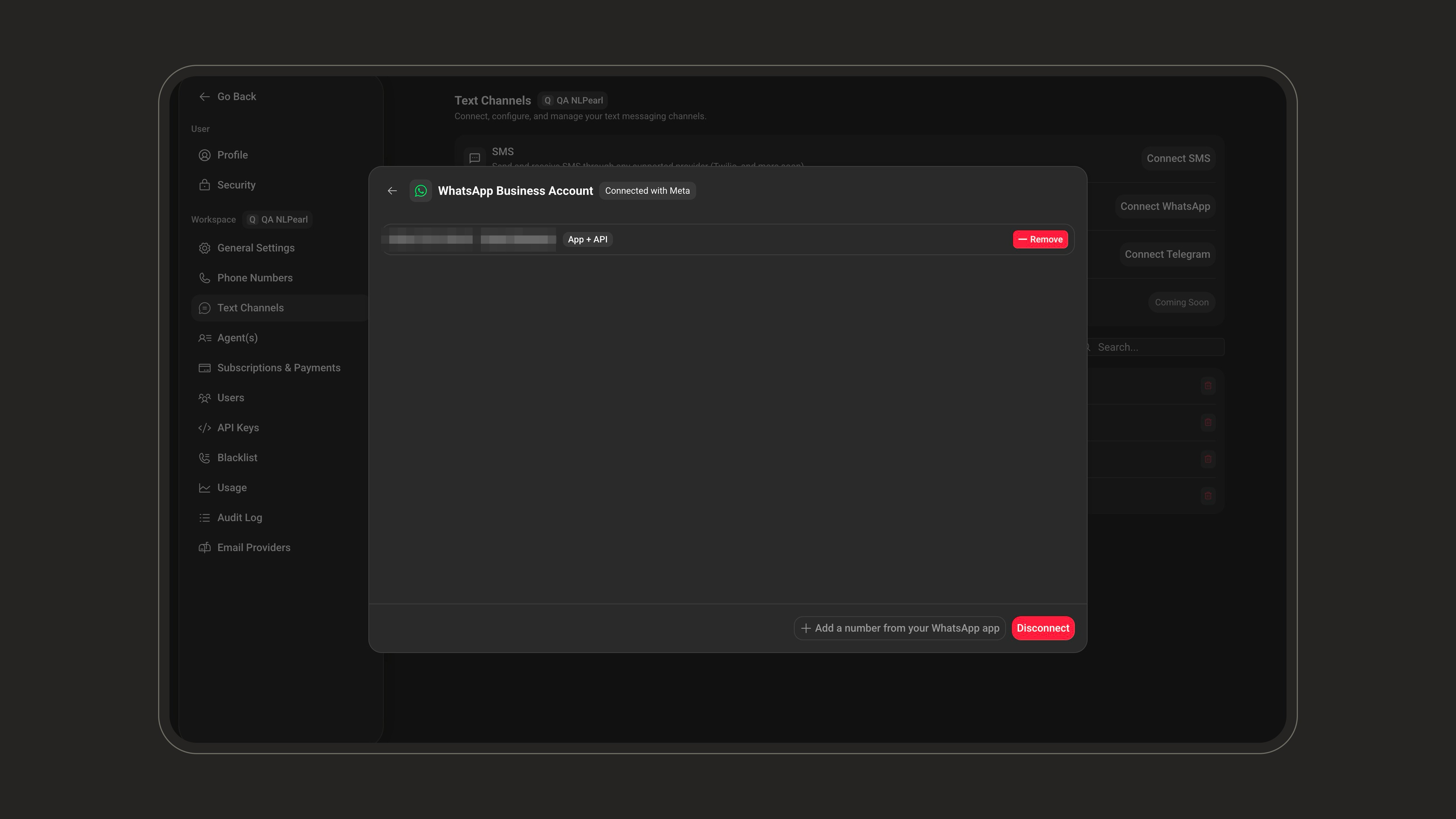 * Messages you send from the WhatsApp Business app stay free and don't affect the API conversation windows Pearl uses.
* Onboarding unlinks the app's companion devices (WhatsApp Web, desktop apps); you can re-link supported devices afterwards.
* For the full technical details, see [Meta's coexistence documentation](https://developers.facebook.com/documentation/business-messaging/whatsapp/embedded-signup/onboarding-business-app-users).
***
### Connect in Dedicated mode
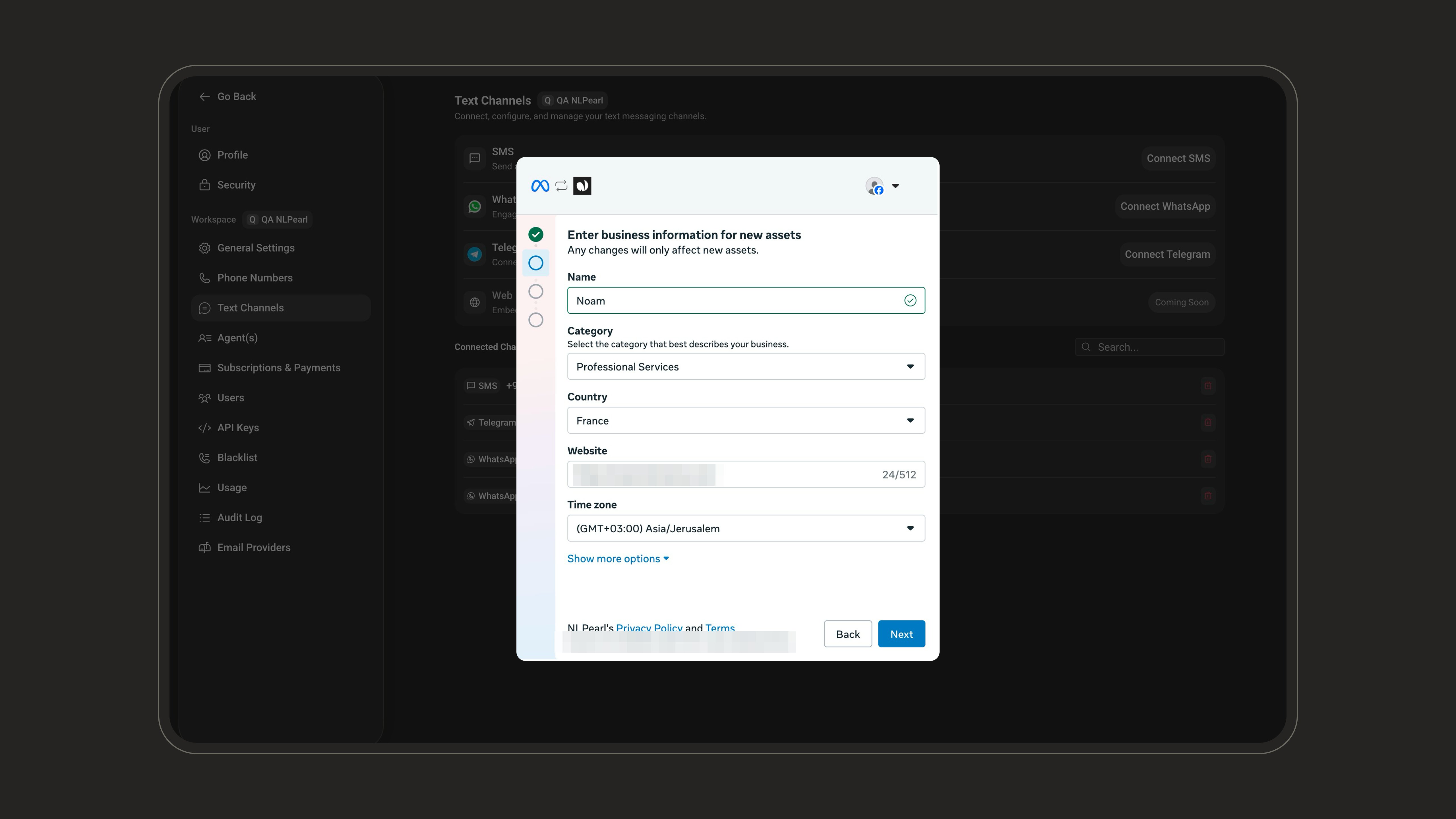
Select **Dedicate this number to NLPearl**, then click **Connect WhatsApp**. A Meta window opens - log in with the Facebook account that manages your business and continue through the intro.
* Messages you send from the WhatsApp Business app stay free and don't affect the API conversation windows Pearl uses.
* Onboarding unlinks the app's companion devices (WhatsApp Web, desktop apps); you can re-link supported devices afterwards.
* For the full technical details, see [Meta's coexistence documentation](https://developers.facebook.com/documentation/business-messaging/whatsapp/embedded-signup/onboarding-business-app-users).
***
### Connect in Dedicated mode
Select **Dedicate this number to NLPearl**, then click **Connect WhatsApp**. A Meta window opens - log in with the Facebook account that manages your business and continue through the intro.
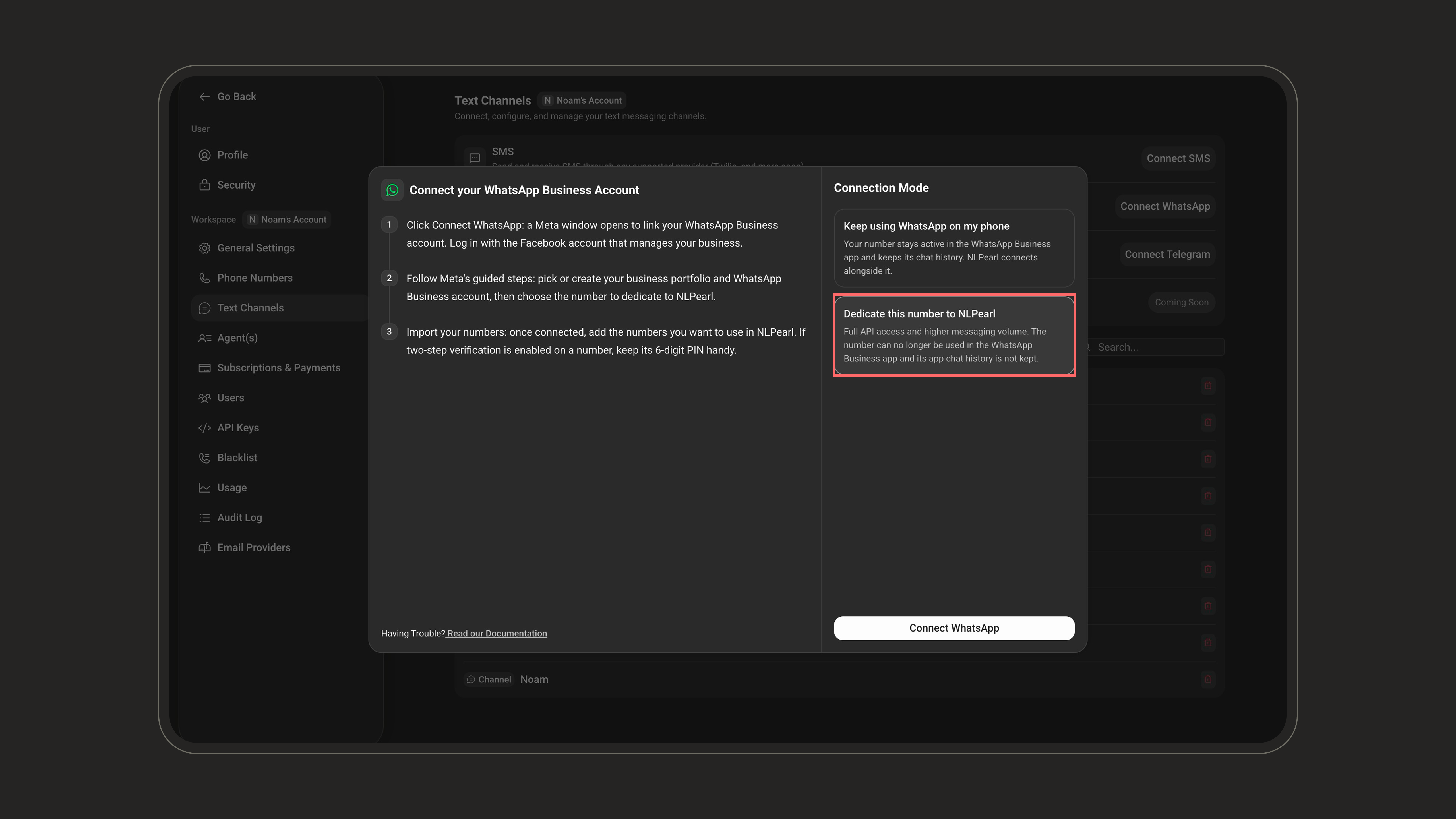 Pick or create your **Business portfolio**, and under **WhatsApp Business account** select **Create a WhatsApp Business account** (or pick an existing one).
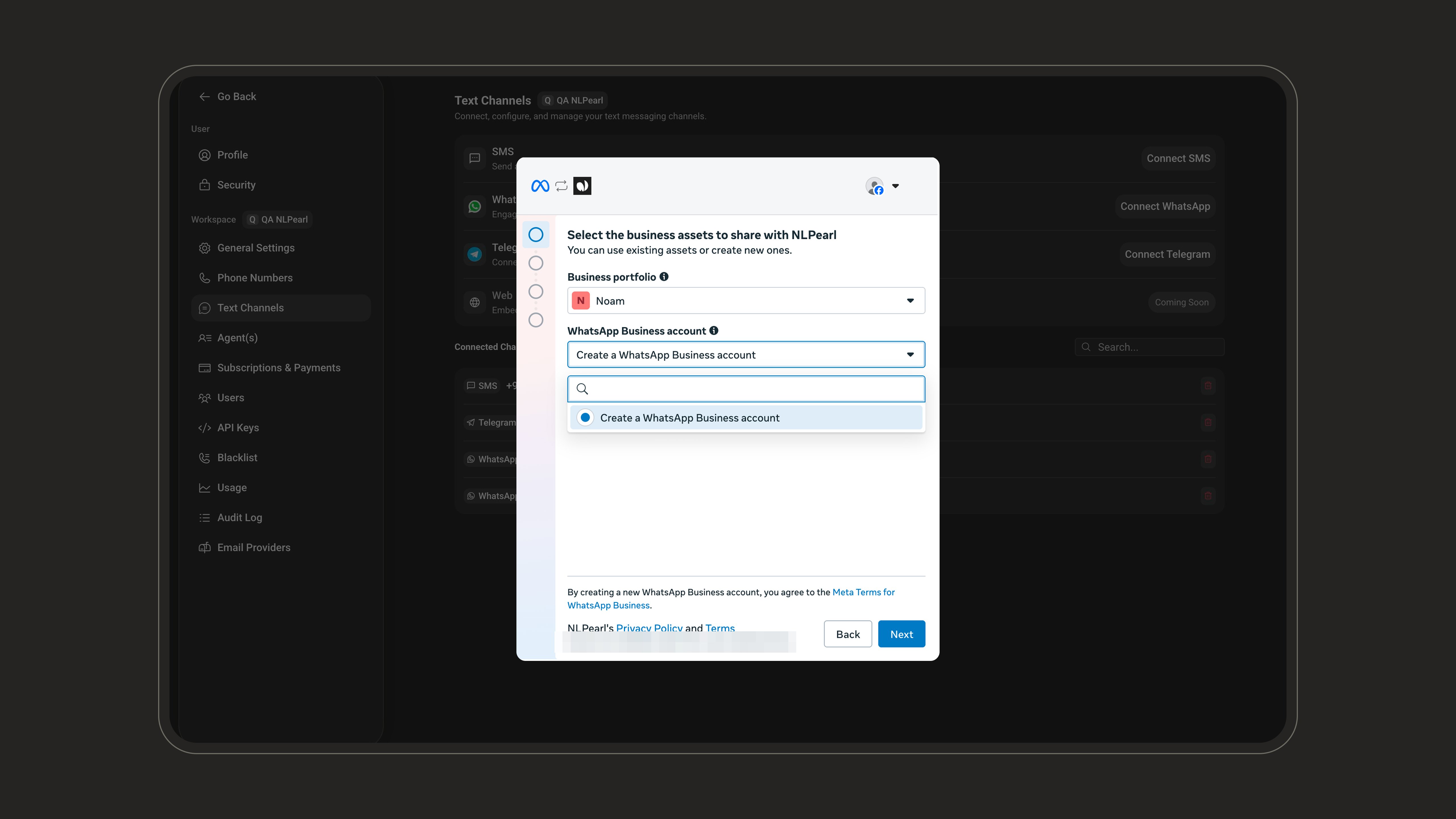 Fill in your business name, category, country, and website.
 Choose how you want to be identified when sending messages.
**Use a display name only** - people only see a display name in the chat, without a phone number.
Choose how you want to be identified when sending messages.
**Use a display name only** - people only see a display name in the chat, without a phone number.
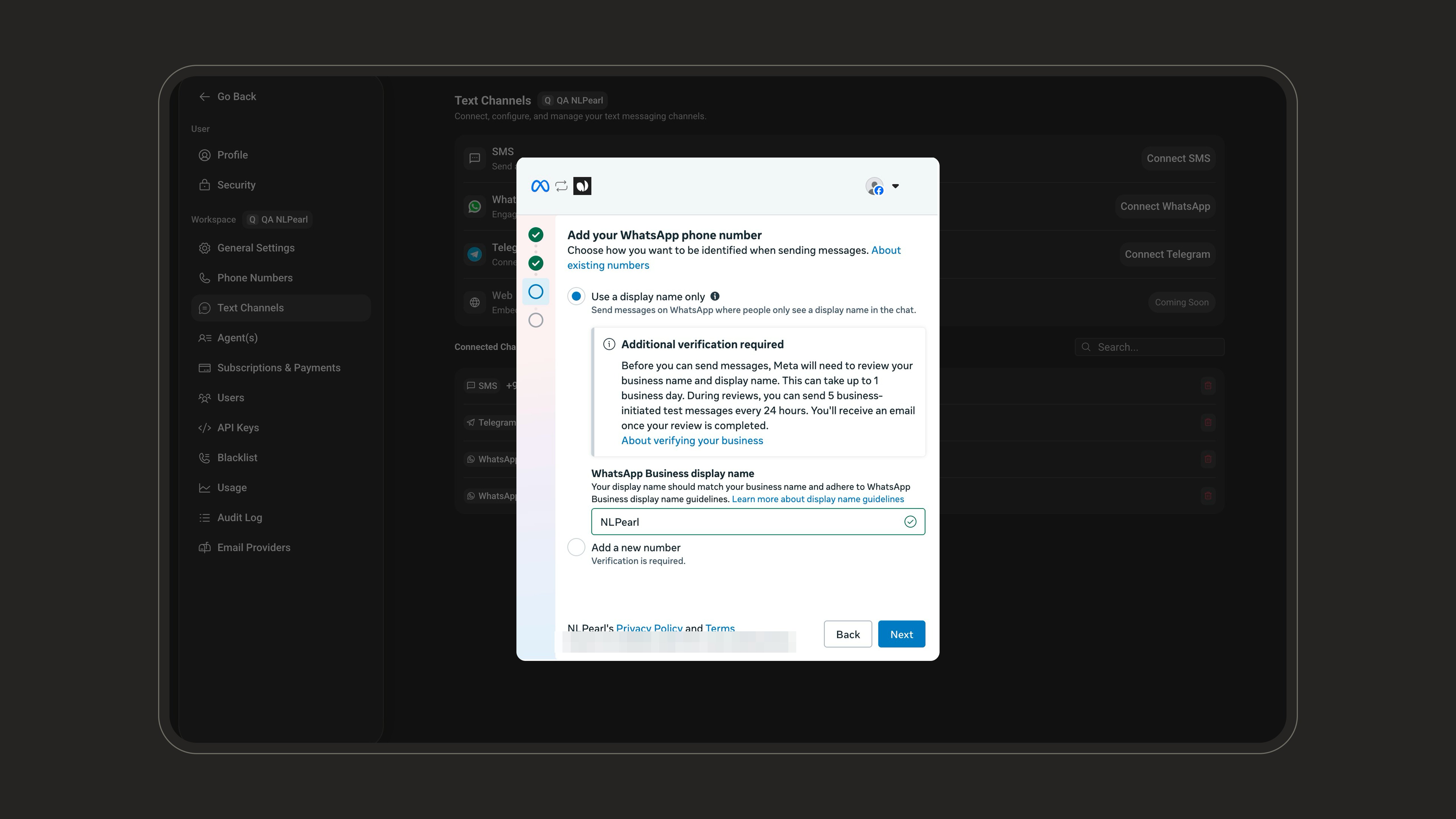 With a display name only, Meta reviews your business name and display name before you can send freely. This can take up to 1 business day; during the review you can send 5 business-initiated test messages every 24 hours.
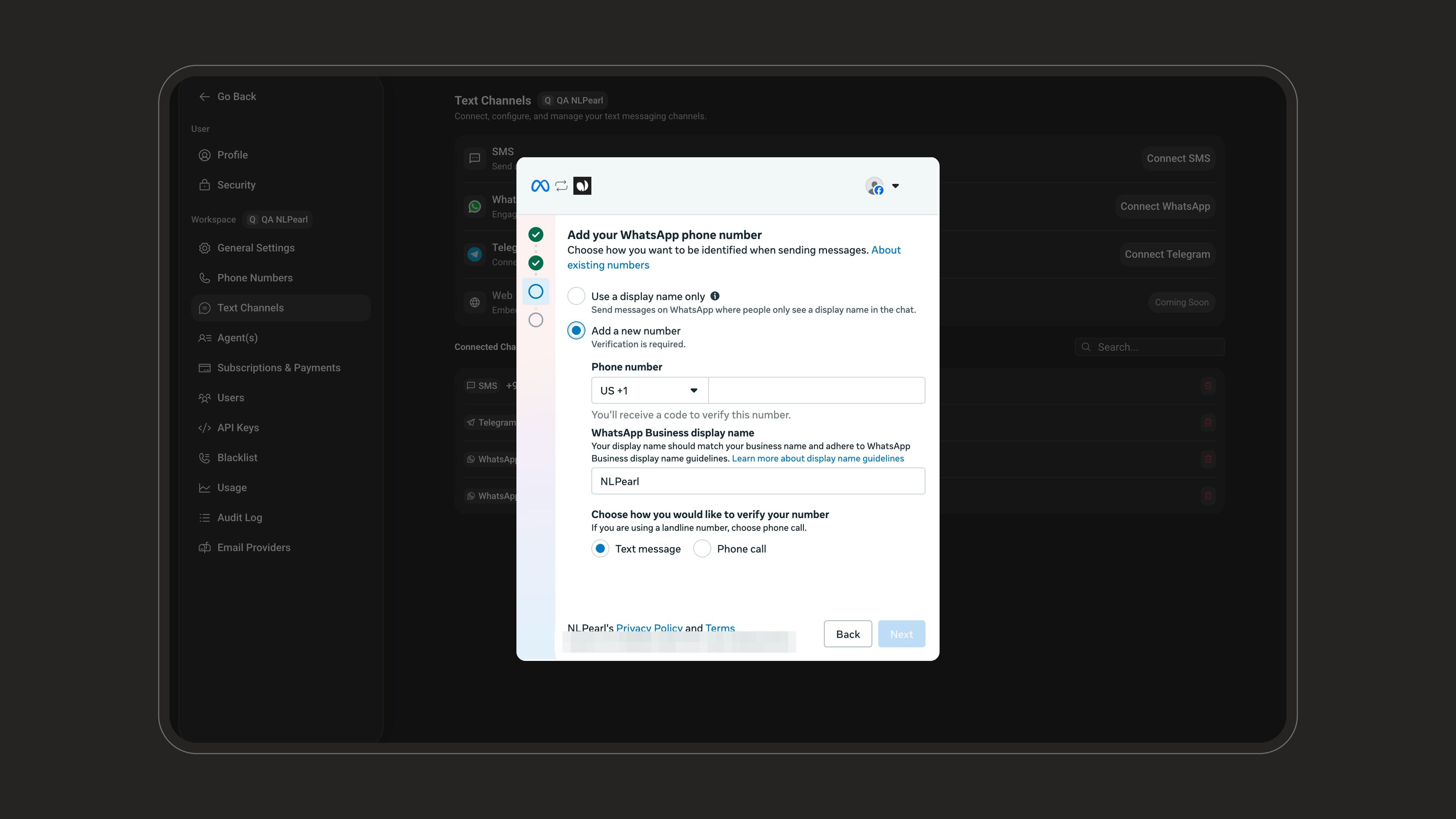
**Add a new number** - enter the number to dedicate to NLPearl and verify it by text message or phone call.
With a display name only, Meta reviews your business name and display name before you can send freely. This can take up to 1 business day; during the review you can send 5 business-initiated test messages every 24 hours.
**Add a new number** - enter the number to dedicate to NLPearl and verify it by text message or phone call.
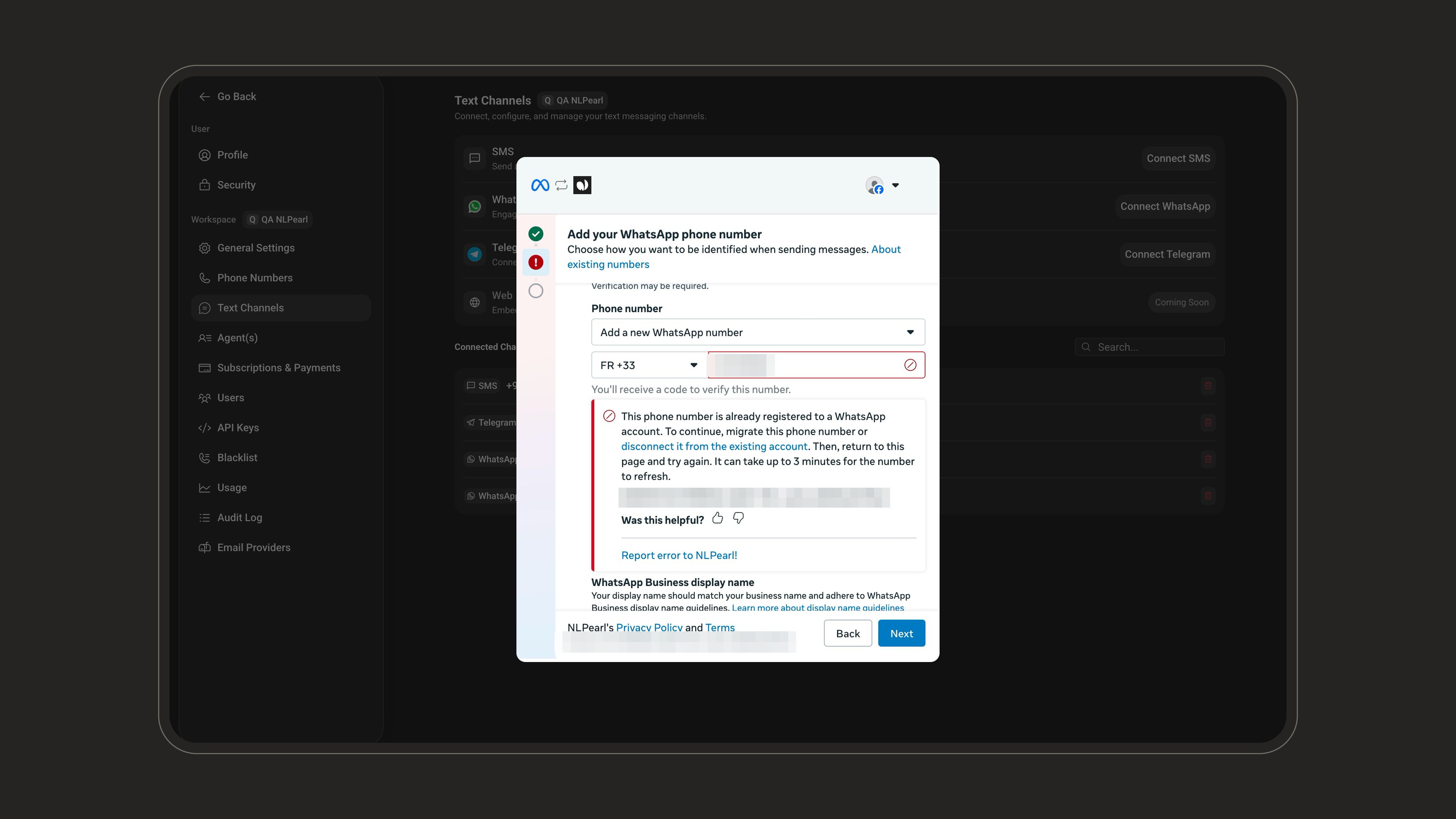
 The number must not be registered to any WhatsApp account. If it is, Meta shows an error - migrate the number or disconnect it from the existing account first, then try again (it can take up to 3 minutes for the number to refresh).
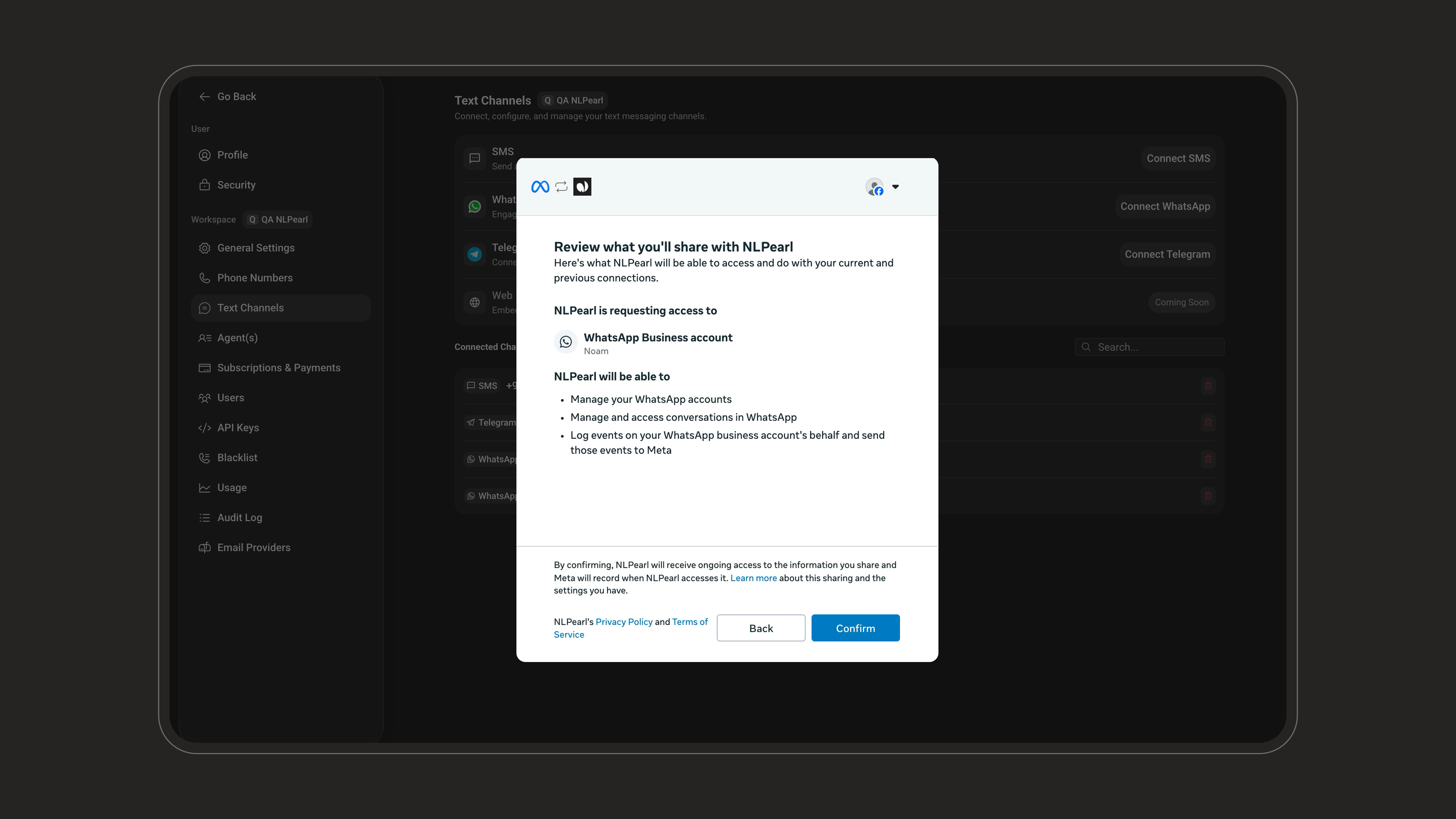
 Review what NLPearl will be able to access and do, then click **Confirm**.
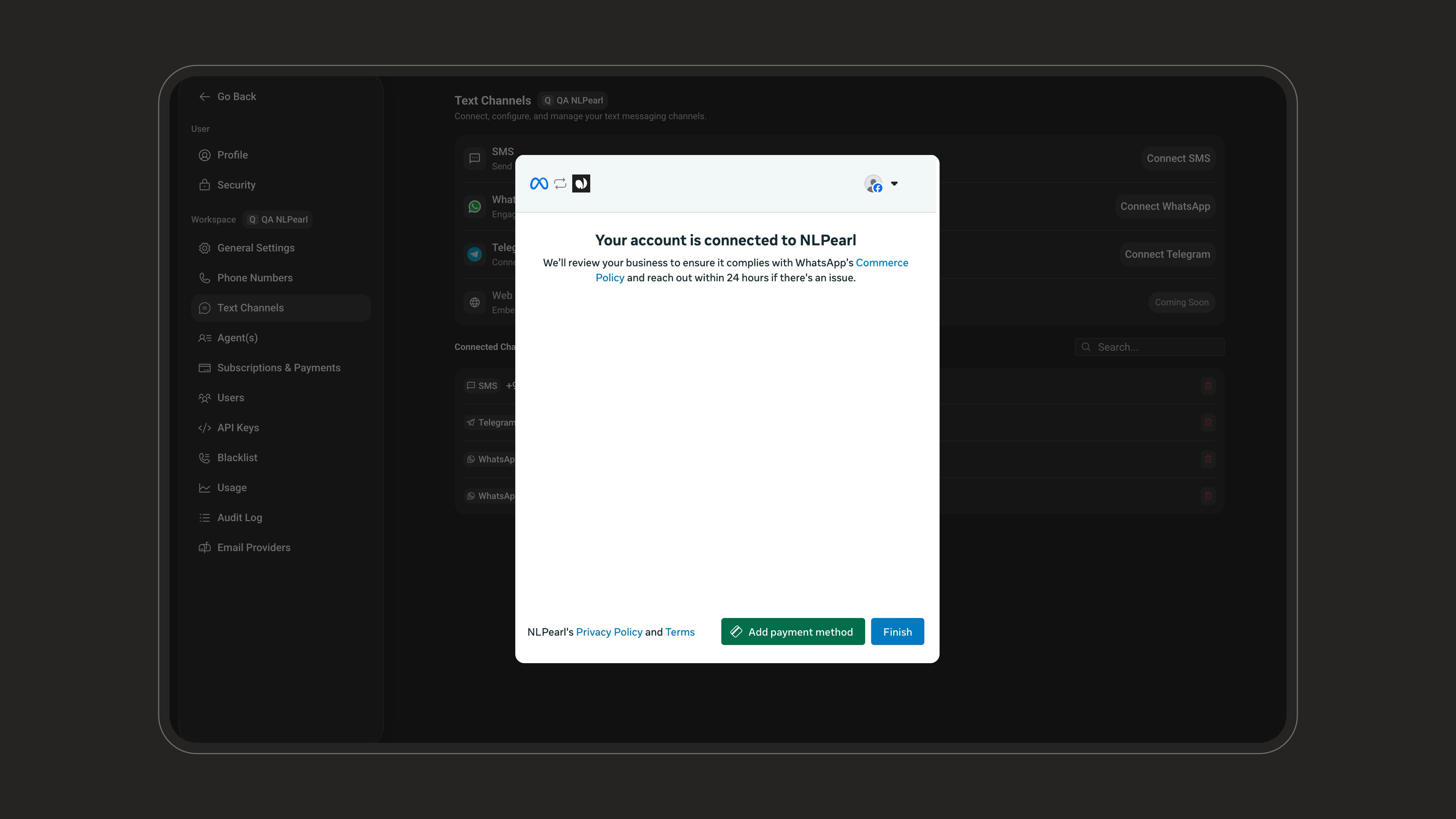
 Your account is connected. Meta reviews your business against [WhatsApp's Commerce Policy](https://whatsappbusiness.com/policy/) and reaches out within 24 hours if there's an issue. You can also add a payment method now or later - Meta bills the conversations your business initiates to the payment method on your WhatsApp Business account.
 ***
### Import your numbers
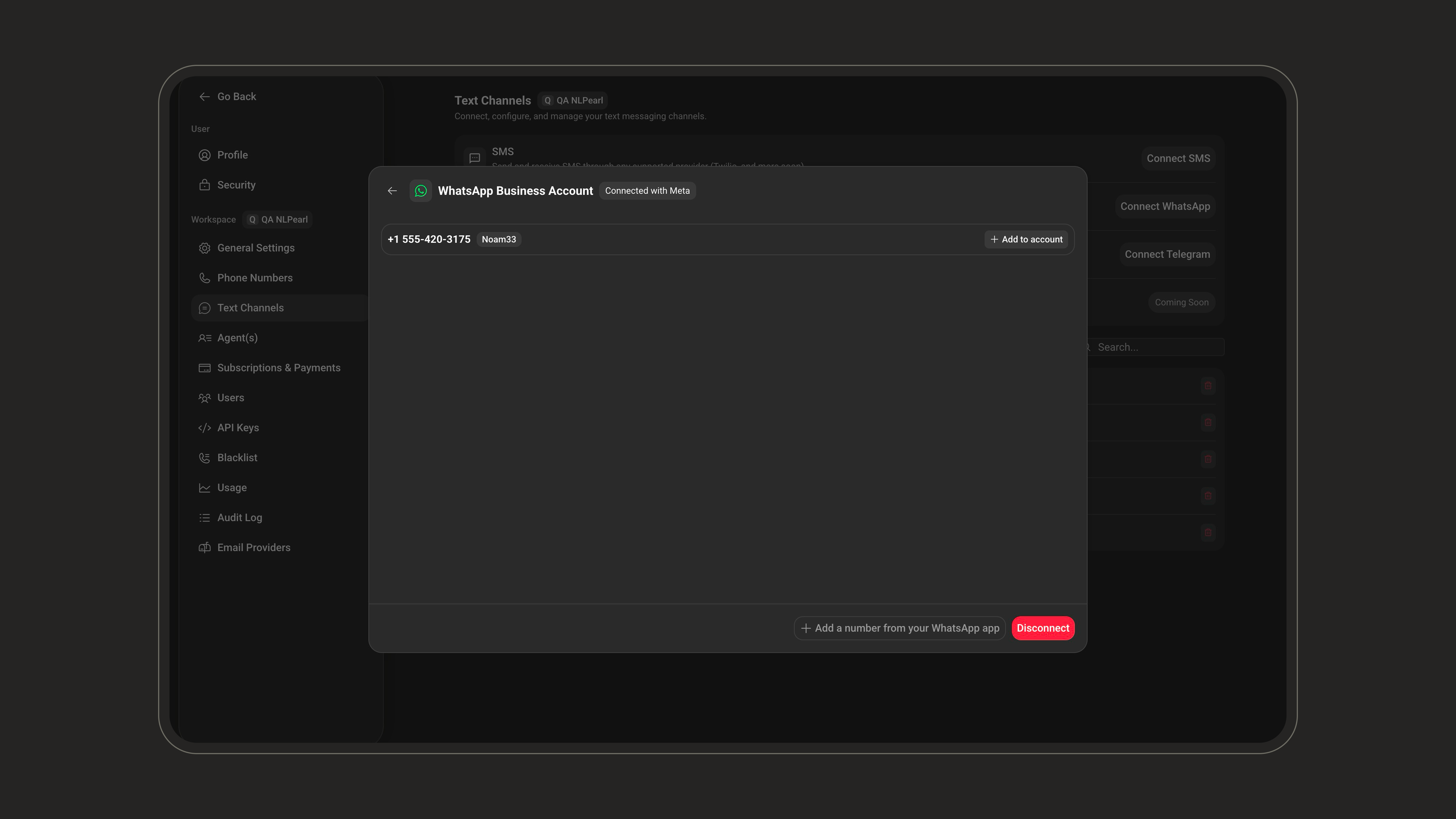
Once connected, the platform lists the phone numbers of your WhatsApp Business account. Click **Add to account** next to each number you want to use - each one becomes a text channel on the platform.
***
### Import your numbers
Once connected, the platform lists the phone numbers of your WhatsApp Business account. Click **Add to account** next to each number you want to use - each one becomes a text channel on the platform.
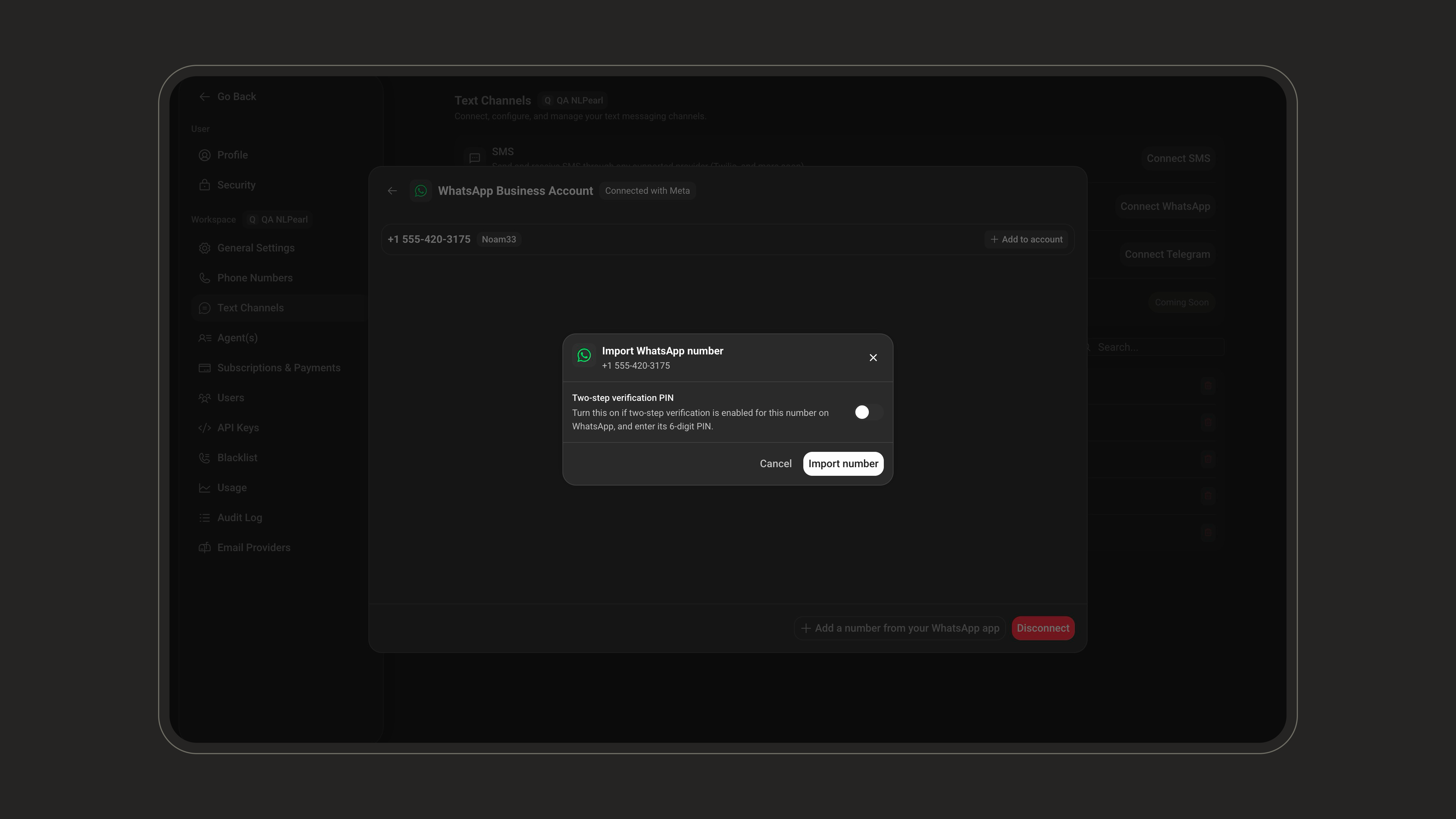
 Importing a dedicated number registers it on the WhatsApp Cloud API. If two-step verification is enabled on the number, turn on the **Two-step verification PIN** option in the import dialog and enter the number's **6-digit PIN**.
 Coexistence numbers are imported automatically after the QR code scan and never ask for a PIN.
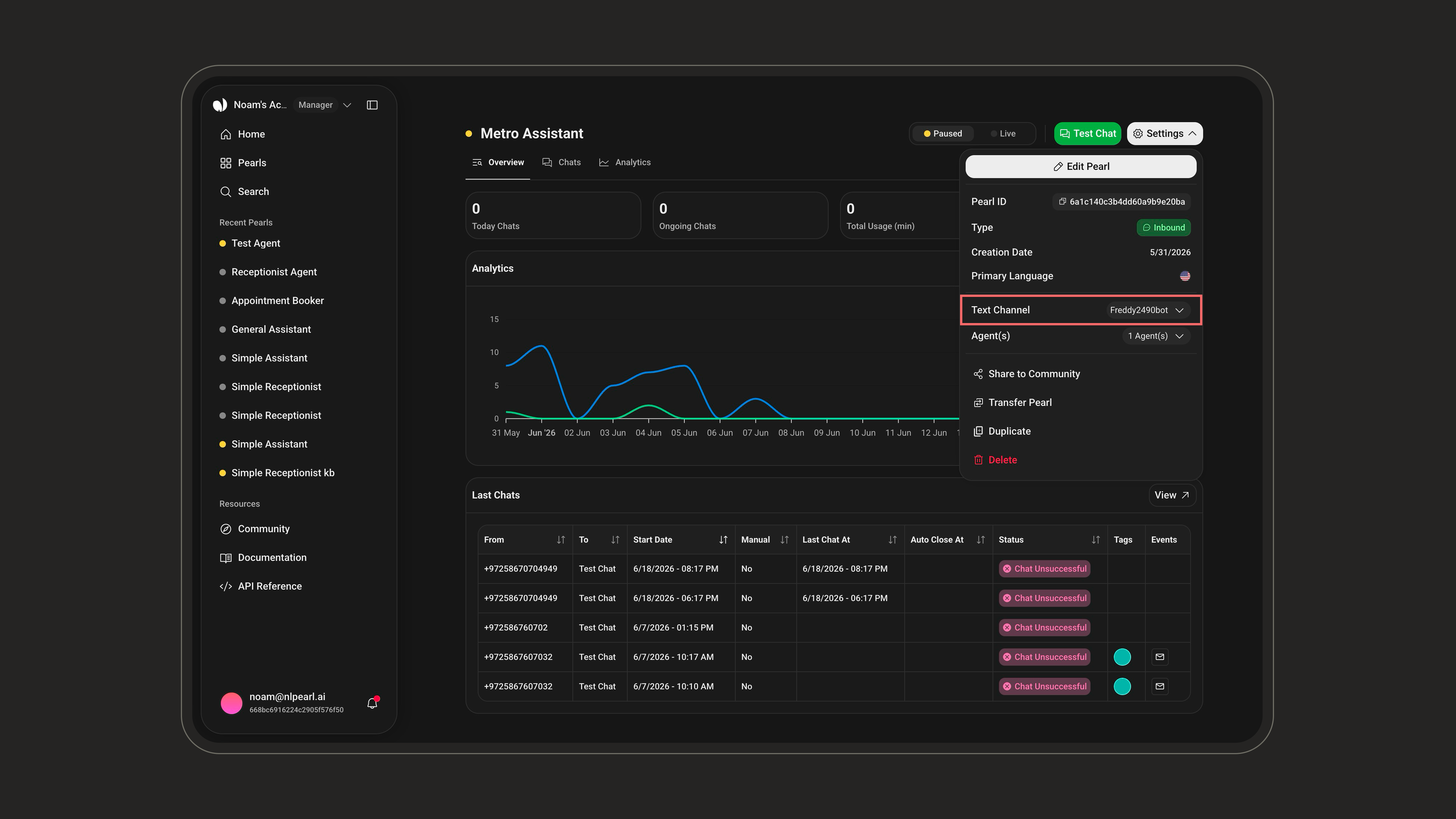
To use the channel, open the Pearl you want for [inbound](/pages/text/inbound) or [outbound](/pages/text/outbound) conversations, go to **Settings**, and set the imported WhatsApp number as its **Text Channel**.
Coexistence numbers are imported automatically after the QR code scan and never ask for a PIN.
To use the channel, open the Pearl you want for [inbound](/pages/text/inbound) or [outbound](/pages/text/outbound) conversations, go to **Settings**, and set the imported WhatsApp number as its **Text Channel**.
 ***
### Manage the connection
Everything is managed from the WhatsApp Business account screen in **Settings** → **Text Channels**:
* **Add a number from your WhatsApp app** - connect an additional number in coexistence mode at any time.
* **Remove a number** - disconnects the number from NLPearl and deletes its text channel. Any Pearl using it is paused, and you can import the number again later.
* **Disconnect** - disconnects your WhatsApp Business account from NLPearl. You can reconnect it at any time.
***
### Troubleshooting
Meta drops the coexistence connection when the WhatsApp Business app stays inactive for about 14 days, and your campaigns stop with it. To reconnect the number, open the WhatsApp Business app on your phone, then go to **Settings** → **Text Channels**, open your **WhatsApp Business Account**, and click **Add a number from your WhatsApp app** - the Meta window opens and you scan the QR code again, exactly like the first connection. To prevent it, open the app at least once every 14 days.
The 6-digit PIN requested when importing a dedicated number is WhatsApp's two-step verification PIN.
* If the number is still registered in the WhatsApp Business app, reset it from the app under **Settings** → **Account** → **Two-step verification**.
* If the number is already registered on the Cloud API, manage its PIN from Meta's **WhatsApp Manager**, in the phone number's settings.
In dedicated mode, the number can't be attached to any WhatsApp or WhatsApp Business app account.
* If you want to keep using the app with this number, connect it in **Coexistence** mode instead.
* Otherwise, release the number by deleting its account in the app (**Settings** → **Account** → **Delete account**), then try again. It can take up to 3 minutes for Meta to refresh the number's status.
***
Deploy your agent on inbound channels to answer incoming WhatsApp messages instantly.
Launch outbound WhatsApp campaigns to reach customers proactively.
***
### Manage the connection
Everything is managed from the WhatsApp Business account screen in **Settings** → **Text Channels**:
* **Add a number from your WhatsApp app** - connect an additional number in coexistence mode at any time.
* **Remove a number** - disconnects the number from NLPearl and deletes its text channel. Any Pearl using it is paused, and you can import the number again later.
* **Disconnect** - disconnects your WhatsApp Business account from NLPearl. You can reconnect it at any time.
***
### Troubleshooting
Meta drops the coexistence connection when the WhatsApp Business app stays inactive for about 14 days, and your campaigns stop with it. To reconnect the number, open the WhatsApp Business app on your phone, then go to **Settings** → **Text Channels**, open your **WhatsApp Business Account**, and click **Add a number from your WhatsApp app** - the Meta window opens and you scan the QR code again, exactly like the first connection. To prevent it, open the app at least once every 14 days.
The 6-digit PIN requested when importing a dedicated number is WhatsApp's two-step verification PIN.
* If the number is still registered in the WhatsApp Business app, reset it from the app under **Settings** → **Account** → **Two-step verification**.
* If the number is already registered on the Cloud API, manage its PIN from Meta's **WhatsApp Manager**, in the phone number's settings.
In dedicated mode, the number can't be attached to any WhatsApp or WhatsApp Business app account.
* If you want to keep using the app with this number, connect it in **Coexistence** mode instead.
* Otherwise, release the number by deleting its account in the app (**Settings** → **Account** → **Delete account**), then try again. It can take up to 3 minutes for Meta to refresh the number's status.
***
Deploy your agent on inbound channels to answer incoming WhatsApp messages instantly.
Launch outbound WhatsApp campaigns to reach customers proactively.