> ## Documentation Index
> Fetch the complete documentation index at: https://developers.nlpearl.ai/llms.txt
> Use this file to discover all available pages before exploring further.
# Telegram
> Connect your Pearl Text agent to Telegram by creating a bot with BotFather and linking its token to the platform.
***
## Telegram Channel
Connect your Pearl Text agent to **Telegram** through a Telegram bot. Pearl replies using the flow, knowledge, and actions defined in your Pearl, across both [inbound](/pages/text/inbound) conversations and [outbound](/pages/text/outbound) campaigns.
To connect Telegram, you first create a bot directly inside the Telegram app using **BotFather**, then paste the bot token into the platform.
***
### Step 1 - Create your Telegram bot
If you don't have one yet, download Telegram and create an account.
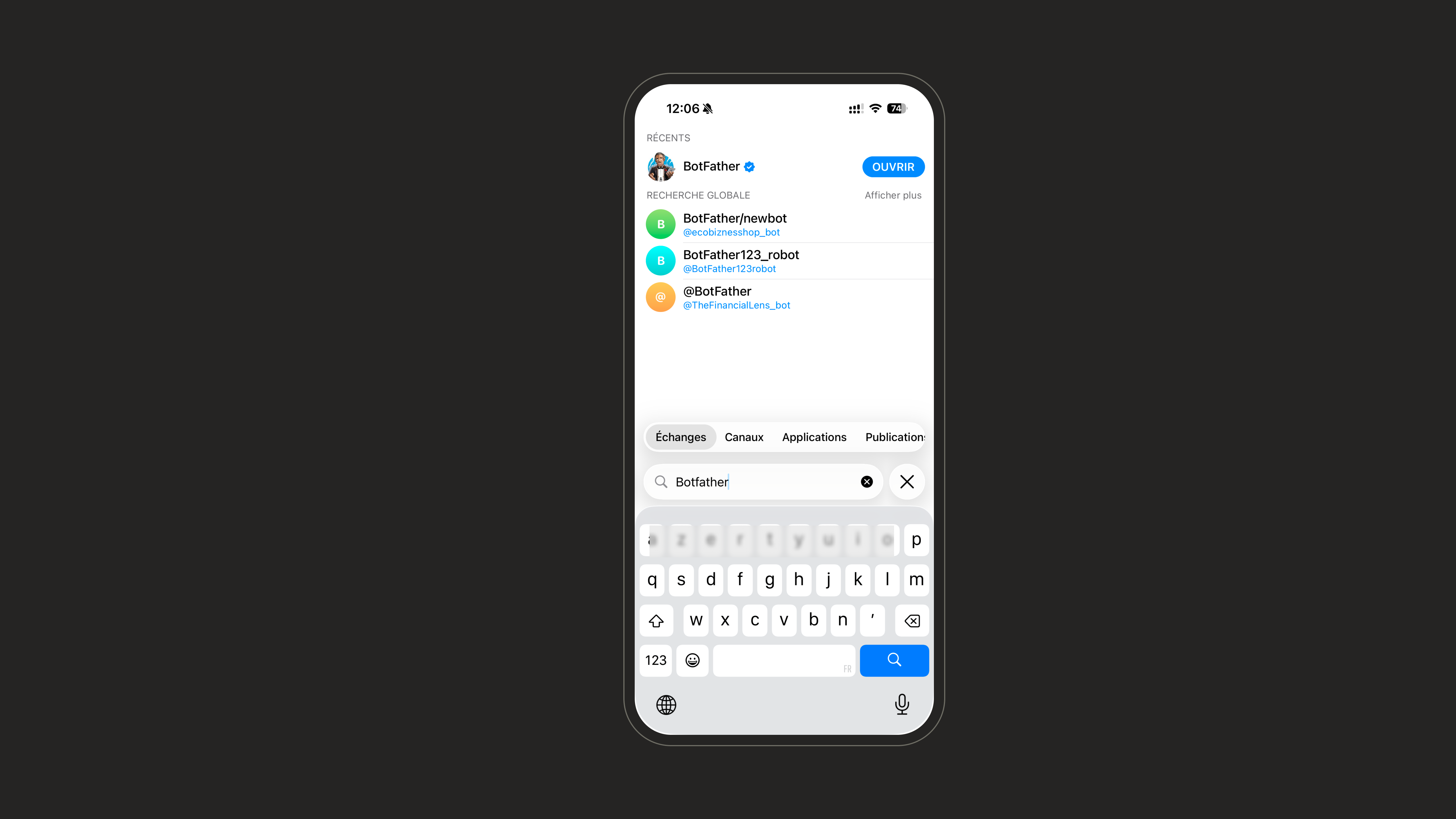
In Telegram's contact search, look for **BotFather** (the official Telegram bot for creating bots) and open the conversation.
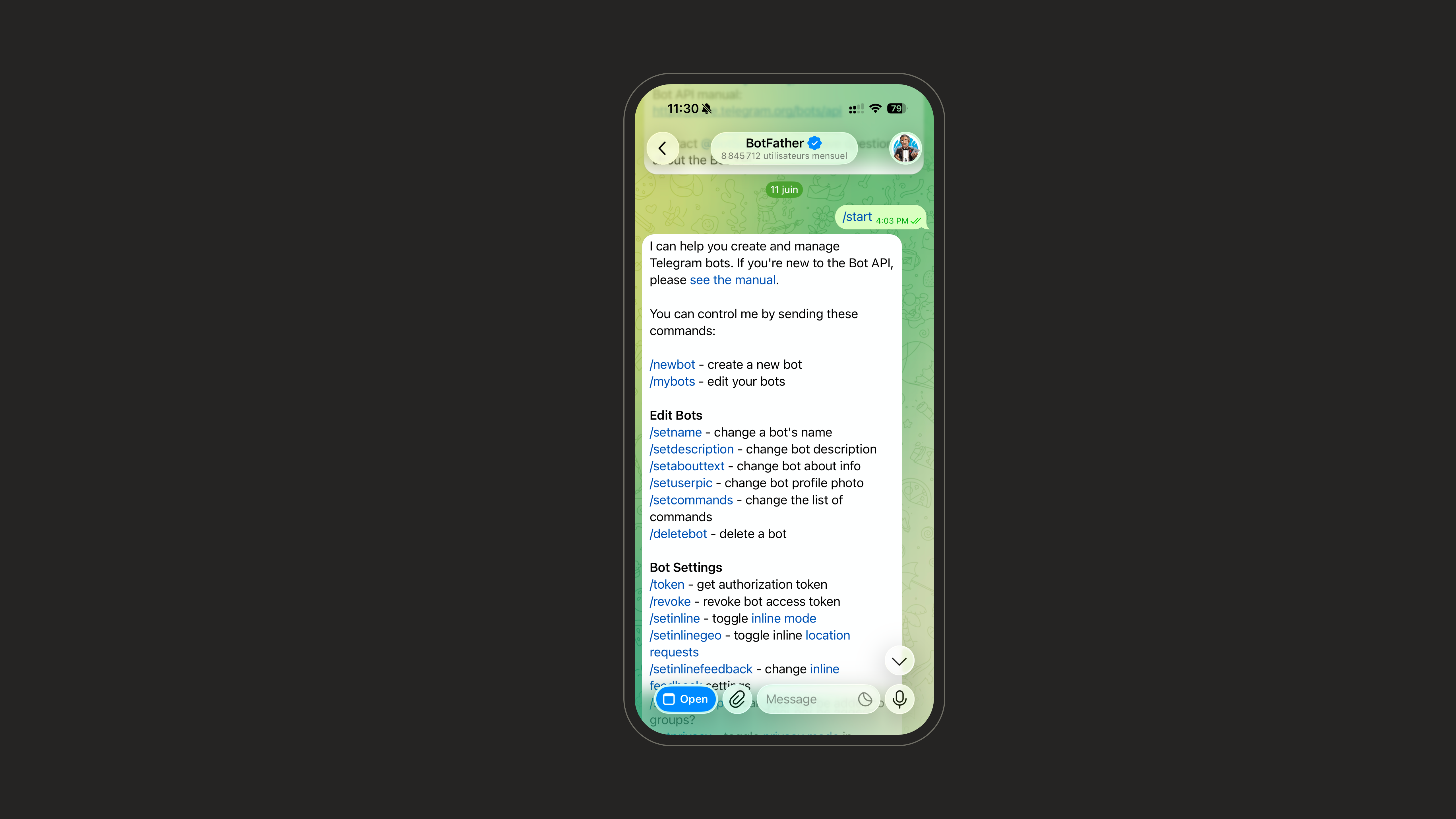
 Send the `/start` command to BotFather. It replies with the list of available commands.
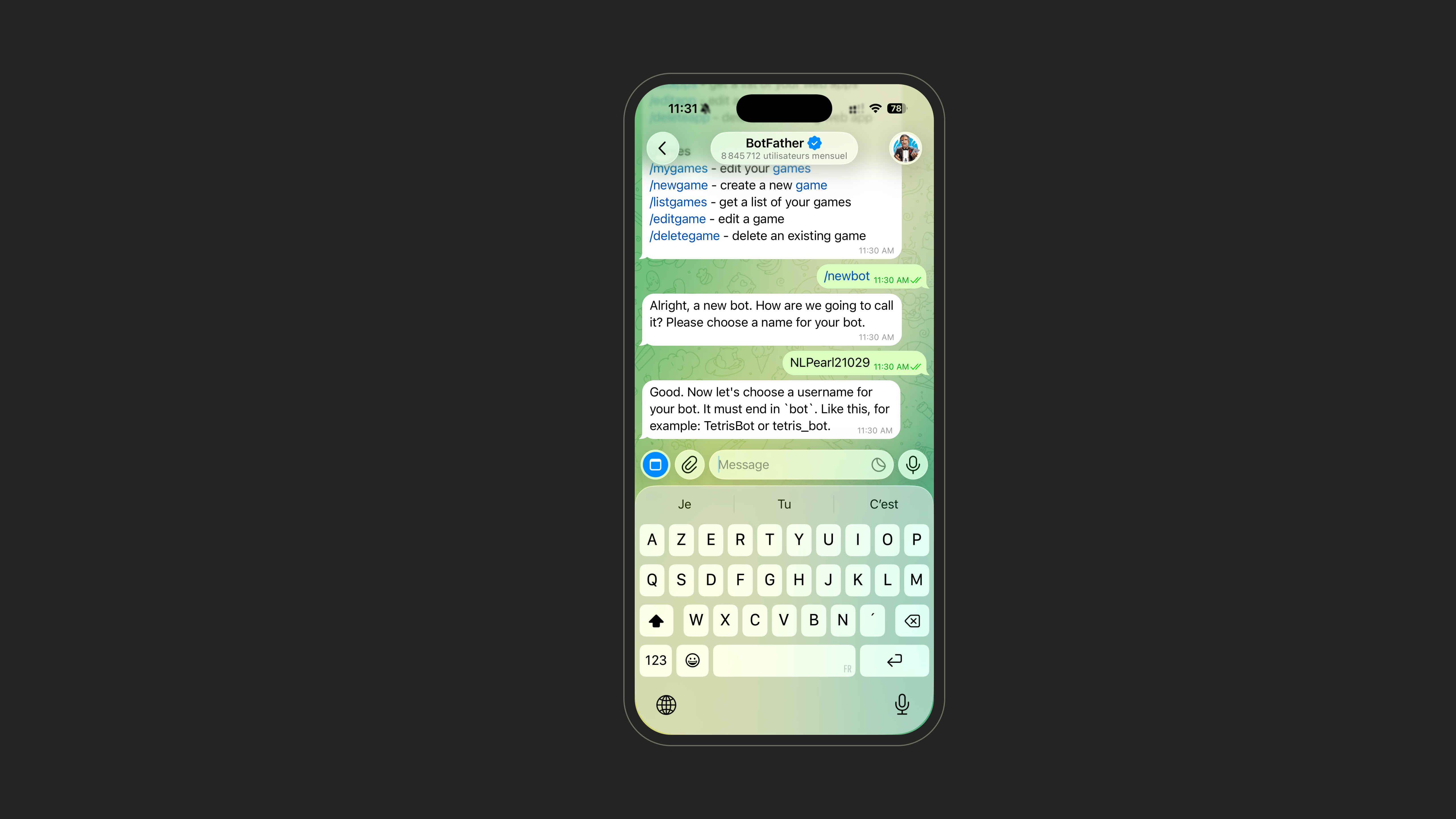
 Send the `/newbot` command. BotFather will ask you to choose a name for your bot.
The name must always **end with `bot`** (for example `MySupportBot` or `my_support_bot`).
Send the `/newbot` command. BotFather will ask you to choose a name for your bot.
The name must always **end with `bot`** (for example `MySupportBot` or `my_support_bot`).
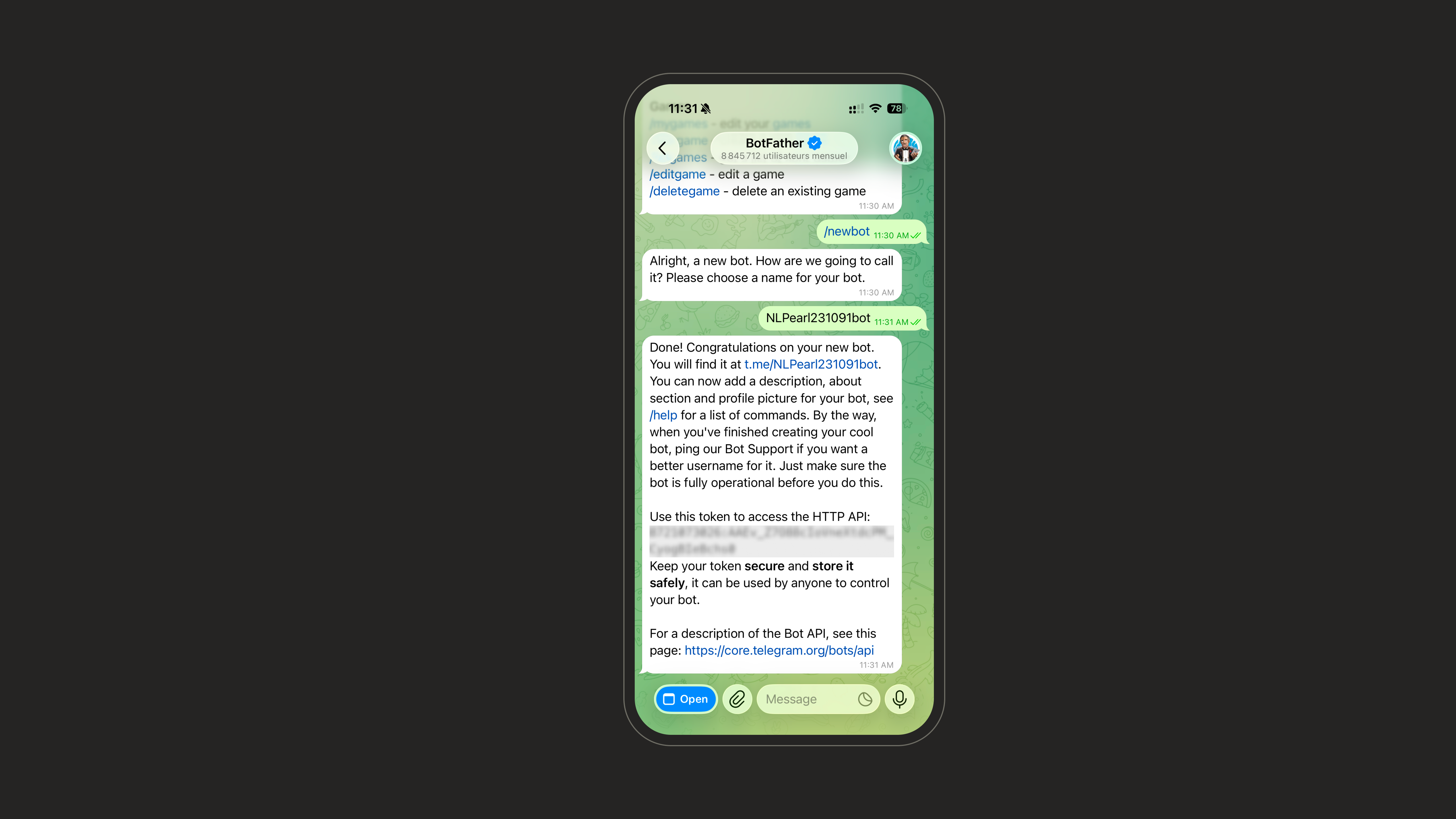
 Once the bot is created, BotFather sends you a message containing the link to talk to your bot and an **access token**. Keep this token - you'll need it to connect the bot to the platform.
Treat the token like a password. Anyone with it can control your bot, so don't share it publicly.
Once the bot is created, BotFather sends you a message containing the link to talk to your bot and an **access token**. Keep this token - you'll need it to connect the bot to the platform.
Treat the token like a password. Anyone with it can control your bot, so don't share it publicly.
 ***
### Step 2 - Connect Telegram on the platform
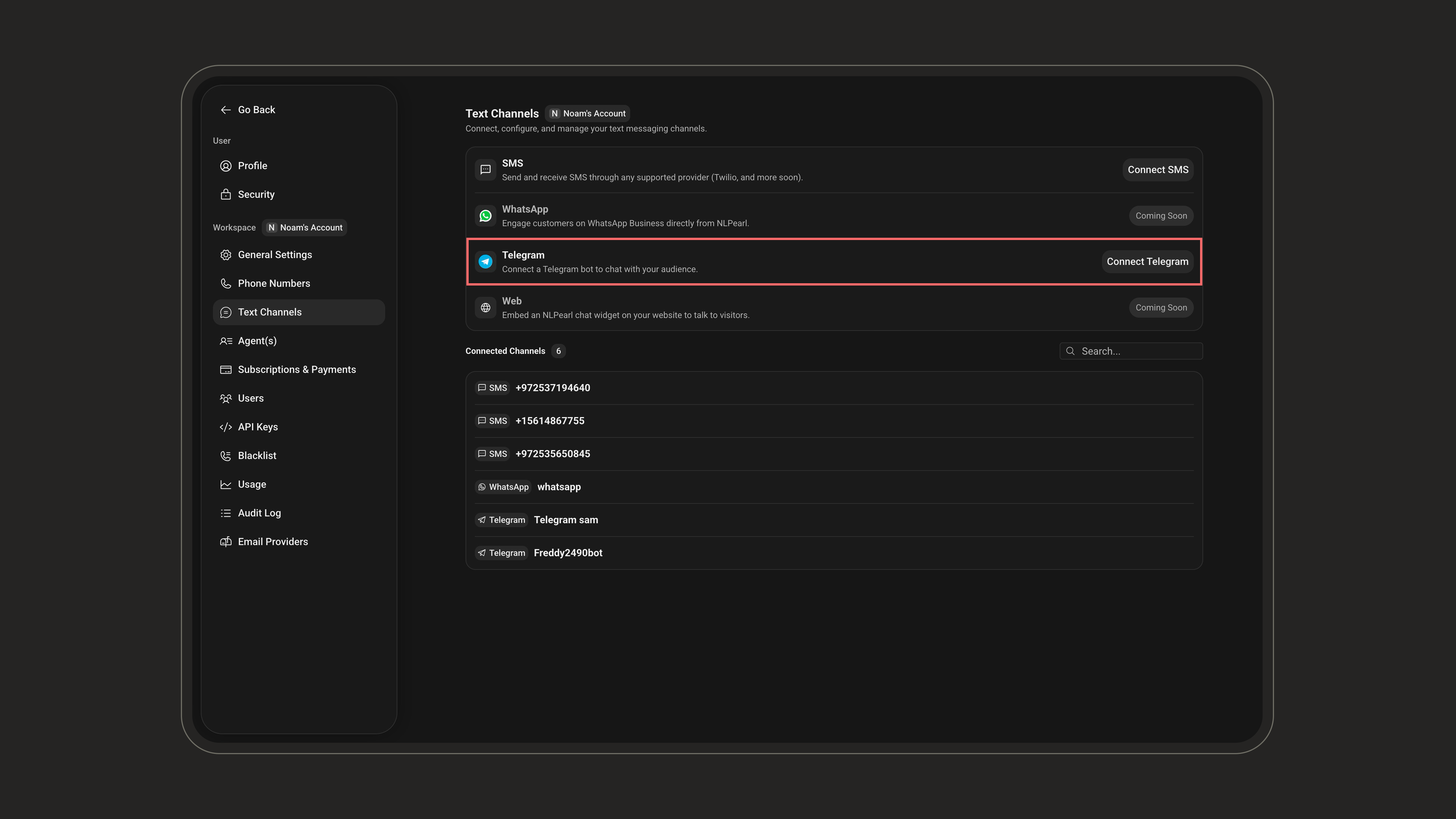
On the platform, go to **Settings**, then open the **Text Channel** page.
Select **Telegram** and start a new connection.
***
### Step 2 - Connect Telegram on the platform
On the platform, go to **Settings**, then open the **Text Channel** page.
Select **Telegram** and start a new connection.
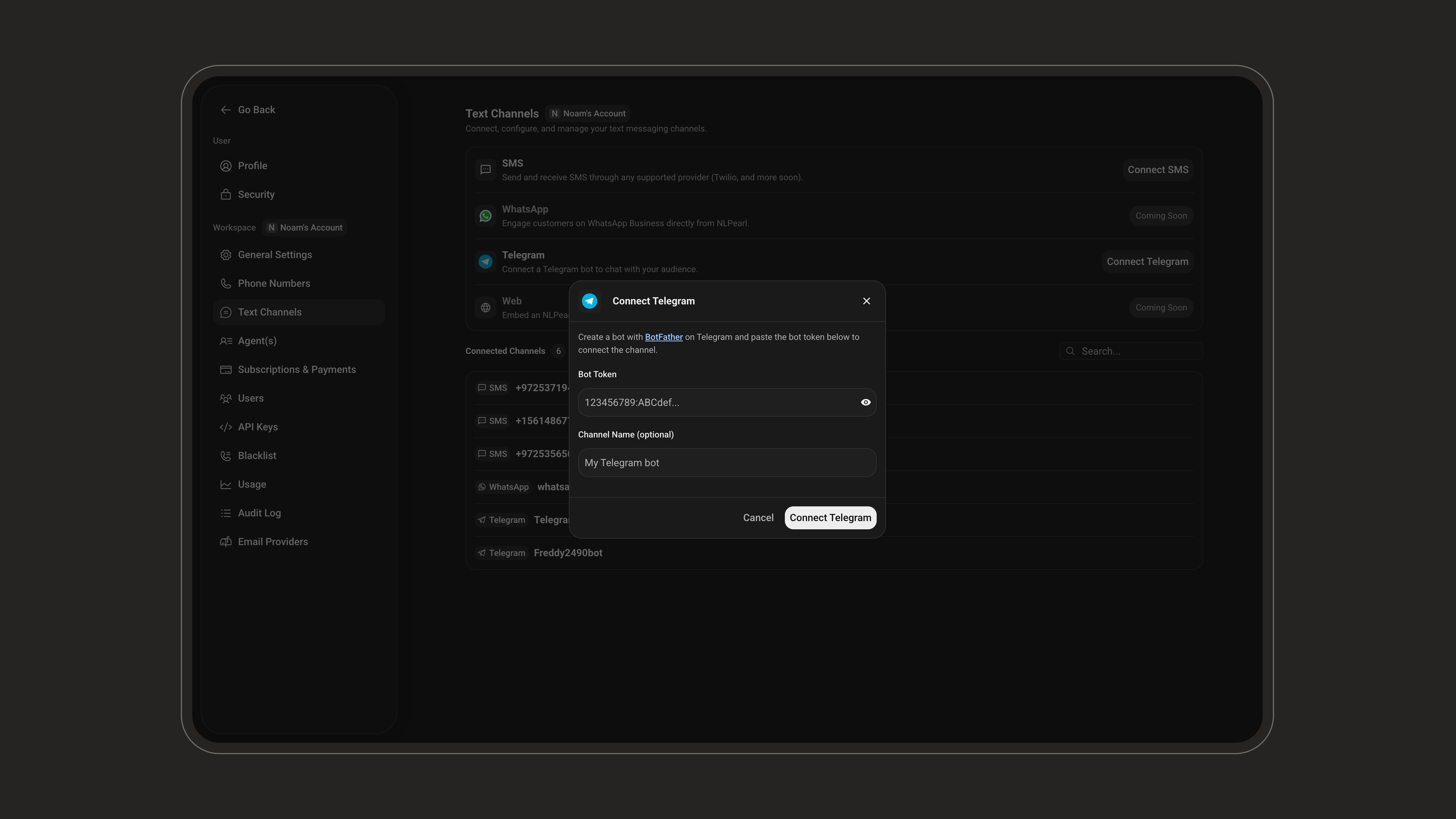
 * **Token**: paste the access token you received from BotFather.
* **Channel Name** *(optional)*: give the connection a name to identify it later.
* **Token**: paste the access token you received from BotFather.
* **Channel Name** *(optional)*: give the connection a name to identify it later.
 Save the connection, then message your bot on Telegram to confirm Pearl replies as expected.
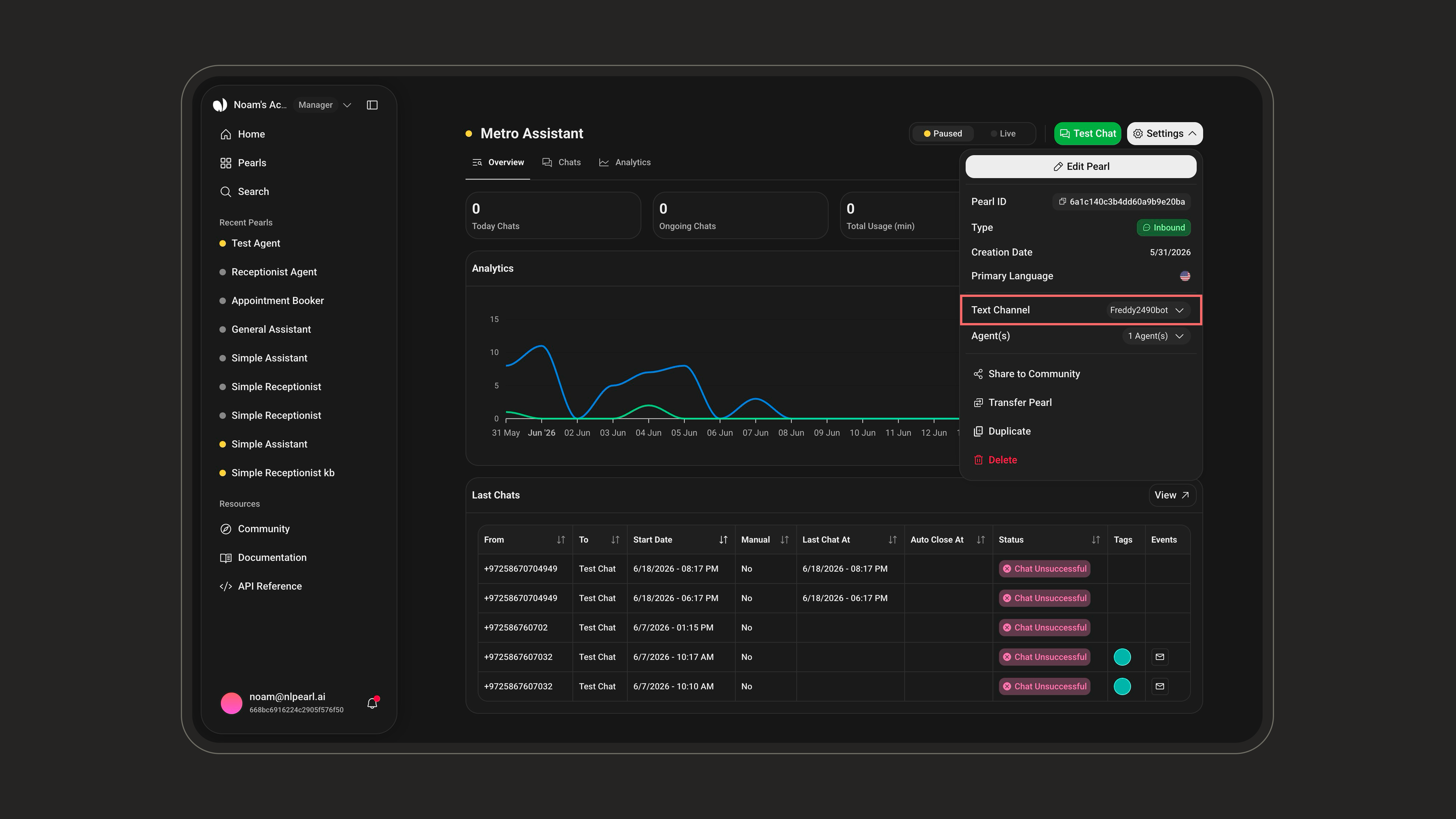
Open the Pearl you want to use for [inbound](/pages/text/inbound) or [outbound](/pages/text/outbound) conversations, go to **Settings**, and set the connected Telegram bot as its **Text Channel**.
Save the connection, then message your bot on Telegram to confirm Pearl replies as expected.
Open the Pearl you want to use for [inbound](/pages/text/inbound) or [outbound](/pages/text/outbound) conversations, go to **Settings**, and set the connected Telegram bot as its **Text Channel**.
 ***
Deploy your agent on inbound channels to answer incoming Telegram messages instantly.
Launch outbound Telegram campaigns to reach customers proactively.
***
Deploy your agent on inbound channels to answer incoming Telegram messages instantly.
Launch outbound Telegram campaigns to reach customers proactively.
