> ## Documentation Index
> Fetch the complete documentation index at: https://developers.nlpearl.ai/llms.txt
> Use this file to discover all available pages before exploring further.

# PearlVibe

The Conversation Tree Editor is a powerful tool that allows you to design and visualize conversation flows in a user-friendly, visual interface. Whether you're creating customer surveys, support dialogues, or interactive voice responses, this editor helps you craft natural and personalized conversations.

<div className="block dark:hidden">
  <Frame>
    <div className="p-1">
      <img src="https://mintcdn.com/nlpearl/tAyL-PAMsD9LnbQ9/images/light_mode/pearlvibe-cover.svg?fit=max&auto=format&n=tAyL-PAMsD9LnbQ9&q=85&s=a82272610e3f5cff5d770b2ee9d28599" alt="PearlVibe cover" className="rounded-[14px]" width="1048" height="720" data-path="images/light_mode/pearlvibe-cover.svg" />
    </div>
  </Frame>
</div>

<div className="hidden dark:block">
  <Frame>
    <div className="p-1">
      <img src="https://mintcdn.com/nlpearl/tAyL-PAMsD9LnbQ9/images/dark_mode/pearlvibe-cover.svg?fit=max&auto=format&n=tAyL-PAMsD9LnbQ9&q=85&s=83552d97aebbfd89ce10327fb2bac921" alt="PearlVibe cover" className="rounded-[14px]" width="1048" height="720" data-path="images/dark_mode/pearlvibe-cover.svg" />
    </div>
  </Frame>
</div>

***

## Overview

### What is PearlVibe?

PearlVibe is an AI‑assisted flow editor for building your agents - both **voice** (phone) and **text** agents. You build your Pearl as a decision tree made of nodes (dialogue, actions, integrations…) and transitions (what happens next depending on user intent, answers, or conversation outcome).

<Info>
  You can work in two complementary ways:

  | Mode                        | Description                                                                                                                                                                    |
  | --------------------------- | ------------------------------------------------------------------------------------------------------------------------------------------------------------------------------ |
  | **Vibe coding (chat mode)** | You talk to the AI in natural language (e.g. "Add a post‑call SMS when the booking is confirmed") and Pearl Vibe automatically creates or edits nodes and transitions for you. |
  | **Manual mode**             | You configure each node and its transitions yourself for full control. Every setting is visible and editable.                                                                  |
</Info>

### What can you build with PearlVibe?

With PearlVibe, you can design:

| Flow Type              | Use Cases                                                                                          |
| ---------------------- | -------------------------------------------------------------------------------------------------- |
| **Inbound flows**      | Support and customer care lines, order tracking, FAQs, triage, appointment management, etc.        |
| **Outbound campaigns** | Sales campaigns, payment reminders, debt collection, upsell flows, satisfaction surveys, and more. |

### Key benefits

<Check>
  * **Build in minutes instead of days** – Use the chat to describe what you want, then refine visually.
  * **Safe versioning** – Work in a Draft with autosave while your Published version continues to run in production.
  * **Visual understanding of calls** – Use test calls and live node highlighting to see exactly how calls traverse your flow.
  * **Structured but flexible** – Combine high‑level "vibes" (global instructions, personality) with precise node and transition logic.
</Check>

***

## How PearlVibe Is Structured

PearlVibe is composed of four main areas:

| Area                    | Description                                                                                                                                           |
| ----------------------- | ----------------------------------------------------------------------------------------------------------------------------------------------------- |
| **The header**          | Global controls, versioning, model choice, integrations, tasks, and test calls.                                                                       |
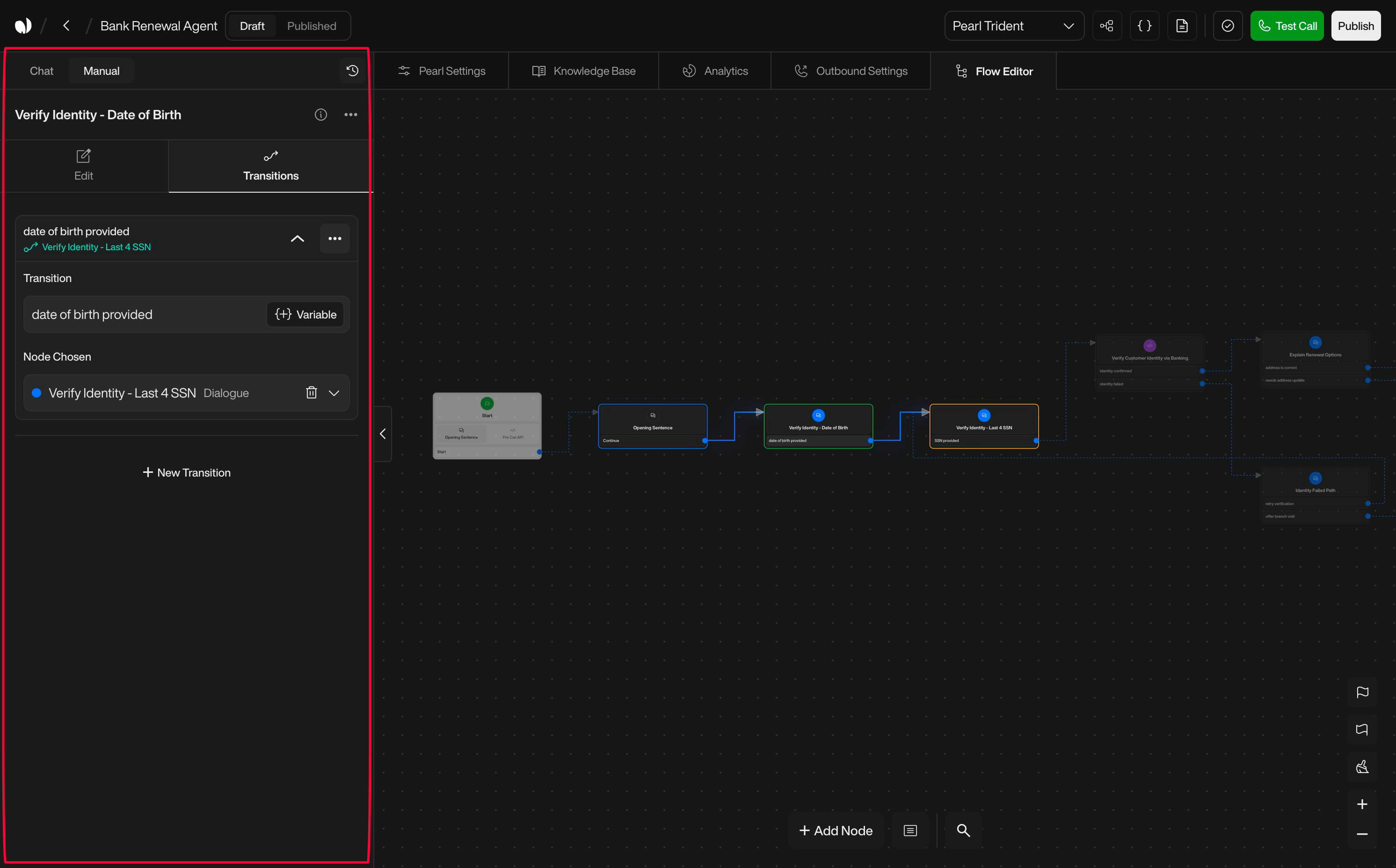
| **The left sidebar**    | Chat (vibe coding) and manual configuration of the selected node.                                                                                     |
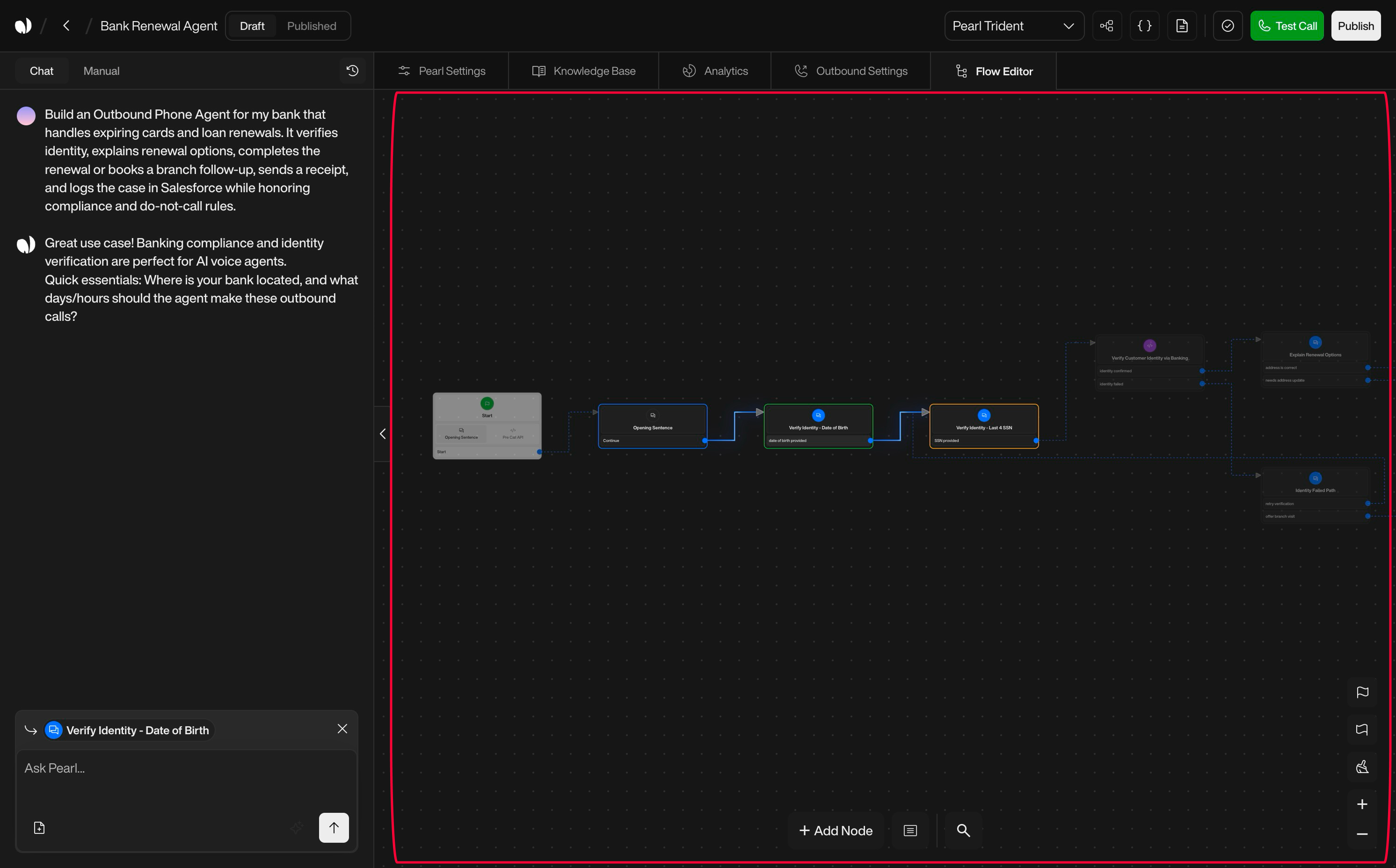
| **The central canvas**  | The visual decision tree where nodes and transitions live.                                                                                            |
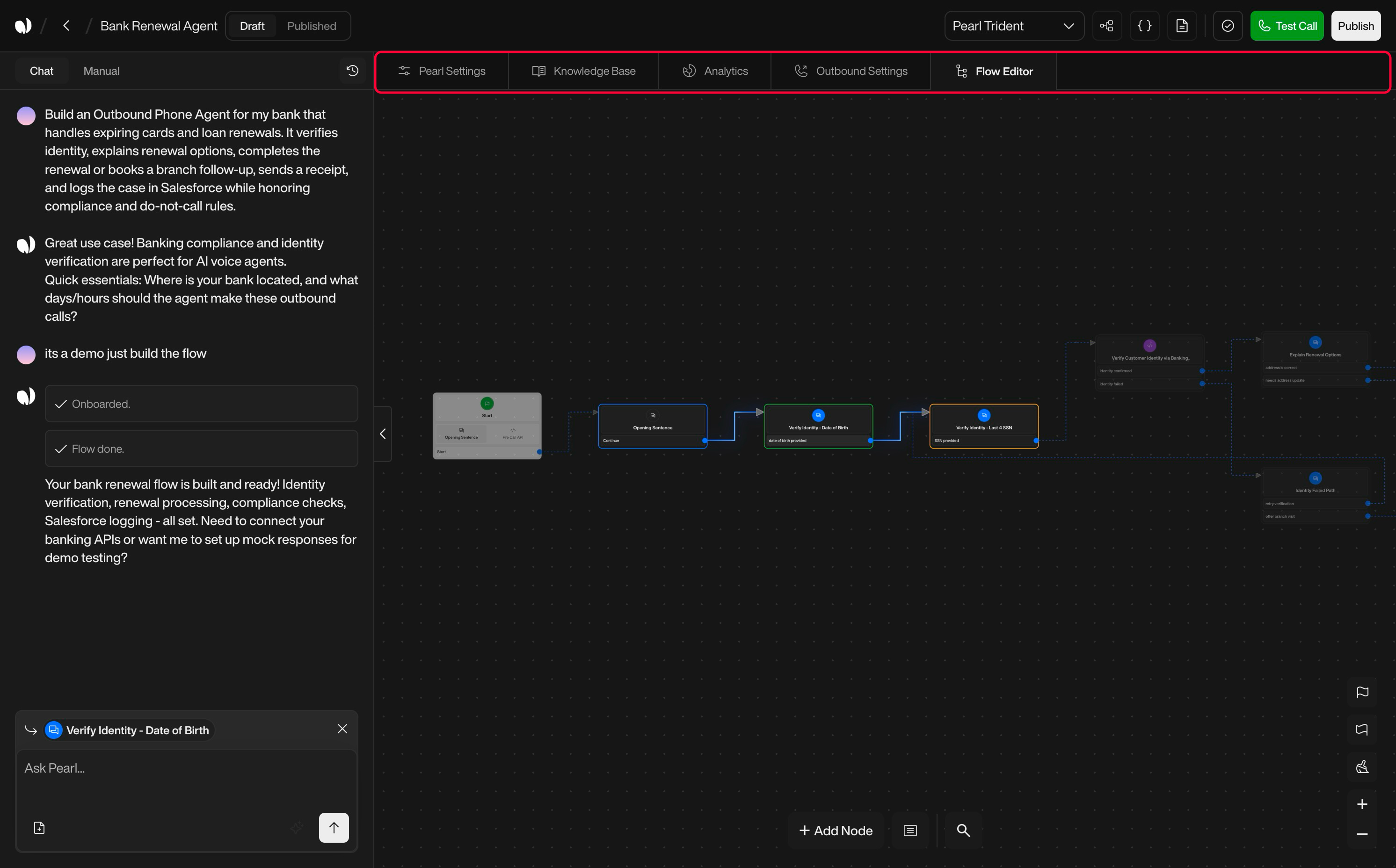
| **Top navigation tabs** | Switch between the main workspaces of your Pearl: Flow Editor, Pearl Settings, Knowledge Base, Analytics, and Campaign Settings (inbound / outbound). |

<Tip>
  Let's dive into each area to understand how the editor comes together.
</Tip>

***

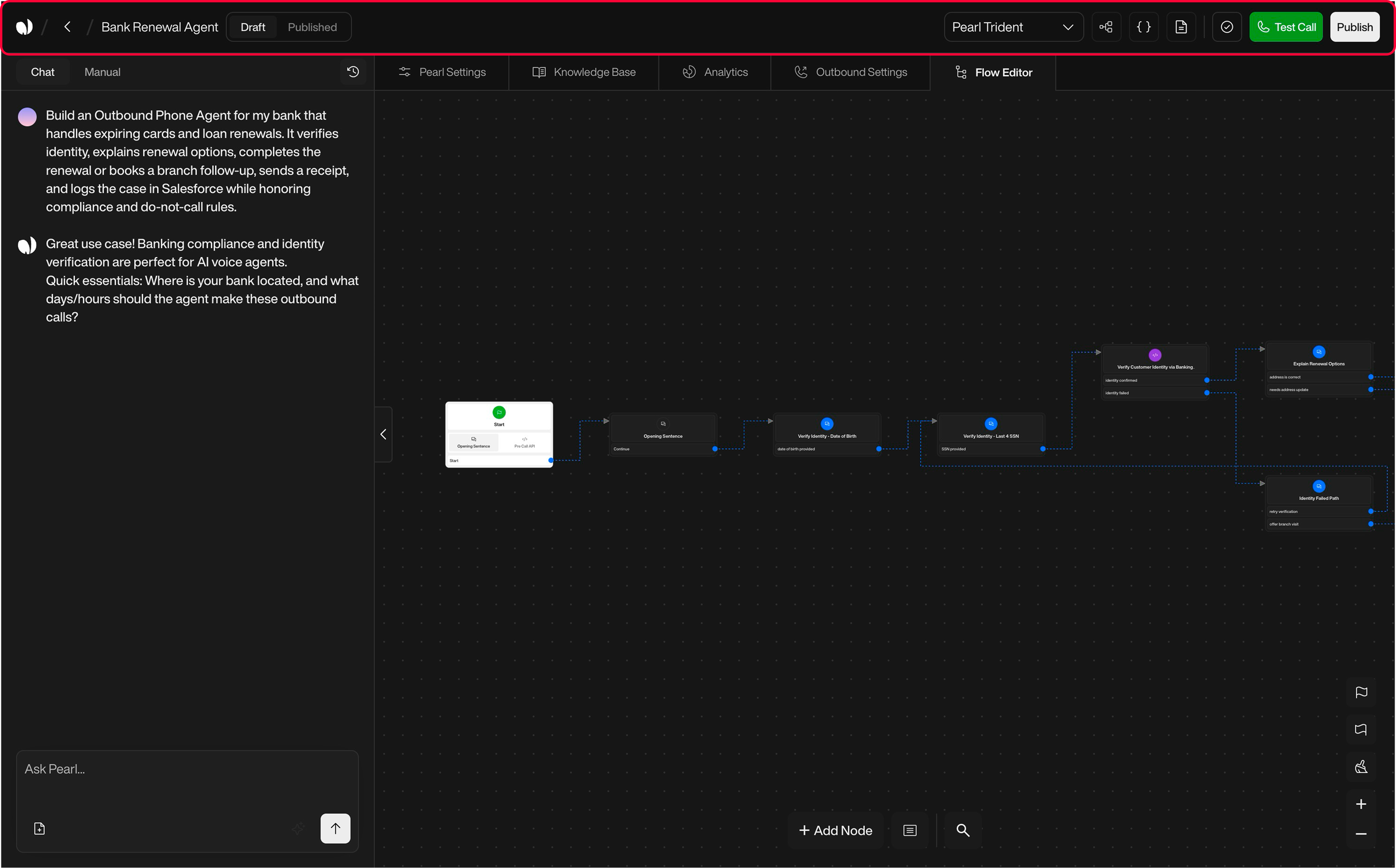
### Header

The header is always visible at the top of the editor. It centralizes the main controls related to your Pearl as a whole.

<div className="block dark:hidden">
  <Frame>
    <div className="p-1">
      <img src="https://mintcdn.com/nlpearl/GUOay_brPNT7sxss/images/dark_mode/pearlvibe-header.png?fit=max&auto=format&n=GUOay_brPNT7sxss&q=85&s=513e13d6df451f60e188627182911395" alt="Send Email action interface on light mode" className="rounded-[14px]" width="2989" height="1859" data-path="images/dark_mode/pearlvibe-header.png" />
    </div>
  </Frame>
</div>

<div className="hidden dark:block">
  <Frame>
    <div className="p-1">
      <img src="https://mintcdn.com/nlpearl/GUOay_brPNT7sxss/images/dark_mode/pearlvibe-header.png?fit=max&auto=format&n=GUOay_brPNT7sxss&q=85&s=513e13d6df451f60e188627182911395" alt="Send Email action interface on dark mode" className="rounded-[14px]" width="2989" height="1859" data-path="images/dark_mode/pearlvibe-header.png" />
    </div>
  </Frame>
</div>

<br />

<AccordionGroup>
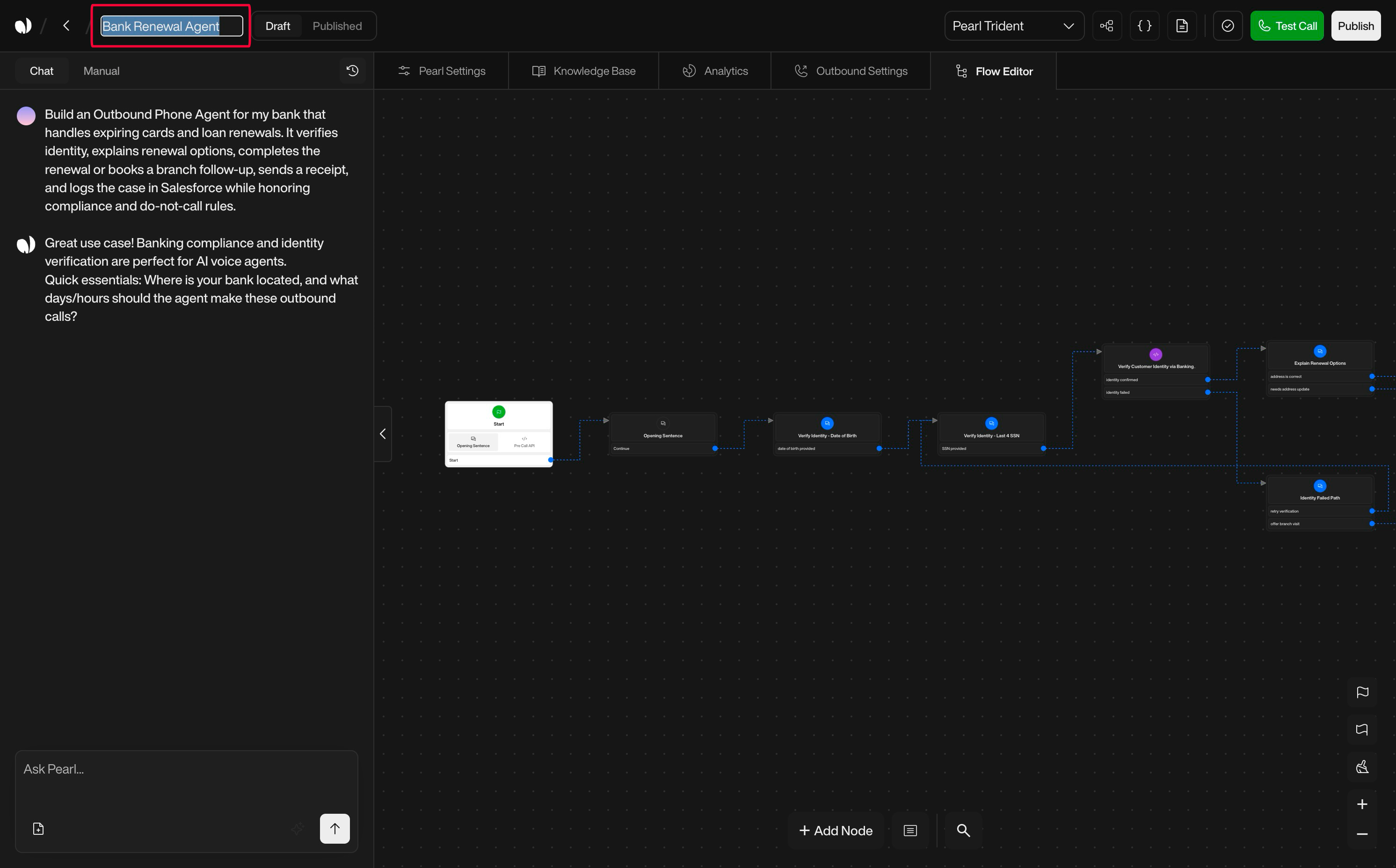
  <Accordion title="Pearl Name" icon="tag">
    Shows the current Pearl's name and lets you rename it. This is the label you'll reuse in the platform and in your workspace.

    <div className="block dark:hidden">
      <Frame>
        <div className="p-1">
          <img src="https://mintcdn.com/nlpearl/GUOay_brPNT7sxss/images/dark_mode/pearlvibe-title.png?fit=max&auto=format&n=GUOay_brPNT7sxss&q=85&s=2c74ab051350dfee101693d7f82f40ba" alt="Send Email action interface on light mode" className="rounded-[14px]" width="2984" height="1856" data-path="images/dark_mode/pearlvibe-title.png" />
        </div>
      </Frame>
    </div>

    <div className="hidden dark:block">
      <Frame>
        <div className="p-1">
          <img src="https://mintcdn.com/nlpearl/GUOay_brPNT7sxss/images/dark_mode/pearlvibe-title.png?fit=max&auto=format&n=GUOay_brPNT7sxss&q=85&s=2c74ab051350dfee101693d7f82f40ba" alt="Send Email action interface on dark mode" className="rounded-[14px]" width="2984" height="1856" data-path="images/dark_mode/pearlvibe-title.png" />
        </div>
      </Frame>
    </div>
  </Accordion>

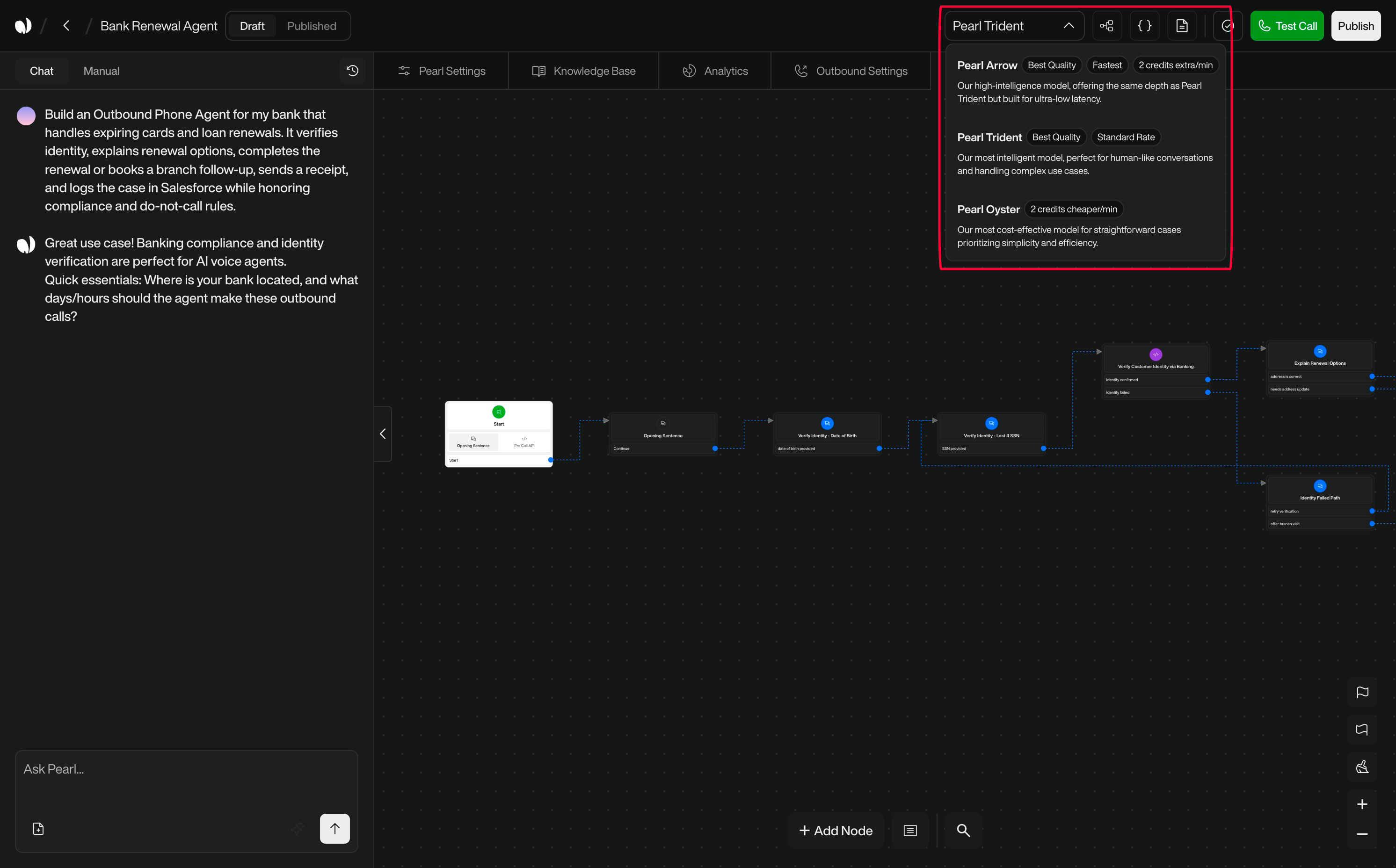
  <Accordion title="Model Selection" icon="microchip">
    Model selection defines the intelligence, speed, and cost profile of your Pearl. The models available depend on your agent type: **voice agents** can choose from the four models below, while **text agents** run on **Pearl Swan** (see [Text model](#text-model)).

    <div className="block dark:hidden">
      <Frame>
        <div className="p-1">
          <img src="https://mintcdn.com/nlpearl/GUOay_brPNT7sxss/images/dark_mode/pearlvibe-modelselection.png?fit=max&auto=format&n=GUOay_brPNT7sxss&q=85&s=a8a2cf605b54d337b14aa3c91d82b0c6" alt="Send Email action interface on light mode" className="rounded-[14px]" width="2984" height="1856" data-path="images/dark_mode/pearlvibe-modelselection.png" />
        </div>
      </Frame>
    </div>

    <div className="hidden dark:block">
      <Frame>
        <div className="p-1">
          <img src="https://mintcdn.com/nlpearl/GUOay_brPNT7sxss/images/dark_mode/pearlvibe-modelselection.png?fit=max&auto=format&n=GUOay_brPNT7sxss&q=85&s=a8a2cf605b54d337b14aa3c91d82b0c6" alt="Send Email action interface on dark mode" className="rounded-[14px]" width="2984" height="1856" data-path="images/dark_mode/pearlvibe-modelselection.png" />
        </div>
      </Frame>
    </div>

    **Voice models**

    | Model             | Quality         | Speed          | Cost           |
    | ----------------- | --------------- | -------------- | -------------- |
    | **Pearl Hydra**   | Highest Quality | Higher latency | +2 credits/min |
    | **Pearl Arrow**   | Best Quality    | Fastest        | +2 credits/min |
    | **Pearl Trident** | Best Quality    | Standard       | Standard Rate  |
    | **Pearl Oyster**  | Good Quality    | Standard       | -2 credits/min |

    <Tabs>
      <Tab title="Pearl Hydra">
        <Info>
          **Highest Quality · Higher latency · +2 credits/min**
        </Info>

        Our smartest model, built for demanding use cases that require deeper reasoning, stronger understanding, and the highest-quality responses.

        Use it when you need:

        * The deepest reasoning for complex, multi-step conversations.
        * Maximum nuance and understanding on high-stakes or ambiguous calls.
        * The best possible answer quality, even if it means slightly higher latency.
      </Tab>

      <Tab title="Pearl Arrow">
        <Info>
          **Best Quality · Fastest · +2 credits/min**
        </Info>

        Our high-intelligence model, offering the same depth as Pearl Trident but tuned for ultra-low latency.

        Use it when you need:

        * The snappiest real-time experience for callers.
        * Highly nuanced, human-like conversations.
        * VIP lines, complex sales calls, or high-stakes negotiations where every second of silence matters.
      </Tab>

      <Tab title="Pearl Trident">
        <Info>
          **Best Quality · Standard Rate**
        </Info>

        Our most intelligent general-purpose model, designed for human-like conversations and handling complex use cases.

        Use it when you want:

        * A strong balance of quality vs cost.
        * Rich dialogues with multi-step reasoning and edge-case handling.
        * Your main production Pearl for most inbound and outbound flows.

        <Note>
          In most cases, Pearl Trident is the recommended default for production.
        </Note>
      </Tab>

      <Tab title="Pearl Oyster">
        <Info>
          **2 credits cheaper/min**
        </Info>

        Our most cost-effective model for straightforward cases, prioritizing simplicity and efficiency.

        Use it when you need:

        * High-volume or bulk campaigns (e.g. reminders, notifications, simple surveys).
        * Flows with predictable, scripted logic and limited branching.
        * To minimize cost while maintaining a solid conversational baseline.
      </Tab>
    </Tabs>

    ***

    **Choosing the right model for your Pearl**

    When selecting a model, consider three main dimensions:

    | Dimension                    | Recommendation                                                                                                                                                                                                                                                                                                                              |
    | ---------------------------- | ------------------------------------------------------------------------------------------------------------------------------------------------------------------------------------------------------------------------------------------------------------------------------------------------------------------------------------------- |
    | **Speed**                    | If the caller experience must feel instant (no awkward silences, rapid back-and-forth), prefer Pearl Arrow. For standard conversational latency, Pearl Trident and Pearl Oyster are usually enough.                                                                                                                                         |
    | **Reasoning / intelligence** | For the most demanding use cases that need the deepest reasoning, choose Pearl Hydra. For complex qualification, multi-step troubleshooting, or situations where the agent needs to "think", Pearl Trident or Pearl Arrow are strong choices. For simple flows with clear scripts and few edge cases, Pearl Oyster is more than sufficient. |
    | **Cost**                     | Pearl Arrow delivers top experience at a higher per-minute cost (+2 credits/min vs Trident). Pearl Trident offers best quality at a standard rate. Pearl Oyster is cheaper per minute (–2 credits/min vs Trident), ideal when cost per call is the main constraint.                                                                         |

    <Tip>
      You can use different models for different Pearls depending on their role, volume, and business impact (for example: Hydra for the most complex high-stakes calls, Arrow for VIP inbound support, Trident for main support, Oyster for large reminder campaigns).
    </Tip>

    ***

    **Impact on your Pearl**

    Your model choice directly affects:

    | Impact                         | Description                                                               |
    | ------------------------------ | ------------------------------------------------------------------------- |
    | **Answer quality**             | Nuance, empathy, and how well the Pearl handles ambiguous or messy input. |
    | **Latency**                    | How quickly the Pearl responds after the caller finishes speaking.        |
    | **Cost per call / per minute** | The effective cost of each campaign or use case.                          |

    <Info>
      You can start with Pearl Trident as a balanced default, then use Analytics to compare performance and cost. If you need more speed or nuance, move to Pearl Arrow; if you need to optimize budget for simple flows, switch to Pearl Oyster.
    </Info>

    ***

    **Text model**

    Text agents run on a single model - **Pearl Swan** - so there's no model picker to configure. It's billed per message rather than per minute.

    <Info>
      **Pearl Swan** - our standard model for chat agents, built to handle any text-based use case with reliable reasoning and natural responses.
    </Info>

    Optional add-ons let your text agent understand richer inputs sent in the chat:

    | Add-on          | Description                                                                           |
    | --------------- | ------------------------------------------------------------------------------------- |
    | **Vision**      | Read and understand images customers send, such as screenshots, documents, or photos. |
    | **Audio input** | Understand voice notes and audio messages sent in the conversation.                   |
  </Accordion>

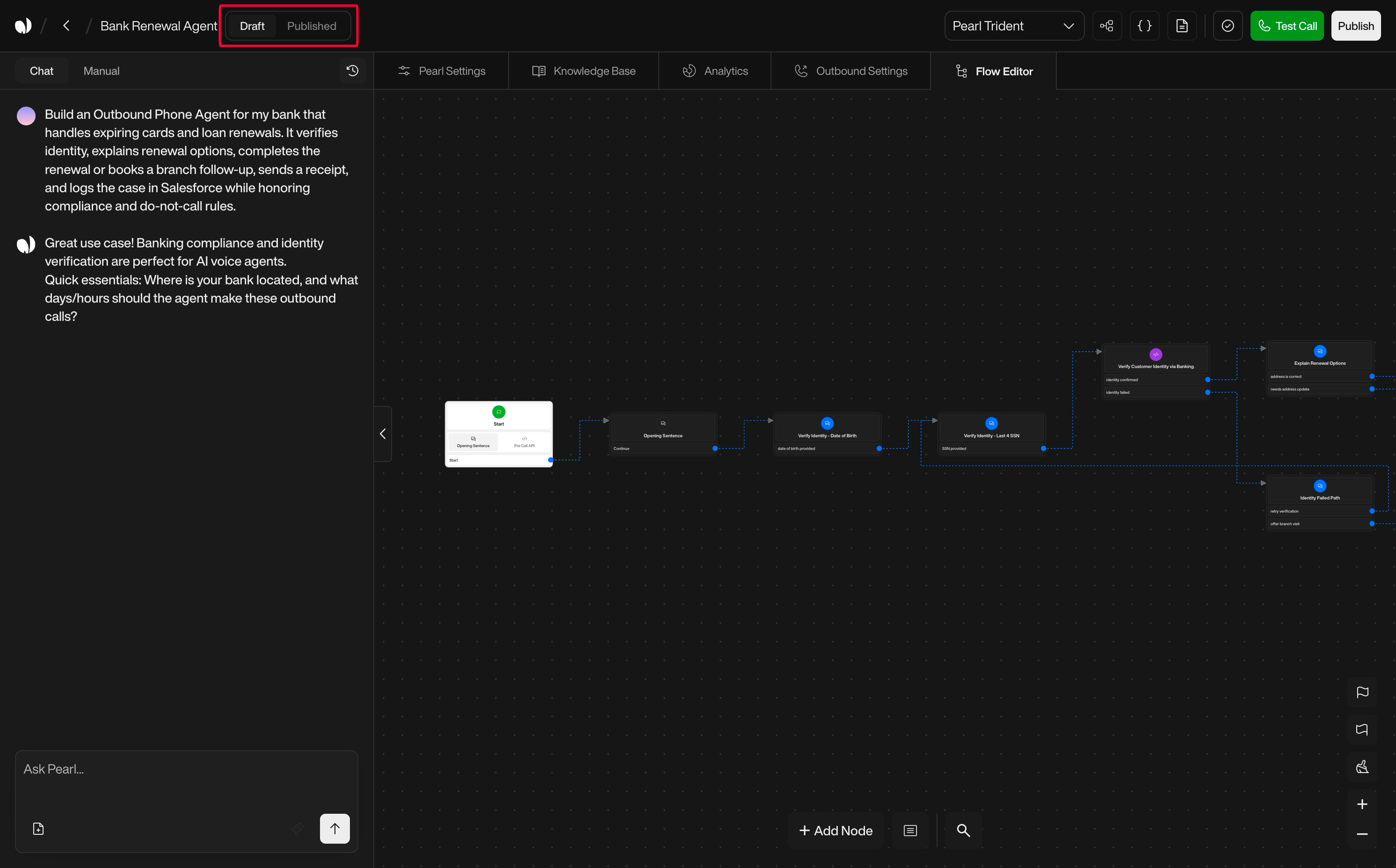
  <Accordion title="Versioning, Drafts & Publishing" icon="code-branch">
    Pearl Vibe is built for safe iteration: you can experiment freely without breaking your live calls.

    **Autosave Drafts**

    <div className="block dark:hidden">
      <Frame>
        <div className="p-1">
          <img src="https://mintcdn.com/nlpearl/GUOay_brPNT7sxss/images/dark_mode/pearlvibe-versioning.png?fit=max&auto=format&n=GUOay_brPNT7sxss&q=85&s=b47d53bbcab320104a9a378d8cf4e390" alt="Send Email action interface on light mode" className="rounded-[14px]" width="2984" height="1856" data-path="images/dark_mode/pearlvibe-versioning.png" />
        </div>
      </Frame>
    </div>

    <div className="hidden dark:block">
      <Frame>
        <div className="p-1">
          <img src="https://mintcdn.com/nlpearl/GUOay_brPNT7sxss/images/dark_mode/pearlvibe-versioning.png?fit=max&auto=format&n=GUOay_brPNT7sxss&q=85&s=b47d53bbcab320104a9a378d8cf4e390" alt="Send Email action interface on dark mode" className="rounded-[14px]" width="2984" height="1856" data-path="images/dark_mode/pearlvibe-versioning.png" />
        </div>
      </Frame>
    </div>

    * All changes in the editor are automatically saved into a Draft.
    * The Draft is independent from the live Published version.
    * You can close and come back later: the Draft is preserved.

    ***

    **Published Version (View Mode)**

    <div className="block dark:hidden">
      <Frame>
        <div className="p-1">
          <img src="https://mintcdn.com/nlpearl/GUOay_brPNT7sxss/images/dark_mode/pearlvibe-versioning2.png?fit=max&auto=format&n=GUOay_brPNT7sxss&q=85&s=f55033452df8deefa9c4290f15e854a1" alt="Send Email action interface on light mode" className="rounded-[14px]" width="2984" height="1856" data-path="images/dark_mode/pearlvibe-versioning2.png" />
        </div>
      </Frame>
    </div>

    <div className="hidden dark:block">
      <Frame>
        <div className="p-1">
          <img src="https://mintcdn.com/nlpearl/GUOay_brPNT7sxss/images/dark_mode/pearlvibe-versioning2.png?fit=max&auto=format&n=GUOay_brPNT7sxss&q=85&s=f55033452df8deefa9c4290f15e854a1" alt="Send Email action interface on dark mode" className="rounded-[14px]" width="2984" height="1856" data-path="images/dark_mode/pearlvibe-versioning2.png" />
        </div>
      </Frame>
    </div>

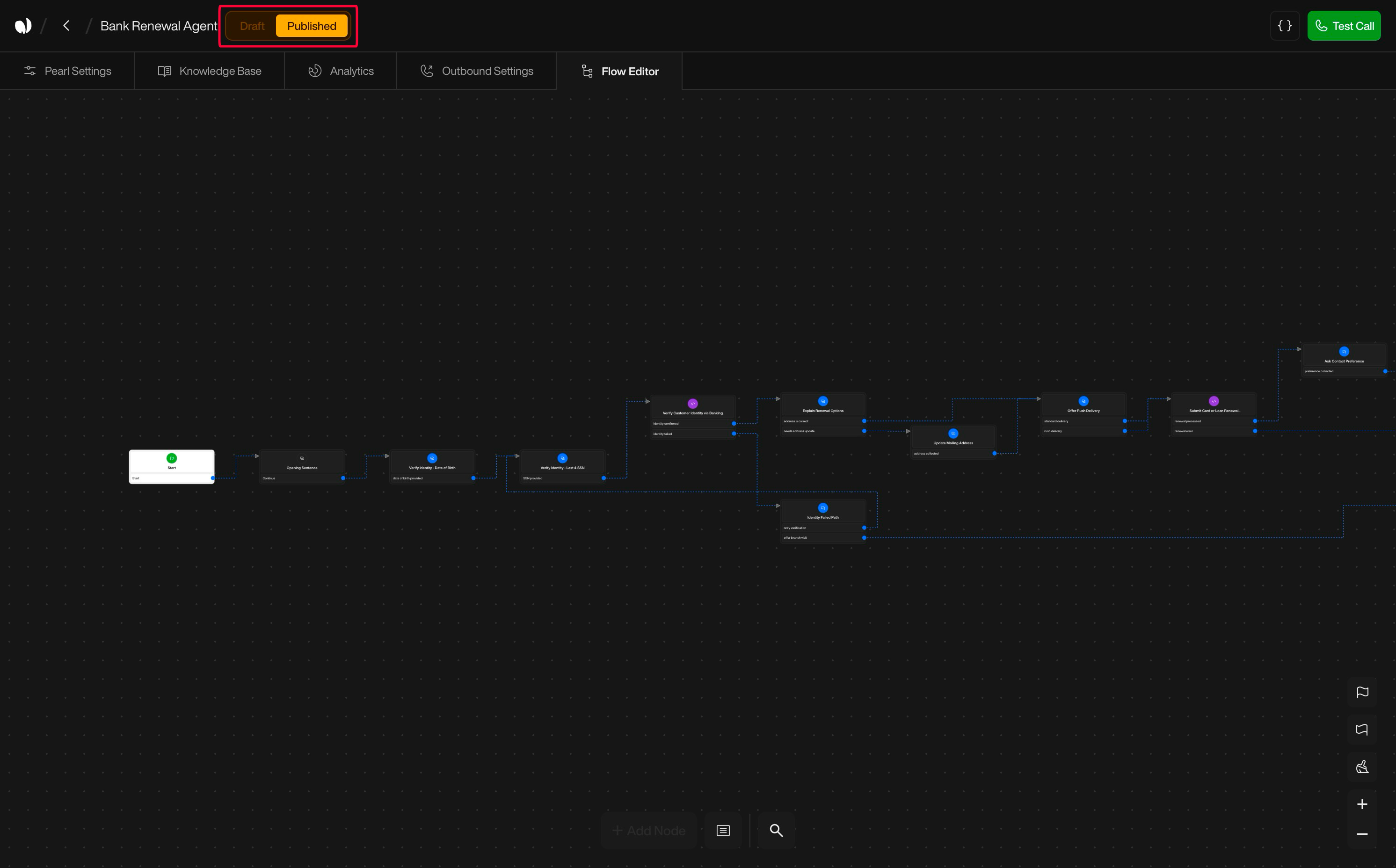
    * The Published version is the one actually used to handle calls.
    * You can open it in view‑only mode to review what is currently live.
    * This helps align product, ops, and compliance teams on the exact live configuration.

    ***

    **Rollback to Published**

    <div className="block dark:hidden">
      <Frame>
        <div className="p-1">
          <img src="https://mintcdn.com/nlpearl/e_xU_-fV4QHcoz6d/images/dark_mode/pearlvibe-versioning3.png?fit=max&auto=format&n=e_xU_-fV4QHcoz6d&q=85&s=2d42a7840be631219cd09c7f34eedb5d" alt="Send Email action interface on light mode" className="rounded-[14px]" width="2984" height="1856" data-path="images/dark_mode/pearlvibe-versioning3.png" />
        </div>
      </Frame>
    </div>

    <div className="hidden dark:block">
      <Frame>
        <div className="p-1">
          <img src="https://mintcdn.com/nlpearl/e_xU_-fV4QHcoz6d/images/dark_mode/pearlvibe-versioning3.png?fit=max&auto=format&n=e_xU_-fV4QHcoz6d&q=85&s=2d42a7840be631219cd09c7f34eedb5d" alt="Send Email action interface on dark mode" className="rounded-[14px]" width="2984" height="1856" data-path="images/dark_mode/pearlvibe-versioning3.png" />
        </div>
      </Frame>
    </div>

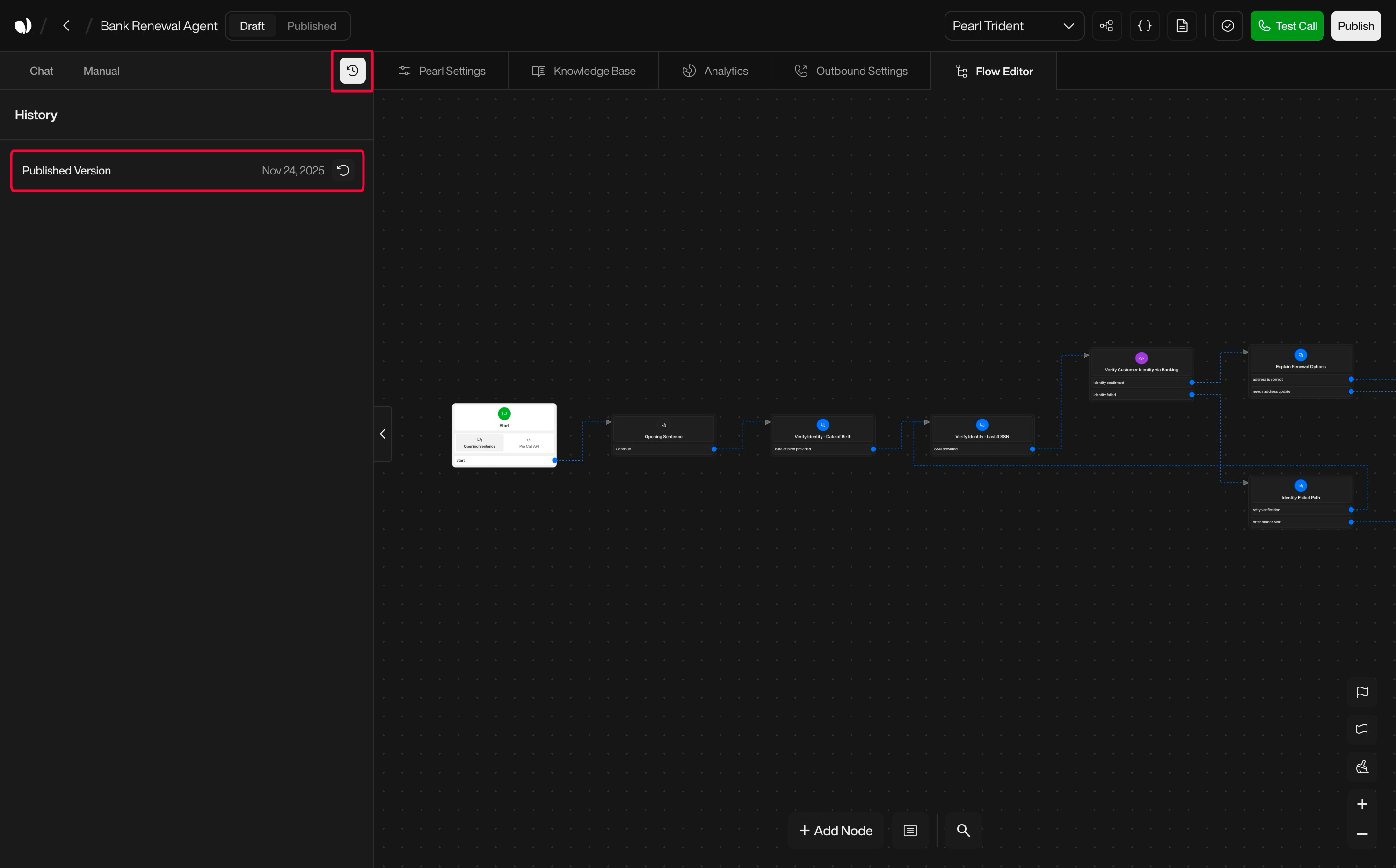
    * If your Draft becomes messy or contains changes you no longer want, you can rollback.
    * Rollback discards the current Draft and reloads the editor with the latest Published version.

    <Tip>
      This is useful to recover quickly after experimental edits or bad modifications.
    </Tip>

    ***

    **Publishing a New Version**

    <div className="block dark:hidden">
      <Frame>
        <div className="p-1">
          <img src="https://mintcdn.com/nlpearl/e_xU_-fV4QHcoz6d/images/dark_mode/pearlvibe-versioning4.png?fit=max&auto=format&n=e_xU_-fV4QHcoz6d&q=85&s=13559a945ed25bfcd6357921082a3580" alt="Send Email action interface on light mode" className="rounded-[14px]" width="2984" height="1856" data-path="images/dark_mode/pearlvibe-versioning4.png" />
        </div>
      </Frame>
    </div>

    <div className="hidden dark:block">
      <Frame>
        <div className="p-1">
          <img src="https://mintcdn.com/nlpearl/e_xU_-fV4QHcoz6d/images/dark_mode/pearlvibe-versioning4.png?fit=max&auto=format&n=e_xU_-fV4QHcoz6d&q=85&s=13559a945ed25bfcd6357921082a3580" alt="Send Email action interface on dark mode" className="rounded-[14px]" width="2984" height="1856" data-path="images/dark_mode/pearlvibe-versioning4.png" />
        </div>
      </Frame>
    </div>

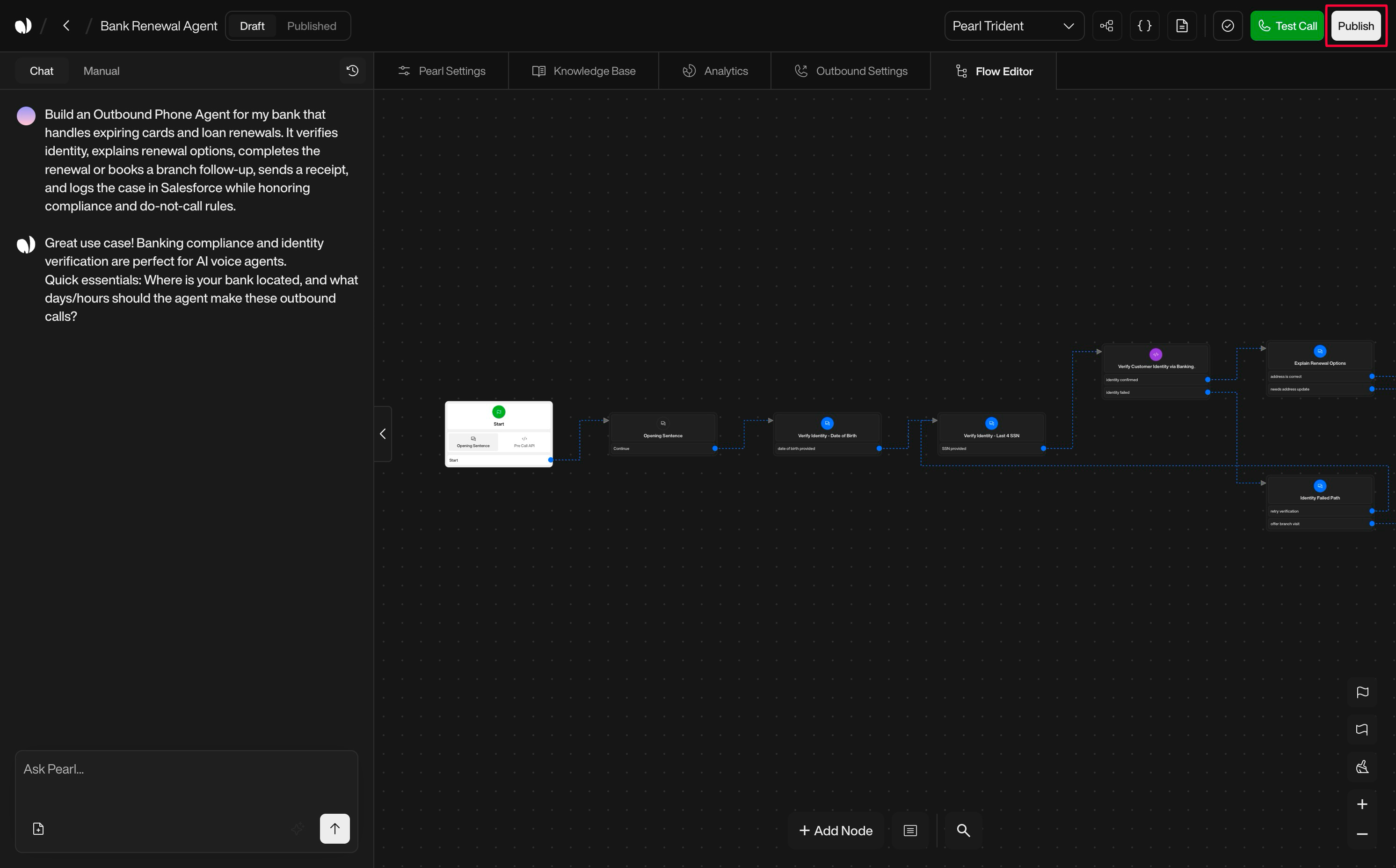
    * When you are satisfied with your Draft and tests, click Publish.
    * The Draft becomes the new Published version and starts handling calls.
    * A new Draft session then begins for your next round of changes.
  </Accordion>

  <Accordion title="Integrations & Variables" icon="plug">
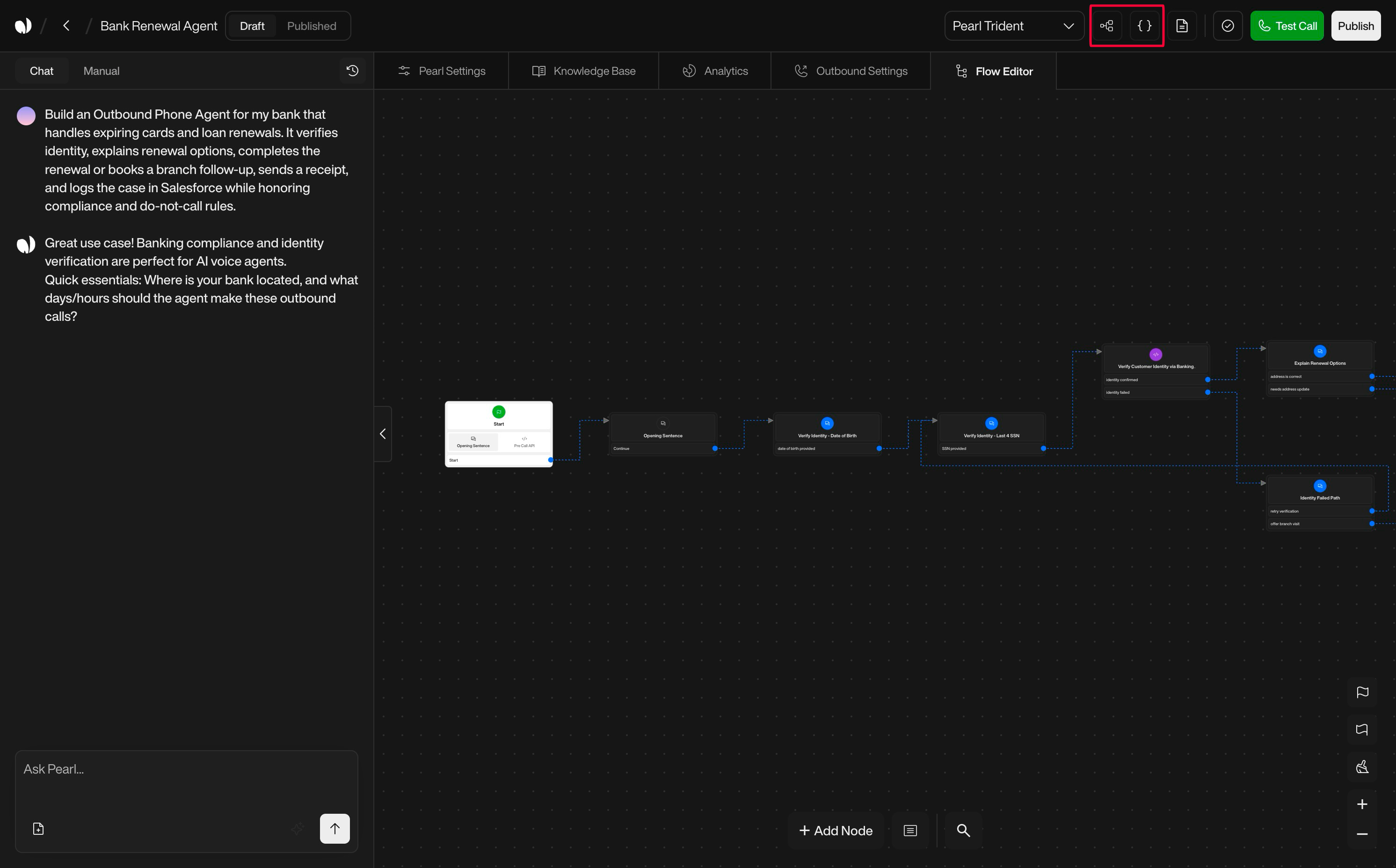
    Integrations and variables are what connect your Pearl to the rest of your stack.

    <div className="block dark:hidden">
      <Frame>
        <div className="p-1">
          <img src="https://mintcdn.com/nlpearl/GUOay_brPNT7sxss/images/dark_mode/pearlvibe-managers.png?fit=max&auto=format&n=GUOay_brPNT7sxss&q=85&s=4ed949132718a718f1a46d9c55a35016" alt="Send Email action interface on light mode" className="rounded-[14px]" width="2984" height="1856" data-path="images/dark_mode/pearlvibe-managers.png" />
        </div>
      </Frame>
    </div>

    <div className="hidden dark:block">
      <Frame>
        <div className="p-1">
          <img src="https://mintcdn.com/nlpearl/GUOay_brPNT7sxss/images/dark_mode/pearlvibe-managers.png?fit=max&auto=format&n=GUOay_brPNT7sxss&q=85&s=4ed949132718a718f1a46d9c55a35016" alt="Send Email action interface on dark mode" className="rounded-[14px]" width="2984" height="1856" data-path="images/dark_mode/pearlvibe-managers.png" />
        </div>
      </Frame>
    </div>

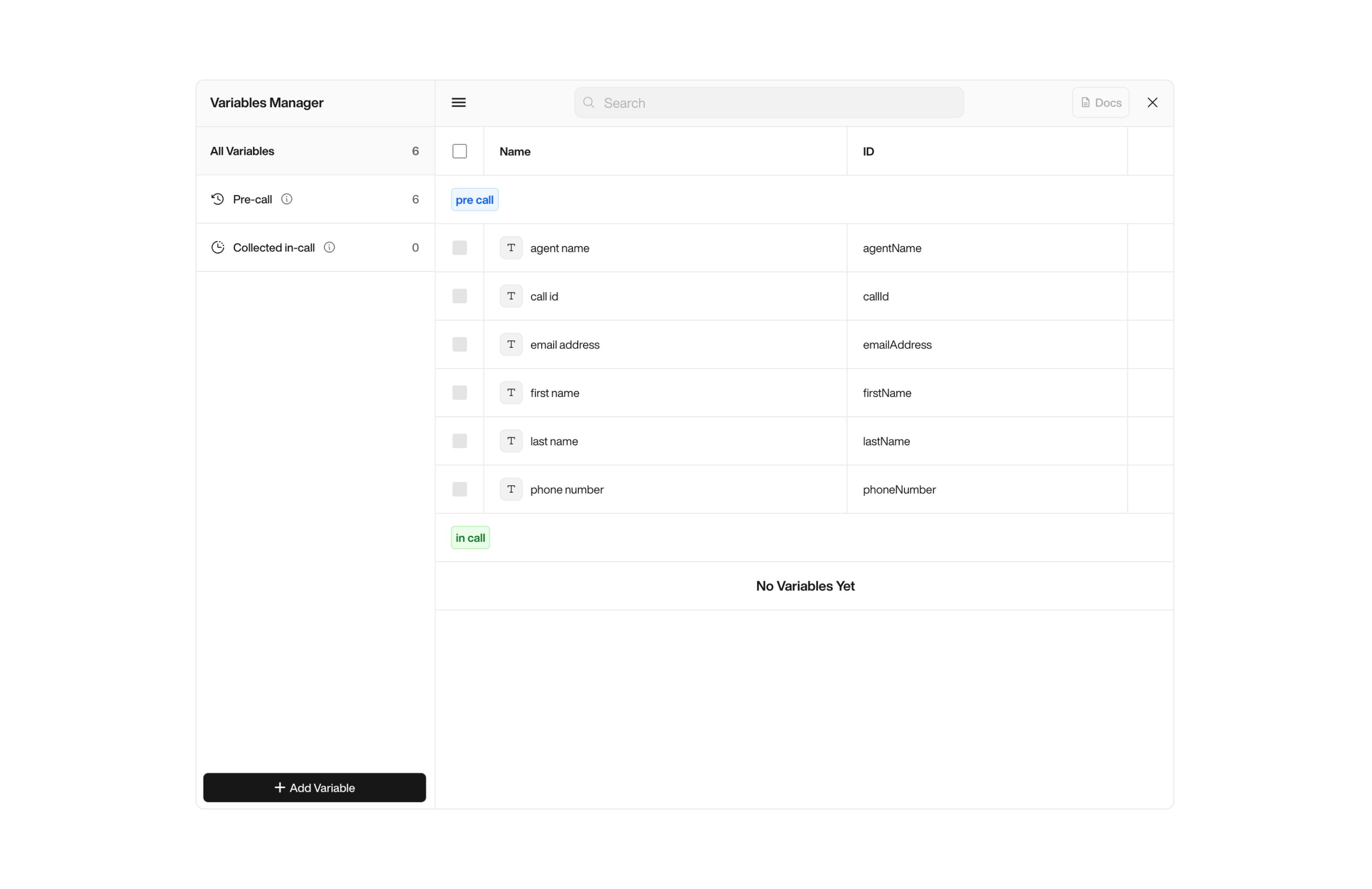
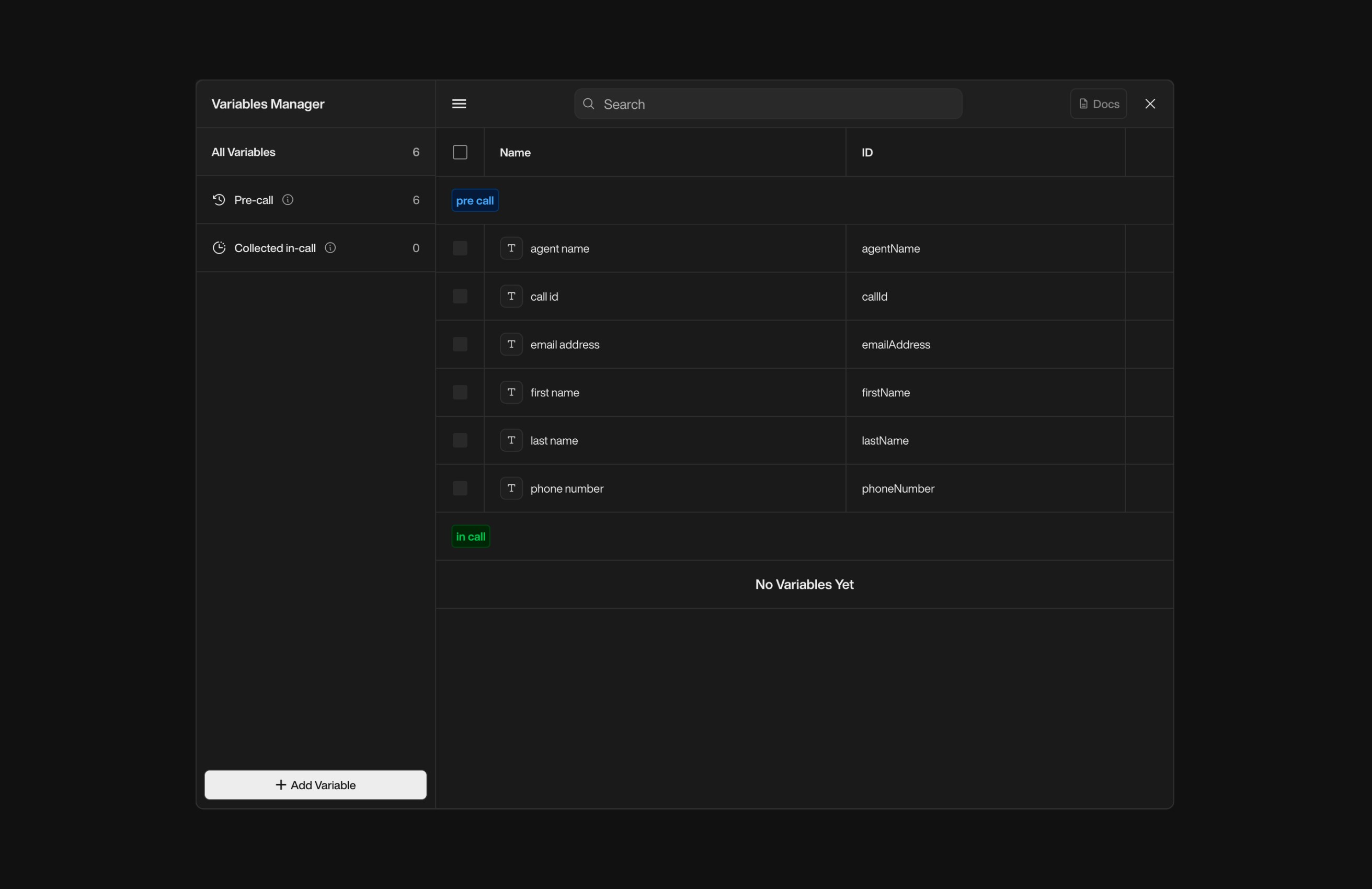
    **Variable Manager**

    Variables can be managed using the Variable Manager, the Variable Manager allows you to create, edit, and organize variables used in your conversation flows.

    <div className="block dark:hidden">
      <Frame>
        <div className="p-1">
          <img src="https://mintcdn.com/nlpearl/yjNN1PpSs3yxoZOQ/images/light_mode/variables_manager.jpg?fit=max&auto=format&n=yjNN1PpSs3yxoZOQ&q=85&s=7033b501161b01ba8350139b2530cb0c" alt="Send Email action interface on light mode" className="rounded-[14px]" width="2624" height="1700" data-path="images/light_mode/variables_manager.jpg" />
        </div>
      </Frame>
    </div>

    <div className="hidden dark:block">
      <Frame>
        <div className="p-1">
          <img src="https://mintcdn.com/nlpearl/LRcBocnC9aRvHcb-/images/dark_mode/variables_manager.jpg?fit=max&auto=format&n=LRcBocnC9aRvHcb-&q=85&s=cf84e0cf2e16d09c7bba7e3d7be1aa78" alt="Send Email action interface on dark mode" className="rounded-[14px]" width="2624" height="1700" data-path="images/dark_mode/variables_manager.jpg" />
        </div>
      </Frame>
    </div>

    <Info>
      See the [Variables documentation](/pages/variables) for more details.
    </Info>

    ***

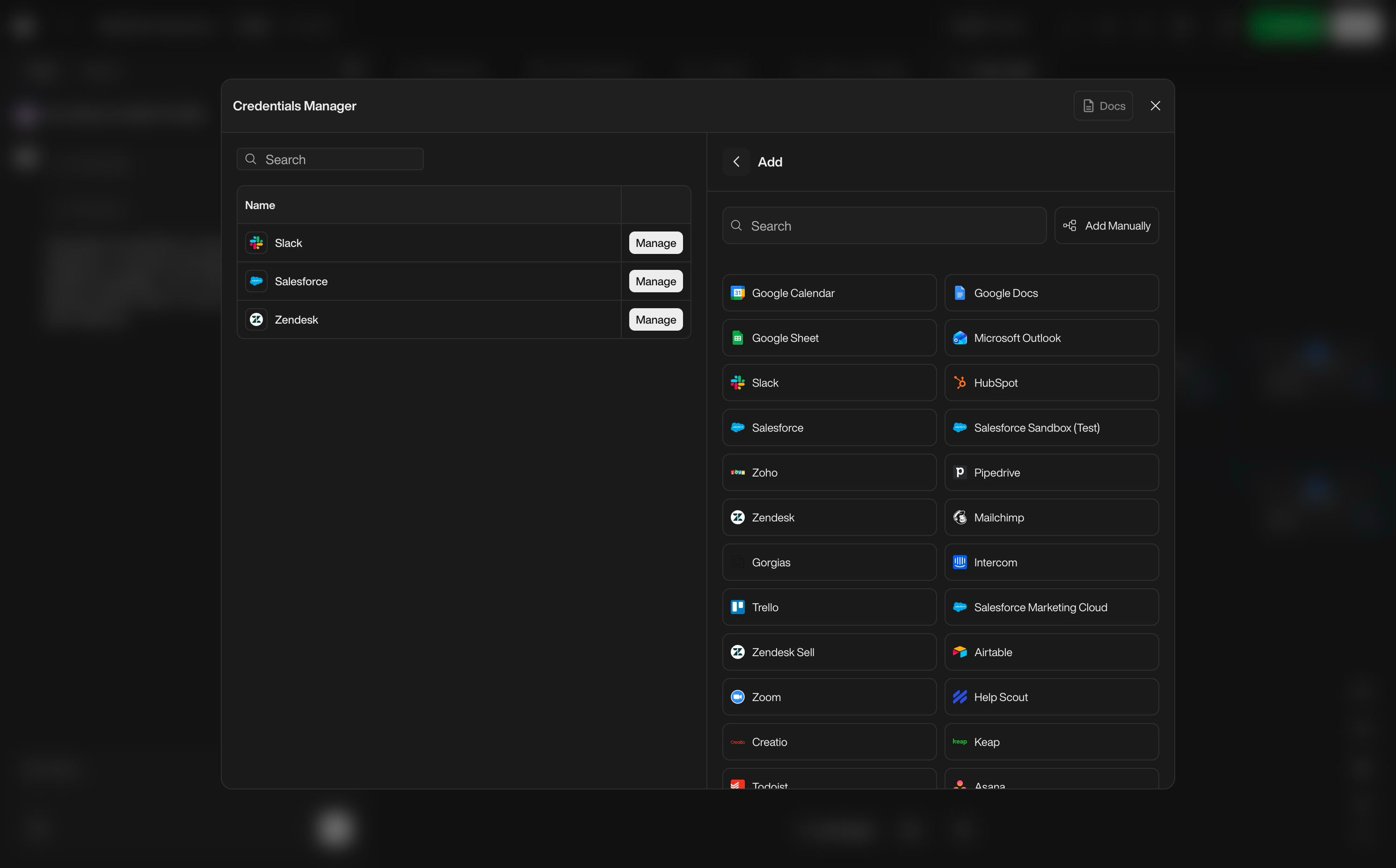
    **Integration Manager**

    The Integration Manager is where you connect external systems by adding credentials and configuration for each integration.

    <div className="block dark:hidden">
      <Frame>
        <div className="p-1">
          <img src="https://mintcdn.com/nlpearl/GUOay_brPNT7sxss/images/dark_mode/pearlvibe-cred-manager.png?fit=max&auto=format&n=GUOay_brPNT7sxss&q=85&s=5ec457980c83148a66f9b60147c8c3d3" alt="Send Email action interface on light mode" className="rounded-[14px]" width="2984" height="1856" data-path="images/dark_mode/pearlvibe-cred-manager.png" />
        </div>
      </Frame>
    </div>

    <div className="hidden dark:block">
      <Frame>
        <div className="p-1">
          <img src="https://mintcdn.com/nlpearl/GUOay_brPNT7sxss/images/dark_mode/pearlvibe-cred-manager.png?fit=max&auto=format&n=GUOay_brPNT7sxss&q=85&s=5ec457980c83148a66f9b60147c8c3d3" alt="Send Email action interface on dark mode" className="rounded-[14px]" width="2984" height="1856" data-path="images/dark_mode/pearlvibe-cred-manager.png" />
        </div>
      </Frame>
    </div>

    It lets you:

    * Add new integrations (e.g. Salesforce, HubSpot, ticketing tools, booking engines).
    * Configure authentication.
  </Accordion>

  <Accordion title="Task & Error Management" icon="circle-exclamation">
    As your flows grow, PearlVibe helps you keep them valid, connected, and fully configured.

    <div className="block dark:hidden">
      <Frame>
        <div className="p-1">
          <img src="https://mintcdn.com/nlpearl/GUOay_brPNT7sxss/images/dark_mode/pearlvibe-task-error.png?fit=max&auto=format&n=GUOay_brPNT7sxss&q=85&s=80ea72b72546ac070e9d367ddaa232e1" alt="Send Email action interface on light mode" className="rounded-[14px]" width="2984" height="1856" data-path="images/dark_mode/pearlvibe-task-error.png" />
        </div>
      </Frame>
    </div>

    <div className="hidden dark:block">
      <Frame>
        <div className="p-1">
          <img src="https://mintcdn.com/nlpearl/GUOay_brPNT7sxss/images/dark_mode/pearlvibe-task-error.png?fit=max&auto=format&n=GUOay_brPNT7sxss&q=85&s=80ea72b72546ac070e9d367ddaa232e1" alt="Send Email action interface on dark mode" className="rounded-[14px]" width="2984" height="1856" data-path="images/dark_mode/pearlvibe-task-error.png" />
        </div>
      </Frame>
    </div>

    <Warning>
      **Error detection**

      Pearl Vibe automatically scans your Pearl for common issues, such as:

      * Nodes without outgoing transitions.
      * Transitions not connected to any node.
      * Missing required fields (for example: API nodes without an endpoint or description).
      * Incomplete campaign or flow configuration.

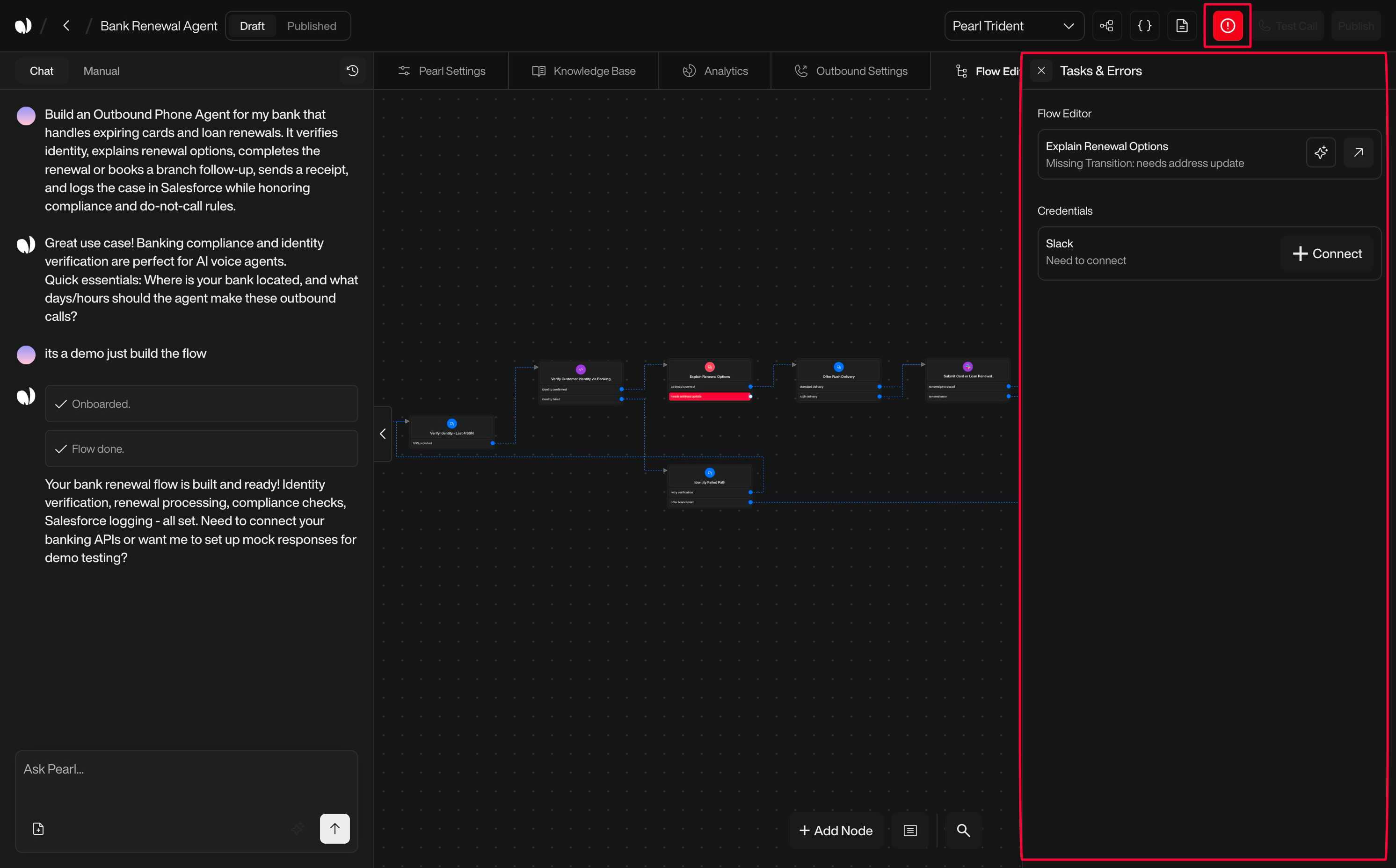
      When such issues are detected, the Tasks & Errors button in the header lights up to signal that something needs your attention.
    </Warning>

    **Tasks & Errors sidebar**

    Clicking the Tasks & Errors button opens a right-hand sidebar that groups everything in one place:

    | Section                  | Content                                                                                             |
    | ------------------------ | --------------------------------------------------------------------------------------------------- |
    | **Task & Error section** | Lists all issues found in your nodes (e.g. "Missing API Endpoint", "Missing Transition: Continue"). |
    | **Credentials section**  | Lists integrations that still need to be connected (e.g. Algolia, Calendly, etc.).                  |

    Each card in the Task & Error section shows:

    * A short description of what's missing or misconfigured.
    * A **"Fix with AI"** action to let the agent propose and apply a fix.
    * An **"Open in editor"** action that jumps directly to the affected node in the Flow Editor.

    <Tip>
      You can either fix issues manually or let the AI draft and apply the corrected configuration for you.
    </Tip>
  </Accordion>

  <Accordion title="Test Calls & Debugging" icon="phone-volume">
    Test calls are the safest way to validate your Pearl before and after publishing.

    **Launching a Test Call**

    <div className="block dark:hidden">
      <Frame>
        <div className="p-1">
          <img src="https://mintcdn.com/nlpearl/GUOay_brPNT7sxss/images/dark_mode/pearlvibe-testcall.png?fit=max&auto=format&n=GUOay_brPNT7sxss&q=85&s=d9ab585c20d1945ce7cf4bd7d93757ab" alt="Send Email action interface on light mode" className="rounded-[14px]" width="2984" height="1856" data-path="images/dark_mode/pearlvibe-testcall.png" />
        </div>
      </Frame>
    </div>

    <div className="hidden dark:block">
      <Frame>
        <div className="p-1">
          <img src="https://mintcdn.com/nlpearl/GUOay_brPNT7sxss/images/dark_mode/pearlvibe-testcall.png?fit=max&auto=format&n=GUOay_brPNT7sxss&q=85&s=d9ab585c20d1945ce7cf4bd7d93757ab" alt="Send Email action interface on dark mode" className="rounded-[14px]" width="2984" height="1856" data-path="images/dark_mode/pearlvibe-testcall.png" />
        </div>
      </Frame>
    </div>

    To run a test call:

    * Open the Test Call panel from the header.
    * Enter the phone number you want to call (usually your own or a test device).
    * Start the test: the Pearl calls that number using the current Draft configuration (unless you choose otherwise).

    ***

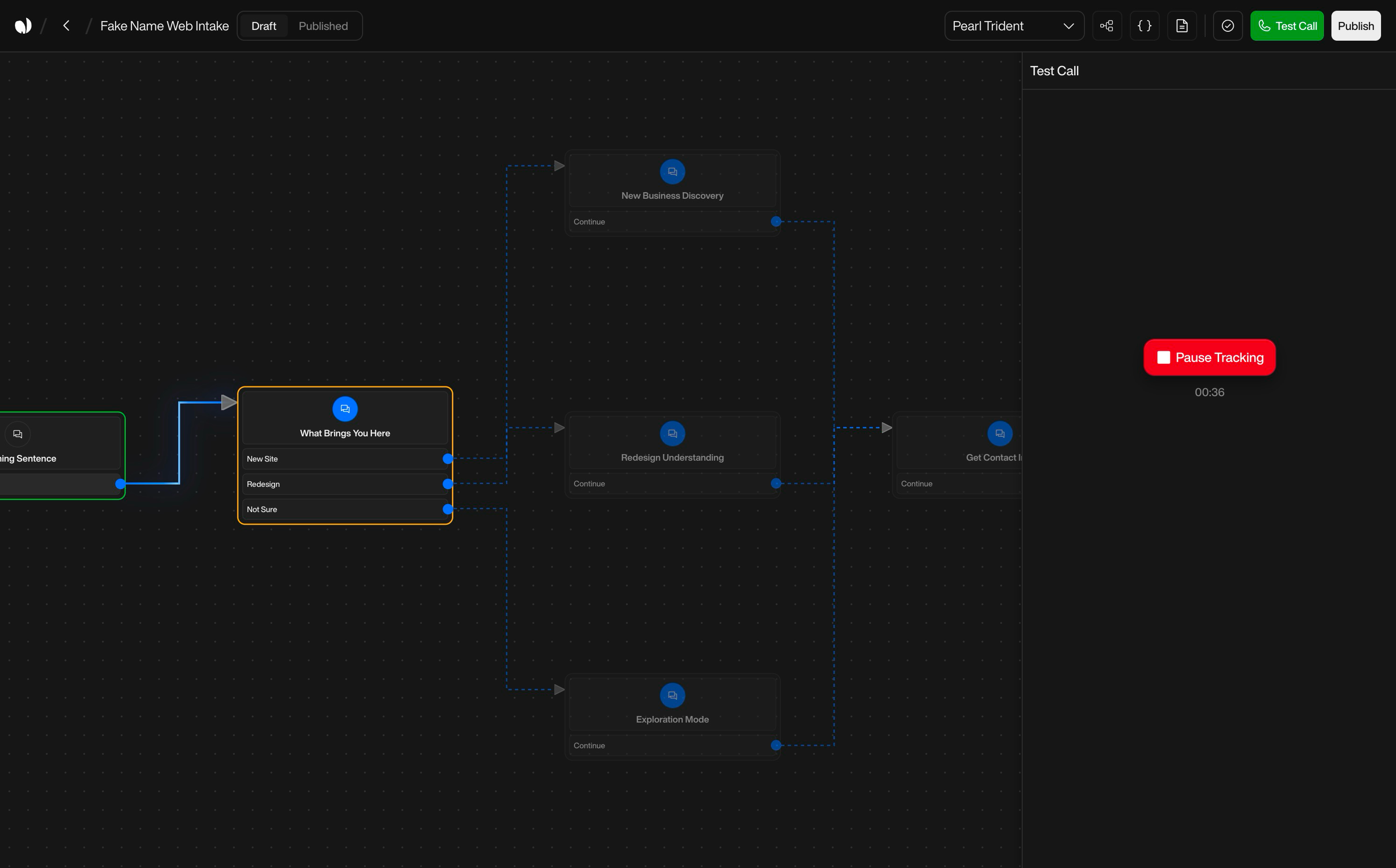
    **Live Node Tracing**

    <div className="block dark:hidden">
      <Frame>
        <div className="p-1">
          <img src="https://mintcdn.com/nlpearl/GUOay_brPNT7sxss/images/dark_mode/pearlvibe-testcallview2.png?fit=max&auto=format&n=GUOay_brPNT7sxss&q=85&s=ab5ada88b7afcf4356c6833a4773e9e5" alt="Send Email action interface on light mode" className="rounded-[14px]" width="2984" height="1856" data-path="images/dark_mode/pearlvibe-testcallview2.png" />
        </div>
      </Frame>
    </div>

    <div className="hidden dark:block">
      <Frame>
        <div className="p-1">
          <img src="https://mintcdn.com/nlpearl/GUOay_brPNT7sxss/images/dark_mode/pearlvibe-testcallview2.png?fit=max&auto=format&n=GUOay_brPNT7sxss&q=85&s=ab5ada88b7afcf4356c6833a4773e9e5" alt="Send Email action interface on dark mode" className="rounded-[14px]" width="2984" height="1856" data-path="images/dark_mode/pearlvibe-testcallview2.png" />
        </div>
      </Frame>
    </div>

    During the test call:

    * Nodes in the canvas light up one after another as the conversation progresses.
    * You can visually follow the path the call is taking through your flow.

    <Tip>
      This helps you understand why a certain question was asked, see which transition was taken at each step, and debug misrouted calls or unexpected behaviors.
    </Tip>

    ***

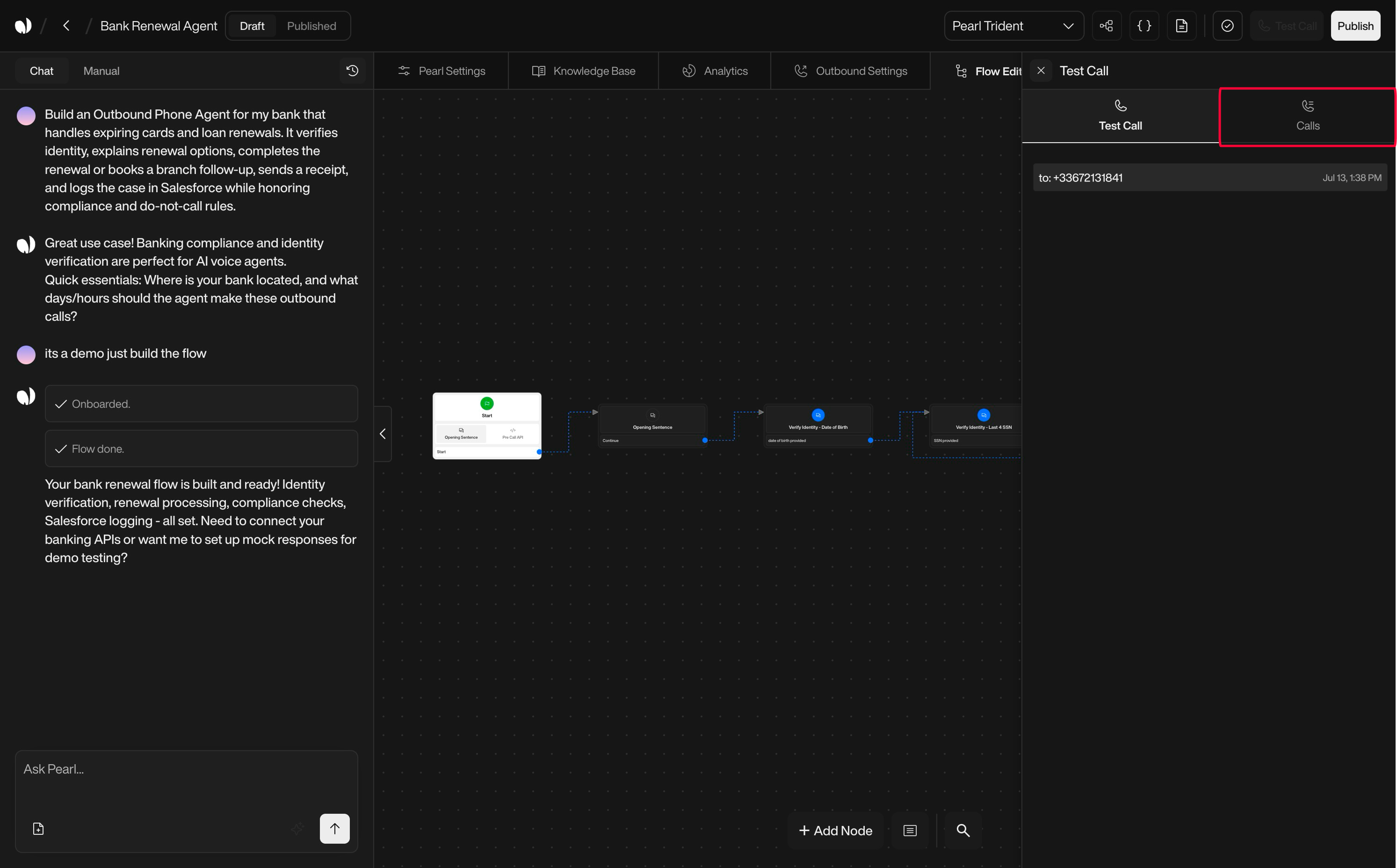
    **Post‑Call Views**

    <div className="block dark:hidden">
      <Frame>
        <div className="p-1">
          <img src="https://mintcdn.com/nlpearl/GUOay_brPNT7sxss/images/dark_mode/pearlvibe-testcallview.png?fit=max&auto=format&n=GUOay_brPNT7sxss&q=85&s=b493fd56a326aa2afbc78a4bf191b74c" alt="Send Email action interface on light mode" className="rounded-[14px]" width="2987" height="1856" data-path="images/dark_mode/pearlvibe-testcallview.png" />
        </div>
      </Frame>
    </div>

    <div className="hidden dark:block">
      <Frame>
        <div className="p-1">
          <img src="https://mintcdn.com/nlpearl/GUOay_brPNT7sxss/images/dark_mode/pearlvibe-testcallview.png?fit=max&auto=format&n=GUOay_brPNT7sxss&q=85&s=b493fd56a326aa2afbc78a4bf191b74c" alt="Send Email action interface on dark mode" className="rounded-[14px]" width="2987" height="1856" data-path="images/dark_mode/pearlvibe-testcallview.png" />
        </div>
      </Frame>
    </div>

    The Test Call panel also includes a tab for Post‑Calls:

    * See which Post‑Call nodes were executed after hang‑up.
    * Inspect the actions triggered (SMS, emails, CRM updates, webhooks…).
    * Use this view to verify that your back‑office automation is behaving as expected.

    <Info>
      To learn more about Post-Call, see the [Post-Call documentation](/pages/postcall).
    </Info>
  </Accordion>
</AccordionGroup>

***

### Chat Sidebar

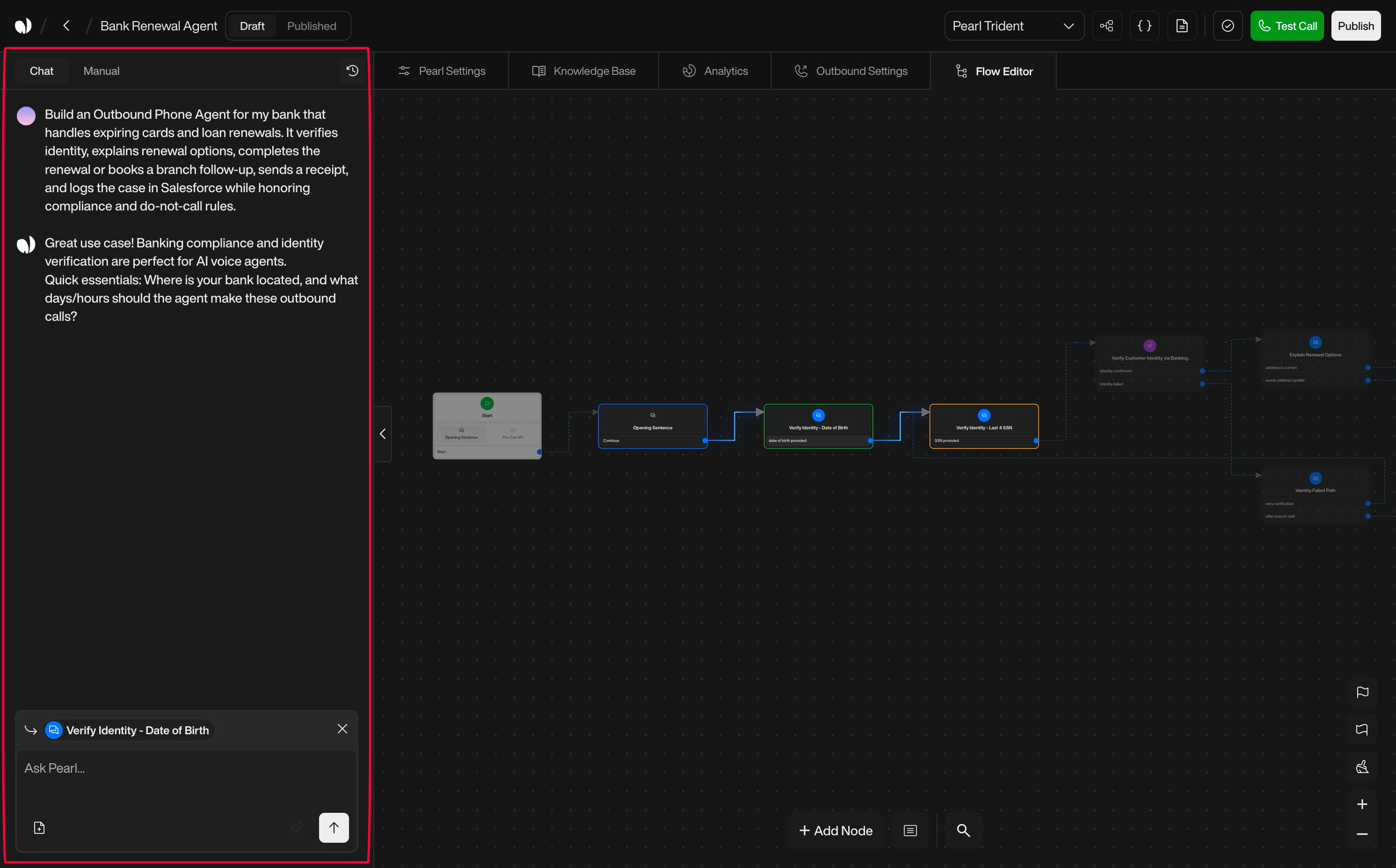
The chat sidebar is the control panel for the current node.

It combines two complementary views:

| View       | Description                                  |
| ---------- | -------------------------------------------- |
| **Chat**   | Vibe coding with the PearlVibe AI.           |
| **Manual** | Explicit configuration of the selected node. |

<Note>
  All actions in this sidebar always apply to the node currently selected in the flow editor (unless explicitly noted as global, like General Instructions).
</Note>

<Tabs>
  <Tab title="Chat mode (Vibe Coding)">
    <div className="block dark:hidden">
      <Frame>
        <div className="p-1">
          <img src="https://mintcdn.com/nlpearl/GUOay_brPNT7sxss/images/dark_mode/pearlvibe-sidebar.png?fit=max&auto=format&n=GUOay_brPNT7sxss&q=85&s=3cd7f3653a20455fa0509d6da47e485a" alt="Send Email action interface on light mode" className="rounded-[14px]" width="2984" height="1856" data-path="images/dark_mode/pearlvibe-sidebar.png" />
        </div>
      </Frame>
    </div>

    <div className="hidden dark:block">
      <Frame>
        <div className="p-1">
          <img src="https://mintcdn.com/nlpearl/GUOay_brPNT7sxss/images/dark_mode/pearlvibe-sidebar.png?fit=max&auto=format&n=GUOay_brPNT7sxss&q=85&s=3cd7f3653a20455fa0509d6da47e485a" alt="Send Email action interface on dark mode" className="rounded-[14px]" width="2984" height="1856" data-path="images/dark_mode/pearlvibe-sidebar.png" />
        </div>
      </Frame>
    </div>

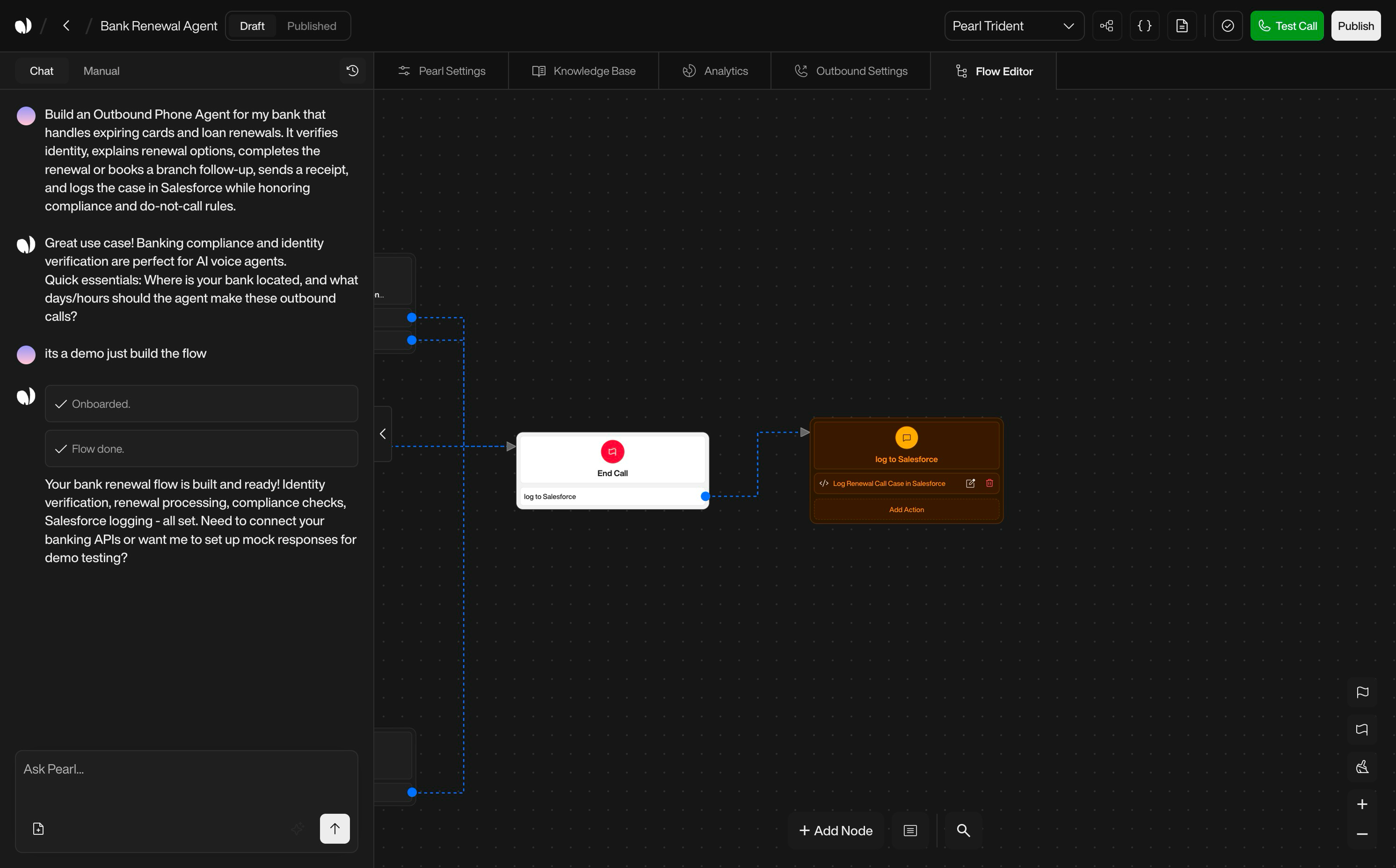
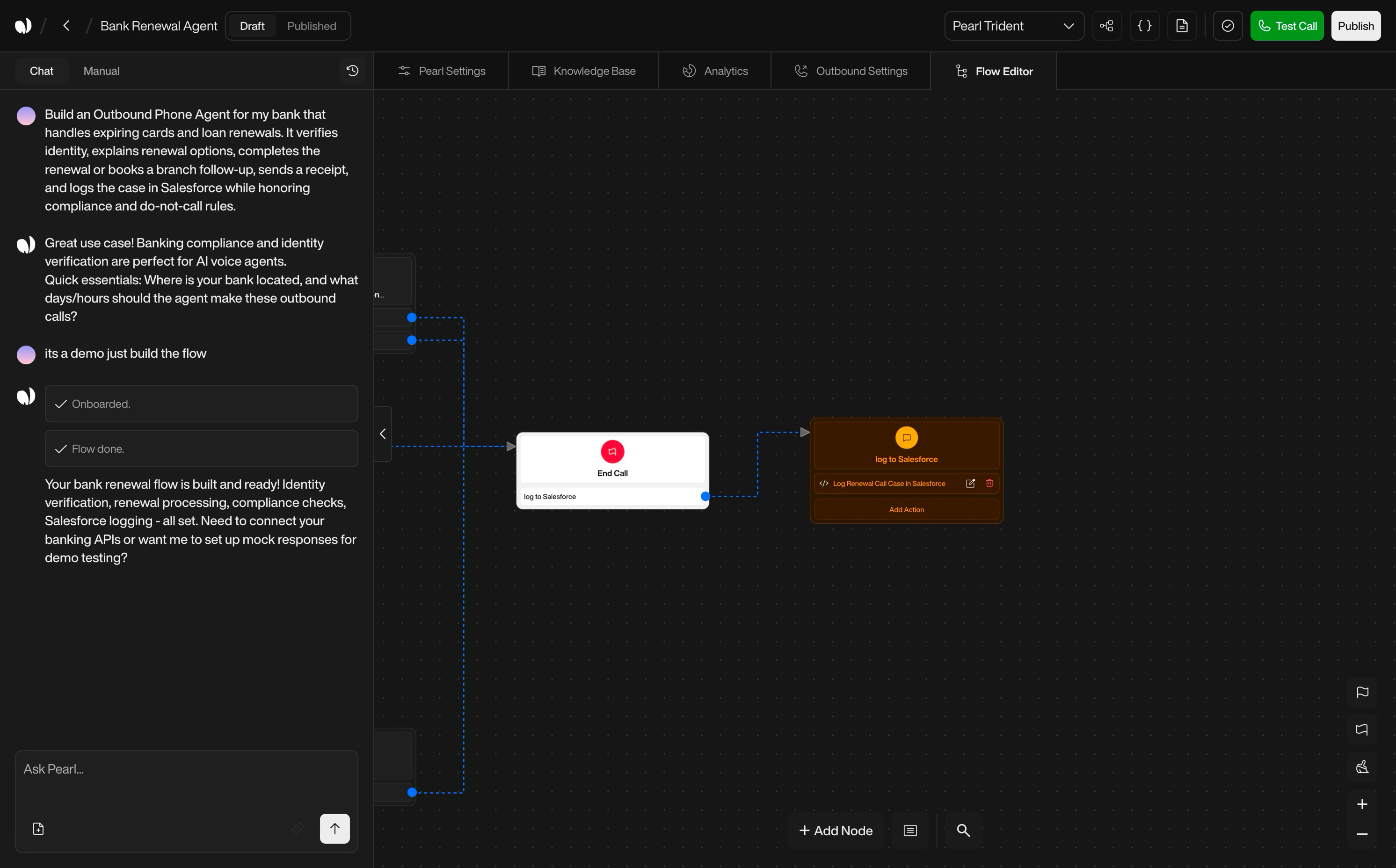
    In Chat mode, you design and update the flow by describing changes in natural language. Pearl Vibe interprets your request and applies the corresponding modifications to the Draft.

    **Typical operations you can perform:**

    * Create or delete nodes.
    * Edit the content and behavior of a node.
    * Add, rename, or reconnect transitions.
    * Attach actions (API calls, SMS, email, transfers, etc.).
    * Configure post-call logic.

    **Key elements:**

    | Element               | Description                                                                                                                                                                                                                                                                       |
    | --------------------- | --------------------------------------------------------------------------------------------------------------------------------------------------------------------------------------------------------------------------------------------------------------------------------- |
    | **Chat input**        | Enter instructions such as: "Split this node into three outcomes based on payment status.", "After a successful payment, send a confirmation SMS and end the call.", "Create a post-call node that logs the outcome to the CRM."                                                  |
    | **Send**              | Sends your instruction to the AI and applies the resulting changes to the flow. The editor is updated in real time so you can immediately review what has changed.                                                                                                                |
    | **File upload**       | Attach supporting material (FAQs, pricing sheets, policy docs, playbooks, etc.). These files enrich the Pearl's knowledge and can be referenced in node prompts and call behavior.                                                                                                |
    | **Enhance prompt**    | Takes a rough or short instruction and rewrites it into a clearer, more structured request before execution. Use this when your initial prompt is ambiguous or incomplete and you want the AI to "clean it up" first.                                                             |
    | **Node context pill** | When a node is selected in the canvas, its name appears as a pill above the chat. Any instruction you send while this pill is active is interpreted in the context of that node (for example: "Change the greeting", "Add a failure transition that transfers to support", etc.). |

    <Tip>
      Chat mode is the recommended entry point to quickly build or refactor a flow, especially for large or complex trees.
    </Tip>
  </Tab>

  <Tab title="Manual mode (per node)">
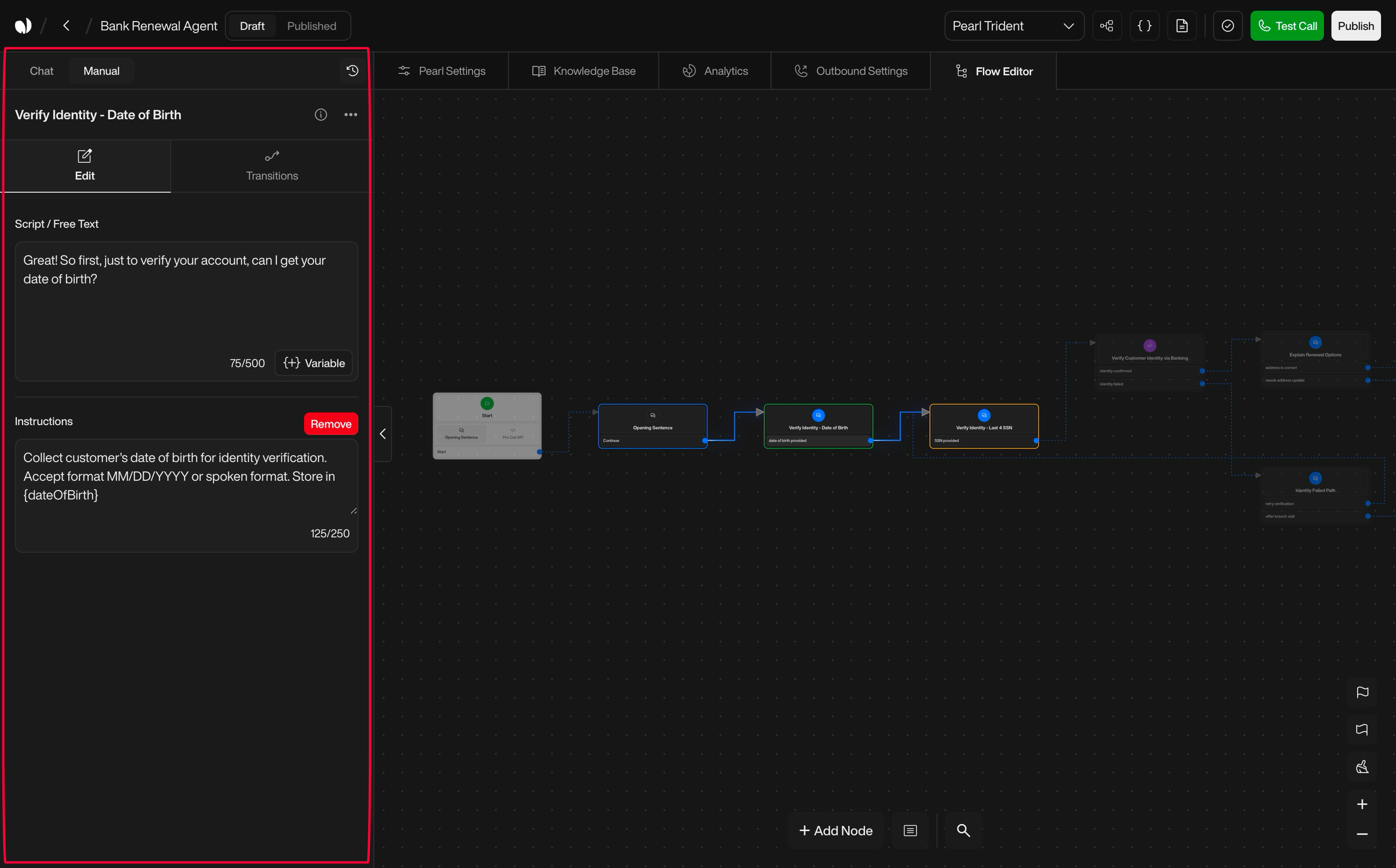
    Manual mode is available as an alternative tab to the chat. It targets the currently selected node.

    It is split into two tabs:

    <div className="block dark:hidden">
      <Frame>
        <div className="p-1">
          <img src="https://mintcdn.com/nlpearl/GUOay_brPNT7sxss/images/dark_mode/pearlvibe-sidebar2.png?fit=max&auto=format&n=GUOay_brPNT7sxss&q=85&s=ac12256df65178c52cae734eb1b4b190" alt="Send Email action interface on light mode" className="rounded-[14px]" width="2984" height="1856" data-path="images/dark_mode/pearlvibe-sidebar2.png" />
        </div>
      </Frame>
    </div>

    <div className="hidden dark:block">
      <Frame>
        <div className="p-1">
          <img src="https://mintcdn.com/nlpearl/GUOay_brPNT7sxss/images/dark_mode/pearlvibe-sidebar2.png?fit=max&auto=format&n=GUOay_brPNT7sxss&q=85&s=ac12256df65178c52cae734eb1b4b190" alt="Send Email action interface on dark mode" className="rounded-[14px]" width="2984" height="1856" data-path="images/dark_mode/pearlvibe-sidebar2.png" />
        </div>
      </Frame>
    </div>

    **The Node tab**

    Exposes all the settings that are specific to the current node type. What you see here changes depending on whether the node is a Dialogue, API, SMS, Email, Transfer, Integration, or Post-Call node.

    In short, the Node tab is where you configure what this node does internally, based purely on its type.

    <Note>
      Routing to other nodes is not handled here, but in the Transitions tab.
    </Note>

    **The Transitions tab**

    Defines how the conversation can exit this node.

    <div className="block dark:hidden">
      <Frame>
        <div className="p-1">
          <img src="https://mintcdn.com/nlpearl/GUOay_brPNT7sxss/images/dark_mode/pearlvibe-sidebar3.png?fit=max&auto=format&n=GUOay_brPNT7sxss&q=85&s=daf2488676a5c145257f311b9d1d24c4" alt="Send Email action interface on light mode" className="rounded-[14px]" width="2984" height="1856" data-path="images/dark_mode/pearlvibe-sidebar3.png" />
        </div>
      </Frame>
    </div>

    <div className="hidden dark:block">
      <Frame>
        <div className="p-1">
          <img src="https://mintcdn.com/nlpearl/GUOay_brPNT7sxss/images/dark_mode/pearlvibe-sidebar3.png?fit=max&auto=format&n=GUOay_brPNT7sxss&q=85&s=daf2488676a5c145257f311b9d1d24c4" alt="Send Email action interface on dark mode" className="rounded-[14px]" width="2984" height="1856" data-path="images/dark_mode/pearlvibe-sidebar3.png" />
        </div>
      </Frame>
    </div>

    From here you can:

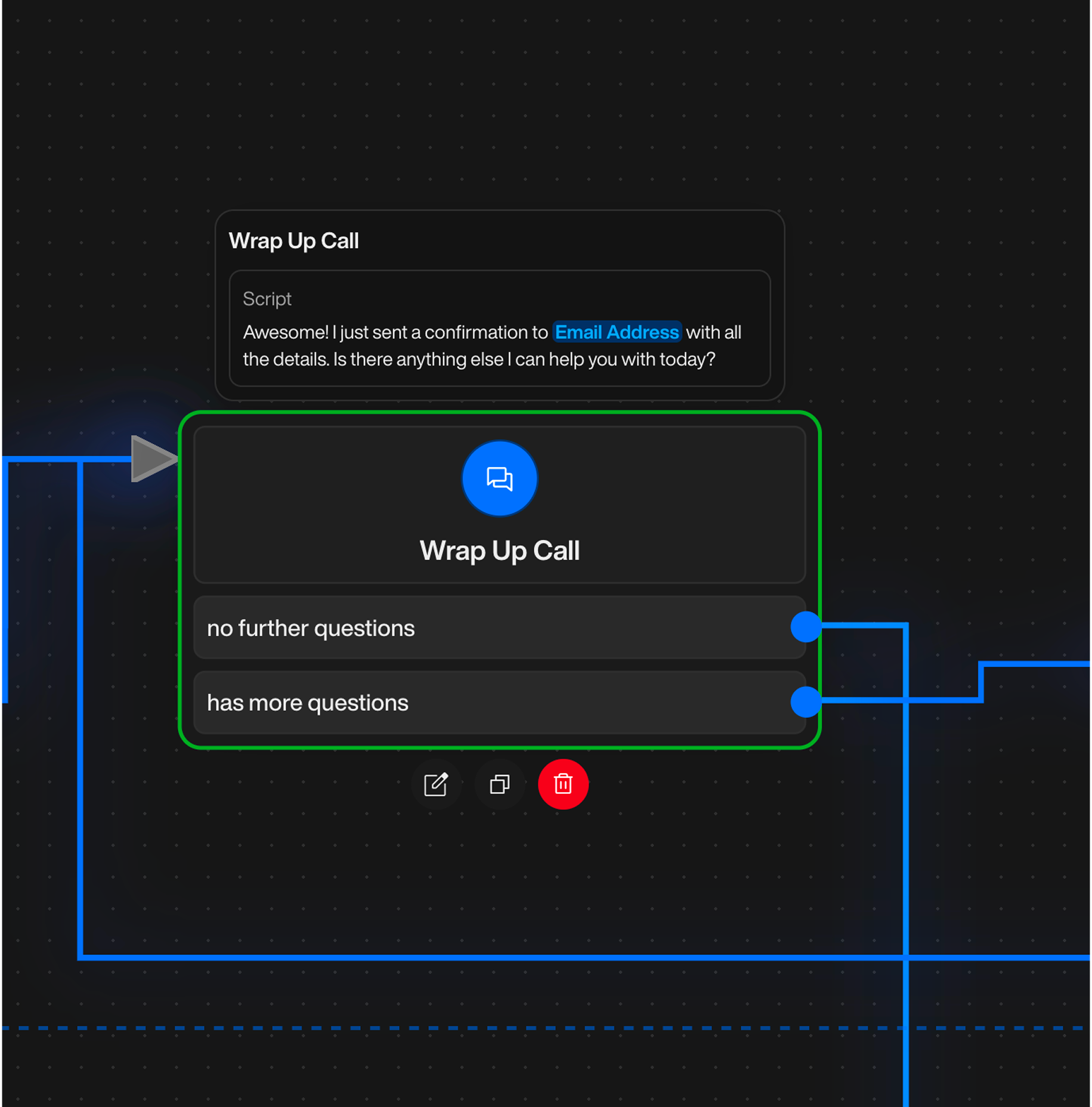
    * **Create transitions** – Add exits such as "Success", "Failure", "No answer", "Customer asks for human", etc.
    * **Connect transitions** – Choose the target node for each transition to shape the path of the call.
    * **Edit or delete transitions** – Rename transitions, change their destination, or remove them when they are no longer needed.

    <Info>
      Any modification done in Manual mode is immediately reflected in the visual flow and remains fully understood by the AI.

      You can freely switch between Chat (AI-assisted editing) and Manual (explicit configuration) as you work on the same node.
    </Info>
  </Tab>
</Tabs>

***

### Central Canvas

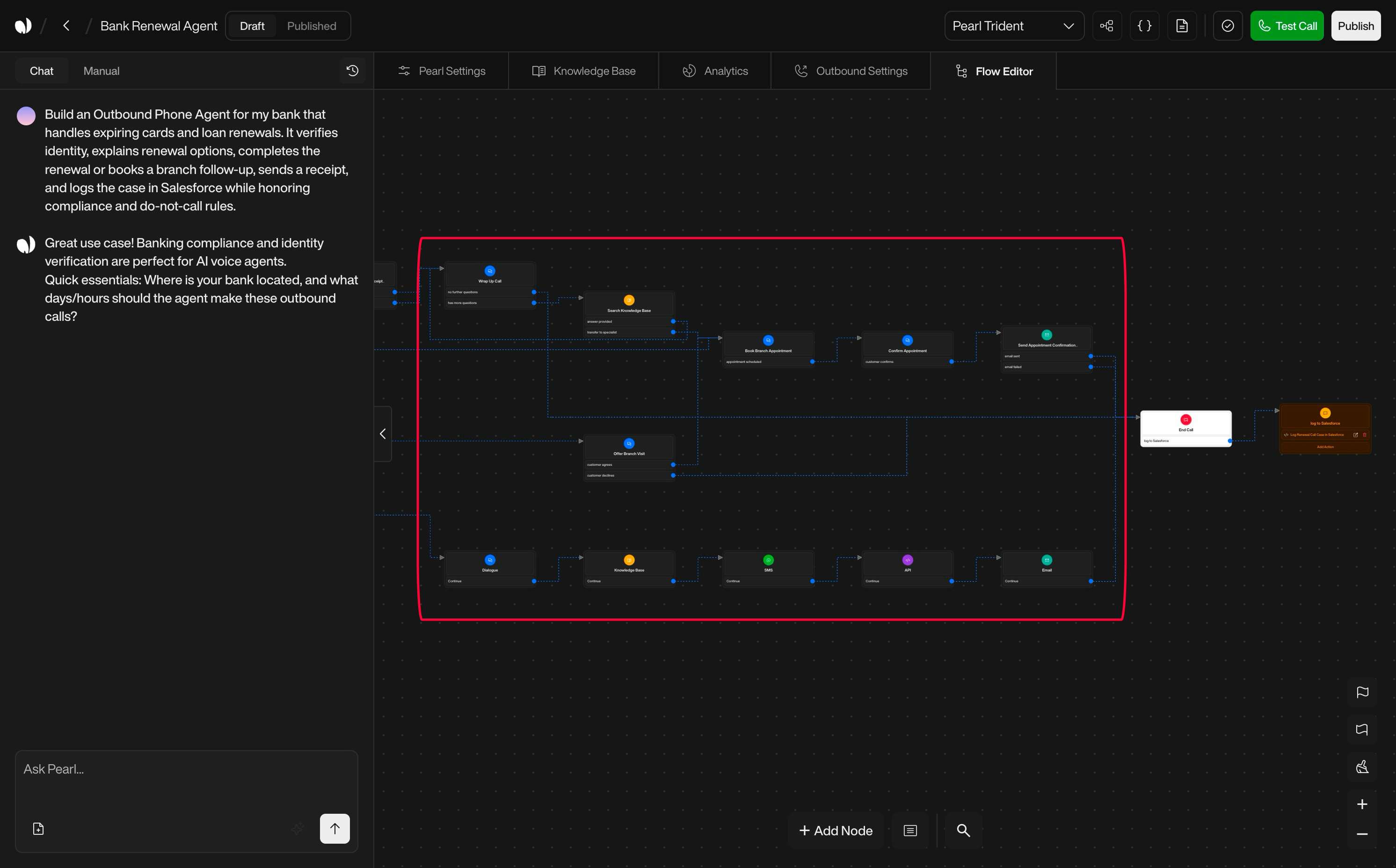
The central canvas displays your flow as a graph of nodes and transitions.

<div className="block dark:hidden">
  <Frame>
    <div className="p-1">
      <img src="https://mintcdn.com/nlpearl/GUOay_brPNT7sxss/images/dark_mode/pearlvibe-canva.png?fit=max&auto=format&n=GUOay_brPNT7sxss&q=85&s=572ac63e2fb16ede154c99db2ecfbf2b" alt="Send Email action interface on light mode" className="rounded-[14px]" width="2984" height="1856" data-path="images/dark_mode/pearlvibe-canva.png" />
    </div>
  </Frame>
</div>

<div className="hidden dark:block">
  <Frame>
    <div className="p-1">
      <img src="https://mintcdn.com/nlpearl/GUOay_brPNT7sxss/images/dark_mode/pearlvibe-canva.png?fit=max&auto=format&n=GUOay_brPNT7sxss&q=85&s=572ac63e2fb16ede154c99db2ecfbf2b" alt="Send Email action interface on dark mode" className="rounded-[14px]" width="2984" height="1856" data-path="images/dark_mode/pearlvibe-canva.png" />
    </div>
  </Frame>
</div>

| Element         | Description                                                                                                                   |
| --------------- | ----------------------------------------------------------------------------------------------------------------------------- |
| **Nodes**       | Each node represents a step in the call (a message, an action, or a set of actions).                                          |
| **Transitions** | Each transition represents a possible path from one node to another based on intents, recognition results, or business logic. |

**From the canvas you can:**

* Select nodes to open them in the sidebar.
* Drag nodes to reorganize the layout visually.
* Follow transitions to understand how the call can move through the flow.
* Hover nodes to see popovers with a quick summary of what they do (main actions, key conditions, etc.).

<AccordionGroup>
  <Accordion title="Node Types Overview" icon="shapes">
    Pearl Vibe supports several node types:

    | Node Type             | Description                                                    |
    | --------------------- | -------------------------------------------------------------- |
    | **Start node**        | Entry point of the flow.                                       |
    | **In‑Call nodes**     | Actions that occur while the caller is on the line.            |
    | **Integration nodes** | Interactions with external systems (CRM, ticketing, booking…). |
    | **End Call node**     | The node that ends the conversation.                           |
    | **Post‑Call nodes**   | Actions executed after the call has ended.                     |

    <Info>
      **Understanding Node Types: Pre-Call, In-Call & Post-Call**

      Your Pearl flow is built around three categories of nodes, each designed for a specific moment in the call lifecycle. Knowing the difference is essential to avoid misusing an action or expecting behavior that can't happen at that stage.

      **1. Pre-Call Nodes — Before the call starts**

      These nodes run prior to dialing or answering. They're ideal for preparing context: fetching customer data, checking availability, validating an ID, loading account information. They cannot interact with the caller and cannot create or import leads.

      **2. In-Call Nodes — During the conversation**

      These nodes control everything that happens while the caller and the agent are connected. Dialogue, decision logic, sending SMS/emails, API calls, CRM updates — all real-time actions happen here. This is the core of your conversational flow.

      **3. Post-Call Nodes — After the call ends**

      Once the call is finished, these nodes handle asynchronous tasks: writing CRM logs, creating leads, triggering webhooks, updating databases, or launching follow-up workflows. They cannot affect what happened during the call, only what happens after.
    </Info>
  </Accordion>

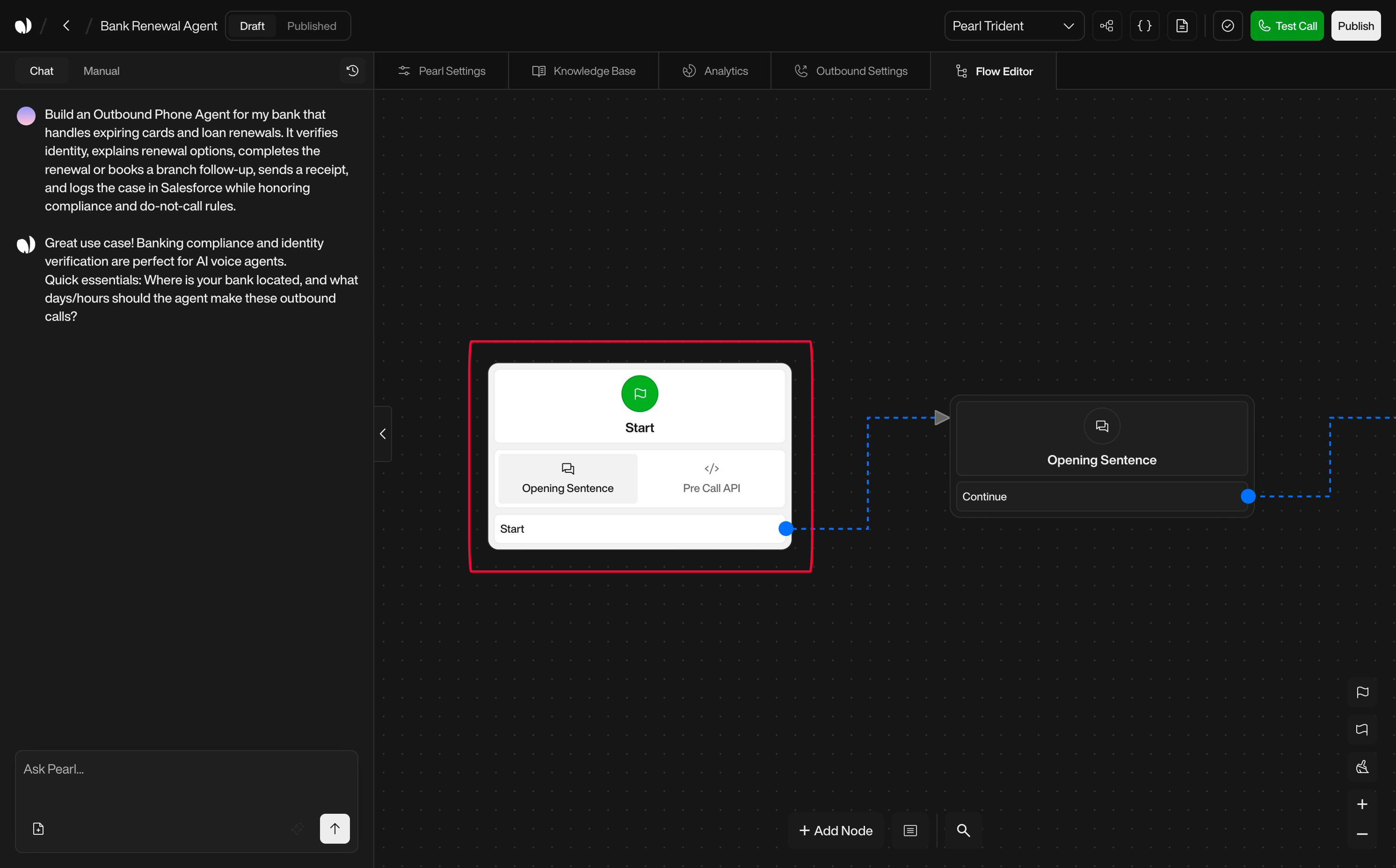
  <Accordion title="Start Node" icon="play">
    Every flow begins with a Start node. It controls how the conversation is initiated.

    <div className="block dark:hidden">
      <Frame>
        <div className="p-1">
          <img src="https://mintcdn.com/nlpearl/GUOay_brPNT7sxss/images/dark_mode/pearlvibe-startnode.png?fit=max&auto=format&n=GUOay_brPNT7sxss&q=85&s=434c407809ef3cccb5f0717c7f4f8156" alt="Send Email action interface on light mode" className="rounded-[14px]" width="2984" height="1856" data-path="images/dark_mode/pearlvibe-startnode.png" />
        </div>
      </Frame>
    </div>

    <div className="hidden dark:block">
      <Frame>
        <div className="p-1">
          <img src="https://mintcdn.com/nlpearl/GUOay_brPNT7sxss/images/dark_mode/pearlvibe-startnode.png?fit=max&auto=format&n=GUOay_brPNT7sxss&q=85&s=434c407809ef3cccb5f0717c7f4f8156" alt="Send Email action interface on dark mode" className="rounded-[14px]" width="2984" height="1856" data-path="images/dark_mode/pearlvibe-startnode.png" />
        </div>
      </Frame>
    </div>

    You can configure it in two ways:

    | Configuration        | Description                                                                                                                                                                                                                                                                      |
    | -------------------- | -------------------------------------------------------------------------------------------------------------------------------------------------------------------------------------------------------------------------------------------------------------------------------- |
    | **Opening sentence** | A standard greeting and first question, for example: "Hi, you've reached \[Company]. How can I help you today?"                                                                                                                                                                  |
    | **Pre‑Call API**     | Before the Pearl speaks, it can call an external API (for example to fetch order details, check account status, or pre‑qualify the caller). The API response can then change the opening sentence, route the caller toward different branches, or preload variables and context. |

    <Note>
      The Pre-Call API cannot be used to import leads into your Pearl. Its purpose is strictly to enrich or prepare contextual data before the call starts
    </Note>
  </Accordion>

  <Accordion title="In‑Call Nodes" icon="phone">
    In‑Call nodes represent actions and dialogues during the call. Typical types include:

    <div className="block dark:hidden">
      <Frame>
        <div className="p-1">
          <img src="https://mintcdn.com/nlpearl/GUOay_brPNT7sxss/images/dark_mode/pearlvibe-incallnode.png?fit=max&auto=format&n=GUOay_brPNT7sxss&q=85&s=2abb0c1558e0f31cf45e0b4a6dd26af6" alt="Send Email action interface on light mode" className="rounded-[14px]" width="2984" height="1856" data-path="images/dark_mode/pearlvibe-incallnode.png" />
        </div>
      </Frame>
    </div>

    <div className="hidden dark:block">
      <Frame>
        <div className="p-1">
          <img src="https://mintcdn.com/nlpearl/GUOay_brPNT7sxss/images/dark_mode/pearlvibe-incallnode.png?fit=max&auto=format&n=GUOay_brPNT7sxss&q=85&s=2abb0c1558e0f31cf45e0b4a6dd26af6" alt="Send Email action interface on dark mode" className="rounded-[14px]" width="2984" height="1856" data-path="images/dark_mode/pearlvibe-incallnode.png" />
        </div>
      </Frame>
    </div>

    | Node Type         | Description                                                                                                           |
    | ----------------- | --------------------------------------------------------------------------------------------------------------------- |
    | **Dialogue**      | The Pearl speaks, listens, and interprets the caller's response according to your instructions.                       |
    | **Send SMS**      | Send a text message to the caller during the call (e.g. a confirmation code, a link, or a summary).                   |
    | **Send email**    | Trigger an email to the caller or your team.                                                                          |
    | **API**           | Call an external API (e.g. update a record, check availability, create a ticket).                                     |
    | **Transfer call** | Transfer the caller to a human agent or another phone number. You can control what happens before and after transfer. |
  </Accordion>

  <Accordion title="Integration Nodes" icon="plug">
    Integration nodes allow your Pearl to interact directly with external tools and services without writing any API code yourself. They serve as pre-configured action blocks that handle authentication, request formatting, and data mapping automatically.

    <div className="block dark:hidden">
      <Frame>
        <div className="p-1">
          <img src="https://mintcdn.com/nlpearl/GUOay_brPNT7sxss/images/dark_mode/pearlvibe-integrationtnode.png?fit=max&auto=format&n=GUOay_brPNT7sxss&q=85&s=19868e79058abd2505678d323d7d660a" alt="Send Email action interface on light mode" className="rounded-[14px]" width="2984" height="1856" data-path="images/dark_mode/pearlvibe-integrationtnode.png" />
        </div>
      </Frame>
    </div>

    <div className="hidden dark:block">
      <Frame>
        <div className="p-1">
          <img src="https://mintcdn.com/nlpearl/GUOay_brPNT7sxss/images/dark_mode/pearlvibe-integrationtnode.png?fit=max&auto=format&n=GUOay_brPNT7sxss&q=85&s=19868e79058abd2505678d323d7d660a" alt="Send Email action interface on dark mode" className="rounded-[14px]" width="2984" height="1856" data-path="images/dark_mode/pearlvibe-integrationtnode.png" />
        </div>
      </Frame>
    </div>

    **Integration node variants:**

    | Variant                         | Description                                                                                   |
    | ------------------------------- | --------------------------------------------------------------------------------------------- |
    | **In-Call Integration Nodes**   | Executed while the caller is still on the line (e.g. checking a CRM record before answering). |
    | **Post-Call Integration Nodes** | Executed after the call ends (e.g. logging call results into a ticketing system).             |

    **What Integration Nodes Do**

    Integration nodes encapsulate tasks such as:

    | Category                   | Examples                        | Tasks                                                                                                |
    | -------------------------- | ------------------------------- | ---------------------------------------------------------------------------------------------------- |
    | **CRM operations**         | Salesforce, HubSpot, Pipedrive… | Create or update records, attach call results, sync contact data.                                    |
    | **Helpdesk platforms**     | Zendesk, Freshdesk…             | Create tickets, update statuses, push conversation summaries.                                        |
    | **Booking engines**        | Calendly, Cloudbeds, Shore…     | Check availability, create reservations, cancel or modify bookings.                                  |
    | **Search & data services** | Algolia, Elasticsearch…         | Query product/catalog data, validate inputs, or retrieve structured info.                            |
    | **Payments & billing**     | Stripe, Paystack…               | Check payment status, initiate a payment link workflow, validate customer identity.                  |
    | **Custom Integrations**    | Any configured integration      | Any integration you configure in the Integration Manager becomes available here as a dedicated node. |

    **How They Work**

    | Feature                  | Description                                                                          |
    | ------------------------ | ------------------------------------------------------------------------------------ |
    | **Secure Credentials**   | The Integration Manager stores credentials securely (API keys, tokens, IDs…).        |
    | **Available as Node**    | Once connected, each service becomes available as a node in the flow.                |
    | **Simple Configuration** | The node exposes only the required parameters—no API documentation or coding needed. |
    | **Data Mapping**         | Returned data can be mapped to variables and used later in the conversation.         |

    **Available Integrations**

    <div style={{display: 'grid', gridTemplateColumns: 'repeat(4, 1fr)', gap: '8px', marginTop: '16px'}}>
      <div style={{display: 'flex', alignItems: 'center', gap: '8px', padding: '8px 12px', border: '1px solid #2E2E2E', borderRadius: '8px', fontSize: '12px'}}><img src="https://assets.nlpearl.ai/Integrations/ActiveCampaign.svg" width="18" height="18" /> ActiveCampaign</div>
      <div style={{display: 'flex', alignItems: 'center', gap: '8px', padding: '8px 12px', border: '1px solid #2E2E2E', borderRadius: '8px', fontSize: '12px'}}><img src="https://assets.nlpearl.ai/Integrations/Airtable.svg" width="18" height="18" /> Airtable</div>
      <div style={{display: 'flex', alignItems: 'center', gap: '8px', padding: '8px 12px', border: '1px solid #2E2E2E', borderRadius: '8px', fontSize: '12px'}}><img src="https://assets.nlpearl.ai/Integrations/Algolia.svg" width="18" height="18" /> Algolia</div>
      <div style={{display: 'flex', alignItems: 'center', gap: '8px', padding: '8px 12px', border: '1px solid #2E2E2E', borderRadius: '8px', fontSize: '12px'}}><img src="https://assets.nlpearl.ai/Integrations/Anthropic.svg" width="18" height="18" /> Anthropic</div>
      <div style={{display: 'flex', alignItems: 'center', gap: '8px', padding: '8px 12px', border: '1px solid #2E2E2E', borderRadius: '8px', fontSize: '12px'}}><img src="https://assets.nlpearl.ai/Integrations/AssemblyAI.svg" width="18" height="18" /> AssemblyAI</div>
      <div style={{display: 'flex', alignItems: 'center', gap: '8px', padding: '8px 12px', border: '1px solid #2E2E2E', borderRadius: '8px', fontSize: '12px'}}><img src="https://assets.nlpearl.ai/Integrations/Backblaze.svg" width="18" height="18" /> Backblaze</div>
      <div style={{display: 'flex', alignItems: 'center', gap: '8px', padding: '8px 12px', border: '1px solid #2E2E2E', borderRadius: '8px', fontSize: '12px'}}><img src="https://assets.nlpearl.ai/Integrations/Baserow.svg" width="18" height="18" /> Baserow</div>
      <div style={{display: 'flex', alignItems: 'center', gap: '8px', padding: '8px 12px', border: '1px solid #2E2E2E', borderRadius: '8px', fontSize: '12px'}}><img src="https://assets.nlpearl.ai/Integrations/Bitly.svg" width="18" height="18" /> Bitly</div>
      <div style={{display: 'flex', alignItems: 'center', gap: '8px', padding: '8px 12px', border: '1px solid #2E2E2E', borderRadius: '8px', fontSize: '12px'}}><img src="https://assets.nlpearl.ai/Integrations/Brevo.svg" width="18" height="18" /> Brevo</div>
      <div style={{display: 'flex', alignItems: 'center', gap: '8px', padding: '8px 12px', border: '1px solid #2E2E2E', borderRadius: '8px', fontSize: '12px'}}><img src="https://assets.nlpearl.ai/Integrations/Cal.svg" width="18" height="18" /> Cal.com</div>
      <div style={{display: 'flex', alignItems: 'center', gap: '8px', padding: '8px 12px', border: '1px solid #2E2E2E', borderRadius: '8px', fontSize: '12px'}}><img src="https://assets.nlpearl.ai/Integrations/Calendly.svg" width="18" height="18" /> Calendly</div>
      <div style={{display: 'flex', alignItems: 'center', gap: '8px', padding: '8px 12px', border: '1px solid #2E2E2E', borderRadius: '8px', fontSize: '12px'}}><img src="https://assets.nlpearl.ai/Integrations/Clearbit.svg" width="18" height="18" /> Clearbit</div>
      <div style={{display: 'flex', alignItems: 'center', gap: '8px', padding: '8px 12px', border: '1px solid #2E2E2E', borderRadius: '8px', fontSize: '12px'}}><img src="https://assets.nlpearl.ai/Integrations/ClickUp.svg" width="18" height="18" /> ClickUp</div>
      <div style={{display: 'flex', alignItems: 'center', gap: '8px', padding: '8px 12px', border: '1px solid #2E2E2E', borderRadius: '8px', fontSize: '12px'}}><img src="https://assets.nlpearl.ai/Integrations/Cloudflare.svg" width="18" height="18" /> Cloudflare</div>
      <div style={{display: 'flex', alignItems: 'center', gap: '8px', padding: '8px 12px', border: '1px solid #2E2E2E', borderRadius: '8px', fontSize: '12px'}}><img src="https://assets.nlpearl.ai/Integrations/Cohere.svg" width="18" height="18" /> Cohere</div>
      <div style={{display: 'flex', alignItems: 'center', gap: '8px', padding: '8px 12px', border: '1px solid #2E2E2E', borderRadius: '8px', fontSize: '12px'}}><img src="https://assets.nlpearl.ai/Integrations/Contentful.svg" width="18" height="18" /> Contentful</div>
      <div style={{display: 'flex', alignItems: 'center', gap: '8px', padding: '8px 12px', border: '1px solid #2E2E2E', borderRadius: '8px', fontSize: '12px'}}><img src="https://assets.nlpearl.ai/Integrations/Convertkit.svg" width="18" height="18" /> Convertkit</div>
      <div style={{display: 'flex', alignItems: 'center', gap: '8px', padding: '8px 12px', border: '1px solid #2E2E2E', borderRadius: '8px', fontSize: '12px'}}><img src="https://assets.nlpearl.ai/Integrations/CustomerIO.svg" width="18" height="18" /> Customer.io</div>
      <div style={{display: 'flex', alignItems: 'center', gap: '8px', padding: '8px 12px', border: '1px solid #2E2E2E', borderRadius: '8px', fontSize: '12px'}}><img src="https://assets.nlpearl.ai/Integrations/Datadog.svg" width="18" height="18" /> Datadog</div>
      <div style={{display: 'flex', alignItems: 'center', gap: '8px', padding: '8px 12px', border: '1px solid #2E2E2E', borderRadius: '8px', fontSize: '12px'}}><img src="https://assets.nlpearl.ai/Integrations/DeepL.svg" width="18" height="18" /> DeepL</div>
      <div style={{display: 'flex', alignItems: 'center', gap: '8px', padding: '8px 12px', border: '1px solid #2E2E2E', borderRadius: '8px', fontSize: '12px'}}><img src="https://assets.nlpearl.ai/Integrations/DigitalOcean.svg" width="18" height="18" /> DigitalOcean</div>
      <div style={{display: 'flex', alignItems: 'center', gap: '8px', padding: '8px 12px', border: '1px solid #2E2E2E', borderRadius: '8px', fontSize: '12px'}}><img src="https://assets.nlpearl.ai/Integrations/Discord.svg" width="18" height="18" /> Discord</div>
      <div style={{display: 'flex', alignItems: 'center', gap: '8px', padding: '8px 12px', border: '1px solid #2E2E2E', borderRadius: '8px', fontSize: '12px'}}><img src="https://assets.nlpearl.ai/Integrations/Elasticsearch.svg" width="18" height="18" /> Elasticsearch</div>
      <div style={{display: 'flex', alignItems: 'center', gap: '8px', padding: '8px 12px', border: '1px solid #2E2E2E', borderRadius: '8px', fontSize: '12px'}}><img src="https://assets.nlpearl.ai/Integrations/Freshdesk.svg" width="18" height="18" /> Freshdesk</div>
      <div style={{display: 'flex', alignItems: 'center', gap: '8px', padding: '8px 12px', border: '1px solid #2E2E2E', borderRadius: '8px', fontSize: '12px'}}><img src="https://assets.nlpearl.ai/Integrations/Ghost.svg" width="18" height="18" /> Ghost</div>
      <div style={{display: 'flex', alignItems: 'center', gap: '8px', padding: '8px 12px', border: '1px solid #2E2E2E', borderRadius: '8px', fontSize: '12px'}}><img src="https://assets.nlpearl.ai/Integrations/GoogleCalendar.svg" width="18" height="18" /> Google Calendar</div>
      <div style={{display: 'flex', alignItems: 'center', gap: '8px', padding: '8px 12px', border: '1px solid #2E2E2E', borderRadius: '8px', fontSize: '12px'}}><img src="https://assets.nlpearl.ai/Integrations/GoogleDocs.svg" width="18" height="18" /> Google Docs</div>
      <div style={{display: 'flex', alignItems: 'center', gap: '8px', padding: '8px 12px', border: '1px solid #2E2E2E', borderRadius: '8px', fontSize: '12px'}}><img src="https://assets.nlpearl.ai/Integrations/GoogleSheets.svg" width="18" height="18" /> Google Sheets</div>
      <div style={{display: 'flex', alignItems: 'center', gap: '8px', padding: '8px 12px', border: '1px solid #2E2E2E', borderRadius: '8px', fontSize: '12px'}}><img src="https://assets.nlpearl.ai/Integrations/Grafana.svg" width="18" height="18" /> Grafana</div>
      <div style={{display: 'flex', alignItems: 'center', gap: '8px', padding: '8px 12px', border: '1px solid #2E2E2E', borderRadius: '8px', fontSize: '12px'}}><img src="https://assets.nlpearl.ai/Integrations/Groq.svg" width="18" height="18" /> Groq</div>
      <div style={{display: 'flex', alignItems: 'center', gap: '8px', padding: '8px 12px', border: '1px solid #2E2E2E', borderRadius: '8px', fontSize: '12px'}}><img src="https://assets.nlpearl.ai/Integrations/Hetzner.svg" width="18" height="18" /> Hetzner</div>
      <div style={{display: 'flex', alignItems: 'center', gap: '8px', padding: '8px 12px', border: '1px solid #2E2E2E', borderRadius: '8px', fontSize: '12px'}}><img src="https://assets.nlpearl.ai/Integrations/Hubspot.svg" width="18" height="18" /> HubSpot</div>
      <div style={{display: 'flex', alignItems: 'center', gap: '8px', padding: '8px 12px', border: '1px solid #2E2E2E', borderRadius: '8px', fontSize: '12px'}}><img src="https://assets.nlpearl.ai/Integrations/HuggingFace.svg" width="18" height="18" /> HuggingFace</div>
      <div style={{display: 'flex', alignItems: 'center', gap: '8px', padding: '8px 12px', border: '1px solid #2E2E2E', borderRadius: '8px', fontSize: '12px'}}><img src="https://assets.nlpearl.ai/Integrations/Hunter.svg" width="18" height="18" /> Hunter</div>
      <div style={{display: 'flex', alignItems: 'center', gap: '8px', padding: '8px 12px', border: '1px solid #2E2E2E', borderRadius: '8px', fontSize: '12px'}}><img src="https://assets.nlpearl.ai/Integrations/InfluxDB.svg" width="18" height="18" /> InfluxDB</div>
      <div style={{display: 'flex', alignItems: 'center', gap: '8px', padding: '8px 12px', border: '1px solid #2E2E2E', borderRadius: '8px', fontSize: '12px'}}><img src="https://assets.nlpearl.ai/Integrations/JotForm.svg" width="18" height="18" /> JotForm</div>
      <div style={{display: 'flex', alignItems: 'center', gap: '8px', padding: '8px 12px', border: '1px solid #2E2E2E', borderRadius: '8px', fontSize: '12px'}}><img src="https://assets.nlpearl.ai/Integrations/Lemlist.svg" width="18" height="18" /> Lemlist</div>
      <div style={{display: 'flex', alignItems: 'center', gap: '8px', padding: '8px 12px', border: '1px solid #2E2E2E', borderRadius: '8px', fontSize: '12px'}}><img src="https://assets.nlpearl.ai/Integrations/Magento.svg" width="18" height="18" /> Magento</div>
      <div style={{display: 'flex', alignItems: 'center', gap: '8px', padding: '8px 12px', border: '1px solid #2E2E2E', borderRadius: '8px', fontSize: '12px'}}><img src="https://assets.nlpearl.ai/Integrations/MailerLite.svg" width="18" height="18" /> MailerLite</div>
      <div style={{display: 'flex', alignItems: 'center', gap: '8px', padding: '8px 12px', border: '1px solid #2E2E2E', borderRadius: '8px', fontSize: '12px'}}><img src="https://assets.nlpearl.ai/Integrations/Mailgun.svg" width="18" height="18" /> Mailgun</div>
      <div style={{display: 'flex', alignItems: 'center', gap: '8px', padding: '8px 12px', border: '1px solid #2E2E2E', borderRadius: '8px', fontSize: '12px'}}><img src="https://assets.nlpearl.ai/Integrations/Mailjet.svg" width="18" height="18" /> Mailjet</div>
      <div style={{display: 'flex', alignItems: 'center', gap: '8px', padding: '8px 12px', border: '1px solid #2E2E2E', borderRadius: '8px', fontSize: '12px'}}><img src="https://assets.nlpearl.ai/Integrations/Mandrill.svg" width="18" height="18" /> Mandrill</div>
      <div style={{display: 'flex', alignItems: 'center', gap: '8px', padding: '8px 12px', border: '1px solid #2E2E2E', borderRadius: '8px', fontSize: '12px'}}><img src="https://assets.nlpearl.ai/Integrations/Matrix.svg" width="18" height="18" /> Matrix</div>
      <div style={{display: 'flex', alignItems: 'center', gap: '8px', padding: '8px 12px', border: '1px solid #2E2E2E', borderRadius: '8px', fontSize: '12px'}}><img src="https://assets.nlpearl.ai/Integrations/Mattermost.svg" width="18" height="18" /> Mattermost</div>
      <div style={{display: 'flex', alignItems: 'center', gap: '8px', padding: '8px 12px', border: '1px solid #2E2E2E', borderRadius: '8px', fontSize: '12px'}}><img src="https://assets.nlpearl.ai/Integrations/MessageBird.svg" width="18" height="18" /> MessageBird</div>
      <div style={{display: 'flex', alignItems: 'center', gap: '8px', padding: '8px 12px', border: '1px solid #2E2E2E', borderRadius: '8px', fontSize: '12px'}}><img src="https://assets.nlpearl.ai/Integrations/Metabase.svg" width="18" height="18" /> Metabase</div>
      <div style={{display: 'flex', alignItems: 'center', gap: '8px', padding: '8px 12px', border: '1px solid #2E2E2E', borderRadius: '8px', fontSize: '12px'}}><img src="https://assets.nlpearl.ai/Integrations/MicrosoftOutlook.svg" width="18" height="18" /> Microsoft Outlook</div>
      <div style={{display: 'flex', alignItems: 'center', gap: '8px', padding: '8px 12px', border: '1px solid #2E2E2E', borderRadius: '8px', fontSize: '12px'}}><img src="https://assets.nlpearl.ai/Integrations/MinIO.svg" width="18" height="18" /> MinIO</div>
      <div style={{display: 'flex', alignItems: 'center', gap: '8px', padding: '8px 12px', border: '1px solid #2E2E2E', borderRadius: '8px', fontSize: '12px'}}><img src="https://assets.nlpearl.ai/Integrations/MistralAI.svg" width="18" height="18" /> Mistral AI</div>
      <div style={{display: 'flex', alignItems: 'center', gap: '8px', padding: '8px 12px', border: '1px solid #2E2E2E', borderRadius: '8px', fontSize: '12px'}}><img src="https://assets.nlpearl.ai/Integrations/Mocean.svg" width="18" height="18" /> Mocean</div>
      <div style={{display: 'flex', alignItems: 'center', gap: '8px', padding: '8px 12px', border: '1px solid #2E2E2E', borderRadius: '8px', fontSize: '12px'}}><img src="https://assets.nlpearl.ai/Integrations/MongoDB.svg" width="18" height="18" /> MongoDB</div>
      <div style={{display: 'flex', alignItems: 'center', gap: '8px', padding: '8px 12px', border: '1px solid #2E2E2E', borderRadius: '8px', fontSize: '12px'}}><img src="https://assets.nlpearl.ai/Integrations/MQTT.svg" width="18" height="18" /> MQTT</div>
      <div style={{display: 'flex', alignItems: 'center', gap: '8px', padding: '8px 12px', border: '1px solid #2E2E2E', borderRadius: '8px', fontSize: '12px'}}><img src="https://assets.nlpearl.ai/Integrations/MSG91.svg" width="18" height="18" /> MSG91</div>
      <div style={{display: 'flex', alignItems: 'center', gap: '8px', padding: '8px 12px', border: '1px solid #2E2E2E', borderRadius: '8px', fontSize: '12px'}}><img src="https://assets.nlpearl.ai/Integrations/MySQL.svg" width="18" height="18" /> MySQL</div>
      <div style={{display: 'flex', alignItems: 'center', gap: '8px', padding: '8px 12px', border: '1px solid #2E2E2E', borderRadius: '8px', fontSize: '12px'}}><img src="https://assets.nlpearl.ai/Integrations/Netlify.svg" width="18" height="18" /> Netlify</div>
      <div style={{display: 'flex', alignItems: 'center', gap: '8px', padding: '8px 12px', border: '1px solid #2E2E2E', borderRadius: '8px', fontSize: '12px'}}><img src="https://assets.nlpearl.ai/Integrations/NewRelic.svg" width="18" height="18" /> New Relic</div>
      <div style={{display: 'flex', alignItems: 'center', gap: '8px', padding: '8px 12px', border: '1px solid #2E2E2E', borderRadius: '8px', fontSize: '12px'}}><img src="https://assets.nlpearl.ai/Integrations/NocoDB.svg" width="18" height="18" /> NocoDB</div>
      <div style={{display: 'flex', alignItems: 'center', gap: '8px', padding: '8px 12px', border: '1px solid #2E2E2E', borderRadius: '8px', fontSize: '12px'}}><img src="https://assets.nlpearl.ai/Integrations/OpenAI.svg" width="18" height="18" /> OpenAI</div>
      <div style={{display: 'flex', alignItems: 'center', gap: '8px', padding: '8px 12px', border: '1px solid #2E2E2E', borderRadius: '8px', fontSize: '12px'}}><img src="https://assets.nlpearl.ai/Integrations/OpenRouter.svg" width="18" height="18" /> OpenRouter</div>
      <div style={{display: 'flex', alignItems: 'center', gap: '8px', padding: '8px 12px', border: '1px solid #2E2E2E', borderRadius: '8px', fontSize: '12px'}}><img src="https://assets.nlpearl.ai/Integrations/OpenWeatherMap.svg" width="18" height="18" /> OpenWeatherMap</div>
      <div style={{display: 'flex', alignItems: 'center', gap: '8px', padding: '8px 12px', border: '1px solid #2E2E2E', borderRadius: '8px', fontSize: '12px'}}><img src="https://assets.nlpearl.ai/Integrations/Pabbly.svg" width="18" height="18" /> Pabbly</div>
      <div style={{display: 'flex', alignItems: 'center', gap: '8px', padding: '8px 12px', border: '1px solid #2E2E2E', borderRadius: '8px', fontSize: '12px'}}><img src="https://assets.nlpearl.ai/Integrations/Paddle.svg" width="18" height="18" /> Paddle</div>
      <div style={{display: 'flex', alignItems: 'center', gap: '8px', padding: '8px 12px', border: '1px solid #2E2E2E', borderRadius: '8px', fontSize: '12px'}}><img src="https://assets.nlpearl.ai/Integrations/PagerDuty.svg" width="18" height="18" /> PagerDuty</div>
      <div style={{display: 'flex', alignItems: 'center', gap: '8px', padding: '8px 12px', border: '1px solid #2E2E2E', borderRadius: '8px', fontSize: '12px'}}><img src="https://assets.nlpearl.ai/Integrations/Perplexity.svg" width="18" height="18" /> Perplexity</div>
      <div style={{display: 'flex', alignItems: 'center', gap: '8px', padding: '8px 12px', border: '1px solid #2E2E2E', borderRadius: '8px', fontSize: '12px'}}><img src="https://assets.nlpearl.ai/Integrations/Pinecone.svg" width="18" height="18" /> Pinecone</div>
      <div style={{display: 'flex', alignItems: 'center', gap: '8px', padding: '8px 12px', border: '1px solid #2E2E2E', borderRadius: '8px', fontSize: '12px'}}><img src="https://assets.nlpearl.ai/Integrations/Plivo.svg" width="18" height="18" /> Plivo</div>
      <div style={{display: 'flex', alignItems: 'center', gap: '8px', padding: '8px 12px', border: '1px solid #2E2E2E', borderRadius: '8px', fontSize: '12px'}}><img src="https://assets.nlpearl.ai/Integrations/PostHog.svg" width="18" height="18" /> PostHog</div>
      <div style={{display: 'flex', alignItems: 'center', gap: '8px', padding: '8px 12px', border: '1px solid #2E2E2E', borderRadius: '8px', fontSize: '12px'}}><img src="https://assets.nlpearl.ai/Integrations/PostgreSQL.svg" width="18" height="18" /> PostgreSQL</div>
      <div style={{display: 'flex', alignItems: 'center', gap: '8px', padding: '8px 12px', border: '1px solid #2E2E2E', borderRadius: '8px', fontSize: '12px'}}><img src="https://assets.nlpearl.ai/Integrations/Postmark.svg" width="18" height="18" /> Postmark</div>
      <div style={{display: 'flex', alignItems: 'center', gap: '8px', padding: '8px 12px', border: '1px solid #2E2E2E', borderRadius: '8px', fontSize: '12px'}}><img src="https://assets.nlpearl.ai/Integrations/Pushover.svg" width="18" height="18" /> Pushover</div>
      <div style={{display: 'flex', alignItems: 'center', gap: '8px', padding: '8px 12px', border: '1px solid #2E2E2E', borderRadius: '8px', fontSize: '12px'}}><img src="https://assets.nlpearl.ai/Integrations/Qdrant.svg" width="18" height="18" /> Qdrant</div>
      <div style={{display: 'flex', alignItems: 'center', gap: '8px', padding: '8px 12px', border: '1px solid #2E2E2E', borderRadius: '8px', fontSize: '12px'}}><img src="https://assets.nlpearl.ai/Integrations/RabbitMQ.svg" width="18" height="18" /> RabbitMQ</div>
      <div style={{display: 'flex', alignItems: 'center', gap: '8px', padding: '8px 12px', border: '1px solid #2E2E2E', borderRadius: '8px', fontSize: '12px'}}><img src="https://assets.nlpearl.ai/Integrations/Redis.svg" width="18" height="18" /> Redis</div>
      <div style={{display: 'flex', alignItems: 'center', gap: '8px', padding: '8px 12px', border: '1px solid #2E2E2E', borderRadius: '8px', fontSize: '12px'}}><img src="https://assets.nlpearl.ai/Integrations/Replicate.svg" width="18" height="18" /> Replicate</div>
      <div style={{display: 'flex', alignItems: 'center', gap: '8px', padding: '8px 12px', border: '1px solid #2E2E2E', borderRadius: '8px', fontSize: '12px'}}><img src="https://assets.nlpearl.ai/Integrations/Rocketchat.svg" width="18" height="18" /> Rocketchat</div>
      <div style={{display: 'flex', alignItems: 'center', gap: '8px', padding: '8px 12px', border: '1px solid #2E2E2E', borderRadius: '8px', fontSize: '12px'}}><img src="https://assets.nlpearl.ai/Integrations/Salesforce.svg" width="18" height="18" /> Salesforce</div>
      <div style={{display: 'flex', alignItems: 'center', gap: '8px', padding: '8px 12px', border: '1px solid #2E2E2E', borderRadius: '8px', fontSize: '12px'}}><img src="https://assets.nlpearl.ai/Integrations/SendGrid.svg" width="18" height="18" /> SendGrid</div>
      <div style={{display: 'flex', alignItems: 'center', gap: '8px', padding: '8px 12px', border: '1px solid #2E2E2E', borderRadius: '8px', fontSize: '12px'}}><img src="https://assets.nlpearl.ai/Integrations/Sendy.webp" width="18" height="18" /> Sendy</div>
      <div style={{display: 'flex', alignItems: 'center', gap: '8px', padding: '8px 12px', border: '1px solid #2E2E2E', borderRadius: '8px', fontSize: '12px'}}><img src="https://assets.nlpearl.ai/Integrations/Sentry.svg" width="18" height="18" /> Sentry</div>
      <div style={{display: 'flex', alignItems: 'center', gap: '8px', padding: '8px 12px', border: '1px solid #2E2E2E', borderRadius: '8px', fontSize: '12px'}}><img src="https://assets.nlpearl.ai/Integrations/Serp.svg" width="18" height="18" /> Serp</div>
      <div style={{display: 'flex', alignItems: 'center', gap: '8px', padding: '8px 12px', border: '1px solid #2E2E2E', borderRadius: '8px', fontSize: '12px'}}><img src="https://assets.nlpearl.ai/Integrations/SIGNL4.svg" width="18" height="18" /> SIGNL4</div>
      <div style={{display: 'flex', alignItems: 'center', gap: '8px', padding: '8px 12px', border: '1px solid #2E2E2E', borderRadius: '8px', fontSize: '12px'}}><img src="https://assets.nlpearl.ai/Integrations/SparkPost.svg" width="18" height="18" /> SparkPost</div>
      <div style={{display: 'flex', alignItems: 'center', gap: '8px', padding: '8px 12px', border: '1px solid #2E2E2E', borderRadius: '8px', fontSize: '12px'}}><img src="https://assets.nlpearl.ai/Integrations/Square.svg" width="18" height="18" /> Square</div>
      <div style={{display: 'flex', alignItems: 'center', gap: '8px', padding: '8px 12px', border: '1px solid #2E2E2E', borderRadius: '8px', fontSize: '12px'}}><img src="https://assets.nlpearl.ai/Integrations/StabilityAI.svg" width="18" height="18" /> Stability AI</div>
      <div style={{display: 'flex', alignItems: 'center', gap: '8px', padding: '8px 12px', border: '1px solid #2E2E2E', borderRadius: '8px', fontSize: '12px'}}><img src="https://assets.nlpearl.ai/Integrations/Strapi.svg" width="18" height="18" /> Strapi</div>
      <div style={{display: 'flex', alignItems: 'center', gap: '8px', padding: '8px 12px', border: '1px solid #2E2E2E', borderRadius: '8px', fontSize: '12px'}}><img src="https://assets.nlpearl.ai/Integrations/Supabase.svg" width="18" height="18" /> Supabase</div>
      <div style={{display: 'flex', alignItems: 'center', gap: '8px', padding: '8px 12px', border: '1px solid #2E2E2E', borderRadius: '8px', fontSize: '12px'}}><img src="https://assets.nlpearl.ai/Integrations/Telegram.svg" width="18" height="18" /> Telegram</div>
      <div style={{display: 'flex', alignItems: 'center', gap: '8px', padding: '8px 12px', border: '1px solid #2E2E2E', borderRadius: '8px', fontSize: '12px'}}><img src="https://assets.nlpearl.ai/Integrations/TogetherAI.svg" width="18" height="18" /> Together AI</div>
      <div style={{display: 'flex', alignItems: 'center', gap: '8px', padding: '8px 12px', border: '1px solid #2E2E2E', borderRadius: '8px', fontSize: '12px'}}><img src="https://assets.nlpearl.ai/Integrations/Twilio.svg" width="18" height="18" /> Twilio</div>
      <div style={{display: 'flex', alignItems: 'center', gap: '8px', padding: '8px 12px', border: '1px solid #2E2E2E', borderRadius: '8px', fontSize: '12px'}}><img src="https://assets.nlpearl.ai/Integrations/Typeform.svg" width="18" height="18" /> Typeform</div>
      <div style={{display: 'flex', alignItems: 'center', gap: '8px', padding: '8px 12px', border: '1px solid #2E2E2E', borderRadius: '8px', fontSize: '12px'}}><img src="https://assets.nlpearl.ai/Integrations/Vercel.svg" width="18" height="18" /> Vercel</div>
      <div style={{display: 'flex', alignItems: 'center', gap: '8px', padding: '8px 12px', border: '1px solid #2E2E2E', borderRadius: '8px', fontSize: '12px'}}><img src="https://assets.nlpearl.ai/Integrations/Vonage.svg" width="18" height="18" /> Vonage</div>
      <div style={{display: 'flex', alignItems: 'center', gap: '8px', padding: '8px 12px', border: '1px solid #2E2E2E', borderRadius: '8px', fontSize: '12px'}}><img src="https://assets.nlpearl.ai/Integrations/Wasabi.svg" width="18" height="18" /> Wasabi</div>
      <div style={{display: 'flex', alignItems: 'center', gap: '8px', padding: '8px 12px', border: '1px solid #2E2E2E', borderRadius: '8px', fontSize: '12px'}}><img src="https://assets.nlpearl.ai/Integrations/Weaviate.svg" width="18" height="18" /> Weaviate</div>
      <div style={{display: 'flex', alignItems: 'center', gap: '8px', padding: '8px 12px', border: '1px solid #2E2E2E', borderRadius: '8px', fontSize: '12px'}}><img src="https://assets.nlpearl.ai/Integrations/WooCommerce.svg" width="18" height="18" /> WooCommerce</div>
      <div style={{display: 'flex', alignItems: 'center', gap: '8px', padding: '8px 12px', border: '1px solid #2E2E2E', borderRadius: '8px', fontSize: '12px'}}><img src="https://assets.nlpearl.ai/Integrations/WordPress.svg" width="18" height="18" /> WordPress</div>
      <div style={{display: 'flex', alignItems: 'center', gap: '8px', padding: '8px 12px', border: '1px solid #2E2E2E', borderRadius: '8px', fontSize: '12px'}}><img src="https://assets.nlpearl.ai/Integrations/Wufoo.svg" width="18" height="18" /> Wufoo</div>
      <div style={{display: 'flex', alignItems: 'center', gap: '8px', padding: '8px 12px', border: '1px solid #2E2E2E', borderRadius: '8px', fontSize: '12px'}}><img src="https://assets.nlpearl.ai/Integrations/Yourls.svg" width="18" height="18" /> Yourls</div>
      <div style={{display: 'flex', alignItems: 'center', gap: '8px', padding: '8px 12px', border: '1px solid #2E2E2E', borderRadius: '8px', fontSize: '12px'}}><img src="https://assets.nlpearl.ai/Integrations/Zulip.svg" width="18" height="18" /> Zulip</div>
    </div>
  </Accordion>

  <Accordion title="End Call & Post‑Call Nodes" icon="phone-hangup">
    **End Call node**

    This node closes the conversation gracefully (e.g. "Thanks for your time, goodbye."). It is typically the last in‑call node.

    <div className="block dark:hidden">
      <Frame>
        <div className="p-1">
          <img src="https://mintcdn.com/nlpearl/GUOay_brPNT7sxss/images/dark_mode/pearlvibe-endcalltnode.png?fit=max&auto=format&n=GUOay_brPNT7sxss&q=85&s=6f383b490532ccbed5cd8857ce16fd6b" alt="Send Email action interface on light mode" className="rounded-[14px]" width="2984" height="1856" data-path="images/dark_mode/pearlvibe-endcalltnode.png" />
        </div>
      </Frame>
    </div>

    <div className="hidden dark:block">
      <Frame>
        <div className="p-1">
          <img src="https://mintcdn.com/nlpearl/GUOay_brPNT7sxss/images/dark_mode/pearlvibe-endcalltnode.png?fit=max&auto=format&n=GUOay_brPNT7sxss&q=85&s=6f383b490532ccbed5cd8857ce16fd6b" alt="Send Email action interface on dark mode" className="rounded-[14px]" width="2984" height="1856" data-path="images/dark_mode/pearlvibe-endcalltnode.png" />
        </div>
      </Frame>
    </div>

    **Post‑Call nodes**

    After the End Call node, you can add Post‑Call nodes via transitions. These nodes execute actions after the call has ended, such as:

    * Sending a summary SMS.
    * Writing a detailed log into your CRM.
    * Triggering a webhook.
    * Sending internal notifications to your team.

    <Info>
      Post‑Call nodes support many of the same actions as In‑Call nodes but are not constrained by real‑time conversation.
    </Info>

    <div className="block dark:hidden">
      <Frame>
        <div className="p-1">
          <img src="https://mintcdn.com/nlpearl/GUOay_brPNT7sxss/images/dark_mode/pearlvibe-postcalltnode.png?fit=max&auto=format&n=GUOay_brPNT7sxss&q=85&s=ddce7b832250ac142497b6cd8454d485" alt="Send Email action interface on light mode" className="rounded-[14px]" width="2984" height="1856" data-path="images/dark_mode/pearlvibe-postcalltnode.png" />
        </div>
      </Frame>
    </div>

    <div className="hidden dark:block">
      <Frame>
        <div className="p-1">
          <img src="https://mintcdn.com/nlpearl/GUOay_brPNT7sxss/images/dark_mode/pearlvibe-postcalltnode.png?fit=max&auto=format&n=GUOay_brPNT7sxss&q=85&s=ddce7b832250ac142497b6cd8454d485" alt="Send Email action interface on dark mode" className="rounded-[14px]" width="2984" height="1856" data-path="images/dark_mode/pearlvibe-postcalltnode.png" />
        </div>
      </Frame>
    </div>
  </Accordion>

  <Accordion title="Node Structure" icon="layer-group">
    Each node shares a common structure:

    <div className="block dark:hidden">
      <Frame>
        <div className="p-1">
          <img src="https://mintcdn.com/nlpearl/GUOay_brPNT7sxss/images/dark_mode/pearlvibe-structurenode.png?fit=max&auto=format&n=GUOay_brPNT7sxss&q=85&s=feb6e0e6511dbf414d9c2684e5185d77" alt="Send Email action interface on light mode" className="rounded-[14px]" width="1831" height="1856" data-path="images/dark_mode/pearlvibe-structurenode.png" />
        </div>
      </Frame>
    </div>

    <div className="hidden dark:block">
      <Frame>
        <div className="p-1">
          <img src="https://mintcdn.com/nlpearl/GUOay_brPNT7sxss/images/dark_mode/pearlvibe-structurenode.png?fit=max&auto=format&n=GUOay_brPNT7sxss&q=85&s=feb6e0e6511dbf414d9c2684e5185d77" alt="Send Email action interface on dark mode" className="rounded-[14px]" width="1831" height="1856" data-path="images/dark_mode/pearlvibe-structurenode.png" />
        </div>
      </Frame>
    </div>

    **Header**

    * Icon representing the type of node.
    * Node name, editable to reflect its role ("Payment check", "Qualification", "Post‑call CRM update"…).

    **Transitions list**

    Under the header, you see the list of transitions for this node (e.g. "Success", "Failure", "No match", "Ask for human"). From here you can:

    * See which node each transition points to.
    * Click to navigate along the transition.
    * Disconnect or reconnect transitions to reshape the flow.

    **Hover popover**

    When you hover a node in the canvas, a popover shows a short summary:

    * Main instruction or script.
    * Key actions (SMS, API, transfer…).
    * Critical transitions or tags.
  </Accordion>

  <Accordion title="Bottom tools" icon="toolbox">
    At the bottom of the canva you'll find:

    | Tool                     | Description                                                                                                                                                                |
    | ------------------------ | -------------------------------------------------------------------------------------------------------------------------------------------------------------------------- |
    | **Add node buttons**     | Create new nodes manually (Pre-Call, In-Call, or Post-Call nodes), browse and search node types, and insert nodes directly into the flow.                                  |
    | **General Instructions** | Opens a popup where you define global instructions for the entire flow (tone, strategy, guardrails, constraints). These act as a "meta prompt" on top of individual nodes. |
    | **Search**               | Search across all nodes by name or content and jump directly to the node you need.                                                                                         |

    <div className="block dark:hidden">
      <Frame>
        <div className="p-1">
          <img src="https://mintcdn.com/nlpearl/GUOay_brPNT7sxss/images/dark_mode/pearlvibe-structurenode22.png?fit=max&auto=format&n=GUOay_brPNT7sxss&q=85&s=260946e5039b008276398089611bfeab" alt="Send Email action interface on light mode" className="rounded-[14px]" width="2984" height="1856" data-path="images/dark_mode/pearlvibe-structurenode22.png" />
        </div>
      </Frame>
    </div>

    <div className="hidden dark:block">
      <Frame>
        <div className="p-1">
          <img src="https://mintcdn.com/nlpearl/GUOay_brPNT7sxss/images/dark_mode/pearlvibe-structurenode22.png?fit=max&auto=format&n=GUOay_brPNT7sxss&q=85&s=260946e5039b008276398089611bfeab" alt="Send Email action interface on dark mode" className="rounded-[14px]" width="2984" height="1856" data-path="images/dark_mode/pearlvibe-structurenode22.png" />
        </div>
      </Frame>
    </div>
  </Accordion>
</AccordionGroup>

***

### Top Navigation tabs

Configure your Pearl's identity, knowledge, and behavior settings.

<div className="block dark:hidden">
  <Frame>
    <div className="p-1">
      <img src="https://mintcdn.com/nlpearl/GUOay_brPNT7sxss/images/dark_mode/pearlvibe-top-bar-navigation.png?fit=max&auto=format&n=GUOay_brPNT7sxss&q=85&s=d7bc5d10c0f3b7fd6cd7623ccc2e5444" alt="Send Email action interface on light mode" className="rounded-[14px]" width="2984" height="1856" data-path="images/dark_mode/pearlvibe-top-bar-navigation.png" />
    </div>
  </Frame>
</div>

<div className="hidden dark:block">
  <Frame>
    <div className="p-1">
      <img src="https://mintcdn.com/nlpearl/GUOay_brPNT7sxss/images/dark_mode/pearlvibe-top-bar-navigation.png?fit=max&auto=format&n=GUOay_brPNT7sxss&q=85&s=d7bc5d10c0f3b7fd6cd7623ccc2e5444" alt="Send Email action interface on dark mode" className="rounded-[14px]" width="2984" height="1856" data-path="images/dark_mode/pearlvibe-top-bar-navigation.png" />
    </div>
  </Frame>
</div>

<br />

<AccordionGroup>
  <Accordion title="Agent Customization" icon="user-gear">
    In this step, you can customize your voice agent's identity and behavior by setting its **name**, **language**, **voice**, **personality**, and **timezone**.

    <Card>
      **Agent Names, Languages & Voices**

      To define your agent's identity:

      * **<span style={{ color: '#f87171', fontWeight: 600 }}>(1)</span> Agent Name** – Give your agent a name (e.g., *Joa*, *Victoria*). This name helps humanize the interaction and reflect your brand identity.
      * **<span style={{ color: '#f87171', fontWeight: 600 }}>(2)</span> Language** – Select the default language your agent will speak. This ensures accurate pronunciation and localized expressions.
      * **<span style={{ color: '#f87171', fontWeight: 600 }}>(3)</span> Voice** – Choose the voice that will represent your agent. You can preview voices and select the one that fits your tone.

      <div className="block dark:hidden">
        <Frame>
          <div className="p-1">
            <img src="https://mintcdn.com/nlpearl/yjNN1PpSs3yxoZOQ/images/light_mode/simplepearl_voicechoose.jpg?fit=max&auto=format&n=yjNN1PpSs3yxoZOQ&q=85&s=b65c0f35b8ec53823448920549bfa88b" alt="Send Email action interface on light mode" className="rounded-[14px]" width="1562" height="694" data-path="images/light_mode/simplepearl_voicechoose.jpg" />
          </div>
        </Frame>
      </div>

      <div className="hidden dark:block">
        <Frame>
          <div className="p-1">
            <img src="https://mintcdn.com/nlpearl/LRcBocnC9aRvHcb-/images/dark_mode/simplepearl_voicechoose.jpg?fit=max&auto=format&n=LRcBocnC9aRvHcb-&q=85&s=bd7c4d1da415d0035e4d251ad64a8ba3" alt="Send Email action interface on dark mode" className="rounded-[14px]" width="1562" height="694" data-path="images/dark_mode/simplepearl_voicechoose.jpg" />
          </div>
        </Frame>
      </div>

      ***

      **Multilingual Agent Configuration:**

      You can set up your Pearl to support multiple languages by creating several agent configurations — each with a specific **name**, **language**, and **voice**.

      * To add a new language configuration, click on the **"+"** button <span style={{ color: '#f87171', fontWeight: 600 }}>(2)</span>. This allows you to define additional agents who can handle conversations in other languages.
      * Each configuration should include a **name** (used during calls), a **language**, and a corresponding **voice**.

      When a caller requests to switch to another language during the conversation, Pearl will automatically reroute the call to the agent associated with that language — ensuring a smooth and localized experience.

      * The **first agent** you create is automatically marked as the **Default Agent** <span style={{ color: '#f87171', fontWeight: 600 }}>(1)</span>. This agent will always initiate the conversation when a call begins, unless another language is requested by the caller.

      <Note>
        You can define as many language configurations as needed — perfect for global audiences or multilingual teams.
      </Note>

      <div className="block dark:hidden">
        <Frame>
          <div className="p-1">
            <img src="https://mintcdn.com/nlpearl/dWWMdFzyPk-9Vcky/images/light_mode/simplepearl_defaultagent.jpg?fit=max&auto=format&n=dWWMdFzyPk-9Vcky&q=85&s=dd693041266689589d35b94dea24b66e" alt="Send Email action interface on light mode" className="rounded-[14px]" width="1562" height="694" data-path="images/light_mode/simplepearl_defaultagent.jpg" />
          </div>
        </Frame>
      </div>

      <div className="hidden dark:block">
        <Frame>
          <div className="p-1">
            <img src="https://mintcdn.com/nlpearl/nyDvVX0ZPwzeAWkt/images/dark_mode/simplepearl_defaultagent.jpg?fit=max&auto=format&n=nyDvVX0ZPwzeAWkt&q=85&s=eba9c9999fa8dc9ce8eebe8f014c9c43" alt="Send Email action interface on dark mode" className="rounded-[14px]" width="1562" height="694" data-path="images/dark_mode/simplepearl_defaultagent.jpg" />
          </div>
        </Frame>
      </div>

      <Info>
        Explore [Voice and Language](/pages/languages) to view all the language options available.
      </Info>

      ***

      **Personality**

      Your AI agent can take on a wide range of personalities — from natural and professional to wild, fictional, or downright iconic.

      | Personality Name            | Description (vibe / reference)                          |
      | --------------------------- | ------------------------------------------------------- |
      | Natural                     | Neutral and balanced — default tone.                    |
      | Friendly Consultant         | Warm, helpful, and a touch conversational.              |
      | Aggressive Closer           | Direct, assertive, always aiming for a "yes."           |
      | Donald Trump                | Bold, confident, and controversial.                     |
      | Joe Biden                   | Soft-spoken, empathetic, with a hint of grandpa energy. |
      | Wolf of Wall Street         | Energetic, persuasive, and money-focused.               |
      | Elon Musk                   | Visionary, quirky, and matter-of-fact.                  |
      | Kevin Hart                  | Fast-talking and hilarious.                             |
      | The Rock                    | Charismatic and full of hype.                           |
      | Jar Jar Binks               | Clumsy comic relief with a chaotic syntax.              |
      | Yoda                        | Wise, reversed sentence order, it has.                  |
      | Tommy Shelby                | Cold, calculated, Peaky Blinders style.                 |
      | Saul Goodman                | Slick, legal hustler energy.                            |
      | Heisenberg (Walter White)   | Dark, serious, calculated — "I am the danger."          |
      | Jesse Pinkman               | Street-smart, informal, frequent "yo."                  |
      | Optimus Prime               | Heroic, formal, and noble.                              |
      | Megatron                    | Villainous and authoritarian.                           |
      | Son Goku                    | Cheerful and battle-ready.                              |
      | Daenerys Targaryen          | Regal, determined, breaker of chains.                   |
      | Hermione Granger            | Book-smart, precise, articulate.                        |
      | Mulan                       | Brave, focused, honorable.                              |
      | Lady Gaga                   | Glamorous and creatively intense.                       |
      | Tony Stark (Iron Man)       | Witty, tech-savvy, and full of sarcasm.                 |
      | Elsa (Frozen)               | Calm, regal, with an icy edge.                          |
      | Michael Scott (The Office)  | Awkward, unpredictable, tries to be funny.              |
      | Moana                       | Adventurous, optimistic, and kind.                      |
      | Frida Kahlo                 | Artistic, deep, and passionate.                         |
      | Jack Sparrow                | Eccentric and unpredictable.                            |
      | Indiana Jones               | Adventurous and confident.                              |
      | Beyoncé                     | Empowered, elegant, and commanding.                     |
      | Sherlock Holmes             | Analytical, detached, brilliant.                        |
      | Tiana (The Princess & Frog) | Driven, grounded, and focused.                          |
      | Charlie Chaplin             | Silent-era charm with expressive tone.                  |
      | Katniss Everdeen            | Stoic, focused, and fiercely independent.               |
      | Groot                       | Repetitive but expressive ("I am Groot").               |
      | Deadpool                    | Chaotic, irreverent, 4th-wall-breaking.                 |
      | The Joker                   | Unhinged, theatrical, and darkly funny.                 |
      | Loki                        | Mischievous, cunning, and charismatic.                  |
      | Bugs Bunny                  | Witty, cheeky, and playful.                             |
      | Pee-wee Herman              | Eccentric and unpredictable.                            |
      | Dr. Evil                    | Satirical villain, comically ambitious.                 |
      | Borat Sagdiyev              | Naive, awkward, hilariously inappropriate.              |
      | Albert Einstein             | Brilliant, theoretical, with quirky logic.              |
      | Dorothy Gale                | Innocent, curious, with wonder in her tone.             |

      <div className="block dark:hidden">
        <Frame>
          <div className="p-1">
            <img src="https://mintcdn.com/nlpearl/yjNN1PpSs3yxoZOQ/images/light_mode/simplepearl_personnality.jpg?fit=max&auto=format&n=yjNN1PpSs3yxoZOQ&q=85&s=f8a3c2f4eeead78316d864819fdf9e83" alt="Send Email action interface on light mode" className="rounded-[14px]" width="1562" height="572" data-path="images/light_mode/simplepearl_personnality.jpg" />
          </div>
        </Frame>
      </div>

      <div className="hidden dark:block">
        <Frame>
          <div className="p-1">
            <img src="https://mintcdn.com/nlpearl/LRcBocnC9aRvHcb-/images/dark_mode/simplepearl_personnality.jpg?fit=max&auto=format&n=LRcBocnC9aRvHcb-&q=85&s=f1272300754cf69075ef7d6fd2cd774a" alt="Send Email action interface on dark mode" className="rounded-[14px]" width="1562" height="572" data-path="images/dark_mode/simplepearl_personnality.jpg" />
          </div>
        </Frame>
      </div>

      <Note>
        Choose wisely — your agent's personality will shape how it sounds and behaves in every interaction.
      </Note>

      ***

      **Timezone**

      Define the timezone of the agent. This influences time-related actions, such as booking meetings.

      <div className="block dark:hidden">
        <Frame>
          <div className="p-1">
            <img src="https://mintcdn.com/nlpearl/yjNN1PpSs3yxoZOQ/images/light_mode/simplepearl_timezone.jpg?fit=max&auto=format&n=yjNN1PpSs3yxoZOQ&q=85&s=d1773ec2f1a51abc1412adb0ddac7aec" alt="Send Email action interface on light mode" className="rounded-[14px]" width="1562" height="572" data-path="images/light_mode/simplepearl_timezone.jpg" />
          </div>
        </Frame>
      </div>

      <div className="hidden dark:block">
        <Frame>
          <div className="p-1">
            <img src="https://mintcdn.com/nlpearl/LRcBocnC9aRvHcb-/images/dark_mode/simplepearl_timezone.jpg?fit=max&auto=format&n=LRcBocnC9aRvHcb-&q=85&s=45ff6f6f0983550301204499957c1479" alt="Send Email action interface on dark mode" className="rounded-[14px]" width="1562" height="572" data-path="images/dark_mode/simplepearl_timezone.jpg" />
          </div>
        </Frame>
      </div>
    </Card>
  </Accordion>

  <Accordion title="Agent Knowledge Base" icon="book">
    Before your Pearl can answer questions accurately, it needs context. This step helps define the essential background information your agent will rely on during conversations.

    <Card>
      **Company Name**

      Give your Pearl the name of the company it represents. This name may be used when Pearl introduces itself or provides company-related information.

      <div className="block dark:hidden">
        <Frame>
          <div className="p-1">
            <img src="https://mintcdn.com/nlpearl/dWWMdFzyPk-9Vcky/images/light_mode/simplepearl_companyname.jpg?fit=max&auto=format&n=dWWMdFzyPk-9Vcky&q=85&s=6e9b6ea469d95f6a5fa7e3a6dc8e78f1" alt="Send Email action interface on light mode" className="rounded-[14px]" width="1562" height="572" data-path="images/light_mode/simplepearl_companyname.jpg" />
          </div>
        </Frame>
      </div>

      <div className="hidden dark:block">
        <Frame>
          <div className="p-1">
            <img src="https://mintcdn.com/nlpearl/nyDvVX0ZPwzeAWkt/images/dark_mode/simplepearl_companyname.jpg?fit=max&auto=format&n=nyDvVX0ZPwzeAWkt&q=85&s=3c2760d4e6cacc7f446abf258be19efb" alt="Send Email action interface on dark mode" className="rounded-[14px]" width="1562" height="572" data-path="images/dark_mode/simplepearl_companyname.jpg" />
          </div>
        </Frame>
      </div>

      <br />

      ***

      **Company Description**

      Add a brief company description including your industry, mission, or key services. This allows Pearl to answer questions with more contextual relevance.

      <div className="block dark:hidden">
        <Frame>
          <div className="p-1">
            <img src="https://mintcdn.com/nlpearl/dWWMdFzyPk-9Vcky/images/light_mode/simplepearl_companydescription.jpg?fit=max&auto=format&n=dWWMdFzyPk-9Vcky&q=85&s=e2956a665d0b4ad839e0a8104aa3cf81" alt="Send Email action interface on light mode" className="rounded-[14px]" width="1562" height="794" data-path="images/light_mode/simplepearl_companydescription.jpg" />
          </div>
        </Frame>
      </div>

      <div className="hidden dark:block">
        <Frame>
          <div className="p-1">
            <img src="https://mintcdn.com/nlpearl/nyDvVX0ZPwzeAWkt/images/dark_mode/simplepearl_companydescription.jpg?fit=max&auto=format&n=nyDvVX0ZPwzeAWkt&q=85&s=5d03e85b0623fc5a812ce820062175d8" alt="Send Email action interface on dark mode" className="rounded-[14px]" width="1562" height="794" data-path="images/dark_mode/simplepearl_companydescription.jpg" />
          </div>
        </Frame>
      </div>

      <br />

      ***

      **Pearl Knowledge Base**

      This is where you teach Pearl what it needs to know to respond with relevance and accuracy. Add detailed information about your services, pricing, opening hours, locations, and any key operational data.

      <Note>
        You can either write this content manually or upload a reference file.\
        Multiple documents can be added if needed — supported formats: `.doc`, `.docx`, `.txt`.
      </Note>

      Whether you're describing how your subscription plans work, listing available services, or clarifying your business hours, this section allows Pearl to access structured information that supports more precise answers.

      <div className="block dark:hidden">
        <Frame>
          <div className="p-1">
            <img src="https://mintcdn.com/nlpearl/dWWMdFzyPk-9Vcky/images/light_mode/simplepearl_knowledgebase.jpg?fit=max&auto=format&n=dWWMdFzyPk-9Vcky&q=85&s=b92379b4c8b61bd3220efdde5782fa07" alt="Send Email action interface on light mode" className="rounded-[14px]" width="1562" height="1018" data-path="images/light_mode/simplepearl_knowledgebase.jpg" />
          </div>
        </Frame>
      </div>

      <div className="hidden dark:block">
        <Frame>
          <div className="p-1">
            <img src="https://mintcdn.com/nlpearl/nyDvVX0ZPwzeAWkt/images/dark_mode/simplepearl_knowledgebase.jpg?fit=max&auto=format&n=nyDvVX0ZPwzeAWkt&q=85&s=656f20b2662859630e3d3e74a9d493c6" alt="Send Email action interface on dark mode" className="rounded-[14px]" width="1562" height="1018" data-path="images/dark_mode/simplepearl_knowledgebase.jpg" />
          </div>
        </Frame>
      </div>

      <br />

      ***

      **Memory**

      When enabled, Pearl remembers the user or lead, allowing it to seamlessly continue conversations from where they left off.

      <Tip>
        This feature is particularly useful for:

        * Multi-step processes
        * Follow-ups
        * Any scenario where continuity matters
      </Tip>

      <Card>
        ### Example use case: Hospitality

        Let's say a guest checks into a hotel. Pearl can:

        * Remember their room number
        * Greet them by name
        * Recall their preferences (like "extra towels" or "no wake-up call")
        * Offer a smooth, personalized experience every time they call
      </Card>

      <Info>
        **Resetting Memory**

        Need a fresh start? Pearl's memory can be reset via API.

        This is especially important in contexts like hospitality, where once a guest checks out, Pearl clears the slate — ensuring the next visitor starts with a clean experience.
      </Info>

      <div className="block dark:hidden">
        <Frame>
          <div className="p-1">
            <img src="https://mintcdn.com/nlpearl/dWWMdFzyPk-9Vcky/images/light_mode/simplepearl_memory.jpg?fit=max&auto=format&n=dWWMdFzyPk-9Vcky&q=85&s=0f2bfe9c3e901a2d7c9f23b4da639448" alt="Send Email action interface on light mode" className="rounded-[14px]" width="1562" height="410" data-path="images/light_mode/simplepearl_memory.jpg" />
          </div>
        </Frame>
      </div>

      <div className="hidden dark:block">
        <Frame>
          <div className="p-1">
            <img src="https://mintcdn.com/nlpearl/nyDvVX0ZPwzeAWkt/images/dark_mode/simplepearl_memory.jpg?fit=max&auto=format&n=nyDvVX0ZPwzeAWkt&q=85&s=f81a7830bcfe1e9254ef1cd7e1837287" alt="Send Email action interface on dark mode" className="rounded-[14px]" width="1562" height="410" data-path="images/dark_mode/simplepearl_memory.jpg" />
          </div>
        </Frame>
      </div>

      <br />

      ***

      **Speech Recognition Keywords**

      Some words are just… not in the dictionary. Whether you're using brand-specific terms, creative product names, or industry jargon, teaching Pearl how to recognize them makes all the difference.

      Use this feature to define:

      * **Keywords**: The unique word or name you want Pearl to catch
      * **Pronunciations**: Variations of how users might say it (spoken form)

      <Card>
        ### Example

        Let's say your bakery sells a pastry called `FluffoBun`.

        Here's how you'd define it:

        * **Keyword:** FluffoBun
        * **Pronunciations:** fluh-foh-bun, floof-oh-bun, fluff-bunb\
          *(Separate each pronunciation with a comma)*

        This helps Pearl match even creatively named terms to real user input — no matter how it's pronounced.
      </Card>

      <div className="block dark:hidden">
        <Frame>
          <div className="p-1">
            <img src="https://mintcdn.com/nlpearl/dWWMdFzyPk-9Vcky/images/light_mode/simplepearl_keywords.jpg?fit=max&auto=format&n=dWWMdFzyPk-9Vcky&q=85&s=2861415b42a6797394a6f4af0ffb7f55" alt="Send Email action interface on light mode" className="rounded-[14px]" width="1562" height="586" data-path="images/light_mode/simplepearl_keywords.jpg" />
          </div>
        </Frame>
      </div>

      <div className="hidden dark:block">
        <Frame>
          <div className="p-1">
            <img src="https://mintcdn.com/nlpearl/nyDvVX0ZPwzeAWkt/images/dark_mode/simplepearl_keywords.jpg?fit=max&auto=format&n=nyDvVX0ZPwzeAWkt&q=85&s=6de2b92e19cda76d74513318cd56d924" alt="Send Email action interface on dark mode" className="rounded-[14px]" width="1562" height="586" data-path="images/dark_mode/simplepearl_keywords.jpg" />
          </div>
        </Frame>
      </div>

      <br />
    </Card>
  </Accordion>

  <Accordion title="Analytics" icon="chart-line">
    Use this section to track, evaluate, and act on your Pearl's performance. Define what success looks like, apply custom tags to key conversation moments, and set up notifications to stay on top of important calls.
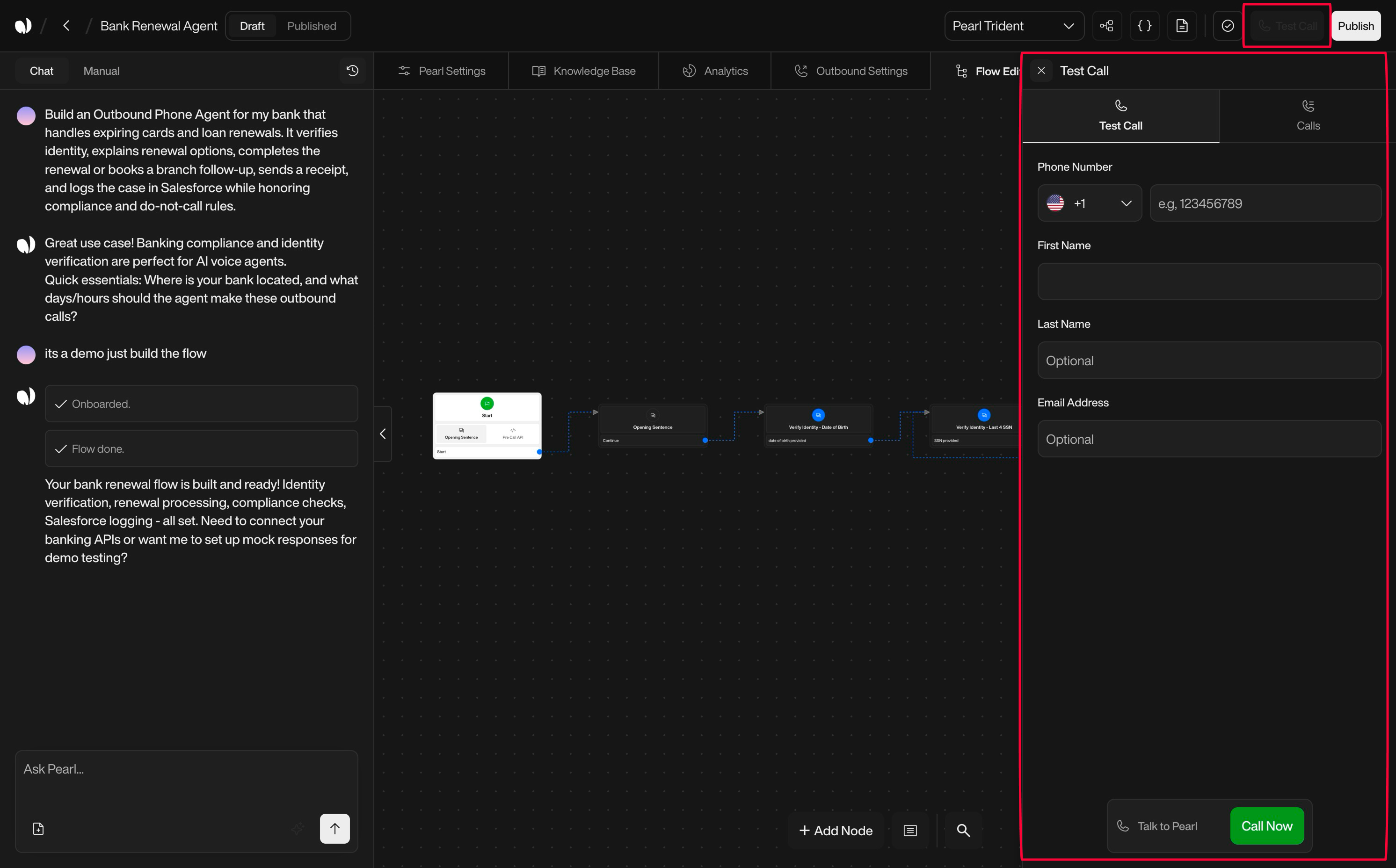
    <Card id="pearl-success">
      **Define the Success of Your Pearl**

      Specify what constitutes a successful call for your Pearl — such as booking a meeting, confirming interest, or qualifying a lead. This success definition will be reflected in your campaign analytics and lead statuses, helping you sort and follow up efficiently.

      <Info>
        If you don't define success for your Pearl, all answered calls will be marked as **Completed** by default.  <br /><br />
        By using this feature, you'll unlock two possible outcomes instead: **Call Successful** and **Call Unsuccessful**, giving you more control over lead qualification.
      </Info>

      <div className="block dark:hidden">
        <Frame>
          <div className="p-1">
            <img src="https://mintcdn.com/nlpearl/dWWMdFzyPk-9Vcky/images/light_mode/simplepearl_definesuccess.jpg?fit=max&auto=format&n=dWWMdFzyPk-9Vcky&q=85&s=1a4af4d64fda3d05662e4c3ecf1f8e62" alt="Send Email action interface on light mode" className="rounded-[14px]" width="1562" height="818" data-path="images/light_mode/simplepearl_definesuccess.jpg" />
          </div>
        </Frame>
      </div>

      <div className="hidden dark:block">
        <Frame>
          <div className="p-1">
            <img src="https://mintcdn.com/nlpearl/nyDvVX0ZPwzeAWkt/images/dark_mode/simplepearl_definesuccess.jpg?fit=max&auto=format&n=nyDvVX0ZPwzeAWkt&q=85&s=fcbd14da8986335f6a5661454f83cbd2" alt="Send Email action interface on dark mode" className="rounded-[14px]" width="1562" height="818" data-path="images/dark_mode/simplepearl_definesuccess.jpg" />
          </div>
        </Frame>
      </div>

      <br />

      ***

      **Indicator Tags**

      Use **Indicator Tags** to label and categorize key moments in a conversation.  <br /><br />
      They help you structure your data, identify important insights, and filter your leads with precision.

      Each tag includes:

      * **Name** — A clear label (e.g. `"Interested"`, `"Mentioned Competitor"`)
      * **Color** — Used for visual sorting in your interface
      * **Assignment rule** — A short description of when the tag should be applied

      Tags are assigned automatically during the call, based on the conditions you define.

      <Card>
        ### Example

        You're asking leads what they usually drink in the morning. You might define:

        * **Tag**: `Coffee`
          * **Color**: Brown
          * **When to assign**: If the lead mentions drinking coffee

        * **Tag**: `Tea`
          * **Color**: Green
          * **When to assign**: If the lead mentions drinking tea

        These tags will then appear in your lead data and call logs, making it easy to segment and analyze responses.
      </Card>

      <Info>
        Indicator Tags are not just for display — they're functional. You can filter campaigns by tag, trigger notifications, or use them to define success in analytics.
      </Info>

      <div className="block dark:hidden">
        <Frame>
          <div className="p-1">
            <img src="https://mintcdn.com/nlpearl/dWWMdFzyPk-9Vcky/images/light_mode/simplepearl_indicatortags.jpg?fit=max&auto=format&n=dWWMdFzyPk-9Vcky&q=85&s=54b9a30f1e5bbd011da53cfd27f17569" alt="Send Email action interface on light mode" className="rounded-[14px]" width="1562" height="818" data-path="images/light_mode/simplepearl_indicatortags.jpg" />
          </div>
        </Frame>
      </div>

      <div className="hidden dark:block">
        <Frame>
          <div className="p-1">
            <img src="https://mintcdn.com/nlpearl/nyDvVX0ZPwzeAWkt/images/dark_mode/simplepearl_indicatortags.jpg?fit=max&auto=format&n=nyDvVX0ZPwzeAWkt&q=85&s=6500aac4e9dbdfad7740ee7f2f6abca2" alt="Send Email action interface on dark mode" className="rounded-[14px]" width="1562" height="818" data-path="images/dark_mode/simplepearl_indicatortags.jpg" />
          </div>
        </Frame>
      </div>

      <br />
    </Card>
  </Accordion>

  <Accordion title="Campaign Settings" icon="rocket">
    Configure your campaign settings for inbound or outbound calls.

    <Tabs>
      <Tab title="Inbound">
        <Info>
          What are Inbound Activities?

          Inbound Activities refer to the capability of your conversational AI to handle incoming calls. This feature allows you to engage with callers immediately and effectively, using the conversational flows defined in your Pearl.
        </Info>

        **Steps to Create an Inbound Activity**

        <Steps>
          <Step title="Purchase a Phone Number">
            You first need to acquire a phone number from our platform. This number will be dedicated to your Inbound Activity and can receive calls from anywhere at any time.

            <div className="block dark:hidden">
              <Frame>
                <div className="p-1">
                  <img src="https://mintcdn.com/nlpearl/5m7CLiudjrqxiyho/images/light_mode/inbound_purchasephone.jpg?fit=max&auto=format&n=5m7CLiudjrqxiyho&q=85&s=f1f33201906b4d3d0300692e59238d41" alt="Send Email action interface on light mode" className="rounded-[14px]" width="2624" height="1456" data-path="images/light_mode/inbound_purchasephone.jpg" />
                </div>
              </Frame>
            </div>

            <div className="hidden dark:block">
              <Frame>
                <div className="p-1">
                  <img src="https://mintcdn.com/nlpearl/ek92yQlpTyrjmvSe/images/dark_mode/inbound_purchasephone.jpg?fit=max&auto=format&n=ek92yQlpTyrjmvSe&q=85&s=53ef374b064ba6ac77126bf9b1a4b86a" alt="Send Email action interface on dark mode" className="rounded-[14px]" width="2624" height="1456" data-path="images/dark_mode/inbound_purchasephone.jpg" />
                </div>
              </Frame>
            </div>
          </Step>

          <Step title="Assign the Phone Number to Your Campaign">
            Link the purchased phone number to the Pearl you want to use for handling inbound calls. This connects your conversational flow to real-world interactions.

            <div className="block dark:hidden">
              <Frame>
                <div className="p-1">
                  <img src="https://mintcdn.com/nlpearl/5m7CLiudjrqxiyho/images/light_mode/inbound_addphone.jpg?fit=max&auto=format&n=5m7CLiudjrqxiyho&q=85&s=12b60f64c1b8ae636a81ca8cc056695f" alt="Send Email action interface on light mode" className="rounded-[14px]" width="2986" height="1144" data-path="images/light_mode/inbound_addphone.jpg" />
                </div>
              </Frame>
            </div>

            <div className="hidden dark:block">
              <Frame>
                <div className="p-1">
                  <img src="https://mintcdn.com/nlpearl/ek92yQlpTyrjmvSe/images/dark_mode/inbound_addphone.jpg?fit=max&auto=format&n=ek92yQlpTyrjmvSe&q=85&s=acad471efe9b9a7f880850cb2f7a903e" alt="Send Email action interface on dark mode" className="rounded-[14px]" width="2986" height="1144" data-path="images/dark_mode/inbound_addphone.jpg" />
                </div>
              </Frame>
            </div>
          </Step>

          <Step title="Configure Inbound Setting">
            Set up your inbound call parameters, such as:

            * **Number of Agents**: Specify the number of agents that will handle calls simultaneously.

            <div className="block dark:hidden">
              <Frame>
                <div className="p-1">
                  <img src="https://mintcdn.com/nlpearl/5m7CLiudjrqxiyho/images/light_mode/inbound_agents.jpg?fit=max&auto=format&n=5m7CLiudjrqxiyho&q=85&s=c1319b69375c988ccaba9b6fac71e1f1" alt="Send Email action interface on light mode" className="rounded-[14px]" width="2986" height="1144" data-path="images/light_mode/inbound_agents.jpg" />
                </div>
              </Frame>
            </div>

            <div className="hidden dark:block">
              <Frame>
                <div className="p-1">
                  <img src="https://mintcdn.com/nlpearl/ek92yQlpTyrjmvSe/images/dark_mode/inbound_agents.jpg?fit=max&auto=format&n=ek92yQlpTyrjmvSe&q=85&s=cd6b6d5367d355962e72ade78aac439c" alt="Send Email action interface on dark mode" className="rounded-[14px]" width="2986" height="1144" data-path="images/dark_mode/inbound_agents.jpg" />
                </div>
              </Frame>
            </div>

            <br />

            * **Waiting Queue Message**: Define the sentence that will be said to callers if they enter the waiting queue.

            <div className="block dark:hidden">
              <Frame>
                <div className="p-1">
                  <img src="https://mintcdn.com/nlpearl/DSJnNLmkdffV1qq-/images/light_mode/inbound_waitingqueue.jpg?fit=max&auto=format&n=DSJnNLmkdffV1qq-&q=85&s=bf7f0389083371051be3ab515a91a09a" alt="Send Email action interface on light mode" className="rounded-[14px]" width="2986" height="1144" data-path="images/light_mode/inbound_waitingqueue.jpg" />
                </div>
              </Frame>
            </div>

            <div className="hidden dark:block">
              <Frame>
                <div className="p-1">
                  <img src="https://mintcdn.com/nlpearl/OLkkXJCUYovrG0y1/images/dark_mode/inbound_waitingqueue.jpg?fit=max&auto=format&n=OLkkXJCUYovrG0y1&q=85&s=b528d70a3a45deb8a185739809c6994a" alt="Send Email action interface on dark mode" className="rounded-[14px]" width="2986" height="1144" data-path="images/dark_mode/inbound_waitingqueue.jpg" />
                </div>
              </Frame>
            </div>

            <br />

            * **Queue Music**: Choose the song that will be played while callers wait in the queue.

            <div className="block dark:hidden">
              <Frame>
                <div className="p-1">
                  <img src="https://mintcdn.com/nlpearl/5m7CLiudjrqxiyho/images/light_mode/inbound_queuemusic.jpg?fit=max&auto=format&n=5m7CLiudjrqxiyho&q=85&s=1248e34397cf19204f3cd638f38686c8" alt="Send Email action interface on light mode" className="rounded-[14px]" width="2986" height="1144" data-path="images/light_mode/inbound_queuemusic.jpg" />
                </div>
              </Frame>
            </div>

            <div className="hidden dark:block">
              <Frame>
                <div className="p-1">
                  <img src="https://mintcdn.com/nlpearl/ek92yQlpTyrjmvSe/images/dark_mode/inbound_queuemusic.jpg?fit=max&auto=format&n=ek92yQlpTyrjmvSe&q=85&s=ebf361551eb7dc1bc577b3760971ae3e" alt="Send Email action interface on dark mode" className="rounded-[14px]" width="2986" height="1144" data-path="images/dark_mode/inbound_queuemusic.jpg" />
                </div>
              </Frame>
            </div>

            <br />

            * **Recording Option**: If recording is enabled, this conversation will be recorded and saved for future access. If recording is disabled, the conversation will not be recorded and no audio will be available.
            * **Recording After Transfer Call**: *Boolean* - If enabled, the call will continue to be recorded after being transferred. *Note: "Pearl & End-user" must be selected; otherwise, it will be automatically disabled.* This setting is important for maintaining logs in multi-agent interactions.

            <div className="block dark:hidden">
              <Frame>
                <div className="p-1">
                  <img src="https://mintcdn.com/nlpearl/DSJnNLmkdffV1qq-/images/light_mode/inbound_recordingoptions.jpg?fit=max&auto=format&n=DSJnNLmkdffV1qq-&q=85&s=6cdce07551137cf4f1efd7db4e18fe64" alt="Send Email action interface on light mode" className="rounded-[14px]" width="2986" height="1144" data-path="images/light_mode/inbound_recordingoptions.jpg" />
                </div>
              </Frame>
            </div>

            <div className="hidden dark:block">
              <Frame>
                <div className="p-1">
                  <img src="https://mintcdn.com/nlpearl/OLkkXJCUYovrG0y1/images/dark_mode/inbound_recordingoptions.jpg?fit=max&auto=format&n=OLkkXJCUYovrG0y1&q=85&s=046f047b37e606f76d43d42c65cdb106" alt="Send Email action interface on dark mode" className="rounded-[14px]" width="2986" height="1144" data-path="images/dark_mode/inbound_recordingoptions.jpg" />
                </div>
              </Frame>
            </div>

            <br />

            * **Transcript Masking**: *(Post-Call)* When enabled, sensitive information in conversation transcripts is automatically masked after the call while preserving essential context.
              This is especially useful for post-call analysis, compliance, and data security, ensuring that private details like:
              Credit card numbers
              Social Security numbers
              Personal identifiers
              are redacted while keeping the conversation readable.

            <div className="block dark:hidden">
              <Frame>
                <div className="p-1">
                  <img src="https://mintcdn.com/nlpearl/DSJnNLmkdffV1qq-/images/light_mode/inbound_transcriptmasking.jpg?fit=max&auto=format&n=DSJnNLmkdffV1qq-&q=85&s=fabaf2e19663e6da34f672b9c81ac284" alt="Send Email action interface on light mode" className="rounded-[14px]" width="2986" height="1144" data-path="images/light_mode/inbound_transcriptmasking.jpg" />
                </div>
              </Frame>
            </div>

            <div className="hidden dark:block">
              <Frame>
                <div className="p-1">
                  <img src="https://mintcdn.com/nlpearl/OLkkXJCUYovrG0y1/images/dark_mode/inbound_transcriptmasking.jpg?fit=max&auto=format&n=OLkkXJCUYovrG0y1&q=85&s=402b2fa7c550a7a812ce8aed0c61131f" alt="Send Email action interface on dark mode" className="rounded-[14px]" width="2986" height="1144" data-path="images/dark_mode/inbound_transcriptmasking.jpg" />
                </div>
              </Frame>
            </div>

            <br />

            <Card>
              > For example, if a customer says:
              > "My credit card number is 1234-5678-9012-3456."
              > The transcript might store it as:
              > "My credit card number is --\*\*-3456."
              > This helps businesses review interactions safely without exposing sensitive data.
            </Card>
          </Step>

          <Step>
            * Call Webhook: A call webhook is triggered at key points during the call lifecycle, such as when the call is initiated and when it ends. You receive an object similar to the one returned by the [Get Calls Endpoint](/api-reference/v2/call/get-call), including details like call duration, outcome, and any data collected during the call. This is useful for tracking call performance and automation.

            <div className="block dark:hidden">
              <Frame>
                <div className="p-1">
                  <img src="https://mintcdn.com/nlpearl/DSJnNLmkdffV1qq-/images/light_mode/inbound_webhook.jpg?fit=max&auto=format&n=DSJnNLmkdffV1qq-&q=85&s=f55422b352a81fbe92cefe8907eb49ff" alt="Send Email action interface on light mode" className="rounded-[14px]" width="2986" height="1144" data-path="images/light_mode/inbound_webhook.jpg" />
                </div>
              </Frame>
            </div>

            <div className="hidden dark:block">
              <Frame>
                <div className="p-1">
                  <img src="https://mintcdn.com/nlpearl/OLkkXJCUYovrG0y1/images/dark_mode/inbound_webhook.jpg?fit=max&auto=format&n=OLkkXJCUYovrG0y1&q=85&s=de34f20d68c056c276a7b96c9f7580d1" alt="Send Email action interface on dark mode" className="rounded-[14px]" width="2986" height="1144" data-path="images/dark_mode/inbound_webhook.jpg" />
                </div>
              </Frame>
            </div>

            <br />
          </Step>
        </Steps>

        ***

        <CardGroup cols={2}>
          <Card title="Agents" icon="users" iconType="light" href="/pages/agents">
            Understand how to manage your agents, including adding and configuring agents for your inbound and outbound activities.
          </Card>

          <Card title="Phone Numbers" icon="phone" iconType="light" href="/pages/phone_numbers">
            Learn how to purchase and manage phone numbers, and configure them for your NLPearl.AI activities.
          </Card>
        </CardGroup>

        ***

        **Managing Call Volume with Queues**

        If your Inbound Activity experiences high call volumes, callers will not be turned away. Instead, they will enter a waiting queue where they can listen to customizable messages and music until an AI agent becomes available.

        <Note>
          ### Call Queue Configuration

          Customize the waiting message and background music to keep your callers engaged while they wait. This feature helps in maintaining a professional and pleasant waiting experience.
        </Note>

        ***

        <Info>
          ### Monitoring and Adjusting Your Inbound Activities

          While basic monitoring of call logs and activity reports can be done via our API, any modifications to the activity setup or features like voice changes and language settings need to be handled directly on the platform.
        </Info>
      </Tab>

      <Tab title="Outbound">
        <Info>
          What are Outbound Campaigns?

          Outbound campaigns enable your AI agents to make outgoing calls to a list of leads. These calls follow the conversational logic defined in your Pearl, ensuring consistent and effective communication with your potential clients.
        </Info>

        **Steps to Create an Outbound Campaign**

        <Steps>
          <Step title="Purchase a Phone Number">
            You first need to acquire a phone number from our platform. This number will be dedicated to your Inbound Activity and can receive calls from anywhere at any time.

            <div className="block dark:hidden">
              <Frame>
                <div className="p-1">
                  <img src="https://mintcdn.com/nlpearl/5m7CLiudjrqxiyho/images/light_mode/inbound_purchasephone.jpg?fit=max&auto=format&n=5m7CLiudjrqxiyho&q=85&s=f1f33201906b4d3d0300692e59238d41" alt="Send Email action interface on light mode" className="rounded-[14px]" width="2624" height="1456" data-path="images/light_mode/inbound_purchasephone.jpg" />
                </div>
              </Frame>
            </div>

            <div className="hidden dark:block">
              <Frame>
                <div className="p-1">
                  <img src="https://mintcdn.com/nlpearl/ek92yQlpTyrjmvSe/images/dark_mode/inbound_purchasephone.jpg?fit=max&auto=format&n=ek92yQlpTyrjmvSe&q=85&s=53ef374b064ba6ac77126bf9b1a4b86a" alt="Send Email action interface on dark mode" className="rounded-[14px]" width="2624" height="1456" data-path="images/dark_mode/inbound_purchasephone.jpg" />
                </div>
              </Frame>
            </div>
          </Step>

          <Step title="Assign the Phone Number to Your Campaign">
            Link the purchased phone number to the Pearl you want to use for handling outbound calls. This connects your conversational flow to real-world interactions.

            <div className="block dark:hidden">
              <Frame>
                <div className="p-1">
                  <img src="https://mintcdn.com/nlpearl/5m7CLiudjrqxiyho/images/light_mode/inbound_addphone.jpg?fit=max&auto=format&n=5m7CLiudjrqxiyho&q=85&s=12b60f64c1b8ae636a81ca8cc056695f" alt="Send Email action interface on light mode" className="rounded-[14px]" width="2986" height="1144" data-path="images/light_mode/inbound_addphone.jpg" />
                </div>
              </Frame>
            </div>

            <div className="hidden dark:block">
              <Frame>
                <div className="p-1">
                  <img src="https://mintcdn.com/nlpearl/ek92yQlpTyrjmvSe/images/dark_mode/inbound_addphone.jpg?fit=max&auto=format&n=ek92yQlpTyrjmvSe&q=85&s=acad471efe9b9a7f880850cb2f7a903e" alt="Send Email action interface on dark mode" className="rounded-[14px]" width="2986" height="1144" data-path="images/dark_mode/inbound_addphone.jpg" />
                </div>
              </Frame>
            </div>
          </Step>

          <Step title="Configure Outbound Settings">
            * **Timezone:** You can set a specific timezone for your campaign to ensure all actions are triggered at the right local time for your leads.

            <div className="block dark:hidden">
              <Frame>
                <div className="p-1">
                  <img src="https://mintcdn.com/nlpearl/yjNN1PpSs3yxoZOQ/images/light_mode/simplepearl_timezone.jpg?fit=max&auto=format&n=yjNN1PpSs3yxoZOQ&q=85&s=d1773ec2f1a51abc1412adb0ddac7aec" alt="Send Email action interface on light mode" className="rounded-[14px]" width="1562" height="572" data-path="images/light_mode/simplepearl_timezone.jpg" />
                </div>
              </Frame>
            </div>

            <div className="hidden dark:block">
              <Frame>
                <div className="p-1">
                  <img src="https://mintcdn.com/nlpearl/LRcBocnC9aRvHcb-/images/dark_mode/simplepearl_timezone.jpg?fit=max&auto=format&n=LRcBocnC9aRvHcb-&q=85&s=45ff6f6f0983550301204499957c1479" alt="Send Email action interface on dark mode" className="rounded-[14px]" width="1562" height="572" data-path="images/dark_mode/simplepearl_timezone.jpg" />
                </div>
              </Frame>
            </div>

            * **Budget**: Define the budget for your campaign. Once the budget is reached, Pearl will stop making calls for that campaign. This is optional, and you can always increase it if you have enough credit in your account.

            <div className="block dark:hidden">
              <Frame>
                <div className="p-1">
                  <img src="https://mintcdn.com/nlpearl/DSJnNLmkdffV1qq-/images/light_mode/outbound_budget.jpg?fit=max&auto=format&n=DSJnNLmkdffV1qq-&q=85&s=71b4949636386dc9d0eb46d36455186c" alt="Send Email action interface on light mode" className="rounded-[14px]" width="1562" height="456" data-path="images/light_mode/outbound_budget.jpg" />
                </div>
              </Frame>
            </div>

            <div className="hidden dark:block">
              <Frame>
                <div className="p-1">
                  <img src="https://mintcdn.com/nlpearl/OLkkXJCUYovrG0y1/images/dark_mode/outbound_budget.jpg?fit=max&auto=format&n=OLkkXJCUYovrG0y1&q=85&s=232cb774727ddac09e06ab53abd710f2" alt="Send Email action interface on dark mode" className="rounded-[14px]" width="1562" height="456" data-path="images/dark_mode/outbound_budget.jpg" />
                </div>
              </Frame>
            </div>

            * **Number of Simultaneous Agents**: Specify how many AI agents can make calls at the same time. A higher number allows for more rapid outreach but may require additional resources.

            <div className="block dark:hidden">
              <Frame>
                <div className="p-1">
                  <img src="https://mintcdn.com/nlpearl/5m7CLiudjrqxiyho/images/light_mode/inbound_agents.jpg?fit=max&auto=format&n=5m7CLiudjrqxiyho&q=85&s=c1319b69375c988ccaba9b6fac71e1f1" alt="Send Email action interface on light mode" className="rounded-[14px]" width="2986" height="1144" data-path="images/light_mode/inbound_agents.jpg" />
                </div>
              </Frame>
            </div>

            <div className="hidden dark:block">
              <Frame>
                <div className="p-1">
                  <img src="https://mintcdn.com/nlpearl/ek92yQlpTyrjmvSe/images/dark_mode/inbound_agents.jpg?fit=max&auto=format&n=ek92yQlpTyrjmvSe&q=85&s=cd6b6d5367d355962e72ade78aac439c" alt="Send Email action interface on dark mode" className="rounded-[14px]" width="2986" height="1144" data-path="images/dark_mode/inbound_agents.jpg" />
                </div>
              </Frame>
            </div>

            <br />

            * **Recording Options**:

            | Option               | Description                              |
            | -------------------- | ---------------------------------------- |
            | **Pearl & End-user** | Records both Pearl and the lead's voice. |
            | **Pearl Only**       | Records only Pearl voice.                |
            | **No Recording**     | Disables call recording entirely.        |

            <Note>
              Select the recording mode based on your privacy policies and legal requirements. Some industries (e.g. finance, insurance) require full call recordings for compliance, while others may choose to limit or disable them to respect user privacy.
            </Note>

            ***

            * **Recording After Transfer Call**: *Boolean*\
              If enabled, recording will continue even after the call is transferred to a human agent or external number.

            <div className="block dark:hidden">
              <Frame>
                <div className="p-1">
                  <img src="https://mintcdn.com/nlpearl/DSJnNLmkdffV1qq-/images/light_mode/outbound_recordingoptions.jpg?fit=max&auto=format&n=DSJnNLmkdffV1qq-&q=85&s=425d7af20c3cf401c09b82eb2bcfa8c4" alt="Send Email action interface on light mode" className="rounded-[14px]" width="1562" height="582" data-path="images/light_mode/outbound_recordingoptions.jpg" />
                </div>
              </Frame>
            </div>

            <div className="hidden dark:block">
              <Frame>
                <div className="p-1">
                  <img src="https://mintcdn.com/nlpearl/OLkkXJCUYovrG0y1/images/dark_mode/outbound_recordingoptions.jpg?fit=max&auto=format&n=OLkkXJCUYovrG0y1&q=85&s=4af32ecdccc84310e6a2c4c6e086a5a6" alt="Send Email action interface on dark mode" className="rounded-[14px]" width="1562" height="582" data-path="images/dark_mode/outbound_recordingoptions.jpg" />
                </div>
              </Frame>
            </div>

            * **Transcript Options** *(Post-Call)*

            When enabled, conversation transcripts are generated after the call. You can choose the level of detail and whether to apply automatic masking of sensitive information.

            Available Options:

            | Option                            | Description                                                                                                                                                                         |
            | --------------------------------- | ----------------------------------------------------------------------------------------------------------------------------------------------------------------------------------- |
            | **Masking Sensitive Information** | Automatically redacts private data (e.g. credit card numbers, SSNs, personal identifiers) while preserving the conversation's context. Ideal for compliance and post-call analysis. |
            | **Full Transcript**               | Stores the entire conversation without redaction. Use with caution in sensitive environments.                                                                                       |
            | **No Transcript**                 | Disables transcript generation entirely. Nothing is stored after the call.                                                                                                          |

            <Note>
              Example of masking:\
              Customer says: "My credit card number is **1234-5678-9012-3456**."\
              Transcript output: "My credit card number is **--**-3456."

              This allows your team to review conversations safely, without exposing sensitive data.
            </Note>

            <div className="block dark:hidden">
              <Frame>
                <div className="p-1">
                  <img src="https://mintcdn.com/nlpearl/DSJnNLmkdffV1qq-/images/light_mode/outbound_transcriptoption.jpg?fit=max&auto=format&n=DSJnNLmkdffV1qq-&q=85&s=b7c6d225107983fac4c09e568ad0e655" alt="Send Email action interface on light mode" className="rounded-[14px]" width="1562" height="456" data-path="images/light_mode/outbound_transcriptoption.jpg" />
                </div>
              </Frame>
            </div>

            <div className="hidden dark:block">
              <Frame>
                <div className="p-1">
                  <img src="https://mintcdn.com/nlpearl/OLkkXJCUYovrG0y1/images/dark_mode/outbound_transcriptoption.jpg?fit=max&auto=format&n=OLkkXJCUYovrG0y1&q=85&s=63c46ab091f25c2ae237bcd5c62775f9" alt="Send Email action interface on dark mode" className="rounded-[14px]" width="1562" height="456" data-path="images/dark_mode/outbound_transcriptoption.jpg" />
                </div>
              </Frame>
            </div>

            * **Retry Call Attempts**

            Define how many times Pearl should retry reaching out to a lead if the initial call fails.\
            You can set between **1 and 5 attempts**, balancing persistence and user experience.

            This helps reduce lead loss from missed calls, while avoiding spammy behavior.

            **Retry Intervals**

            | Interval Option       | Description                                |
            | --------------------- | ------------------------------------------ |
            | **Every 3 hours**     | Fast retry cycle for urgent contact needs. |
            | **Every 6 hours**     | Moderate retry pace during the same day.   |
            | **Once a day**        | Standard daily follow-up.                  |
            | **Once every 3 days** | More spaced follow-up.                     |
            | **Once a week**       | Low-frequency retries.                     |
            | **Once a month**      | For long-term or non-urgent callbacks.     |

            <div className="block dark:hidden">
              <Frame>
                <div className="p-1">
                  <img src="https://mintcdn.com/nlpearl/DSJnNLmkdffV1qq-/images/light_mode/outbound_retrycallattempts.jpg?fit=max&auto=format&n=DSJnNLmkdffV1qq-&q=85&s=f79fc4396e3c38626e2836e885be9709" alt="Send Email action interface on light mode" className="rounded-[14px]" width="1562" height="456" data-path="images/light_mode/outbound_retrycallattempts.jpg" />
                </div>
              </Frame>
            </div>

            <div className="hidden dark:block">
              <Frame>
                <div className="p-1">
                  <img src="https://mintcdn.com/nlpearl/OLkkXJCUYovrG0y1/images/dark_mode/outbound_retrycallattempts.jpg?fit=max&auto=format&n=OLkkXJCUYovrG0y1&q=85&s=5e3493007fc2205b0ea0d687384204f7" alt="Send Email action interface on dark mode" className="rounded-[14px]" width="1562" height="456" data-path="images/dark_mode/outbound_retrycallattempts.jpg" />
                </div>
              </Frame>
            </div>

            <Note>
              Setting the right interval ensures follow-ups occur without overwhelming the lead.
            </Note>

            * **Ring Duration**: Define how long Pearl will ring before ending the call. You can choose a duration between **10 and 50 seconds**. If the lead does not answer within this time, the call status will be marked as "No Answer." Shorter durations prevent wasted time, while longer durations increase answer rates.

            <div className="block dark:hidden">
              <Frame>
                <div className="p-1">
                  <img src="https://mintcdn.com/nlpearl/DSJnNLmkdffV1qq-/images/light_mode/outbound_ringduration.jpg?fit=max&auto=format&n=DSJnNLmkdffV1qq-&q=85&s=3b3a85b5ba535ec8bbb44b985d524431" alt="Send Email action interface on light mode" className="rounded-[14px]" width="1562" height="456" data-path="images/light_mode/outbound_ringduration.jpg" />
                </div>
              </Frame>
            </div>

            <div className="hidden dark:block">
              <Frame>
                <div className="p-1">
                  <img src="https://mintcdn.com/nlpearl/OLkkXJCUYovrG0y1/images/dark_mode/outbound_ringduration.jpg?fit=max&auto=format&n=OLkkXJCUYovrG0y1&q=85&s=fa67b13dbfac89d03eeea629c2c2c437" alt="Send Email action interface on dark mode" className="rounded-[14px]" width="1562" height="456" data-path="images/dark_mode/outbound_ringduration.jpg" />
                </div>
              </Frame>
            </div>

            * **Voicemail Drop**: When Pearl reaches voicemail, she can leave a **personalized message** using variables like the lead's first name. This creates a more human-like interaction even when the lead doesn't answer.

            <div className="block dark:hidden">
              <Frame>
                <div className="p-1">
                  <img src="https://mintcdn.com/nlpearl/DSJnNLmkdffV1qq-/images/light_mode/outbound_voicemail.jpg?fit=max&auto=format&n=DSJnNLmkdffV1qq-&q=85&s=5cb664c13171707975a98386e7861c8b" alt="Send Email action interface on light mode" className="rounded-[14px]" width="1562" height="578" data-path="images/light_mode/outbound_voicemail.jpg" />
                </div>
              </Frame>
            </div>

            <div className="hidden dark:block">
              <Frame>
                <div className="p-1">
                  <img src="https://mintcdn.com/nlpearl/OLkkXJCUYovrG0y1/images/dark_mode/outbound_voicemail.jpg?fit=max&auto=format&n=OLkkXJCUYovrG0y1&q=85&s=3f58a4b626944074c40ccb2d3a9ec24a" alt="Send Email action interface on dark mode" className="rounded-[14px]" width="1562" height="578" data-path="images/dark_mode/outbound_voicemail.jpg" />
                </div>
              </Frame>
            </div>

            <Note>
              You can only use Pre-Call variables in the voicemail drop

              This ensures a friendly and engaging experience for your leads, increasing the chances of a callback.
              <br />- **Example:**

              > "Hi `First Name`, this is Pearl calling on behalf of `Your Company`. I just tried reaching you but missed you this time! Feel free to call me back at `Your Callback Number`. Looking forward to speaking with you soon!"
            </Note>

            * **Schedule Calls**: Define the schedule for when the AI agents will make the outbound calls. You can specify dates, times, and frequency to suit your campaign needs.

            <div className="block dark:hidden">
              <Frame>
                <div className="p-1">
                  <img src="https://mintcdn.com/nlpearl/DSJnNLmkdffV1qq-/images/light_mode/outbound_shcedulling.jpg?fit=max&auto=format&n=DSJnNLmkdffV1qq-&q=85&s=122f5e27b4b10e63e6fef2e9cf18a177" alt="Send Email action interface on light mode" className="rounded-[14px]" width="1562" height="456" data-path="images/light_mode/outbound_shcedulling.jpg" />
                </div>
              </Frame>
            </div>

            <div className="hidden dark:block">
              <Frame>
                <div className="p-1">
                  <img src="https://mintcdn.com/nlpearl/OLkkXJCUYovrG0y1/images/dark_mode/outbound_shcedulling.jpg?fit=max&auto=format&n=OLkkXJCUYovrG0y1&q=85&s=c502a859942c78d0a76154333a9537bf" alt="Send Email action interface on dark mode" className="rounded-[14px]" width="1562" height="456" data-path="images/dark_mode/outbound_shcedulling.jpg" />
                </div>
              </Frame>
            </div>

            * **Call Webhook**: A call webhook is triggered at key points during the call lifecycle, such as when the call is initiated and when it ends. You receive an object similar to the one returned by the [Get Calls](/api-reference/v2/call/get-call) endpoint, including details like call duration, outcome, and any data collected during the call. This is useful for tracking call performance and automation.

            * **Lead Webhook**: A lead webhook is triggered every time a specific lead changes status, at the beginning of the call and at the end of the call. You receive an object similar to the one returned by the [Get Leads](/api-reference/v2/outbound/get-lead) endpoint. This includes all relevant information about the lead and its current status. Use this webhook to update your CRM or lead management system in real-time, ensuring that you have the most up-to-date information on lead interactions.

            <div className="block dark:hidden">
              <Frame>
                <div className="p-1">
                  <img src="https://mintcdn.com/nlpearl/DSJnNLmkdffV1qq-/images/light_mode/outbound_webhook.jpg?fit=max&auto=format&n=DSJnNLmkdffV1qq-&q=85&s=96e8ff040db21b028393faad564911b9" alt="Send Email action interface on light mode" className="rounded-[14px]" width="1562" height="670" data-path="images/light_mode/outbound_webhook.jpg" />
                </div>
              </Frame>
            </div>

            <div className="hidden dark:block">
              <Frame>
                <div className="p-1">
                  <img src="https://mintcdn.com/nlpearl/OLkkXJCUYovrG0y1/images/dark_mode/outbound_webhook.jpg?fit=max&auto=format&n=OLkkXJCUYovrG0y1&q=85&s=778e851ee4bc7678cd9d3bf9da26ff34" alt="Send Email action interface on dark mode" className="rounded-[14px]" width="1562" height="670" data-path="images/dark_mode/outbound_webhook.jpg" />
                </div>
              </Frame>
            </div>
          </Step>

          <Step title="Add Leads">
            Easily add the leads you want to contact directly from the platform. You can enter lead details such as name, phone number, and any other relevant information.

            | Step | Action               | Description                                                                 |
            | ---- | -------------------- | --------------------------------------------------------------------------- |
            | 1    | **Go to "Leads"**    | Navigate to the **Leads** tab in your campaign sidebar.                     |
            | 2    | **Click "Add Lead"** | Open the lead addition modal to choose between manual entry or file upload. |

            <div className="block dark:hidden">
              <Frame>
                <div className="p-1">
                  <img src="https://mintcdn.com/nlpearl/DSJnNLmkdffV1qq-/images/light_mode/outbound_addlead.jpg?fit=max&auto=format&n=DSJnNLmkdffV1qq-&q=85&s=85022fbfd7dd19292ecce91935f579cf" alt="Send Email action interface on light mode" className="rounded-[14px]" width="2624" height="1456" data-path="images/light_mode/outbound_addlead.jpg" />
                </div>
              </Frame>
            </div>

            <div className="hidden dark:block">
              <Frame>
                <div className="p-1">
                  <img src="https://mintcdn.com/nlpearl/OLkkXJCUYovrG0y1/images/dark_mode/outbound_addlead.jpg?fit=max&auto=format&n=OLkkXJCUYovrG0y1&q=85&s=8c551572c38e58983b55c9d3296a5ad3" alt="Send Email action interface on dark mode" className="rounded-[14px]" width="2624" height="1456" data-path="images/dark_mode/outbound_addlead.jpg" />
                </div>
              </Frame>
            </div>

            **Step 2:** Choose how you want to add your leads:

            ***

            **Option 1: Upload a File**

            | Step | Action                | Description                                                                     |
            | ---- | --------------------- | ------------------------------------------------------------------------------- |
            | 1    | **Click Upload File** | Start the file upload process.                                                  |
            | 2    | **Download Template** | Download a pre-filled CSV template including only variables used in your Pearl. |
            | 3    | **Fill and Upload**   | Complete the template with your lead data, then upload it back to the platform. |

            <Note>
              When you download the template, the file will only contain column names for the variables *actually used* in your flow. If you create a variable but don't use it, it won't appear in the file.

              If you manually add new columns that aren't linked to your Pearl, they won't be recognized when re-uploading the file.
            </Note>

            <div className="block dark:hidden">
              <Frame>
                <div className="p-1">
                  <img src="https://mintcdn.com/nlpearl/DSJnNLmkdffV1qq-/images/light_mode/outbound_addleadoption-one.jpg?fit=max&auto=format&n=DSJnNLmkdffV1qq-&q=85&s=db8144954d116a760c059adf16f00716" alt="Send Email action interface on light mode" className="rounded-[14px]" width="2624" height="1456" data-path="images/light_mode/outbound_addleadoption-one.jpg" />
                </div>
              </Frame>
            </div>

            <div className="hidden dark:block">
              <Frame>
                <div className="p-1">
                  <img src="https://mintcdn.com/nlpearl/OLkkXJCUYovrG0y1/images/dark_mode/outbound_addleadoption-one.jpg?fit=max&auto=format&n=OLkkXJCUYovrG0y1&q=85&s=c084df159e1ec7d7ce6ddfd602159ecd" alt="Send Email action interface on dark mode" className="rounded-[14px]" width="2624" height="1456" data-path="images/dark_mode/outbound_addleadoption-one.jpg" />
                </div>
              </Frame>
            </div>

            **Option 2: Add Manually**

            | Step | Action              | Description                                                |
            | ---- | ------------------- | ---------------------------------------------------------- |
            | 1    | **Click Manually**  | Switch to manual lead entry mode.                          |
            | 2    | **Enter Lead Data** | Fill in lead details directly in the platform, one by one. |

            <div className="block dark:hidden">
              <Frame>
                <div className="p-1">
                  <img src="https://mintcdn.com/nlpearl/DSJnNLmkdffV1qq-/images/light_mode/outbound_addleadoption-two.jpg?fit=max&auto=format&n=DSJnNLmkdffV1qq-&q=85&s=55881cbd24c5b4774b05022e6cbb24fd" alt="Send Email action interface on light mode" className="rounded-[14px]" width="2624" height="1456" data-path="images/light_mode/outbound_addleadoption-two.jpg" />
                </div>
              </Frame>
            </div>

            <div className="hidden dark:block">
              <Frame>
                <div className="p-1">
                  <img src="https://mintcdn.com/nlpearl/OLkkXJCUYovrG0y1/images/dark_mode/outbound_addleadoption-two.jpg?fit=max&auto=format&n=OLkkXJCUYovrG0y1&q=85&s=f9a434df6e27623a7d92e20a9a7615f5" alt="Send Email action interface on dark mode" className="rounded-[14px]" width="2624" height="1456" data-path="images/dark_mode/outbound_addleadoption-two.jpg" />
                </div>
              </Frame>
            </div>
          </Step>
        </Steps>

        ***

        **Understanding Country Codes**

        Understanding how the country code affects your campaign is crucial:

        * **Single Country Code per Campaign**: Each outbound campaign is restricted to one country code. This means you can only call leads with phone numbers from the same country.
        * **Setting and Managing the Country Code**: The country code for your outbound campaign is automatically set based on the phone number you assign during creation. The phone number you select determines the country code for the campaign. Once assigned, the country code matches the phone number's country code and **cannot be changed** for that campaign. You will only be able to add leads with phone numbers matching this country code.
        * **Changing Phone Numbers**: You can change the assigned phone number **within the same country code**. If you need to assign a phone number from a different country code, you will need to create a **new outbound campaign**.
        * **Adding Leads**: You can only add leads whose phone numbers match the campaign's country code.
        * **Creating Multiple Campaigns**: If you need to operate across multiple country codes, you should create separate outbound campaigns for each country code.
        * As our platform currently only offers US phone numbers, please refer to the Phone Numbers tab to explore the options available if you need to reach phone numbers from other country codes.

        ***

        <CardGroup cols={2}>
          <Card title="Agents" icon="users" iconType="light" href="/pages/agents">
            Understand how to manage your agents, including adding and configuring agents for your inbound and outbound activities.
          </Card>

          <Card title="Phone Numbers" icon="phone" iconType="light" href="/pages/phone_numbers">
            Learn how to purchase and manage phone numbers, and configure them for your NLPearl.AI activities.
          </Card>
        </CardGroup>
      </Tab>
    </Tabs>
  </Accordion>
</AccordionGroup>