> ## Documentation Index
> Fetch the complete documentation index at: https://developers.nlpearl.ai/llms.txt
> Use this file to discover all available pages before exploring further.
# NLPearl Phone Numbers
> Learn how to purchase phone numbers directly from the NLPearl.AI platform.
NLPearl.AI allows you to purchase phone numbers directly from our platform to support your inbound and outbound call activities. These phone numbers are billed monthly and can be managed easily within your account.
### Available Countries
Currently, we offer phone numbers for purchase from the following country:
| Country | ISO Code | Status |
| ------------- | -------- | ----------------------------------------------------------------------------------------------------------------------------------------------------------- |
| United States | `US` | Available |
If you require phone numbers from other country codes, please consider using our [Twilio Integration](/pages/twilio_integration) or [Custom VoIP Integration](/pages/custom_voip) options.
***
### Before You Purchase
**An active subscription is required.** Buying an NLPearl phone number is only available on a paid plan.
Each phone number is billed monthly, and the exact per-number price is shown in the purchase panel next to each number. Numbers included in your plan appear as **Free with plan** in the cart (see [Payment and Billing](#payment-and-billing)).
**Outbound calling & spam risk:** If you plan to make outbound calls, we strongly recommend integrating and verifying your number with a VoIP provider. Otherwise, carriers may flag it as spam.
***
### How to Purchase a Phone Number
Follow these steps to purchase a phone number from NLPearl.AI:
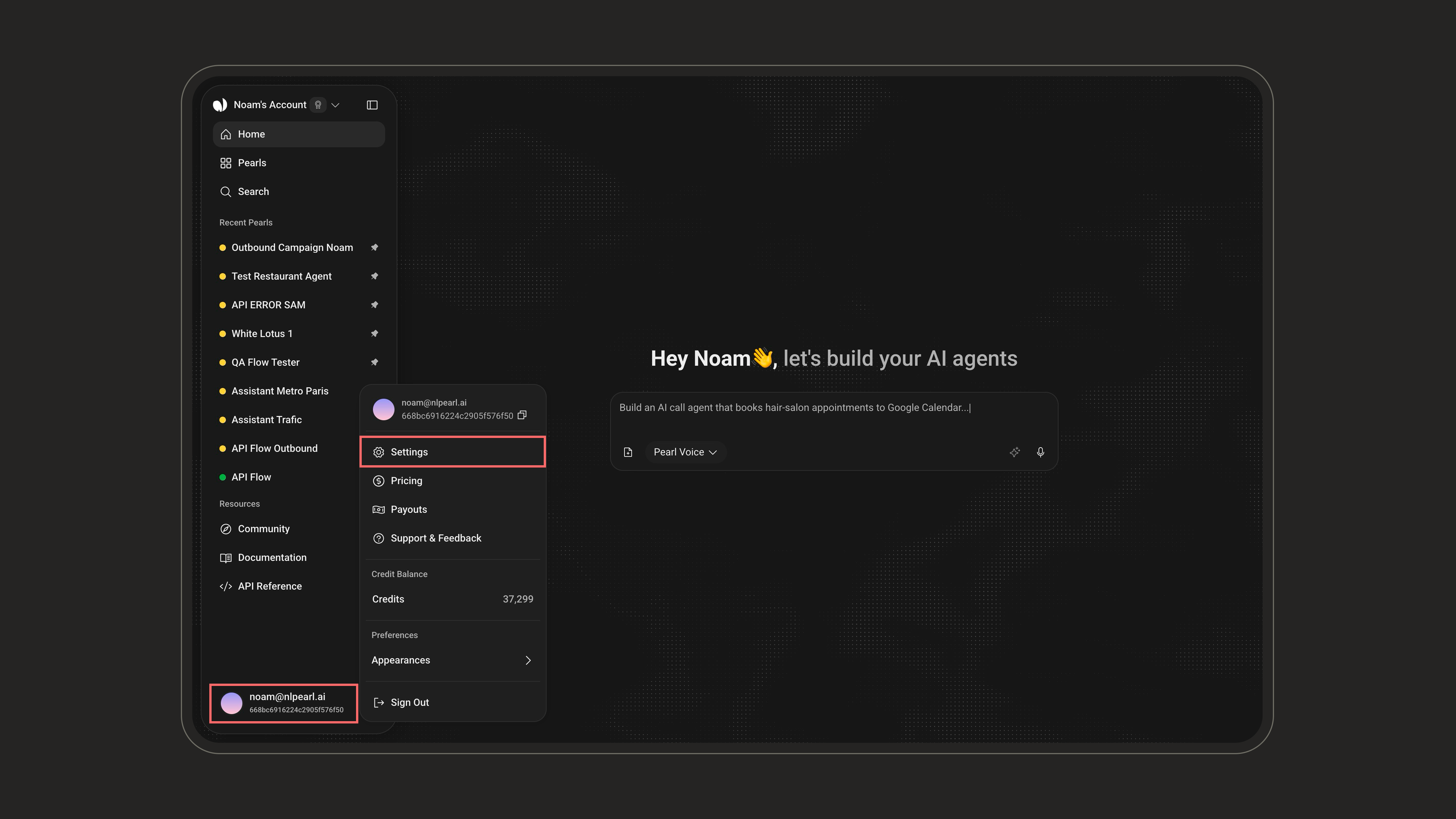
Start by clicking your **profile card** at the bottom-left corner of the sidebar, then open **Settings**.
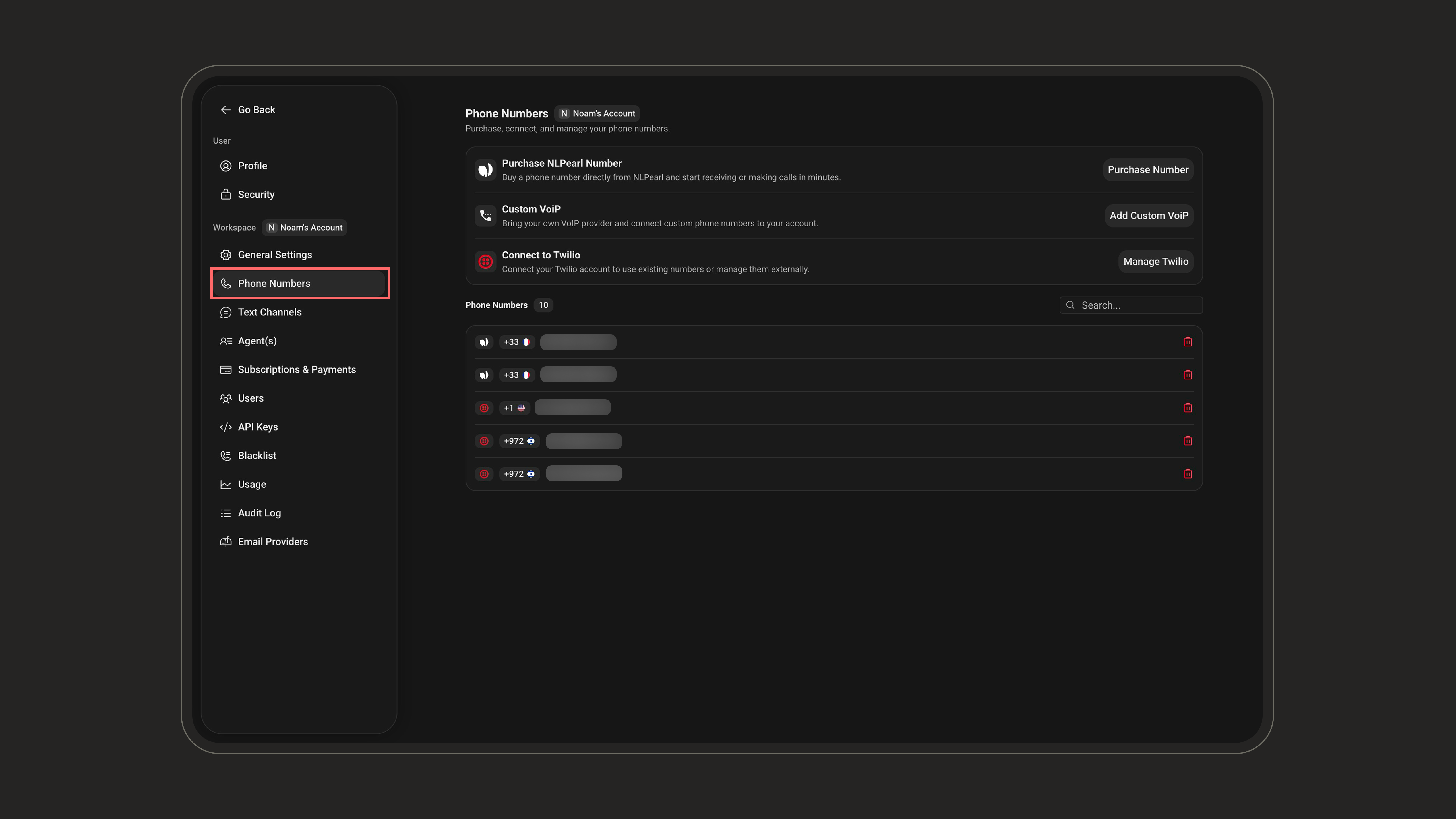
 From there, open the **Phone Numbers** tab to manage or purchase phone numbers linked to your account.
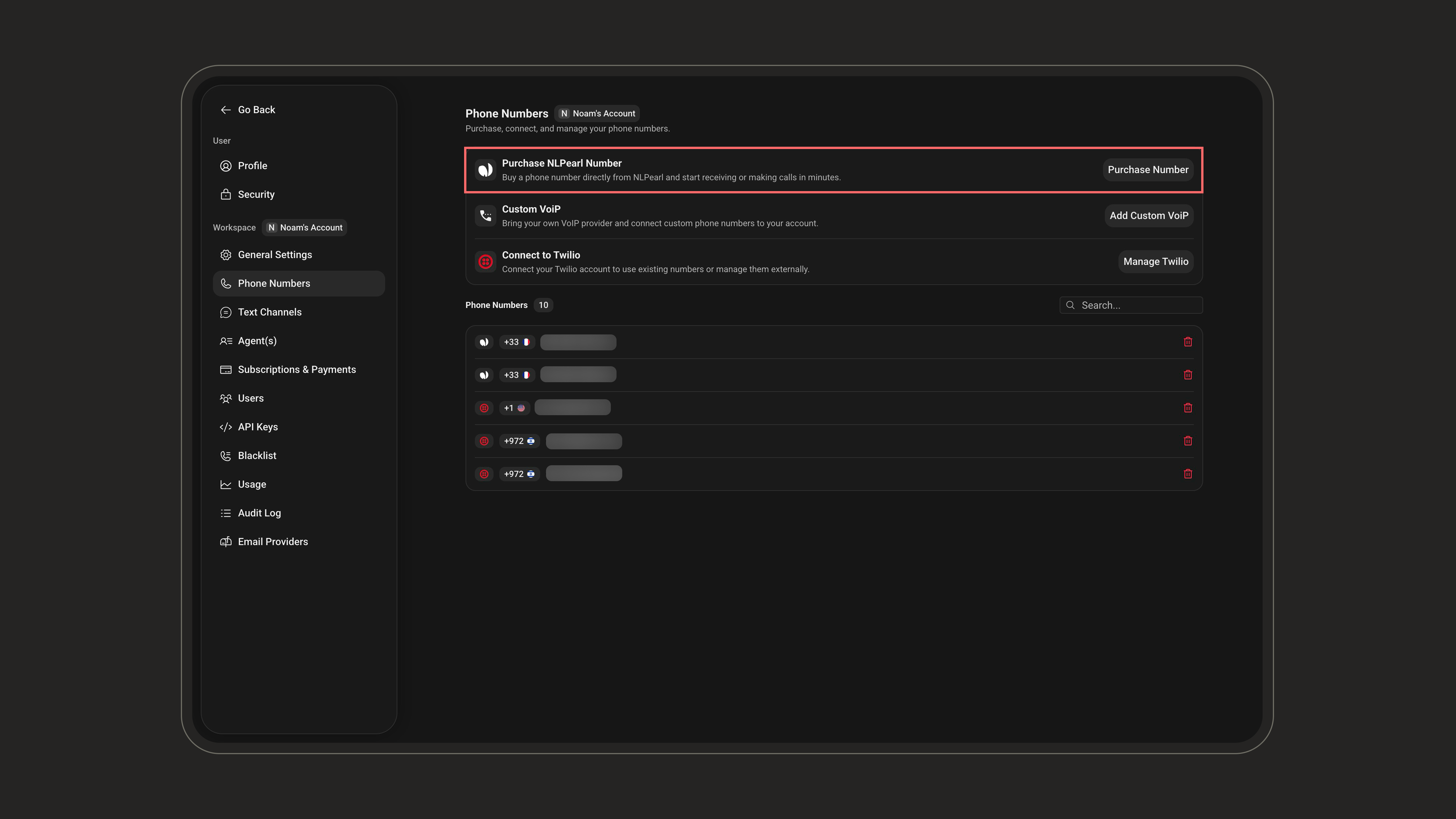
 In the **Phone Numbers** tab, locate the **Purchase NLPearl Phone Number** button in the center of the screen.
Click it to access the list of available phone numbers for purchase.
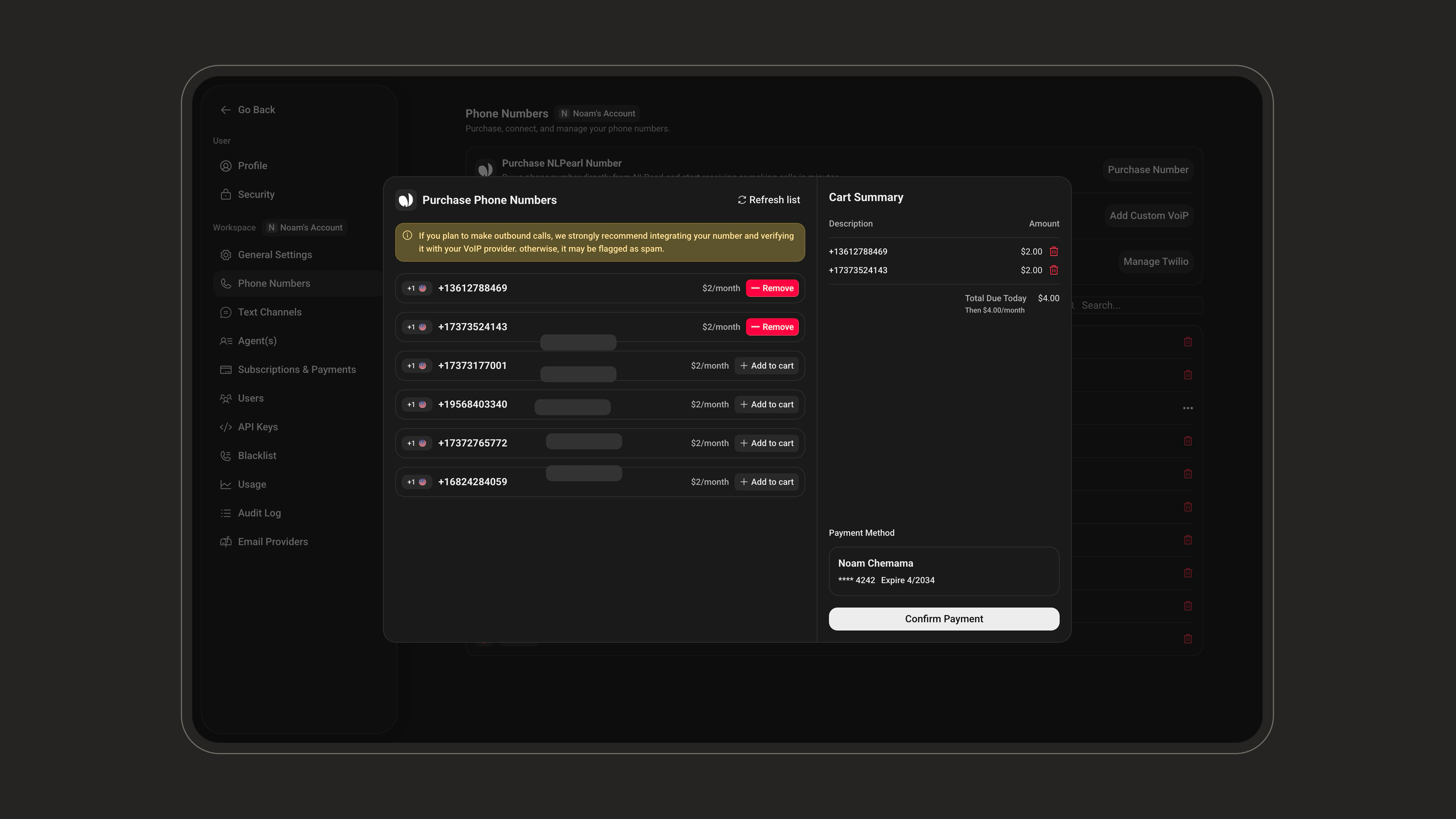
Once you click **Purchase NLPearl Number**, a side panel titled **Purchase Phone Numbers** (1) opens on the right.
Here, you’ll see a list of available US phone numbers. To add a number to your cart, simply click the **Add** button next to it. When selected, the button turns green and updates to **Added** (2).
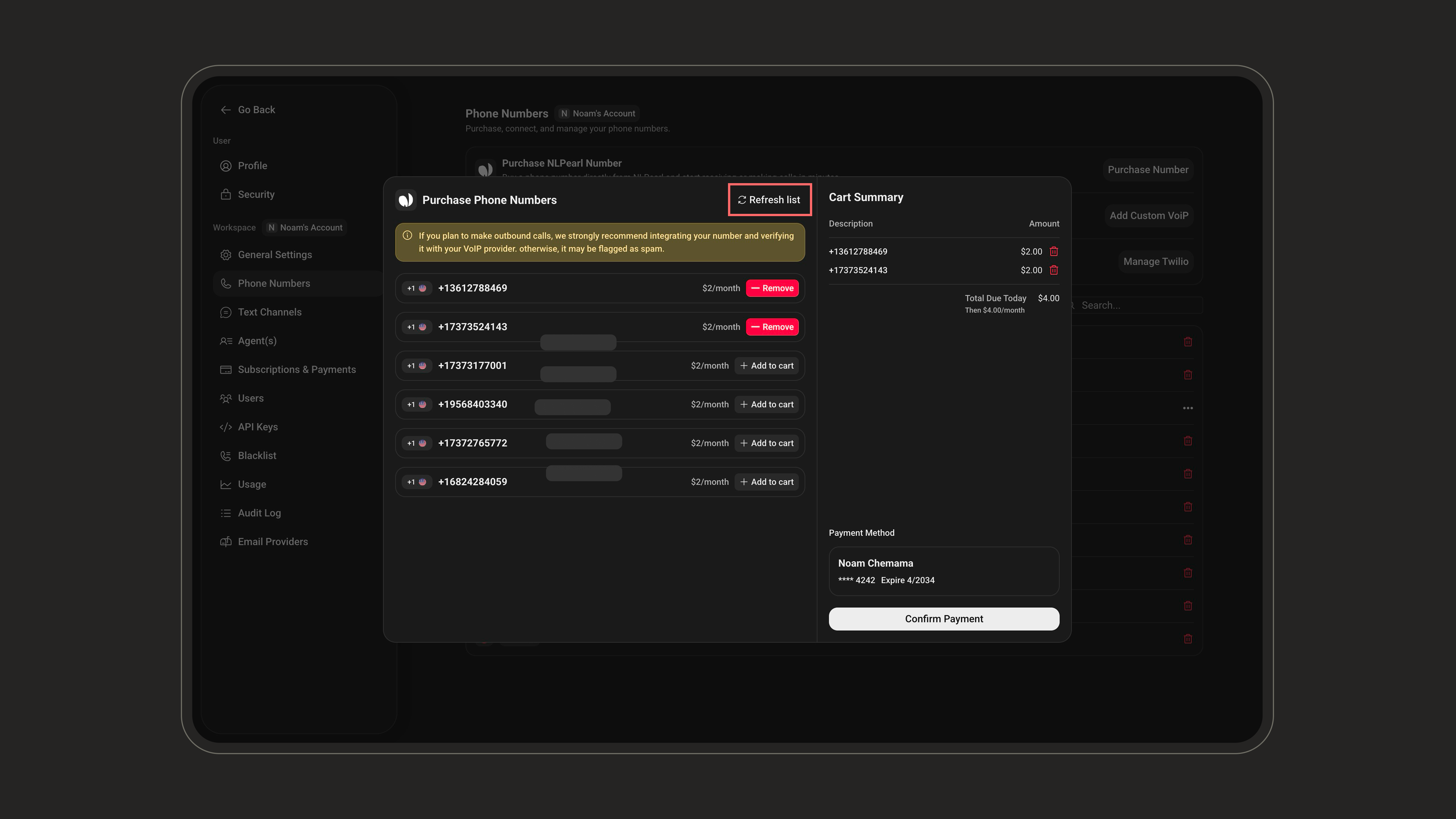
**Not finding a number you like?** You can refresh the list to generate a new selection of available phone numbers.
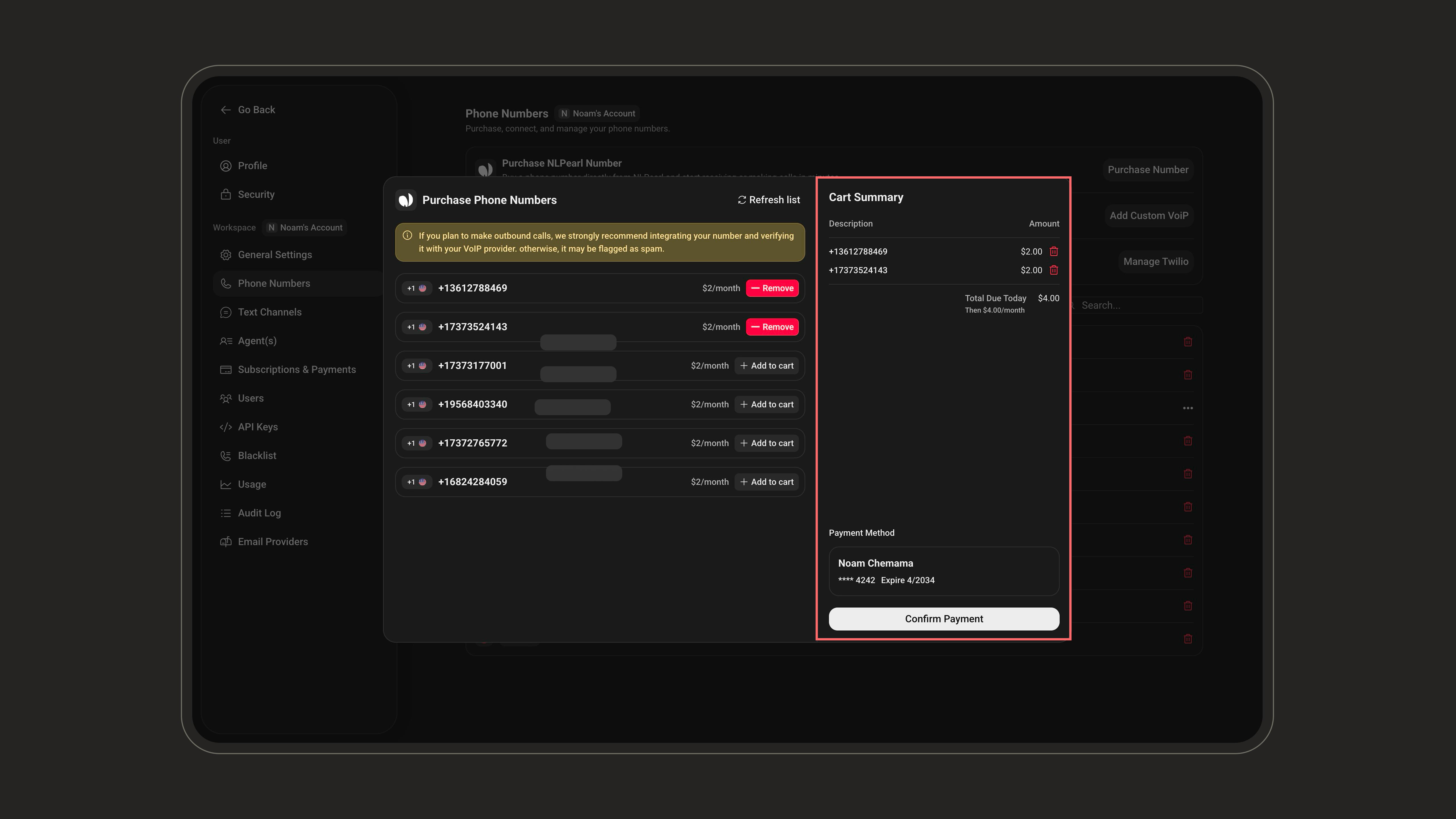
Once you’ve selected your numbers, the **Cart Summary** on the right side of the **Purchase Phone Numbers** panel lists everything you’ve added.
* Each row shows a number and its monthly **Amount**.
* The **Total Due Today** (and the recurring monthly cost) updates automatically as you add or remove numbers.
* To remove a number, click the **red delete icon** next to it.
* Your saved **Payment Method** is shown at the bottom, just above the **Confirm Payment** button.
When you're happy with your selection, click the **Confirm Payment** button at the bottom of the Cart Summary to finalize your order. Your selected phone numbers will be instantly added to your account, ready to use without any delay.
After purchasing, you can assign phone numbers directly to your **inbound** or **outbound campaigns** from the platform.
To assign a phone number, open the settings of the specific campaign (inbound or outbound) and choose the number you'd like to attach.
If a phone number is scheduled for deletion but still linked to an active campaign, that campaign will **automatically stop working** once the number is removed.
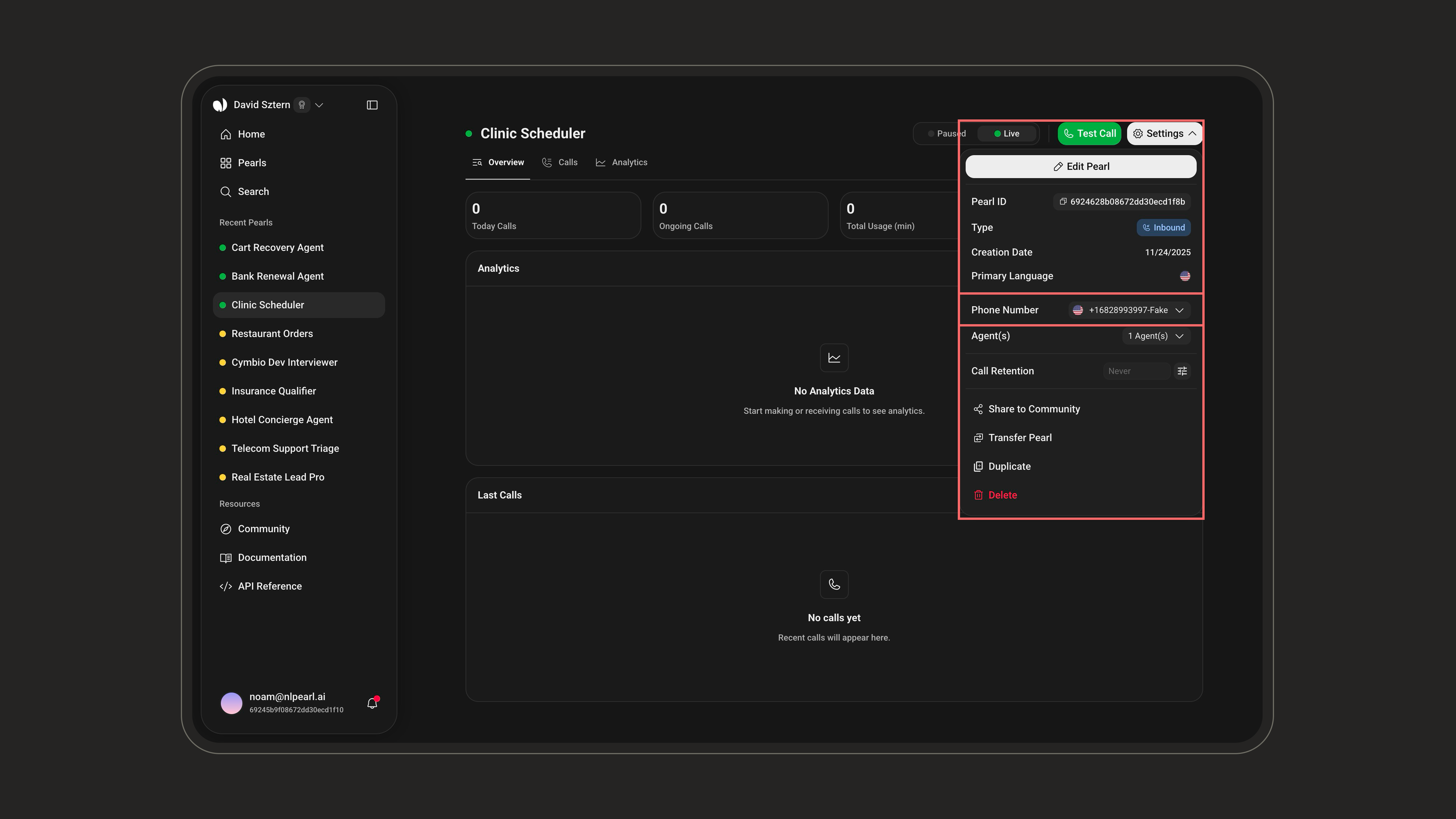
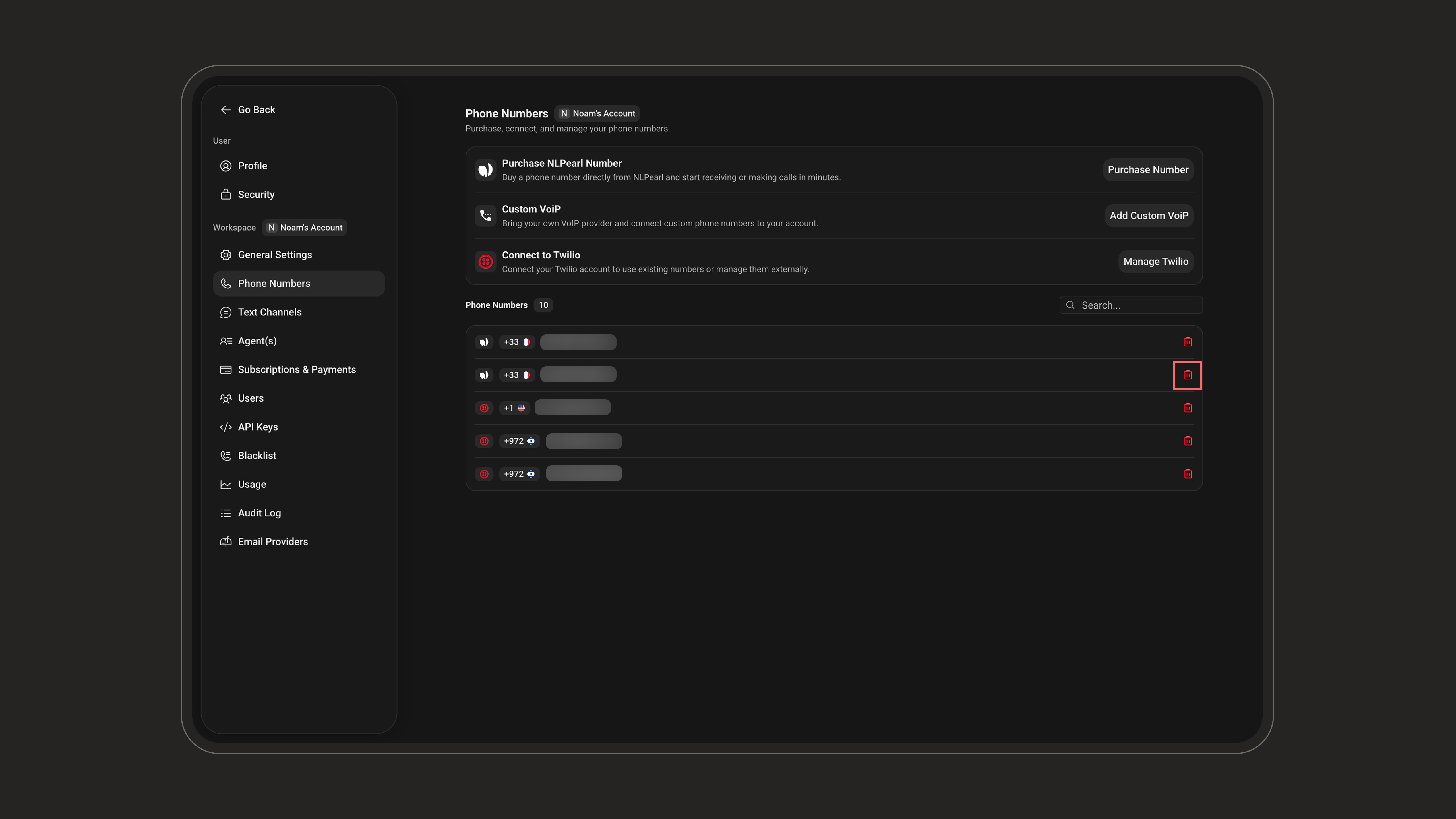
If you no longer need a phone number, you can schedule it for deletion directly from your settings.
Start by going to the **Phone Numbers** section in your Settings. From there, locate the number you want to remove and click the **Delete** button next to it.
A confirmation step will appear to make sure you really want to delete the selected number. Once confirmed, the deletion is scheduled but not immediate.
Once confirmed, the deletion will be scheduled but not immediate. The phone number remains active until its **billing anniversary date**, when it will be automatically removed from your account.
You can continue using the number normally until that date. Deletion only takes effect on its billing anniversary.
***
### Payment and Billing
Phone numbers are billed on a monthly basis, charged to the **credit card** saved on your account. Once the transaction is processed, you'll receive an invoice by email.
**Subscription Inclusions**:
In the **Phone Numbers** tab, locate the **Purchase NLPearl Phone Number** button in the center of the screen.
Click it to access the list of available phone numbers for purchase.
Once you click **Purchase NLPearl Number**, a side panel titled **Purchase Phone Numbers** (1) opens on the right.
Here, you’ll see a list of available US phone numbers. To add a number to your cart, simply click the **Add** button next to it. When selected, the button turns green and updates to **Added** (2).
**Not finding a number you like?** You can refresh the list to generate a new selection of available phone numbers.
Once you’ve selected your numbers, the **Cart Summary** on the right side of the **Purchase Phone Numbers** panel lists everything you’ve added.
* Each row shows a number and its monthly **Amount**.
* The **Total Due Today** (and the recurring monthly cost) updates automatically as you add or remove numbers.
* To remove a number, click the **red delete icon** next to it.
* Your saved **Payment Method** is shown at the bottom, just above the **Confirm Payment** button.
When you're happy with your selection, click the **Confirm Payment** button at the bottom of the Cart Summary to finalize your order. Your selected phone numbers will be instantly added to your account, ready to use without any delay.
After purchasing, you can assign phone numbers directly to your **inbound** or **outbound campaigns** from the platform.
To assign a phone number, open the settings of the specific campaign (inbound or outbound) and choose the number you'd like to attach.
If a phone number is scheduled for deletion but still linked to an active campaign, that campaign will **automatically stop working** once the number is removed.
If you no longer need a phone number, you can schedule it for deletion directly from your settings.
Start by going to the **Phone Numbers** section in your Settings. From there, locate the number you want to remove and click the **Delete** button next to it.
A confirmation step will appear to make sure you really want to delete the selected number. Once confirmed, the deletion is scheduled but not immediate.
Once confirmed, the deletion will be scheduled but not immediate. The phone number remains active until its **billing anniversary date**, when it will be automatically removed from your account.
You can continue using the number normally until that date. Deletion only takes effect on its billing anniversary.
***
### Payment and Billing
Phone numbers are billed on a monthly basis, charged to the **credit card** saved on your account. Once the transaction is processed, you'll receive an invoice by email.
**Subscription Inclusions**:
If your plan includes phone numbers and you haven't used your allowance yet, those numbers appear as **Free with plan** in the cart, at no extra cost. If you add more numbers than your plan includes, use **Make this free** on a number to choose which one uses your included allowance.
***
### Important Considerations
* **Monthly Billing Cycle**: Phone numbers are billed on a monthly cycle starting from the date of purchase.
* **Country Code Limitations**: Currently, only US phone numbers are available for direct purchase. For other countries, consider alternative integration options.
* **Payment Method**: Keep a valid credit card on file to avoid interruptions in service.
***
Explore our **Twilio Integration** to access a broader range of international phone numbers.
Consider the **Custom VoIP Integration** if you have specific VoIP services you wish to use.