> ## Documentation Index
> Fetch the complete documentation index at: https://developers.nlpearl.ai/llms.txt
> Use this file to discover all available pages before exploring further.
# Custom VoIP Integration
> Learn how to integrate your own VoIP service with NLPearl.AI.
Integrate your own VoIP service with NLPearl to use your existing phone numbers for inbound and outbound calls. This flexibility allows you to leverage your current VoIP infrastructure while benefiting from NLPearl.AI’s advanced features.
***
### How to Integrate Your Custom VoIP Service
To integrate your custom VoIP service, follow these steps:
Start by clicking your **profile card** at the bottom-left corner of the sidebar, then open **Settings**.
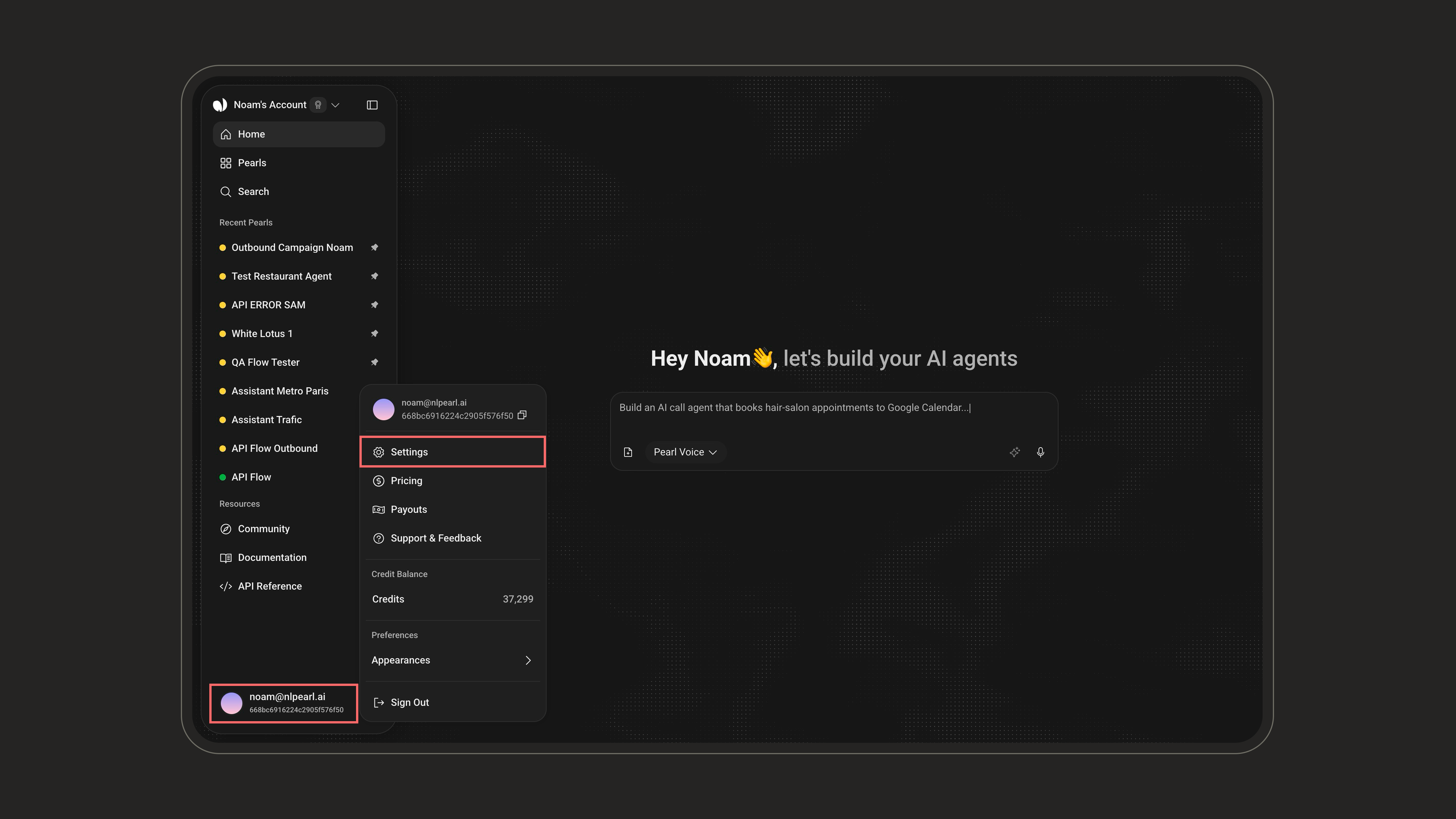 From there, open the **Phone Numbers** tab to manage the numbers linked to your account.
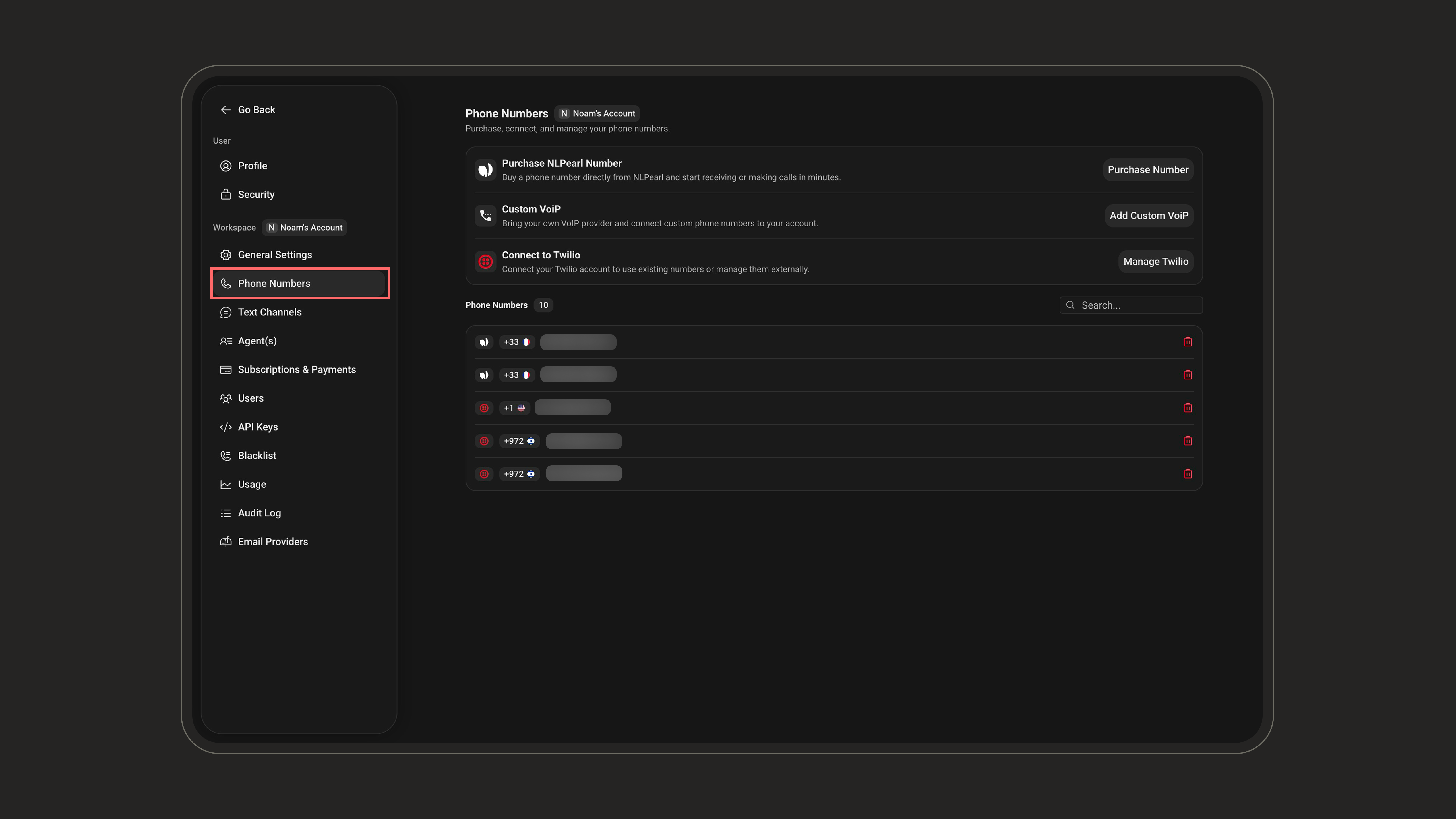 In the **Phone Numbers** tab, locate the **Custom VoIP** row and click **Add Custom VoIP** to start setting up your own provider.
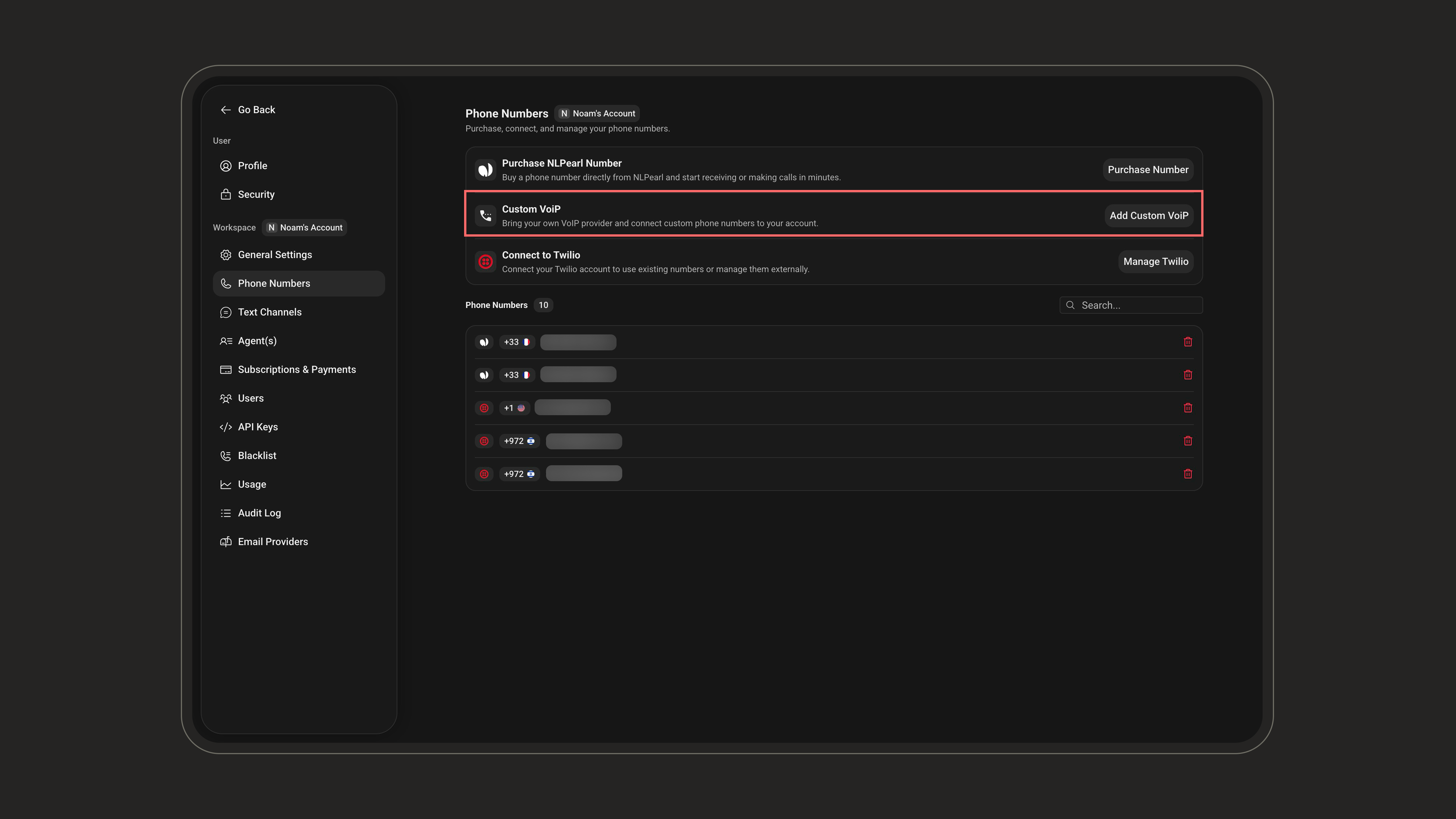 Enter the phone number you want to associate with this custom VoIP configuration.
Enter it in **E.164 format** (digits only, with an optional leading `+`). This label is mainly for display (DID number, extension, etc.) and doesn't have to be a routable number, but it must be numeric.
Enter the phone number you want to associate with this custom VoIP configuration.
Enter it in **E.164 format** (digits only, with an optional leading `+`). This label is mainly for display (DID number, extension, etc.) and doesn't have to be a routable number, but it must be numeric.
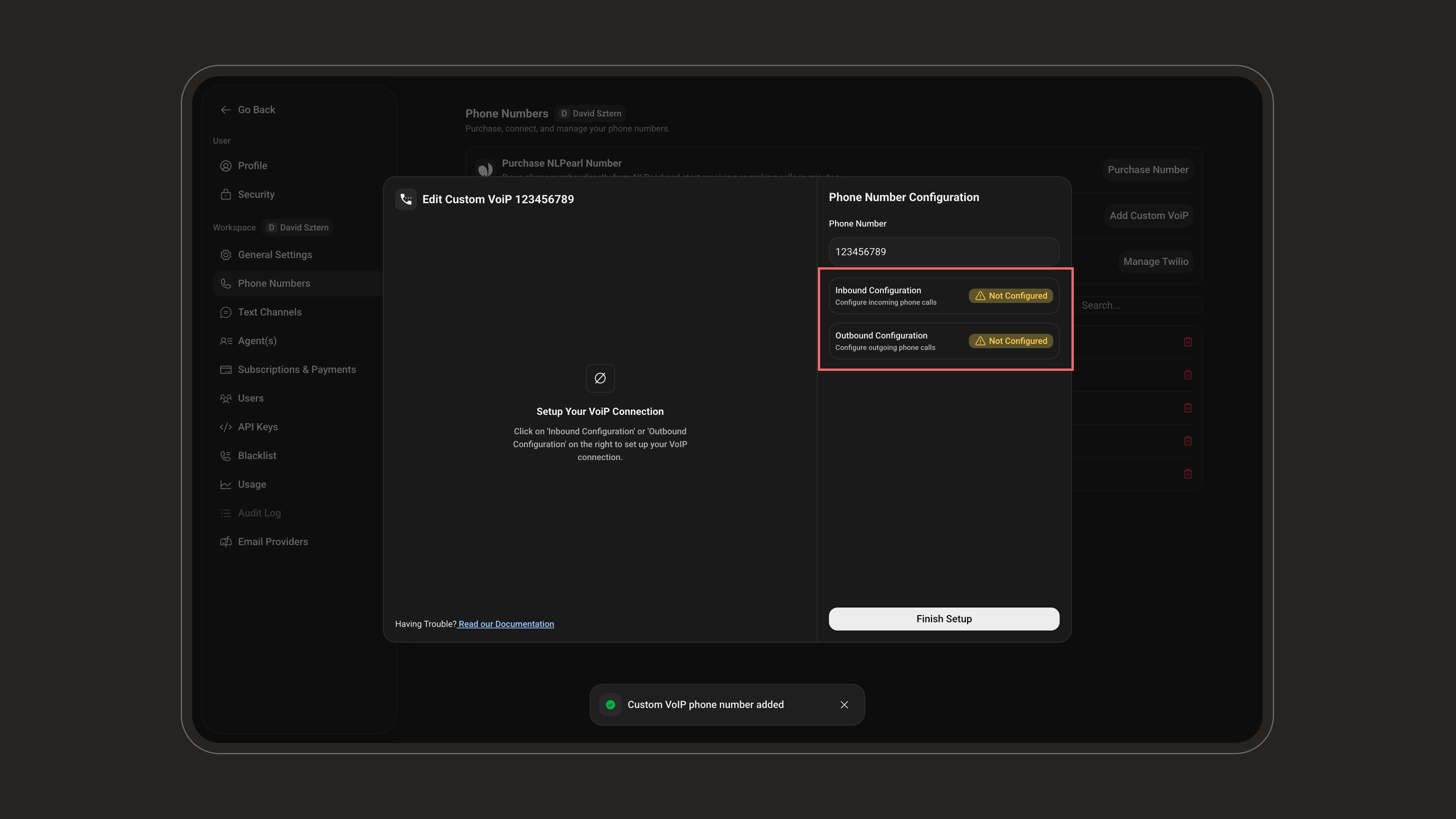
 After adding the number, you land on a setup screen with two cards — **Inbound Configuration** and **Outbound Configuration** — each showing a **Configured** / **Not Configured** badge. Configure the direction(s) you need (one or both), then click **Finish Setup**.
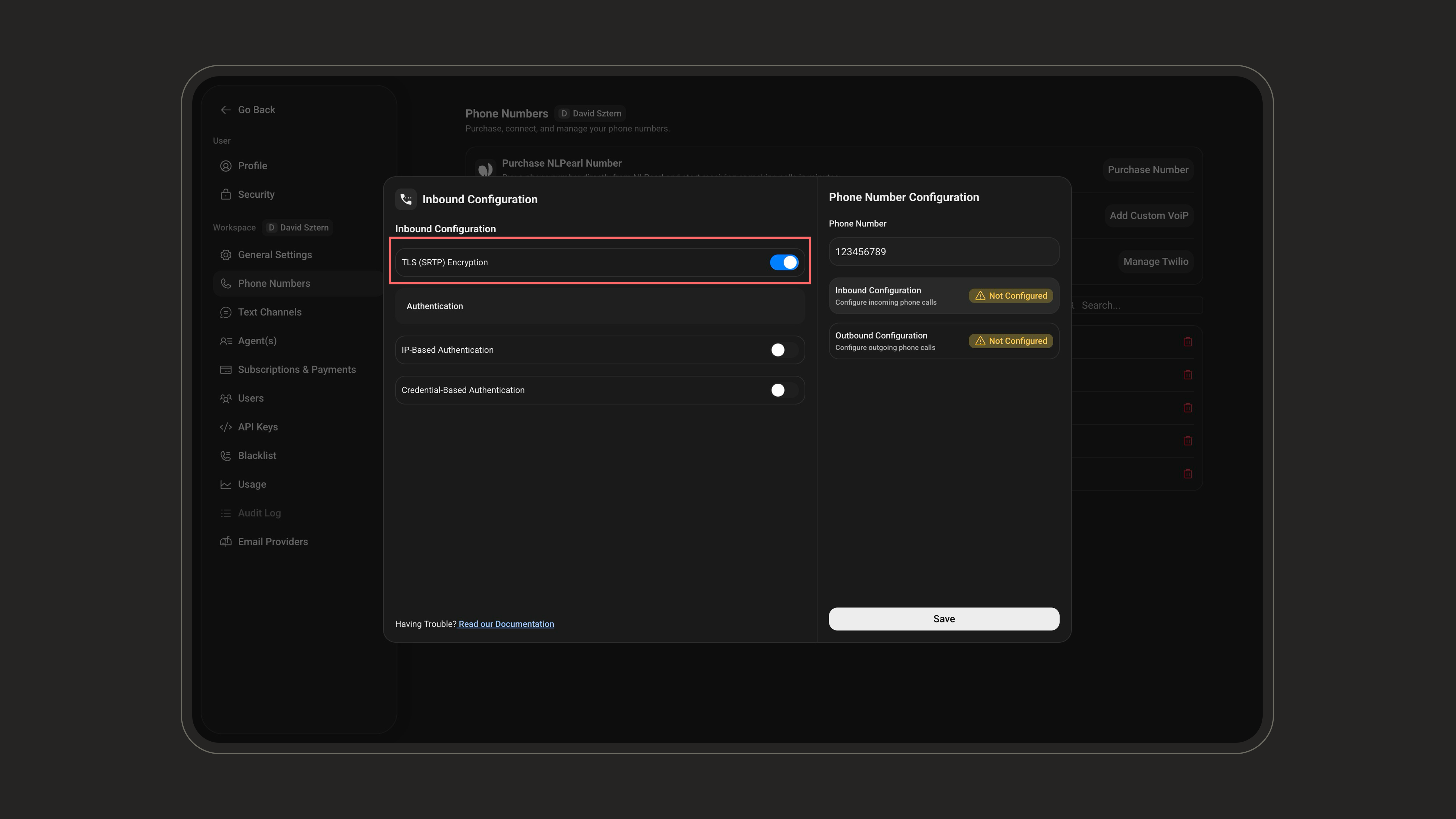
 ### Inbound Configuration Settings
Secures your VoIP traffic by encrypting both the signaling (via TLS) and media (via SRTP). Activate this toggle **only** if your VoIP provider requires it.
**When to Enable It:**
* Your SIP provider specifically mentions TLS or SRTP support.
* You want to ensure secure, encrypted voice communication (e.g., for compliance or privacy reasons).
**When to Leave It Off:**
* Your provider doesn’t support TLS/SRTP, enabling it may block calls or cause failed connections.
* You’re using basic test environments or local SIP servers without encryption.
### Inbound Configuration Settings
Secures your VoIP traffic by encrypting both the signaling (via TLS) and media (via SRTP). Activate this toggle **only** if your VoIP provider requires it.
**When to Enable It:**
* Your SIP provider specifically mentions TLS or SRTP support.
* You want to ensure secure, encrypted voice communication (e.g., for compliance or privacy reasons).
**When to Leave It Off:**
* Your provider doesn’t support TLS/SRTP, enabling it may block calls or cause failed connections.
* You’re using basic test environments or local SIP servers without encryption.
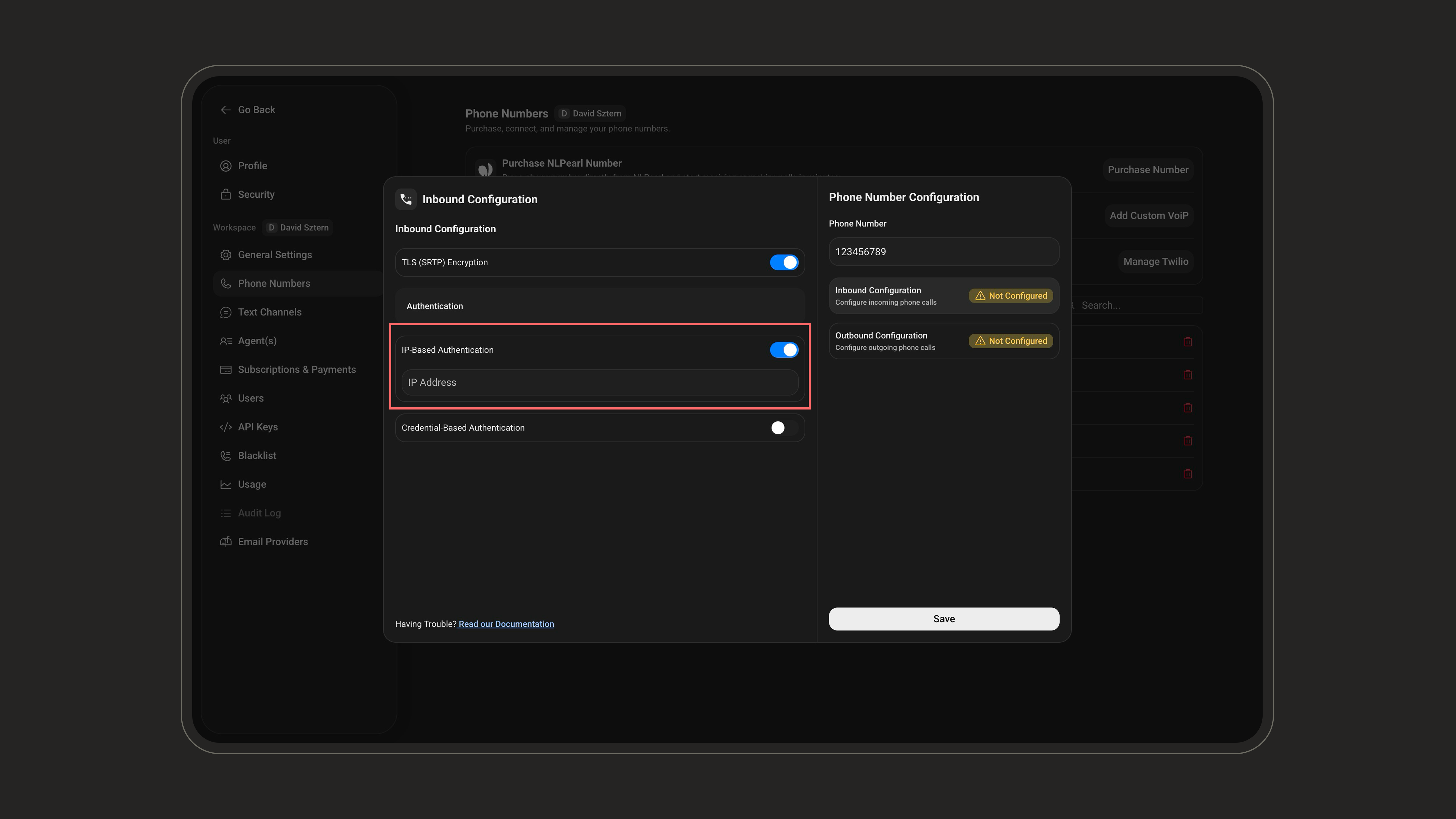
 Inbound calls require **at least one** authentication method. Enable **IP Address** and/or **Credentials** authentication (you can use both).
**IP Address Authentication:**
Allow traffic from specific IP addresses, ideal if your VoIP infrastructure has a static IP.
IP Address:
Enter the public IP address(es) of your SIP servers so we can accept and process requests from them.
Inbound calls require **at least one** authentication method. Enable **IP Address** and/or **Credentials** authentication (you can use both).
**IP Address Authentication:**
Allow traffic from specific IP addresses, ideal if your VoIP infrastructure has a static IP.
IP Address:
Enter the public IP address(es) of your SIP servers so we can accept and process requests from them.
 ***
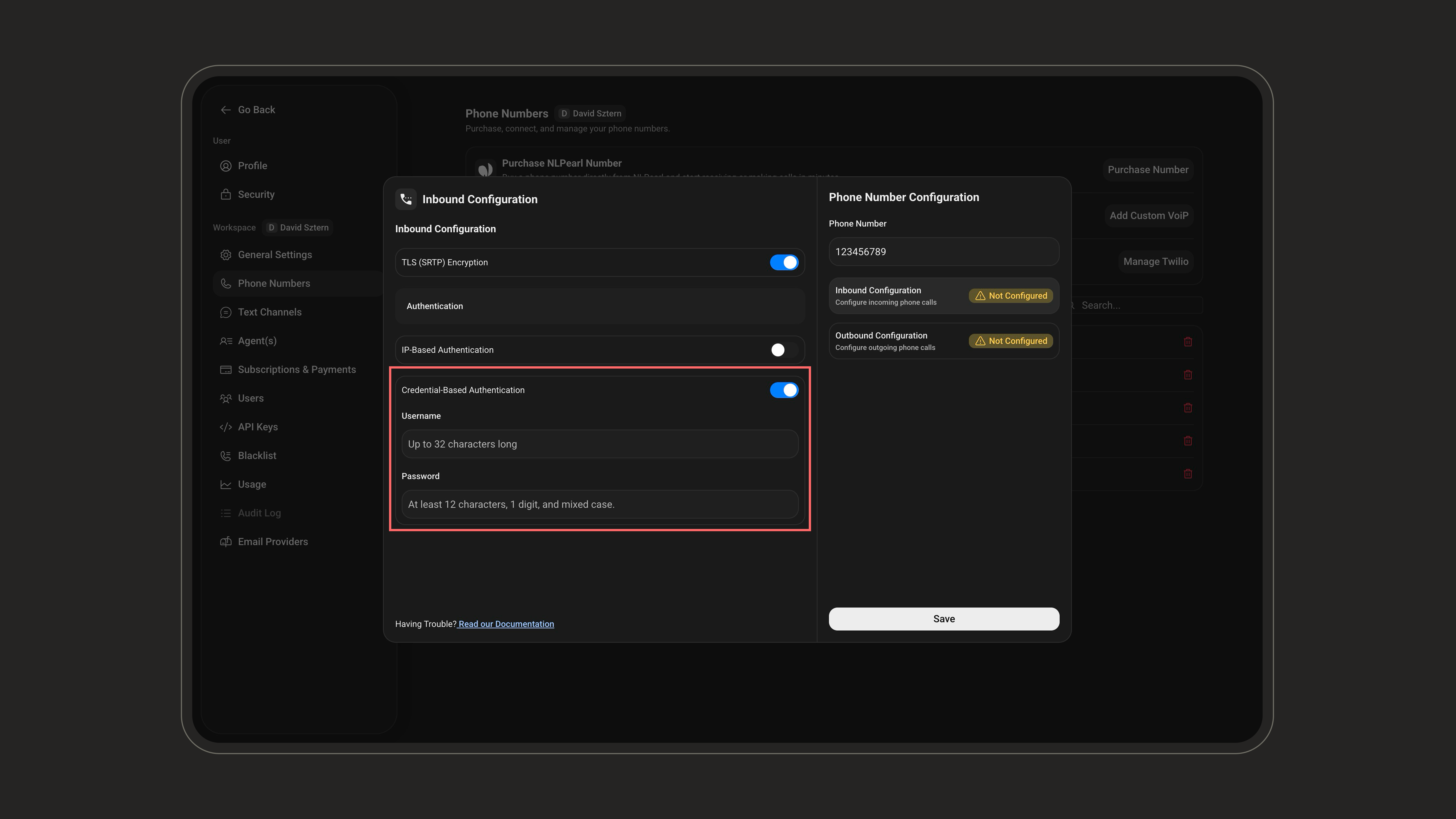
**Credentials Authentication:**
Use a username and password to authenticate each incoming SIP request.
Username: 2–32 characters, using letters, digits, hyphens (`-`) and underscores (`_`) only.
***
**Credentials Authentication:**
Use a username and password to authenticate each incoming SIP request.
Username: 2–32 characters, using letters, digits, hyphens (`-`) and underscores (`_`) only.
Password: At least 12 characters, with at least one uppercase letter, one lowercase letter, and one digit. Letters and digits only — **special characters are not allowed**.
This method is useful if your infrastructure is cloud-based and IPs can change, or you want multi-tenant control.
 After you save the inbound configuration, NLPearl generates a **SIP Domain** for this number. This is what tells your provider where to send incoming calls so they reach the platform.
The SIP Domain isn't something you type. It's created automatically and shown **read-only** at the top of the **Inbound Configuration** card, with a **Copy** button. It only appears **once the inbound configuration has been saved**, so reopen the card afterward to retrieve it.
After you save the inbound configuration, NLPearl generates a **SIP Domain** for this number. This is what tells your provider where to send incoming calls so they reach the platform.
The SIP Domain isn't something you type. It's created automatically and shown **read-only** at the top of the **Inbound Configuration** card, with a **Copy** button. It only appears **once the inbound configuration has been saved**, so reopen the card afterward to retrieve it.
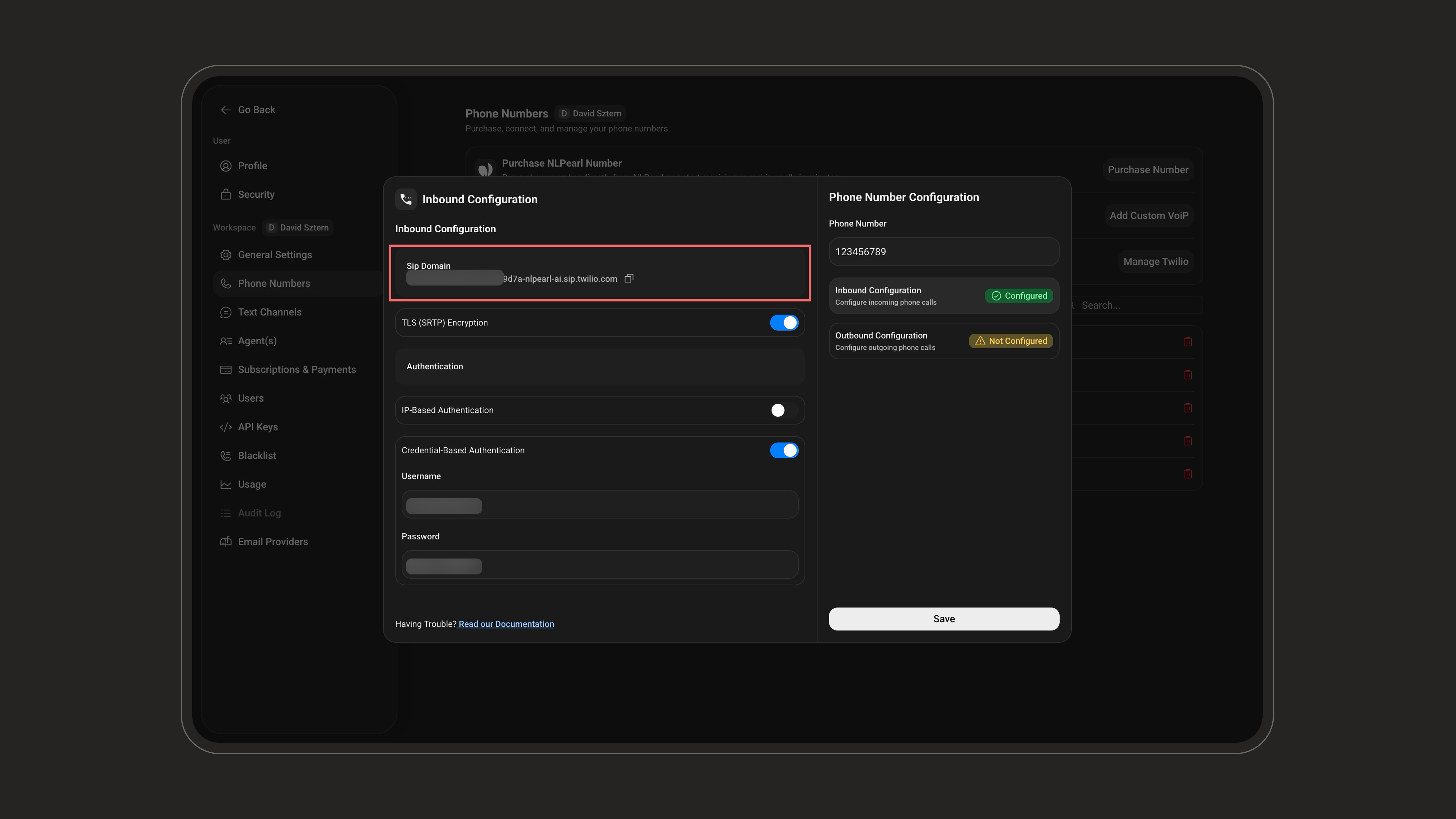 **To finish connecting inbound calls:**
1. Save the inbound configuration, then reopen the **Inbound Configuration** card.
2. Copy the generated **SIP Domain**.
3. Add it to your VoIP provider / PBX as the **destination for inbound calls**, so your operator routes incoming calls to NLPearl.
4. If you enabled **Credentials Authentication**, also add the **username and password** you defined here to your VoIP settings so authentication succeeds.
***
### Outbound Configuration Settings
Secures your VoIP traffic by encrypting both the signaling (via TLS) and media (via SRTP). Activate this toggle **only** if your VoIP provider requires it.
**When to Enable It:**
* Your SIP provider specifically mentions TLS or SRTP support.
* You want to ensure secure, encrypted voice communication (e.g., for compliance or privacy reasons).
**When to Leave It Off:**
* Your provider doesn’t support TLS/SRTP, enabling it may block calls or cause failed connections.
* You’re using basic test environments or local SIP servers without encryption.
**To finish connecting inbound calls:**
1. Save the inbound configuration, then reopen the **Inbound Configuration** card.
2. Copy the generated **SIP Domain**.
3. Add it to your VoIP provider / PBX as the **destination for inbound calls**, so your operator routes incoming calls to NLPearl.
4. If you enabled **Credentials Authentication**, also add the **username and password** you defined here to your VoIP settings so authentication succeeds.
***
### Outbound Configuration Settings
Secures your VoIP traffic by encrypting both the signaling (via TLS) and media (via SRTP). Activate this toggle **only** if your VoIP provider requires it.
**When to Enable It:**
* Your SIP provider specifically mentions TLS or SRTP support.
* You want to ensure secure, encrypted voice communication (e.g., for compliance or privacy reasons).
**When to Leave It Off:**
* Your provider doesn’t support TLS/SRTP, enabling it may block calls or cause failed connections.
* You’re using basic test environments or local SIP servers without encryption.
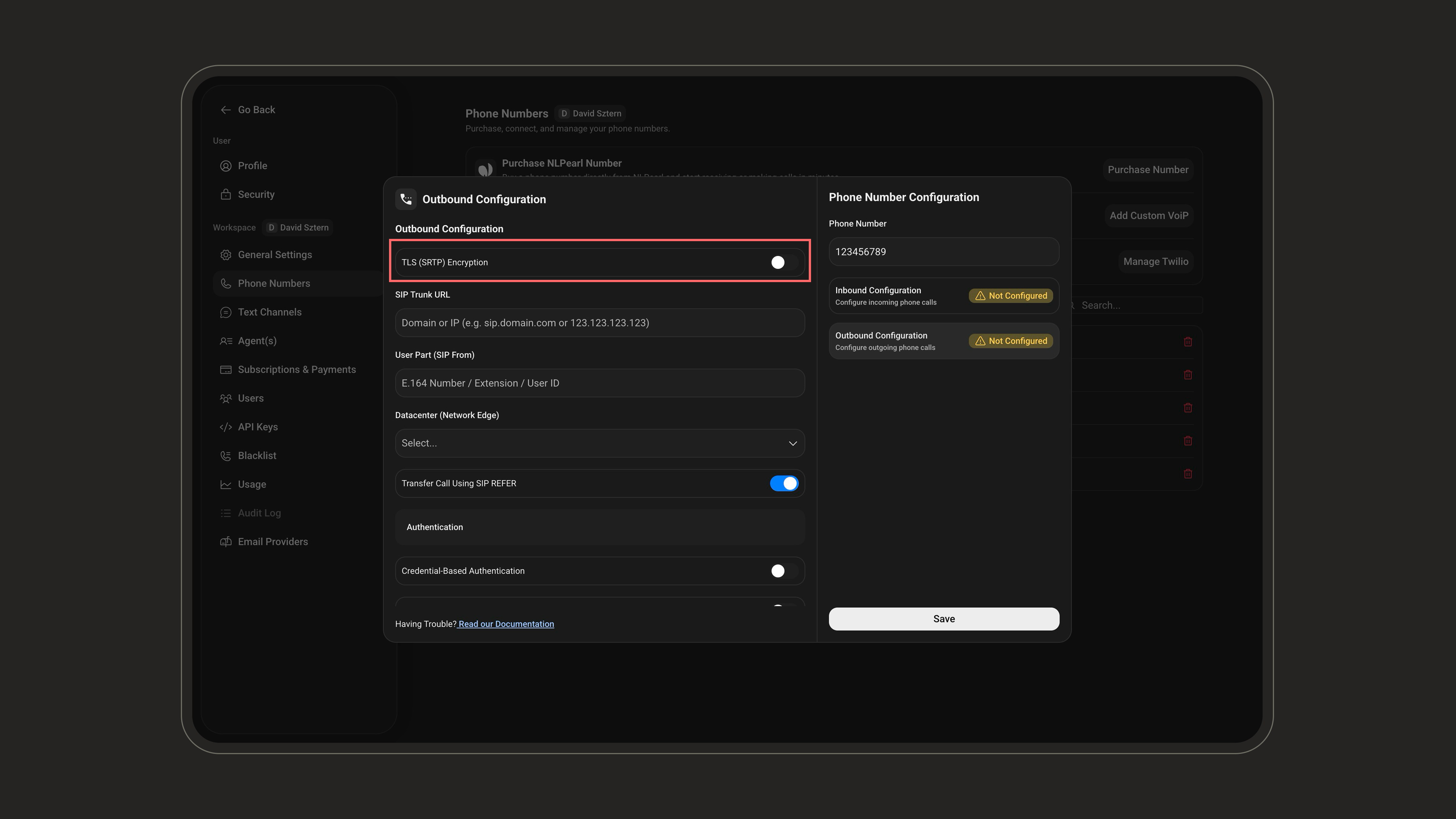 This is the address your outbound calls will be sent to, typically provided by your VoIP provider. Enter it as a **domain or IP address** (this is where your calls will be routed).
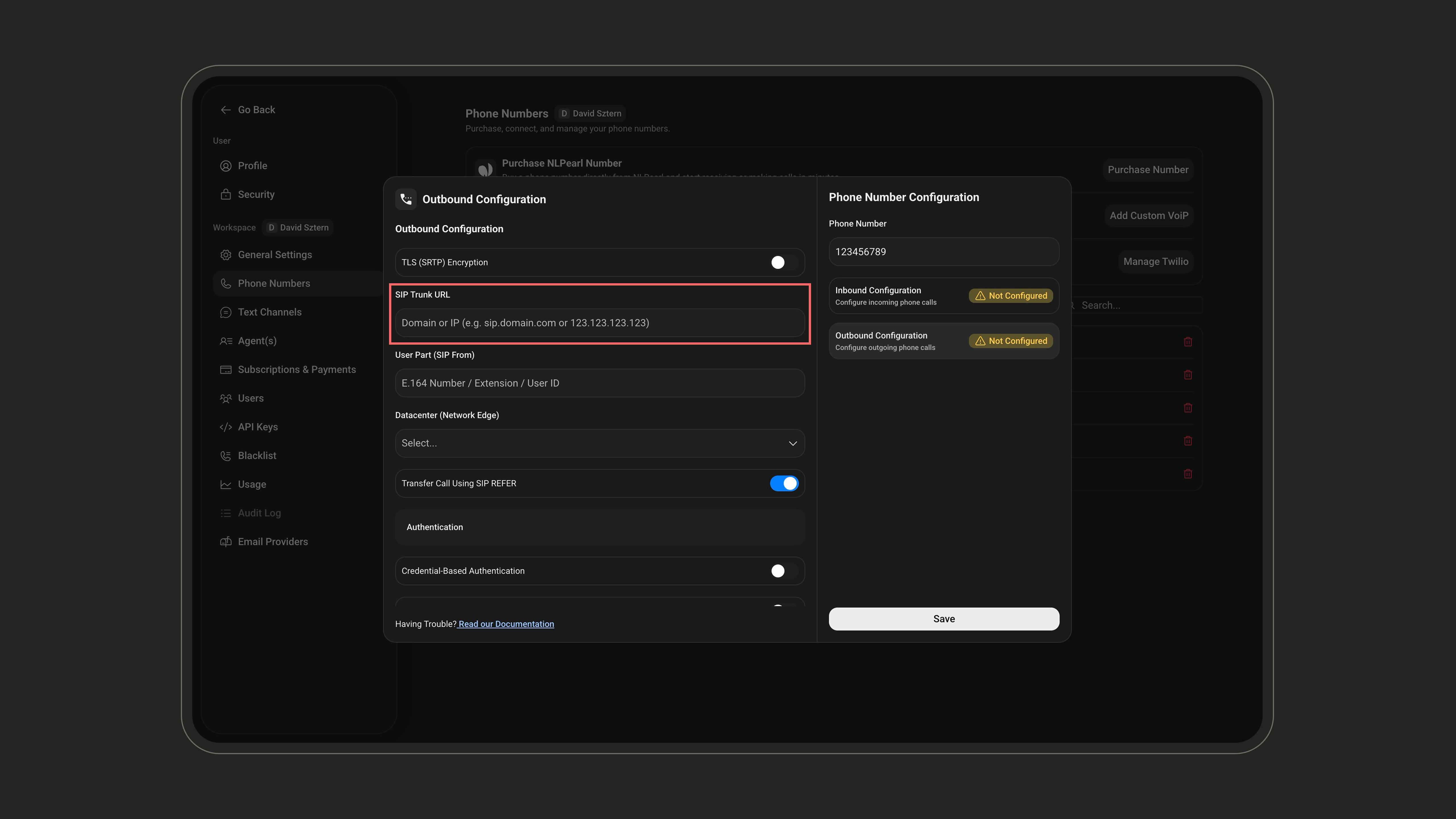 This is the SIP user identity used in the “From” header of your outbound SIP requests. It's how your VoIP system identifies the origin of the call.
What to enter:
You can use one of the following formats depending on your provider:
* A SIP username (e.g. `caller01`)
* A DID or phone number in `E.164` format (e.g. `+1234567890`)
* An extension (e.g. `201`)
* A SIP URI (e.g. `caller01@example.com`), less common
This is the SIP user identity used in the “From” header of your outbound SIP requests. It's how your VoIP system identifies the origin of the call.
What to enter:
You can use one of the following formats depending on your provider:
* A SIP username (e.g. `caller01`)
* A DID or phone number in `E.164` format (e.g. `+1234567890`)
* An extension (e.g. `201`)
* A SIP URI (e.g. `caller01@example.com`), less common
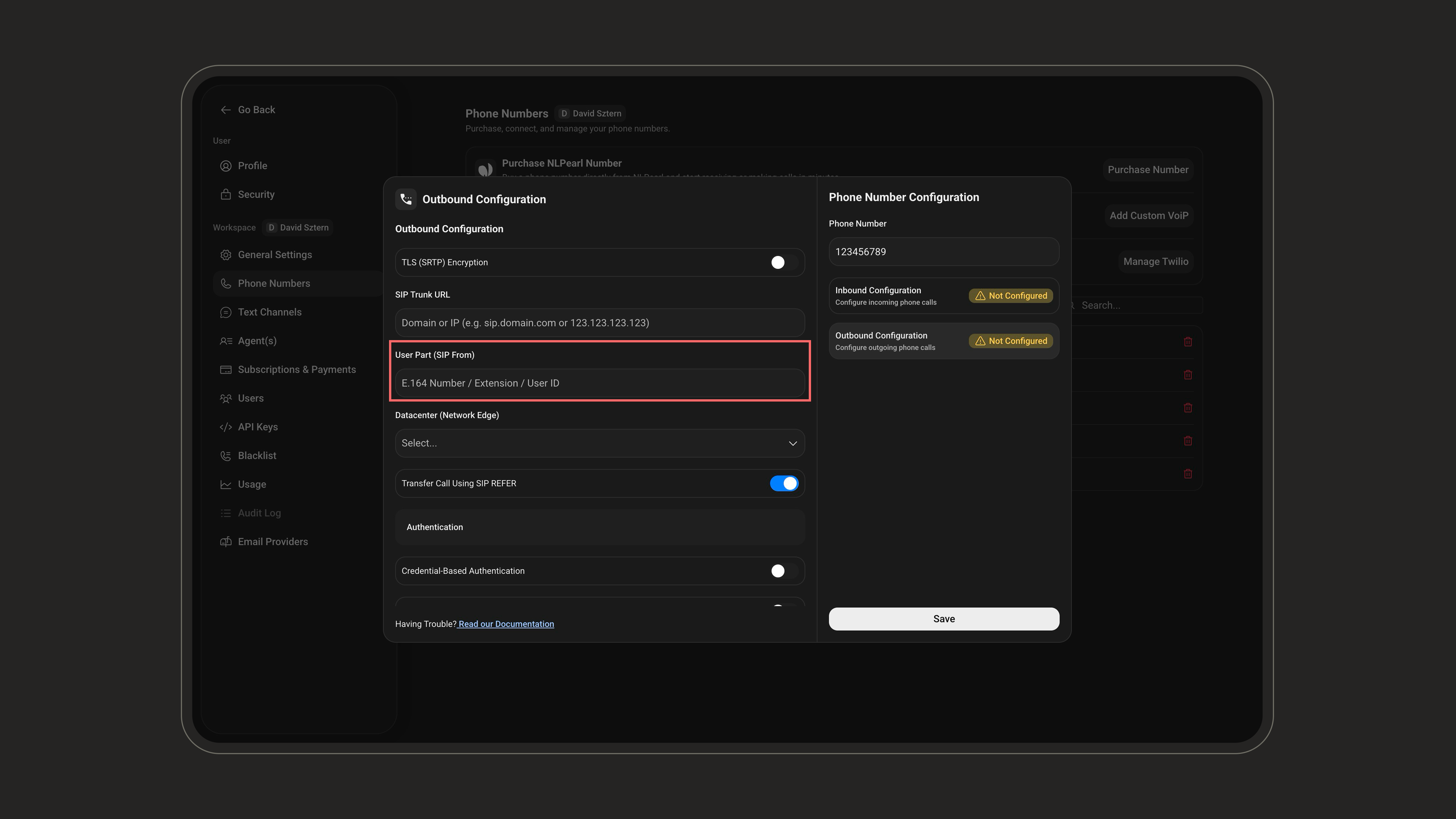 Select the network edge closest to your VoIP infrastructure to optimize call routing and reduce latency. Eight regions are available:
| Region | Location |
| ------------- | --------- |
| North America | Virginia |
| North America | Oregon |
| Europe | Ireland |
| Europe | Frankfurt |
| Asia Pacific | Singapore |
| Asia Pacific | Tokyo |
| Asia Pacific | Sydney |
| South America | São Paulo |
Select the network edge closest to your VoIP infrastructure to optimize call routing and reduce latency. Eight regions are available:
| Region | Location |
| ------------- | --------- |
| North America | Virginia |
| North America | Oregon |
| Europe | Ireland |
| Europe | Frankfurt |
| Asia Pacific | Singapore |
| Asia Pacific | Tokyo |
| Asia Pacific | Sydney |
| South America | São Paulo |
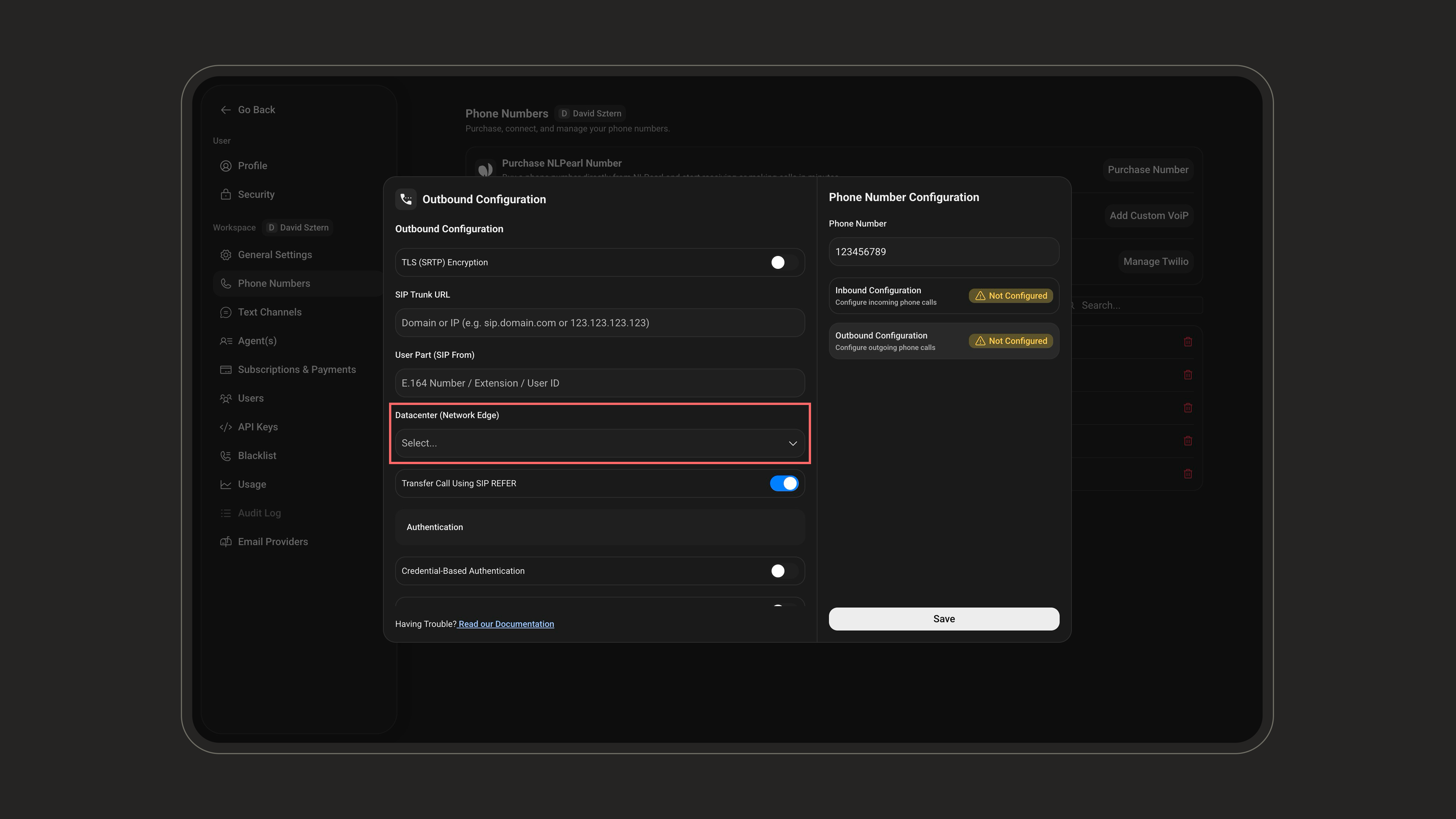 This toggle enables or disables call transfers using the SIP REFER method. It is **enabled by default**.
When enabled, it allows:
* Transferring a live call from one destination to another without media proxying
* Offloading media streams directly between endpoints
* Reducing latency and server load
If you **disable** SIP REFER, NLPearl's servers stay in the media path during transfers, which results in **additional costs**. Leave it on unless your provider doesn't support SIP REFER.
This toggle enables or disables call transfers using the SIP REFER method. It is **enabled by default**.
When enabled, it allows:
* Transferring a live call from one destination to another without media proxying
* Offloading media streams directly between endpoints
* Reducing latency and server load
If you **disable** SIP REFER, NLPearl's servers stay in the media path during transfers, which results in **additional costs**. Leave it on unless your provider doesn't support SIP REFER.
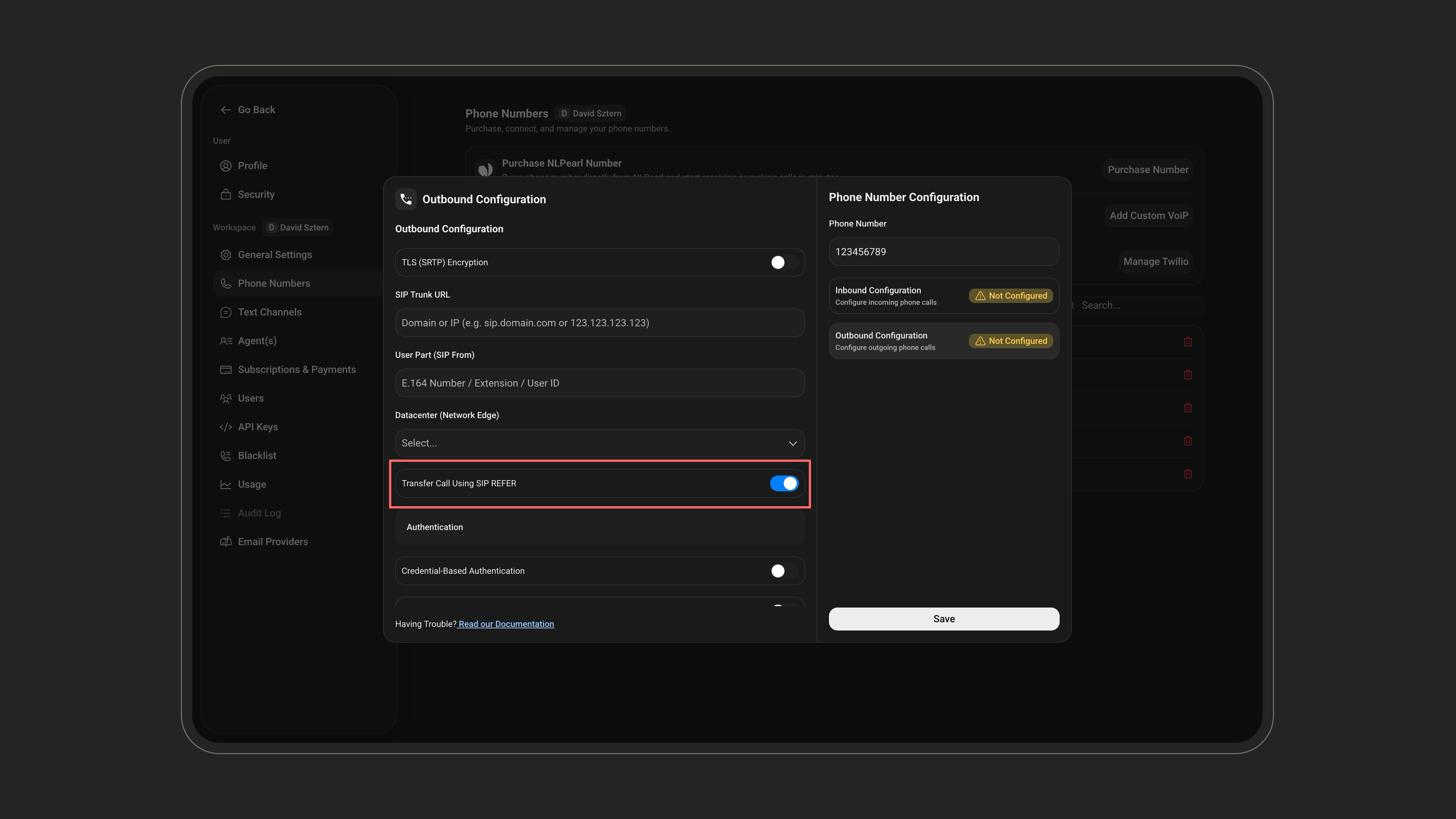 **Credentials Authentication:**
Use this method if your VoIP provider requires username/password credentials to authenticate outbound calls.
Username:
This is the identifier associated with your SIP account.
Password:
A secure password used to authenticate the SIP user.
Make sure it meets your provider’s security requirements (e.g. minimum 12 characters, including upper/lowercase letters, a number, and a special character).
**Credentials Authentication:**
Use this method if your VoIP provider requires username/password credentials to authenticate outbound calls.
Username:
This is the identifier associated with your SIP account.
Password:
A secure password used to authenticate the SIP user.
Make sure it meets your provider’s security requirements (e.g. minimum 12 characters, including upper/lowercase letters, a number, and a special character).
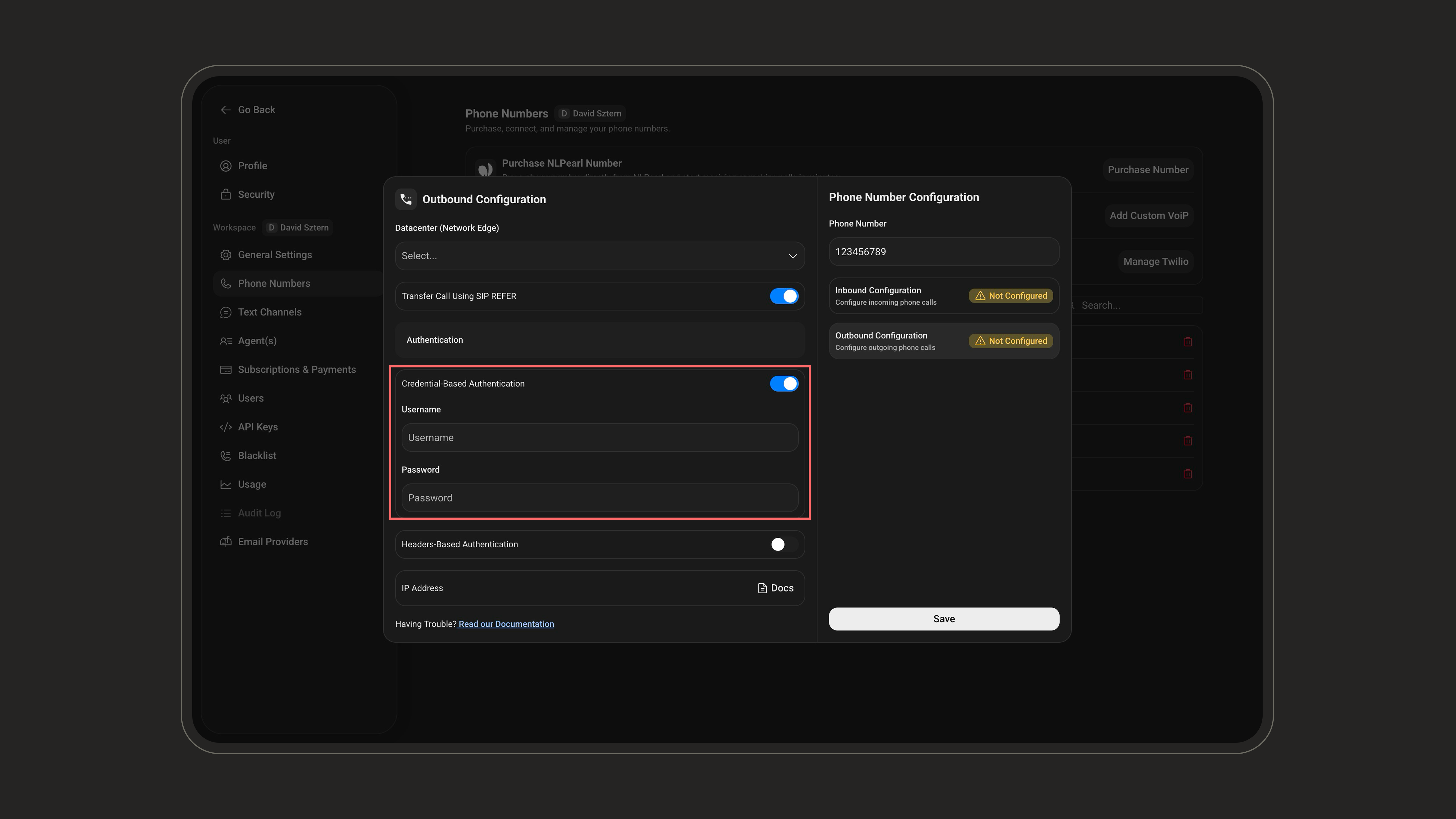 **Header-Based Authentication:**
Use this method if your VoIP provider requires custom headers for SIP request authentication.
Header Key:
This is the name of the custom SIP header field expected by your provider (e.g., X-Custom-Auth, X-Access-Token, etc.).
Header Value:
The corresponding value used to validate the request (e.g., a token, API key, or static secret).
Example: AuthZ-87!t!link
Header-based auth is typically used for advanced integrations or when SIP gateways are behind proxies/firewalls that don’t support IP or credential-based auth.
Ensure this matches exactly what your provider expects, as even small typos (like case or symbols) can lead to rejections.
You can add several key-value pairs if needed, for example, to meet multi-token security policies.
**Header-Based Authentication:**
Use this method if your VoIP provider requires custom headers for SIP request authentication.
Header Key:
This is the name of the custom SIP header field expected by your provider (e.g., X-Custom-Auth, X-Access-Token, etc.).
Header Value:
The corresponding value used to validate the request (e.g., a token, API key, or static secret).
Example: AuthZ-87!t!link
Header-based auth is typically used for advanced integrations or when SIP gateways are behind proxies/firewalls that don’t support IP or credential-based auth.
Ensure this matches exactly what your provider expects, as even small typos (like case or symbols) can lead to rejections.
You can add several key-value pairs if needed, for example, to meet multi-token security policies.
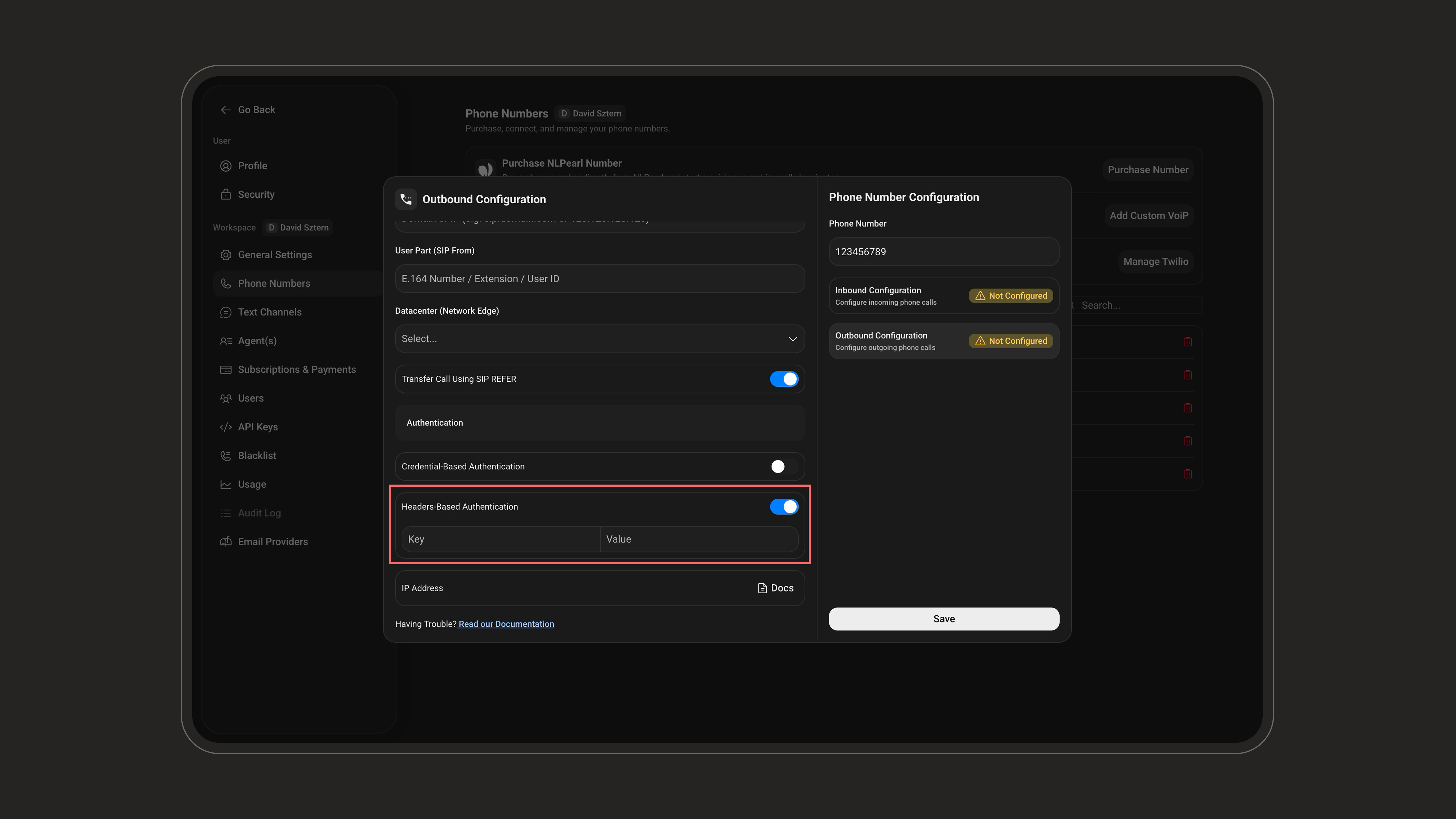 * **IP Address Allow List:**\
**IP Address:** See [Twilio's SIP Trunking IP Addresses](https://www.twilio.com/docs/sip-trunking/ip-addresses).
Once integrated:
* **Assign to Inbound/Outbound:**\
You can assign your custom VoIP phone numbers to inbound or outbound campaigns within NLPearl.AI.
* **IP Address Allow List:**\
**IP Address:** See [Twilio's SIP Trunking IP Addresses](https://www.twilio.com/docs/sip-trunking/ip-addresses).
Once integrated:
* **Assign to Inbound/Outbound:**\
You can assign your custom VoIP phone numbers to inbound or outbound campaigns within NLPearl.AI.
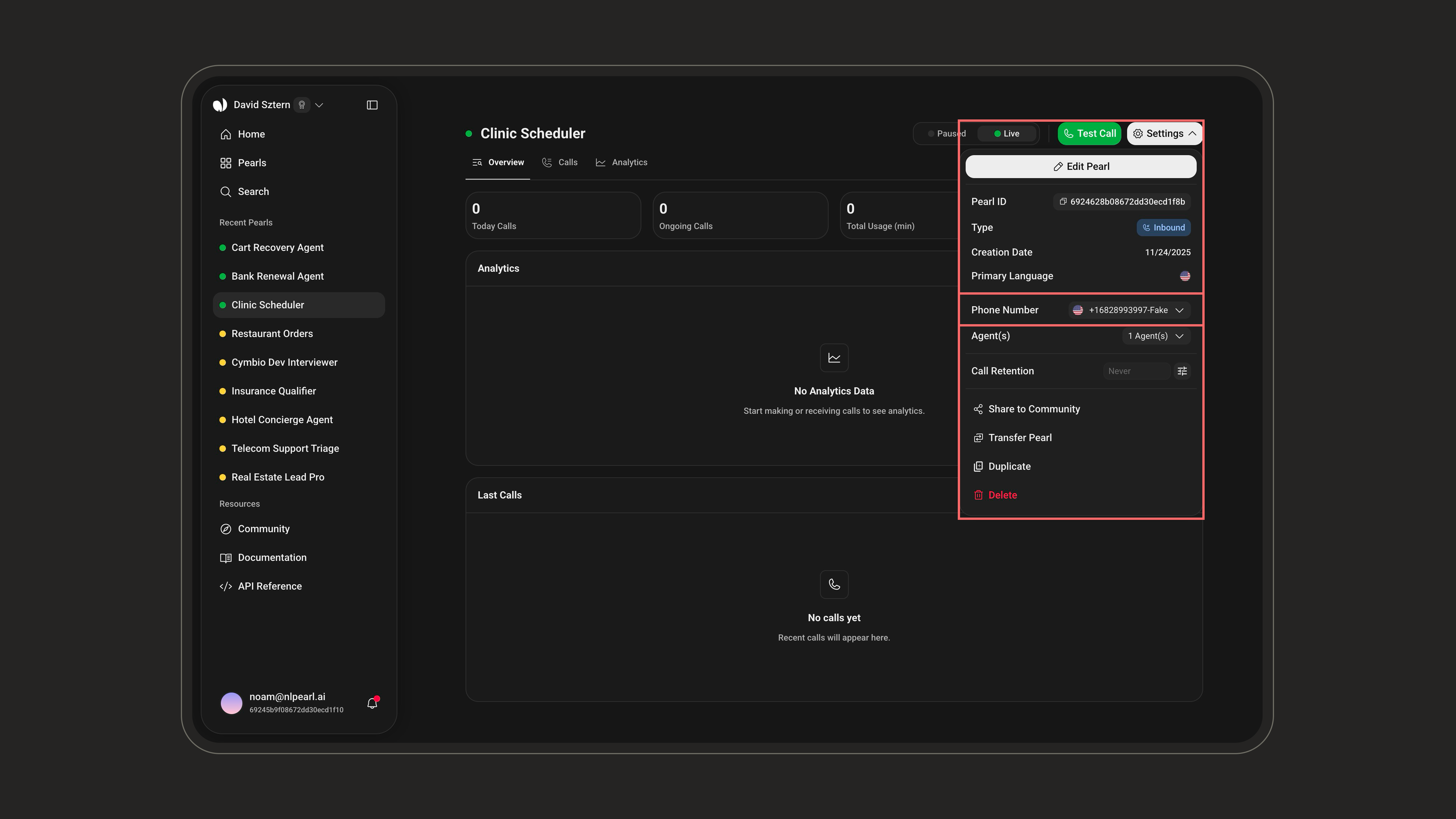 * **Update Configuration:**\
If any changes are needed, you can edit the VoIP settings by accessing the phone number in the Phone Numbers tab.
***
### Troubleshooting Tips
**Connection Issues**: Double-check all configuration settings, especially SIP URLs, usernames, passwords, and IP addresses.
**Authentication Failures**: Make sure the authentication method you've selected matches the one supported by your VoIP provider.
**Provider Support**: If you're unsure about specific requirements, contact your VoIP provider for assistance with configuration.
### Advantages of Custom VoIP Integration
**Flexibility**: Leverage your existing VoIP infrastructure without switching providers or modifying your current setup.
**Global Reach**: Access phone numbers and make calls in any region your VoIP provider supports, ideal for international teams.
***
* **Update Configuration:**\
If any changes are needed, you can edit the VoIP settings by accessing the phone number in the Phone Numbers tab.
***
### Troubleshooting Tips
**Connection Issues**: Double-check all configuration settings, especially SIP URLs, usernames, passwords, and IP addresses.
**Authentication Failures**: Make sure the authentication method you've selected matches the one supported by your VoIP provider.
**Provider Support**: If you're unsure about specific requirements, contact your VoIP provider for assistance with configuration.
### Advantages of Custom VoIP Integration
**Flexibility**: Leverage your existing VoIP infrastructure without switching providers or modifying your current setup.
**Global Reach**: Access phone numbers and make calls in any region your VoIP provider supports, ideal for international teams.
***
Purchase and manage your **NLPearl-hosted phone numbers** directly, with instant activation and native support.
Explore our **Twilio Integration** to access a broader range of international phone numbers.
**Need Assistance?**\
If you require help with the integration process, please refer to our support resources or contact our support team for guidance.
