> ## Documentation Index
> Fetch the complete documentation index at: https://developers.nlpearl.ai/llms.txt
> Use this file to discover all available pages before exploring further.

# Phone Number Blacklist

<div className="block dark:hidden">
  <Frame>
    <div className="p-1">
      <img src="https://mintcdn.com/nlpearl/5m7CLiudjrqxiyho/images/light_mode/blacklist_cover.jpg?fit=max&auto=format&n=5m7CLiudjrqxiyho&q=85&s=fac914636aac36079dcab77d76430be4" alt="Send Email action interface on light mode" className="rounded-[14px]" width="3822" height="2300" data-path="images/light_mode/blacklist_cover.jpg" />
    </div>
  </Frame>
</div>

<div className="hidden dark:block">
  <Frame>
    <div className="p-1">
      <img src="https://mintcdn.com/nlpearl/ek92yQlpTyrjmvSe/images/dark_mode/blacklist_cover.jpg?fit=max&auto=format&n=ek92yQlpTyrjmvSe&q=85&s=1b03c82d12fabddc68305e26c82ff147" alt="Send Email action interface on dark mode" className="rounded-[14px]" width="3822" height="2300" data-path="images/dark_mode/blacklist_cover.jpg" />
    </div>
  </Frame>
</div>

***

The **Blacklist** feature enables you to restrict specific phone numbers or entire prefixes from engaging in inbound or outbound calls with your AI agent campaigns. Utilizing this feature helps enhance campaign efficiency and ensures communication efforts remain focused and relevant.

<Tip>
  ### Benefits

  * Prevent unwanted calls from specific numbers or number prefixes.
  * Enhance operational efficiency by avoiding irrelevant interactions.
  * Monitor and track blacklisted number activities clearly within your campaigns.
</Tip>

***

### Setting Up Your Blacklist

<Steps>
  <Step title="Access Advanced Settings">
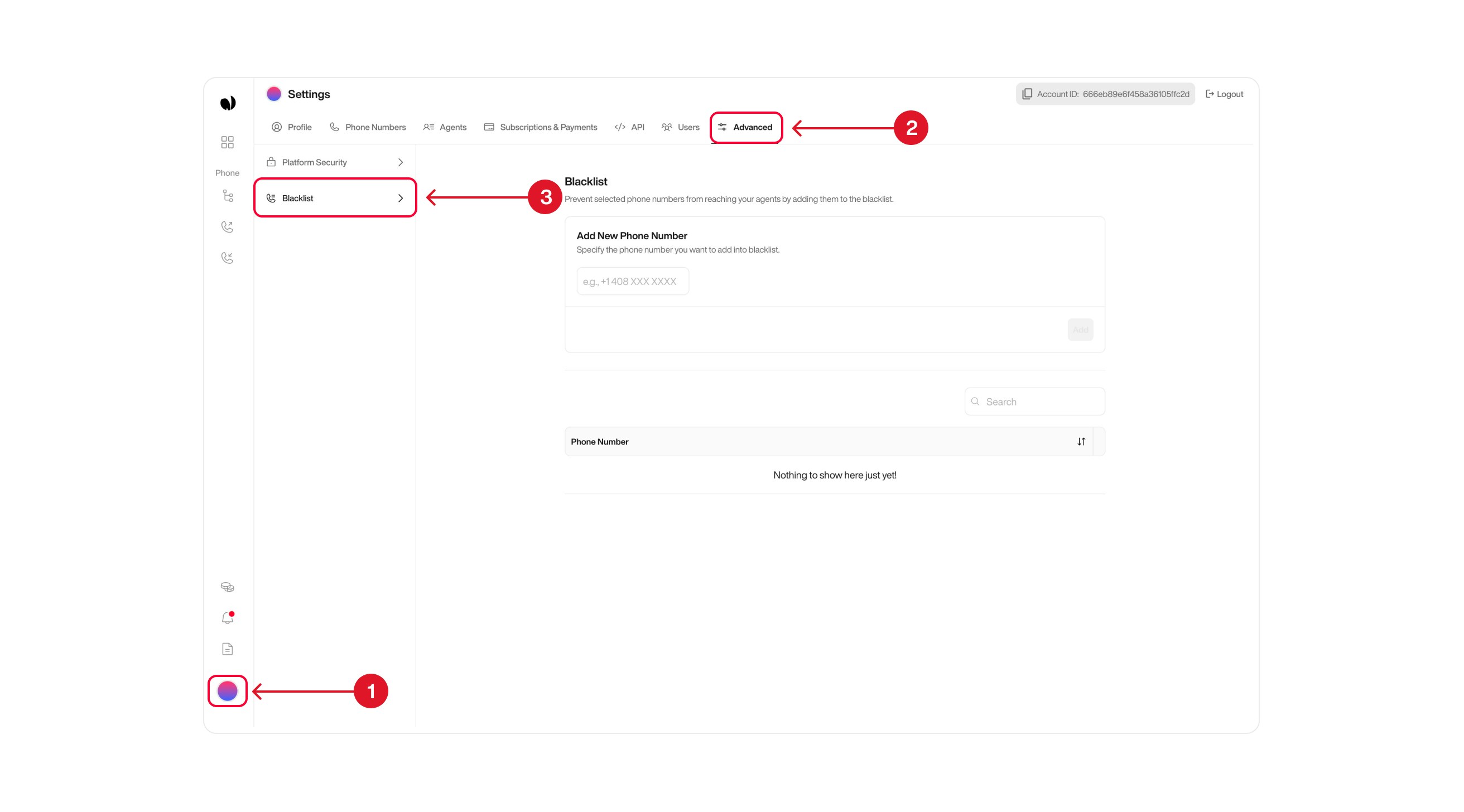
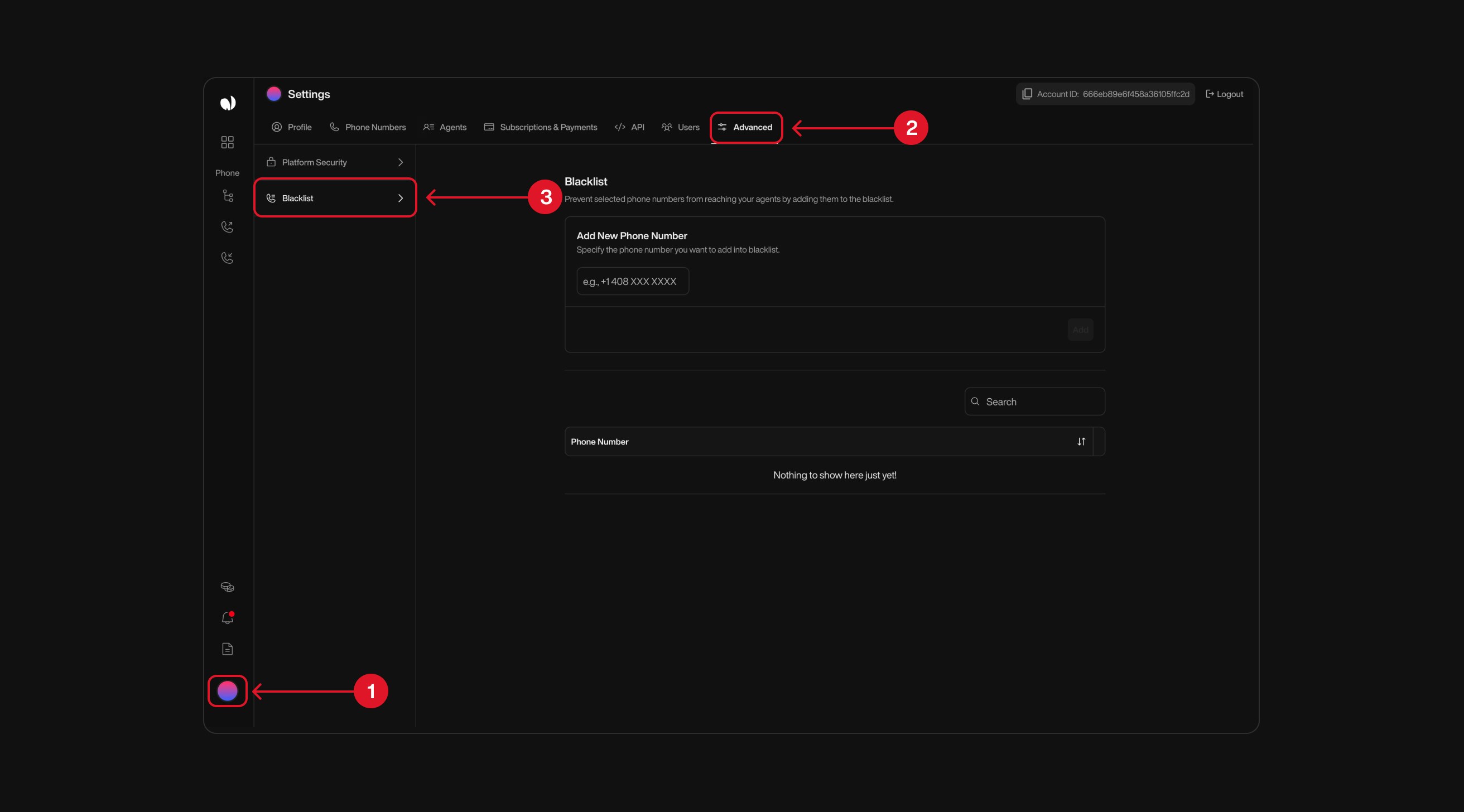
    Click on your profile icon located at the bottom left corner, then select the **Advanced** tab at the top, and choose **Blacklist** from the sidebar menu.

    <div className="block dark:hidden">
      <Frame>
        <div className="p-1">
          <img src="https://mintcdn.com/nlpearl/5m7CLiudjrqxiyho/images/light_mode/blacklist_go.jpg?fit=max&auto=format&n=5m7CLiudjrqxiyho&q=85&s=0b6b904e2db97e06ab531633221005bf" alt="Send Email action interface on light mode" className="rounded-[14px]" width="2624" height="1456" data-path="images/light_mode/blacklist_go.jpg" />
        </div>
      </Frame>
    </div>

    <div className="hidden dark:block">
      <Frame>
        <div className="p-1">
          <img src="https://mintcdn.com/nlpearl/ek92yQlpTyrjmvSe/images/dark_mode/blacklist_go.jpg?fit=max&auto=format&n=ek92yQlpTyrjmvSe&q=85&s=17f0105d0463f719450f648cffdc86db" alt="Send Email action interface on dark mode" className="rounded-[14px]" width="2624" height="1456" data-path="images/dark_mode/blacklist_go.jpg" />
        </div>
      </Frame>
    </div>
  </Step>

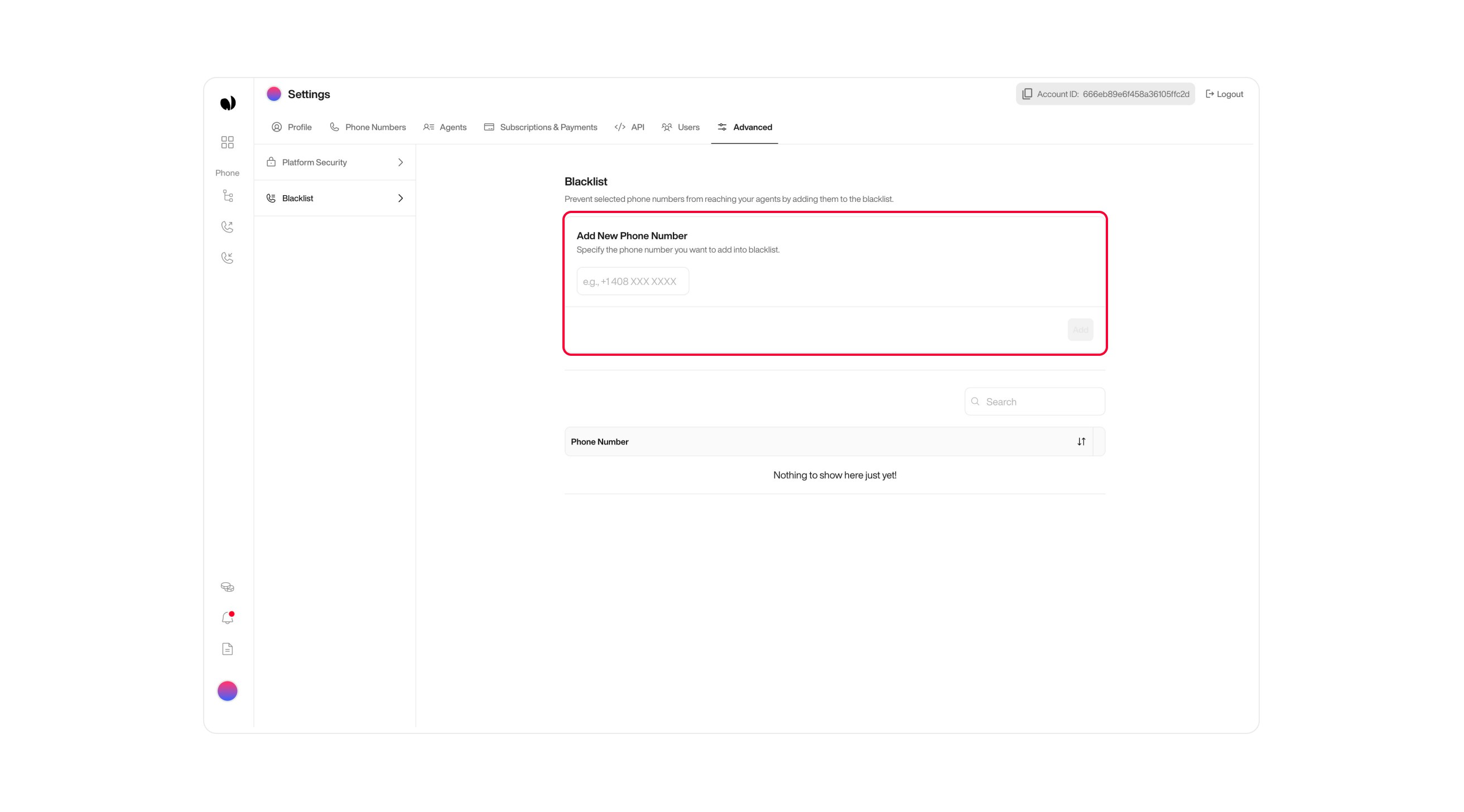
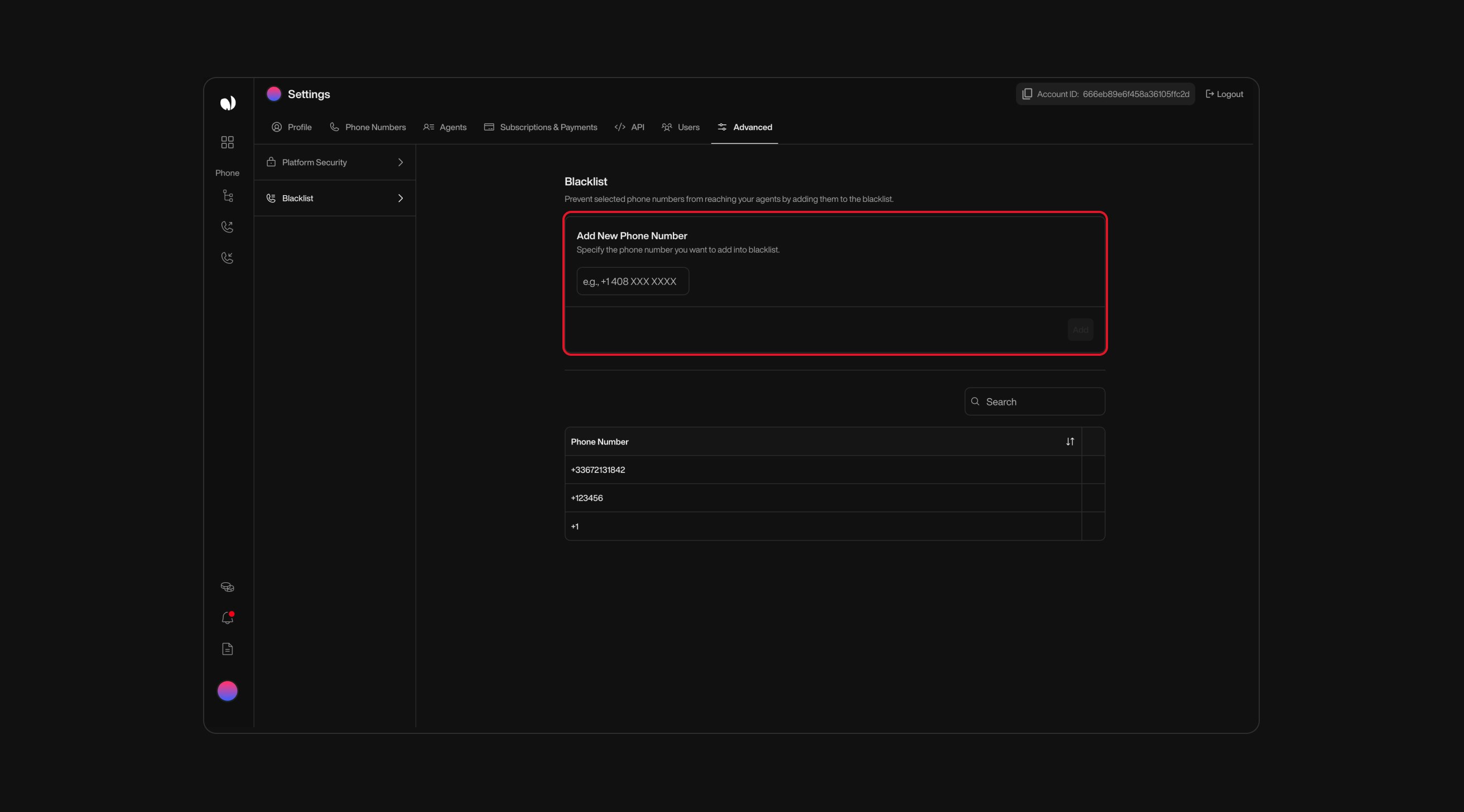
  <Step title="Adding Numbers or Prefixes">
    Enter a specific phone number (e.g., `+33123456789`) or a prefix (e.g., `+33`) to blacklist.

    <Note>
      When adding a prefix (e.g., `+33`), all numbers beginning with that prefix (`+33123456789`, `+33456789012`, etc.) are automatically blocked from both receiving and making calls.
    </Note>

    Click the **Add** button to save your entry to the blacklist.

    <div className="block dark:hidden">
      <Frame>
        <div className="p-1">
          <img src="https://mintcdn.com/nlpearl/5m7CLiudjrqxiyho/images/light_mode/blacklist_add.jpg?fit=max&auto=format&n=5m7CLiudjrqxiyho&q=85&s=0c2ccb8b68669177c7ccf35c68c74a92" alt="Send Email action interface on light mode" className="rounded-[14px]" width="2624" height="1456" data-path="images/light_mode/blacklist_add.jpg" />
        </div>
      </Frame>
    </div>

    <div className="hidden dark:block">
      <Frame>
        <div className="p-1">
          <img src="https://mintcdn.com/nlpearl/ek92yQlpTyrjmvSe/images/dark_mode/blacklist_add.jpg?fit=max&auto=format&n=ek92yQlpTyrjmvSe&q=85&s=0829bac2eae50d1bf5da998c93bd9541" alt="Send Email action interface on dark mode" className="rounded-[14px]" width="2624" height="1456" data-path="images/dark_mode/blacklist_add.jpg" />
        </div>
      </Frame>
    </div>
  </Step>
</Steps>

### Monitoring Blacklisted Numbers in Campaigns

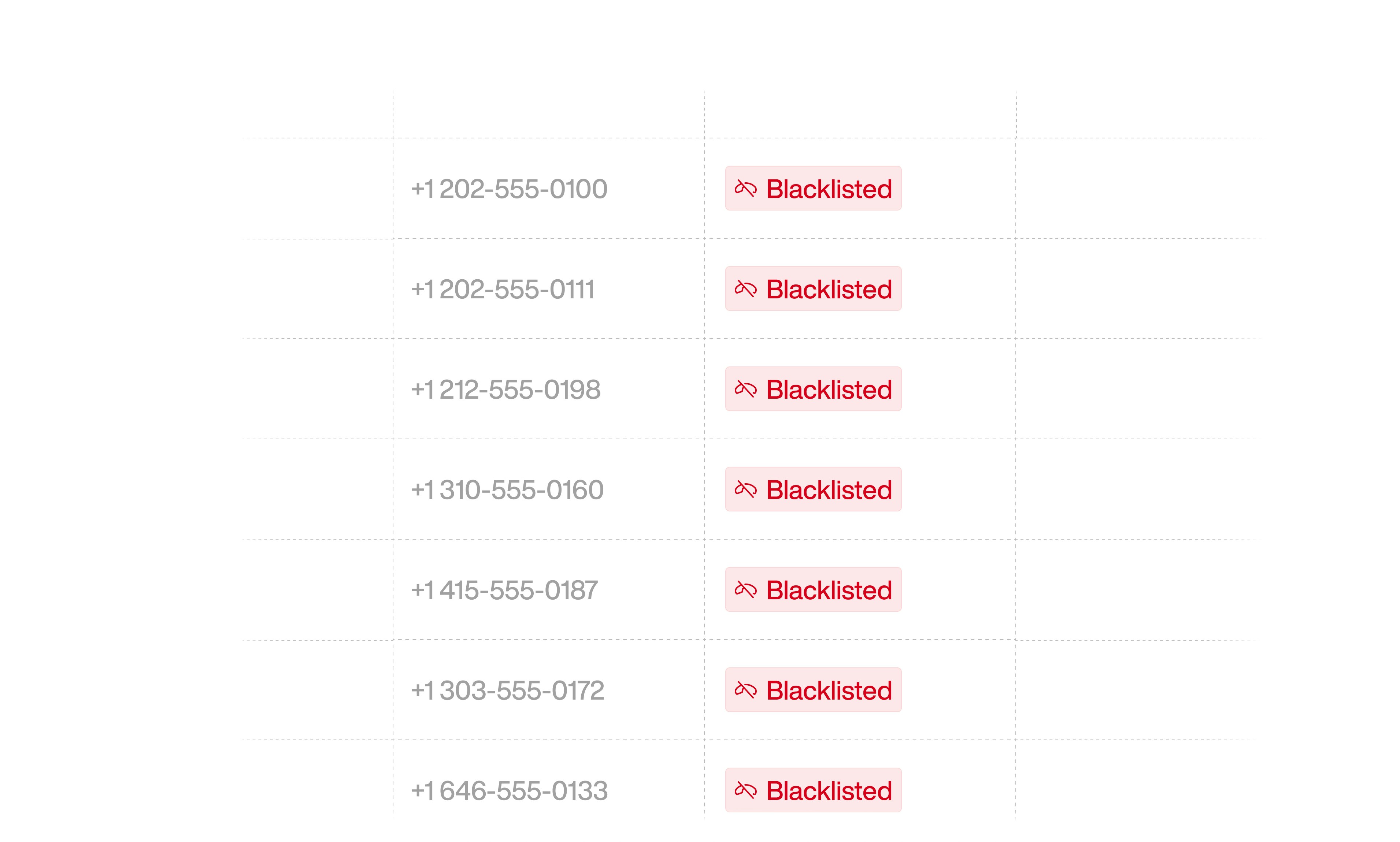
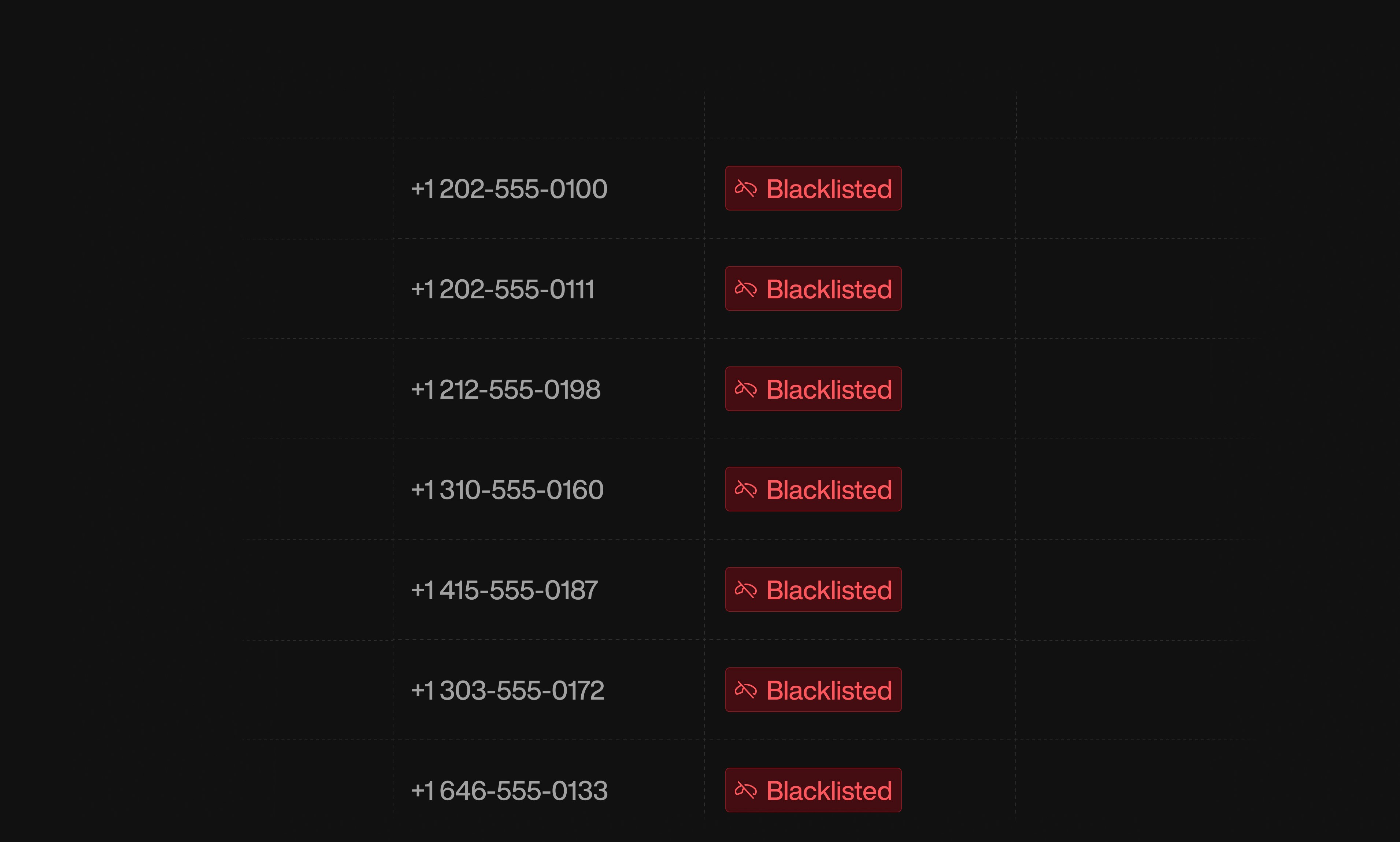
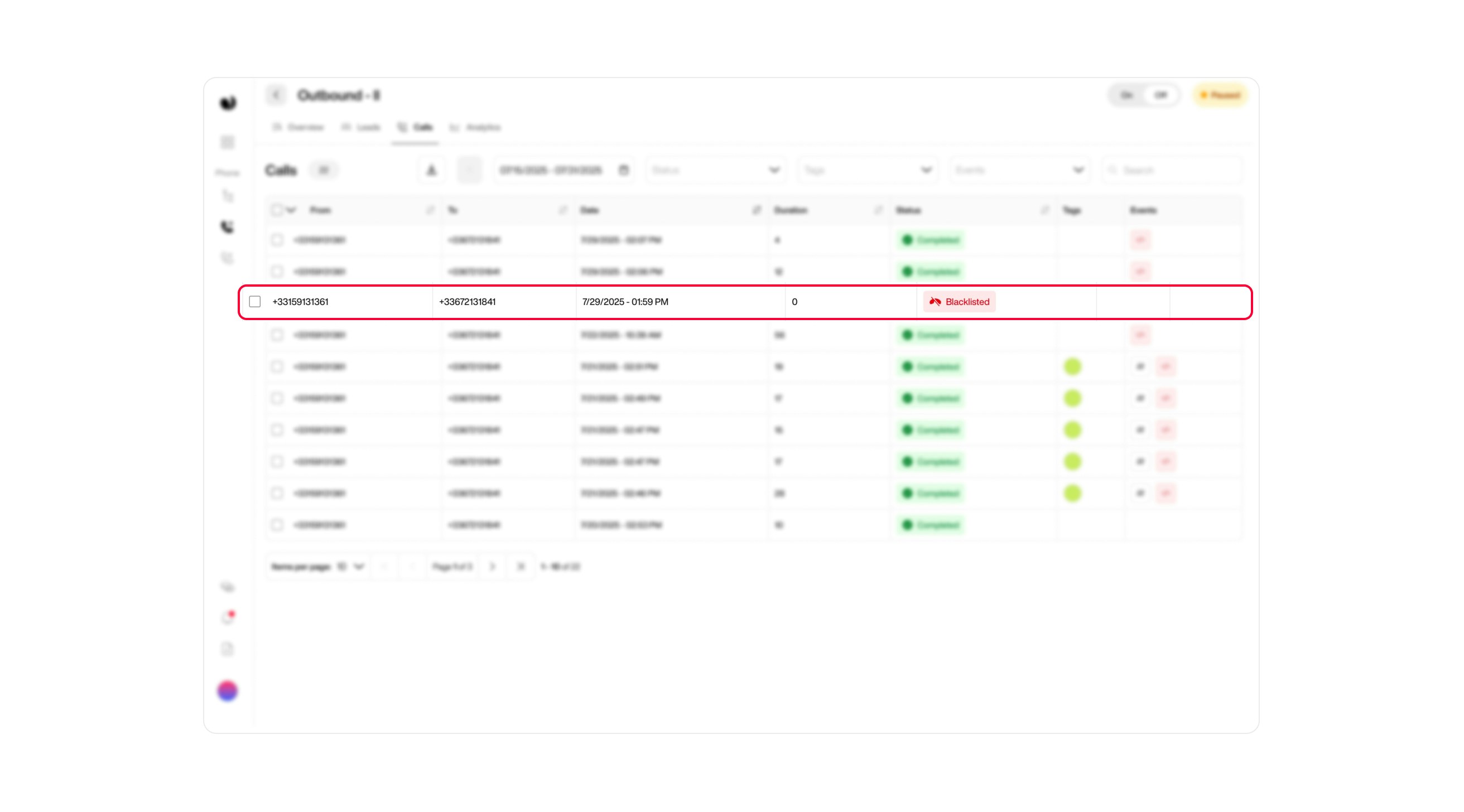
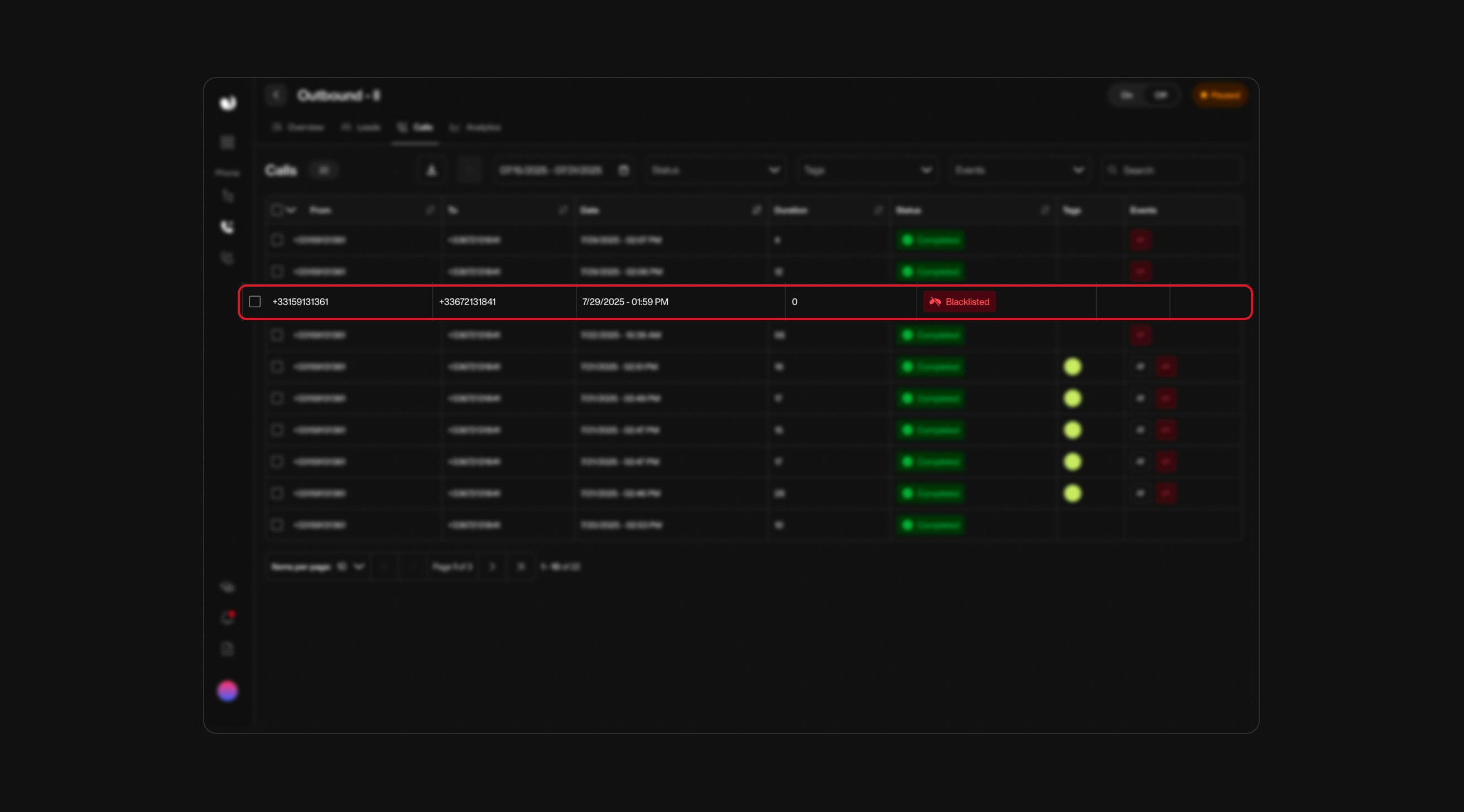
* Blacklisted numbers will appear with a `Blacklisted` label in your campaign interface.
* Track attempted interactions involving blacklisted numbers, whether inbound calls to your campaigns or outbound calls initiated by your AI agent.

<div className="block dark:hidden">
  <Frame>
    <div className="p-1">
      <img src="https://mintcdn.com/nlpearl/5m7CLiudjrqxiyho/images/light_mode/blacklist_label.jpg?fit=max&auto=format&n=5m7CLiudjrqxiyho&q=85&s=19f584124efe11ca09c38669d51f678a" alt="Send Email action interface on light mode" className="rounded-[14px]" width="2624" height="1456" data-path="images/light_mode/blacklist_label.jpg" />
    </div>
  </Frame>
</div>

<div className="hidden dark:block">
  <Frame>
    <div className="p-1">
      <img src="https://mintcdn.com/nlpearl/ek92yQlpTyrjmvSe/images/dark_mode/blacklist_label.jpg?fit=max&auto=format&n=ek92yQlpTyrjmvSe&q=85&s=9e31a8c5ed519c1bf6ded0a5bf751675" alt="Send Email action interface on dark mode" className="rounded-[14px]" width="2624" height="1456" data-path="images/dark_mode/blacklist_label.jpg" />
    </div>
  </Frame>
</div>

Leveraging the blacklist feature ensures your campaigns remain targeted, effective, and free from unwanted communication.