> ## Documentation Index
> Fetch the complete documentation index at: https://developers.nlpearl.ai/llms.txt
> Use this file to discover all available pages before exploring further.
# Billing
> Learn how to manage your billing settings, subscriptions, and invoices on the NLPearl.AI platform.
***
## Billing Management
The **Billing** page is your central place to manage everything related to payments on NLPearl.AI. From here you can choose or change your subscription plan, manage your payment methods, view and download invoices, and configure auto-recharge to keep your activities running without interruption.
Billing changes are managed directly on the platform. Make sure you have the right permissions on your workspace to update subscriptions or payment methods.
***
## Subscription Management
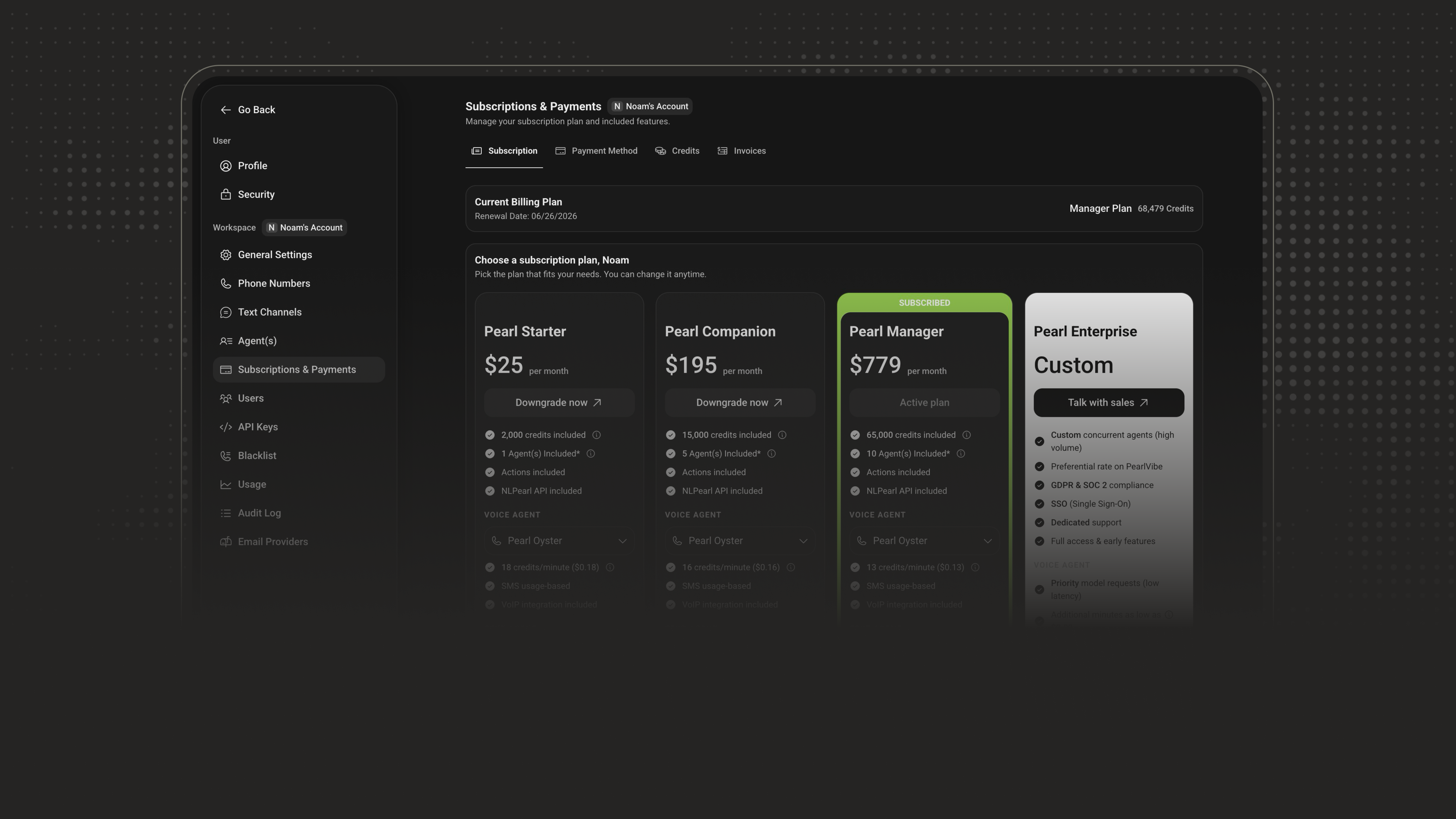
From the Billing page, you can select the subscription plan that best fits your needs, or change your current one at any time.
Upgrades take effect **immediately**, giving you access to additional features and resources right away.
Downgrades take effect at the **end of your current billing period**, on the anniversary date of your current plan.
***
## Payment Methods
Enter and manage your credit card details directly from the Billing page. Keeping a valid payment method on file ensures your payments are processed smoothly and your subscription stays active.
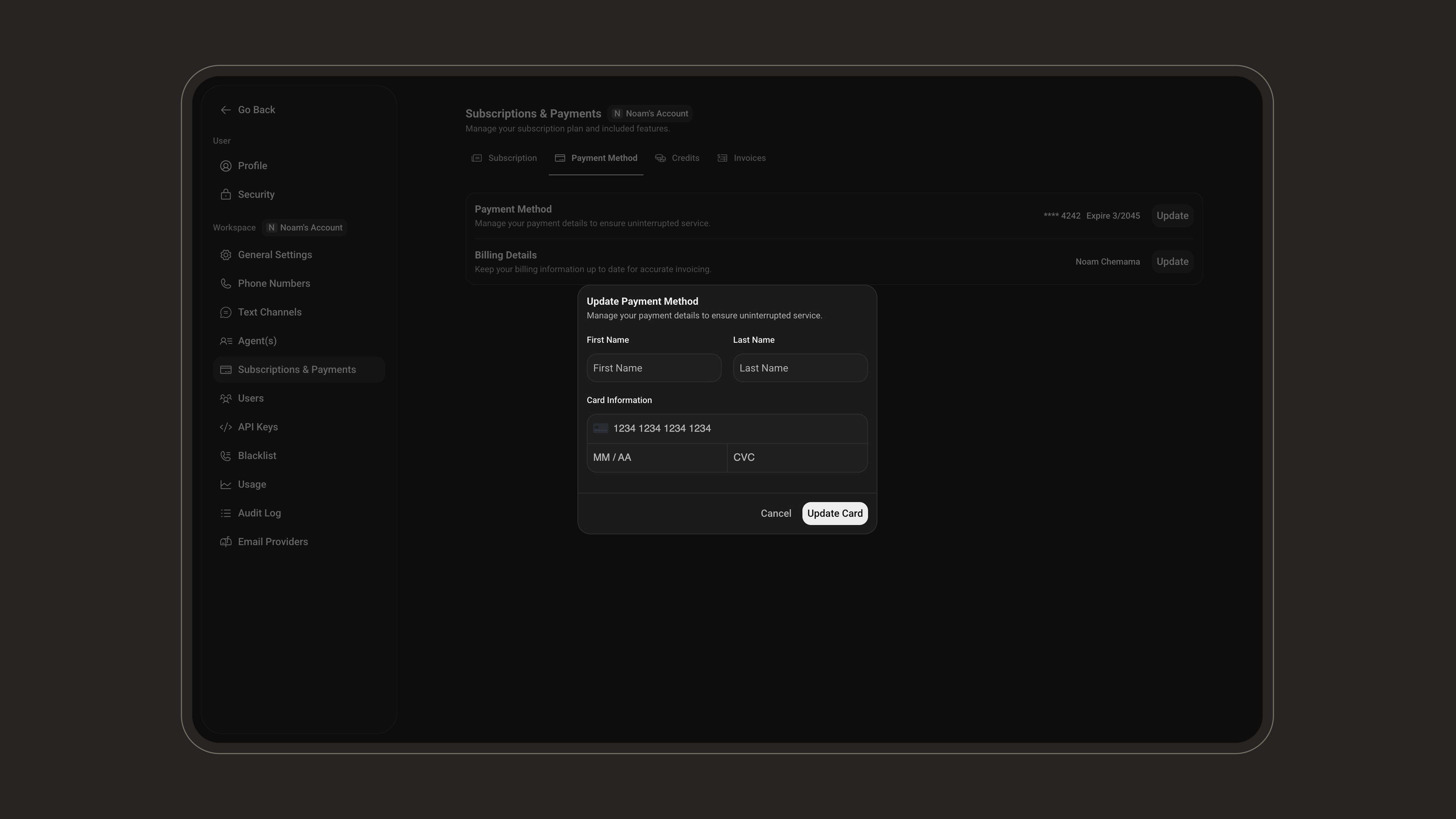 You can update or replace your card at any time. The new payment method is used for your next charge.
***
## Invoices
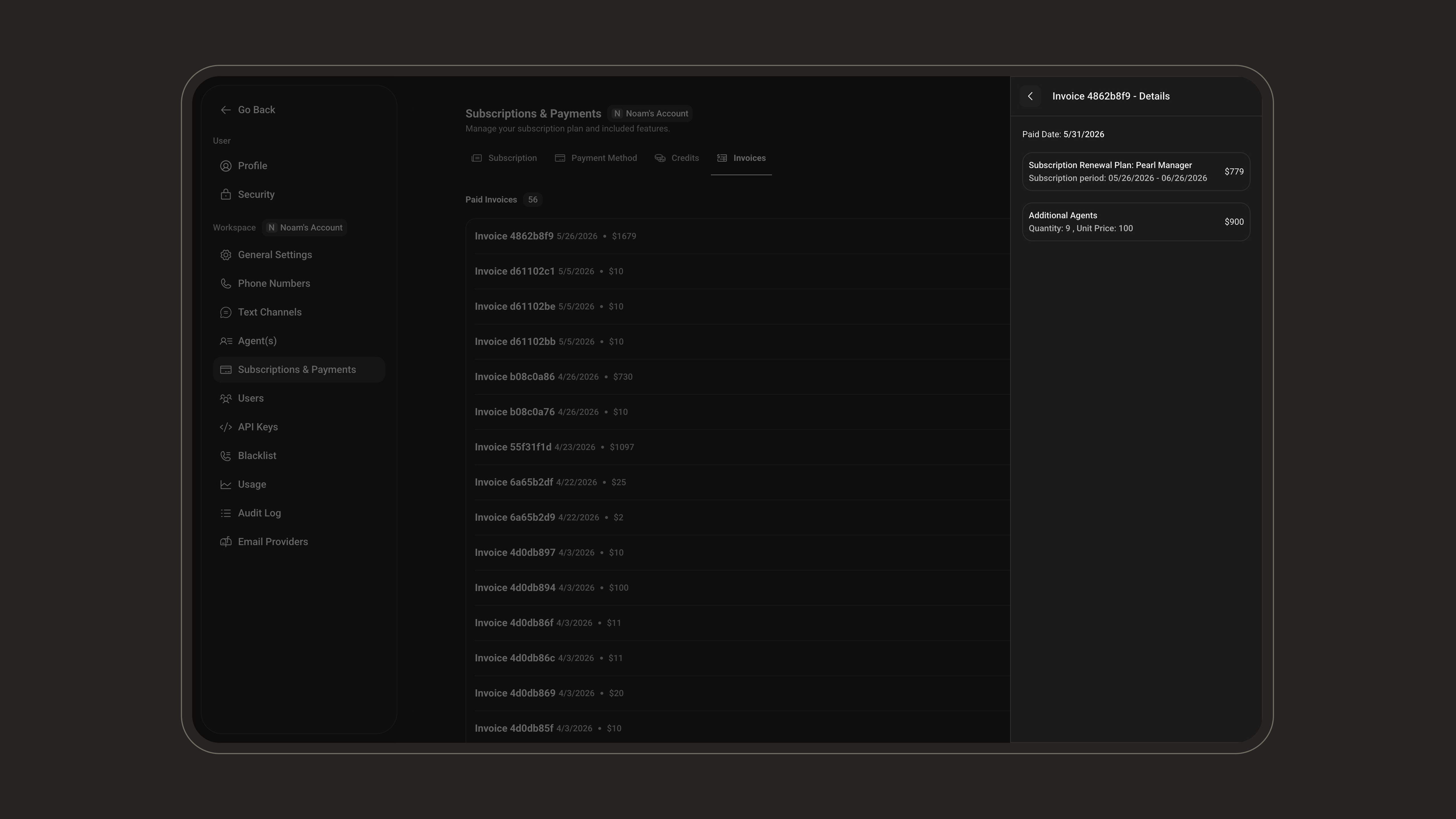
Access your full billing history from the Billing page. Every invoice is available to **view and download** for your records and accounting needs.
You can update or replace your card at any time. The new payment method is used for your next charge.
***
## Invoices
Access your full billing history from the Billing page. Every invoice is available to **view and download** for your records and accounting needs.
 ***
## Credits
Credits fund your activities on NLPearl.AI. From the **Credits** tab of the **Subscription & Payment** page, you can top up your balance in two ways: buy credits instantly, or set up auto-recharge so your balance is replenished automatically.
### Buy credits instantly
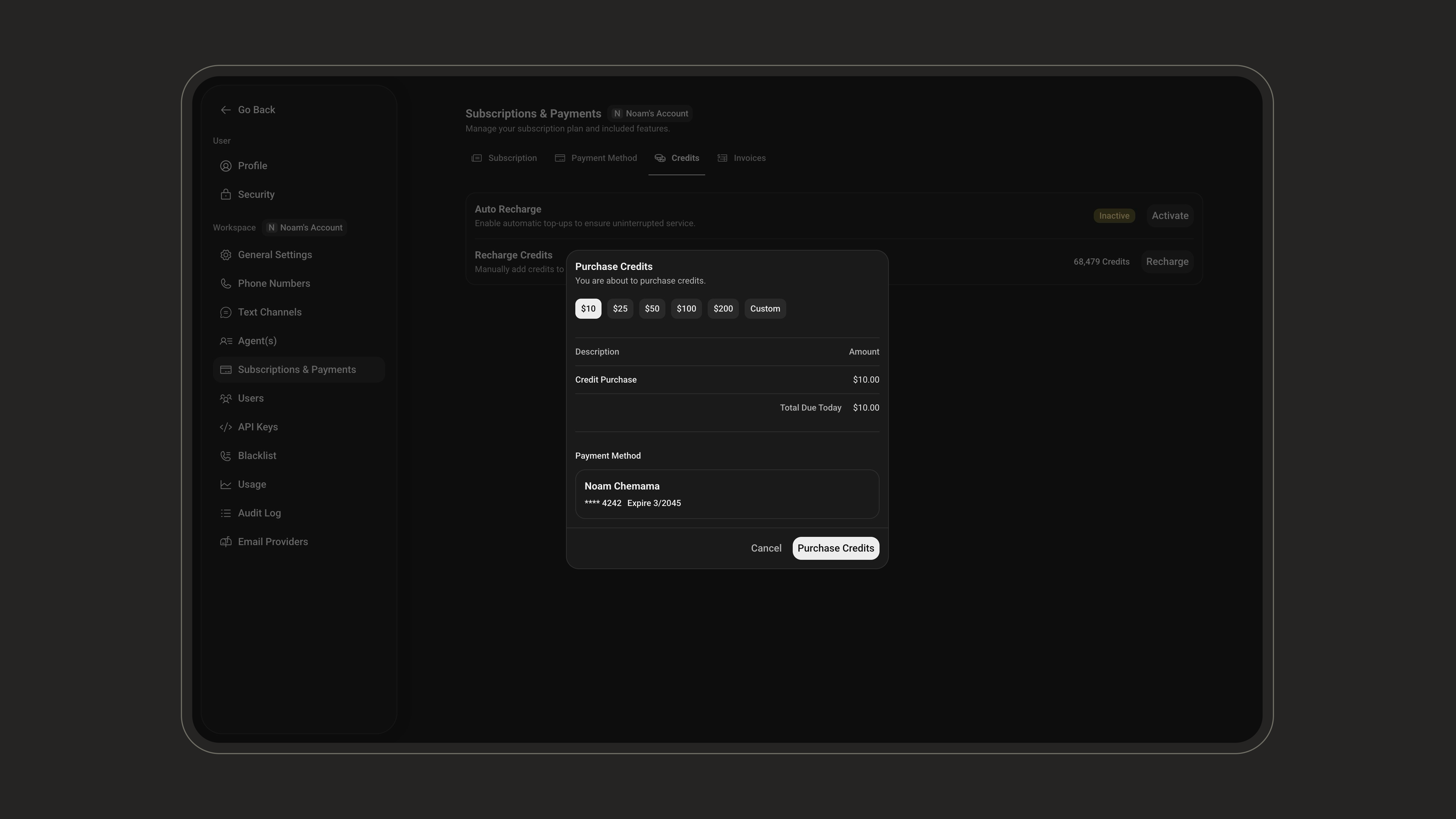
Purchase a credit amount that is added to your balance **immediately**. Use this for a one-time top-up or to get started right away.
***
## Credits
Credits fund your activities on NLPearl.AI. From the **Credits** tab of the **Subscription & Payment** page, you can top up your balance in two ways: buy credits instantly, or set up auto-recharge so your balance is replenished automatically.
### Buy credits instantly
Purchase a credit amount that is added to your balance **immediately**. Use this for a one-time top-up or to get started right away.
 ### Auto-recharge
Auto-recharge keeps your balance topped up automatically so your activities never stop because of an insufficient balance.
Turn on auto-recharge from the Credits tab.
Define the balance level that triggers a recharge.
Choose the amount your balance is recharged to whenever it falls below the threshold.
### Auto-recharge
Auto-recharge keeps your balance topped up automatically so your activities never stop because of an insufficient balance.
Turn on auto-recharge from the Credits tab.
Define the balance level that triggers a recharge.
Choose the amount your balance is recharged to whenever it falls below the threshold.
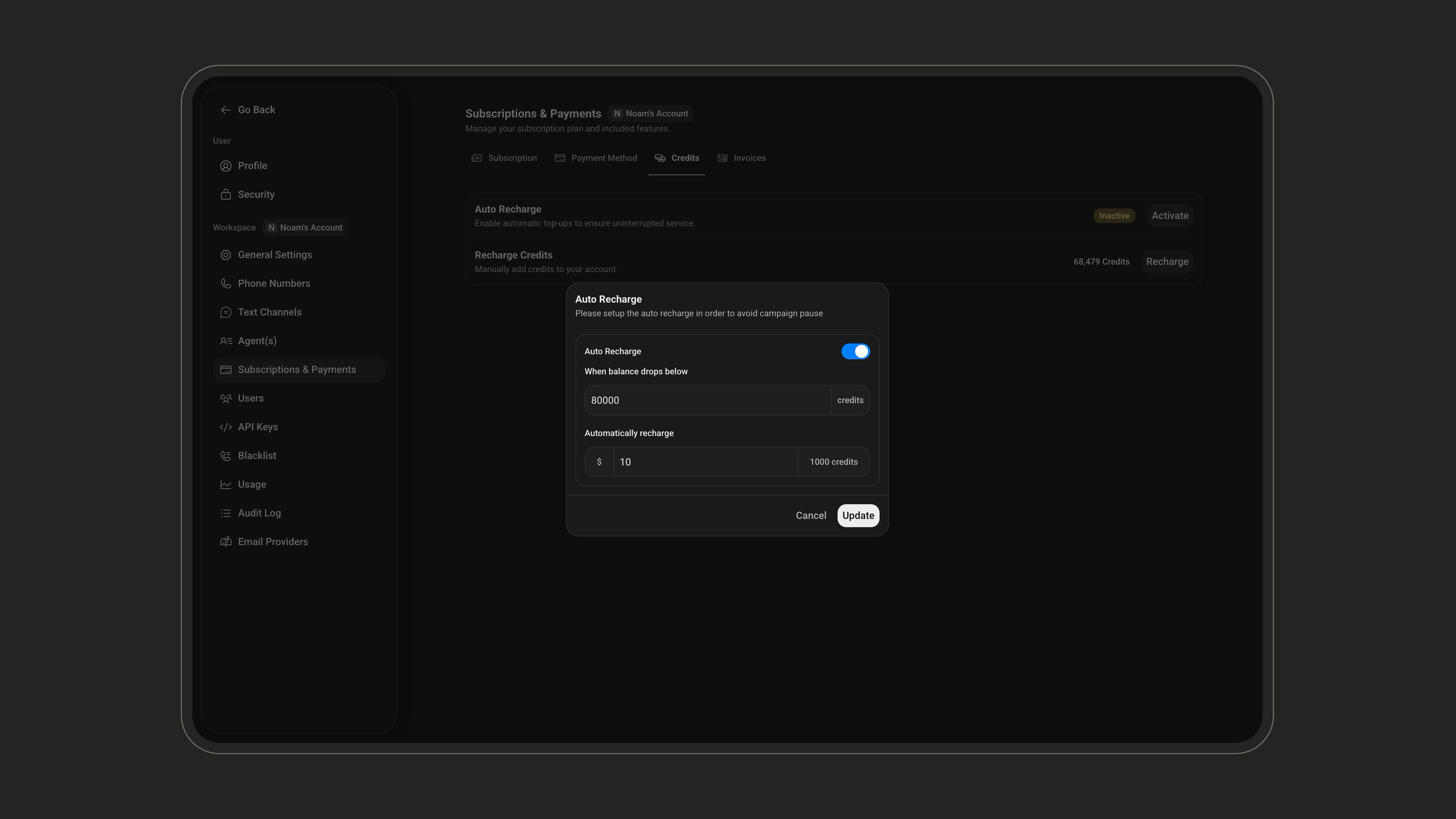 We strongly recommend enabling auto-recharge. Without it, your calls and conversations stop as soon as your balance runs out.
***
## Next steps
Compare the different subscription plans and choose the best one for your needs.
Learn how payouts work and how to manage your earnings on the platform.
We strongly recommend enabling auto-recharge. Without it, your calls and conversations stop as soon as your balance runs out.
***
## Next steps
Compare the different subscription plans and choose the best one for your needs.
Learn how payouts work and how to manage your earnings on the platform.