> ## Documentation Index
> Fetch the complete documentation index at: https://developers.nlpearl.ai/llms.txt
> Use this file to discover all available pages before exploring further.
# API Node
The **API node** runs an HTTP request automatically when the flow reaches it, letting your Pearl pull or push data from an external system. Depending on where you place it, it behaves in one of three ways:
* **Pre-Call API**: runs once, before the conversation starts.
* **In-Call API**: runs during the conversation, when the flow reaches the node.
* **Post-Call API**: runs after the conversation ends, as a post-call action.
The configuration form is the same in all three cases. Only the available variables, the response handling, and the transitions differ (see [Context Differences](#context-differences)).
***
## Adding an API Node
| Context | Where to add it |
| ----------------- | ------------------------------------------------------------------------------------------------------------------------------------- |
| **Pre-Call API** | On the **Start** node, choose **Pre Call API**. It is inserted between Start and the Opening Sentence, and runs before the call. |
| **In-Call API** | Add an **API** node from the side toolbar (or the node picker under *Live Action Nodes*) and connect it where the request should run. |
| **Post-Call API** | On the **Post-Call Actions** container (reached from an End Call transition), click **Add Action** and choose **API**. |
***
## Configuring the Request
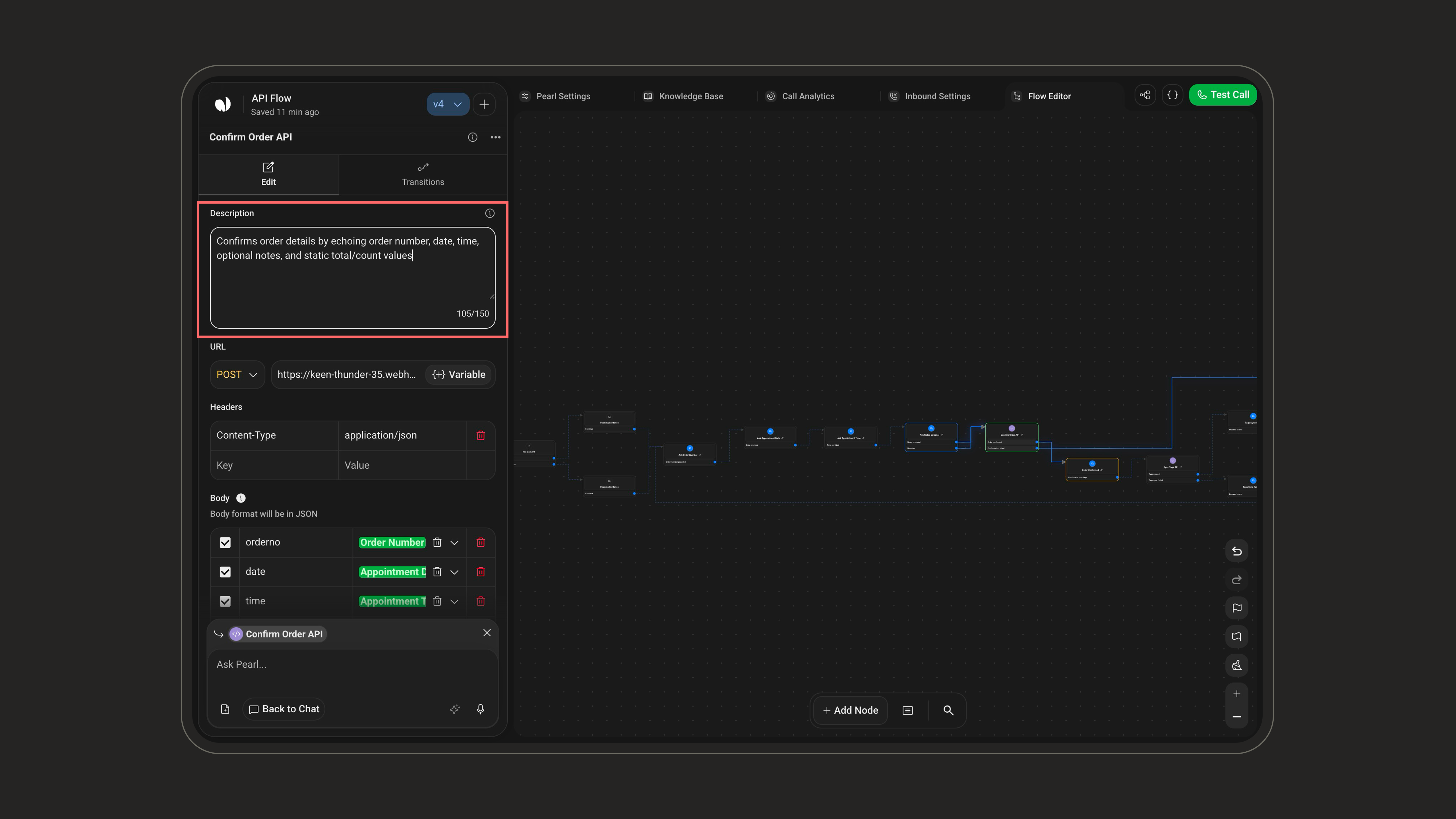
Explain what this API does and what data it returns (e.g. *"Fetches customer order history"*). Maximum **150 characters**. This helps Pearl understand when and how to use the action.
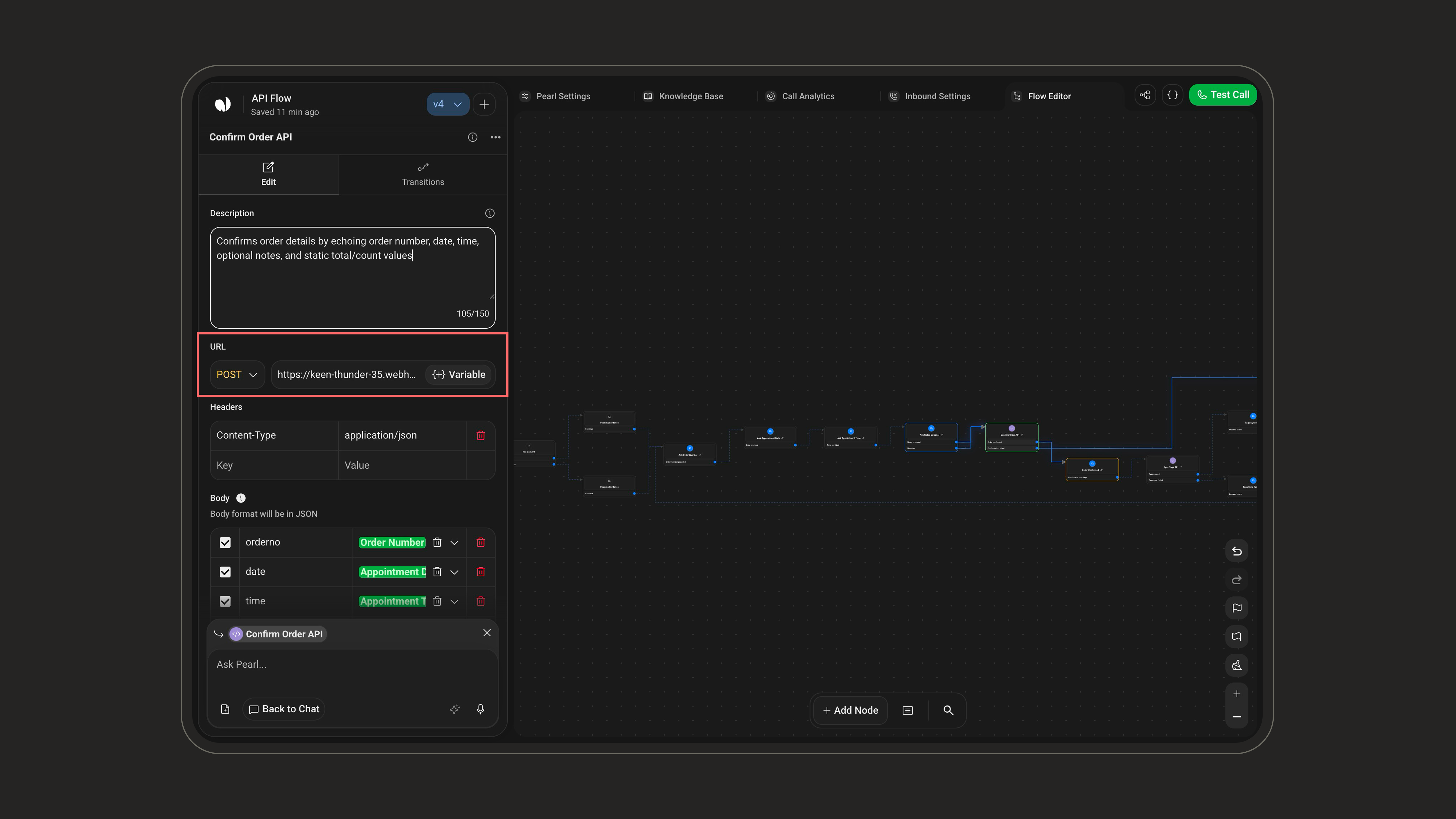
 Type the API endpoint URL and choose the **HTTP Method** (**GET**, **POST**, **PUT**, **DELETE**, or **PATCH**) depending on the API's requirements. Click **+** to insert a variable into the URL, limited to the variables available in the node's context (see [Context Differences](#context-differences)).
 The available fields depend on the method:
* The **Body** section is shown only for **POST**, **PUT**, and **PATCH** (hidden for GET and DELETE).
* The **Response Output Schema** is available for every method **except DELETE**.
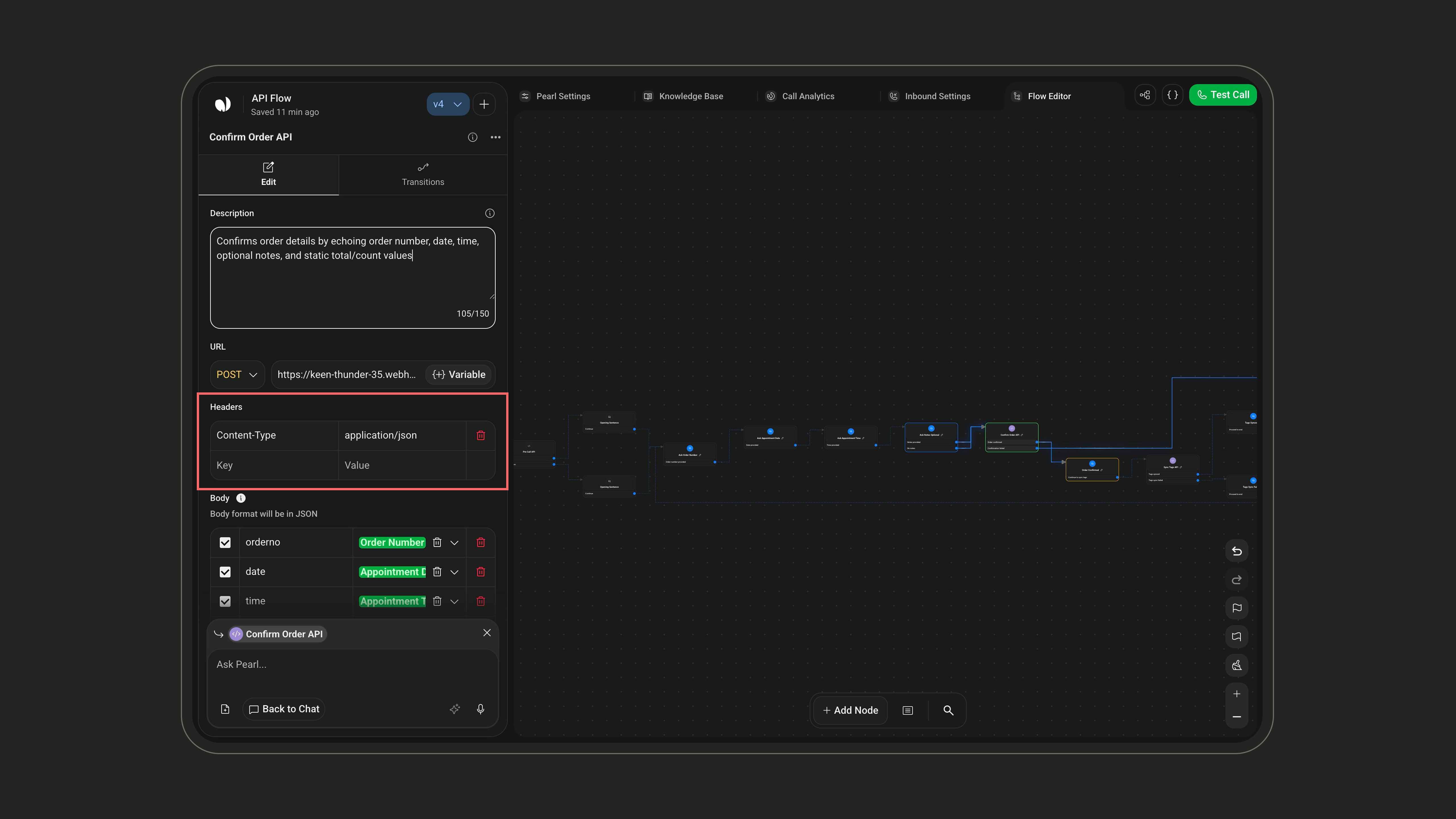
Add any header required by the API, such as `Content-Type` or `Authorization`. Header values are **static**.
The available fields depend on the method:
* The **Body** section is shown only for **POST**, **PUT**, and **PATCH** (hidden for GET and DELETE).
* The **Response Output Schema** is available for every method **except DELETE**.
Add any header required by the API, such as `Content-Type` or `Authorization`. Header values are **static**.
 For a **dynamic authorization token**, use a [**Credential**](#credentials-authentication) instead of a static header.
Provide **Key / Value** pairs, sent as JSON.
For a **dynamic authorization token**, use a [**Credential**](#credentials-authentication) instead of a static header.
Provide **Key / Value** pairs, sent as JSON.
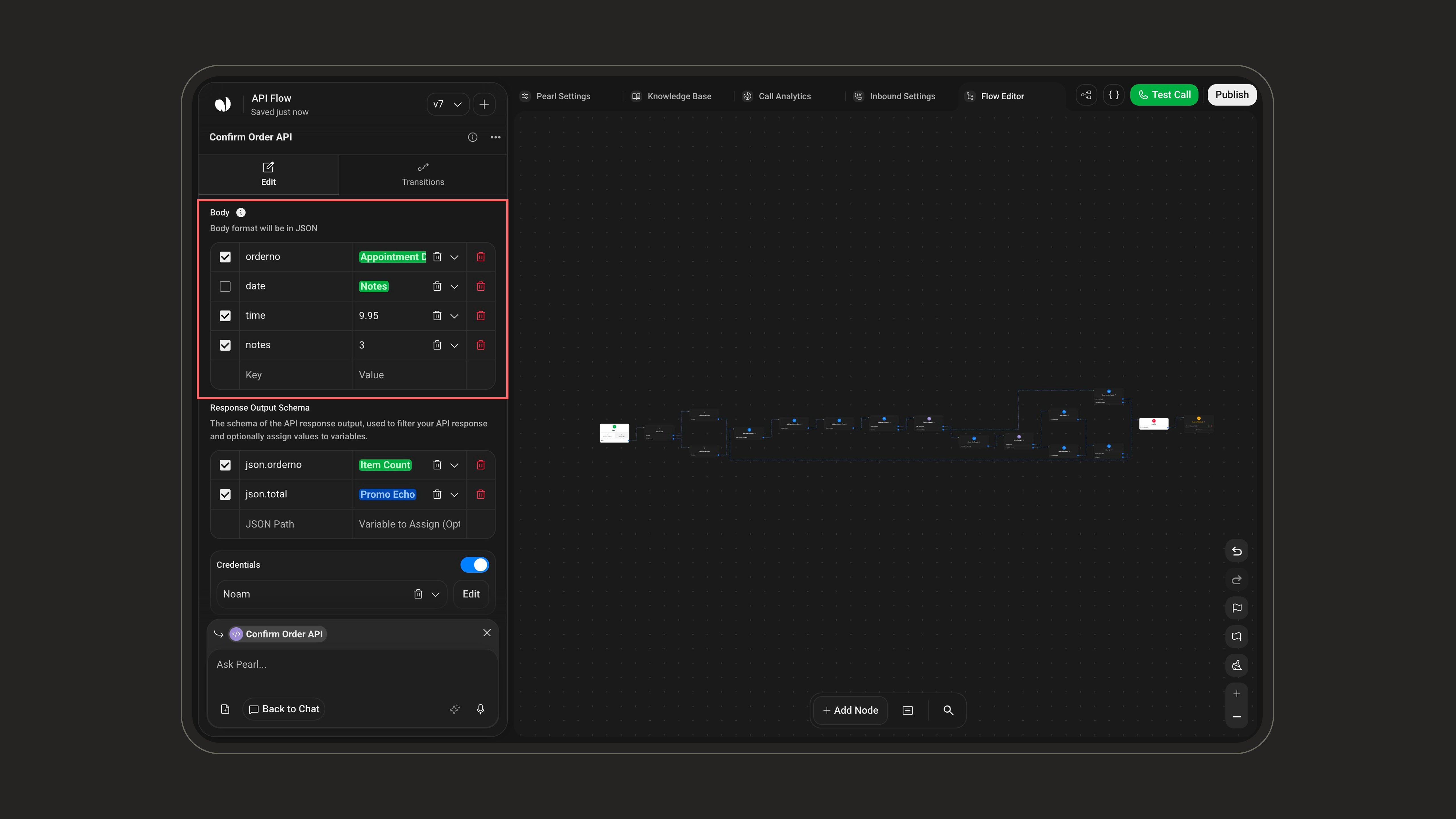 Each **Value** is either a **Variable** or a **Static & Custom** value. Static values support these types:
| Type | Format |
| ------------------ | ---------------------- |
| **Text** | String |
| **Whole Number** | Integer |
| **Decimal Number** | Float / double |
| **Boolean** | `true` / `false` |
| **Date** | Calendar date |
| **Time** | Time of day |
| **Date & Time** | Combined date and time |
For each row you can toggle a **Required** checkbox:
* **Checked**: Pearl prompts the customer for the value before sending the request if it hasn't been collected yet.
* **Unchecked**: the request is sent even if the value is missing; the key is simply omitted.
When using a variable in the body, be aware that:
* The platform **casts each variable to its configured data type** (e.g. Whole Number becomes an integer, Text is quoted as a string). A type mismatch may cause the API to reject the request.
* You can mix static values and variables in the same body.
* For nested JSON, use **dot notation** in the Key (`customer.address.street`) and **square brackets** for array indices (`order.items[0].productId`). See [Using Nested Objects](#using-nested-objects) below.
### Using Nested Objects
Many APIs expect a **nested JSON structure** in their request body. Use dot notation and array indices in the **Key** column to build nested payloads while keeping them organised and readable.
* Use **dot notation** for properties (`customer.address.street`)
* Use **square brackets** for array indices (`order.items[0].productId`)
You can pair nested paths with any variable type: Text, Number, Boolean, etc.
Mapping table:
| API key | Variable |
| -------------------------- | --------------- |
| `customer.name` | `customerName` |
| `customer.email` | `customerEmail` |
| `customer.address.street` | `street` |
| `customer.address.city` | `city` |
| `order.items[0].productId` | `productId` |
| `order.items[0].quantity` | `quantity` |
Resulting body:
```json body.json theme={null}
{
"customer": {
"name": "{{customerName}}",
"email": "{{customerEmail}}",
"address": {
"street": "{{street}}",
"city": "{{city}}"
}
},
"order": {
"items": [
{
"productId": "{{productId}}",
"quantity": "{{quantity}}"
}
]
}
}
```
***
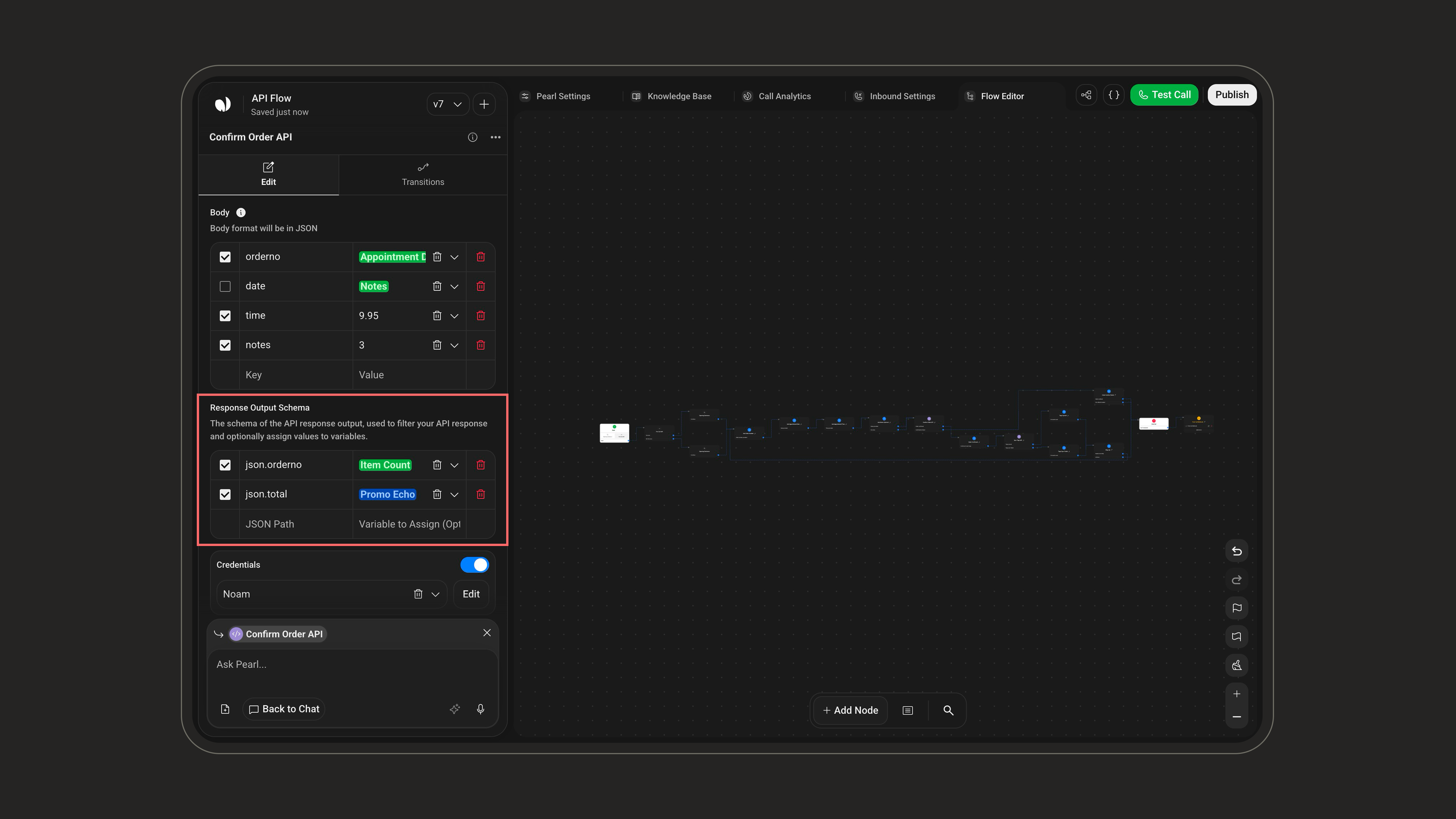
## Response Output Schema & Variable Assignment
API responses are capped at **10,000 characters**. Anything longer is automatically truncated.
Available for every method **except DELETE**. The **Response Output Schema** lets you filter the API response so only the relevant data flows back into the conversation. Without filtering, the entire JSON is returned, which can reduce precision because the AI receives too much unrelated information. Even for small responses, setting a schema is strongly recommended to keep Pearl focused.
Each row of the schema has three parts:
| Column | Description |
| ----------------------- | --------------------------------------------------------------------------------------- |
| **Required** (checkbox) | Mark the path as mandatory for the action. |
| **JSON Path** | The path to extract from the response. |
| **Variable to Assign** | Store the extracted value in a variable. **Required for Pre-Call**, optional otherwise. |
Each **Value** is either a **Variable** or a **Static & Custom** value. Static values support these types:
| Type | Format |
| ------------------ | ---------------------- |
| **Text** | String |
| **Whole Number** | Integer |
| **Decimal Number** | Float / double |
| **Boolean** | `true` / `false` |
| **Date** | Calendar date |
| **Time** | Time of day |
| **Date & Time** | Combined date and time |
For each row you can toggle a **Required** checkbox:
* **Checked**: Pearl prompts the customer for the value before sending the request if it hasn't been collected yet.
* **Unchecked**: the request is sent even if the value is missing; the key is simply omitted.
When using a variable in the body, be aware that:
* The platform **casts each variable to its configured data type** (e.g. Whole Number becomes an integer, Text is quoted as a string). A type mismatch may cause the API to reject the request.
* You can mix static values and variables in the same body.
* For nested JSON, use **dot notation** in the Key (`customer.address.street`) and **square brackets** for array indices (`order.items[0].productId`). See [Using Nested Objects](#using-nested-objects) below.
### Using Nested Objects
Many APIs expect a **nested JSON structure** in their request body. Use dot notation and array indices in the **Key** column to build nested payloads while keeping them organised and readable.
* Use **dot notation** for properties (`customer.address.street`)
* Use **square brackets** for array indices (`order.items[0].productId`)
You can pair nested paths with any variable type: Text, Number, Boolean, etc.
Mapping table:
| API key | Variable |
| -------------------------- | --------------- |
| `customer.name` | `customerName` |
| `customer.email` | `customerEmail` |
| `customer.address.street` | `street` |
| `customer.address.city` | `city` |
| `order.items[0].productId` | `productId` |
| `order.items[0].quantity` | `quantity` |
Resulting body:
```json body.json theme={null}
{
"customer": {
"name": "{{customerName}}",
"email": "{{customerEmail}}",
"address": {
"street": "{{street}}",
"city": "{{city}}"
}
},
"order": {
"items": [
{
"productId": "{{productId}}",
"quantity": "{{quantity}}"
}
]
}
}
```
***
## Response Output Schema & Variable Assignment
API responses are capped at **10,000 characters**. Anything longer is automatically truncated.
Available for every method **except DELETE**. The **Response Output Schema** lets you filter the API response so only the relevant data flows back into the conversation. Without filtering, the entire JSON is returned, which can reduce precision because the AI receives too much unrelated information. Even for small responses, setting a schema is strongly recommended to keep Pearl focused.
Each row of the schema has three parts:
| Column | Description |
| ----------------------- | --------------------------------------------------------------------------------------- |
| **Required** (checkbox) | Mark the path as mandatory for the action. |
| **JSON Path** | The path to extract from the response. |
| **Variable to Assign** | Store the extracted value in a variable. **Required for Pre-Call**, optional otherwise. |
 ### How it works
* Provide a list of **JSON Path** strings.
* The system extracts only those paths from the API response; everything else is discarded.
Benefits:
* Keeps the response size small
* Improves the quality and relevance of AI outputs
* Prevents hitting the 10,000-character truncation limit
* Ensures only the necessary fields are carried into the next steps of the conversation
### Assigning to a variable
Key things to know:
* **The variable's type must match the data type returned by the API at that path.**
* If the value returned is a list, make sure the variable is configured to **allow multiple values**.
* A variable can store up to **600 characters**. Any data beyond this limit is **truncated**.
Outside of Pre-Call APIs, assigning a variable is optional. If you don't assign one, the filtered JSON is still available for the conversation's internal logic, but it won't be stored for later reuse.
***
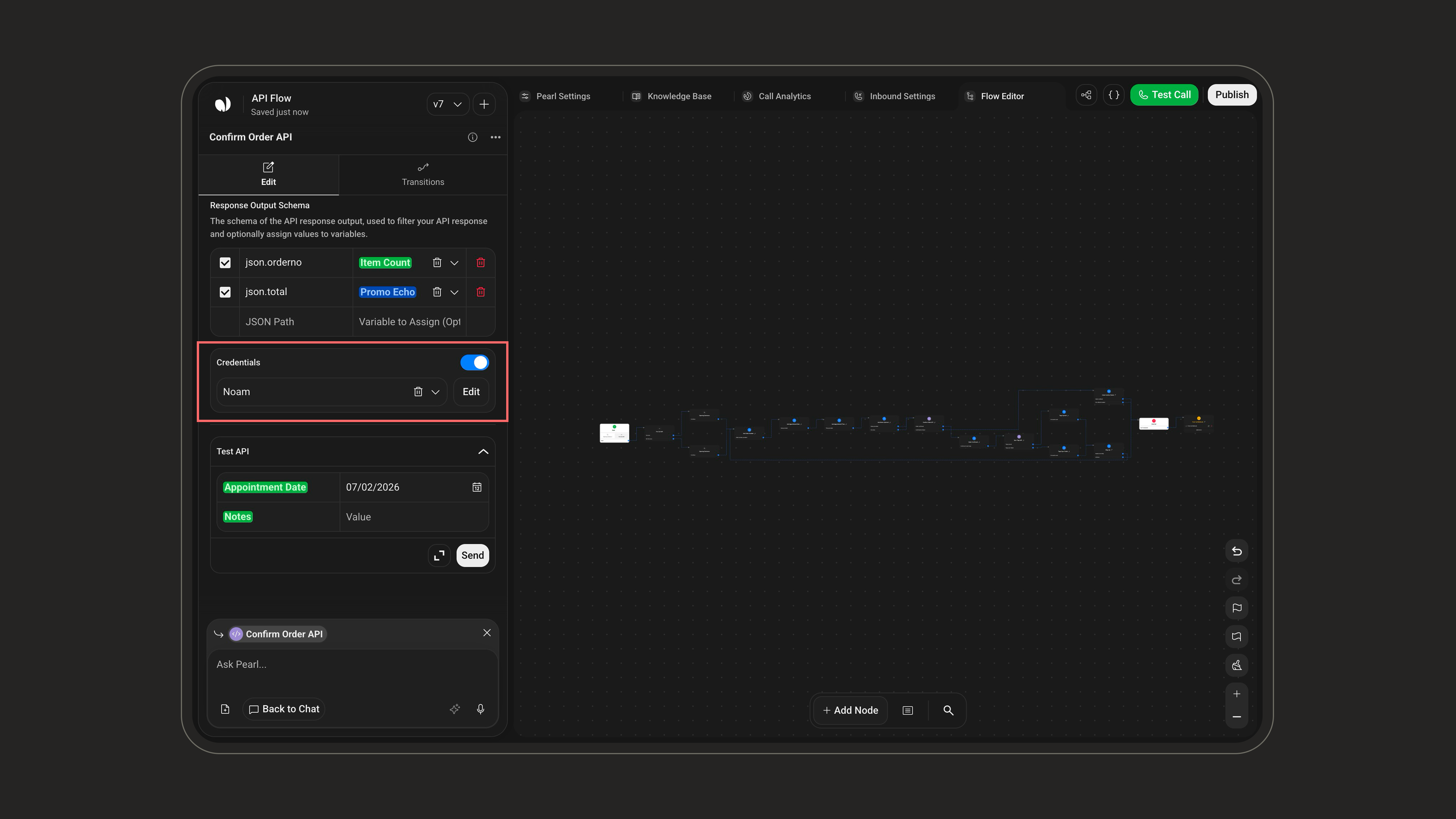
## Credentials (Authentication)
If your API requires authentication, create a **Credential** on the platform, then enable the **Credentials** toggle in the API node and select it from the **Token** dropdown (use **Add New** to create one, **Edit** to update it). Leave the toggle off if no authentication is needed.
### How it works
* Provide a list of **JSON Path** strings.
* The system extracts only those paths from the API response; everything else is discarded.
Benefits:
* Keeps the response size small
* Improves the quality and relevance of AI outputs
* Prevents hitting the 10,000-character truncation limit
* Ensures only the necessary fields are carried into the next steps of the conversation
### Assigning to a variable
Key things to know:
* **The variable's type must match the data type returned by the API at that path.**
* If the value returned is a list, make sure the variable is configured to **allow multiple values**.
* A variable can store up to **600 characters**. Any data beyond this limit is **truncated**.
Outside of Pre-Call APIs, assigning a variable is optional. If you don't assign one, the filtered JSON is still available for the conversation's internal logic, but it won't be stored for later reuse.
***
## Credentials (Authentication)
If your API requires authentication, create a **Credential** on the platform, then enable the **Credentials** toggle in the API node and select it from the **Token** dropdown (use **Add New** to create one, **Edit** to update it). Leave the toggle off if no authentication is needed.
 **Supported credential types** (chosen from the **Type** dropdown when creating a credential):
| Type | Description |
| ------------------ | -------------------------------------------------------- |
| **Api Key** | Injected in a **Header** or **Query** parameter |
| **Basic Auth** | Username + password |
| **Bearer** | A static bearer token |
| **Custom Api Key** | Custom headers / query params / body |
| **Refresh Token** | The platform fetches and refreshes a token automatically |
**OAuth2** providers are connected through [**Integrations**](/pages/pearl_vibe), not created manually in this form.
Why use a Credential?
* Avoid hardcoding tokens manually in every API node
* Automatically refresh tokens based on their TTL (time-to-live)
* Centralized management when multiple API nodes reuse the same token
* No need to parse token responses manually, the platform extracts the token for you
### Configuring a Refresh Token credential
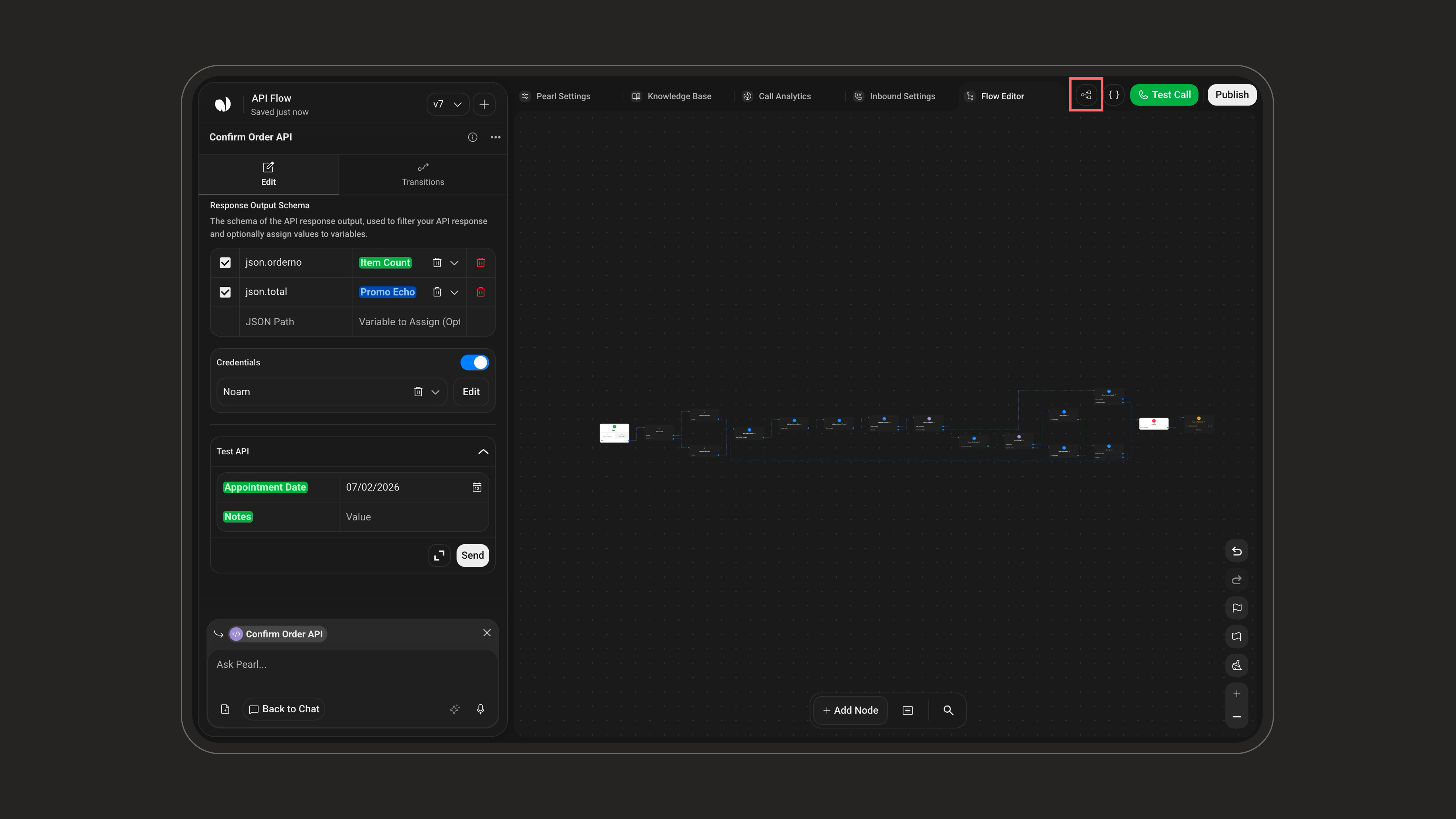
Open the **Credential Manager** from the icon at the top of the Flow Editor header.
**Supported credential types** (chosen from the **Type** dropdown when creating a credential):
| Type | Description |
| ------------------ | -------------------------------------------------------- |
| **Api Key** | Injected in a **Header** or **Query** parameter |
| **Basic Auth** | Username + password |
| **Bearer** | A static bearer token |
| **Custom Api Key** | Custom headers / query params / body |
| **Refresh Token** | The platform fetches and refreshes a token automatically |
**OAuth2** providers are connected through [**Integrations**](/pages/pearl_vibe), not created manually in this form.
Why use a Credential?
* Avoid hardcoding tokens manually in every API node
* Automatically refresh tokens based on their TTL (time-to-live)
* Centralized management when multiple API nodes reuse the same token
* No need to parse token responses manually, the platform extracts the token for you
### Configuring a Refresh Token credential
Open the **Credential Manager** from the icon at the top of the Flow Editor header.
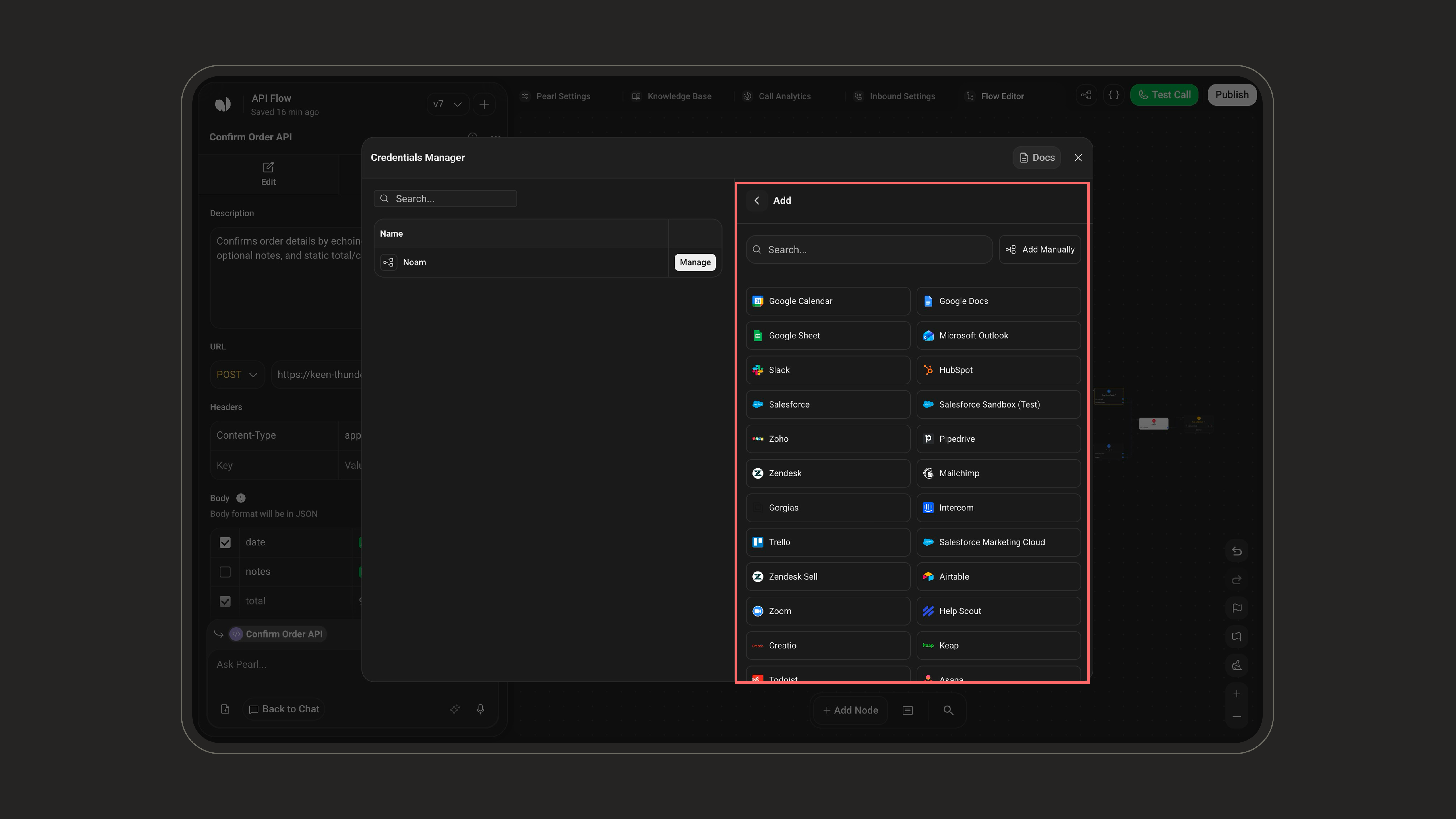
 In the **Credentials Manager**, click **+ Add** to create a new credential.
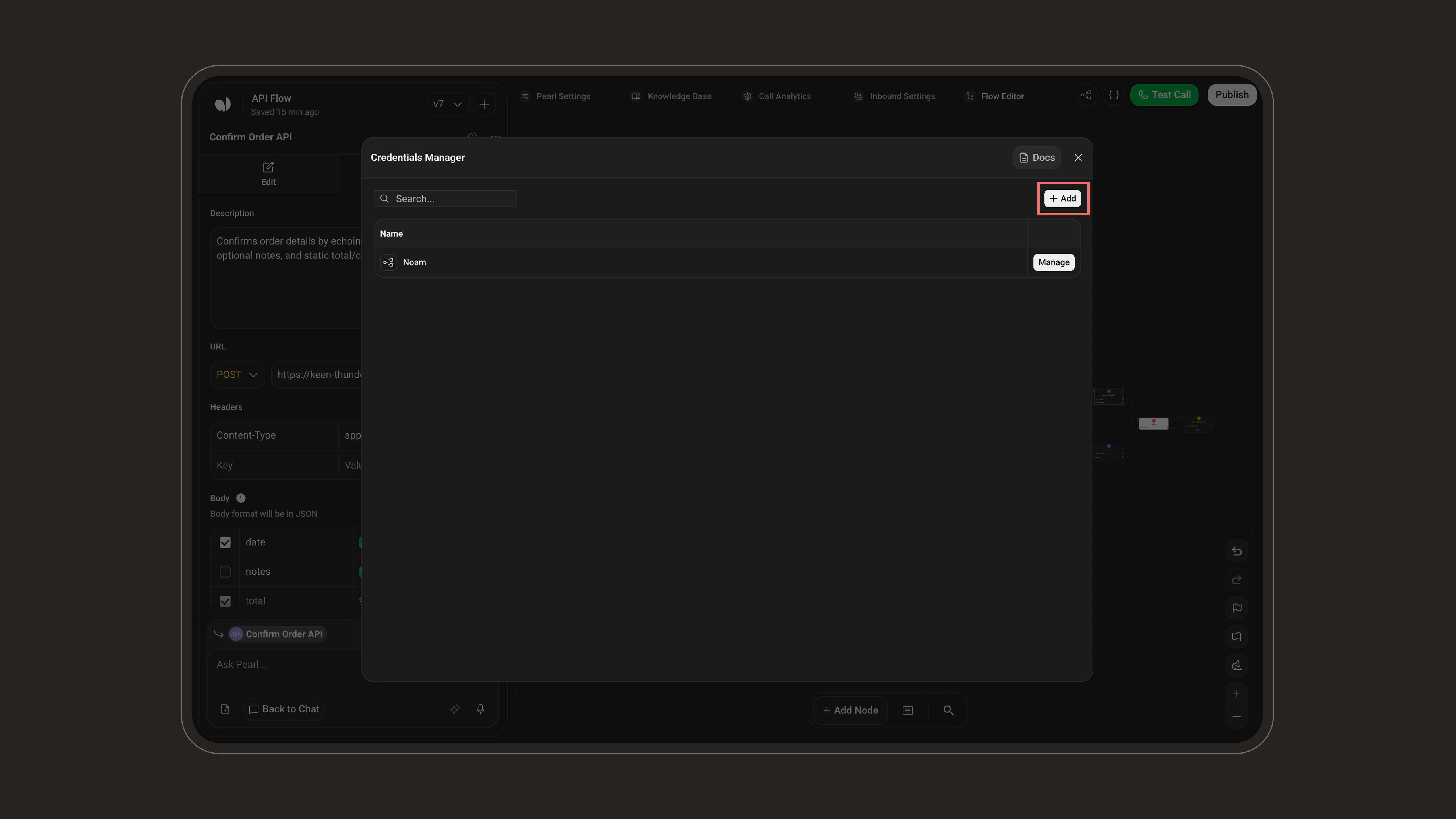 You can either pick a ready-made **integration** from the list (Google, Microsoft, Slack, HubSpot, Salesforce, Zoho, and more) to connect through its guided flow, or click **Add Manually** to configure a custom credential such as a **Refresh Token**.
 If you chose **Add Manually**, enter a **Name** (a label to identify it later) and select a **Type**. The form updates to show the fields specific to the selected type.
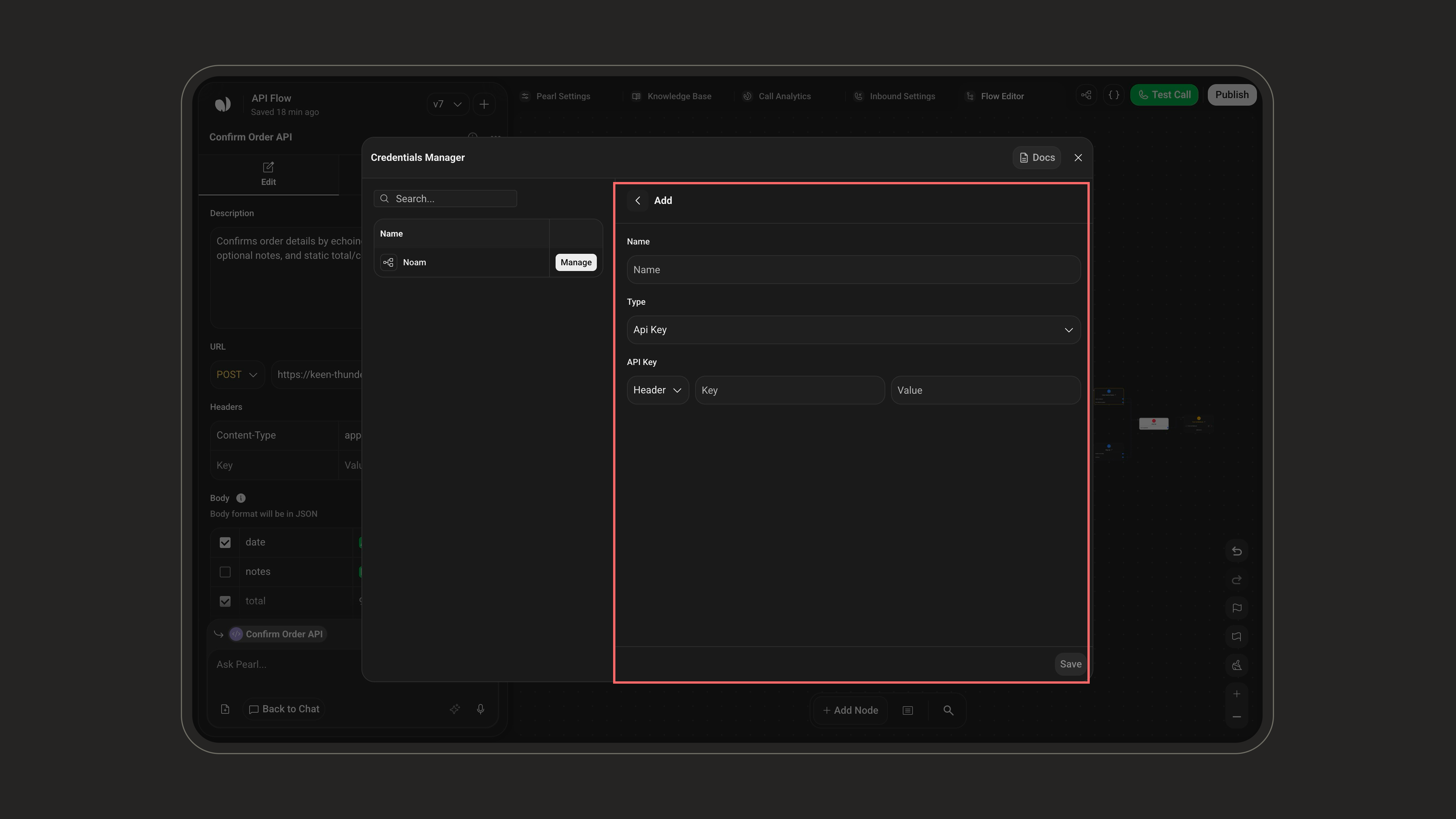 | Field | Description |
| --------------------- | --------------------------------------------------------------------------------------------------------------------------------------------------------------- |
| **Access Token URL** | The method and endpoint used to request the token, with optional **Headers**, **Query Params**, and **Body** (e.g. `grant_type`, `client_id`, `client_secret`). |
| **Token Path** | JSON path to locate the token in the response (e.g. `data.access_token`). |
| **TTL (sec)** | Token time-to-live (minimum **100**). |
| **Header Key** | Name of the header where the token is injected (e.g. `Authorization`). |
| **Header Prefix** | Optional prefix for the token (e.g. `Bearer`). |
| **Secured Variables** | Sensitive key/value pairs reused across requests. |
Use **Test Credentials** to call the token endpoint and preview the JSON response, confirming your configuration retrieves the token successfully before saving.
### How the Credential is used
Once saved, select this Credential from the **Token** dropdown in any API node. When selected:
* The platform automatically adds the token to the request header, using the configured **Header Key** and optional **Header Prefix**.
* The token is refreshed automatically when it expires, based on the configured **TTL**.
Make sure the **Token Path** matches the exact location of the token in the JSON response. If the platform can't find the token at this path, the Credential will fail.
***
## Context Differences
The same API node behaves differently depending on where you place it in the flow.
| Aspect | Pre-Call API | In-Call API | Post-Call API |
| ------------------------------- | -------------------------------- | ---------------------- | ------------------------------ |
| **When it runs** | Before the call | During the call | After the call |
| **Available variables** | Pre-Call only | Pre-Call + In-Call | Pre-Call + In-Call + Post-Call |
| **Assign response to variable** | Required | Optional | Optional |
| **Transitions** | Success (+ optional Not Success) | Continue / conditional | None |
| **Can duplicate** | No | Yes | — |
Runs **once before the conversation begins**. Typical uses:
* **Inbound**: look up the caller using the auto-captured **phone number** and **call id**.
* **Outbound**: preload data from Pre-Call variables already stored on the lead.
Only **Pre-Call variables** are available (system variables like phone number, call id, first/last name, email, plus your own Pre-Call variables).
* **Assigning response values to variables is required**, that's how pre-call data becomes usable in the conversation. All required variables must be returned for the node to take the **Success** path.
* **Transitions**: a **Success** branch by default. Enable **On Error Transition** (in the Transitions tab) to add a **Not Success** branch for failed requests.
* Pre-Call API nodes **cannot be duplicated**.
Runs **when the flow reaches the node during the conversation**.
* Both **Pre-Call** and **In-Call** variables are available.
* After it runs, the flow follows the **Continue** transition (or your conditional transitions).
* Assigning response values to variables is optional but recommended for reuse later in the flow.
Runs **after the call**, as part of the **Post-Call Actions**.
* All variable groups are available, including **Post-Call** variables (call time, summary, recording, duration, transcript).
* Post-Call actions have **no transitions**.
***
## Testing Your API
Use the **Test API** panel below the form:
| Field | Description |
| --------------------- | --------------------------------------------------------------------------------------------------------------------------------------------------------------- |
| **Access Token URL** | The method and endpoint used to request the token, with optional **Headers**, **Query Params**, and **Body** (e.g. `grant_type`, `client_id`, `client_secret`). |
| **Token Path** | JSON path to locate the token in the response (e.g. `data.access_token`). |
| **TTL (sec)** | Token time-to-live (minimum **100**). |
| **Header Key** | Name of the header where the token is injected (e.g. `Authorization`). |
| **Header Prefix** | Optional prefix for the token (e.g. `Bearer`). |
| **Secured Variables** | Sensitive key/value pairs reused across requests. |
Use **Test Credentials** to call the token endpoint and preview the JSON response, confirming your configuration retrieves the token successfully before saving.
### How the Credential is used
Once saved, select this Credential from the **Token** dropdown in any API node. When selected:
* The platform automatically adds the token to the request header, using the configured **Header Key** and optional **Header Prefix**.
* The token is refreshed automatically when it expires, based on the configured **TTL**.
Make sure the **Token Path** matches the exact location of the token in the JSON response. If the platform can't find the token at this path, the Credential will fail.
***
## Context Differences
The same API node behaves differently depending on where you place it in the flow.
| Aspect | Pre-Call API | In-Call API | Post-Call API |
| ------------------------------- | -------------------------------- | ---------------------- | ------------------------------ |
| **When it runs** | Before the call | During the call | After the call |
| **Available variables** | Pre-Call only | Pre-Call + In-Call | Pre-Call + In-Call + Post-Call |
| **Assign response to variable** | Required | Optional | Optional |
| **Transitions** | Success (+ optional Not Success) | Continue / conditional | None |
| **Can duplicate** | No | Yes | — |
Runs **once before the conversation begins**. Typical uses:
* **Inbound**: look up the caller using the auto-captured **phone number** and **call id**.
* **Outbound**: preload data from Pre-Call variables already stored on the lead.
Only **Pre-Call variables** are available (system variables like phone number, call id, first/last name, email, plus your own Pre-Call variables).
* **Assigning response values to variables is required**, that's how pre-call data becomes usable in the conversation. All required variables must be returned for the node to take the **Success** path.
* **Transitions**: a **Success** branch by default. Enable **On Error Transition** (in the Transitions tab) to add a **Not Success** branch for failed requests.
* Pre-Call API nodes **cannot be duplicated**.
Runs **when the flow reaches the node during the conversation**.
* Both **Pre-Call** and **In-Call** variables are available.
* After it runs, the flow follows the **Continue** transition (or your conditional transitions).
* Assigning response values to variables is optional but recommended for reuse later in the flow.
Runs **after the call**, as part of the **Post-Call Actions**.
* All variable groups are available, including **Post-Call** variables (call time, summary, recording, duration, transcript).
* Post-Call actions have **no transitions**.
***
## Testing Your API
Use the **Test API** panel below the form:
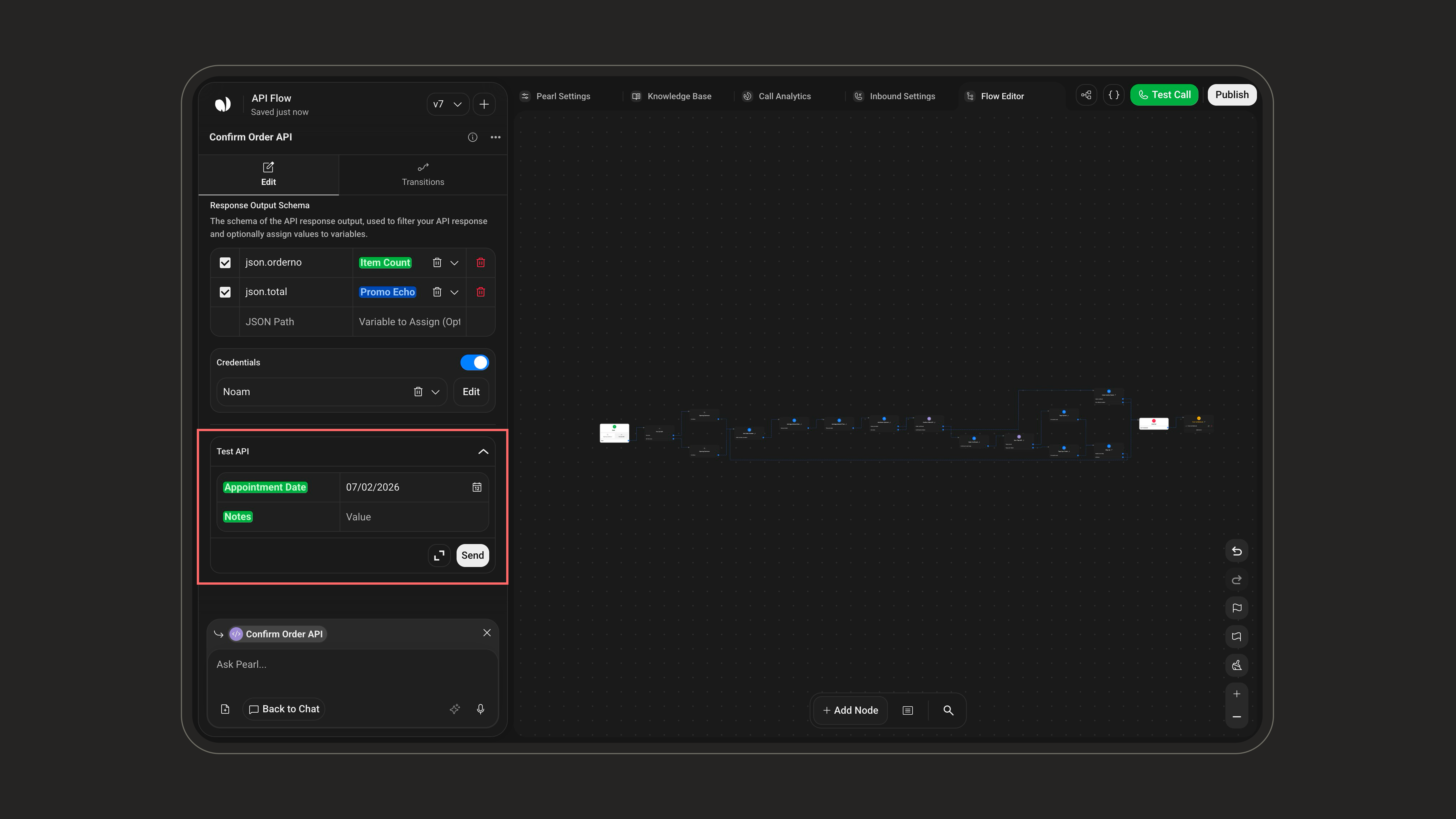 Give sample values to every variable used in the request.
Click **Send** to run the request.
Review the raw response, the filtered response (if an Output Schema is set), and any variables populated from it.
Use **Expand** to open a full-screen view with the request and response side by side. Test and perfect your setup before putting the Pearl in production.
***
Learn how to create and use variables inside API nodes.
Give sample values to every variable used in the request.
Click **Send** to run the request.
Review the raw response, the filtered response (if an Output Schema is set), and any variables populated from it.
Use **Expand** to open a full-screen view with the request and response side by side. Test and perfect your setup before putting the Pearl in production.
***
Learn how to create and use variables inside API nodes.
